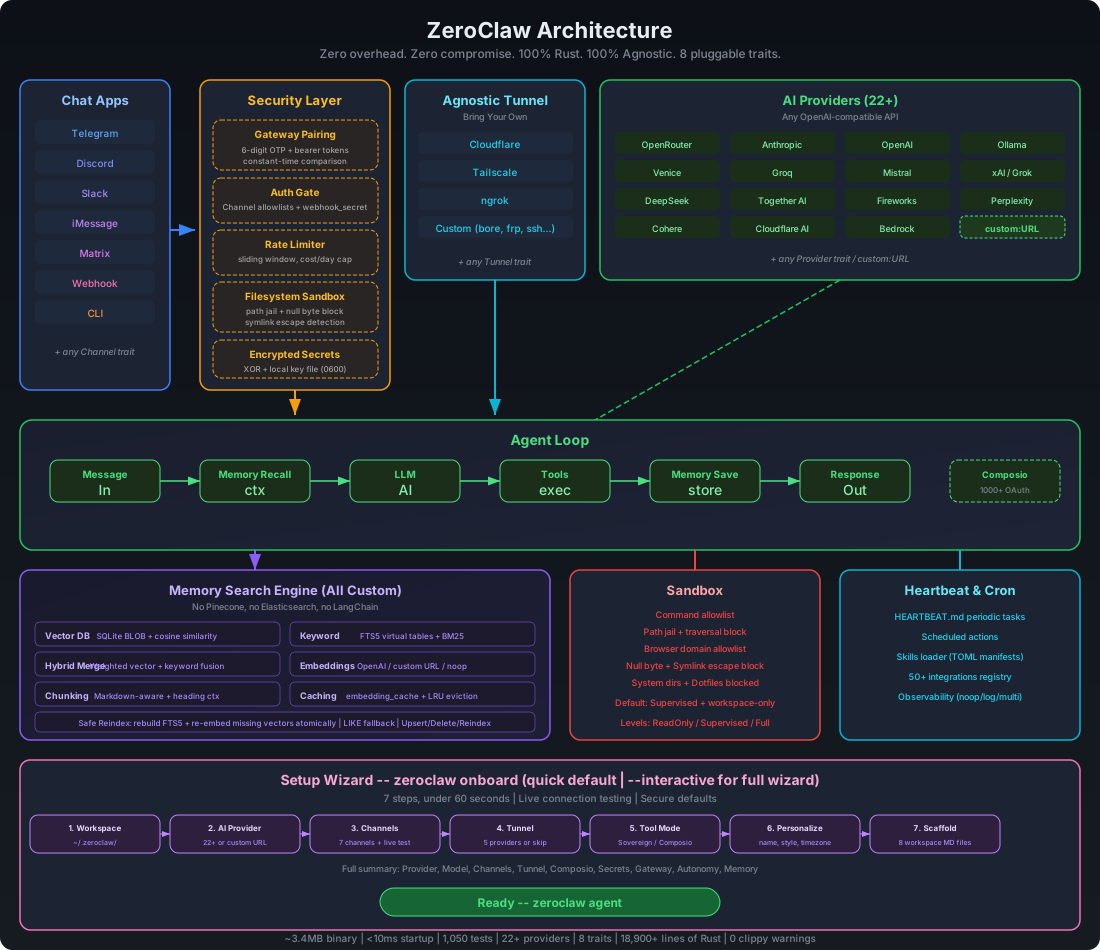
# ZeroClaw on Nucleo-F401RE — Step-by-Step Guide
Run ZeroClaw on your Mac or Linux host. Connect a Nucleo-F401RE via USB. Control GPIO (LED, pins) via Telegram or CLI.
---
## Get Board Info via Telegram (No Firmware Needed)
ZeroClaw can read chip info from the Nucleo over USB **without flashing any firmware**. Message your Telegram bot:
- *"What board info do I have?"*
- *"Board info"*
- *"What hardware is connected?"*
- *"Chip info"*
The agent uses the `hardware_board_info` tool to return chip name, architecture, and memory map. With the `probe` feature, it reads live data via USB/SWD; otherwise it returns static datasheet info.
**Config:** Add Nucleo to `config.toml` first (so the agent knows which board to query):
```toml
[[peripherals.boards]]
board = "nucleo-f401re"
transport = "serial"
path = "/dev/ttyACM0"
baud = 115200
```
**CLI alternative:**
```bash
cargo build --features hardware,probe
zeroclaw hardware info
zeroclaw hardware discover
```
---
## What's Included (No Code Changes Needed)
ZeroClaw includes everything for Nucleo-F401RE:
| Firmware | `firmware/zeroclaw-nucleo/` | Embassy Rust — USART2 (115200), gpio_read, gpio_write |
| Serial peripheral | `src/peripherals/serial.rs` | JSON-over-serial protocol (same as Arduino/ESP32) |
| Flash command | `zeroclaw peripheral flash-nucleo` | Builds firmware, flashes via probe-rs |
Protocol: newline-delimited JSON. Request: `{"id":"1","cmd":"gpio_write","args":{"pin":13,"value":1}}`. Response: `{"id":"1","ok":true,"result":"done"}`.
---
## Prerequisites
- Nucleo-F401RE board
- USB cable (USB-A to Mini-USB; Nucleo has built-in ST-Link)
- For flashing: `cargo install probe-rs-tools --locked` (or use the [install script](https://probe.rs/docs/getting-started/installation/))
---
## Phase 1: Flash Firmware
### 1.1 Connect Nucleo
1. Connect Nucleo to your Mac/Linux via USB.
2. The board appears as a USB device (ST-Link). No separate driver needed on modern systems.
### 1.2 Flash via ZeroClaw
From the zeroclaw repo root:
```bash
zeroclaw peripheral flash-nucleo
```
This builds `firmware/zeroclaw-nucleo` and runs `probe-rs run --chip STM32F401RETx`. The firmware runs immediately after flashing.
### 1.3 Manual Flash (Alternative)
```bash
cd firmware/zeroclaw-nucleo
cargo build --release --target thumbv7em-none-eabihf
probe-rs run --chip STM32F401RETx target/thumbv7em-none-eabihf/release/zeroclaw-nucleo
```
---
## Phase 2: Find Serial Port
- **macOS:** `/dev/cu.usbmodem*` or `/dev/tty.usbmodem*` (e.g. `/dev/cu.usbmodem101`)
- **Linux:** `/dev/ttyACM0` (or check `dmesg` after plugging in)
USART2 (PA2/PA3) is bridged to the ST-Link's virtual COM port, so the host sees one serial device.
---
## Phase 3: Configure ZeroClaw
Add to `~/.zeroclaw/config.toml`:
```toml
[peripherals]
enabled = true
[[peripherals.boards]]
board = "nucleo-f401re"
transport = "serial"
path = "/dev/cu.usbmodem101" # adjust to your port
baud = 115200
```
---
## Phase 4: Run and Test
```bash
zeroclaw daemon --host 127.0.0.1 --port 42617
```
Or use the agent directly:
```bash
zeroclaw agent --message "Turn on the LED on pin 13"
```
Pin 13 = PA5 = User LED (LD2) on Nucleo-F401RE.
---
## Summary: Commands
| 1 | Connect Nucleo via USB |
| 2 | `cargo install probe-rs-tools --locked` |
| 3 | `zeroclaw peripheral flash-nucleo` |
| 4 | Add Nucleo to config.toml (path = your serial port) |
| 5 | `zeroclaw daemon` or `zeroclaw agent -m "Turn on LED"` |
---
## Troubleshooting
- **flash-nucleo unrecognized** — Build from repo: `cargo run --features hardware -- peripheral flash-nucleo`. The subcommand is only in the repo build, not in crates.io installs.
- **probe-rs not found** — `cargo install probe-rs-tools --locked` (the `probe-rs` crate is a library; the CLI is in `probe-rs-tools`)
- **No probe detected** — Ensure Nucleo is connected. Try another USB cable/port.
- **Serial port not found** — On Linux, add user to `dialout`: `sudo usermod -a -G dialout $USER`, then log out/in.
- **GPIO commands ignored** — Check `path` in config matches your serial port. Run `zeroclaw peripheral list` to verify.