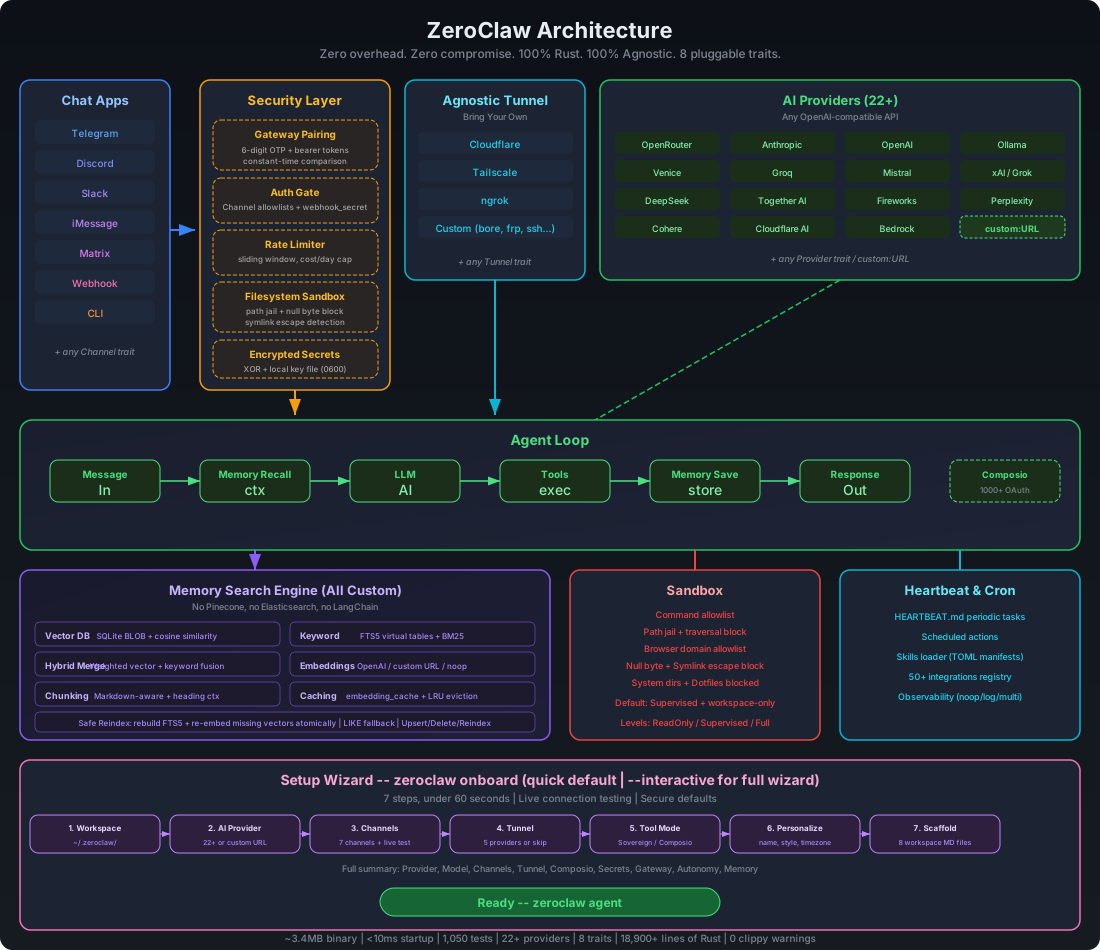
# Network Deployment — ZeroClaw on Raspberry Pi and Local Network
This document covers deploying ZeroClaw on a Raspberry Pi or other host on your local network, with Telegram and optional webhook channels.
---
## 1. Overview
| **Telegram polling** | No | ZeroClaw polls Telegram API; works from anywhere |
| **Matrix sync (including E2EE)** | No | ZeroClaw syncs via Matrix client API; no inbound webhook required |
| **Discord/Slack** | No | Same — outbound only |
| **Nostr** | No | Connects to relays via WebSocket; outbound only |
| **Gateway webhook** | Yes | POST /webhook, /whatsapp, /linq, /nextcloud-talk need a public URL |
| **Gateway pairing** | Yes | If you pair clients via the gateway |
| **Alpine/OpenRC service** | No | System-wide background service on Alpine Linux |
**Key:** Telegram, Discord, Slack, and Nostr use **outbound connections** — ZeroClaw connects to external servers/relays. No port forwarding or public IP required.
---
## 2. ZeroClaw on Raspberry Pi
### 2.1 Prerequisites
- Raspberry Pi (3/4/5) with Raspberry Pi OS
- USB peripherals (Arduino, Nucleo) if using serial transport
- Optional: `rppal` for native GPIO (`peripheral-rpi` feature)
### 2.2 Install
```bash
# Build for RPi (or cross-compile from host)
cargo build --release --features hardware
# Or install via your preferred method
```
### 2.3 Config
Edit `~/.zeroclaw/config.toml`:
```toml
[peripherals]
enabled = true
[[peripherals.boards]]
board = "rpi-gpio"
transport = "native"
# Or Arduino over USB
[[peripherals.boards]]
board = "arduino-uno"
transport = "serial"
path = "/dev/ttyACM0"
baud = 115200
[channels_config.telegram]
bot_token = "YOUR_BOT_TOKEN"
allowed_users = []
[gateway]
host = "127.0.0.1"
port = 42617
allow_public_bind = false
```
### 2.4 Run Daemon (Local Only)
```bash
zeroclaw daemon --host 127.0.0.1 --port 42617
```
- Gateway binds to `127.0.0.1` — not reachable from other machines
- Telegram channel works: ZeroClaw polls Telegram API (outbound)
- No firewall or port forwarding needed
---
## 3. Binding to 0.0.0.0 (Local Network)
To allow other devices on your LAN to hit the gateway (e.g. for pairing or webhooks):
### 3.1 Option A: Explicit Opt-In
```toml
[gateway]
host = "0.0.0.0"
port = 42617
allow_public_bind = true
```
```bash
zeroclaw daemon --host 0.0.0.0 --port 42617
```
**Security:** `allow_public_bind = true` exposes the gateway to your local network. Only use on trusted LANs.
### 3.2 Option B: Tunnel (Recommended for Webhooks)
If you need a **public URL** (e.g. WhatsApp webhook, external clients):
1. Run gateway on localhost:
```bash
zeroclaw daemon --host 127.0.0.1 --port 42617
```
2. Start a tunnel:
```toml
[tunnel]
provider = "tailscale" # or "ngrok", "cloudflare"
```
Or use `zeroclaw tunnel` (see tunnel docs).
3. ZeroClaw will refuse `0.0.0.0` unless `allow_public_bind = true` or a tunnel is active.
---
## 4. Telegram Polling (No Inbound Port)
Telegram uses **long-polling** by default:
- ZeroClaw calls `https://api.telegram.org/bot{token}/getUpdates`
- No inbound port or public IP needed
- Works behind NAT, on RPi, in a home lab
**Config:**
```toml
[channels_config.telegram]
bot_token = "YOUR_BOT_TOKEN"
allowed_users = [] # deny-by-default, bind identities explicitly
```
Run `zeroclaw daemon` — Telegram channel starts automatically.
To approve one Telegram account at runtime:
```bash
zeroclaw channel bind-telegram <IDENTITY>
```
`<IDENTITY>` can be a numeric Telegram user ID or a username (without `@`).
### 4.1 Single Poller Rule (Important)
Telegram Bot API `getUpdates` supports only one active poller per bot token.
- Keep one runtime instance for the same token (recommended: `zeroclaw daemon` service).
- Do not run `cargo run -- channel start` or another bot process at the same time.
If you hit this error:
`Conflict: terminated by other getUpdates request`
you have a polling conflict. Stop extra instances and restart only one daemon.
---
## 5. Webhook Channels (WhatsApp, Nextcloud Talk, Custom)
Webhook-based channels need a **public URL** so Meta (WhatsApp) or your client can POST events.
### 5.1 Tailscale Funnel
```toml
[tunnel]
provider = "tailscale"
```
Tailscale Funnel exposes your gateway via a `*.ts.net` URL. No port forwarding.
### 5.2 ngrok
```toml
[tunnel]
provider = "ngrok"
```
Or run ngrok manually:
```bash
ngrok http 42617
# Use the HTTPS URL for your webhook
```
### 5.3 Cloudflare Tunnel
Configure Cloudflare Tunnel to forward to `127.0.0.1:42617`, then set your webhook URL to the tunnel's public hostname.
---
## 6. Checklist: RPi Deployment
- [ ] Build with `--features hardware` (and `peripheral-rpi` if using native GPIO)
- [ ] Configure `[peripherals]` and `[channels_config.telegram]`
- [ ] Run `zeroclaw daemon --host 127.0.0.1 --port 42617` (Telegram works without 0.0.0.0)
- [ ] For LAN access: `--host 0.0.0.0` + `allow_public_bind = true` in config
- [ ] For webhooks: use Tailscale, ngrok, or Cloudflare tunnel
---
## 7. OpenRC (Alpine Linux Service)
ZeroClaw supports OpenRC for Alpine Linux and other distributions using the OpenRC init system. OpenRC services run **system-wide** and require root/sudo.
### 7.1 Prerequisites
- Alpine Linux (or another OpenRC-based distro)
- Root or sudo access
- A dedicated `zeroclaw` system user (created during install)
### 7.2 Install Service
```bash
# Install service (OpenRC is auto-detected on Alpine)
sudo zeroclaw service install
```
This creates:
- Init script: `/etc/init.d/zeroclaw`
- Config directory: `/etc/zeroclaw/`
- Log directory: `/var/log/zeroclaw/`
### 7.3 Configuration
Manual config copy is usually not required.
`sudo zeroclaw service install` automatically prepares `/etc/zeroclaw`, migrates existing runtime state from your user setup when available, and sets ownership/permissions for the `zeroclaw` service user.
If no prior runtime state is available to migrate, create `/etc/zeroclaw/config.toml` before starting the service.
### 7.4 Enable and Start
```bash
# Add to default runlevel
sudo rc-update add zeroclaw default
# Start the service
sudo rc-service zeroclaw start
# Check status
sudo rc-service zeroclaw status
```
### 7.5 Manage Service
| `sudo rc-service zeroclaw start` | Start the daemon |
| `sudo rc-service zeroclaw stop` | Stop the daemon |
| `sudo rc-service zeroclaw status` | Check service status |
| `sudo rc-service zeroclaw restart` | Restart the daemon |
| `sudo zeroclaw service status` | ZeroClaw status wrapper (uses `/etc/zeroclaw` config) |
### 7.6 Logs
OpenRC routes logs to:
| Access/stdout | `/var/log/zeroclaw/access.log` |
| Errors/stderr | `/var/log/zeroclaw/error.log` |
View logs:
```bash
sudo tail -f /var/log/zeroclaw/error.log
```
### 7.7 Uninstall
```bash
# Stop and remove from runlevel
sudo rc-service zeroclaw stop
sudo rc-update del zeroclaw default
# Remove init script
sudo zeroclaw service uninstall
```
### 7.8 Notes
- OpenRC is **system-wide only** (no user-level services)
- Requires `sudo` or root for all service operations
- The service runs as the `zeroclaw:zeroclaw` user (least privilege)
- Config must be at `/etc/zeroclaw/config.toml` (explicit path in init script)
- If the `zeroclaw` user does not exist, install will fail with instructions to create it
### 7.9 Checklist: Alpine/OpenRC Deployment
- [ ] Install: `sudo zeroclaw service install`
- [ ] Enable: `sudo rc-update add zeroclaw default`
- [ ] Start: `sudo rc-service zeroclaw start`
- [ ] Verify: `sudo rc-service zeroclaw status`
- [ ] Check logs: `/var/log/zeroclaw/error.log`
---
## 8. References
- [channels-reference.md](./channels-reference.md) — Channel configuration overview
- [matrix-e2ee-guide.md](./matrix-e2ee-guide.md) — Matrix setup and encrypted-room troubleshooting
- [hardware-peripherals-design.md](./hardware-peripherals-design.md) — Peripherals design
- [adding-boards-and-tools.md](./adding-boards-and-tools.md) — Hardware setup and adding boards