
Terminal Control
Control, inspect, test, and capture real terminal applications for agents and TUI review.


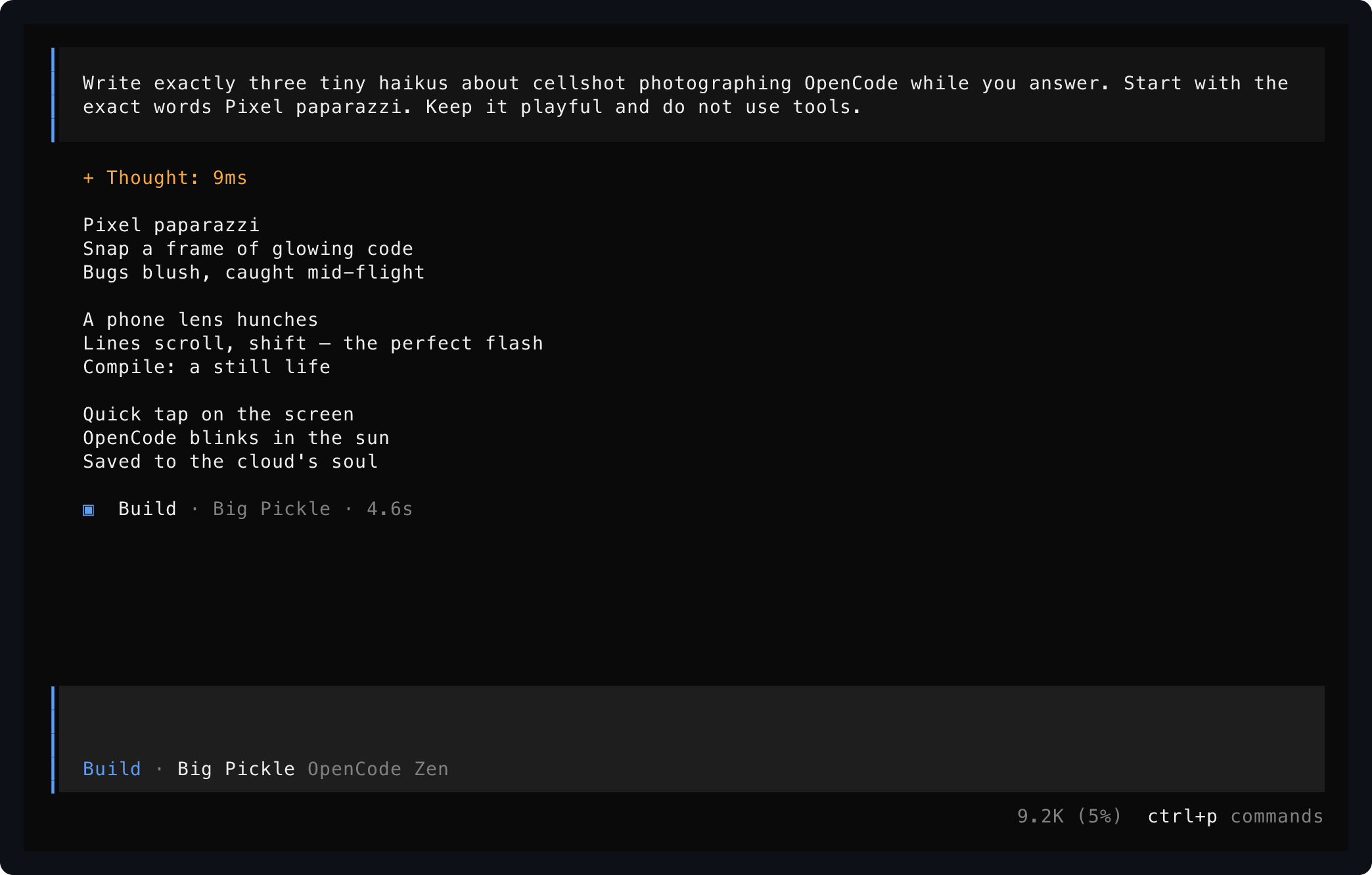
Saved from one live OpenCode session using start, send, and save.
Agent Quickstart
Terminal Control is built for agents first. Install the termctrl binary, install the skill, then ask your coding agent to operate terminal applications through a real pseudo-terminal instead of guessing from plain command output.
Requires Rust 1.93 or newer. Video export also requires ffmpeg.
Install the current repository head instead of the latest crate release:
Install the agent skill from this repository:
Then ask your agent for terminal work in ordinary language:
Use terminal-control to open my TUI, press through the setup flow, and save a screenshot of the final screen.
Start two terminal sessions: one running the dev server and one running the CLI. Drive the CLI until it connects, then show me both screens.
Record yourself using the terminal app, mark the important moments, and export a short MP4 demo.
The skill teaches agents the safe workflow: start named sessions, wait for visible text, send exact input, inspect screens, save artifacts, record timelines, mark important moments, export videos, and stop sessions when finished.
What It Gives Agents
- Real PTY control for TUIs, shells, curses apps, OpenTUI apps, and long-running CLIs.
- Named background sessions so an agent can keep multiple terminals alive and switch between them.
- Foreground named sessions that remain visible and human-controlled in any terminal pane while agents share control.
- A native MCP stdio server for structured, shell-free session discovery, input, waiting, capture, resizing, and stopping.
- Visible-screen reads through
show, not brittle scraping of scrollback or logs. - Exact keyboard and text input with
send, including arrows, tabs, enter, escape, page keys, andctrl-athroughctrl-z. - Explicit waits for rendered text before interacting.
- Resizing to test responsive terminal layouts.
- Evidence capture as PNG, SVG, text, JSON, or ANSI when requested.
- Recording timelines with markers, edited MP4 export, and optional branded footers for demos and bug reports.
- Local-only owner-protected session sockets and explicit warnings around sensitive terminal artifacts.
CLI Quickstart
Read a one-off terminal screen:
Save evidence:
Drive a persistent TUI session:
Record and export a video:
The sections below explain each workflow in more detail.
Install The CLI
Requires Rust 1.93 or newer. Video export also requires ffmpeg.
Install the current repository head instead of the latest crate release:
Show A Terminal Screen
Run a program in a PTY and print its visible terminal state:
Show is the routine observation command: it prints visible text to standard output and creates no files. Request a different stdout-readable representation explicitly:
Wait for an application to mount, then interact before reading its screen:
OpenTUI applications such as OpenCode require the opt-in host handshake:
Save Evidence
Write only the artifact formats you request:
The second command writes captures/model.png and captures/model.txt. ANSI stream artifacts can contain sensitive terminal data and are only produced when explicitly requested with --format ansi.
Control A Live TUI
Use a named session when several observations or interactions should target the same running application:
status reports running or exited, the effective working directory, command, viewport, and recording path. An exited session retains its final screen for show until it is stopped. list distinguishes unavailable stale sockets from incompatible older session protocols.
Run an application visibly in the current terminal while agents control the same PTY with show, send, and the other named-session commands:
run is a transparent foreground PTY wrapper. Your terminal input and the child application's output remain visible and interactive in that pane, while the named local control socket lets an agent inspect the screen and send input concurrently. With termctrl run -- COMMAND, the session name is the executable basename (nvim above); the command and effective cwd remain available through status. The basename must be a valid session name, and an existing session with that name causes a clear collision error rather than an automatically suffixed name. Pass NAME explicitly when the inferred name is unsuitable or already in use. It works inside any terminal emulator and does not involve tmux or another terminal multiplexer.
send accepts ctrl-a through ctrl-z, keys such as enter, escape, arrows, tab, shift-tab, backspace, delete, home, end, page-up, and page-down, plus typed input as text:<value>. Use ctrl-c to interrupt work or pipe exact prompt bytes with --stdin:
|
resize controls the terminal viewport and records geometry changes in .termctrl timelines when recording is enabled. A session whose retained ANSI transcript has already been truncated cannot be resized because its current screen cannot be replayed at a new size safely.
For normal-screen tools and long-running log processes, inspect retained scrollback directly:
Full-screen alternate-screen TUIs do not provide useful terminal logs; read their visible screen with show or retain a recording timeline instead. Status exposes logs_truncated after raw retained ANSI reaches --max-bytes; the session continues running and retains its most recent transcript bytes.
Restart a single named owner safely when deploying updated code:
restart NAME reuses the prior command, effective working directory, viewport, host profile, color policy, and recording path by default. Supply options or a replacement command only when deliberately changing the launch.
Record A Video
Record a session timeline and replay it as an MP4:
The marker-based edit plan is explicit and deterministic. speed accelerates or slows the real recorded time inside that clip. caption adds a visible annotation row. hold_ms is optional and creates a deliberate still frame at the end of a clip; omit it when you do not want artificial freezes.
Without --edit, video export preserves the observed recording timing. Edit plans are preferable for polished demos because they select intentional marker ranges and can accelerate animated spinner spans without relying on visual-idle heuristics. Keep speeds low enough for important terminal text to remain readable, and add hold_ms or leave a --tail-ms hold when the final screen is the point of the demo. Identical rendered screens are rasterized once and reused during export. Video export trims startup frames before non-whitespace text by default while still preserving recordings that only paint terminal backgrounds; use --include-startup to keep all startup frames. video holds the final frame for one second by default so short recordings do not end abruptly; pass --tail-ms 0 for a strict no-holds cut. Pass --footer to put the clip caption, elapsed timecode, and TERMINAL CONTROL branding in a bottom footer instead of rendering captions as inline annotation rows.
Use termctrl markers captures/demo.termctrl to audit available marker names and timestamps. Use termctrl show --recording captures/demo.termctrl --at-marker after-answer or --at-ms 1234 to inspect exact screens while tuning an edit plan.
Recordings are JSON Lines files containing terminal output, client input, and automatic host input; they can include prompts or secrets. Treat them as sensitive artifacts.
Sources And Formats
Repeat --format to export only what you need:
Read a current visible screen directly for agent inspection, or select JSON/ANSI/SVG explicitly:
For commands whose useful output is piped, use --pipe. Pipe reads force color by default; pass --color never for plain output:
One-off show and save operations own disposable command processes: once the visible screen is read or saved, the launched process tree is terminated. Use start for long-running applications.
Render an existing ANSI/VT terminal stream without launching a process. An .ansi file is a conventionally named byte stream of terminal output and escape sequences, not a separate container format:
|
|
Rust Library And Formats
The crate also exposes the shot engine, live sessions, and artifact model to Rust callers. The CLI is built on the same terminal_control::shot, terminal_control::session, terminal_control::frame, terminal_control::render, and terminal_control::recording modules:
let shot = from_ansi?;
assert_eq!;
let svg = svg;
A library session keeps one PTY-backed application in process for fast test interaction without repeatedly invoking the CLI:
use Duration;
let mut session = start?;
session.wait_for_text?;
let status = session.status?;
session.send?;
session.wait_for_idle?;
let capture = session.capture?;
let shot = capture.shot;
let exit = session.wait_for_exit?;
session.stop?;
Structured output is versioned for external tools:
- A
save --format jsoncapture is aFrameobject withversion: 1, described byschemas/frame-v1.schema.json. - A
.termctrlrecording is JSON Lines: its first line is a versioned header and subsequent lines are timed output, input, or resize entries, each described byschemas/recording-entry-v1.schema.json. - Recording byte arrays contain the original terminal or input bytes as integers from
0to255; recordings can contain sensitive text or input.
session::Session is the embedded lifecycle interface; the flat named-session CLI commands and the external driver are adapters over the same implementation.
MCP Server
Expose named Terminal Control sessions to MCP clients through the official Rust MCP SDK:
The stdio server provides tools to list sessions, inspect structured session status and launch details, read a visible screen, send typed input, compose send/wait/capture into one interaction, resize a session, and stop a session. list_sessions includes each available session's command and canonical working directory; unavailable entries retain their name and reason with nullable status fields. get_session_status({ name }) returns exit information, command and cwd, terminal and cell dimensions, idle and visible-content state, recording state and path, and log-truncation state. Paths are loss-tolerant strings so platform-native paths cannot make an MCP response fail serialization. Typed input avoids shell quoting and distinguishes text, named keys, control letters, and exact bytes. termctrl run remains a human-launched foreground command because an MCP server cannot create a visible terminal pane itself.
External Driver
External agent tooling can keep multiple embedded sessions alive through a versioned JSON Lines protocol over stdin/stdout:
The driver writes a hello message with protocol and Terminal Control versions, then accepts typed operations including launch, status, send, waitForText, waitForIdle, waitForExit, capture, logs, recording, resize, stop, and shutdown. It is intended for clients such as a TypeScript TUI test or agent-control library, while the shell-facing flat commands remain convenient for individual workflows.
A driver capture response contains a structured visible frame, derived text, and a completion reason: idle, deadline, exited, or outputclosed. Raw ANSI is omitted by default; request includeAnsi: true for retained transcript bytes or includeSvg: true for rendered visual evidence. A test client should normally require idle or exited instead of accepting a deadline fallback as a stable snapshot. Driver input is intentionally exact: text, raw bytes, known key values, and single-letter control input are supported without claiming unimplemented key chords.
TypeScript Client
@kitlangton/terminal-control exposes the driver as isolated typed test sessions. The source repository is now hosted at anomalyco/terminal-control, but the npm packages intentionally remain under the existing @kitlangton scope for install continuity. It deliberately separates the visible screen from readable retained logs and the exact ANSI/VT transcript. Its npm distribution includes an optional native package for macOS or GNU/Linux on arm64 or x64, so consumers do not need a Rust toolchain or separate termctrl installation.
After the initial npm publication:
import { TerminalControl } from "@kitlangton/terminal-control"

await using terminal = await TerminalControl.make({
  artifacts: {
    directory: ".termctrl-artifacts",
    onFailure: true,
    includeTranscript: false,
    includeRecording: true,
  },
})
await using session = await terminal.launch({
  command: ["/absolute/path/to/my-terminal-app"],
  viewport: { cols: 100, rows: 30 },
  inheritEnv: false,
  env: { TERM: "xterm-256color", HOME: "/tmp/test-home" },
  record: "on-failure",
})

await session.screen.waitForText(/Ready/)
await session.keyboard.type("help")
await session.keyboard.press("Enter")

const text = await session.screen.text()
const frame = await session.screen.frame()
const logs = await session.logs.text()
const transcript = await session.transcript.ansi()

expect(text).toMatchSnapshot()
expect(frame).toMatchSnapshot()

const exit = await session.waitForExit({ timeoutMs: 5_000 })
expect(exit).toMatchObject({ reason: "exited", exit: { code: 0 } })
When working directly from this repository before installing the npm artifacts, pass binaryPath: "./target/release/termctrl" or set TERMCTRL_BINARY.
session.screen.text() and session.screen.frame() wait for a settled capture and reject deadline or output-closed fallback by default. A test that intentionally needs an intermediate frame can request it explicitly:
const capture = await session.screen.capture({ allowIncomplete: true })
console.log(capture.reason, capture.text, capture.frame)
This makes ordinary text or frame snapshots stable by default while retaining explicit access to live, incomplete terminal state.
Keyboard presses are typed as the sequences Terminal Control encodes exactly, such as "Enter", "ArrowDown", or "Control+C". Use session.keyboard.write(bytes) when a test deliberately needs exact terminal bytes outside that supported key set.
Vitest users can add a screen-aware assertion that writes configured artifacts on failure. Standard toMatchSnapshot() and toMatchInlineSnapshot() remain the simplest snapshot format because visible text is reviewable in source control:
import { expect } from "vitest"
import { extendTerminalControlMatchers } from "@kitlangton/terminal-control/vitest"

extendTerminalControlMatchers(expect)

await expect(session).toHaveScreenText("Ready\n\nChoose an option")
await expect(session.screen.text()).resolves.toMatchInlineSnapshot()
session.writeArtifacts(name) and failing toHaveScreenText(...) assertions can write screen.txt, screen.json, screen.svg, logs.txt, and metadata.json. Environment variable values are redacted in metadata. transcript.ansi and recording.termctrl are opt-in because terminal streams and typed input may contain secrets. Wrap ordinary snapshot assertions when evidence should be saved on any thrown assertion:
await session.withArtifactsOnFailure("settings-snapshot", async () => {
  await expect(session.screen.text()).resolves.toMatchSnapshot()
})
Enable a recording with record: true or record: "on-failure"; a test may explicitly save it before disposing the session:
await session.resize({ cols: 120, rows: 40 })
await session.saveRecording("artifacts/navigation.termctrl")
npm Release
The npm workspace publishes the existing @kitlangton/terminal-control package with fixed-version platform packages: @kitlangton/terminal-control-darwin-arm64, @kitlangton/terminal-control-darwin-x64, @kitlangton/terminal-control-linux-arm64-gnu, and @kitlangton/terminal-control-linux-x64-gnu. The client is compiled to ESM JavaScript with declarations; each native package receives the release Rust executable during the npm release workflow.
For subsequent user-facing npm changes, create a Changeset with bun run changeset, commit the generated release metadata, run bun run version-packages, refresh bun.lock, and commit the versioned package metadata before running the workflow. Run the workflow with publish: false to assemble packages only, or publish: true to publish assembled tarballs after its clean Bun and Node/Vitest consumer validation passes.
The publish job is prepared for npm trusted publishing through GitHub Actions OIDC. In npm package settings, configure anomalyco/terminal-control and workflow npm-release.yml as the trusted publisher for the client and each platform package before using publish: true.
Notes
- Persistent sessions use owner-only local Unix sockets and are supported on macOS and Linux.
--host opentuianswers startup probes needed by current OpenTUI applications; Kitty graphics are reported unavailable because the current renderer does not decode image payloads.- The current renderer uses a pure-Rust
vt100terminal backend and exports PNG, SVG, JSON, text, and raw ANSI stream artifacts. - Run
termctrl <command> --helpfor dimensions, timing, color, rendering, and output options.