
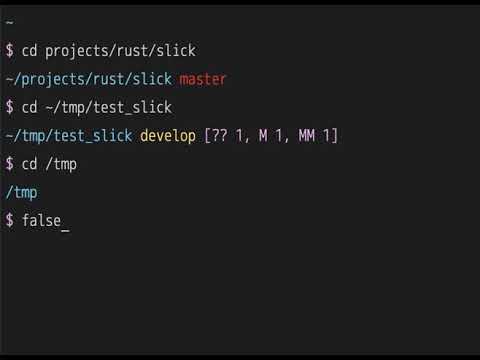
slick - async ZSH prompt



How to use
Install:
cargo install slick
To install cargo:
curl --proto '=https' --tlsv1.2 -sSf https://sh.rustup.rs | sh
If in Linux you may need install this:
apt install -y build-essential libssl-dev pkg-config
check your PATH $HOME/.cargo/bin/slick
Quick Test (Development)
For quick testing or development:
# Build and test
load.zsh is the repo-local development wrapper. It prefers ./target/release/slick and then sources slick.zsh.
Production Setup
Source the reusable loader from your dotfiles:
slick.zsh is the canonical shell integration entrypoint. It:
- returns quietly in non-interactive shells
- honors
SLICK_PATHif it is already set and executable - otherwise resolves
slickfromPATHor$HOME/.cargo/bin/slick - silently does nothing if the binary is not available
Zinit
Plugin managers can use slick.plugin.zsh, which simply delegates to slick.zsh.
Dotfiles Example
If you already carry local slick customizations in your own ~/.zshrc or my-zsh.zsh, keep the exports and replace the vendored loader block with one of these:
If you already have your own accept-line, zle-line-init, or zle-keymap-select widgets, load them before slick.zsh. The loader preserves and chains existing widgets instead of replacing them.
Cursor Shape Notes
slick emits a cursor-shape escape from the shell integration when Zsh regains control of the prompt. The default is SLICK_PROMPT_CURSOR_SHAPE=4, which selects a steady underline. Set SLICK_PROMPT_CURSOR_SHAPE to another supported value, or set it to an empty string to disable cursor-shape output entirely.
If you want to manage it yourself with the DECSCUSR escape sequence (\e[Ps q), these values are commonly supported:
# 0  blinking block
# 1  blinking block (default)
# 2  steady block
# 3  blinking underline
# 4  steady underline
# 5  blinking bar (xterm)
# 6  steady bar (xterm)
🔤 Font Setup
Seeing boxes (□) instead of symbols? You need a Nerd Font.
Quick fix:
- Download a Nerd Font: https://www.nerdfonts.com/font-downloads
- Recommended: Monoid Nerd Font (clean, minimalist), JetBrainsMono Nerd Font, FiraCode Nerd Font
- Install the font on your system
- Configure your terminal to use it
- Restart terminal
Using Monoid Nerd Font? Works great with slick's minimalist design!
Don't want to install fonts? Use Unicode or ASCII alternatives:
# Unicode arrow
# or
# ASCII
Customizations
Slick can be customized using environment variables.
Quick Start
# Disable git fetch for faster prompts (removes ~500ms auth check on first run)
# Custom symbols
# Custom colors
# Toolbx marker
# Optional git branch prefix
All Environment Variables
General Settings
# Max command time to display (seconds)
# Enable git fetch (1=yes, 0=no)
# Hide git username (1=hide, 0=show)
# Non-breaking space character
# Cursor shape sent by slick.zsh; empty disables
# Compact previous prompt in scrollback (0=disable)
# Show only the last path component (1=short, 0=full %~)
# Show only time in transient prompt (1=HH:MM:SS, 0=ISO8601)
# Show only symbols for context markers (1=short, 0=full)
Prompt Symbols
# Main prompt symbol
# Vi command mode symbol
# Root user symbol
# Git ahead symbol
# Git behind symbol
# Git auth failed symbol
# Default; set to "" to disable
# Toolbx marker symbol
# DevPod marker symbol
Colors
# Colors can be named (red, blue, etc.) or numbers (0-255)
# AWS marker color
# Error message color
# DevPod marker color
# Kubernetes marker color
# Directory path color
# Virtualenv/pyenv color
# Prompt symbol color
# Vi command mode color
# Root user color
# SSH session color
# Command time color
# Toolbx marker color
Git Colors
# Branch name color
# Git branch symbol color
# main/master branch color
# Git action (merge, rebase) color
# Modified files color
# Staged files color
# Remote status color
# Git username color
# Git auth failed color
SLICK_PROMPT_GIT_BRANCH_SYMBOL is printed immediately before the branch name, for example main. The default is . In zsh, you can set it safely with export SLICK_PROMPT_GIT_BRANCH_SYMBOL=$'\ue0a0', or disable it with export SLICK_PROMPT_GIT_BRANCH_SYMBOL="".
The branch symbol color comes from SLICK_PROMPT_GIT_BRANCH_SYMBOL_COLOR, which defaults to 2 (green). The branch text uses SLICK_PROMPT_GIT_MAIN_BRANCH_COLOR for main/master, and SLICK_PROMPT_GIT_BRANCH_COLOR for other branches. SLICK_PROMPT_GIT_MASTER_BRANCH_COLOR is still supported as a deprecated fallback alias for compatibility.
PIPENV_ACTIVE_COLOR is still honored as a legacy fallback, but SLICK_PROMPT_PYTHON_ENV_COLOR is the preferred setting for Python environments.
Example Configurations
Minimal/Fast (no network calls)
# No git fetch
# Hide username
# Simple symbol
Colorful
Nerd Fonts (Monoid, JetBrainsMono, etc.)
⚠️ Requires a Nerd Font - Works great with Monoid Nerd Font, JetBrainsMono Nerd Font, FiraCode Nerd Font
# Example with Monoid Nerd Font or similar Nerd Fonts
# nf-oct-chevron_right
# nf-oct-chevron_left
# nf-fa-flash
# nf-fa-lock
# nf-md-arrow_up
# nf-md-arrow_down
Download Nerd Fonts: https://www.nerdfonts.com/
These symbols work with any Nerd Font (Monoid, JetBrainsMono, FiraCode, Hack, etc.)
See more examples in envrc.
Prompt Preview
Use the preview helper to render the prompt with simulated Toolbx, DevPod, AWS, Kubernetes, and Python contexts while keeping your current SLICK_PROMPT_* settings:
Optional overrides let you tune the sample names and branch data, including dedicated AWS profile/region and multi-kubeconfig previews:
SLICK_PREVIEW_BRANCH=main \
SLICK_PREVIEW_STATUS="M 2" \
SLICK_PREVIEW_TOOLBOX_NAME=toolbox \
SLICK_PREVIEW_DEVPOD_NAME=workspace \
SLICK_PREVIEW_AWS_PROFILE=prod \
SLICK_PREVIEW_AWS_REGION=eu-west-1 \
SLICK_PREVIEW_KUBECONFIG_PRIMARY=/tmp/dev-cluster \
SLICK_PREVIEW_KUBECONFIG_SECONDARY=/tmp/prod-cluster \
SLICK_PREVIEW_PYTHON_ENV=.venv \
The helper lives at scripts/preview_prompt.zsh and uses print -P so the prompt colors render as they would in zsh. It now shows dedicated AWS profile/region examples and both single-file and multi-file Kubernetes previews.
Transient Prompt
By default, slick rewrites the prompt you just used into a compact single-line form when you press Enter. The live prompt stays rich while you type; only the scrollback version is compacted. The transient form includes an RFC 3339 timestamp plus the key context markers, path, branch, and prompt symbol while omitting noisier git status details.
Disable it if you prefer the old behavior:
Toolbx Detection
Slick detects when it is running inside Fedora Toolbx and shows the toolbox name before the path.
Example:
()
Configure the Toolbx marker:
# Default
# Default
DevPod Detection
Slick detects when DEVPOD is set and shows DEVPOD_WORKSPACE_ID before the path.
Example:
(<devpod-symbol> hfile)
If the default DevPod symbol does not render correctly in your README viewer, that is expected: is a Nerd Font private-use glyph. In zsh, set it safely with export SLICK_PROMPT_DEVPOD_SYMBOL=$'\uf487', or disable it with export SLICK_PROMPT_DEVPOD_SYMBOL="".
Configure the DevPod marker:
# Default
# Default
AWS Detection
Slick detects AWS context from environment variables. It prefers AWS_PROFILE, then AWS_REGION, then AWS_DEFAULT_REGION, and falls back to (aws) when only credential variables are present. The marker is text-only and rendered before the path.
Examples:
()
()
Configure the AWS marker color:
# Default
Kubernetes Detection
Slick detects Kubernetes context when KUBECONFIG is set. It uses the basename of the first kubeconfig path, so /tmp/dev-cluster:/tmp/prod-cluster renders as (k8s dev-cluster). If the basename cannot be resolved, it falls back to (k8s).
Configure the Kubernetes marker color:
# Default
🔒 SSH Authentication Detection
Slick automatically detects when SSH remotes require authentication and displays a lock symbol (🔒).
How it works (Streaming Async Prompts):
- Instant display: Prompt shows immediately with cached auth status (from previous runs)
- Async update: If git fetch is enabled, auth check runs in background with 500ms grace period
- Smart cache: First run takes ~500ms to write cache, subsequent runs are instant with cached status
- Cache-based: Auth status is cached for 5 minutes in
~/.cache/slick/ - Non-blocking: Uses tokio for true async I/O - no delays, no hanging
- Smart timeout: Git fetch has 5-second timeout to prevent indefinite waits
Example:
# cd into repo with SSH remote requiring auth
# First time: ~500ms to check and write cache (shows auth_failed status)
# Subsequent prompts: instant 🔒 from cache (valid for 5 minutes)
# After cache expires (5 min): another ~500ms check to refresh cache
Two-phase rendering:
- Phase 1 (0ms): Display prompt immediately with all git info + cached auth status
- Phase 2 (async): Git status updates (~10-50ms), then git fetch checks auth (~500ms)
- Cache write: Auth status written to cache for next prompt
Configure the lock symbol:
# Default
# Default
See TEST_README.md for testing instructions.
Inspired by: