
ComChan (Communication Channel)

A Blazingly Fast Serial Monitor for Embedded Systems and Serial Communication



Installation
Choose your preferred installation method:
From crates.io
[!NOTE] The easiest way to install ComChan is via
cargo install
# Install from source
Verify the installation:
From AUR
For Arch Linux users, ComChan is available in the AUR (thanks to orhun!):
# Using yay
# Using paru
From source
Build from source for the latest development version:
You can do either of the following
OR
# Clone from GitHub
# Build and run
CLI Usage
Blazingly Fast Minimal Serial Monitor with Plotting

Usage: comchan [OPTIONS]

Options:
      --completions <COMPLETIONS>     Generate Shell completions [possible values: bash, zsh, fish, elvish, power-shell, nu]
  -p, --port <PORT>                   Serial port to connect to
  -r, --baud <BAUD>                   Baud Rate of the Serial Monitor
  -d, --data-bits <DATA_BITS>
  -s, --stop-bits <STOP_BITS>
      --parity <PARITY>
      --flow-control <FLOW_CONTROL>
  -t, --timeout <TIMEOUT_MS>
      --reset-delay <RESET_DELAY_MS>
  -l, --log <LOG_FILE>                Log Serial data into a file
      --list-ports                    List all available ports
      --auto                          Auto-detect USB serial port
  -v, --verbose
      --plot                          Launch the serial plotter
      --plot-points <PLOT_POINTS>
  -c, --config <CONFIG_FILE>          Path to config file
      --generate-config
      --zephyr                        Enables Zephyr Shell mode
      --export-limit <EXPORT_LIMIT>   Max points to keep in memory for export per sensor
      --plot-title <PLOT_TITLE>       Set the plot title for the exported SVG file
      --simulate                      Simulate Serial Data with no need for hardware (Use for testing ComChan)
      --csv <CSV_FILE>                Export numeric data to a CSV file while streaming serial data
      --replay <REPLAY_FILE>          Replay a previous session from its *.log or *.csv file
  -x, --hex                           Display incoming serial data in raw hex dump format
      --hex-pretty                    Display incoming serial data in a clean, buffered hex dump format
  -h, --help                          Print help
  -V, --version                       Print version
Common Commands
Basic Serial Monitor
Monitor serial output from your device:
# OR
Example:
Hex Dump Mode
Analyze raw binary data from industrial equipment (like Modbus RTU), custom SPI/I2C bridge payloads, or corrupted serial transmissions:
# Raw Mode: Print incoming fragmented USB bytes exactly as they arrive
# Pretty Mode: Buffer the incoming bytes into clean, 16-byte aligned frames
[!NOTE] Both hex dump modes can be safely tested locally by passing the
--simulateflag!
Verbose Mode
Get detailed information about the serial connection (now uses local timestamps):
Log Mode
Save raw serial output to a log file:
CSV Data Streaming
Continuously stream parsed numeric sensor data into a clean, multi-column CSV file on-the-fly. This works perfectly alongside both standard and plotter modes.
[!NOTE] Works with
--simulate(Simulate Mode) too
Serial Plotter
Visualize sensor data in real-time, with optional SVG exports:
Want to export the plot?
The exported plot will look like this
Add a title and memory limit (Both are optional):
Session Replay
Replay a previously recorded hardware session in real-time. ComChan will read the timestamps and perfectly recreate the timing of the original run. This works in both standard monitor and plotter modes!
# Replay in standard monitor mode
# Replay visually in plotter mode
[!IMPORTANT] While you can replay both files,
.logfiles are preferred. When replaying a.csv, ComChan skips the header line, meaning your sensor labels won't be explicitly printed, but they will be plotted (they will default to generic labels like "Channel 0", "Channel 1" in plotter mode).
Automatically Detect Serial Ports
Let ComChan find your serial device automatically:
# With default baud rate (9600)
# With custom baud rate
Generate Shell Completions
Generate autocomplete scripts for your favorite shell (bash, zsh, fish,
elvish, power-shell, or nu):
Simulate Mode
Want to test ComChan, the Plotter, or CSV Streaming without a physical microcontroller plugged in? Use simulate mode to generate mock sensor data!
Zephyr Shell Mode
If you are working with Zephyr RTOS, enable the dedicated Zephyr shell mode for a better interactive experience:
Use a Configuration File
You can use a configuration file instead of command-line flags:
# Generate default configuration file
This creates a config file at ~/.config/comchan/comchan.toml (or
%APPDATA%\comchan\comchan.toml on Windows).
Example Configuration:
# ComChan Configuration File
= "auto"
= 9600
= 8
= 1
= "none"
= "none"
= 500
= 1000
= false
= false
= 100
= false
= 1000000
= "Sensor Data"
= false
= "latest_run.csv"
= "test.log"
= false
= false
Features
Current Features ✅
- Read & Write Serial Data - Monitor incoming data and send commands to your device.
- Auto-Recovery & Graceful Exit - Automatically detects broken pipes and safely shuts down or reconnects when hardware is unplugged/replugged.
- Terminal-Based Serial Plotter - Visualize multiple sensor values in
real-time with automatic legends using the
--plotflag. - Real-Time Session Replay - Play back previously recorded
.logor.csvfiles natively to analyze anomalies without needing physical hardware. - Continuous CSV Streaming - Automatically parse and log numeric sensor data
into clean, multi-column
.csvfiles on-the-fly. - Hex Dump View - Inspect raw binary payloads with
--hexfor fragmented USB bus truths, or--hex-prettyfor perfectly aligned, buffered 16-byte frames. - Export Plot to SVG - Save your visualized serial data as an SVG image, complete with custom plot titles and memory-safe export limits.
- Hardware Simulation - Test ComChan functionalities and plotting without
needing physical hardware connected (
--simulate). - Zephyr Shell Support - Dedicated mode for cleanly interacting with Zephyr RTOS shells.
- Shell Completions - Native tab-autocomplete support for Bash, Zsh, Fish, Elvish, PowerShell, and Nushell.
- Auto-Detect Serial Ports - Automatically find connected serial devices
(
--auto). - Configuration Files - Use
.tomlfiles instead of typing out long command-line flags every time. - Basic Logging & Local Timestamps - Save serial output to log files with accurate local time tracking.
- Control Codes - Send
CTRL+Lto clear the screen and nudge the device to redraw prompts natively.
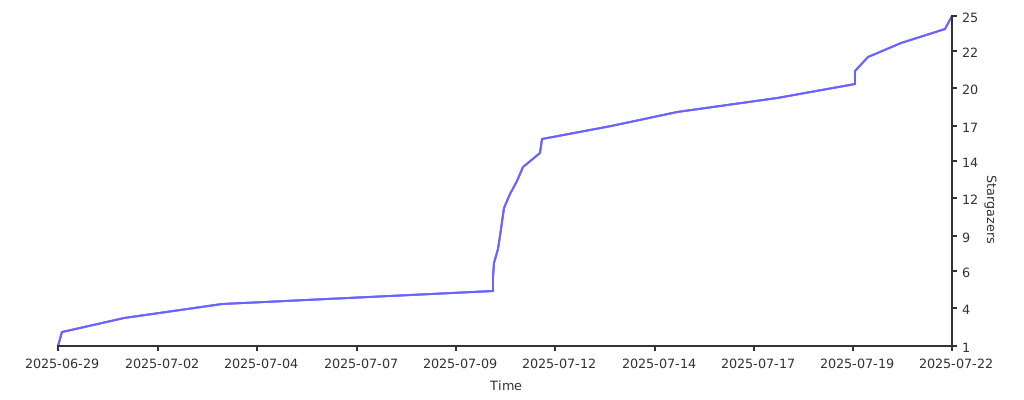
Stargazers over time (Graph)
🧠 (mostly) Brain made
This project was NOT vibe-coded BUT AI is still involved in some parts of it.
- Generating test code: Because it's something I always skip so I would rather have some AI generated tests than none at all.
- Micro-improvements: I have used AI as an advisor to improve some bits of code here and there. Big refactors or new features are done by my hand though.
Made with ❤️ by the ComChan Community