
Terminal Media Player



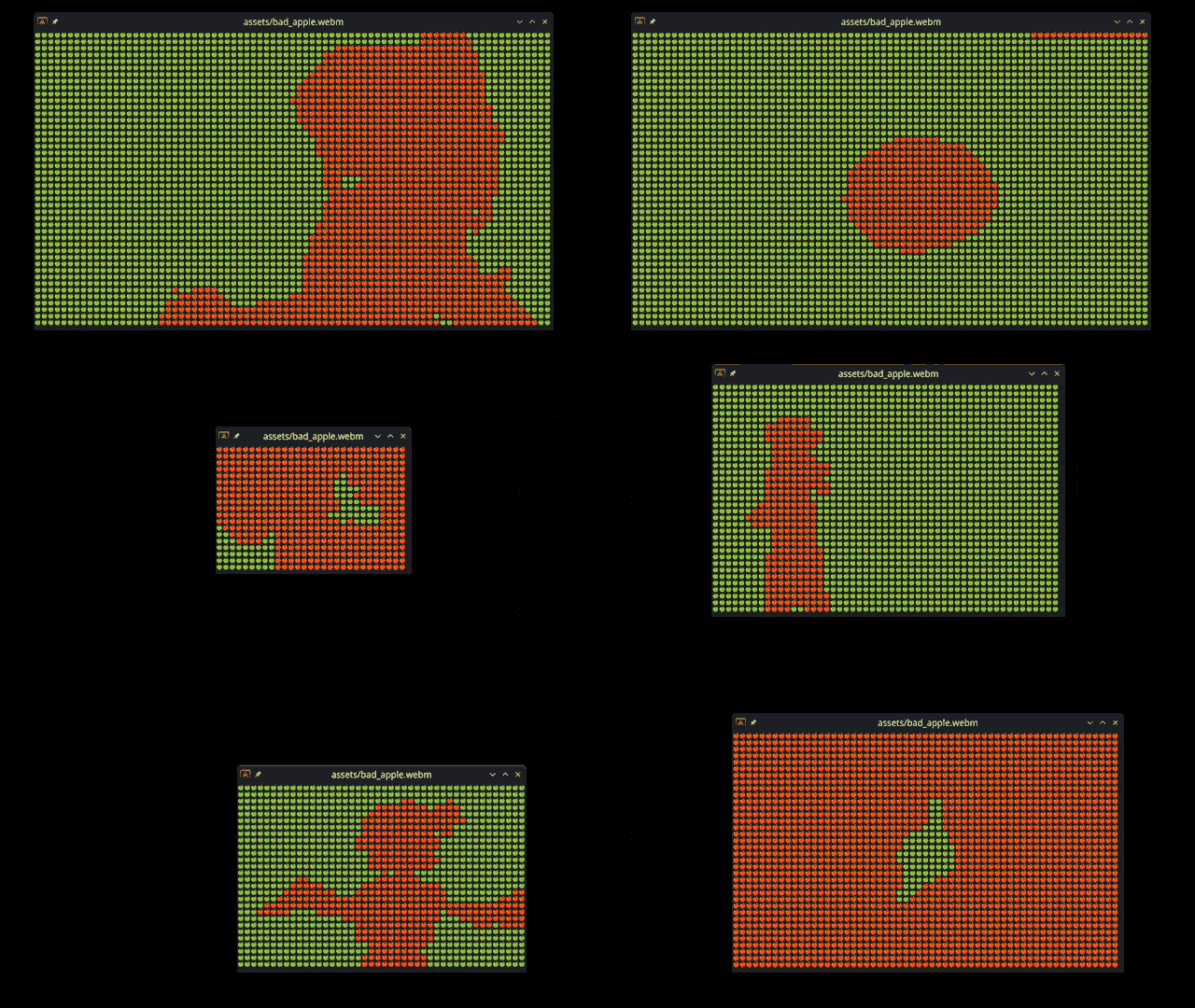
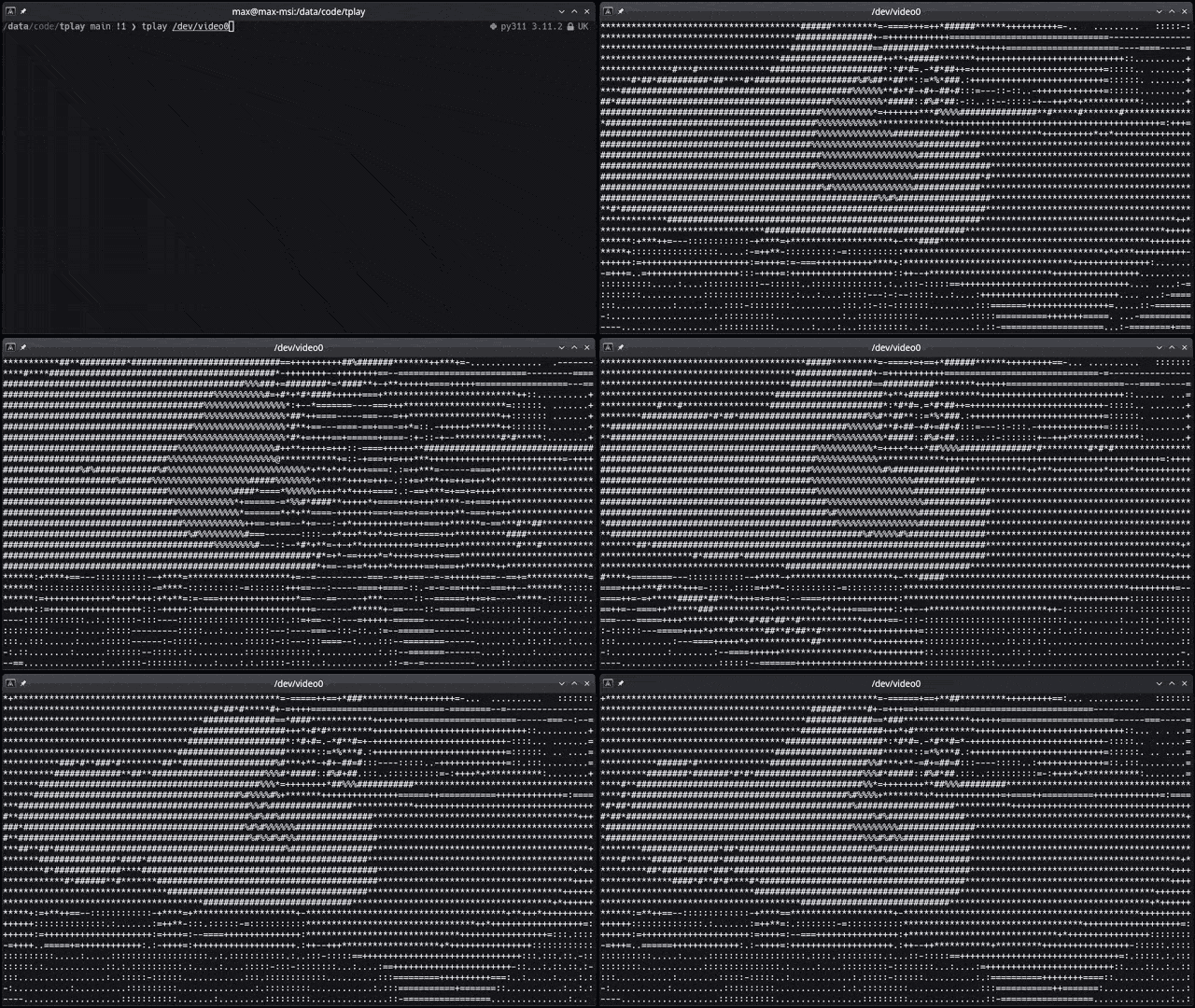
View images, videos (files or YouTube links), webcam, etc directly in the terminal as ASCII. All images you see below are just made by characters on the terminal command line, drawn really fast.
Table of Contents
Who is it for?
- You really don't like graphical applications or are working on a computer without graphical capabilities.
- You are looking for a quick way to convert any visual media to ASCII art.
- You want to watch a video in the terminal, but you don't want to use
mpvorvlcbecause they're too mainstream. - You want to show off your terminal skills to your friends and make them think you're a hacker.
Features
This crate is still in early development, but it already has a lot of features. Here's a list of what it can or can't do:
- Converts and shows any media to ASCII art in the terminal
- Supports images/gifs/videos/webcam and YouTube links
- Any resolution, aspect ratio, and framerate
- Use any character set as supported by your terminal
- Handy pause/unpause and char map selection controls
- RGB Colors (on terminals that support RGB colors)
- Play sounds
- Spark joy
- Full media controls (forward, backward, loop, etc)
- Subtitles
- Replace a fully fledged media player
RGB Colors
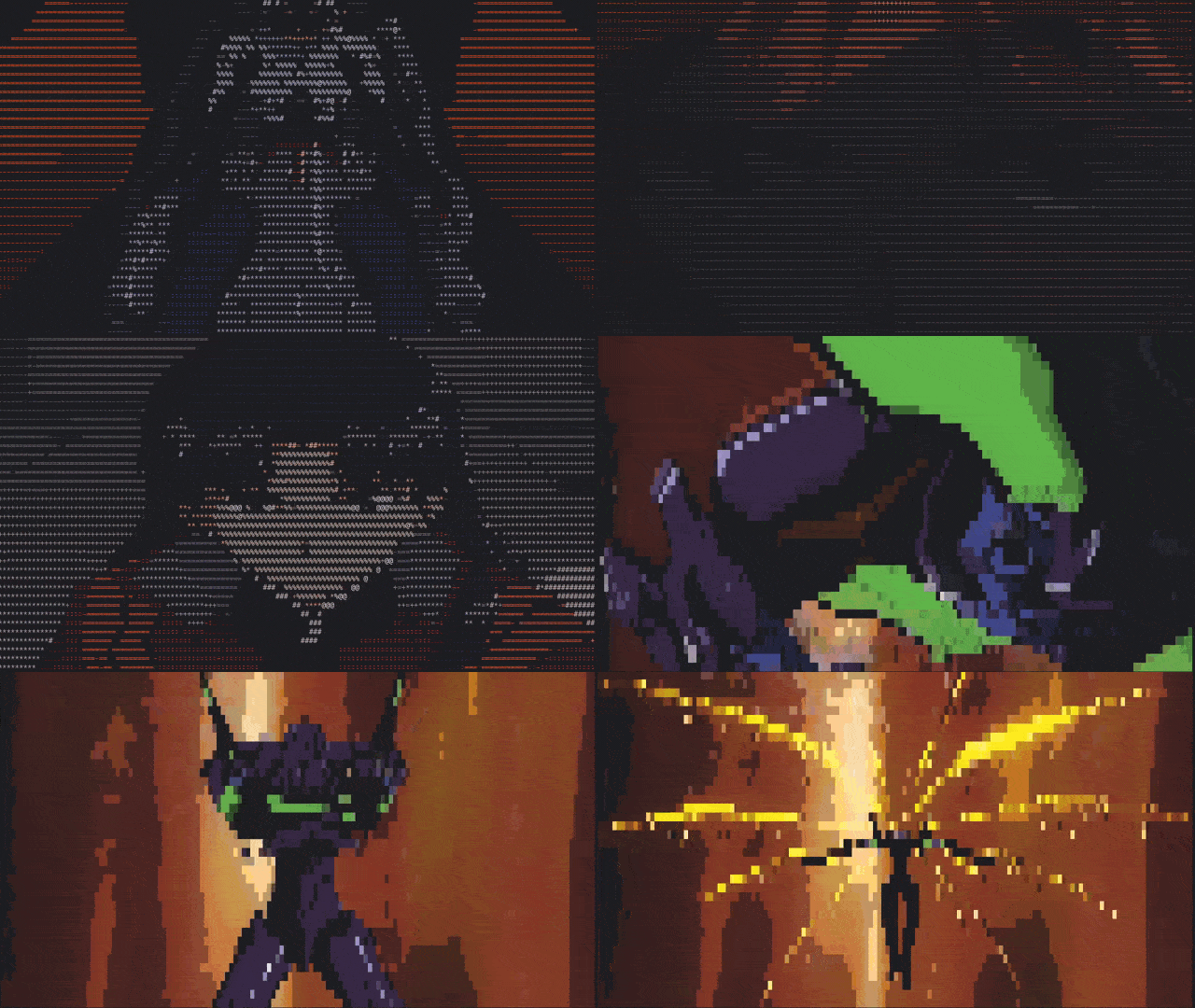
Live update when updating character size
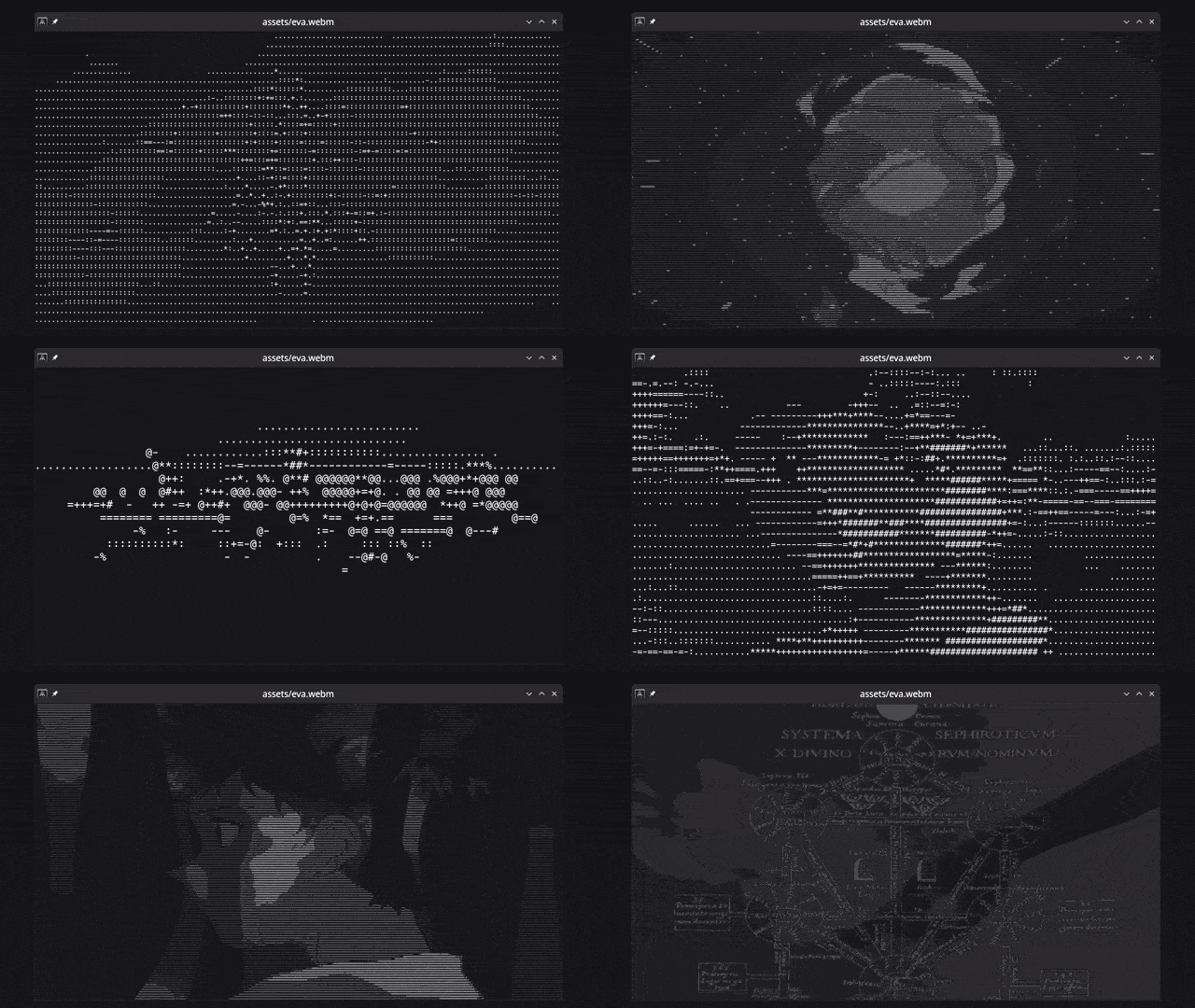
On-the-fly character map selection
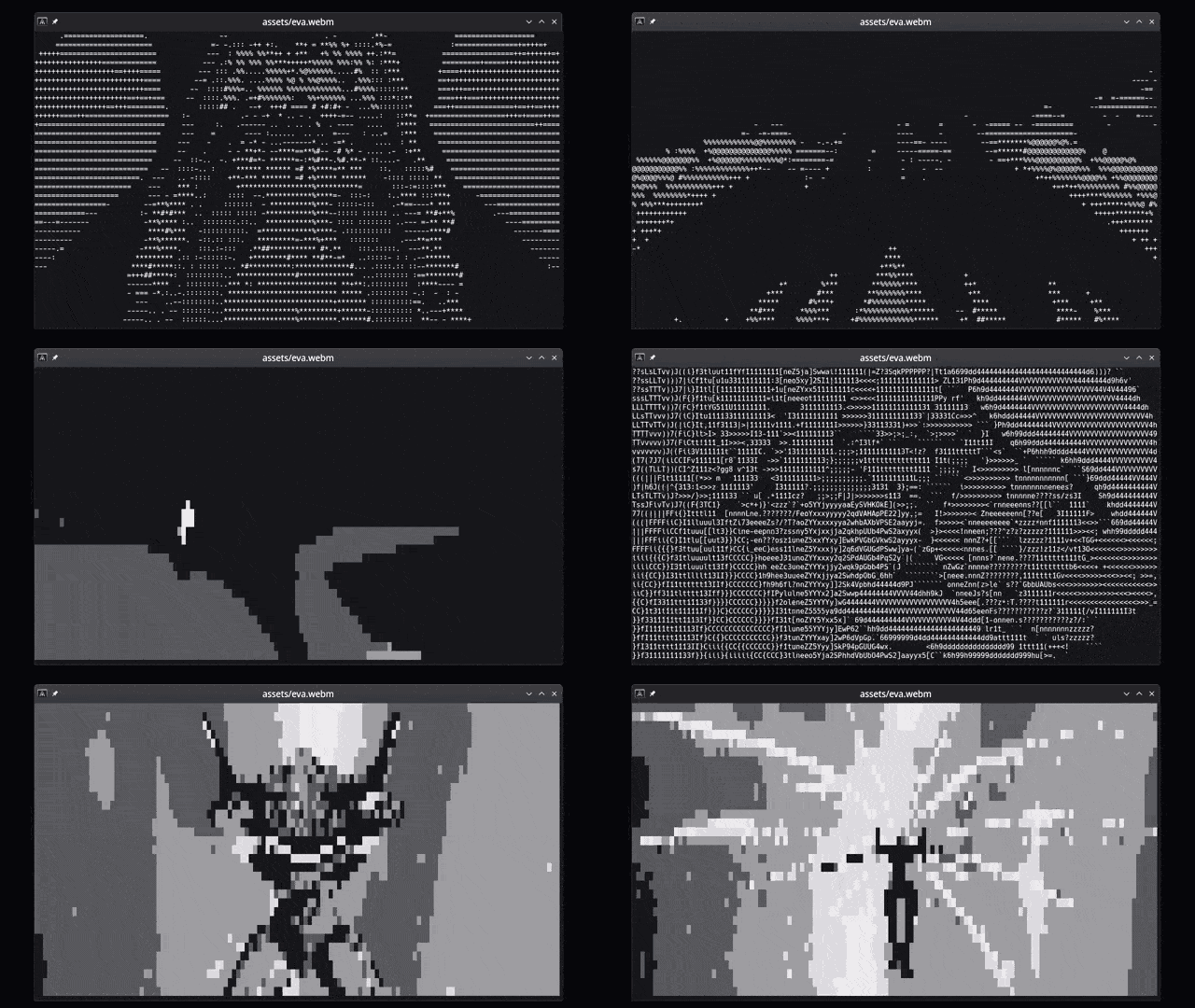
Dynamic resize
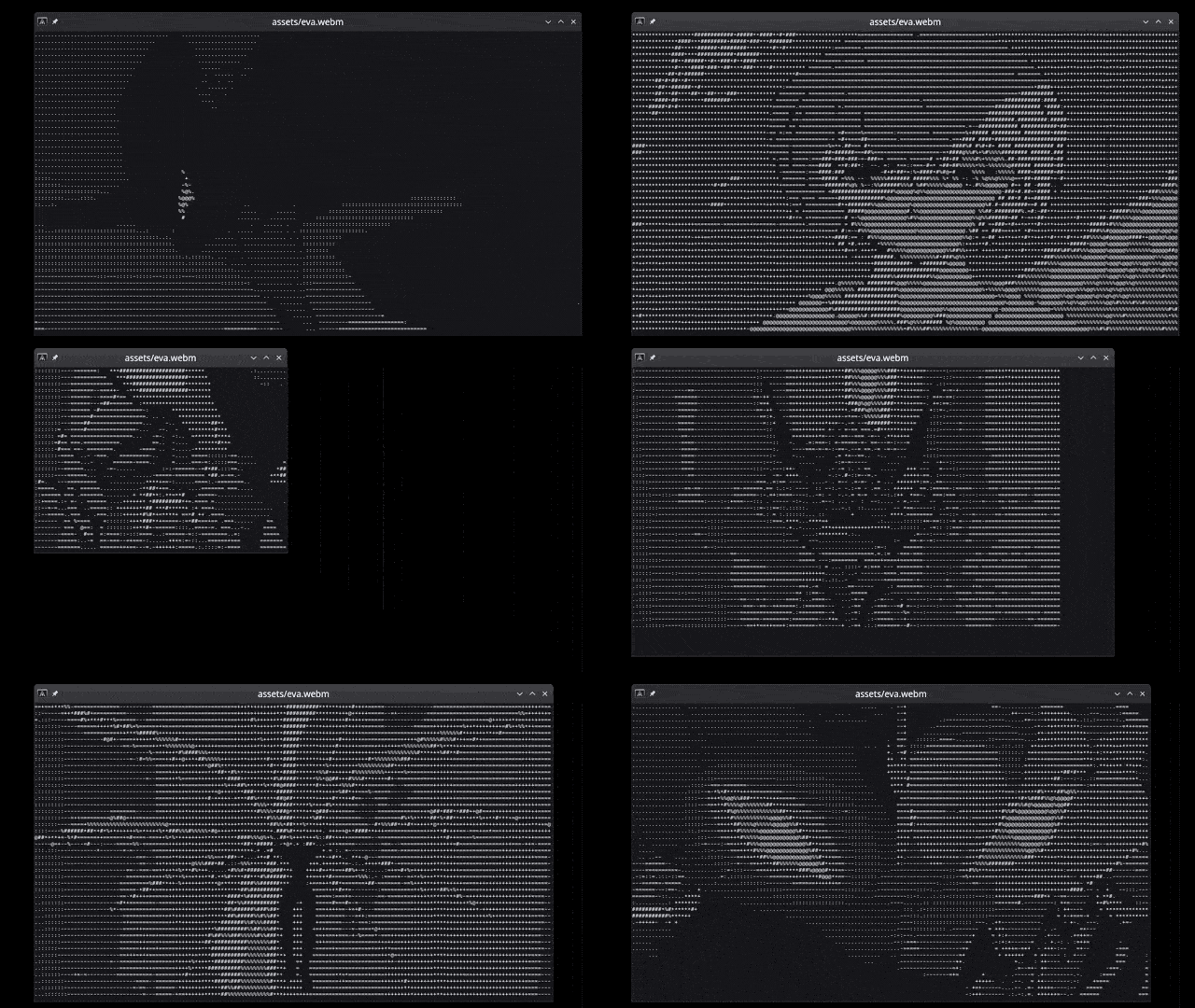
Emojis
Webcam support
Getting Started
These instructions will get you a copy of the project up and running on your local machine for development and testing purposes.
Prerequisites
Being a Rust crate, you will need to have Rust installed on your system. You can find the installation instructions here.
The following dependencies are also required:
OpenCV 4, LLVM, MPV, ffmpeg They are simply installed on linux with your package manager. See below for more details.
Optional dependency for YouTube playback support: yt-dlp
Prerequisites Installation on Linux
If you're on Linux, you can install all dependencies with your package manager. First install Rust:
|
Then install tplay's prerequisite dependencies:
Prerequisites installation on Windows
Installing all prerequisited on Windows is NOT RECOMMENDED as it's a lengthy process prone to errors. I leave a partial description that should work up until crate version 0.2.1
If you are on Windows, use WSL (Windows Subsystem for Linux) and follow the Linux instructions
-- Old instructions for Windows (up until crate version 0.2.1) --
-
Download OpenCV prebuilt binaries (I used this one) and it was 4.6.0 at the time of writing.
-
Open the package and extract the
opencvfolder toC:\opencvor any other location you prefer. -
Set the following environment variables (update the paths if you extracted the package to a different location):
- OPENCV_INCLUDE_PATHS =
C:\opencv\build\include - OPENCV_LINK_LIBS =
opencv_world460(or whatever version you have, for OpenCV 4.7.0 you wantopencv_world470) - OPENCV_LINK_PATHS =
C:\opencv\build\x64\vc15\lib - Also add this to your PATH variable :
C:\opencv\build\x64\vc15\bin
- OPENCV_INCLUDE_PATHS =
-
Install LLVM from binary, you'll likely want to use the 64-bit version on a modern computer.
- Add this to your PATH variable (or whatever corresponding directory you have on your computer):
C:\Program Files\LLVM\bin
- Add this to your PATH variable (or whatever corresponding directory you have on your computer):
-
Install yt-dlp from binary, you'll likely want to use the 64-bit version on a modern computer.
- Add this to your PATH variable (or whatever corresponding directory you have on your computer):
C:\Program Files\yt-dlp\bin
- Add this to your PATH variable (or whatever corresponding directory you have on your computer):
Installation
For users
You can install the tplay command line tool by running the following command:
# Install the tplay command line tool
So that you can run it from anywhere as
For developers
# Clone the repository
# Change to the project directory
# (optional) Build the project
# (optional) Run the tests
# Run the project (use --release for faster performance)
Usage
tplay <media> [options]
| Argument | Description |
|---|---|
media |
Name of the file or stream to be processed (required). |
-f, --fps |
Maximum frames per second for the output (default: 60). |
-c, --char-map |
Custom lookup character table to use for the output (default: .:-=+*#%@). |
-g, --gray |
Start in grayscale mode |
-w, --w-mod |
Experimental width modifier for certain characters such as emojis (default: 1). Use a value of 2 if your char_map is composed of emojis. |
-a, --allow-frame-skip |
Experimental frame skip flag. Try to use if the playback is too slow. |
-n, --new-lines |
Experimental flag. Adds newline and carriage return \n\r at the end of each line (except the last). Terminals wrap around and don't need new lines, but if you want to copy-paste the text outside the terminal you may want them. The output would be a single long string otherwise. Uses more CPU. |
Substitute tplay with cargo run --release -- if you plan to run from source.
# Run it
# Example: local image
# Example: local gif
# Example: local video
# Example: remote video (YouTube)
# Example: remote video (Other)
# Example: YouTube video, with different char maps
# Example: YouTube video, with different char maps (use w-mod to adjust width when using emoji-based char maps)
# Example: webcam on Linux (YMMV on other OSes)
Playback commands
0-9- change character mapspace- toggle pause/unpauseg- toggle grayscale/colorm- toggle mute/unmuteq- quit
Known Issues
- Videos played through the Konsole terminal may have reduced performance. This is due to the way Konsole handles terminal output. If you experience this issue, try using a different terminal emulator. I recommend Alacritty which has great performance on all operative systems I tested tplay on (Linux, Windows).
- Media playback is cpu-intensive. To improve performance, try lowering the
fpsvalue, increase font size, reduce the terminal window size, or open with the--allow-frame-skipflag.
Alternatives
This is my ASCII media player: there are many like it, but this one is mine.
For other ASCII media players, check out: https://github.com/search?q=ascii+player&type=repositories
Contributing
Contributions are welcome! Please open an issue or submit a pull request. Some ideas:
- Reduce external dependencies and streamline installation process.
- Investigate migration from OpenCV to ffmpeg.
- More media controls (jump forward, jump backward, loop, etc.).
- Testing and feedback on installing and running it on other OSes.
- Let me know if you have any other ideas!
License
This project is licensed under the MIT License - see the LICENSE file for details.
Why?
Your Scientists Were So Preoccupied With Whether Or Not They Could, They Didn’t Stop To Think If They Should
Mostly did it for fun while learning Rust. I also wanted to see if it was possible to make a video player that could run in the terminal. I think it's pretty cool that you can play videos in the terminal now. I hope you enjoy it too!