# Features
## Messaging
Send and receive 1:1 and group messages. Messages sent from your phone (or other
linked devices) sync into the TUI automatically.
## Attachments
- **Images** -- rendered inline as halfblock art when `inline_images = true`
- **Native image protocols** -- for terminals that support Kitty or iTerm2
graphics, enable `/settings` > "Native images" for higher-fidelity rendering
with proper cropping and flicker-free scrolling
- **Other files** -- shown as `[attachment: filename]` with the download path
- **Send files** -- use `/attach` to open a file browser and attach a file to
your next message
Received attachments are saved to the `download_dir` configured in your config file
(default: `~/signal-downloads/`).
## Clickable links
URLs and file paths in messages are rendered as
[OSC 8 hyperlinks](https://gist.github.com/egmontkob/eb114294efbcd5adb1944c9f3cb5feda).
In supported terminals (Windows Terminal, iTerm2, Kitty, etc.), you can click them
to open in your browser.
## Typing indicators
When someone is typing, their name appears below the chat area. Contact name
resolution is used where available. siggy also sends typing indicators to
your conversation partners while you type, so they can see when you're composing
a message.
## Persistence
All conversations, messages, and read markers are stored in a SQLite database with
WAL (Write-Ahead Logging) mode for safe concurrent access. Data survives app restarts.
The database is stored alongside the config file:
- **Linux / macOS:** `~/.config/siggy/siggy.db`
- **Windows:** `%APPDATA%\siggy\siggy.db`
## Unread tracking
The sidebar shows unread counts next to each conversation. When you open a
conversation, a "new messages" separator line marks where you left off. Read
markers persist across restarts.
## Notifications
Terminal bell notifications fire when new messages arrive in background
conversations. Configure them per type:
- `notify_direct` -- 1:1 messages (default: on)
- `notify_group` -- group messages (default: on)
- `desktop_notifications` -- OS-level desktop notifications (default: off)
- `/mute` -- per-conversation mute (persists in the database)
- `/bell` -- toggle notification types at runtime
Desktop notifications use `notify-rust` for cross-platform support (Linux D-Bus,
macOS NSNotification, Windows WinRT toast). They show the sender name and a
message preview, and respect the same mute/block/accept conditions as bell
notifications.
## Contact resolution
On startup, siggy requests your contact list and group list from signal-cli.
Names from your Signal address book are used throughout the sidebar, chat area,
and typing indicators.
## Responsive layout
The sidebar auto-hides on narrow terminals (less than 60 columns). Use
`Ctrl+Left` / `Ctrl+Right` to resize it, or `/sidebar` to toggle it.
## Incognito mode
```sh
siggy --incognito
```
Uses an in-memory database instead of on-disk SQLite. No messages, conversations,
or read markers are written to disk. The status bar shows a bold magenta
**incognito** indicator. When you exit, everything is gone.
## Message reactions
React to any message with `r` in Normal mode to open the emoji picker. Navigate
with `h`/`l` or press `1`-`8` to jump directly, then Enter to send.
Reactions display below messages as compact badges:
```
👍 2 ❤️ 1
```
Enable "Verbose reactions" in `/settings` to show sender names instead of counts.
Reactions sync across devices and persist in the database.

## @mentions
In group chats, type `@` to open a member autocomplete popup. Filter by name and
press Tab to insert the mention. Works in 1:1 chats too (with the conversation
partner). Incoming mentions are highlighted in cyan+bold.
## Visible message selection
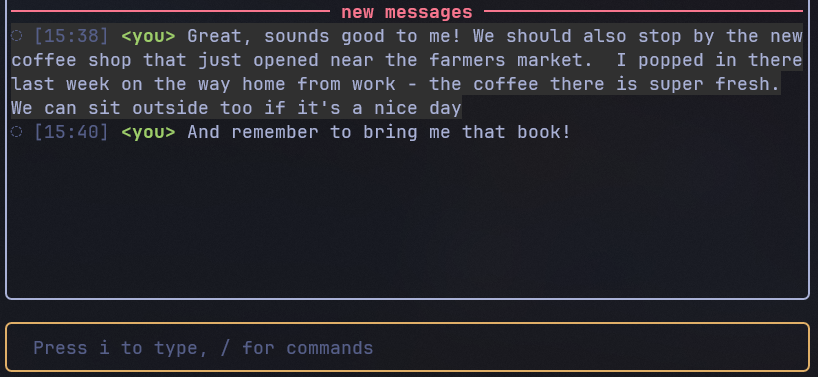
When scrolling in Normal mode, the focused message gets a subtle dark background
highlight. This makes it clear which message `r` (react) and `y`/`Y` (copy) will
target. Use `J`/`K` (Shift+j/k) to jump between messages, skipping date
separators and system messages.
## Reply, edit, and delete
In Normal mode, act on the focused message:
- **`q` -- Quote reply** -- reply with a quoted block showing the original
message. A reply indicator appears above your input while composing.
- **`e` -- Edit** -- edit your own outgoing messages. The original text is
loaded into the input buffer. Edited messages display "(edited)".
- **`d` -- Delete** -- delete a message. Outgoing messages offer "delete for
everyone" (remote delete) or "delete locally". Incoming messages can be
deleted locally. Deleted messages show as "[deleted]".
All three features sync across devices and persist in the database.
## Message search
Use `/search <query>` (alias `/s`) to search across all conversations. Results
appear in a scrollable overlay with sender, snippet, and conversation name.
Press Enter to jump to the message in context.
After searching, use `n`/`N` in Normal mode to cycle through matches without
re-opening the overlay.
## Text styling
Signal formatting is rendered in the chat area:
- **Bold** -- displayed with terminal bold
- **Italic** -- displayed with terminal italic
- **Strikethrough** -- displayed with terminal strikethrough
- **Monospace** -- displayed in gray
- **Spoiler** -- hidden behind block characters (`████`)
Styles compose correctly with @mentions and link highlighting.
## Sticker messages
Incoming stickers display as `[Sticker: emoji]` in the chat area (e.g.
`[Sticker: 👍]`). If the sticker has no associated emoji, it shows as
`[Sticker]`.
## View-once messages
View-once messages display as `[View-once message]` with any attachments
suppressed, respecting the sender's ephemeral intent.
## System messages
Certain Signal events display as system messages (dimmed, centered) in the chat:
- **Missed calls** -- "Missed voice call" / "Missed video call"
- **Safety number changes** -- warning when a contact's safety number changes
- **Group updates** -- group metadata changes (member adds/removes)
- **Disappearing message timer** -- e.g. "Disappearing messages set to 1 day"
## Message action menu
Press `Enter` in Normal mode on a focused message to open a contextual action
menu. Available actions depend on the message type:
| Reply | `q` | Non-deleted messages |
| Edit | `e` | Your own outgoing messages |
| React | `r` | All messages |
| Copy | `y` | All messages |
| Forward | `f` | Non-deleted messages |
| Delete | `d` | Non-deleted messages |
Navigate with `j`/`k`, press Enter to execute, or press the shortcut key
directly. Press `Esc` to close.
## Read receipts
siggy sends read receipts to message senders when you view a conversation,
letting them know you've read their messages. This can be toggled off via
`/settings` > "Send read receipts".
## Cross-device read sync
When you read messages on your phone or another linked device, siggy
receives the read sync and marks those conversations as read. Unread counts
update automatically.
## Disappearing messages
siggy honors Signal's disappearing message timers. When a conversation has
a timer set, messages auto-expire after the configured duration. Set the timer
with `/disappearing <duration>` (alias `/dm`):
- `30s`, `5m`, `1h`, `1d`, `1w` -- set the timer
- `off` -- disable disappearing messages
Timer changes from other devices sync automatically.
## Group management
Use `/group` (alias `/g`) to manage groups directly from the TUI:
- **View members** -- see all group members
- **Add member** -- type-to-filter contact picker to add members
- **Remove member** -- type-to-filter member picker to remove members
- **Rename** -- change the group name
- **Create** -- create a new group (available from any conversation)
- **Leave** -- leave the group with confirmation
## Message requests
Messages from unknown senders (not in your contacts) are flagged as message
requests. A banner appears at the top of the conversation with options to accept
or delete. Unaccepted conversations do not trigger notifications or send read
receipts.
## Block and unblock
Use `/block` to block the current conversation's contact or group, and
`/unblock` to unblock. Blocked conversations do not trigger notifications,
read receipts, or typing indicators.
## Mouse support
Mouse support is enabled by default. Toggle via `/settings` > "Mouse support".
- **Click sidebar** -- switch conversations by clicking
- **Scroll messages** -- scroll wheel in the chat area
- **Click input bar** -- position the cursor by clicking
- **Overlay scroll** -- scroll wheel navigates lists in overlays
## Color themes
Open the theme picker with `/theme` (alias `/t`) or from `/settings` > Theme.
Choose from built-in themes with customizable sidebar, chat, status bar, and
accent colors.
## Pinned messages
Pin important messages to the top of a conversation. Press `p` in Normal mode
on a focused message (or use the action menu) to pin it. Choose a duration:
forever, 24 hours, 7 days, or 30 days. Pinned messages show as a banner at the
top of the chat area. Press `p` on an already-pinned message to unpin it. Pin
state syncs across all linked devices.
## Link previews
Messages containing URLs display link preview cards with the page title,
description, and thumbnail image (when available). Toggle via `/settings` >
"Link previews" (enabled by default).
## Polls
Create polls with `/poll "question" "option1" "option2"`. Add `--single` to
restrict voting to one option. Polls display inline as bar charts showing vote
counts and percentages.
Press Enter on a poll message in Normal mode to open the vote overlay. Select
options with Space (multi-select) or Enter (single-select), then confirm. Your
votes sync across devices.
## Identity verification
Use `/verify` to verify the identity keys of your contacts. In 1:1 chats, the
overlay shows the contact's safety number and current trust level. In group
chats, browse members and verify individually. You can trust or untrust
identity keys directly from the overlay.
## Profile editor
Use `/profile` to edit your Signal profile. Change your given name, family
name, about text, and about emoji. Navigate fields with `j`/`k`, press Enter
to edit inline, and Save to push changes to Signal's servers.
## About
Use `/about` to see the app version, description, author, license, and
repository link.
## Sidebar position
The sidebar can be placed on the left (default) or right side of the screen.
Toggle via `/settings` > "Sidebar on right".
## Configurable keybindings
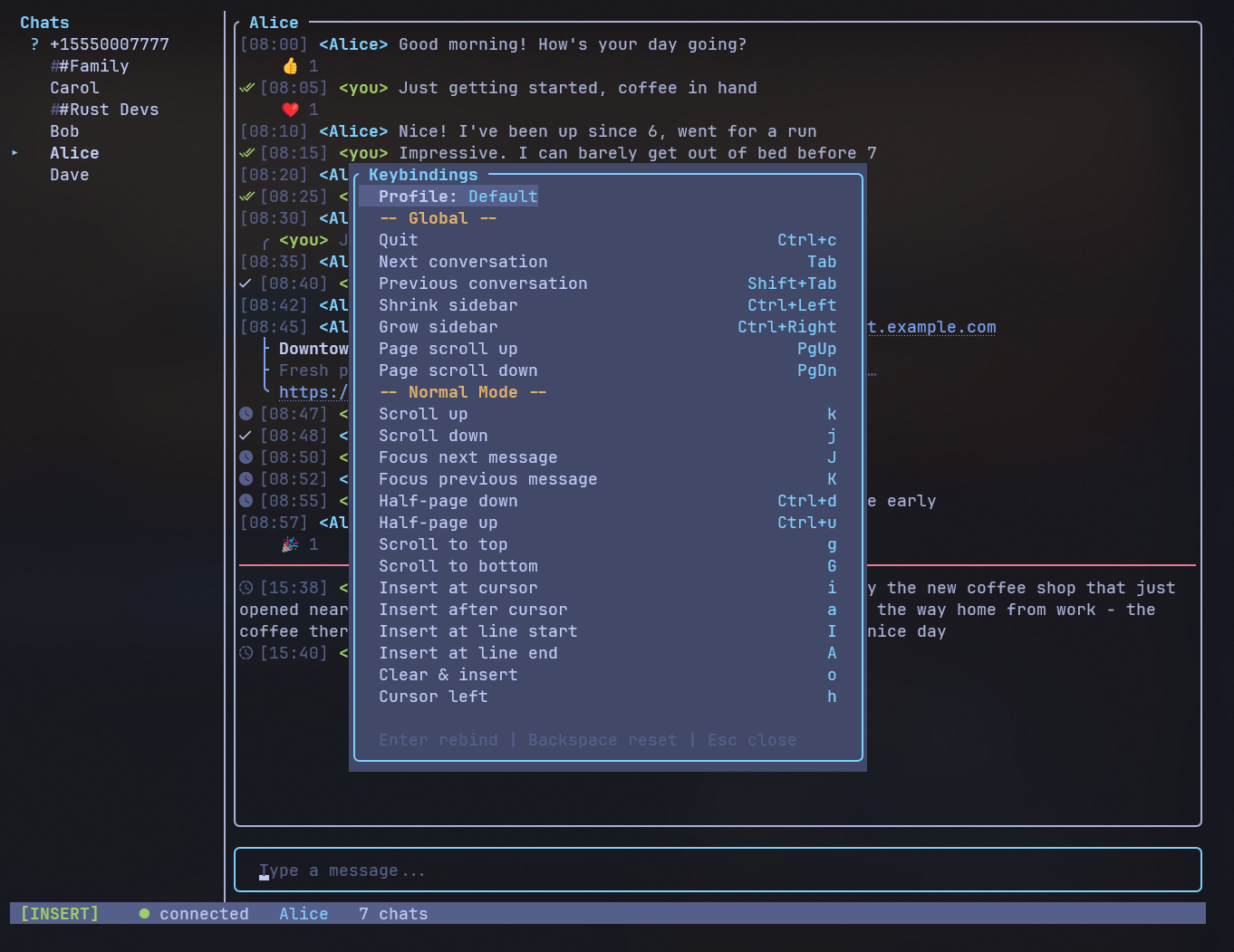
All keybindings are fully configurable. Choose from three built-in profiles
(Default, Emacs, Minimal) or create your own. Override individual keys via
`~/.config/siggy/keybindings.toml`, or rebind keys live in the app with
`/keybindings` (alias `/kb`).
See [Keybindings](keybindings.md) for full details on profiles, customization,
and the TOML format.
## Multi-line input
Press `Alt+Enter` or `Shift+Enter` in Insert mode to insert a newline. Compose
multi-line messages before sending with Enter. The input area expands
automatically to show all lines.
## Message history pagination
Scrolling to the top of a conversation automatically loads older messages from
the database. A loading indicator appears briefly while fetching. This lets you
browse your full message history without loading everything upfront.
## Forward messages
Press `f` in Normal mode on a focused message to forward it to another
conversation. A filterable picker overlay lets you choose the destination.
## Demo mode
```sh
siggy --demo
```
Launches with dummy conversations and messages. No signal-cli process is spawned.
Useful for testing the UI, exploring keybindings, and taking screenshots.