# Shell-AI
[](https://github.com/Deltik/shell-ai/releases)
[](https://crates.io/crates/shell-ai)
[](https://github.com/Deltik/shell-ai/releases)
[](https://crates.io/crates/shell-ai)
[](https://github.com/Deltik/shell-ai/actions/workflows/build.yaml)
[](https://opensource.org/licenses/MIT)
[](https://ko-fi.com/Deltik)
Describe what you want. Get shell commands. Or explain commands you don't understand.
## What It Does
**Suggest** (**`shell-ai suggest`** or **`shai`**) turns natural language into executable shell commands. Describe what you want in any language, and Shell-AI generates options you can run, copy, or refine.
**Explain** (**`shell-ai explain`**) breaks down shell commands into understandable parts, citing relevant man pages where possible. Useful for understanding unfamiliar commands or documenting scripts.
## Quick Start
```bash
# Install
cargo install shell-ai
ln -v -s shell-ai ~/.cargo/bin/shai # Optional: shorthand alias for `shell-ai suggest`
# Configure
export SHAI_API_PROVIDER=openai
export OPENAI_API_KEY=sk-...
# Generate commands from natural language
shai "ファイルを日付順に並べる" # Japanese: sort files by date
# Explain an existing command
shell-ai explain "tar -czvf archive.tar.gz /path/to/dir"
```
For guided configuration, run `shell-ai config init` to generate a documented config file.
## Installation
_After installing, [configure](#configuration) your AI provider. Then, consider adding [shell integrations](#shell-integration) for optional workflow enhancements._
### From GitHub Releases
Download prebuilt binaries from the [Releases page](https://github.com/Deltik/shell-ai/releases).
### From crates.io
```bash
cargo install shell-ai
ln -v -s shell-ai ~/.cargo/bin/shai
```
### From Source
```bash
git clone https://github.com/Deltik/shell-ai
cd shell-ai
cargo install --path .
# Installs to ~/.cargo/bin/shell-ai
ln -v -s shell-ai ~/.cargo/bin/shai
```
## Features
- **Single binary**: No Python, no runtime dependencies. Just one executable.
- **Multilingual**: Describe tasks in any language the AI model understands.
- **Explain with citations**: `shell-ai explain` cites man pages, not just AI knowledge.
- **Multiple providers**: OpenAI, Azure OpenAI, Groq, Ollama (local), and Mistral.
- **Interactive workflow**: Select a suggestion, then explain it, execute it, copy it, or revise it.
- **Vim-style navigation**: j/k keys, number shortcuts (1-9), arrow keys.
- **Scriptable**: `--frontend=noninteractive` and `--output-format=json` for automation. Pipe commands to `shell-ai explain` via stdin.
- **Configuration introspection**: `shell-ai config` shows current settings and their sources.
Run `shell-ai --help` for all options, or `shell-ai config schema` for the full configuration reference.
## Showcase
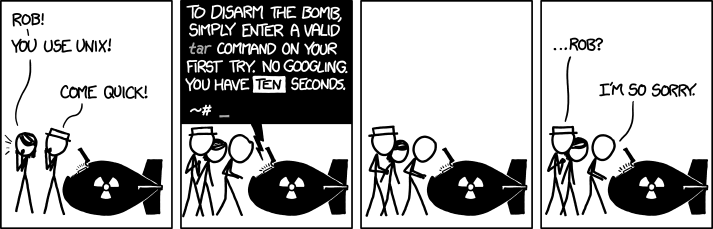
### Suggest: XKCD #1168 (tar)
| [](https://xkcd.com/1168/) |
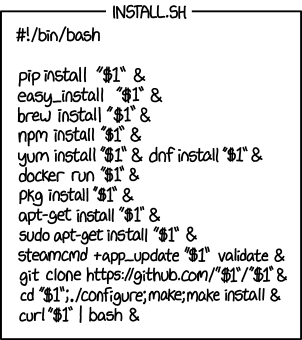
### Explain: XKCD #1654 (Universal Install Script)
| [](https://xkcd.com/1654/) |
### Multilingual: Danish Skills (Flersproget: Danskkundskaber)
[](docs/images/suggest-danish.gif)
### Challenging Tasks
| [](docs/images/suggest-perl.gif) | [](docs/images/explain-rsync.png) |
### JSON Output for Scripting
[](docs/images/explain-ls-lhtr.png)
### Configuration Introspection
[](docs/images/config.png)
## Configuration
Shell-AI loads configuration from multiple sources (highest priority first):
1. CLI flags (`--provider`, `--model`, etc.)
2. Environment variables (`SHAI_API_PROVIDER`, `OPENAI_API_KEY`, etc.)
3. Config file (see paths below)
4. Built-in defaults
Config file locations:
- **Linux**: `~/.config/shell-ai/config.toml`
- **macOS**: `~/Library/Application Support/shell-ai/config.toml`
- **Windows**: `%APPDATA%\shell-ai\config.toml`
Generate a documented config template:
```bash
shell-ai config init
```
Example config:
```toml
provider = "openai"
[openai]
api_key = "sk-..."
model = "gpt-4o"
```
### Providers
Set the provider in your config file (`~/.config/shell-ai/config.toml` on Linux, `~/Library/Application Support/shell-ai/config.toml` on macOS, `%APPDATA%\shell-ai\config.toml` on Windows). The provider-specific settings go in a section named after the provider.
```toml
provider = "openai" # or: groq, azure, ollama, mistral
```
Shell-AI may alternatively be configured by environment variables, which override the config file:
<details>
<summary>Environment variables</summary>
```bash
export SHAI_API_PROVIDER=openai # or: groq, azure, ollama, mistral
```
</details>
#### OpenAI
Works with OpenAI and any OpenAI-compatible API (e.g., DeepSeek).
<details>
<summary>TOML config</summary>
```toml
[openai]
api_key = "sk-..." # REQUIRED
# api_base = "https://api.openai.com" # change for compatible APIs
# model = "gpt-5"
# max_tokens = ""
# organization = "" # for multi-org accounts
```
</details>
<details>
<summary>Environment variables</summary>
```bash
export OPENAI_API_KEY=sk-... # REQUIRED
# export OPENAI_API_BASE=https://api.openai.com
# export OPENAI_MODEL=gpt-5
# export OPENAI_MAX_TOKENS=
# export OPENAI_ORGANIZATION=
```
</details>
#### Groq
<details>
<summary>TOML config</summary>
```toml
[groq]
api_key = "gsk_..." # REQUIRED
# api_base = "https://api.groq.com/openai"
# model = "openai/gpt-oss-120b"
# max_tokens = ""
```
</details>
<details>
<summary>Environment variables</summary>
```bash
export GROQ_API_KEY=gsk_... # REQUIRED
# export GROQ_MODEL=openai/gpt-oss-120b
# export GROQ_MAX_TOKENS=
```
</details>
#### Azure OpenAI
<details>
<summary>TOML config</summary>
```toml
[azure]
api_key = "your-key" # REQUIRED
api_base = "https://your-resource.openai.azure.com" # REQUIRED
deployment_name = "your-deployment" # REQUIRED
# api_version = "2023-05-15"
# max_tokens = ""
```
</details>
<details>
<summary>Environment variables</summary>
```bash
export AZURE_API_KEY=your-key # REQUIRED
export AZURE_API_BASE=https://your-resource.openai.azure.com # REQUIRED
export AZURE_DEPLOYMENT_NAME=your-deployment # REQUIRED
# export OPENAI_API_VERSION=2023-05-15
# export AZURE_MAX_TOKENS=
```
</details>
#### Ollama
No API key required for local Ollama.
<details>
<summary>TOML config</summary>
```toml
[ollama]
# api_base = "http://localhost:11434"
# model = "gpt-oss:120b-cloud"
# max_tokens = ""
```
</details>
<details>
<summary>Environment variables</summary>
```bash
# export OLLAMA_API_BASE=http://localhost:11434
# export OLLAMA_MODEL=gpt-oss:120b-cloud
# export OLLAMA_MAX_TOKENS=
```
</details>
#### Mistral
<details>
<summary>TOML config</summary>
```toml
[mistral]
api_key = "your-key" # REQUIRED
# api_base = "https://api.mistral.ai"
# model = "codestral-2508"
# max_tokens = ""
```
</details>
<details>
<summary>Environment variables</summary>
```bash
export MISTRAL_API_KEY=your-key # REQUIRED
# export MISTRAL_API_BASE=https://api.mistral.ai
# export MISTRAL_MODEL=codestral-2508
# export MISTRAL_MAX_TOKENS=
```
</details>
## Shell Integration
Shell-AI works well standalone, but integrating it into your shell enables a streamlined workflow: type a description, press a key combination, and the command appears ready to execute.
Each snippet below provides:
- **`??`** alias for `shell-ai suggest --`
- **`explain`** alias for `shell-ai explain --`
- **Ctrl+G** keybinding to transform the current line into a shell command (with a progress indicator while Shell-AI is working)
<details>
<summary>Bash (~/.bashrc)</summary>
```bash
# Aliases
alias '??'='shell-ai suggest --'
alias 'explain'='shell-ai explain --'
# Ctrl+G: Transform current line into a shell command
_shai_transform() {
if [[ -n "$READLINE_LINE" ]]; then
local original="$READLINE_LINE"
local colors=(196 202 208 214 220 226 190 154 118 082 046 047 049 051 045 039 033 027 021 057 093 129 165 201 199 198 197)
local highlighted="" i=0
for ((j=0; j<${#original}; j++)); do
highlighted+="\033[38;5;${colors[i++ % ${#colors[@]}]}m${original:j:1}"
done
printf '\r\033[K%b\033[0m 💭' "$highlighted"
READLINE_LINE=$(shell-ai --frontend=noninteractive suggest -- "$original" 2>/dev/null | head -1)
READLINE_POINT=${#READLINE_LINE}
printf '\r\033[K'
fi
}
bind -x '"\C-g": _shai_transform'
```
</details>
<details>
<summary>Zsh (~/.zshrc)</summary>
```zsh
# Aliases
alias '??'='shell-ai suggest --'
alias 'explain'='shell-ai explain --'
# Ctrl+G: Transform current line into a shell command
_shai_transform() {
if [[ -n "$BUFFER" ]]; then
local original="$BUFFER"
local colors=(196 202 208 214 220 226 190 154 118 082 046 047 049 051 045 039 033 027 021 057 093 129 165 201 199 198 197)
local highlighted="" i=0
for ((j=1; j<=${#original}; j++)); do
highlighted+="%F{${colors[i++ % ${#colors[@]}]}}${original[j]}"
done
BUFFER="${highlighted}%f 💭"
zle -I && zle redisplay
BUFFER=$(shell-ai --frontend=noninteractive suggest -- "$original" 2>/dev/null | head -1)
zle end-of-line
fi
}
zle -N _shai_transform
bindkey '^G' _shai_transform
```
</details>
<details>
<summary>Fish (~/.config/fish/config.fish)</summary>
```fish
# Abbreviations
abbr -a '??' 'shell-ai suggest --'
abbr -a 'explain' 'shell-ai explain'
# Ctrl+G: Transform current line into a shell command
function _shai_transform
set -l cmd (commandline)
if test -n "$cmd"
set -l colors 196 202 208 214 220 226 190 154 118 082 046 047 049 051 045 039 033 027 021 057 093 129 165 201 199 198 197
set -l highlighted ""
for i in (seq (string length "$cmd"))
set -l color_idx (math "($i - 1) % "(count $colors)" + 1")
set highlighted "$highlighted"(set_color (printf "%.3d" $colors[$color_idx]))(string sub -s $i -l 1 "$cmd")
end
commandline -r "$highlighted"(set_color normal)" 💭"
commandline -r (shell-ai --frontend=noninteractive suggest -- "$cmd" 2>/dev/null | head -1)
commandline -f end-of-line
end
end
bind \cg _shai_transform
```
</details>
<details>
<summary>PowerShell ($PROFILE)</summary>
```powershell
# Functions
function ?? { shell-ai suggest -- @args }
function explain { shell-ai explain -- @args }
# Ctrl+G: Transform current line into a shell command
Set-PSReadLineKeyHandler -Chord 'Ctrl+g' -ScriptBlock {
$line = $null
[Microsoft.PowerShell.PSConsoleReadLine]::GetBufferState([ref]$line, [ref]$null)
if ($line) {
$colors = @(196, 202, 208, 214, 220, 226, 190, 154, 118, 82, 46, 47, 49, 51, 45, 39, 33, 27, 21, 57, 93, 129, 165, 201, 199, 198, 197)
$highlighted = ""
for ($i = 0; $i -lt $line.Length; $i++) {
$highlighted += "`e[38;5;$($colors[$i % $colors.Length])m$($line[$i])"
}
[Console]::Write("`r`e[K$highlighted`e[0m 💭")
$result = shell-ai --frontend=noninteractive suggest -- $line 2>$null | Select-Object -First 1
[Console]::Write("`r`e[K")
[Microsoft.PowerShell.PSConsoleReadLine]::Replace(0, $line.Length, $result)
}
}
```
</details>
## Migrating from Python Shell-AI
If you're coming from [ricklamers/shell-ai](https://github.com/ricklamers/shell-ai):
- **The provider is required.** Set `SHAI_API_PROVIDER` explicitly, as the default is no longer Groq.
- **`SHAI_SKIP_HISTORY` is removed.** Writing to shell history is no longer supported. The previous implementation made assumptions about the shell's history configuration. Shells don't expose history hooks to child processes, making this feature infeasible.
- **`SHAI_SKIP_CONFIRM` is deprecated.** Use `--frontend=noninteractive` or `SHAI_FRONTEND=noninteractive` as a more flexible alternative.
- **Context mode is deprecated.** The `--ctx` flag and `CTX` environment variable still work but are not recommended. The extra context from shell output tends to confuse the completion model rather than help it.
- **Model defaults differ.** Set `model` explicitly if you prefer a specific model.
## Contributing
Contributions welcome! Open an [issue](https://github.com/Deltik/shell-ai/issues) or [pull request](https://github.com/Deltik/shell-ai/pulls) at [Deltik/shell-ai](https://github.com/Deltik/shell-ai).
For changes to the original Python Shell-AI, head upstream to [ricklamers/shell-ai](https://github.com/ricklamers/shell-ai).
## Acknowledgments
This project began as a fork of [ricklamers/shell-ai](https://github.com/ricklamers/shell-ai) at [v0.4.4](https://github.com/Deltik/shell-ai/releases/tag/v0.4.4). Since [v0.5.0](https://github.com/Deltik/shell-ai/releases/tag/v0.5.0), it shares no code with the original—a complete [Ship of Theseus](https://en.wikipedia.org/wiki/Ship_of_Theseus) rebuild in Rust. The hull is new, but the spirit remains.
## License
Shell-AI is licensed under the MIT License. See [LICENSE](LICENSE) for details.