
Shell-AI






Describe what you want. Get shell commands. Or explain commands you don't understand.
What It Does
Suggest (shell-ai suggest or shai) turns natural language into executable shell commands. Describe what you want in any language, and Shell-AI generates options you can run, copy, or refine.
Explain (shell-ai explain) breaks down shell commands into understandable parts, citing relevant man pages where possible. Useful for understanding unfamiliar commands or documenting scripts.
Quick Start
# Install
# Configure
# Generate commands from natural language
# Explain an existing command
For guided configuration, run shell-ai config init to generate a documented config file.
Installation
After installing, configure your AI provider. Then, consider adding shell integrations for optional workflow enhancements.
From GitHub Releases
Download prebuilt binaries from the Releases page.
From crates.io
From Source
# Installs to ~/.cargo/bin/shell-ai
Features
- Single binary: No Python, no runtime dependencies. Just one executable.
- Multilingual: Describe tasks in any language the AI model understands.
- Explain with citations:
shell-ai explaincites man pages, not just AI knowledge. - Multiple providers: OpenAI, Azure OpenAI, Groq, Ollama (local), and Mistral.
- Interactive workflow: Select a suggestion, then explain it, execute it, copy it, or revise it.
- Vim-style navigation: j/k keys, number shortcuts (1-9), arrow keys.
- Scriptable:
--frontend=noninteractiveand--output-format=jsonfor automation. Pipe commands toshell-ai explainvia stdin. - Configuration introspection:
shell-ai configshows current settings and their sources.
Run shell-ai --help for all options, or shell-ai config schema for the full configuration reference.
Showcase
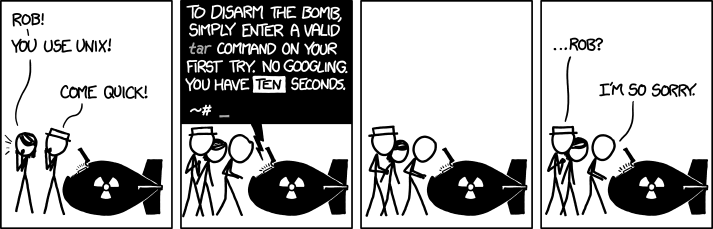
Suggest: XKCD #1168 (tar)
 |
|---|
 |
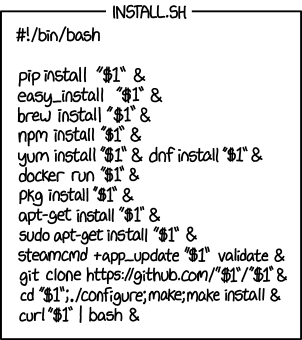
Explain: XKCD #1654 (Universal Install Script)
 |
|---|
 |
Multilingual: Danish Skills (Flersproget: Danskkundskaber)

Challenging Tasks
| Suggest | Explain |
|---|---|
 |
 |
JSON Output for Scripting

Configuration Introspection

Configuration
Shell-AI loads configuration from multiple sources (highest priority first):
- CLI flags (
--provider,--model, etc.) - Environment variables (
SHAI_API_PROVIDER,OPENAI_API_KEY, etc.) - Config file (see paths below)
- Built-in defaults
Config file locations:
- Linux:
~/.config/shell-ai/config.toml - macOS:
~/Library/Application Support/shell-ai/config.toml - Windows:
%APPDATA%\shell-ai\config.toml
Generate a documented config template:
Example config:
= "openai"
[]
= "sk-..."
= "gpt-4o"
Providers
Set the provider in your config file (~/.config/shell-ai/config.toml on Linux, ~/Library/Application Support/shell-ai/config.toml on macOS, %APPDATA%\shell-ai\config.toml on Windows). The provider-specific settings go in a section named after the provider.
= "openai" # or: groq, azure, ollama, mistral
Shell-AI may alternatively be configured by environment variables, which override the config file:
# or: groq, azure, ollama, mistral
OpenAI
Works with OpenAI and any OpenAI-compatible API (e.g., DeepSeek).
[]
= "sk-..." # REQUIRED
# api_base = "https://api.openai.com" # change for compatible APIs
# model = "gpt-5"
# max_tokens = ""
# organization = "" # for multi-org accounts
# REQUIRED
# export OPENAI_API_BASE=https://api.openai.com
# export OPENAI_MODEL=gpt-5
# export OPENAI_MAX_TOKENS=
# export OPENAI_ORGANIZATION=
Groq
[]
= "gsk_..." # REQUIRED
# api_base = "https://api.groq.com/openai"
# model = "openai/gpt-oss-120b"
# max_tokens = ""
# REQUIRED
# export GROQ_MODEL=openai/gpt-oss-120b
# export GROQ_MAX_TOKENS=
Azure OpenAI
[]
= "your-key" # REQUIRED
= "https://your-resource.openai.azure.com" # REQUIRED
= "your-deployment" # REQUIRED
# api_version = "2023-05-15"
# max_tokens = ""
# REQUIRED
# REQUIRED
# REQUIRED
# export OPENAI_API_VERSION=2023-05-15
# export AZURE_MAX_TOKENS=
Ollama
No API key required for local Ollama.
[]
# api_base = "http://localhost:11434"
# model = "gpt-oss:120b-cloud"
# max_tokens = ""
# export OLLAMA_API_BASE=http://localhost:11434
# export OLLAMA_MODEL=gpt-oss:120b-cloud
# export OLLAMA_MAX_TOKENS=
Mistral
[]
= "your-key" # REQUIRED
# api_base = "https://api.mistral.ai"
# model = "codestral-2508"
# max_tokens = ""
# REQUIRED
# export MISTRAL_API_BASE=https://api.mistral.ai
# export MISTRAL_MODEL=codestral-2508
# export MISTRAL_MAX_TOKENS=
Shell Integration
Shell-AI works well standalone, but integrating it into your shell enables a streamlined workflow: type a description, press a key combination, and the command appears ready to execute.
Each snippet below provides:
??alias forshell-ai suggest --explainalias forshell-ai explain --- Ctrl+G keybinding to transform the current line into a shell command (with a progress indicator while Shell-AI is working)
# Aliases
# Ctrl+G: Transform current line into a shell command
# Aliases
# Ctrl+G: Transform current line into a shell command
# Abbreviations
abbr -a '??' 'shell-ai suggest --'
abbr -a 'explain' 'shell-ai explain'

# Ctrl+G: Transform current line into a shell command
function _shai_transform
    set -l cmd (commandline)
    if test -n "$cmd"
        set -l colors 196 202 208 214 220 226 190 154 118 082 046 047 049 051 045 039 033 027 021 057 093 129 165 201 199 198 197
        set -l highlighted ""
        for i in (seq (string length "$cmd"))
            set -l color_idx (math "($i - 1) % "(count $colors)" + 1")
            set highlighted "$highlighted"(set_color (printf "%.3d" $colors[$color_idx]))(string sub -s $i -l 1 "$cmd")
        end
        commandline -r "$highlighted"(set_color normal)" 💭"
        commandline -r (shell-ai --frontend=noninteractive suggest -- "$cmd" 2>/dev/null | head -1)
        commandline -f end-of-line
    end
end
bind \cg _shai_transform
# Functions
function ?? { shell-ai suggest -- @args }
function explain { shell-ai explain -- @args }

# Ctrl+G: Transform current line into a shell command
Set-PSReadLineKeyHandler -Chord 'Ctrl+g' -ScriptBlock {
    $line = $null
    [Microsoft.PowerShell.PSConsoleReadLine]::GetBufferState([ref]$line, [ref]$null)
    if ($line) {
        $colors = @(196, 202, 208, 214, 220, 226, 190, 154, 118, 82, 46, 47, 49, 51, 45, 39, 33, 27, 21, 57, 93, 129, 165, 201, 199, 198, 197)
        $highlighted = ""
        for ($i = 0; $i -lt $line.Length; $i++) {
            $highlighted += "`e[38;5;$($colors[$i % $colors.Length])m$($line[$i])"
        }
        [Console]::Write("`r`e[K$highlighted`e[0m 💭")
        $result = shell-ai --frontend=noninteractive suggest -- $line 2>$null | Select-Object -First 1
        [Console]::Write("`r`e[K")
        [Microsoft.PowerShell.PSConsoleReadLine]::Replace(0, $line.Length, $result)
    }
}
Migrating from Python Shell-AI
If you're coming from ricklamers/shell-ai:
- The provider is required. Set
SHAI_API_PROVIDERexplicitly, as the default is no longer Groq. SHAI_SKIP_HISTORYis removed. Writing to shell history is no longer supported. The previous implementation made assumptions about the shell's history configuration. Shells don't expose history hooks to child processes, making this feature infeasible.SHAI_SKIP_CONFIRMis deprecated. Use--frontend=noninteractiveorSHAI_FRONTEND=noninteractiveas a more flexible alternative.- Context mode is deprecated. The
--ctxflag andCTXenvironment variable still work but are not recommended. The extra context from shell output tends to confuse the completion model rather than help it. - Model defaults differ. Set
modelexplicitly if you prefer a specific model.
Contributing
Contributions welcome! Open an issue or pull request at Deltik/shell-ai.
For changes to the original Python Shell-AI, head upstream to ricklamers/shell-ai.
Acknowledgments
This project began as a fork of ricklamers/shell-ai at v0.4.4. Since v0.5.0, it shares no code with the original—a complete Ship of Theseus rebuild in Rust. The hull is new, but the spirit remains.
License
Shell-AI is licensed under the MIT License. See LICENSE for details.