<p align="center"><img src="rura.svg" height="80"></p>
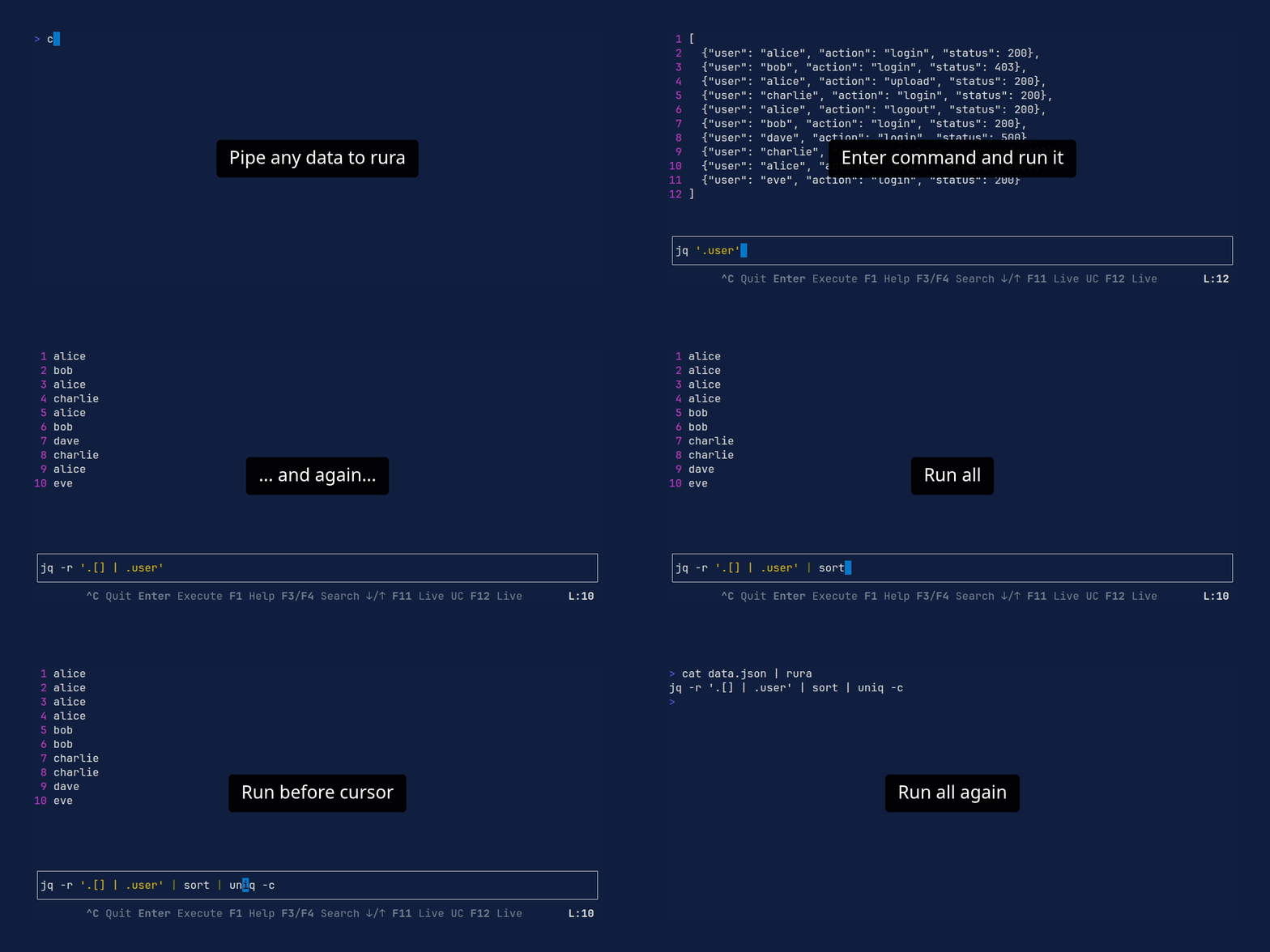
## Features
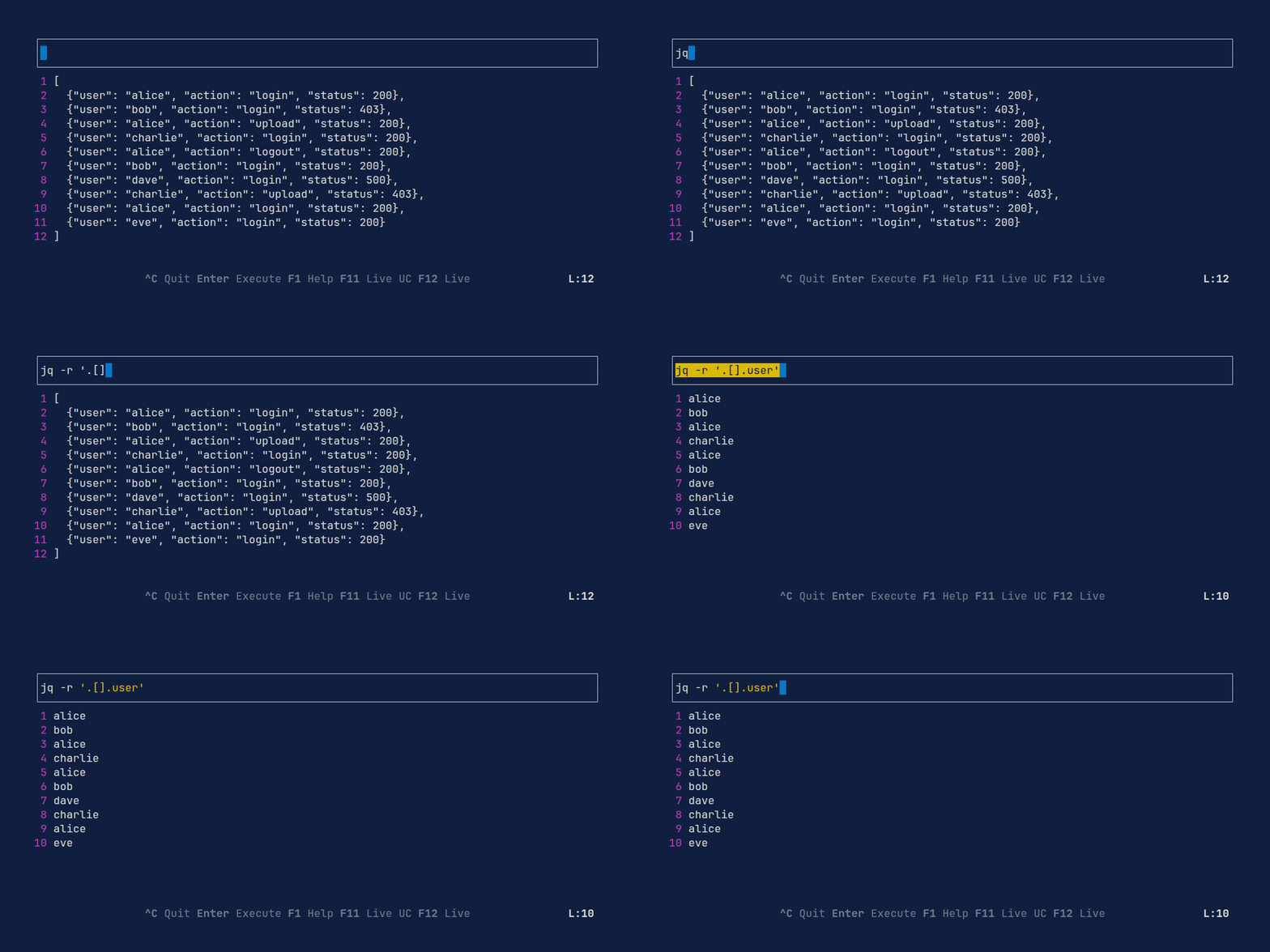
- **Partial Pipeline Execution**: Execute only up to the current subcommand to debug complex pipes.
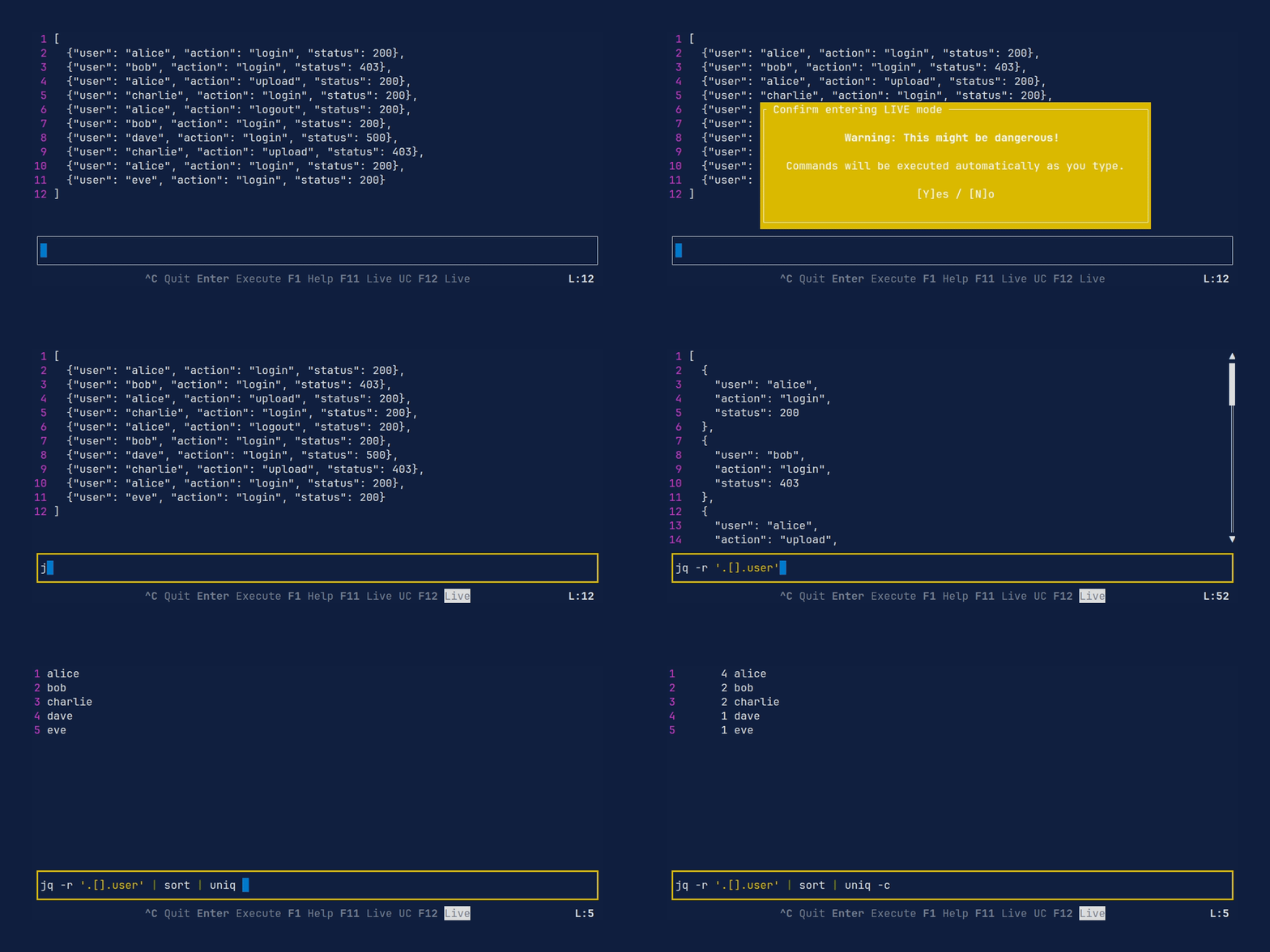
- **Live Execution Modes**: Real-time feedback as you type, with optional "Live Until Cursor" or "Live Full" modes.
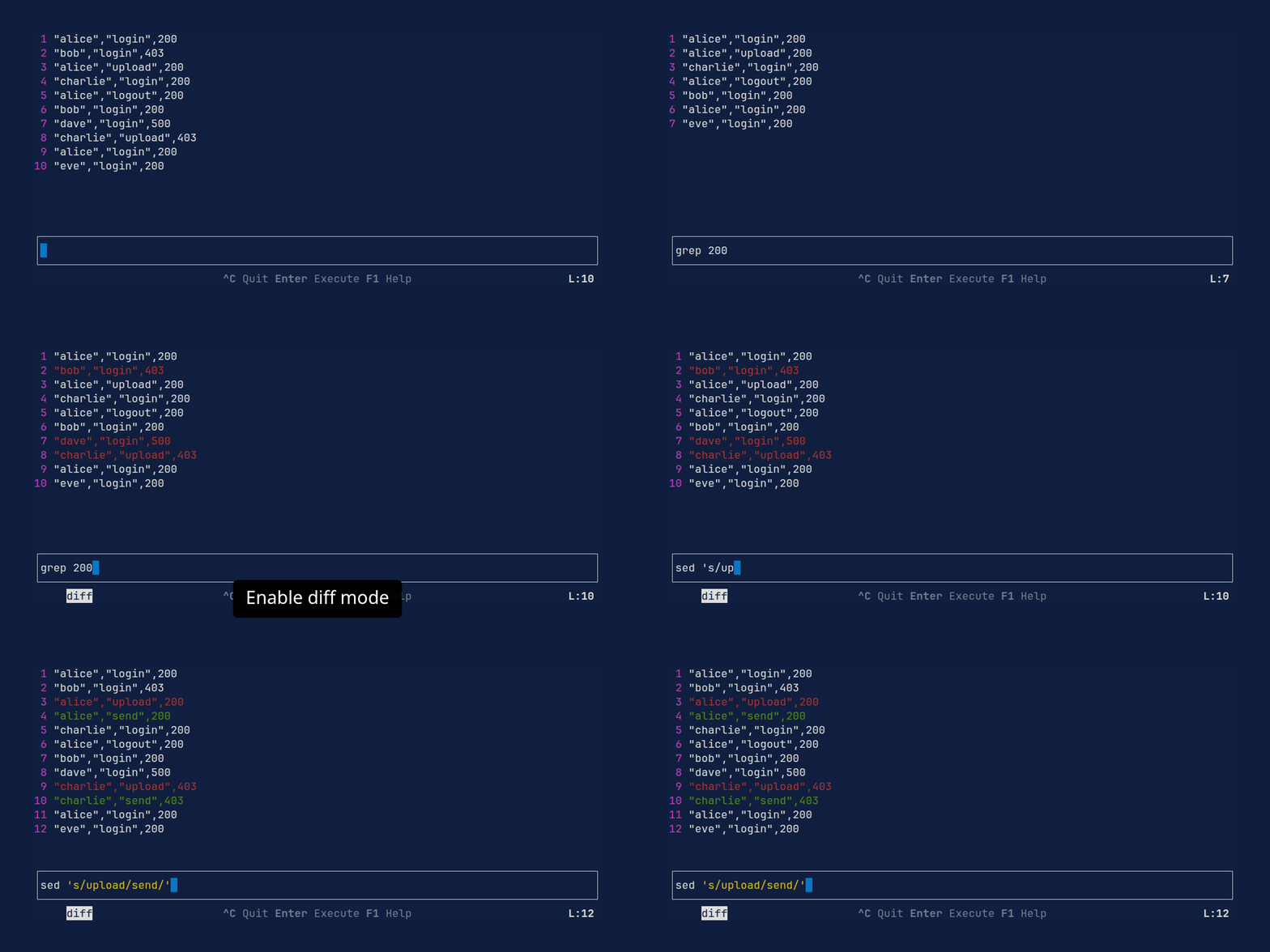
- **Diff Mode**: Line-based diff between two outputs, with a selectable base (stdin or any subcommand's output).
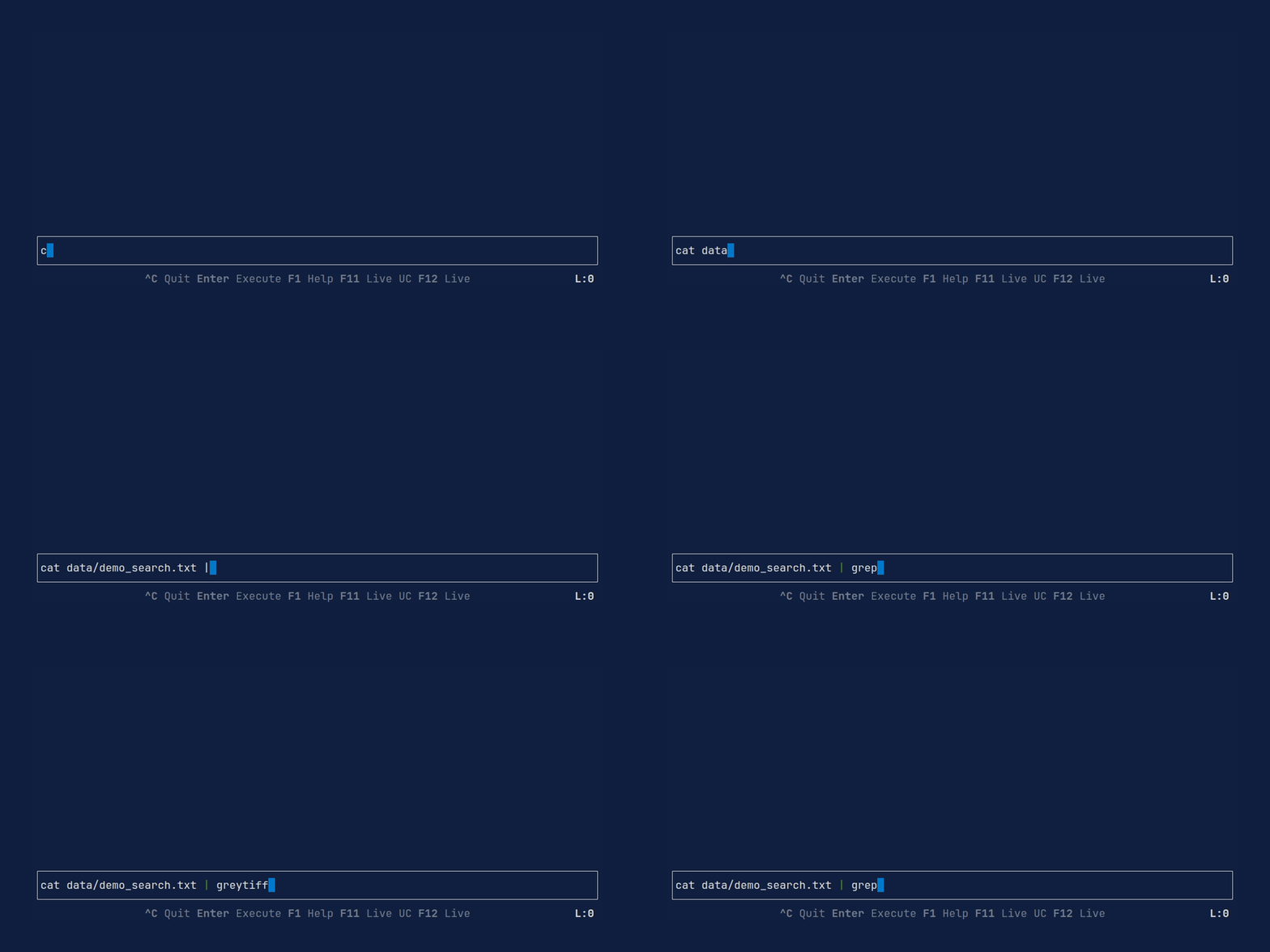
- **Context-aware Completion**: Tab-complete commands and file paths using your system's bash, zsh, or fish tools.
- **Command Caching**: Automatically caches output of subcommands to speed up iteration.
- **Syntax & Error Highlighting**: Visual feedback for subcommand boundaries, quotes, and pipes, plus highlighting of failed subcommands.
- **Customizable**: Fully configurable key bindings, themes, and UI placement via TOML.
<details>
<summary>More features</summary>
- **Custom Shell Support**: Specify which shell to use for command execution and completions (supports `sh`, `bash`, `zsh`, `fish` on Unix and `powershell` on Windows).
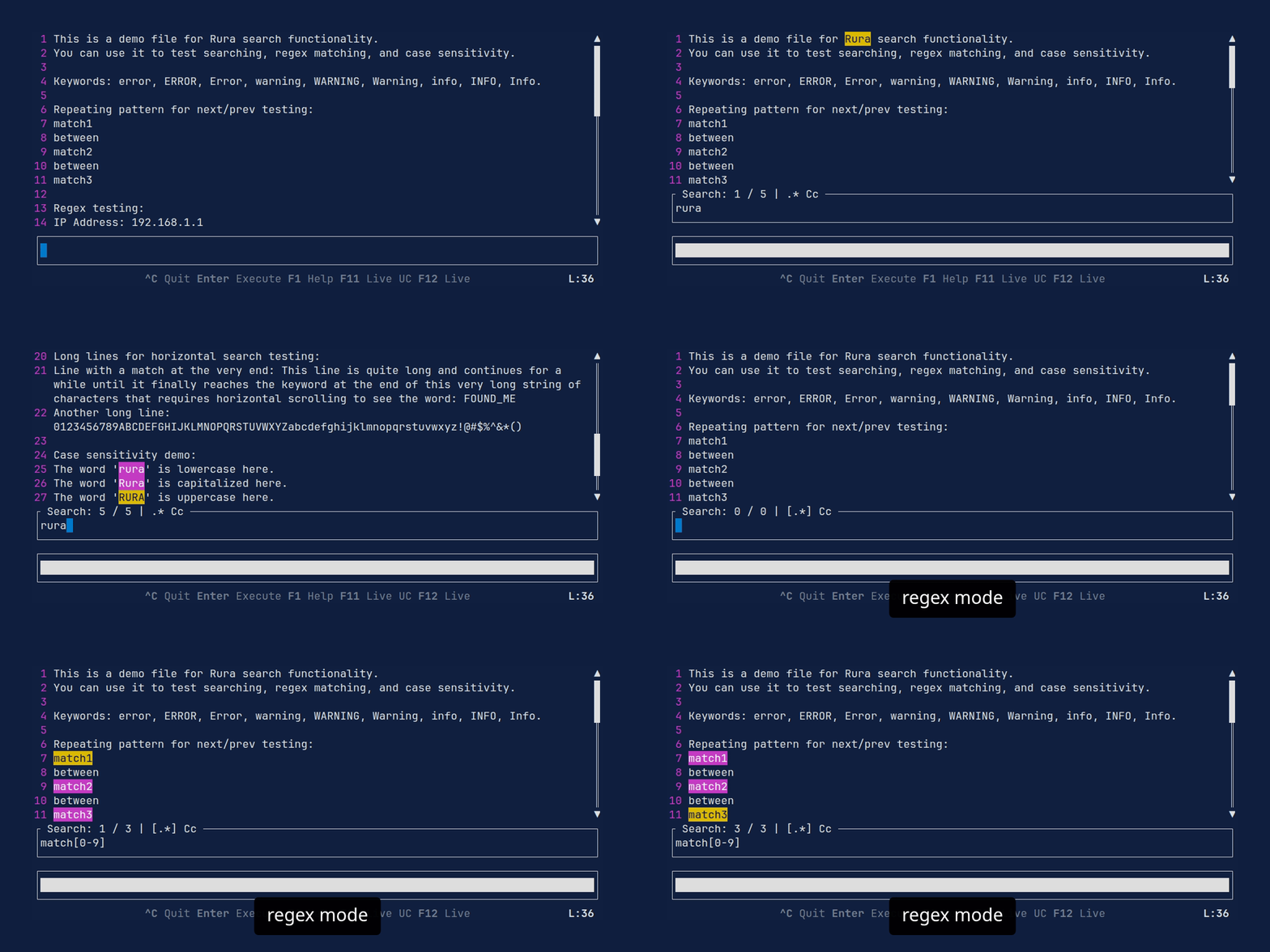
- **Search**: Search and highlight text within the output pane with regex support.
- **Command Formatting**: Automatically format your command pipeline.
- **Subcommand Editing**: Quick copy, cut, and paste of subcommands.
- **Progress Indicator**: Visual indicator for long-running commands.
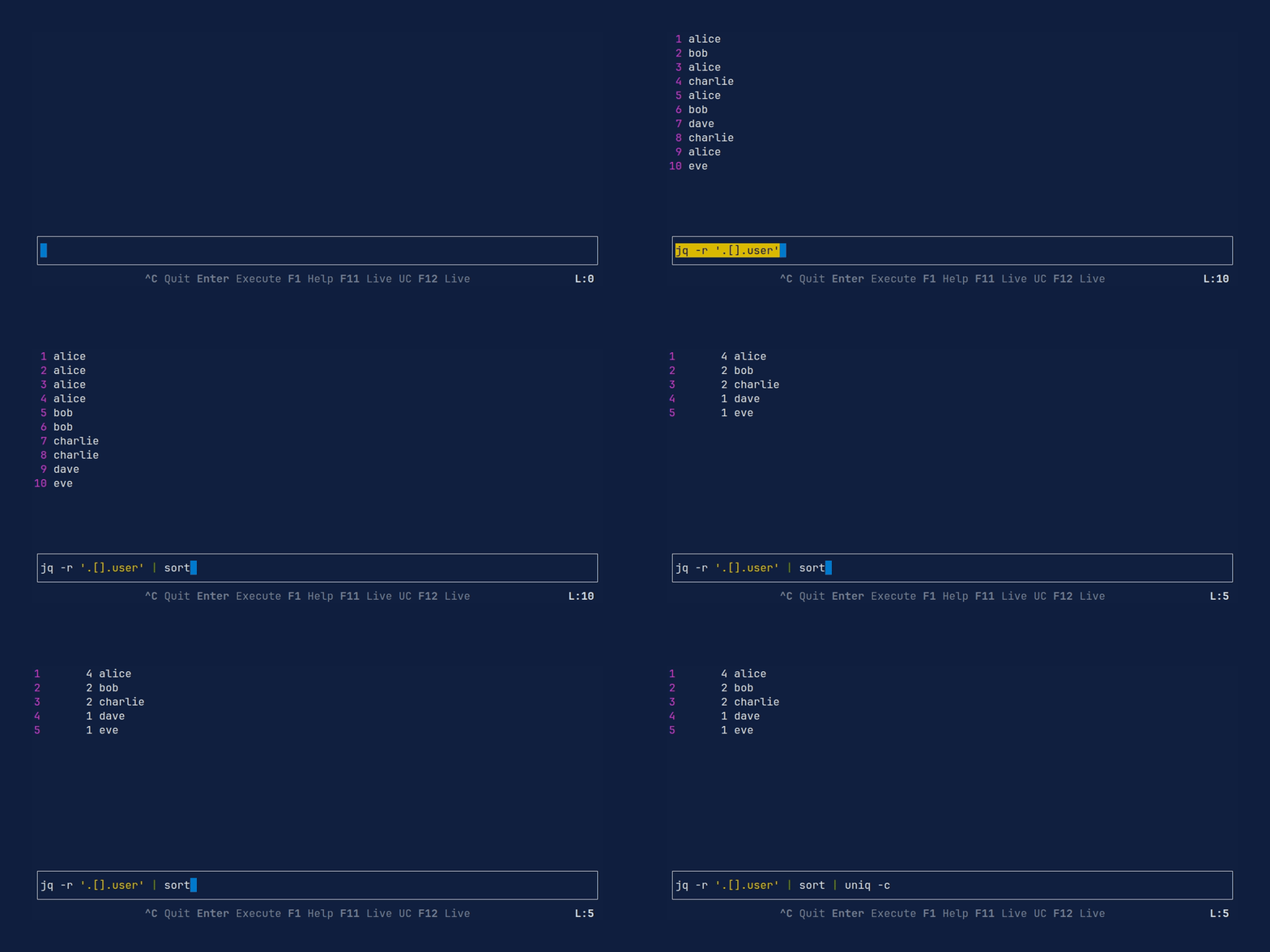
- **Persistent History**: Quickly access and reuse previous commands.
- **Save to File**: Save current output or command to a file.
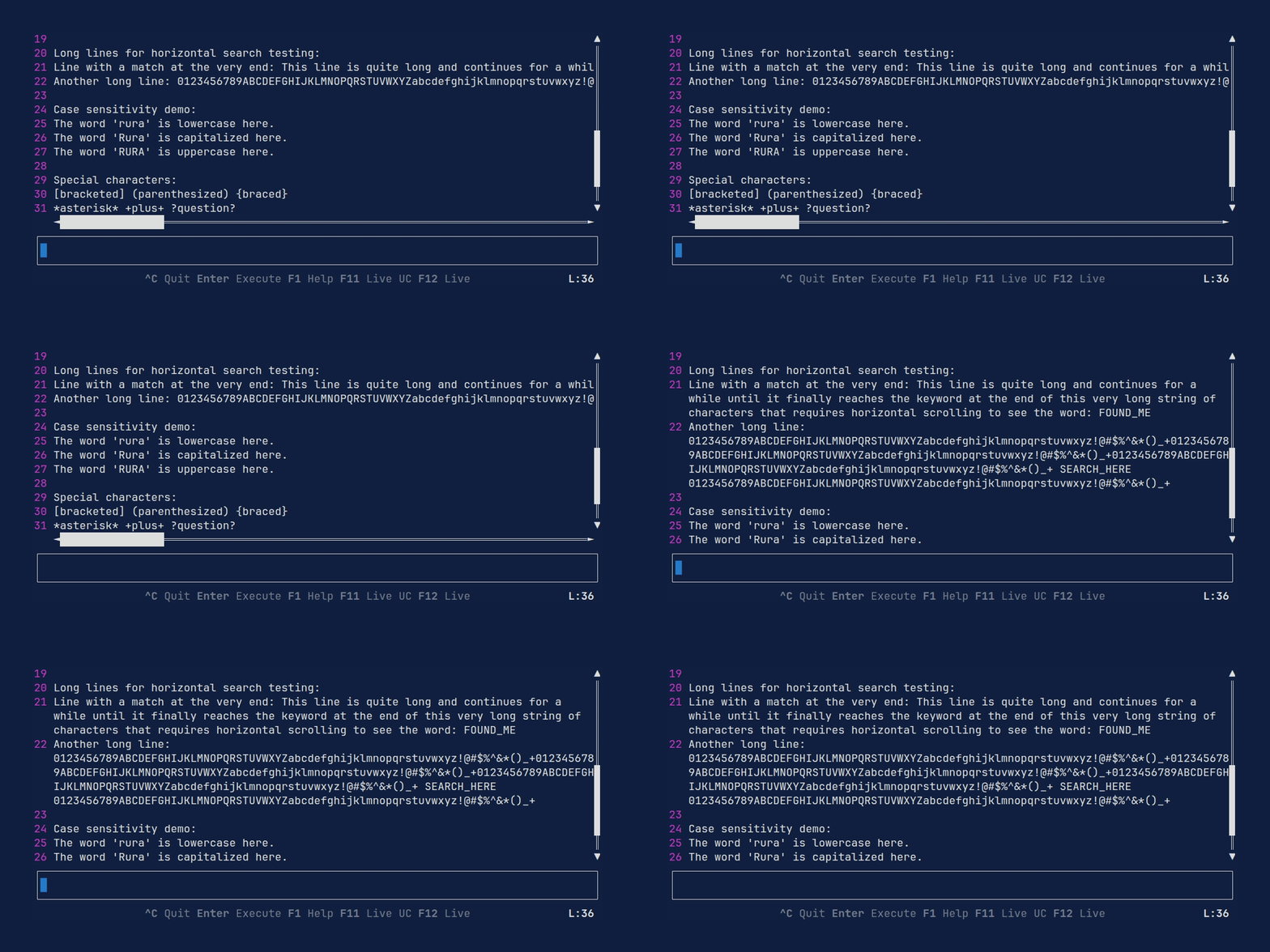
- **Line Wrapping**: Toggle whether long output lines wrap to fit the view.
</details>
## Demos
**Live Execution**
**Diff Mode**
**Command and filename completion**
<details>
<summary>More demos</summary>
**Configurable layout**
**History**
**Search with regex support**
**Line wrapping**
</details>
## Installation
Check the [Releases](https://github.com/tlipinski/rura/releases) page for pre-compiled binaries for your platform.
**Homebrew (macOS/Linux)**:
```bash
brew install rura
```
**Arch Linux (AUR)**: Install via your AUR helper:
```bash
# Pre-compiled binary
yay -S rura-bin
# Build from latest git source
yay -S rura-git
```
**Cargo**:
```bash
# From crates.io
cargo install rura
# From source
cargo install --git https://github.com/tlipinski/rura
```
## Usage
You can start Rura by passing a file as an argument, piping data into it, or providing an initial command.
```bash
# Open a file
rura --file data.json
# Pipe data into rura
# Start with an initial command
# Print the last executed command from history without opening the UI
rura --last
```
### CLI Arguments
| `-f, --file <FILE>` | Path to the input file. |
| `-c, --command <COMMAND>` | Initial command to populate the input field. |
| `-C, --config <FILE>` | Path to a custom TOML configuration file. |
| `-l, --last` | Print the last command from history and exit. |
| `--no-cache` | Disable caching of command output. |
| `-s, --shell <SHELL>` | Specify the shell to use for execution and completions (e.g., `bash`, `zsh`, `fish`). Defaults to `sh` on Unix and `powershell` on Windows. |
| `-V, --version` | Print version information. |
## Key Bindings
### Command Execution
| `Enter` | Execute the full command pipeline. |
| `Alt + \` | Execute the pipeline up to the current subcommand (where your cursor is). |
| `Alt + \|` | Execute the pipeline up to the *previous* subcommand. |
| `Alt + i` | Reset view to show the original input data. |
### Navigation & View
| `Arrows` <br> `Alt + h / j / k / l` | Scroll the output (Left, Down, Up, Right). |
| `PageUp / PageDown` <br> `Alt + Up / Down` <br> `Alt + Shift + j / k` <br> `Ctrl + u / d` | Scroll the output up/down by page. |
| `Alt + Shift + h / l` | Scroll the output left/right by page. |
| `Alt + w` | Toggle line wrapping. |
### Search
| `F3 / F4` <br> `Ctrl + f / b` | Search forward or backward in the output. |
| `Alt + x` | Toggle regex mode. |
| `Alt + c` | Toggle case sensitivity. |
### Live Execution Modes
| `F11` | Toggle "Live Until Cursor" mode. Executes the pipeline up to the cursor as you type (requires confirmation). When already in "Live Full", switches to "Live Until Cursor". |
| `F12` | Toggle "Live Full" mode. Executes the entire pipeline as you type (requires confirmation). When already in "Live Until Cursor", switches to "Live Full". |
### Diff
| `Alt + d` | Toggle diff mode. Shows a line-based diff between the diff base and the current output. |
| `Alt + /` | Set the current subcommand's output as the diff base. |
| `Alt + ?` | Reset the diff base back to the original stdin. |
### Command Input & Subcommands
| `Tab` | Trigger forward command or file completion (requires `bash`, `zsh`, or `fish` available). |
| `Shift + Tab` | Trigger backward command or file completion. |
| `Alt + Right` | Move cursor to the next subcommand. |
| `Alt + Left` | Move cursor to the previous subcommand. |
| `Alt + o` | Format the command pipeline. |
| `Alt + c` | Copy the current subcommand. |
| `Alt + x` | Cut the current subcommand. |
| `Alt + v` | Paste the copied/cut subcommand after the current one. |
| `Home / End` <br> `Ctrl + a / e` | Move cursor to the beginning or end of the command line. |
| `Ctrl + p` | Previous command in history. |
| `Ctrl + n` | Next command in history. |
### Saving to File
| `Ctrl + s` | Save the current output to a file. |
| `Ctrl + Alt + s` | Save the current command to a file. |
In the save popup, type a destination path (Tab completes paths) and press Enter to write. Existing files are not overwritten.
### General
| `F1` | Toggle help screen. |
| `Ctrl + c` | Exit Rura. The last executed command is printed to your terminal. |
## Configuration
Rura can be configured via a TOML file. The shell used by Rura is determined by (in order of priority):
1. The `--shell` (or `-s`) CLI argument.
2. The `shell` property in the configuration file.
3. The `SHELL` environment variable.
4. Default to `sh`.
The configuration path is determined as follows:
1. Path specified by the `--config` (or `-C`) CLI argument.
2. Path specified by the `RURA_CONFIG` environment variable.
3. Default path:
- **Linux**: `~/.config/rura/config.toml`
- **macOS**: `~/Library/Application Support/rura/config.toml`
- **Windows**: `%APPDATA%\rura\config.toml`
### General Options
| `shell` | The shell to use for execution and completions (e.g., `"bash"`, `"zsh"`, `"fish"`, `"nu"`). |
| `command_line_placement` | Set to `"top"` or `"bottom"` (default) to change where the input field is rendered. |
| `highlight_duration_ms` | Duration in milliseconds for the temporary highlighting when executing commands (default: `250`). |
| `debounce_duration_ms` | Duration in milliseconds to wait before executing commands in live mode (default: `500`). |
| `no_cache` | Disable caching of command output when set to `true` (default: `false`). |
| `log_level` | Set the logging level (e.g., `"info"`, `"debug"`, `"error"`). Default is `"info"`. |
### Customizing Key Bindings
You can override any default key binding in the `[keybindings]` section. Multiple keys can be assigned to the same action.
```toml
[keybindings]
quit = ["ctrl+q", "ctrl+c"]
execute_full = ["enter"]
complete = ["tab"]
complete_prev = ["shift+tab"]
subcommand_next = ["alt+right"]
```
### Customizing Theme
Colors and styles can be adjusted in the `[theme]` section. Supported colors include `red`, `green`, `yellow`, `blue`, `magenta`, `cyan`, `gray`, `black`, `white`, and hex codes (e.g., `"#ffffff"`).
Available theme keys:
| `cmd_regular` | Default command style. |
| `cmd_regular_pipe` | Style for the pipe character in regular mode. |
| `cmd_regular_current` | Style for the currently selected subcommand. |
| `cmd_highlight` | Style for the subcommand being executed. |
| `cmd_highlight_pipe` | Style for the pipe character during execution. |
| `cmd_highlight_current` | Style for the current subcommand during execution. |
| `cmd_quoted` | Style for quoted strings. |
| `cmd_invalid` | Style for invalid subcommands (if parsing fails). |
| `cmd_diff_base` | Style for the subcommand currently marked as the diff base. |
| `output_highlight` | Style for search results in the output. |
| `output_highlight_current` | Style for the currently selected search result. |
| `line_nums` | Style for line numbers in the output. |
| `popup` | Style for popups (e.g., help, save, live mode confirmation). |
| `diff_addition` | Style for lines added in diff mode. |
| `diff_deletion` | Style for lines removed in diff mode. |
| `diff_equal` | Style for unchanged lines in diff mode. |
```toml
[theme.cmd_highlight]
fg = "black"
bg = "yellow"
bold = true
[theme.line_nums]
fg = "magenta"
```
## Storage & Logs
### History
Rura maintains a persistent command history. The history file is located at:
- **Linux**: `~/.local/share/rura/history.txt`
- **macOS**: `~/Library/Application Support/rura/history.txt`
- **Windows**: `%APPDATA%\rura\history.txt`
### Logs
Application logs are useful for troubleshooting. They are stored at:
- **Linux**: `~/.cache/rura/logs.txt`
- **macOS**: `~/Library/Caches/rura/logs.txt`
- **Windows**: `%LOCALAPPDATA%\rura\logs.txt`
## License
Licensed under the [MIT License](LICENSE).
