
Features
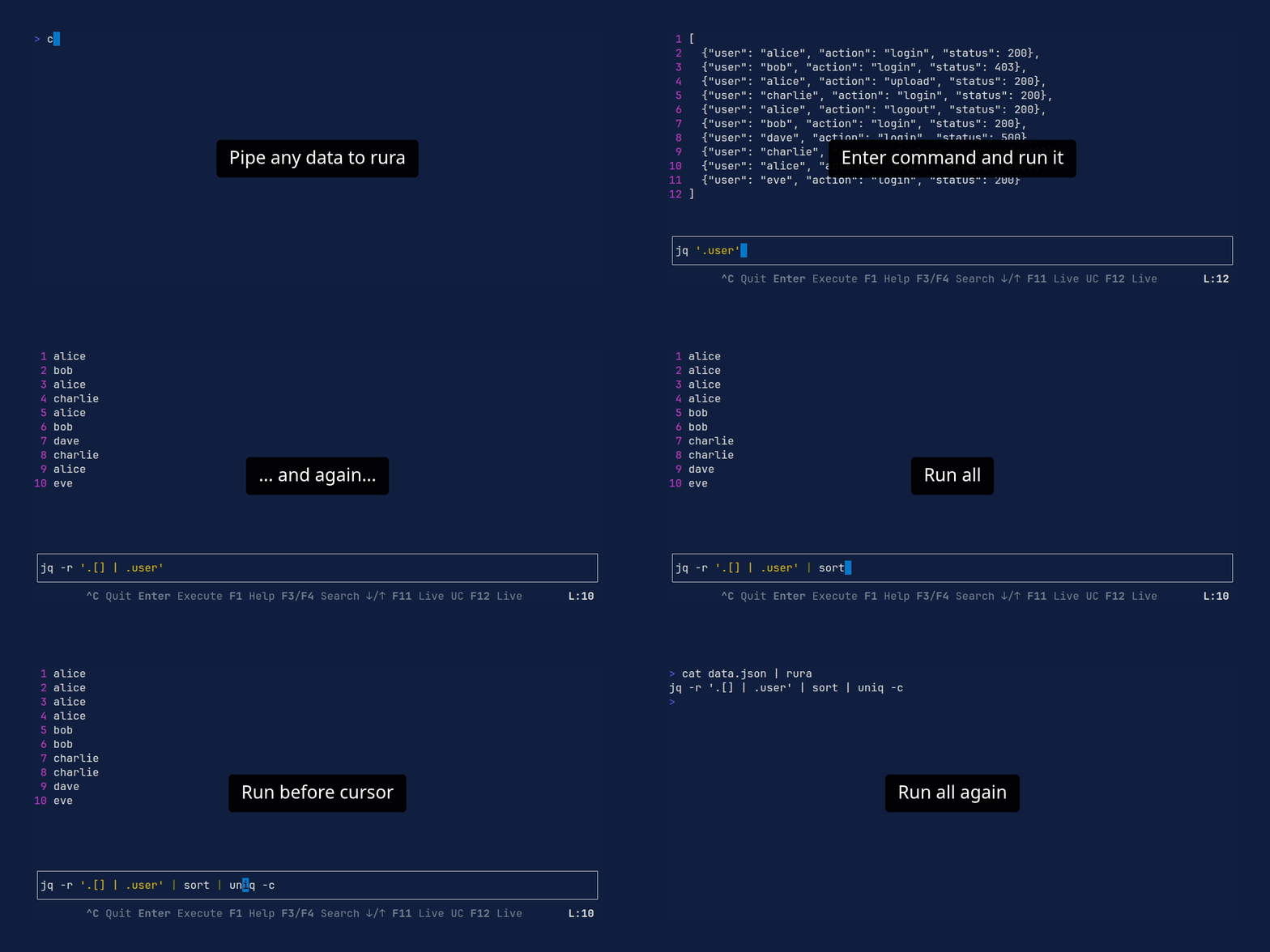
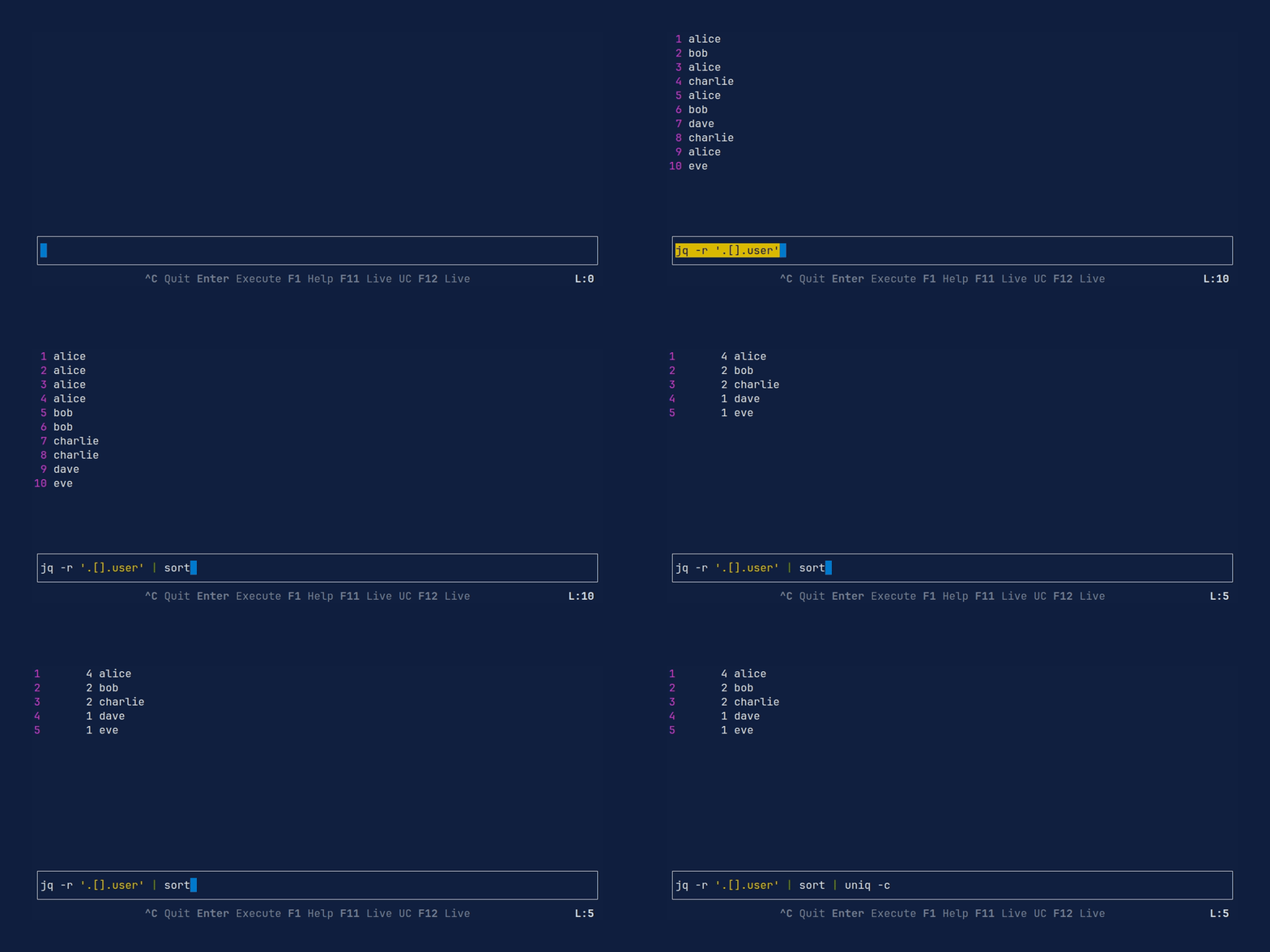
- Partial Pipeline Execution: Execute only up to the current subcommand to debug complex pipes.
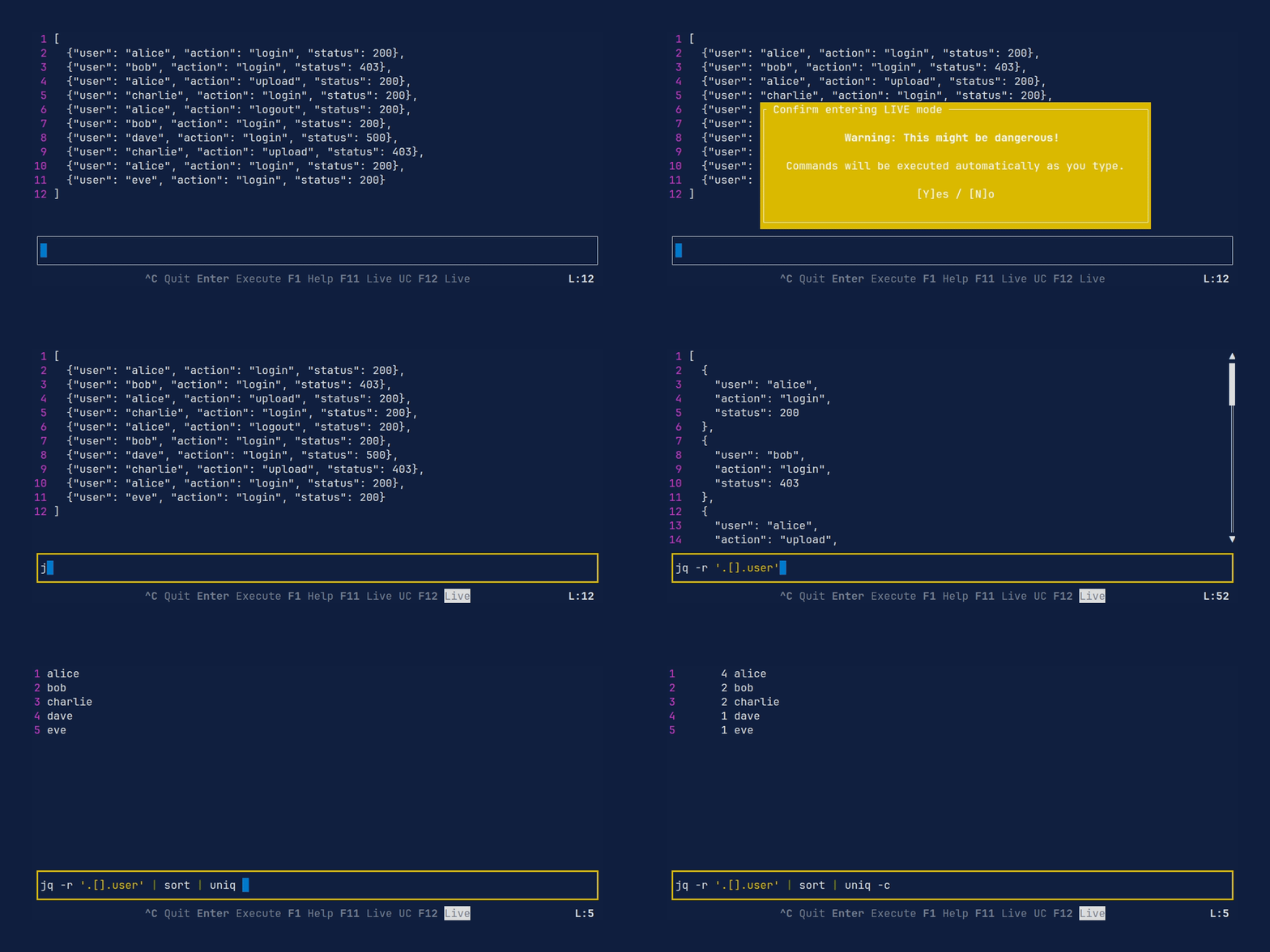
- Live Execution Modes: Real-time feedback as you type, with optional "Live Until Cursor" or "Live Full" modes.
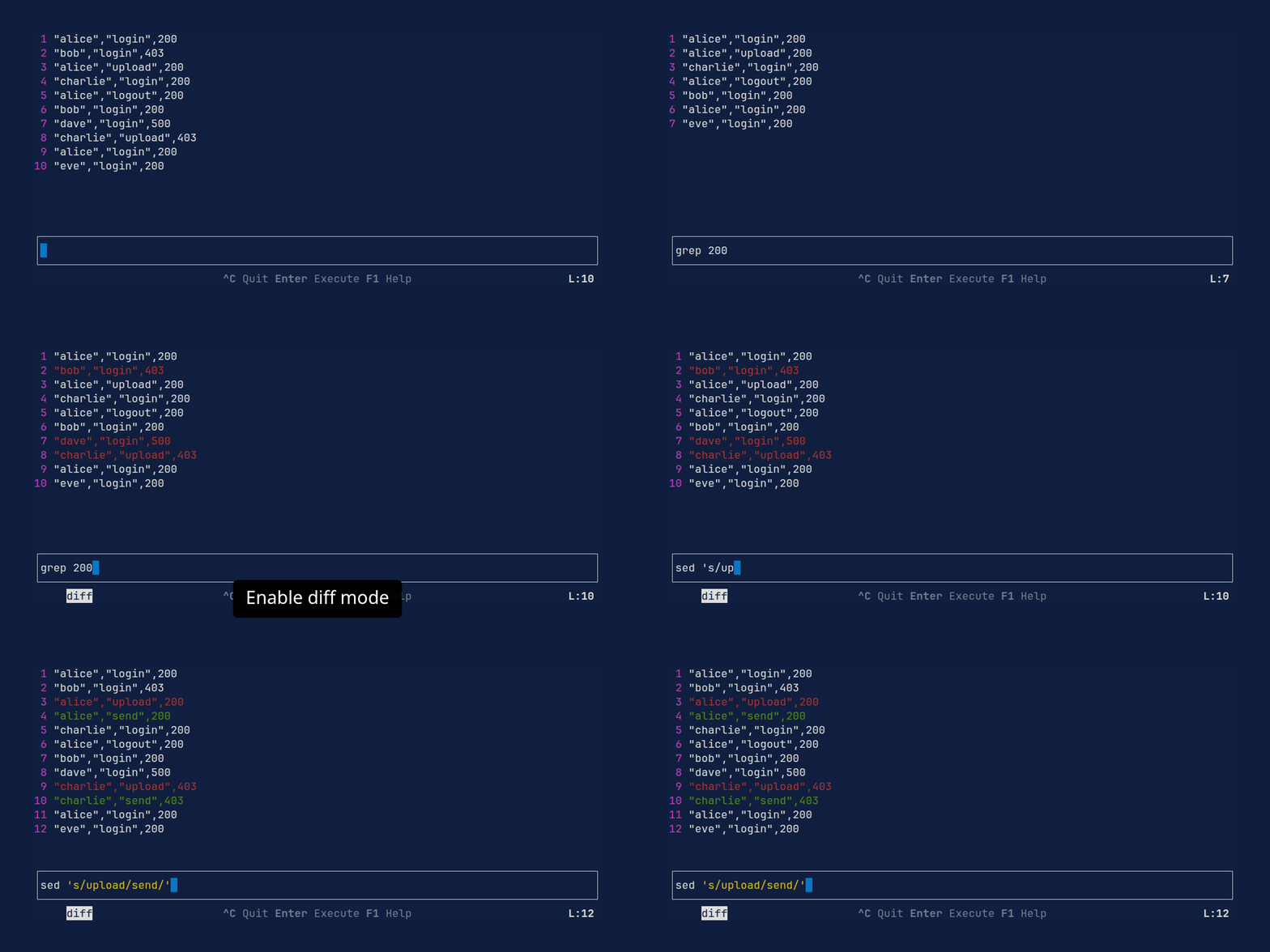
- Diff Mode: Line-based diff between two outputs, with a selectable base (stdin or any subcommand's output).
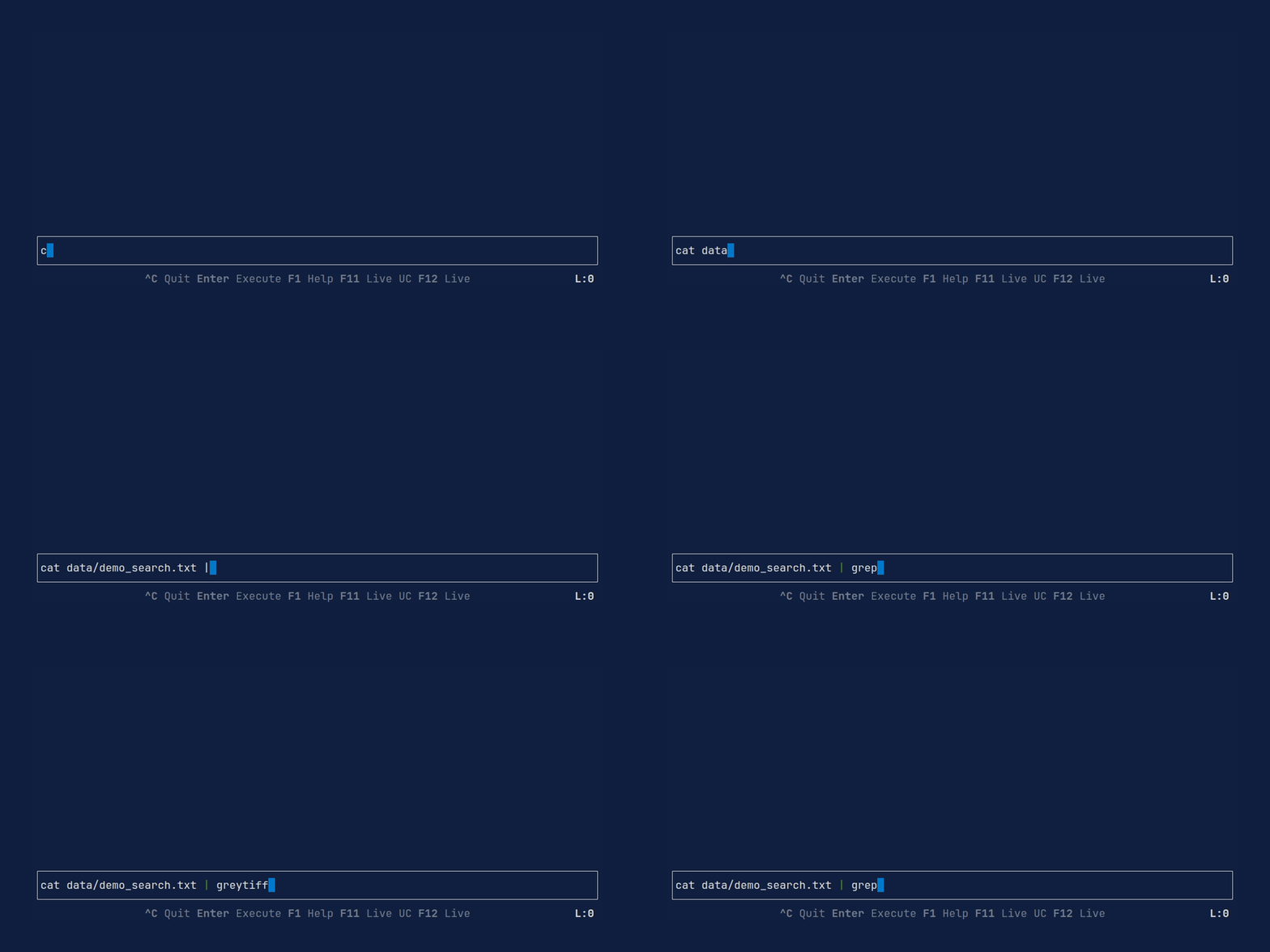
- Context-aware Completion: Tab-complete commands and file paths using your system's bash, zsh, or fish tools.
- Command Caching: Automatically caches output of subcommands to speed up iteration.
- Syntax & Error Highlighting: Visual feedback for subcommand boundaries, quotes, and pipes, plus highlighting of failed subcommands.
- Customizable: Fully configurable key bindings, themes, and UI placement via TOML.
- Custom Shell Support: Specify which shell to use for command execution and completions (supports
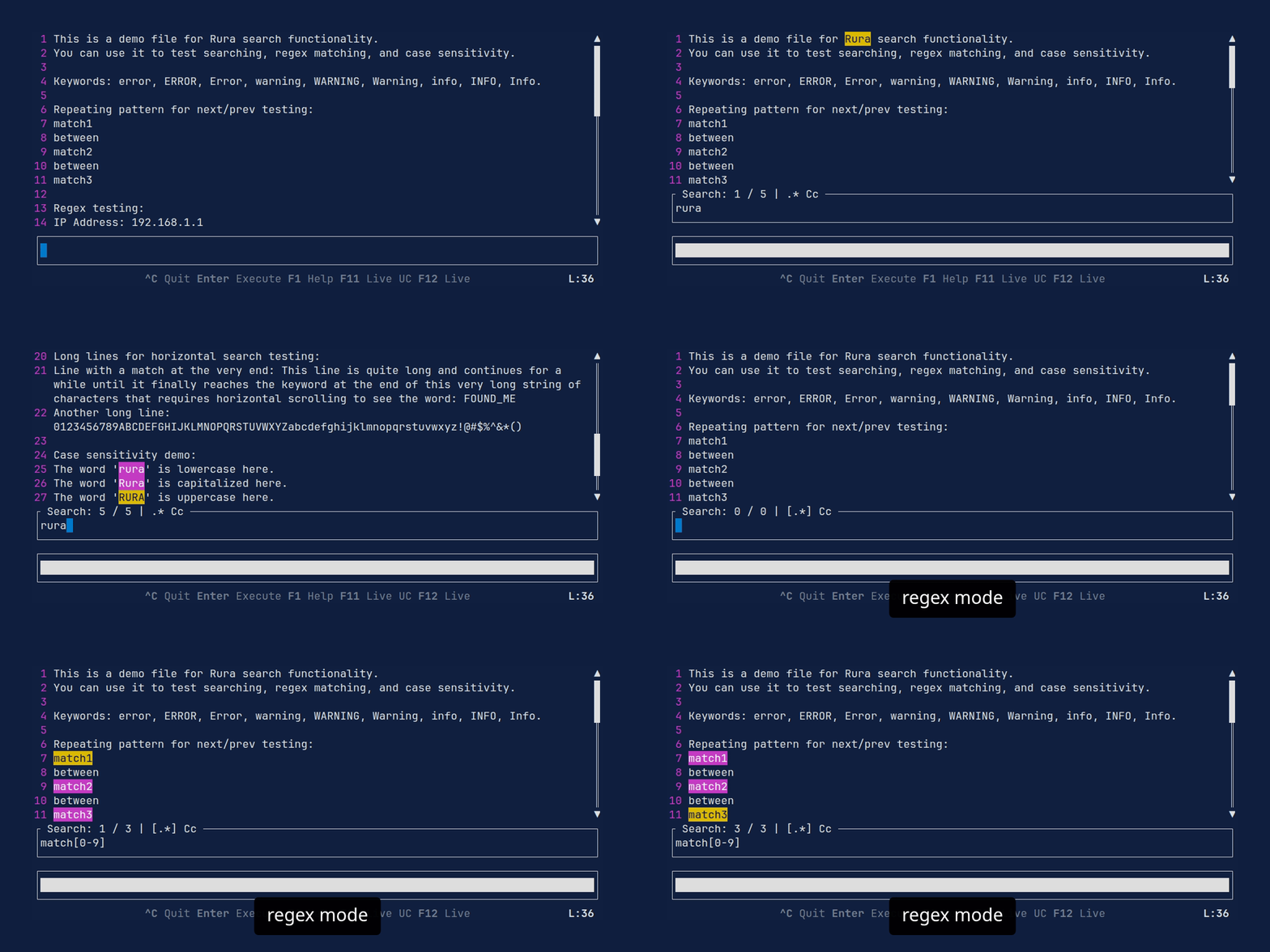
sh,bash,zsh,fishon Unix andpowershellon Windows). - Search: Search and highlight text within the output pane with regex support.
- Command Formatting: Automatically format your command pipeline.
- Subcommand Editing: Quick copy, cut, and paste of subcommands.
- Progress Indicator: Visual indicator for long-running commands.
- Persistent History: Quickly access and reuse previous commands.
- Save to File: Save current output or command to a file.
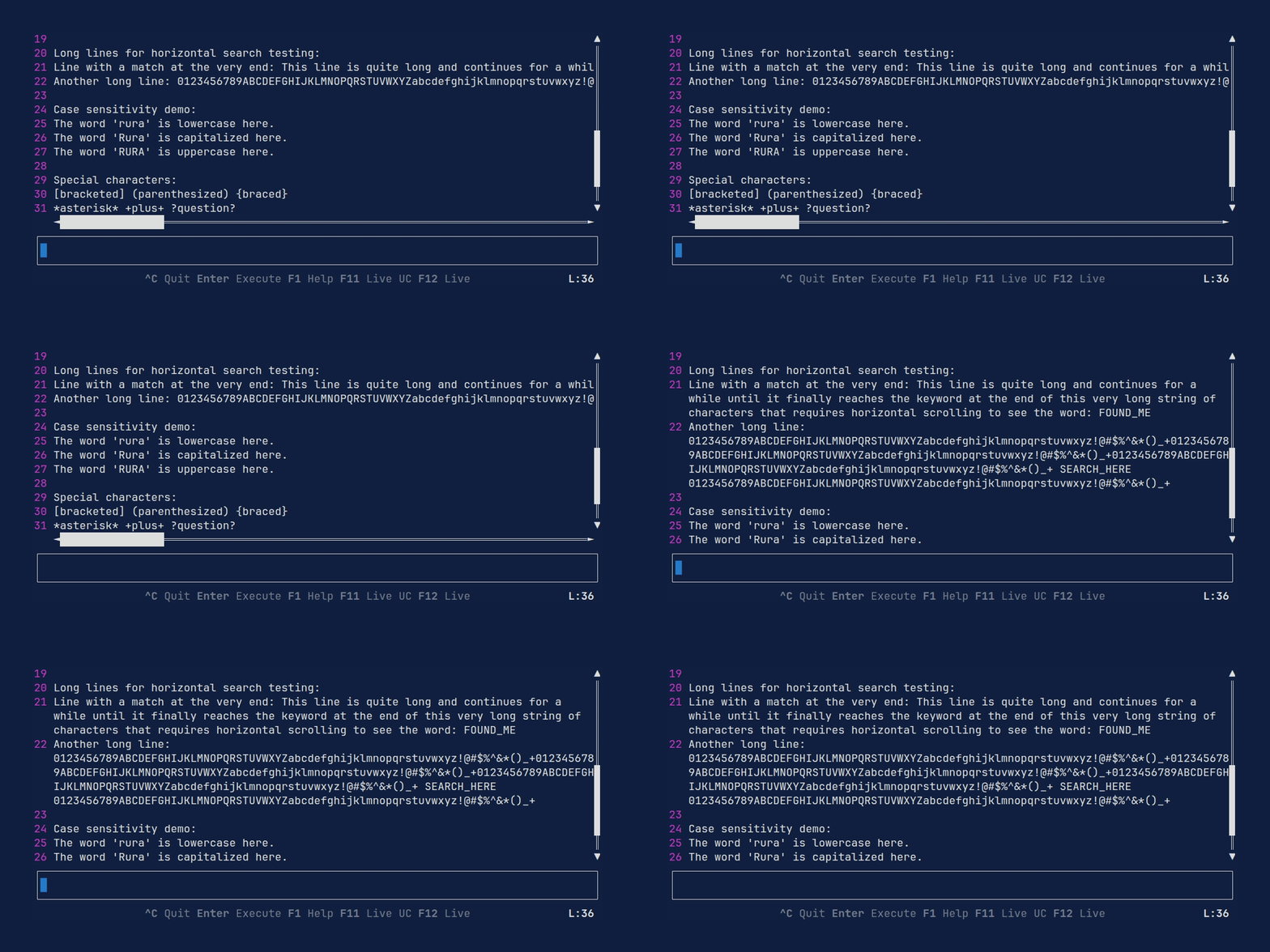
- Line Wrapping: Toggle whether long output lines wrap to fit the view.
Demos
Live Execution
Diff Mode
Command and filename completion
Configurable layout
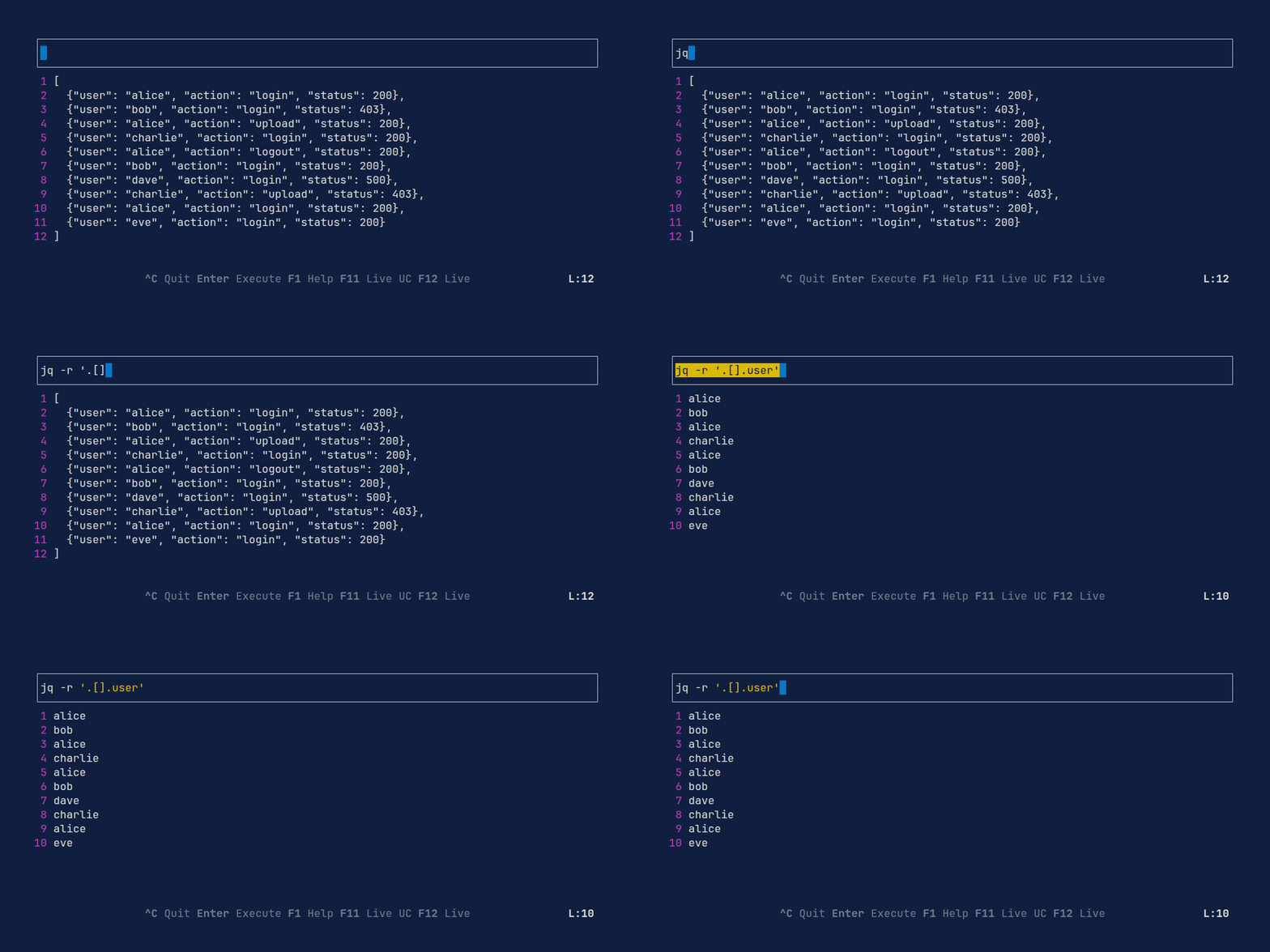
History
Search with regex support
Line wrapping
Installation
Check the Releases page for pre-compiled binaries for your platform.
Homebrew (macOS/Linux):
Arch Linux (AUR): Install via your AUR helper:
# Pre-compiled binary
# Build from latest git source
Cargo:
# From crates.io
# From source
Usage
You can start Rura by passing a file as an argument, piping data into it, or providing an initial command.
# Open a file
# Pipe data into rura
|
# Start with an initial command
# Print the last executed command from history without opening the UI
CLI Arguments
| Argument | Description |
|---|---|
-f, --file <FILE> |
Path to the input file. |
-c, --command <COMMAND> |
Initial command to populate the input field. |
-C, --config <FILE> |
Path to a custom TOML configuration file. |
-l, --last |
Print the last command from history and exit. |
--no-cache |
Disable caching of command output. |
-s, --shell <SHELL> |
Specify the shell to use for execution and completions (e.g., bash, zsh, fish). Defaults to sh on Unix and powershell on Windows. |
-V, --version |
Print version information. |
Key Bindings
Command Execution
| Key | Action |
|---|---|
Enter |
Execute the full command pipeline. |
Alt + \ |
Execute the pipeline up to the current subcommand (where your cursor is). |
Alt + | |
Execute the pipeline up to the previous subcommand. |
Alt + i |
Reset view to show the original input data. |
Navigation & View
| Key | Action |
|---|---|
Arrows Alt + h / j / k / l |
Scroll the output (Left, Down, Up, Right). |
PageUp / PageDown Alt + Up / Down Alt + Shift + j / k Ctrl + u / d |
Scroll the output up/down by page. |
Alt + Shift + h / l |
Scroll the output left/right by page. |
Alt + w |
Toggle line wrapping. |
Search
| Key | Action |
|---|---|
F3 / F4 Ctrl + f / b |
Search forward or backward in the output. |
Alt + x |
Toggle regex mode. |
Alt + c |
Toggle case sensitivity. |
Live Execution Modes
| Key | Action |
|---|---|
F11 |
Toggle "Live Until Cursor" mode. Executes the pipeline up to the cursor as you type (requires confirmation). When already in "Live Full", switches to "Live Until Cursor". |
F12 |
Toggle "Live Full" mode. Executes the entire pipeline as you type (requires confirmation). When already in "Live Until Cursor", switches to "Live Full". |
Diff
| Key | Action |
|---|---|
Alt + d |
Toggle diff mode. Shows a line-based diff between the diff base and the current output. |
Alt + / |
Set the current subcommand's output as the diff base. |
Alt + ? |
Reset the diff base back to the original stdin. |
Command Input & Subcommands
| Key | Action |
|---|---|
Tab |
Trigger forward command or file completion (requires bash, zsh, or fish available). |
Shift + Tab |
Trigger backward command or file completion. |
Alt + Right |
Move cursor to the next subcommand. |
Alt + Left |
Move cursor to the previous subcommand. |
Alt + o |
Format the command pipeline. |
Alt + c |
Copy the current subcommand. |
Alt + x |
Cut the current subcommand. |
Alt + v |
Paste the copied/cut subcommand after the current one. |
Home / End Ctrl + a / e |
Move cursor to the beginning or end of the command line. |
Ctrl + p |
Previous command in history. |
Ctrl + n |
Next command in history. |
Saving to File
| Key | Action |
|---|---|
Ctrl + s |
Save the current output to a file. |
Ctrl + Alt + s |
Save the current command to a file. |
In the save popup, type a destination path (Tab completes paths) and press Enter to write. Existing files are not overwritten.
General
| Key | Action |
|---|---|
F1 |
Toggle help screen. |
Ctrl + c |
Exit Rura. The last executed command is printed to your terminal. |
Configuration
Rura can be configured via a TOML file. The shell used by Rura is determined by (in order of priority):
- The
--shell(or-s) CLI argument. - The
shellproperty in the configuration file. - The
SHELLenvironment variable. - Default to
sh.
The configuration path is determined as follows:
- Path specified by the
--config(or-C) CLI argument. - Path specified by the
RURA_CONFIGenvironment variable. - Default path:
- Linux:
~/.config/rura/config.toml - macOS:
~/Library/Application Support/rura/config.toml - Windows:
%APPDATA%\rura\config.toml
- Linux:
General Options
| Option | Description |
|---|---|
shell |
The shell to use for execution and completions (e.g., "bash", "zsh", "fish", "nu"). |
command_line_placement |
Set to "top" or "bottom" (default) to change where the input field is rendered. |
highlight_duration_ms |
Duration in milliseconds for the temporary highlighting when executing commands (default: 250). |
debounce_duration_ms |
Duration in milliseconds to wait before executing commands in live mode (default: 500). |
no_cache |
Disable caching of command output when set to true (default: false). |
log_level |
Set the logging level (e.g., "info", "debug", "error"). Default is "info". |
Customizing Key Bindings
You can override any default key binding in the [keybindings] section. Multiple keys can be assigned to the same action.
[]
= ["ctrl+q", "ctrl+c"]
= ["enter"]
= ["tab"]
= ["shift+tab"]
= ["alt+right"]
Customizing Theme
Colors and styles can be adjusted in the [theme] section. Supported colors include red, green, yellow, blue, magenta, cyan, gray, black, white, and hex codes (e.g., "#ffffff").
Available theme keys:
| Key | Description |
|---|---|
cmd_regular |
Default command style. |
cmd_regular_pipe |
Style for the pipe character in regular mode. |
cmd_regular_current |
Style for the currently selected subcommand. |
cmd_highlight |
Style for the subcommand being executed. |
cmd_highlight_pipe |
Style for the pipe character during execution. |
cmd_highlight_current |
Style for the current subcommand during execution. |
cmd_quoted |
Style for quoted strings. |
cmd_invalid |
Style for invalid subcommands (if parsing fails). |
cmd_diff_base |
Style for the subcommand currently marked as the diff base. |
output_highlight |
Style for search results in the output. |
output_highlight_current |
Style for the currently selected search result. |
line_nums |
Style for line numbers in the output. |
popup |
Style for popups (e.g., help, save, live mode confirmation). |
diff_addition |
Style for lines added in diff mode. |
diff_deletion |
Style for lines removed in diff mode. |
diff_equal |
Style for unchanged lines in diff mode. |
[]
= "black"
= "yellow"
= true
[]
= "magenta"
Storage & Logs
History
Rura maintains a persistent command history. The history file is located at:
- Linux:
~/.local/share/rura/history.txt - macOS:
~/Library/Application Support/rura/history.txt - Windows:
%APPDATA%\rura\history.txt
Logs
Application logs are useful for troubleshooting. They are stored at:
- Linux:
~/.cache/rura/logs.txt - macOS:
~/Library/Caches/rura/logs.txt - Windows:
%LOCALAPPDATA%\rura\logs.txt
License
Licensed under the MIT License.