
Quvyta framework



quvyta-framework is a Rust framework for terminal applications: themes, icons, language files, mouse and keyboard handling come built in, and shape comes from colour, not from box characters. It was started for Quvyta's own applications and is open source under the MIT licence. API documentation: https://docs.rs/quvyta-framework.
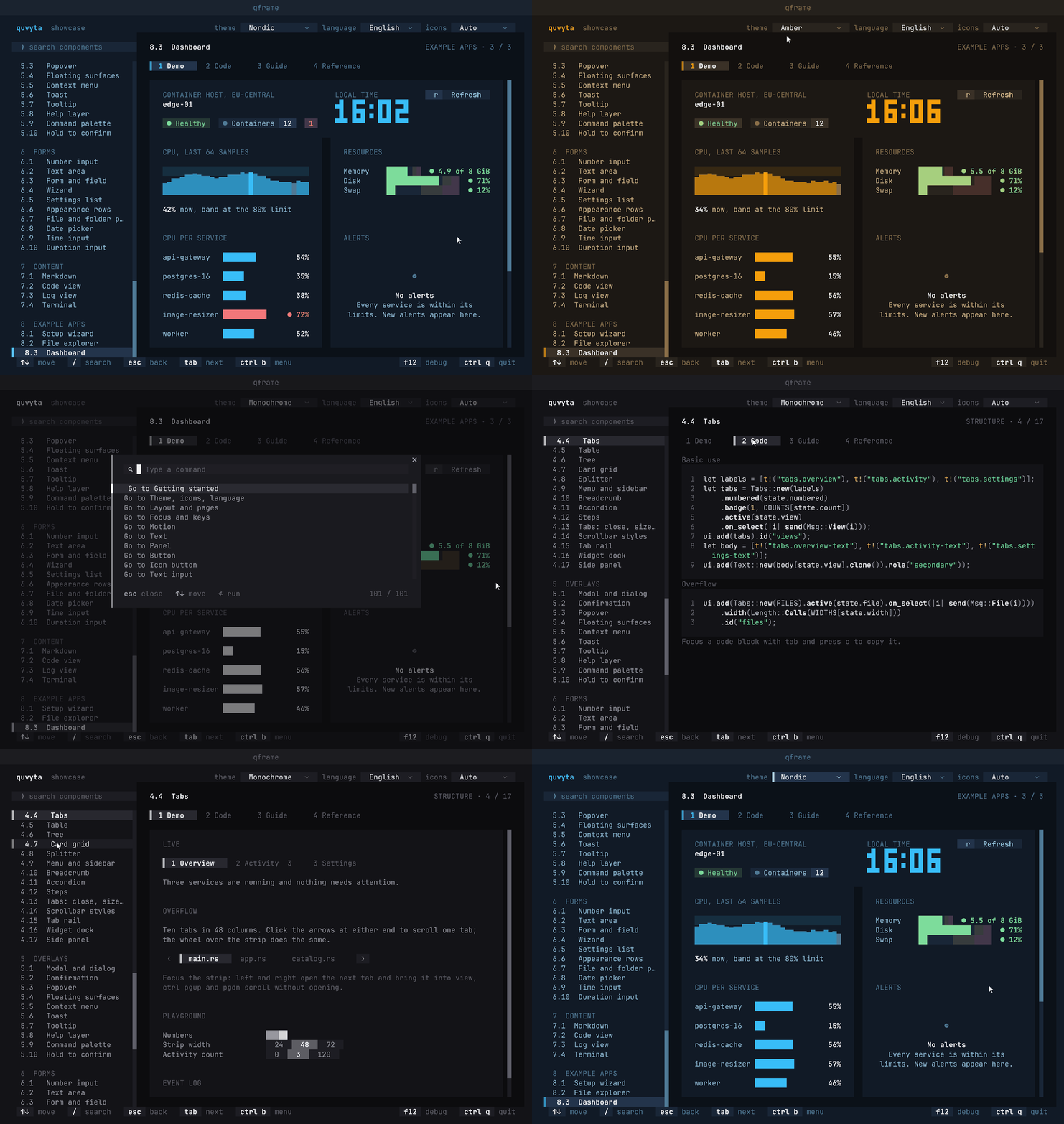
Try every component in your terminal, then add the library to a project:
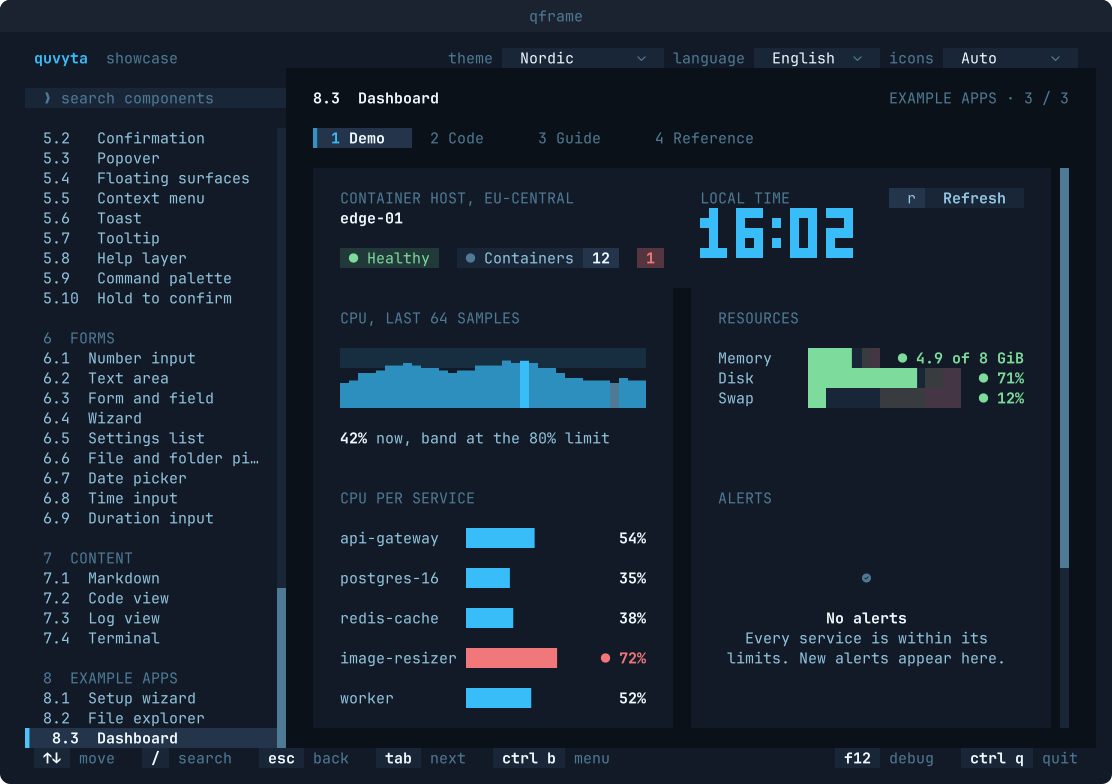
Why qframe
- You write data, a
viewthat draws it and anupdatethat changes it; the runtime owns the event loop, focus, hover, mouse hit areas, animation timing and redraws only when something changed. - Themes, icon sets (Nerd Font, Unicode, ASCII), language files and key maps are plain TOML files, with built-in defaults, so an application looks and reads right before it ships any of its own.
- A test harness drives the same application with keys and clicks and reads the screen as text, without a terminal; the still pictures on this page are drawn from such test screens.
The project is young (0.1) and the API will still change. It is developed and tested on Linux.
How it relates to other projects
- ratatui: qframe is built on it, not against it. It draws through
ratatui-coreandratatui-crossterm, and does not useratatui-widgets: every widget is its own. ratatui is an immediate-mode drawing library, where the application owns the event loop, the state, focus and mouse handling. qframe is a layer above that takes those over. If you want full control over every frame, ratatui on its own is the better fit. - cursive: also Rust, also owns the event loop, and keeps
a retained tree of views with its own look. qframe uses an Elm-style model instead (your data, a
viewfunction and typed messages) and a different visual language. - Textual: Python, styled with CSS, and far more mature. It is the closest to what qframe aims for visually. qframe is Rust, and an application built with it is a single binary.
What is included
The showcase has a page for each of these, with a live demo, its code, a guide and a reference.
The full list, with design notes, is crates/showcase/CATALOG.toml.
- Controls and forms: button, text input, text area, number input, select, checkbox, switch, radio group, segmented control, slider, date picker, time input, duration input, file and folder picker, form and field validation, wizard, settings list, hold to confirm.
- Lists, tables and navigation: list, table, tree (multi-select, drag and drop), card grid, tabs (close, sizes, overflow, reorder, add), tab rail, menu and sidebar, breadcrumb, accordion, steps.
- Layout: rows, columns and layers, panel, scroll view with scrollbar styles, splitter, side panel, widget dock, app shell, router, page transitions.
- Charts and status: sparkline, gauge, bar chart, heatmap, legend, timeline, axis, big text, badge, progress bar, spinner, shimmer text, skeleton, empty state, key hints.
- Text and content: text, Markdown, code view, log view, mouse text selection, clipboard.
- Overlays: modal and dialog, confirmation (including typing a word before an irreversible action), popover, context menu, toast, tooltip, command palette, help layer.
- Terminal and processes: an embedded terminal (the
ptyfeature), handing the terminal to another program such as$EDITOR, child processes streamed line by line, background tasks with progress and cancel. - Systems: themes (Monochrome, Iris, Nordic, Amber built in), icons in three glyph modes,
languages (the framework's own text in nine), key maps, motion with reduced-motion support,
settings storage with self-repair, application folders, atomic writes, single-instance locks,
folder watch, date and time, a debug layer (
F12). - Examples: a setup wizard, a file explorer and a dashboard, each as a complete screen.
The visual rules behind all of this, and why there are no boxes, are in
docs/design-principles.md.
A minimal application
An application is data, a view that draws it and an update that changes it. The runtime turns
keys and clicks into messages and redraws only when something has changed.
use *;
// Tests drive the same application without a terminal.
let mut app = new;
app.press.press;
assert!;
// A real program runs it in the terminal:
// fn main() -> std::io::Result<()> {
// Runtime::new(Counter::default()).run()
// }
The package is named quvyta-framework and its library is named qframe, so code imports it as
use qframe::prelude::*;. Rust 1.95 or later is required.
Text shown to users belongs in language files and is read with t!("key"); the example uses
plain strings to stay short. The Getting started page in the showcase walks through the same
steps.
A look around
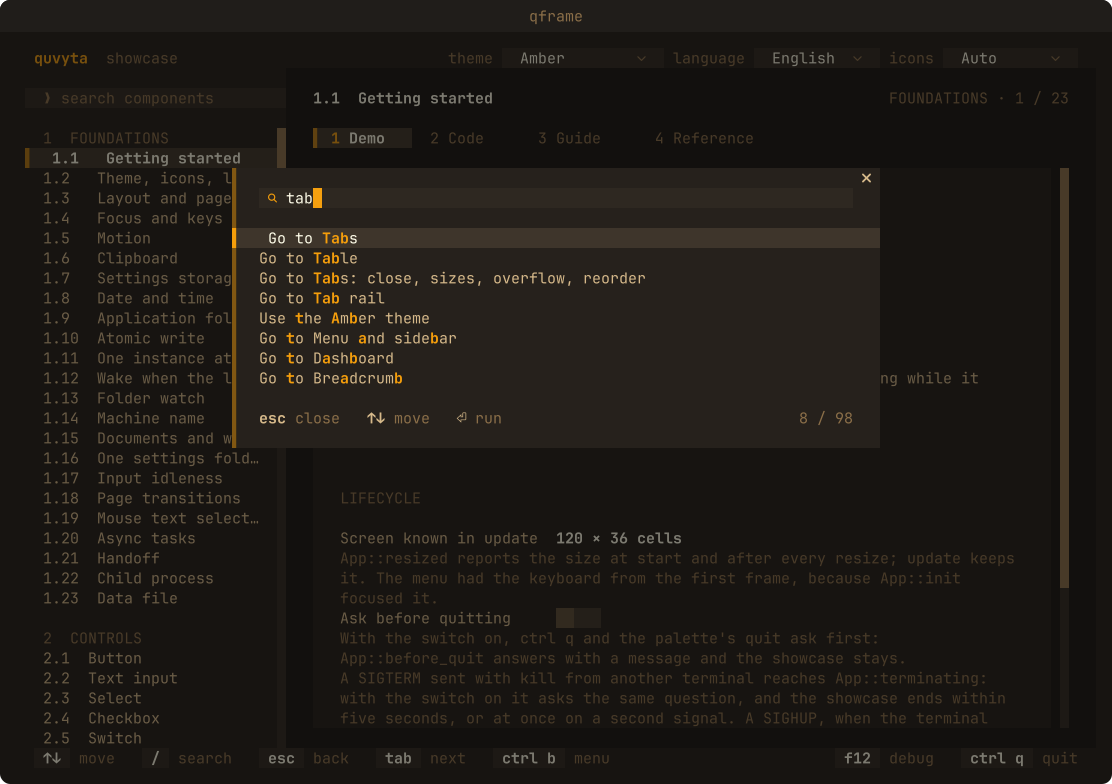
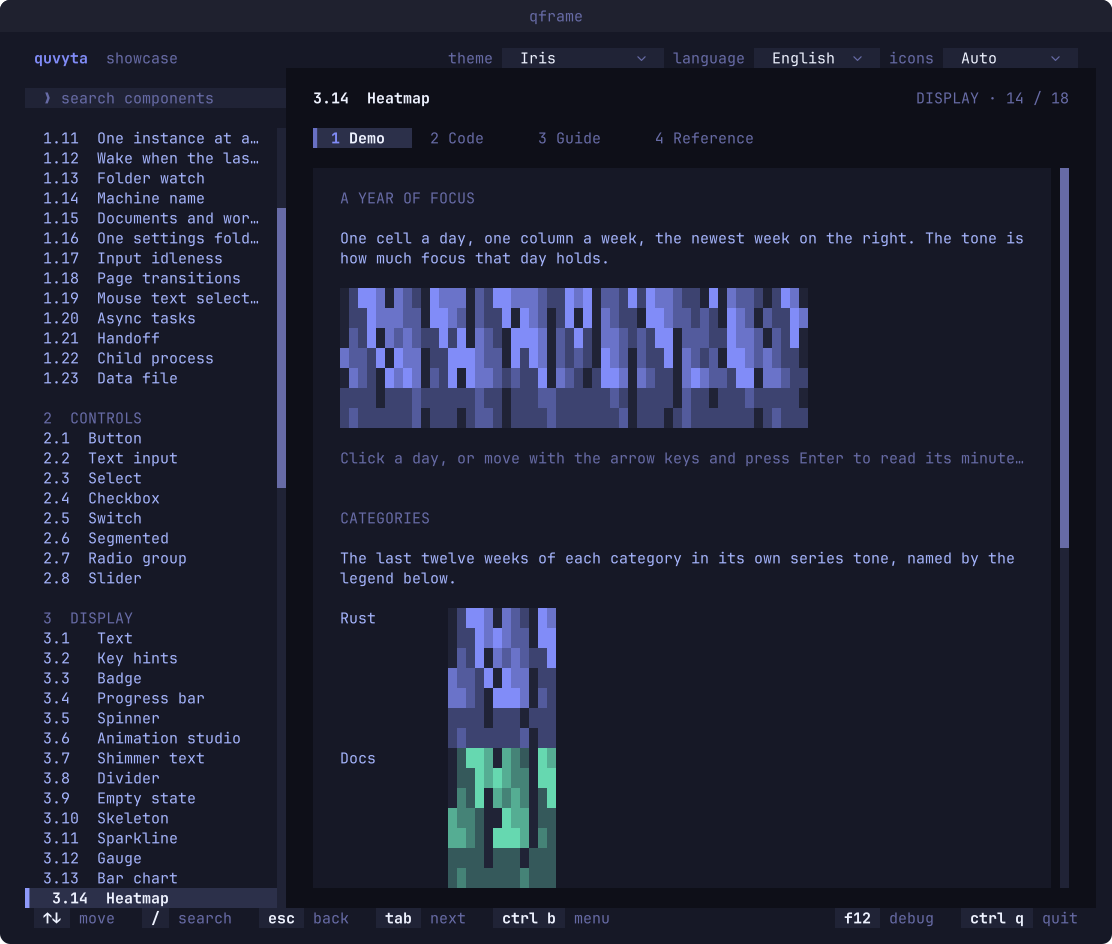
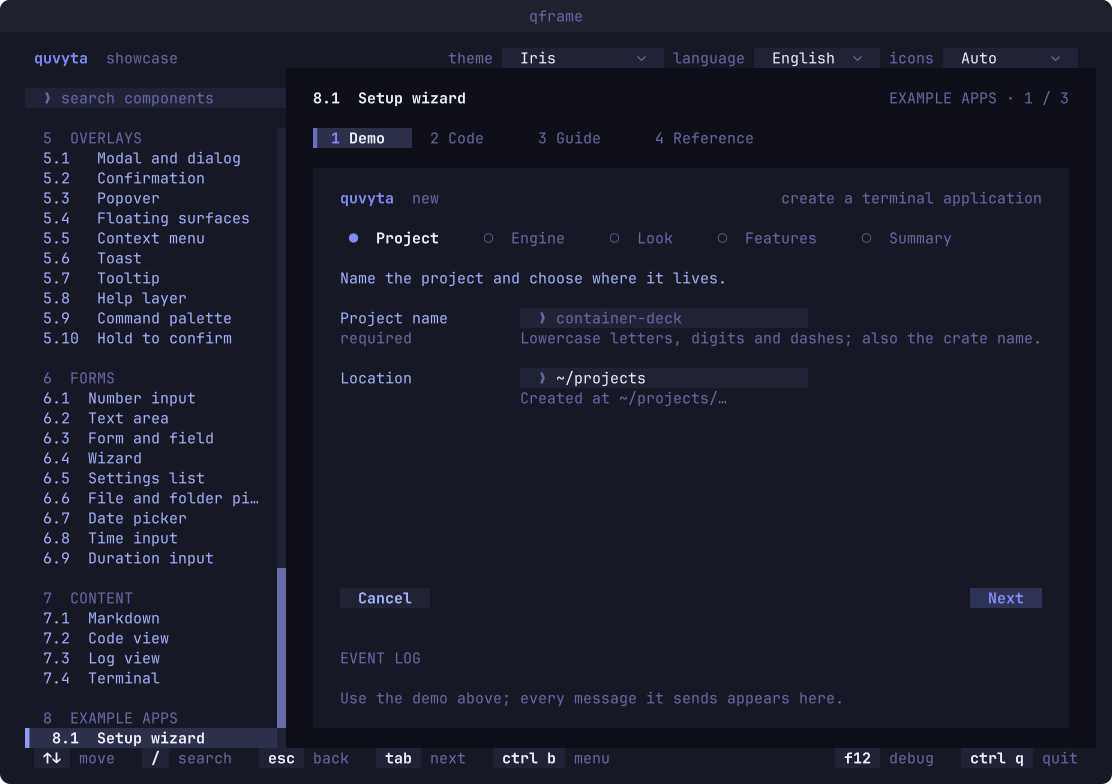
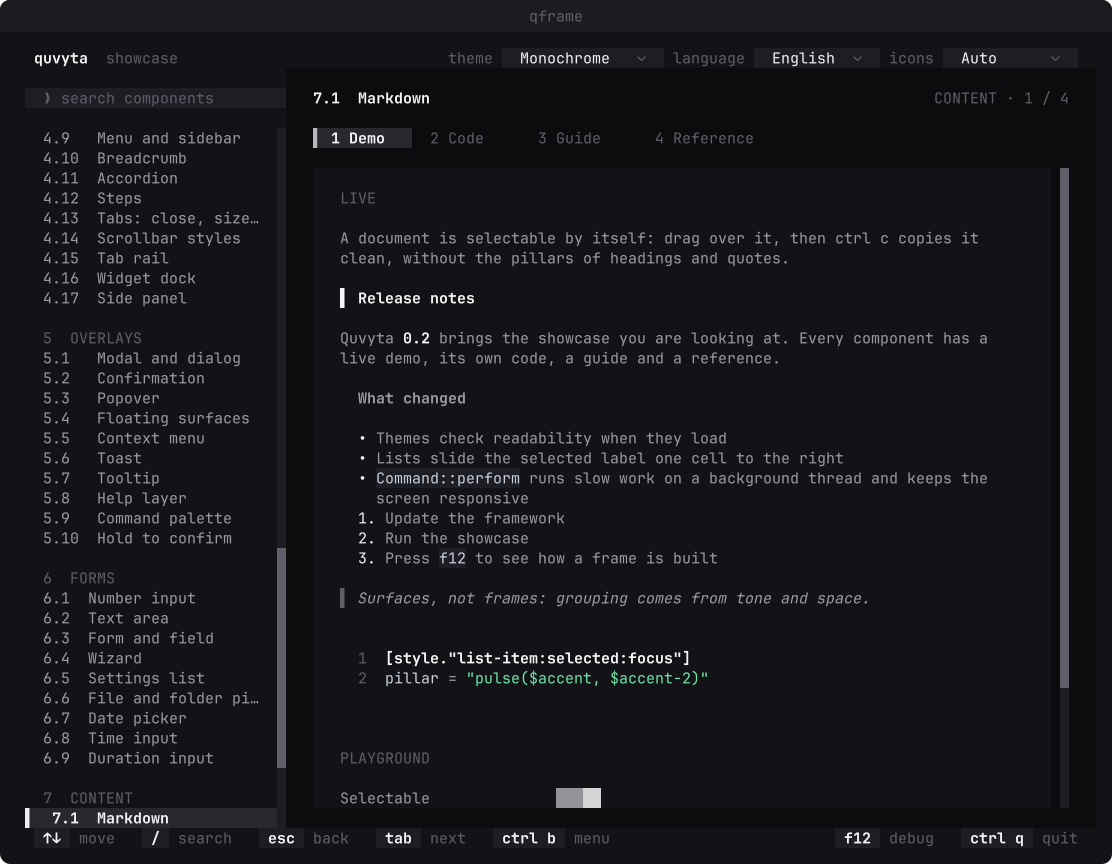
Every still picture here is a test screen of the showcase, drawn by quvyta-framework-shots: no
terminal, no screen capture, the same file on every machine.
The command palette (ctrl+p), filtering every page and command as you type, in the Amber theme:
A heatmap of a year of focus, one cell a day, in the Iris theme:
A multi-step setup wizard with a required field and its hint, in the Iris theme:
Markdown with headings, lists, inline code and quotes, in the Monochrome theme:
Running the showcase
Installed, the showcase is the qframe command (also installed as
quvyta-framework-showcase). From a clone, with the toolchain pinned by rust-toolchain.toml:
Repository layout
crates/quvyta-framework: the library.crates/showcase: thequvyta-framework-showcaseapplication, with a page for every component, each with a live demo, its code, a guide and a reference, in English and Turkish.crates/shots:quvyta-framework-shots, which turns a test screen into the SVG and PNG pictures on this page (seedocs/screenshots.md).
Documentation
- API documentation: https://docs.rs/quvyta-framework, or
cargo doc -p quvyta-framework --open. - Guides and references: in the showcase, and as Markdown under
crates/showcase/assets/pages/<page>/{guide,reference}.{en,tr}.md. - Component catalogue:
crates/showcase/CATALOG.toml, the single list of every component and system. - Design principles:
docs/design-principles.md, in English. - Design document:
docs/design.md, the principles and architecture in full (in Turkish). - Changes:
CHANGELOG.md.
Contributing
Bug reports, questions and pull requests are welcome. CONTRIBUTING.md explains
how to enable the checks that run before each commit, run the tests and the showcase, and propose a
new component.
Licence
MIT. See LICENSE.