
Please check the build logs for more information.
See Builds for ideas on how to fix a failed build, or Metadata for how to configure docs.rs builds.
If you believe this is docs.rs' fault, open an issue.
par-term






A cross-platform, GPU-accelerated terminal emulator frontend built with Rust, powered by par-term-emu-core-rust. Designed for high performance, modern typography, and rich graphics support.

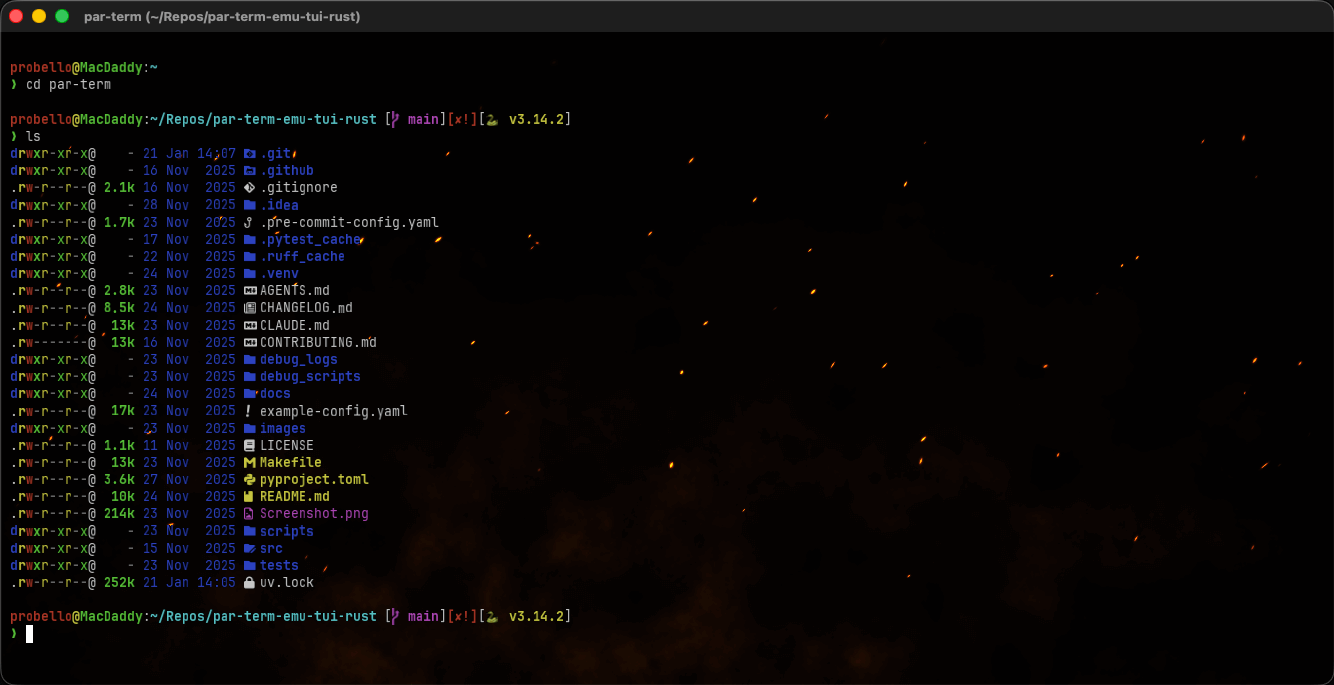
Table of Contents
- Getting Started
- What's New
- Features
- Documentation
- Installation
- Installing Shaders
- Keyboard Shortcuts
- Configuration
- Technology
- Contributing
- License
Getting Started
New to par-term? The Getting Started Guide walks you through installation, essential keyboard shortcuts, fonts, and split panes — everything you need to be productive in under 10 minutes.
- Getting Started Guide — Install, launch, and configure par-term
- Installation — Platform-specific install instructions below
- Configuration Reference — All 200+ configuration options
- Keyboard Shortcuts — Complete keyboard shortcut reference
What's New in 0.32.1
- Scrollback Fix for Partial Scroll Regions -- top-anchored scroll regions (e.g. Codex CLI's
CSI 1;{rows-1}r) now correctly preserve evicted rows in scrollback instead of discarding them, matching iTerm2 behavior.
For the full history of changes across all versions, see CHANGELOG.md.
What's New in 0.32.0
- Promote Pane to Tab / Demote Tab to Pane -- new actions to move panes between tabs while preserving all running processes. Promote instantly extracts a focused pane into its own tab; demote provides a multi-step pick mode to merge a tab's pane tree into another tab.
- Kitty Terminal Graphics Protocol — Full Support -- par-term now parses, stores, renders, and responds to Kitty TGP (Phases 1–3). Virtual-placement images display correctly and autodetect probes succeed.
- Platform-Native Modifier for Hardcoded Shortcuts -- font size, clear scrollback, and clipboard history shortcuts now use Cmd on macOS instead of bare Ctrl.
- Ctrl+Punctuation Control Codes -- Ctrl with ASCII punctuation (@ [ \ ] ^ ) now correctly maps to control equivalents (e.g. Ctrl+ sends 0x1F for joe editor undo).
For the full history of changes across all versions, see CHANGELOG.md.
Features
Core Terminal Frontend
- Cross-platform Support: Native performance on macOS (Metal), Linux (Vulkan/X11/Wayland), and Windows (DirectX 12).
- Multi-Window & Multi-Tab: Multiple windows with independent tab sessions per window.
- GPU-Accelerated Rendering: Powered by
wgpuwith custom glyph atlas for blazing-fast text rasterization. - Inline Graphics: Full support for Sixel, iTerm2, and Kitty graphics protocols.
- Real PTY Integration: Full pseudo-terminal support for interactive shell sessions.
- Advanced Sequence Support: VT100/VT220/VT320/VT420/VT520 compatibility via
par-term-emu-core-rust. - Intelligent Reflow: Full content reflow on window resize, preserving scrollback and visible state.
Modern UI & Visuals
- Custom GLSL Shaders: 73 included shaders with hot reload, per-shader config, terminal-aware uniforms, and cubemap support.
- Background Images: Support for PNG/JPEG backgrounds with configurable opacity and scaling modes.
- Window Transparency: True per-pixel alpha with macOS blur support and text clarity options.
- Visual Bell: Flash-based alerts for terminal bell events.
- Dynamic Themes: Support for iTerm2-style color schemes (Dracula, Monokai, Solarized, etc.).
- Standalone Settings: Dedicated settings window (F12) for live configuration editing.
Typography & Fonts
- Styled Font Variants: Explicit support for separate Bold, Italic, and Bold-Italic font families.
- Unicode Range Mapping: Assign specific fonts to Unicode ranges (perfect for CJK, Emoji, or Symbols).
- Text Shaping: HarfBuzz-powered shaping for ligatures, complex scripts, and emoji sequences.
- Grapheme Clusters: Proper rendering of flag emoji, ZWJ sequences, skin tone modifiers.
- Box Drawing: Geometric rendering for pixel-perfect TUI borders and block characters.
- Smart Fallback: Automatic system font discovery and fallback chain.
Selection & Clipboard
- Advanced Selection: Block/Rectangular, Line-based, and Word-based selection modes.
- Multi-platform Clipboard: Seamless integration with system clipboards via
arboard. - Middle-click Paste: Standard Unix-style middle-click paste support.
- Automatic Copy: Optional "copy on select" behavior.
Hyperlinks & URL Detection
- OSC 8 Support: Native support for application-provided hyperlinks.
- Regex Detection: Automatic detection of URLs in terminal output.
- Interactive Links: Ctrl+Click to open links in your default browser, with hover highlighting and tooltips.
Assistant Panel & ACP Agents
- Assistant Panel: DevTools-style side panel for terminal state inspection and ACP agent chat.
- Bundled + Custom ACP Agents: Built-in agent definitions plus custom agents via
config.yamlor~/.config/par-term/agents/*.toml. - Per-Agent Environment Variables: Configure local/provider-specific env vars (for example Ollama/OpenRouter endpoints) for each agent.
- Local Claude via Ollama: Supports
claude-agent-acpwith Ollama Claude-compatible launch mode (seedocs/ASSISTANT_PANEL.md).
Documentation
Getting Started
- Getting Started Guide - Install, launch, and configure par-term in under 10 minutes.
- Quick Start Fonts Guide - Get up and running with custom fonts.
- Configuration Examples - Annotated YAML configuration examples.
- Environment Variables - All recognized environment variables.
Features
- Keyboard Shortcuts - Complete keyboard shortcut reference.
- Mouse Features - Text selection, URL handling, and pane interaction.
- Semantic History - Click file paths to open in your editor.
- Automation - Regex triggers, actions, and coprocesses.
- Profiles - Profile system for saving terminal configurations.
- Session Logging - Recording sessions in Plain/HTML/Asciicast formats.
- Search - Terminal search with regex, case-sensitive, and whole-word modes.
- Paste Special - 28 clipboard transformations for pasting.
- Copy Mode - Vi-style keyboard-driven text selection and navigation.
- Snippets & Actions - Text snippets with variables, custom actions, and keybinding management.
- Progress Bars - OSC 9;4 and OSC 934 progress bar rendering and shader integration.
- Accessibility - Minimum contrast enforcement and display options.
- Integrations - Shell integration and shader installation system.
- Window Management - Window types, multi-monitor, and transparency.
- Window Arrangements - Save and restore window layouts with auto-restore.
- Command Separators - Horizontal lines between shell commands with exit-code coloring.
- SSH Host Management - SSH quick connect, host discovery, and SSH profiles.
- Status Bar - Configurable status bar with widgets and system monitoring.
- Tabs - Tab management, duplicate tab, and tab behavior.
- Assistant Panel - ACP agent chat, custom agents (UI/TOML/YAML), shader assistant, and Claude+Ollama setup/troubleshooting.
- File Transfers - OSC 1337 file transfers with shell utilities.
- Self-Update - In-place update capability via CLI and Settings UI.
- Debug Logging - Configurable log levels and troubleshooting.
Shaders
- Shader Gallery - Visual gallery of 73 included shaders with screenshots.
- Shader Reference - Complete list of bundled shaders.
- Custom Shaders Guide - Create custom GLSL shaders with hot reload and per-shader config.
- Compositor Details - Deep dive into the rendering architecture.
Technical
- Architecture Overview - High-level system architecture and components.
- API Documentation Index - Public types across all workspace crates.
- Environment Variables - Runtime environment variable reference.
- Core Library - Documentation for the underlying terminal engine.
Installation
Homebrew (macOS)
Cargo Install
If you have a Rust toolchain installed, install directly from crates.io:
This builds and installs the binary to ~/.cargo/bin/par-term.
From Source
Requires Rust 1.94+ (stable, 2024 edition) and modern graphics drivers:
# Clone the repository
# Build with the optimized dev-release profile (~1m20s clean, ~1-2s incremental, ~90-95% of full release performance)
# Run
# Or build the full release binary (~3 min, for distribution)
# Install Claude ACP bridge for Assistant Panel (Claude connector)
Note: The legacy package
@zed-industries/claude-code-acpwas renamed/deprecated upstream. Use@zed-industries/claude-agent-acp(claude-agent-acpbinary).
macOS Bundle
To create a native macOS .app bundle with a dock icon:
To build and install the app bundle plus the CLI binary and Claude ACP bridge in one step:
Linux Dependencies
On Linux, you need GTK3 and X11/Wayland libraries. Install the appropriate packages for your distribution:
Ubuntu/Debian:
Fedora/RHEL:
Arch Linux:
macOS Gatekeeper Notice
If macOS reports that par-term "is damaged and can't be opened", this is caused by the Gatekeeper quarantine attribute applied to unsigned binaries. Remove it with:
# For the release binary
# For the .app bundle
Note: The Homebrew cask install (
brew install --cask paulrobello/tap/par-term) handles this automatically.
Installing Shaders
par-term includes 73 custom GLSL shaders for background effects and cursor animations. These need to be installed to your config directory.
Built-in Installer (Recommended)
Use the built-in CLI command to download and install all shaders from the latest release:
# Install shaders (with confirmation prompt)
# Install without prompts
# Force overwrite existing shaders
Shell Script
Alternatively, use the shell script installer. The recommended approach is to download the script first, inspect it, and then run it:
# Recommended: download, inspect, then run
# Review the script before executing:
Note: The one-liner pipe-to-shell pattern executes remote code without review. Use the download-then-inspect workflow above when security matters.
# Convenience only — inspect the script first when possible
|
Manual Install
- Download
shaders.zipfrom the latest release - Extract to your config directory:
- macOS/Linux:
~/.config/par-term/shaders/ - Windows:
%APPDATA%\par-term\shaders\
- macOS/Linux:
From Source
If building from source, copy the shaders folder manually:
# macOS/Linux
# Windows (PowerShell)
Using Shaders
Once installed, enable shaders in your config.yaml:
# Background shader
custom_shader: "starfield.glsl"
custom_shader_enabled: true

# Cursor shader
cursor_shader: "cursor_glow.glsl"
cursor_shader_enabled: true
See the Shader Gallery for previews of all included shaders.
Linting Shaders
Validate shader metadata, channel references, and control comments from Settings > Effects > Custom Shaders with Run Lint (and clear the current output with Clear Lint), or from the CLI with:
Add --readability to print a readability score plus suggested custom_shader_brightness and custom_shader_text_opacity defaults. By default, readability mode prompts before writing those suggestions into shader metadata:
Keyboard Shortcuts
Essential shortcuts to get started. On macOS, keybindings use Cmd; on Linux/Windows, they use Ctrl+Shift to avoid conflicts with terminal control codes.
| Shortcut | Action |
|---|---|
Cmd/Ctrl + T |
New tab |
Cmd/Ctrl + W |
Close tab (or window if single tab) |
Cmd/Ctrl + N |
New window |
Cmd/Ctrl + C |
Copy selection |
Cmd/Ctrl + V |
Paste from clipboard |
Cmd/Ctrl + F |
Open search |
Cmd/Ctrl + D |
Split pane horizontally |
F5 |
Reload configuration |
F11 |
Toggle fullscreen |
F12 / Cmd + , |
Open Settings |
See the full keyboard shortcuts reference for the complete list, including copy mode, pane management, shader toggles, SSH quick connect, and all customizable keybindings.
Configuration
Configuration is stored in YAML format:
- Unix:
~/.config/par-term/config.yaml - Windows:
%APPDATA%\par-term\config.yaml
cols: 80
rows: 24
font_size: 13.0
font_family: "JetBrains Mono"
theme: "dark-background"
window_opacity: 0.95
scrollbar_position: "right"

# Tab bar settings
tab_bar_mode: "always"  # always (default), when_multiple, never
tab_bar_height: 28.0
tab_show_close_button: true
tab_inherit_cwd: true
dim_inactive_tabs: true
inactive_tab_opacity: 0.6

# Transparency settings
keep_text_opaque: true
transparency_affects_only_default_background: true
blur_radius: 8  # macOS only

# Power saving
pause_shaders_on_blur: true
unfocused_fps: 30

# Cursor lock options (prevent apps from overriding)
lock_cursor_visibility: false
lock_cursor_style: false
lock_cursor_blink: false

# Custom shader settings
custom_shader: "starfield.glsl"
custom_shader_enabled: true
shader_hot_reload: true  # Auto-reload on file changes

# Per-shader overrides (optional)
shader_configs:
  starfield.glsl:
    animation_speed: 0.8
    brightness: 0.3
See examples/config-complete.yaml for a full list of options.
Technology
- Terminal Engine: par-term-emu-core-rust
- Graphics:
wgpu(WebGPU for Rust) - Text:
swash+rustybuzz(custom glyph atlas) - UI:
eguifor settings and overlays - Windowing:
winit - Async:
tokio
Contributing
Contributions are welcome! See CONTRIBUTING.md for the full development setup, build commands, testing workflow, commit message format, and PR process.
Before submitting a pull request:
For documentation contributions, follow the conventions in docs/DOCUMENTATION_STYLE_GUIDE.md.
License
This project is licensed under the MIT License - see the LICENSE file for details.
Author
Paul Robello - probello@gmail.com
Links
- GitHub: https://github.com/paulrobello/par-term
- Core Library: https://github.com/paulrobello/par-term-emu-core-rust