# Intent-Engine Dashboard User Guide
**Version**: 0.10.x
---
## Overview
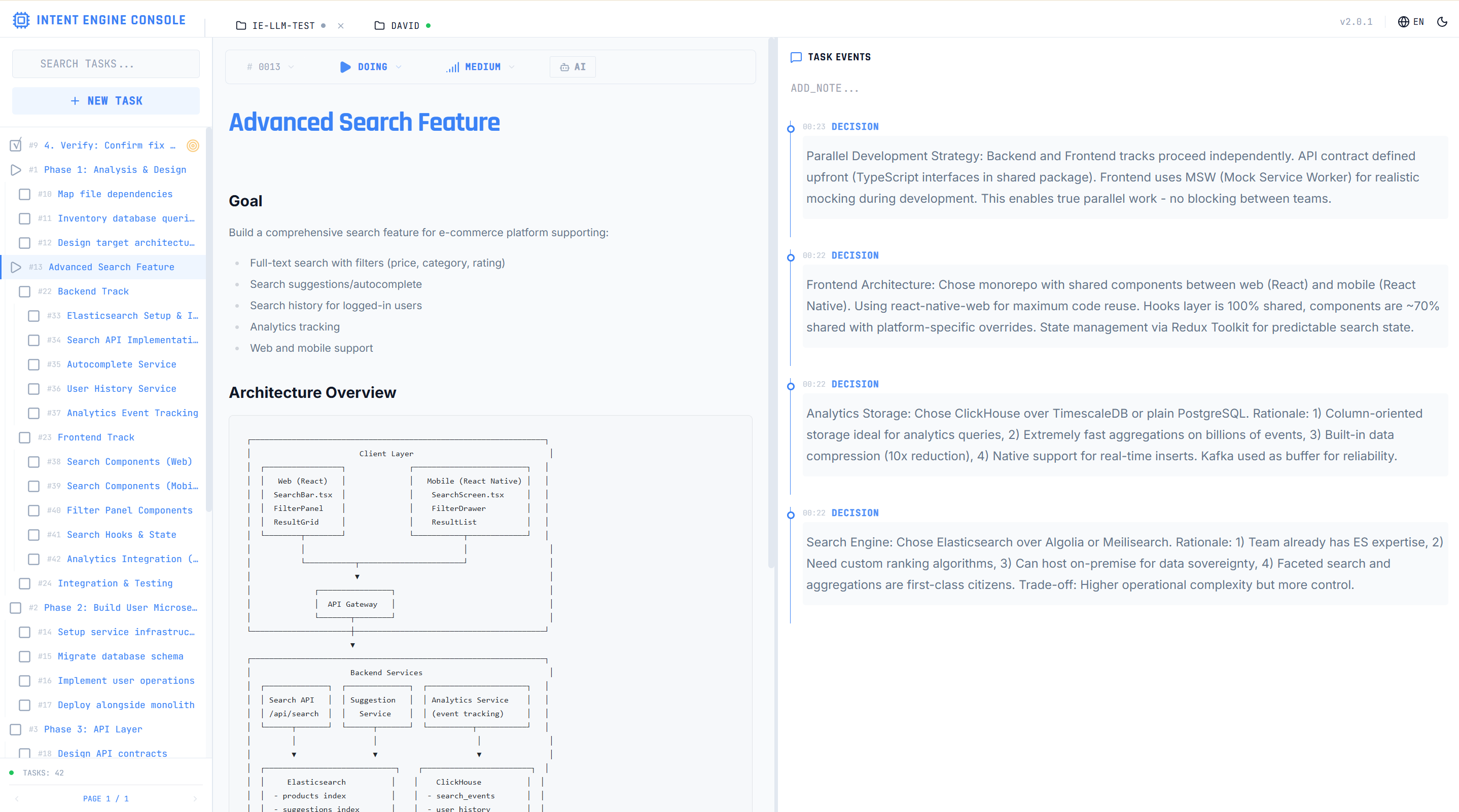
The Intent-Engine Dashboard is a web-based interface for visualizing and managing your tasks and events. It complements the CLI, providing a rich visual experience with Markdown rendering, real-time search, and intuitive task management.
### Key Features
- **Task Management**: Create, update, delete, and organize tasks
- **Markdown Support**: Rich text rendering with code highlighting
- **Hierarchical Tasks**: Parent-child relationships with subtasks
- **Event Tracking**: Record decisions, blockers, milestones, and notes
- **Smart Search**: Unified search across tasks and events
- **Focus-Driven Workflow**: Start, switch, and complete tasks
- **Multi-Project Support**: Manage multiple projects simultaneously
---
## Quick Start
### 1. Start the Dashboard
Navigate to your project directory and start the dashboard:
```bash
cd /path/to/your/project
ie dashboard start
```
The dashboard will automatically:
- Detect the project database (`.intent-engine/project.db`)
- Use the fixed port 11391
- Display the URL to access
Example output:
```
Dashboard starting for project: my-project
Port: 11391
URL: http://localhost:11391
Mode: background
Dashboard server started successfully
PID: 12345
URL: http://localhost:11391
Dashboard is accessible from external IPs. Access via:
- http://localhost:11391 (local)
- http://<your-ip>:11391 (from other devices)
Tip: Use 'ie dashboard status' to check server status
Tip: Use 'ie dashboard stop' to stop the server
```
### 2. Access the Dashboard
Open your web browser and navigate to the URL shown (e.g., `http://localhost:11391`).
**Network Access**:
- Local access: `http://localhost:11391`
- From other devices: `http://<your-machine-ip>:11391` (e.g., from Windows host when running in WSL)
**Security Notice**: The Dashboard is accessible from your local network. There is no authentication currently. Only run the Dashboard on trusted networks.
You'll see the Dashboard interface with:
- **Left Sidebar**: Task list with filters
- **Main Panel**: Task details and operations
- **Right Sidebar**: Event history
### 3. Stop the Dashboard
To stop the dashboard server:
```bash
ie dashboard stop
```
Or, if running in foreground mode (with `--foreground` flag):
- Press `Ctrl+C` in the terminal
---
## Dashboard Interface
### Header
The header contains:
- **Project Name**: Currently active project
- **New Task**: Create a new top-level task
- **Current Focus**: Jump to the currently focused task
- **Pick Next**: Get a smart recommendation for the next task
### Left Sidebar: Task List
#### Search Bar
- Type to search across tasks and events
- Results update as you type (300ms debounce)
- Supports full-text search with operators (`AND`, `OR`, `NOT`)
#### Filter Buttons
- **All**: Show all tasks
- **Todo**: Show only tasks in "todo" status
- **Doing**: Show only tasks in "doing" status
- **Done**: Show only completed tasks
#### Task Cards
Each task card displays:
- **Task ID**: `#42`
- **Task Name**: Truncated if too long
- **Status Badge**: Color-coded (yellow/blue/green)
- **Priority Badge**: Critical/High/Medium/Low (if set)
- **Parent Indicator**: "Parent: #10" if task has a parent
**Active Task**: The currently focused task is highlighted with a blue background.
### Main Panel: Task Details
When you select a task, the main panel shows:
#### Task Header
- **Task ID** and **Name**
- **Status Badge**: Current status
- **Priority Badge**: If set
- **Parent Link**: Clickable link to parent task
#### Action Buttons
**For Todo Tasks**:
- **Start Task**: Begin working on this task (sets focus)
**For Doing Tasks**:
- **Complete Task**: Mark task as done (focus-driven, no ID needed)
- **Spawn Subtask**: Create a child task and switch to it
**For All Tasks**:
- **Switch to This**: Change focus to this task
- **Add Event**: Record a decision, blocker, milestone, or note
- **Delete**: Remove the task (only if no subtasks)
#### Specification Section
- Rendered Markdown with:
- Headings, lists, tables
- Code blocks with syntax highlighting
- Blockquotes, links, images
- Safe HTML (XSS protection via DOMPurify)
#### Metadata Section
Displays timestamps:
- **Created**: When task was first created (`first_todo_at`)
- **Started**: When task was first started (`first_doing_at`)
- **Completed**: When task was completed (`first_done_at`)
### Right Sidebar: Event History
Shows events related to the current task:
#### Event Types
- **Decision**: Important decisions and their rationale
- **Blocker**: Problems preventing progress
- **Milestone**: Significant achievements
- **Note**: General observations and comments
Each event card shows:
- **Type Badge**: Color-coded by type
- **Timestamp**: When the event was logged
- **Content**: Rendered Markdown
---
## Common Workflows
### Create a New Task
**Via Dashboard:**
1. Click **+ New Task** in the header
2. Fill in the form:
- **Name** (required): Brief task description
- **Specification** (optional): Detailed description in Markdown
- **Priority** (optional): Critical/High/Medium/Low
- **Parent Task ID** (optional): ID of parent task
3. Click **Create Task**
**Via CLI:**
```bash
echo '{"tasks":[{
"name": "Implement feature X",
"status": "doing",
"spec": "## Goal\nImplement feature X\n\n## Approach\n- Step 1\n- Step 2"
}]}' | ie plan
```
The new task appears in the task list and opens automatically.
### Work on a Task
#### Start a Task
1. Find the task in the list
2. Click to open details
3. Click **Start Task**
The task status changes to "doing" and becomes the current focus.
#### Add Events During Work
While working on a task, record important information:
1. Click **Add Event**
2. Select event type:
- **Decision**: "Chose JWT over sessions because..."
- **Blocker**: "Blocked by missing API keys"
- **Milestone**: "Completed authentication module"
- **Note**: "Found useful reference: https://..."
3. Write content in Markdown
4. Click **Add Event**
**Via CLI:**
```bash
ie log decision "Chose JWT over sessions for stateless API"
ie log blocker "Waiting for API credentials"
ie log milestone "Authentication module complete"
ie log note "Consider adding rate limiting"
```
Events appear in the right sidebar chronologically.
#### Complete the Task
1. Ensure the task is your current focus
2. Click **Complete Task**
**Via CLI:**
```bash
The task status changes to "done" and focus is cleared.
**Note**: You cannot complete a task that has incomplete subtasks.
### Break Down a Large Task
For complex tasks, create subtasks:
**Via Dashboard:**
1. Start the parent task (must be focused)
2. Click **Spawn Subtask**
3. Enter:
- **Subtask Name**: Specific sub-goal
- **Specification** (optional): Details
4. Submit
**Via CLI:**
```bash
# Subtasks auto-parent to the currently focused task
echo '{"tasks":[
{"name": "Subtask 1", "status": "todo"},
{"name": "Subtask 2", "status": "todo"}
]}' | ie plan
```
The subtask is created and **automatically becomes the new focus**.
### Search for Information
#### Quick Search
1. Type in the search bar (left sidebar)
2. View results as you type
3. Click a task to view details
**Via CLI:**
```bash
ie search "todo doing" # Find unfinished tasks
ie search "JWT authentication" # Full-text search
```
#### Advanced Search
Use the API directly for advanced queries:
```bash
# Search with operators
curl "http://127.0.0.1:11391/api/search?query=JWT+AND+authentication"
# Search events only
curl "http://127.0.0.1:11391/api/search?query=blocker&include_tasks=false"
```
### Get Task Recommendations
Click **Pick Next** in the header to get a smart recommendation based on:
- **Depth-First**: Subtasks of current task (if any)
- **Priority**: Higher priority tasks first
- **Age**: Older tasks first (among same priority)
The recommended task opens automatically.
---
## Multi-Project Support
### Managing Multiple Projects
You can run dashboards for multiple projects simultaneously:
```bash
# Project A
cd /path/to/project-a
ie dashboard start
# Runs on port 11391
# Project B (custom port required if Project A is running)
cd /path/to/project-b
ie dashboard start --port 11392
# Runs on custom port 11392
# Project C (custom port required)
cd /path/to/project-c
ie dashboard start --port 11393
# Runs on custom port 11393
```
### Check Running Dashboards
```bash
ie dashboard status
```
### Stop a Specific Dashboard
```bash
# Stop dashboard in current directory
cd /path/to/project-a
ie dashboard stop
# Or stop by port
ie dashboard stop --port 11391
```
---
## Tips and Best Practices
### Writing Good Specifications
Use Markdown to make specs readable:
````markdown
## Goal
Add JWT-based authentication to the API.
## Requirements
- Login endpoint: `POST /auth/login`
- Token refresh: `POST /auth/refresh`
- Logout: `POST /auth/logout`
## Technical Notes
```javascript
// Example token payload
{
"user_id": 123,
"email": "user@example.com",
"exp": 1234567890
}
```
## Acceptance Criteria
- [ ] Users can log in with email/password
- [ ] Tokens expire after 1 hour
- [ ] Refresh tokens work for 7 days
````
### Using Events Effectively
**Decisions**: Record the "why" behind choices
```markdown
**Decision**: Use HS256 for JWT signing
**Rationale**:
- Simpler than RS256 (no key pair management)
- Sufficient for our single-server setup
- Can upgrade to RS256 if we add microservices
```
**Blockers**: Be specific about what's blocking you
```markdown
**Blocked by**: Missing AWS credentials
**Details**:
- Need S3 access keys for file upload feature
- Requested from DevOps team (Ticket #456)
- ETA: 2 days
```
**Milestones**: Celebrate progress
```markdown
**Milestone**: Authentication module complete
**Achievement**:
- Login/logout working
- Token refresh implemented
- All tests passing (12/12)
- Documentation updated
```
---
## Troubleshooting
### Dashboard Won't Start
**Error**: `Database not found`
**Solution**: Make sure you're in an Intent-Engine project directory:
```bash
# Initialize project first
ie init
# Then start dashboard
ie dashboard start
```
**Error**: `Port 11391 already in use`
**Solution**: Use a different port:
```bash
ie dashboard start --port 11392
```
Or stop the existing dashboard:
```bash
ie dashboard stop
```
### Page Not Loading
1. **Check server is running**:
```bash
ie dashboard status
```
2. **Check network access**:
- Dashboard binds to `0.0.0.0` (accessible from network)
- Verify firewall allows port 11391 if accessing from external devices
- Test local access first: `http://localhost:11391`
3. **Try another browser**:
- Tested: Chrome, Firefox, Safari, Edge
### Task Not Appearing
1. **Refresh the page**: No auto-reload currently
2. **Check filters**: Make sure you're not filtering it out
3. **Search for it**: Use the search bar to find the task
### Can't Complete Task
**Error**: "Task has incomplete subtasks"
**Solution**: Complete all subtasks first, then the parent:
```bash
# Via CLI - find subtasks
ie search "todo doing"
# Start and complete subtasks
echo '{"tasks":[{"name": "Subtask 1", "status": "doing", "spec": "..."}]}' | ie plan
# ... work on it ...
echo '{"tasks":[{"name": "Subtask 1", "status": "done"}]}' | ie plan
# Now complete parent
echo '{"tasks":[{"name": "Parent task", "status": "done"}]}' | ie plan
```
### Performance Issues
**Problem**: Slow page load with 500+ tasks
**Workaround**:
- Use filters (Todo/Doing) instead of "All"
- Search for specific tasks instead of browsing
- Clean up old completed tasks
---
## Known Limitations
1. **No Real-Time Updates**
- Manual page refresh required after CLI changes
2. **No Authentication**
- **Security Warning**: Dashboard is accessible from your local network without authentication
- Binds to `0.0.0.0` (all network interfaces) for development convenience
- **Not suitable for untrusted networks or multi-user setups**
- **Recommendation**: Only run on trusted networks (e.g., home network, private VPN)
3. **Basic Error Handling**
- Errors shown via browser alerts
4. **No Undo/Redo**
- Deletes are permanent
- Be careful when deleting tasks
5. **Performance with Large Datasets**
- No pagination (loads all tasks)
- May slow down with 1000+ tasks
### Workarounds
- Use CLI for bulk operations
- Regularly archive completed tasks
- Use search instead of browsing large lists
---
## Browser Compatibility
### Tested Browsers
- Chrome 120+
- Firefox 121+
- Safari 17+
- Edge 120+
### Required Features
- ES6 JavaScript
- Fetch API
- CSS Grid
- LocalStorage (for future features)
---
## Integration with CLI
### Data Sync
Both interfaces (Dashboard and CLI) share the same database:
```
.intent-engine/project.db
|
+----+----+
| |
Dashboard CLI
```
Changes made in one interface are immediately visible in others (after refresh for Dashboard).
### Example Workflow
```bash
# Create task via CLI
echo '{"tasks":[{"name": "Implement feature X", "status": "doing", "spec": "..."}]}' | ie plan
# Refresh Dashboard -> Task appears
# Start task via Dashboard (click button)
# Add event via CLI
ie log decision "Using approach A"
# Refresh Dashboard -> Event appears
# Complete via CLI
echo '{"tasks":[{"name": "Implement feature X", "status": "done"}]}' | ie plan
# Refresh Dashboard -> Task marked done
```
---
## Getting Help
### Documentation
- **API Reference**: `docs/dashboard-api-reference.md`
- **Architecture**: `docs/archive/web-dashboard-spec.md`
- **CLI Guide**: `docs/en/guide/command-reference-full.md`
### Support
- **Issues**: https://github.com/wayfind/intent-engine/issues
---
## Appendix: Example Screenshots (Text)
### Main Dashboard View
```
+------------------------------------------------------------------+
| Intent-Engine Dashboard [+] New [Focus] [Pick Next] |
+------------------------------------------------------------------+
| Search... | |
| +----------------+ | Task #42: Implement Authentication |
| |All|Todo|Doing| | | Status: doing Priority: high |
| +----------------+ | |
| | [Complete] [+ Spawn] [Add Event] |
| #42 Implement A... | |
| doing | high | ## Specification |
| | Add JWT-based authentication... |
| #43 Setup DB | |
| todo | ## Metadata |
| | Created: 2025-11-16 12:00 |
| #44 Write Tests | Started: 2025-11-16 13:00 |
| todo | |
+--------------------+----------------------------------------------+
```
---
**Last Updated**: 2025-12-29