
i3wsr - i3 workspace renamer


i3wsr is a small program that uses I3's IPC Interface
to change the name of a workspace based on its contents.
Table of content
Details
The chosen name for a workspace is a composite of the WM_CLASS X11 window
property for each window in a workspace. In action it would look something like this:
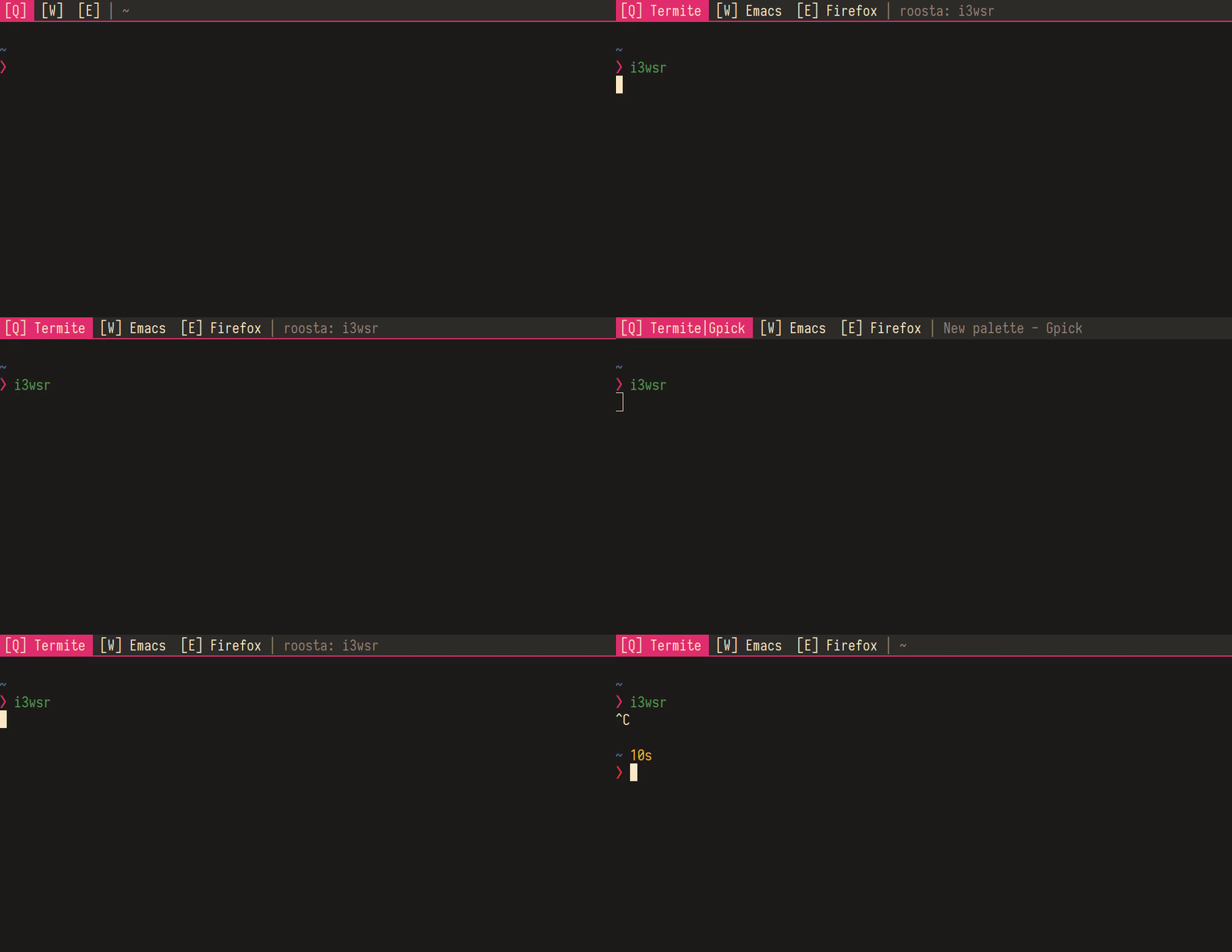
Requirements
i3wsr requires XCB, if you get compilation
errors mentioning xcb, you might need to install libxcb. On Ubuntu for
example you'd install:
Refer to #18 for more.
Installation
Rust, and Cargo is
required, and i3wsr can be installed using cargo like so:
Or alternatively, you can build a release binary,
Then place the built binary, located at target/release/i3wsr, somewhere on your $path.
Arch linux
If you're running Arch you can install either stable, or latest from AUR thanks to reddit user u/OniTux.
Usage
Just launch the program and it'll listen for events if you are running I3. Another option is to put something like this in your i3 config
# cargo
exec_always --no-startup-id $HOME/.cargo/bin/i3wsr
# AUR
exec_always --no-startup-id /usr/bin/i3wsr
i3 configuration
This program depends on numbered workspaces, since we're constantly changing the workspace name. So your I3 configuration need to reflect this:
bindsym $mod+1 workspace number 1
If you're like me and don't necessarily bind your workspaces to only numbers, or you want to keep a part of the name constant you can do like this:
bindsym $mod+q workspace number 1:[Q]
This way the workspace would look something like this when it gets changed:
1:[Q] Emacs|Firefox
You can take this a bit further by using a bar that trims the workspace number and be left with only
[Q] Emacs|Firefox
Configuration / options
Configuration for i3wsr can be done using cmd flags, or a config file. A config
file allows for more nuanced settings, and is required to configure icons and
aliases. To use a config file pass to the --config option on invocation:
Example config can be found in assets/example_config.toml.
Aliases
Sometimes a WM property can be overly verbose, so its possible to match a class name with an alias:
[]
# Exact match
= "Chrome-dev"
# Substring match
= "Firefox"
# Escape if you want to match literal periods
= "Nautilus"
Alias keys uses regex for matching, so it's possible to get creative:
# This will match gimp regardless of version number reported in class
= "Gimp"
Remember to quote anything but [a-zA-Z], and to escape your slashes. Due to
rust string escapes if you want a literal backslash use two slashes \\d.
WM Property
i3wsr supports 3 window properties currently:
[]
= "instance"
Possible options are class, instance, and name, and will default to class
if not present.
You can alternatively supply cmd argument:
Class
This is the default, and the most succinct.
Instance
Use WM_INSTANCE instead of WM_CLASS when assigning workspace names, instance is usually more specific. i3wsr will try to match icon with instance, and if that fail, will fall back to class.
A use case for this option could be launching chromium --app="https://web.whatsapp.com", and then assign a different icon to whatsapp
in your config file:
[]
= "🗩"
Aliases will also match on instance:
[]
= "WhatsApp"
Name
Uses WM_NAME instead of WM_CLASS, this option is very verbose and relies on regex matching of aliases to be of any use.
A use-case is running some terminal application, and as default i3wsr will only display class regardless of whats running in the terminal.
So you could do something like this:
[]
= "name"
[]
= "Mutt"
You could display whatever the terminal is running, but this comes with one caveat: i3 has no way of knowing what happens in a terminal and starting say mutt will not trigger any IPC events. The alias will take effect whenever i3 receives a window or workspace event.
It should be possible to write a launcher script, that wraps whatever command your running with a custom i3 ipc trigger event. If anyone figures out a nice way of doing it let me know.
Icons
You can configure icons for your WM property, a very basic preset for
font-awesome is configured, to enable it use the option --icons awesome
(requires font-awesome to be installed).
A more in depth icon configuration can be setup by using a configuration file. In there you can define icons for whatever title you'd like.
[]
= "🌍"
# Use quote when matching anything other than [a-zA-Z]
= "📘"
i3wsr tries to match an icon with an alias first, then falls back to window class, so a config like this is valid:
[]
= "Gimp"
[]
= "📄"
A font that provides icons is of course recommended, like font-awesome. Make sure your bar has that font configured.
Separator
Normally i3wsr uses the pipe character | between class names in a workspace,
but a custom separator can be configured in the config file:
[]
= " "
Default icon
To use a default icon when no other is defined use:
[]
= "💀"
No icon names
To display names only if icon is not available, you can use the
--no-icon-names flag, or enable it in your config file like so:
[]
= true
No names
If you don't want i3wsr to display names at all, you can use the
--no-names flag, or enable it in your config file like so:
[]
= true
Remove duplicates
If you want duplicates removed from workspaces use either the flag
--remove-duplicates, or configure it in the options section of the config
file:
[]
= true
Sway
Check Pedro Scaff's port swaywsr.
Testing
To run tests locally Vagrant is required. Run
script/run_tests.sh to run tests on ubuntu xenial.
Attribution
This program would not be possible without i3ipc-rs, a rust library for controlling i3-wm through its IPC interface and rust-xcb, a set of rust bindings and wrappers for XCB.