# Keybindings
Every default chord, and how to change them.
If you use Vim keys, see [vim-mode.md](vim-mode.md) — vim mode replaces the editing keys below but keeps every `Ctrl-*` chord.
**Can't find a key for something?** Many commands ship with no chord at all and live in the command palette instead. Press **`Ctrl-P`** and type.
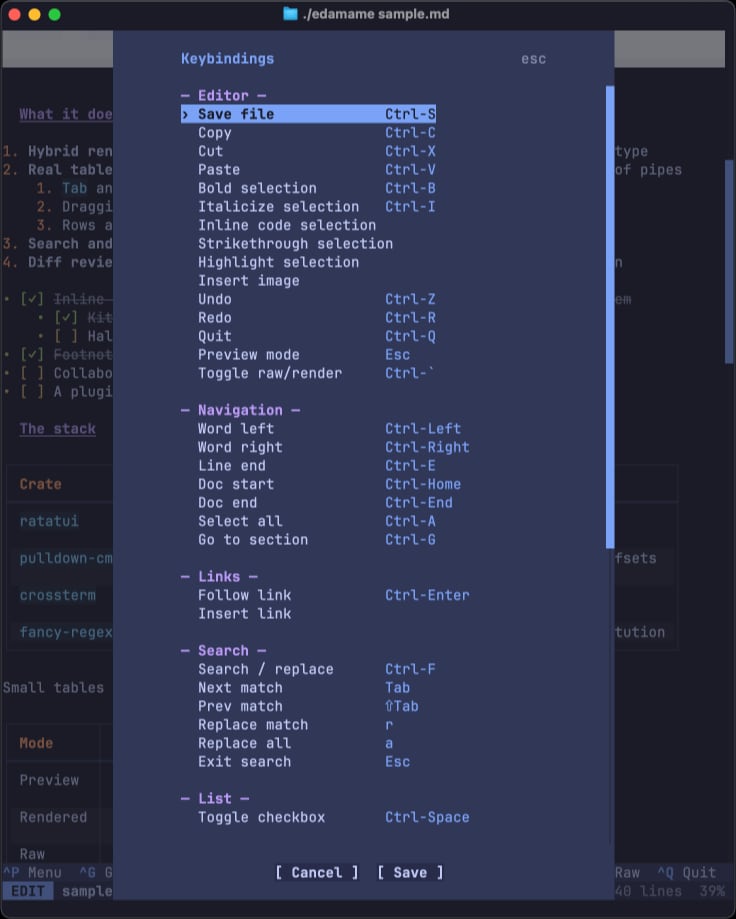
The keybindings overlay lists every chord and lets you rebind on the spot — `Ctrl-P` → **"Keybindings"**:
---
## Essentials
| `Ctrl-P` | Command palette — every command, fuzzy-searchable |
| `Ctrl-S` | Save |
| `Ctrl-Q` | Quit (prompts if there are unsaved changes) |
| `Ctrl-F` | Search and replace |
| `Ctrl-G` | Go to section (fuzzy heading list) |
| `Esc` | Leave editing, back to Preview |
| ``Ctrl-` `` | Toggle the whole document to raw Markdown |
**`Ctrl-C` is Copy, not quit.** Quit is `Ctrl-Q`.
---
## Cursor movement
| `↑` `↓` `←` `→` | Move cursor |
| `Ctrl-←` / `Ctrl-→` | Move by word |
| `Ctrl-E` | End of line |
| `Ctrl-Home` / `Ctrl-End` | Start / end of document |
Note that **`Home` and `End` scroll the view; they do not move to line start/end.** `Ctrl-A` is Select All (the GUI convention), not line-start. There is no default chord for "move to line start" — bind `MoveLineStart` if you want one.
## Scrolling
| `PageUp` / `PageDown` | Scroll a page |
| `Home` / `End` | Scroll to top / bottom of document |
`ScrollUp` / `ScrollDown` (one line at a time) have no default chord. Keyboard scrolling always steps exactly one line and ignores the `mouse_scroll_lines` setting, which applies to the mouse wheel or touchpad.
## Editing
| `Enter` | New line |
| `Tab` | Insert a tab |
| `Backspace` / `Delete` | Delete character back / forward |
| `Ctrl-Backspace` / `Ctrl-Delete` | Delete word back / forward |
| `Ctrl-D` | Delete line |
| `Ctrl-Z` | Undo |
| `Ctrl-Shift-Z` *or* `Ctrl-R` | Redo (two chords, both default) |
## Selection and clipboard
| `Shift-↑` `Shift-↓` `Shift-←` `Shift-→` | Extend selection |
| `Ctrl-A` | Select all |
| `Ctrl-C` / `Ctrl-X` / `Ctrl-V` | Copy / cut / paste (system clipboard) |
## Formatting
Formatting acts on a **non-empty, single-line selection** and toggles — running it again on already-bold text unwraps it.
| `Ctrl-B` | Bold `**…**` |
| `Ctrl-I` | Italic `*…*` |
| *(palette)* | Inline code `` ` ``, strikethrough `~~`, highlight `==` |
> **`Ctrl-B` and `Ctrl-I` need a modern terminal.** In the legacy encoding `Ctrl-I` is indistinguishable from `Tab` and `Ctrl-B` from a control byte, so on Apple Terminal `Ctrl-I` inserts a tab and `Ctrl-B` does nothing. Use the palette, or rebind to `ctrl+shift+b` / `ctrl+shift+i`. See [Terminal compatibility](#terminal-compatibility).
## Lists and links
| `Ctrl-Space` | Toggle task checkbox |
| `Ctrl-Enter` | Follow the link under the cursor |
| `Alt-←` / `Alt-→` | Navigation history back / forward — *only outside a table* |
Inside a table those same `Alt-←` / `Alt-→` keys reorder columns. If you want unconditional back/forward, bind `NavigateBack` / `NavigateForward` to chords of your own.
On macOS these two chords need a word about the terminal — see [Option and the Alt chords on macOS](terminal-compatibility.md#option-and-the-alt-chords-on-macos).
## Tables
Cell navigation reuses the keys you would press anyway — they only change meaning when the cursor is inside a table:
| `Tab` | Next cell | Insert a tab |
| `Enter` | Next row | New line |
| `Shift-Tab` | Previous cell | *(nothing)* |
| `Shift-Enter` | Insert a literal `<br>` | New line |
Structural edits follow one scheme: **the arrow points the way, and `Shift` promotes "move" into "insert".**
| `Alt-↑` / `Alt-↓` | Move row up / down |
| `Alt-←` / `Alt-→` | Move column left / right |
| `Alt-Shift-↑` / `Alt-Shift-↓` | Insert row above / below |
| `Alt-Shift-←` / `Alt-Shift-→` | Insert column left / right |
| `Alt-Backspace` | Delete row |
| `Alt-Shift-Backspace` | Delete column |
| `Ctrl-Shift-T` | Insert a new table (cursor must be on a blank line) |
The `Alt-Shift-*` chords and `Ctrl-Shift-T` need the kitty keyboard protocol — see [Terminal compatibility](#terminal-compatibility). All of them are also in the command palette as `Table: …`.
---
## Keys that are fixed
Two flows take over the keyboard while they are open, so these keys always win over your keymap and cannot be rebound.
### Search and replace
| `Tab` / `Shift-Tab` | Next / previous match (wraps around) |
| `r` | Replace this match, then advance |
| `a` | Replace all — one undo step — and exit |
| `Esc` | Leave the search, staying on the current match |
`r` and `a` only do something when you filled in the Replace field. A search with an empty Replace field is a lightweight highlight overlay: you keep full editing freedom, and only `Tab`, `Shift-Tab` and `Esc` are intercepted.
### Diff review
| `Tab` / `Shift-Tab` | Next / previous hunk (no decision made) |
| `y` | Accept this hunk, advance |
| `n` | Reject this hunk, advance |
| `Y` / `N` | Accept / reject **all** pending hunks (asks first) |
| `Backspace` | Undecide this hunk |
| `Esc` | Exit — only once every hunk is decided |
While a diff is open, editing and saving are unavailable; scrolling, quitting and the overlays still work.
---
## Commands with no default chord
These are reachable from the command palette (`Ctrl-P`), or you can bind them yourself.
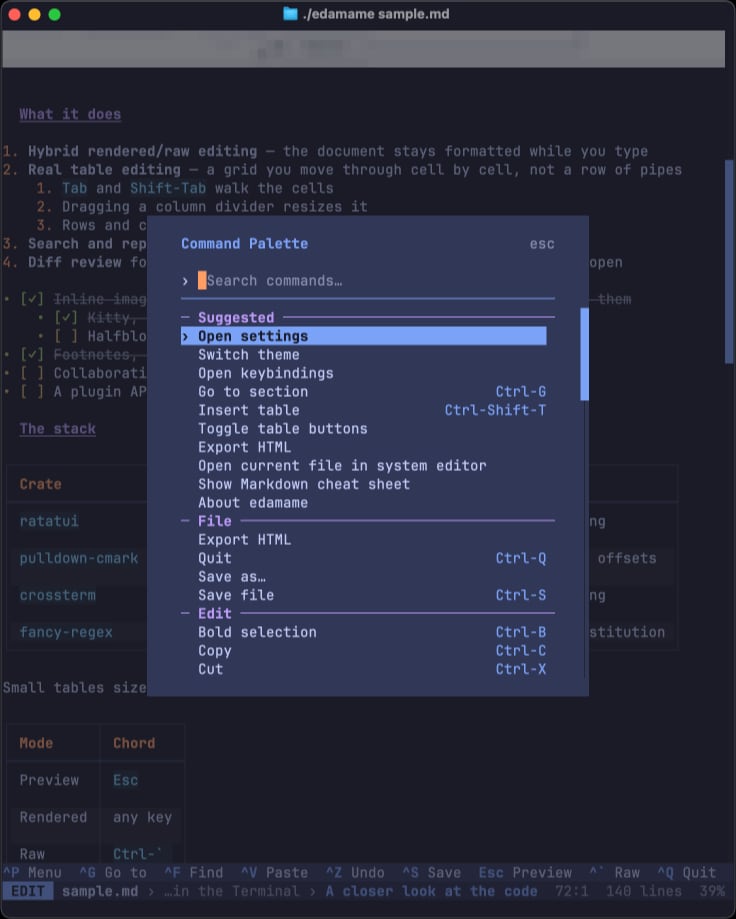
**Files** — Save as…, Open in external editor, Export HTML
**Overlays** — Settings, Keybindings, Welcome / terminal setup, Markdown cheat sheet, About, Check for updates, Switch theme, Create custom theme
**Documentation** — Help: Documentation (the index), and one entry per page: Docs: Getting started, Editing, Keybindings, Configuration, Themes, Vim mode, Security
**Insert** — Link, Image, Footnote
**Fix-ups** — Delete footnote, Renumber footnotes, Fix list numbering
**Toggles** — Vim mode, Autosave, Big H1, Line numbers, Blink cursor, Visual line navigation, Limit editor width, Diff on external change, Table buttons
A handful of actions are not in the palette either, because they only make sense as a held-down key. Bind them in `keybindings.toml` if you want them: `ScrollUp`, `ScrollDown`, `MoveLineStart`, and the unconditional table-cell moves `TableNextCell`, `TableNextRow`, `TablePrevRow`.
"Open config folder" is not in the palette either — it is the first row of the settings overlay, where people go looking for config paths anyway.
> **There is no in-app "open file" yet.** Open a document by passing it on the command line (`edamame notes.md`) or by following a link to another `.md` file. `Ctrl-O` is not bound.
---
## Changing a keybinding
Two ways:
1. **The keybindings overlay** — `Ctrl-P` → "Open keybindings". Press a new chord for any action; conflicts are detected and refused. Nothing is written until you activate **Save**, so a fumbled chord is recoverable with `Esc`.
2. **`keybindings.toml`** in your config directory (see
[configuration.md](configuration.md#where-config-lives)).
The file is a flat table of `ActionName = "chord"`:
```toml
Save = "ctrl+s"
ToggleRawMode = "ctrl+y"
InsertFootnote = "alt+f"
```
### Chord syntax
```
"<modifiers>+<key>"
```
**Modifiers** — `ctrl`, `alt`, `shift`, combined with `+` in any order. There
is no `super` / `cmd` / `meta`.
**Keys** — any single character (`a`, `-`, `` ` ``, `é`), or one of:
| Arrows | `up` `down` `left` `right` |
| Home / End | `home` `end` |
| Page | `page_up` `pageup` `pgup` · `page_down` `pagedown` `pgdn` |
| Enter | `enter` `return` |
| Delete | `delete` `del` |
| Escape | `escape` `esc` |
| Tab | `tab` `backtab` |
| Other | `backspace` `insert` `space` |
| Function | `f1` … `f12` |
The whole string is case-insensitive: `"Ctrl+S"` and `"ctrl+s"` are the same. To bind the literal `+` key, put it last — `"+"` or `"ctrl++"`.
### Three things that will trip you up
**Bindings are added, not replaced.** Your file layers on top of the built-in defaults. `Redo = "ctrl+y"` gives Redo *three* chords — it does not remove `Ctrl-Shift-Z` or `Ctrl-R`. The only way to displace a default is to bind that same chord to a different action.
*(The keybindings overlay behaves differently — rebinding there does replace the action's previous chords.)*
**Never write `Action = ""`.** An empty string is a parse error: the entry is dropped and you get a warning at startup. An action you don't want bound simply has no line in the file.
**Avoid `shift+<letter>`.** Terminals report that chord as an uppercase character, so `shift+a` will never match anything. Write `"A"` instead. Use `shift` with non-letter keys — arrows, tab, enter, backspace.
If edamame can't parse a line — unknown action name or unreadable chord — it drops that entry and tells you once at startup. The rest of the file still applies.
---
## Terminal compatibility
A few default chords depend on the **kitty keyboard protocol** and never arrive in terminals without it:
- ``Ctrl-` `` (toggle raw mode)
- `Ctrl-Shift-T` (insert table)
- `Ctrl-B` / `Ctrl-I` (bold / italic — these collide with `Tab` and a control byte rather than vanishing)
- The `Alt-Shift-*` table chords
Rebinding any of them to a plain `Ctrl`+letter works everywhere — `ToggleRawMode = "ctrl+y"` is a good substitute — and the palette (`Ctrl-P`) reaches all of them regardless of what your terminal delivers.
[terminal-compatibility.md](terminal-compatibility.md#keyboard) explains why those chords are lost, lists which terminals have the protocol, and covers the macOS `Option` key — along with everything else that depends on the terminal, and which terminals support what.