# Editing
What edamame does with your Markdown, and the features built on top of it.
---
## Markdown support
edamame parses CommonMark plus a set of GitHub extensions.
| Element | Markdown Source |
| --- | --- |
| Headings | `#` through `######`, and the underlined (setext) form |
| Emphasis | `**bold**` · `*italic*` · `` `code` `` · `~~strikethrough~~` |
| Highlight | `==highlighted==` |
| Lists | Bullet and ordered, nested, with loose/tight spacing preserved |
| Task lists | `- [ ]` and `- [x]`, clickable |
| Tables | GitHub pipe tables, drawn as a real grid |
| Code | Fenced and indented, with the language token styled |
| Quotes | `>`, nesting other blocks inside |
| Links | `[text](url)`, `<url>`, `#heading` anchors, local files |
| Images | Local and remote |
| Footnotes | `[^1]` references and definitions, with jump-to navigation |
| Rules | `---`, drawn as a full-width line |
| Line breaks | Two trailing spaces, and soft wraps |
| Diagrams | ` ```mermaid ` fenced blocks |
| Frontmatter | `---` YAML and `+++` TOML metadata blocks |
### Things to know
**HTML comments are hidden.** `<!-- … -->` renders as nothing at all in Preview and Edit — useful for notes you don't want to see. They're visible and editable in Raw mode.
**Other HTML is shown, not rendered.** A `<details>` block or a `<sub>` tag appears as literal text in a muted code style. edamame does not interpret HTML.
**Smart punctuation is on**, and currently not configurable. Straight quotes render as curly ones, `--` becomes an en dash, `...` becomes an ellipsis. Your source file is untouched — this is display only.
**Frontmatter is shown as data, not prose.** A `---`-delimited YAML block (or a `+++`-delimited TOML one) at the top of a file renders verbatim — one row per source line, dimmed, with each key picked out from its value. It stays fully editable, and it is left out of an HTML export, since it describes the document rather than belonging to it.
**Only the very first line of the file can open frontmatter.** The delimiter has to be the first thing in the document — no blank line, no indentation, nothing above it — and it has to be closed by a matching delimiter. A `---` anywhere else is an ordinary horizontal rule, including one sitting directly above a heading, so section separators in an existing document keep working as they always did. A file that opens `+++` gets TOML frontmatter only, and vice versa. Note that a YAML block closed with `...` instead of `---` displays a `---` on that row — the source is unchanged, and moving the cursor into the block shows it as written.
**Fenced code blocks are syntax highlighted**, using the language you name on the opening fence — ```` ```rust ````, ```` ```python ````, ```` ```json ````. Over 200 languages are recognized, by name or by common alias (`rs`, `py`, `ts`, `sh`). Only the first word matters, so ```` ```rust,ignore ```` and ```` ```js {1,3-4} ```` still highlight while the fence label keeps showing what you wrote.
**The language is never guessed.** A fence with no language, or one naming a language edamame doesn't ship, renders as plain code — the same as it always did. That is deliberate: guessing wrong recolors a document you didn't ask to have recolored.
Colors come from the active theme, so they follow whichever theme you're using and a custom theme can restyle them — see [themes.md](themes.md). Turn the whole thing off with **Syntax highlighting** in the settings overlay, or `syntax_highlighting = false` in `config.toml`.
**Bare URLs are not auto-linked.** `https://example.com` on its own renders as plain text. Write `<https://example.com>` or `[text](https://example.com)`.
edamame includes a Markdown cheat sheet that provides a quick reference for what Markdown is supported and how to write it. You can access it from the command palette (**Show Markdown cheat sheet**).
---
## Formatting text
Select some text, then:
| Key (palette) | Action |
| --- | --- |
| `Ctrl-B` | Bold |
| `Ctrl-I` | Italic |
| *palette* | Inline code, strikethrough, highlight |
These toggle — run bold on already-bold text and the markers come off. They need a **non-empty selection on a single line**.
If `Ctrl-B` / `Ctrl-I` do nothing (or insert a tab), your terminal is the reason — see [terminal-compatibility.md](terminal-compatibility.md#keyboard).
**Insert Link** and **Insert Image** (palette) drop a `[link text](file path or URL)` snippet at the cursor, or wrap your selection as the visible text. The placeholder is left selected, so you can type straight over it.
---
## Lists
Press `Enter` at the end of a list item and edamame continues the list — copying the bullet, or incrementing the number. `Enter` on an empty item adds a blank line for loose spacing; another `Enter` ends the list.
**Ordered lists renumber themselves.** Insert an item in the middle and the numbers below follow. This runs after edits in Edit mode; it's deliberately switched off in Raw mode, where you own the text exactly as written. Undo and redo never trigger it, so they stay exact inverses.
If a list's numbering has drifted — usually from pasted text — **Fix list numbering** in the palette re-sequences the list under the cursor in one undoable step.
### Task lists
`Ctrl-Space` toggles the checkbox on the current line. You can also **click the checkbox** directly; a click on the box toggles it without moving your cursor, while a click anywhere else on the line moves the cursor normally.
Completed items dim and get struck through. This is configurable in the theme.
---
## Tables
Tables render as a drawn grid, and edit a cell at a time. In Edit mode the cell you're in shows its raw text in place; everything else stays formatted.
### Creating one
`Ctrl-Shift-T`, or "Insert table" in the palette. You'll be asked for rows and columns. **The cursor has to be on a blank line** — otherwise you get an error flash instead of a table.
### Moving around
| Key | Action |
| --- | --- |
| `Tab` / `Shift-Tab` | Next / previous cell |
| `Enter` | Next row |
| `Shift-Enter` | Insert a literal `<br>` |
Outside a table these keys do their normal thing, so nothing is taken away from you.
> `Shift-Enter` inserts `<br>`, which is how GitHub-flavored Markdown writes a multi-line cell. Be aware that edamame's own renderer currently shows it as literal `<br>` text rather than breaking the line, and HTML export strips it.
### Changing the shape
The arrow points the direction; `Shift` turns "move" into "insert".
| Key | Action |
| --- | --- |
| `Alt-↑` `Alt-↓` | Move row |
| `Alt-←` `Alt-→` | Move column |
| `Alt-Shift-↑` `Alt-Shift-↓` | Insert row above / below |
| `Alt-Shift-←` `Alt-Shift-→` | Insert column left / right |
| `Alt-Backspace` | Delete row |
| `Alt-Shift-Backspace` | Delete column |
All ten are in the palette as `Table: …` — worth knowing, because the `Alt-Shift` chords need a modern terminal.
### With a mouse
When your terminal supports a mouse, the table your cursor is in grows handles:
- **`⠿`** at the left of a row, or on top of a column — drag to reorder
- **`⇔`** on the header row's dividers — drag to resize a column
- **`✕`** on the outer border — delete that row or column
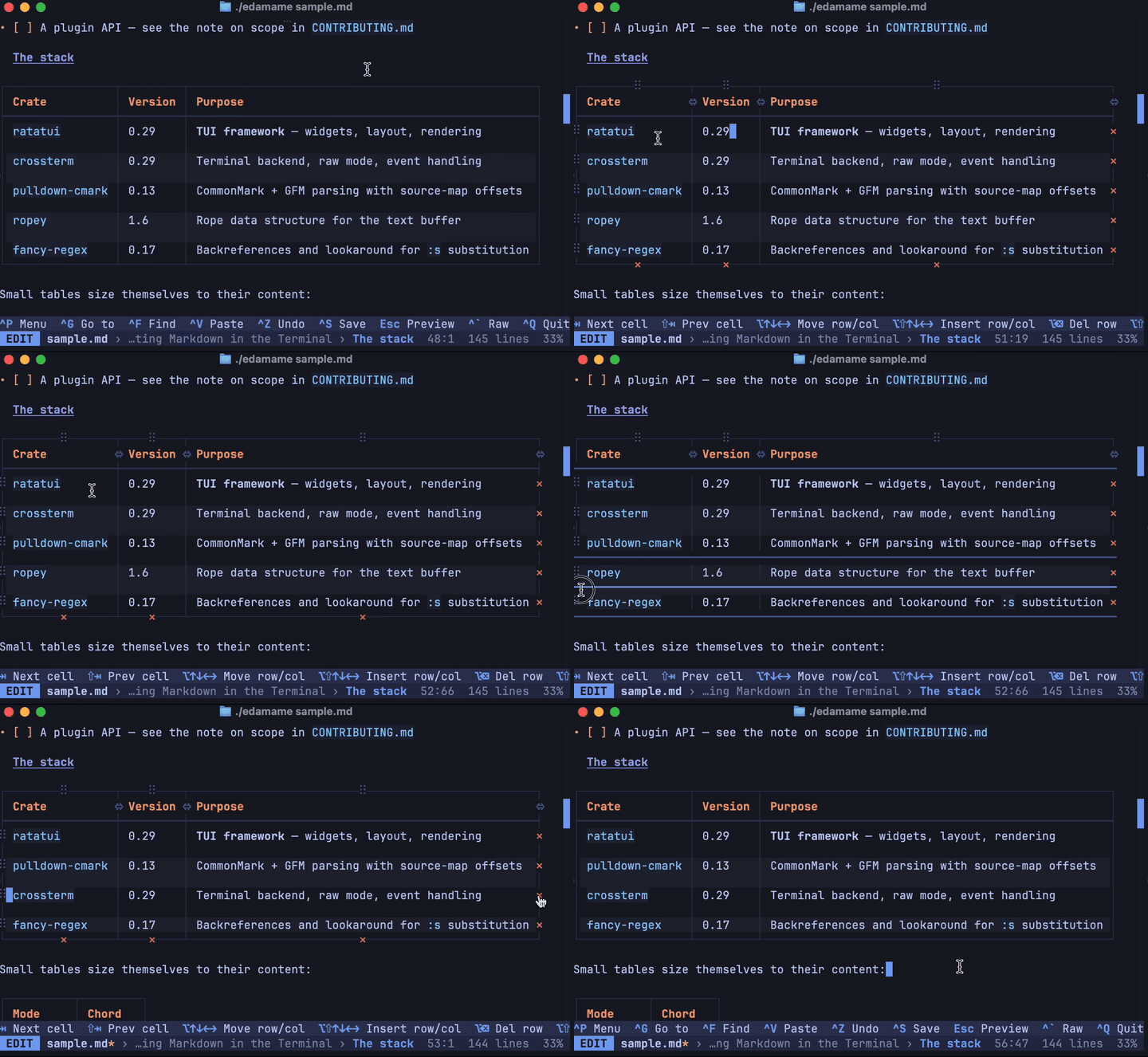
While you drag the reorder handles, every place the row or column could land is outlined, with the one under your pointer highlighted.
The drag handles and delete buttons can be hidden with "Toggle table buttons" in the palette, or the settings overlay.
**Resizing a column writes a comment into your document** — `<!-- tui-columns: [80, _, 20] -->` on the line after the table — because that's the only place a width can persist. edamame asks before doing this the first time. The comment is invisible in Preview and Edit, and other Markdown tools ignore it. edamame uses a smart algorithm to calculate column widths by default, so this is usually not necessary.
### Repairing a table
Switch to Raw mode (``Ctrl-` ``). All the pipes and dashes become ordinary editable text and every guardrail is off.
---
## Footnotes
Write `[^1]` where you want a reference and `[^1]: the note` wherever the definition should live. References render as bracketed markers — `[^1]` becomes `[1]` — and references written back to back are joined into one marker, so `[^1][^2][^3]` renders as `[1,2,3]`.
`Ctrl-Enter` on a reference jumps to its definition; on a definition, it jumps back to the reference you came from. `Alt-←` also walks back.
Three palette commands help with upkeep:
- **Insert footnote** — adds an auto-numbered `[^N]` reference, picking the next free number
- **Delete footnote** — removes the footnote at the cursor: every reference *and* the definition, then renumbers
- **Renumber footnotes** — re-sequences numeric footnotes into the order they first appear. Named labels like `[^note]` are left alone.
---
## Links
`Ctrl-Enter` follows the link under the cursor. With a mouse: click in Preview, `Ctrl`-click in Edit or Raw.
What happens depends on the target:
| Target | Result |
| --- | --- |
| `https://…`, `mailto:…` | Opens in your default application |
| Another `.md` file | Opens in edamame |
| Another `.md` file with `#heading` | Opens in edamame, scrolled to that heading |
| Any other local file | Handed to the OS |
| `#heading` | Jumps within the document |
| `[^note]` | Jumps to the footnote |
A heading is named by its GitHub-style slug: lowercase, punctuation dropped, spaces turned into hyphens — `## When the file changes` is `#when-the-file-changes`. That is the same fragment GitHub and your browser resolve, so a link that works here works everywhere else too. If nothing in the target document matches, the file still opens and the hint line tells you the section wasn't found.
`Alt-←` / `Alt-→` move back and forward through everywhere you've been — across files and within a document. Leaving a modified file prompts first.
> edamame opens links without asking for confirmation. That's expected, but it means a link in a document you didn't write can hand an arbitrary target to your OS. See [security.md](security.md).
---
## Search and replace
`Ctrl-F` opens a box with **Search** and **Replace** fields. What you get depends on whether you fill in Replace.
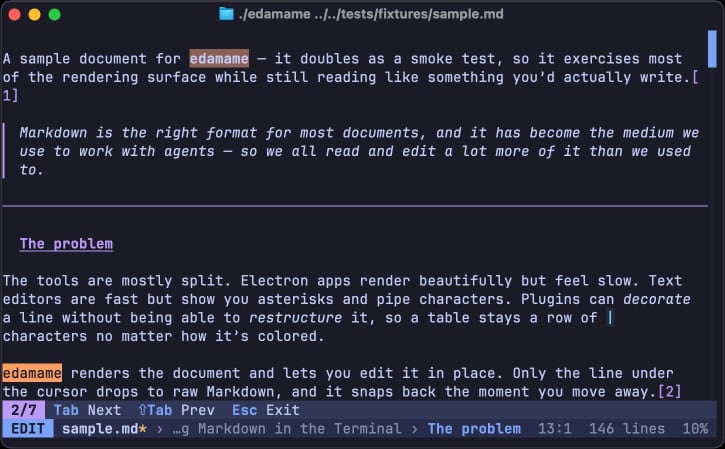
**Leave Replace empty** and you get highlighting you can navigate. Matches are marked, `Tab` and `Shift-Tab` walk them, `Esc` clears. You can keep editing normally throughout.
**Fill Replace in** and the flow takes over the keyboard until you're done:
| Key | Action |
| --- | --- |
| `Tab` / `Shift-Tab` | Next / previous match |
| `r` | Replace this one and move on |
| `a` | Replace all — a single undo step — and exit |
| `Esc` | Leave, staying where you are |
While replacing, editing keys are held back so a stray keystroke can't rewrite the document out from under the match list. Navigation, copying, scrolling and saving still work.
**Case sensitivity differs between the two, deliberately.** Navigating is *smartcase*: a lowercase search matches any case, but as soon as you type a capital it becomes exact. Replacing is always case-sensitive, so searching `color` never rewrites a `Color` you didn't mean to touch.
Searches are literal text, not regular expressions. (Vim mode's `:s` does take regexes; see [vim-mode.md](vim-mode.md).)
**A search can cross a line break**, written as `\n`:
| Type | Matches |
| --- | --- |
| `\n` | a line break |
| `\t` | a tab |
| `\r` | a carriage return |
| `\\` | a single backslash |
So `\n` finds every line ending in two spaces, and replacing it with a space joins those lines. The Replace field takes the same escapes, so you can also replace *with* a line break.
Because a backslash starts an escape, **a literal backslash must be typed `\\`** — and anything else after a backslash (`\d`, say) is reported as an error rather than searched for. Pasting handles this for you: paste text containing backslashes or line breaks and it arrives correctly escaped.
**Go to section** (`Ctrl-G`) is often what you actually want: a fuzzy search list of every heading, previewing as you arrow through it. `Esc` puts you back.
---
## When the file changes underneath you
If something else writes the file you have open — a `git checkout`, a formatter, an AI agent — edamame will not silently swap it out.
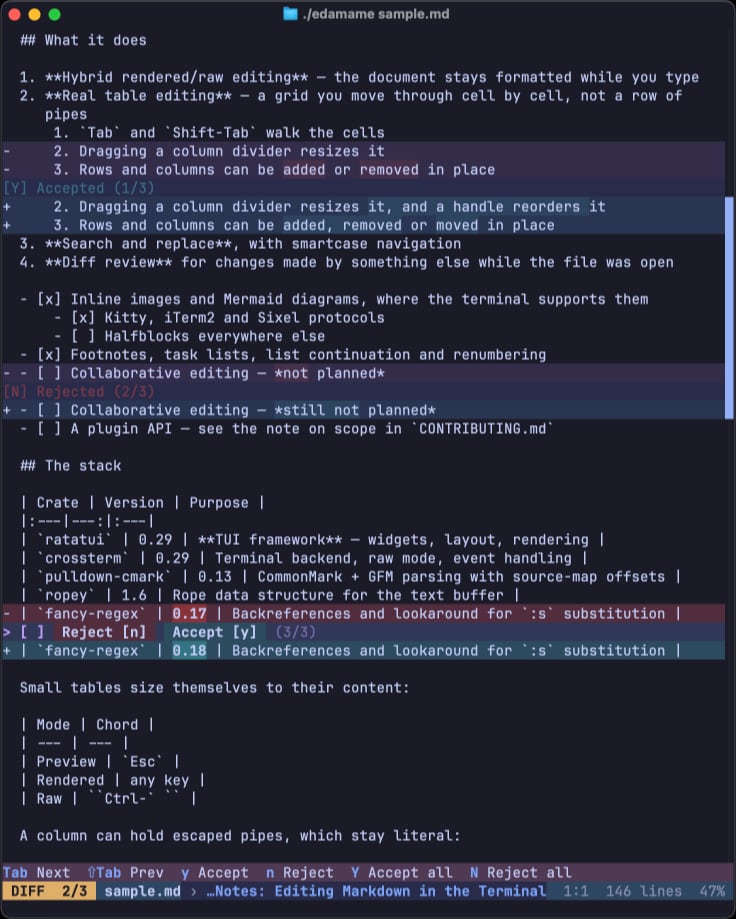
**With no unsaved changes**, it opens **diff review**: your version and the new one, stacked, hunk by hunk, with word-level highlighting inside changed lines. Tables are split per row, so you can take one row and leave another.
The parts of the document that *didn't* change still look like the document you were reading a moment ago — headings styled, tables as grids, images in place. Only the changed regions drop to raw source, so the `-`/`+` markers mark out exactly what is under review and everything else reads as context.
| Key | Action |
| --- | --- |
| `Tab` / `Shift-Tab` | Move between hunks |
| `y` / `n` | Accept / reject this hunk |
| `Y` / `N` | Accept / reject everything (asks first) |
| `Backspace` | Undecide this hunk |
| `Esc` | Finish |
`Esc` only works once every hunk is decided, and then asks before writing. So nothing is applied until you've seen all of it and said yes. Editing and saving are unavailable while a diff is open; the merged result becomes a normal undoable edit afterwards.
**With unsaved changes**, you get a conflict prompt instead, with **Merge** to enter diff review when you're ready.
**If the file was deleted**, edamame tells you and offers to write your buffer back out — it's now the only copy.
If you prefer not to enter diff review when the file is overwritten, set `diff_on_change = false` and a clean buffer reloads silently. A modified buffer always asks so that your changes aren't lost.
### Using edamame as a git difftool
`edamame --diff <old> <new>` opens the same review over two files you name, **read-only**. Git can hand it a pair without disturbing the diff tool you already use for everything else.
**Nothing to configure** — `-x` runs a command with the two paths appended:
```
git difftool -y -x 'edamame --diff'
```
`-y` skips the per-file `Launch 'tool' [Y/n]?` prompt. Your `diff.tool` is neither read nor changed, and no pathspec is needed: edamame automatically skips non-Markdown files (those that don't have a .md or .markdown extension) and those that can't be read as UTF-8 text.
**If you reach for it often**, name the tool once and wrap it in an alias:
```
git config --global difftool.edamame.cmd 'edamame --diff "$LOCAL" "$REMOTE"'
git config --global alias.mdiff 'difftool -y -t edamame'
```
```
git mdiff
git mdiff main..HEAD
```
`-t` overrides `diff.tool` for that one command only, so whatever you use for everything else stays your default.
Either way, git walks the changed files one at a time.
| Key | Action |
| --- | --- |
| `Tab` / `Shift-Tab` | Move between hunks |
| `Esc` | Done with this file — go to the next |
| `Ctrl-Q` | Quit diff — end the whole walk |
**Quitting ends the walk, with no extra flags.** `Ctrl-Q` stops the review where you are and leaves the remaining files unopened; git exits quietly, the way it does for any interrupted command. (Under the hood it raises the same `SIGINT` a `Ctrl-C` at the terminal would. Your shell may report `git difftool` as interrupted; that is what happened.)
If you'd rather see the rest of a changeset in your usual tool in the same pass, that's the gitattributes route below.
Don't combine this with `--dir-diff` (`-d`): that hands the tool two *directories* to compare at once, and edamame only supports one pair of files at a time.
#### Picking edamame for Markdown automatically
To have git choose edamame for Markdown on its own — no flags, and for plain `git diff` as well — use a gitattributes diff driver. It needs a small wrapper, because git calls a driver with seven arguments rather than two:
```sh
#!/bin/sh
# ~/bin/edamame-gitdiff
# git passes: path old-file old-hex old-mode new-file new-hex new-mode
exec edamame --diff "$2" "$5"
```
```
git config --global diff.edamame.command ~/bin/edamame-gitdiff
echo '*.md diff=edamame' >> .gitattributes
```
Both `git diff` and `git difftool` honor the attribute, and only for the paths it matches — a `git difftool` run will send your `.md` files to edamame and everything else to your usual tool. The catch is the pager: `git diff` pipes its output through one, which a full-screen program can't share, so use `git --no-pager diff` (or set `GIT_PAGER=cat`). `git difftool` uses no pager and needs nothing extra.
---
## Images
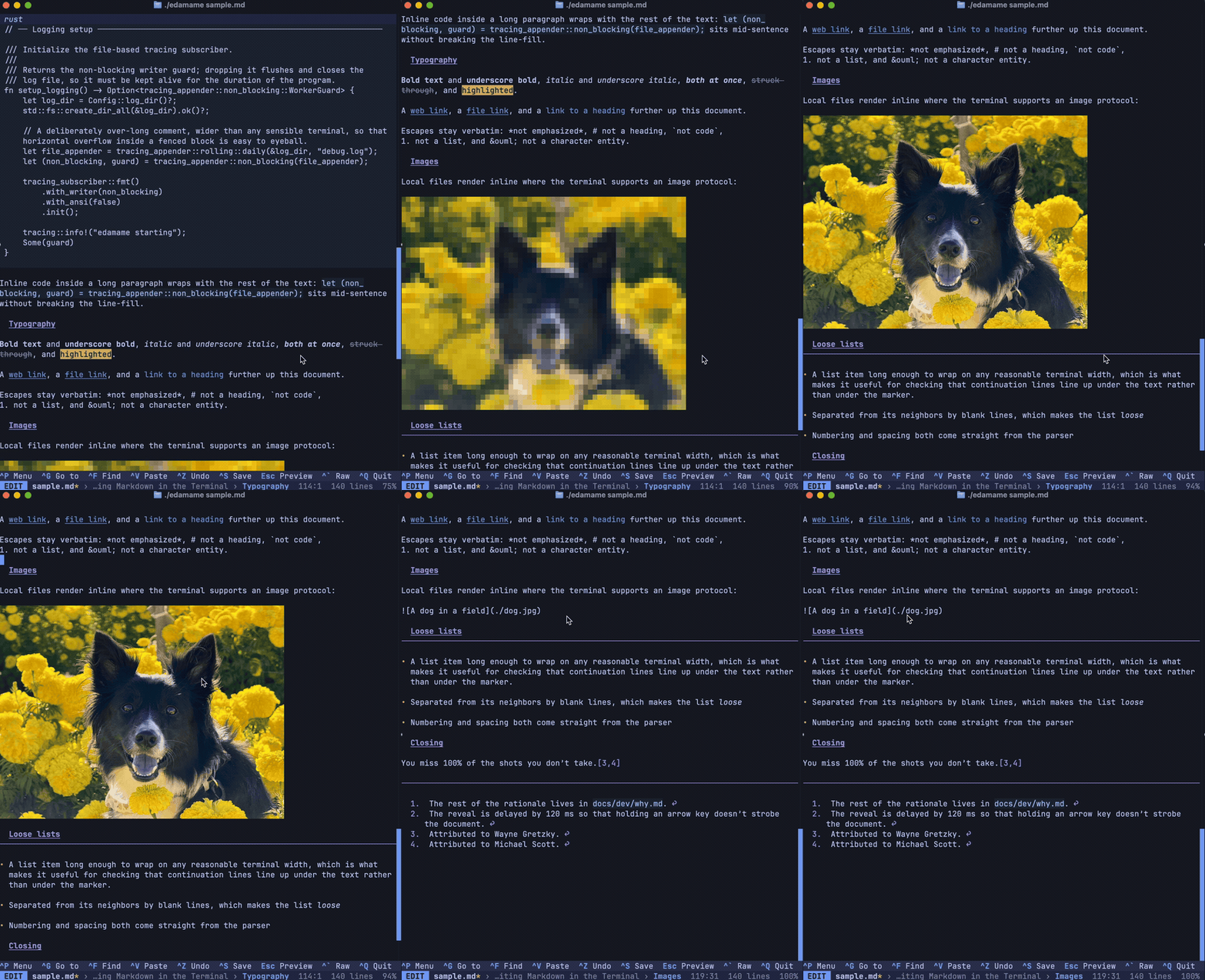
Local and remote images render inline, given a terminal that can do it.
edamame asks the first time a document with images comes up (`"ask"` is the default), and asks separately before fetching anything over the network. That includes a document you open from inside edamame by following a link — if the file you launched on had no images, the question comes when you reach one that does. Both answers can be "just this once" or "remember this"; either way you're only asked once per session.
Where images can't be shown you get an `[Image: alt text]` placeholder, so the document still reads.
Move the cursor into an image and it's replaced by its `` source line, the way any other block reveals — the rows the picture occupied close up and the document reflows around the single line you're editing. Move the cursor out and the image comes back.
**Formats:** PNG, JPEG, GIF, BMP, WebP, and SVG. Anything else is reported as an unsupported image rather than rendered — the list is kept deliberately short because edamame decodes images from documents you may not trust. Animation is not supported for any format.
**Requirements:** an image protocol — Kitty, iTerm2, or Sixel — *and* 24-bit color. Below truecolor, edamame declines to render images at all, because the result would be badly quantized. Half-block rendering is available as a low-fidelity fallback and is used when images are clipped off screen and when scrolling, as an optimization. See [terminal-compatibility.md](terminal-compatibility.md#images-and-diagrams) for which terminals qualify.
Size ceilings are `max_width` / `max_height` in [configuration](configuration.md#images); images scale to fit and keep their aspect ratio.
## Diagrams
Fenced ` ```mermaid ` blocks are rendered to images:
````markdown
```mermaid
graph TD
A[Start] --> B{Works?}
B -->|yes| C[Ship it]
B -->|no| D[Fix it]
D --> B
```
````
Same terminal requirements as images, and its own consent prompt — you can enable diagrams without enabling images or vice versa.
Move the cursor into a diagram and the image is replaced by its full mermaid source, exactly as a fenced code block reveals — however tall or short the rendered image was, every source line is shown and the rest of the document reflows around it. Move the cursor out and the image comes back.
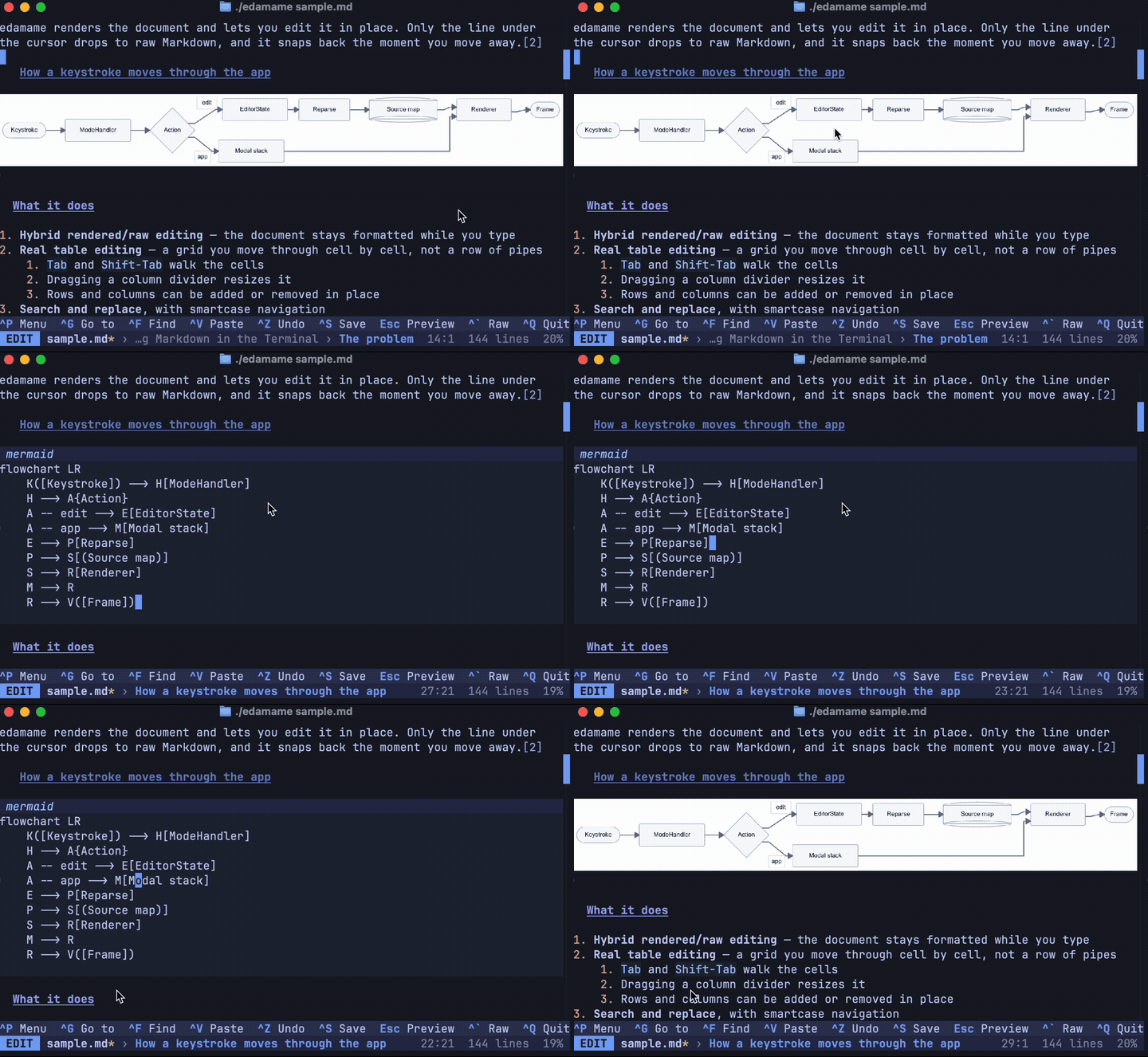
Rendering happens in the background and results are cached by content, so editing one diagram doesn't re-render the others. Mermaid is the only diagram language supported. A diagram that fails to render reports it on the hint line and leaves the code block visible.
---
## Exporting
"Export…" in the palette opens the export modal. There are four options here:
- **Title** — the document title
- **Inline images** — embed local images in the file as Base64 (self-contained but larger) or leave them as links
- **Inline diagrams** — render mermaid blocks into the file, or leave them as code blocks
- **Stylesheet** — the bundled one, or your own
- **Format** — the output format, HTML by default
For your own stylesheet, drop a `.css` file into the `export/` folder in your config directory and it appears in the picker. A `default.css.example` is written there to start from.
The output lands beside your document — `notes/guide.md` exports `notes/guide.html`.
Some things are deliberately stripped on the way out, because an exported file is usually one you share: raw HTML, and links using schemes other than `http`, `https`, `mailto` and `tel`. Diagrams are rasterized rather than embedded as SVG. Only images inside the document's own folder are ever inlined. The reasoning is in [security.md](security.md).
### Other formats
HTML is the only format edamame writes itself, but it will hand that HTML to a converter you nominate, which is how you get PDF, DOCX, EPUB or anything else your tools can produce. See [configuration.md](configuration.md#exportcustom) for how to add your own custom export formats.
---
## Editing elsewhere
**Open in external editor** (palette) saves your buffer, hands the file to `$VISUAL` or `$EDITOR`, and reloads when you come back. Useful for a big mechanical change you'd rather do in your usual editor, such as a complex substitution that edamame's Vim mode doesn't support.
---
## Other things worth knowing
**Undo** groups sensibly — a typed word is one step, not one per character. `Ctrl-Z` / `Ctrl-Shift-Z` (or `Ctrl-R`).
**Autosave** is off by default. Turned on, it writes after you stop typing for a few seconds. Files with no name are never autosaved, since there's nowhere to put them.
**Selection with a mouse**: drag to select, double-click for a word, triple-click for a line. Inside a table, dragging stays within the cell. Scrolling never moves the cursor.
**Line numbers**, a **width cap** for wide terminals, and **big block-letter H1s** are all available and all off by default — see [configuration.md](configuration.md). Line numbers count *source* lines in every mode, so a given line carries the same number in Raw as in Rendered, and the same one your other editor shows.
What changes between modes is which numbers are *shown*, never which number a line gets. A rendered view has rows that belong to no source line, and source lines that occupy no row:
- Rows that exist only because of how a block is drawn — a table's borders, the rows an image or a diagram reserves, the continuation rows of a wrapped line — are left blank.
- A line with no row of its own is simply not numbered anywhere in Preview or Rendered. That covers a hidden block-level HTML comment and a blank line that the renderer swallows inside a list item. Switch to Raw to see them.
So the numbers down the gutter may skip, but they never disagree: the number beside a line of text is always that line's number in the file.