# Keybindings
Every default chord, and how to change them.
If you use Vim keys, see [vim-mode.md](vim-mode.md) — vim mode replaces the
editing keys below but keeps every `Ctrl-*` chord.
**Can't find a key for something?** Many commands ship with no chord at all and
live in the command palette instead. Press **`Ctrl-P`** and type. That is the
intended way to reach anything you use rarely.
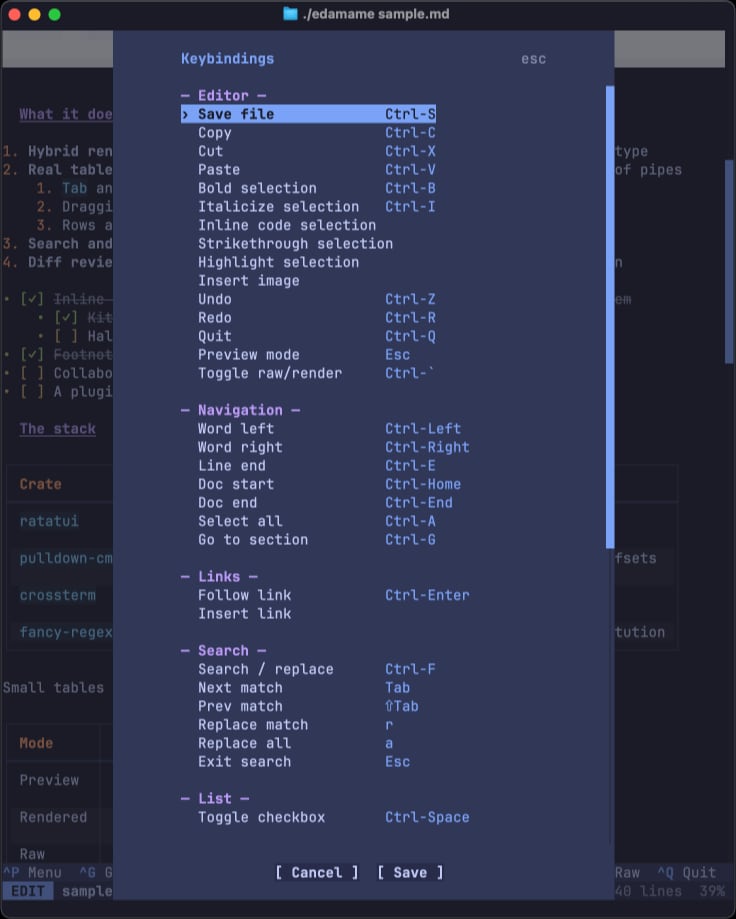
The keybindings overlay lists every chord and lets you rebind on the spot — `Ctrl-P` → **"Keybindings"**:
---
## Essentials
| `Ctrl-P` | Command palette — every command, fuzzy-searchable |
| `Ctrl-S` | Save |
| `Ctrl-Q` | Quit (prompts if there are unsaved changes) |
| `Ctrl-F` | Search and replace |
| `Ctrl-G` | Go to section (fuzzy heading list) |
| `Esc` | Leave editing, back to Preview |
| ``Ctrl-` `` | Toggle the whole document to raw Markdown |
**`Ctrl-C` is Copy, not quit.** edamame intercepts it before it can raise
SIGINT. Quit is `Ctrl-Q`.
---
## Cursor movement
| `↑` `↓` `←` `→` | Move cursor |
| `Ctrl-←` / `Ctrl-→` | Move by word |
| `Ctrl-E` | End of line |
| `Ctrl-Home` / `Ctrl-End` | Start / end of document |
Note that **`Home` and `End` scroll the view; they do not move to line start/end.** `Ctrl-A` is Select All (the GUI convention), not line-start. There is no default chord for "move to line start" — bind `MoveLineStart` if you want one.
## Scrolling
| `PageUp` / `PageDown` | Scroll a page |
| `Home` / `End` | Scroll to top / bottom of document |
`ScrollUp` / `ScrollDown` (one line at a time) have no default chord. Keyboard scrolling always steps exactly one line and ignores the `mouse_scroll_lines` setting, which applies to the mouse wheel or touchpad.
## Editing
| `Enter` | New line |
| `Tab` | Insert a tab |
| `Backspace` / `Delete` | Delete character back / forward |
| `Ctrl-Backspace` / `Ctrl-Delete` | Delete word back / forward |
| `Ctrl-D` | Delete line |
| `Ctrl-Z` | Undo |
| `Ctrl-Shift-Z` *or* `Ctrl-R` | Redo (two chords, both default) |
## Selection and clipboard
| `Shift-↑` `Shift-↓` `Shift-←` `Shift-→` | Extend selection |
| `Ctrl-A` | Select all |
| `Ctrl-C` / `Ctrl-X` / `Ctrl-V` | Copy / cut / paste (system clipboard) |
## Formatting
Formatting acts on a **non-empty, single-line selection** and toggles — running it again on already-bold text unwraps it.
| `Ctrl-B` | Bold `**…**` |
| `Ctrl-I` | Italic `*…*` |
| *(palette)* | Inline code `` ` ``, strikethrough `~~`, highlight `==` |
> **`Ctrl-B` and `Ctrl-I` need a modern terminal.** In the legacy encoding `Ctrl-I` is indistinguishable from `Tab` and `Ctrl-B` from a control byte, so on Apple Terminal `Ctrl-I` inserts a tab and `Ctrl-B` does nothing. Use the palette, or rebind to `ctrl+shift+b` / `ctrl+shift+i`. See [Terminal compatibility](#terminal-compatibility).
## Lists and links
| `Ctrl-Space` | Toggle task checkbox |
| `Ctrl-Enter` | Follow the link under the cursor |
| `Alt-←` / `Alt-→` | Navigation history back / forward — *only outside a table* |
Inside a table those same `Alt-←` / `Alt-→` keys reorder columns. If you want
unconditional back/forward, bind `NavigateBack` / `NavigateForward` to chords of
your own.
## Tables
Cell navigation reuses the keys you would press anyway — they only change
meaning when the cursor is inside a table:
| `Tab` | Next cell | Insert a tab |
| `Enter` | Next row | New line |
| `Shift-Tab` | Previous cell | *(nothing)* |
| `Shift-Enter` | Insert a literal `<br>` | New line |
Structural edits follow one scheme: **the arrow points the way, and `Shift`
promotes "move" into "insert".**
| `Alt-↑` / `Alt-↓` | Move row up / down |
| `Alt-←` / `Alt-→` | Move column left / right |
| `Alt-Shift-↑` / `Alt-Shift-↓` | Insert row above / below |
| `Alt-Shift-←` / `Alt-Shift-→` | Insert column left / right |
| `Alt-Backspace` | Delete row |
| `Alt-Shift-Backspace` | Delete column |
| `Ctrl-Shift-T` | Insert a new table (cursor must be on a blank line) |
The `Alt-Shift-*` chords and `Ctrl-Shift-T` need the kitty keyboard protocol —
see [Terminal compatibility](#terminal-compatibility). All of them are also in
the command palette as `Table: …`.
---
## Keys that are fixed
Two flows take over the keyboard while they are open, so these keys always win
over your keymap and cannot be rebound.
### Search and replace
| `Tab` / `Shift-Tab` | Next / previous match (wraps around) |
| `r` | Replace this match, then advance |
| `a` | Replace all — one undo step — and exit |
| `Esc` | Leave the search, staying on the current match |
`r` and `a` only do something when you filled in the Replace field. A search
with an empty Replace field is a lightweight highlight overlay: you keep full
editing freedom, and only `Tab`, `Shift-Tab` and `Esc` are intercepted.
### Diff review
| `Tab` / `Shift-Tab` | Next / previous hunk (no decision made) |
| `y` | Accept this hunk, advance |
| `n` | Reject this hunk, advance |
| `Y` / `N` | Accept / reject **all** pending hunks (asks first) |
| `Backspace` | Undecide this hunk |
| `Esc` | Exit — only once every hunk is decided |
While a diff is open, editing and saving are unavailable; scrolling, quitting
and the overlays still work.
---
## Commands with no default chord
These are reachable from the command palette (`Ctrl-P`), or you can bind them yourself. This is deliberate: a chord per overlay is more to memorize than it is worth.
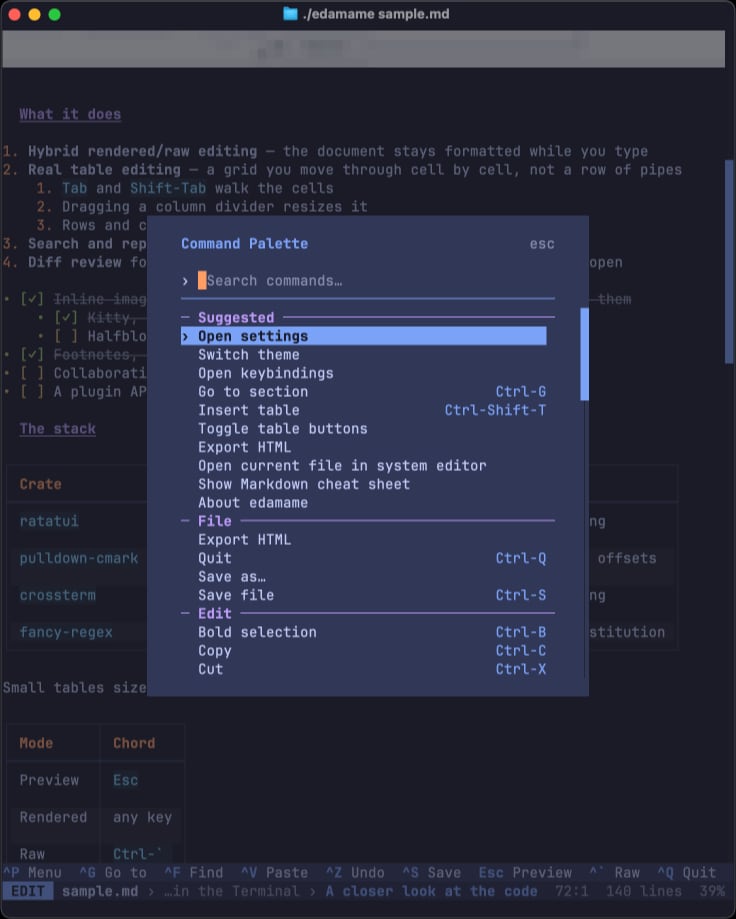
**Files** — Save as…, Open in external editor, Export HTML
**Overlays** — Settings, Keybindings, Welcome / terminal setup, Markdown cheat sheet, About, Switch theme, Create custom theme
**Insert** — Link, Image, Footnote
**Fix-ups** — Delete footnote, Renumber footnotes, Fix list numbering
**Toggles** — Vim mode, Autosave, Big H1, Line numbers, Blink cursor, Visual line navigation, Limit editor width, Diff on external change, Table buttons
A handful of actions are not in the palette either, because they only make sense as a held-down key. Bind them in `keybindings.toml` if you want them: `ScrollUp`, `ScrollDown`, `MoveLineStart`, and the unconditional table-cell moves `TableNextCell`, `TableNextRow`, `TablePrevRow`.
"Open config folder" is not in the palette either — it is the first row of the settings overlay, where people go looking for config paths anyway.
> **There is no in-app "open file" yet.** Open a document by passing it on the command line (`edamame notes.md`) or by following a link to another `.md` file. `Ctrl-O` is not bound.
---
## Changing a keybinding
Two ways:
1. **The keybindings overlay** — `Ctrl-P` → "Open keybindings". Press a new chord for any action; conflicts are detected and refused. Nothing is written until you activate **Save**, so a fumbled chord is recoverable with `Esc`.
2. **`keybindings.toml`** in your config directory (see
[configuration.md](configuration.md#where-config-lives)).
The file is a flat table of `ActionName = "chord"`:
```toml
Save = "ctrl+s"
ToggleRawMode = "ctrl+y"
InsertFootnote = "alt+f"
```
### Chord syntax
```
"<modifiers>+<key>"
```
**Modifiers** — `ctrl`, `alt`, `shift`, combined with `+` in any order. There
is no `super` / `cmd` / `meta`.
**Keys** — any single character (`a`, `-`, `` ` ``, `é`), or one of:
| Arrows | `up` `down` `left` `right` |
| Home / End | `home` `end` |
| Page | `page_up` `pageup` `pgup` · `page_down` `pagedown` `pgdn` |
| Enter | `enter` `return` |
| Delete | `delete` `del` |
| Escape | `escape` `esc` |
| Tab | `tab` `backtab` |
| Other | `backspace` `insert` `space` |
| Function | `f1` … `f12` |
The whole string is case-insensitive: `"Ctrl+S"` and `"ctrl+s"` are the same. To bind the literal `+` key, put it last — `"+"` or `"ctrl++"`.
### Three things that will trip you up
**Bindings are added, not replaced.** Your file layers on top of the built-in
defaults. `Redo = "ctrl+y"` gives Redo *three* chords — it does not remove
`Ctrl-Shift-Z` or `Ctrl-R`. The only way to displace a default is to bind that
same chord to a different action.
*(The keybindings overlay behaves differently — rebinding there does replace
the action's previous chords.)*
**Never write `Action = ""`.** An empty string is a parse error: the entry is
dropped and you get a warning at startup. An action you don't want bound simply
has no line in the file.
**Avoid `shift+<letter>`.** Terminals report that chord as an uppercase
character, so `shift+a` will never match anything. Write `"A"` instead. Use
`shift` with non-letter keys — arrows, tab, enter, backspace.
If edamame can't parse a line — unknown action name or unreadable chord — it
drops that entry and tells you once at startup. The rest of the file still
applies.
---
## Terminal compatibility
Some chords can only be delivered by terminals that support the **kitty
keyboard protocol**. The legacy encoding every terminal falls back to has no
way to represent `Ctrl` combined with a non-alphabetic key, so those chords
never arrive — the terminal usually just beeps.
Affected defaults:
- ``Ctrl-` `` (toggle raw mode)
- `Ctrl-Shift-T` (insert table)
- `Ctrl-B` / `Ctrl-I` (bold / italic — these collide with `Tab` and a control
byte rather than vanishing)
- The `Alt-Shift-*` table chords
Terminals with support include kitty, Ghostty, WezTerm, foot, and recent
Alacritty. Apple Terminal does not have it.
**Workarounds, in order of least effort:** run the command from the palette
(`Ctrl-P`); or rebind to a plain `Ctrl`+letter, which works everywhere —
`ToggleRawMode = "ctrl+y"` is a good substitute.
edamame tells you which tier your terminal landed in the first time you launch
in it, via the capabilities notice. You can reopen that summary any time from
the palette: "Open welcome / terminal setup".