# Getting started
## Opening a document
```bash
edamame notes.md # open a file
edamame # start with an empty, unnamed buffer
```
**There is no in-app file picker.** Once you're inside, you get to other
documents by following links: put the cursor on a link to another `.md` file
and press `Ctrl-Enter` (or click it in Preview). `Alt-←` and `Alt-→` walk back
and forward through where you've been, like a browser.
### Command-line flags
The flag list is short by design — everything else is configured from inside the app or in `config.toml`.
| `-h`, `--help` | Print the flag list |
| `-V`, `--version` | Print the installed version |
| `--doctor` | Print version, system, and terminal diagnostics |
| `--no-config` | Run with built-in defaults, ignoring `~/.config/edamame` |
| `--log` | Write a debug log for this run |
| `--` | Treat everything after it as the file name |
`--doctor` is the one to reach for when something looks wrong. It reports which edamame you're running, which terminal you're running it in, and what that terminal supports — the same five capabilities the [terminal capabilities notice](#the-terminal-capabilities-notice) shows, without having to launch the app to find them:
```
$ edamame --doctor
edamame 0.1.0
System
OS: macOS 15.6 (aarch64)
Terminal: ghostty 1.3.1
TERM: xterm-ghostty
COLORTERM: truecolor
Locale: en_US.UTF-8 (LANG)
tmux: no
Terminal capabilities
ok Color: truecolor (24-bit)
ok Images: Kitty graphics
ok Mouse: enabled
ok Keyboard: Kitty keyboard protocol
ok Unicode: UTF-8 locale
```
Paste that into a [bug report](https://github.com/mijowi/edamame/issues) — it answers most of the questions we'd otherwise have to ask. Note that redirecting either stream (`edamame --doctor > report.txt`, or piping something in) means the Images and Keyboard rows come back as `unknown`: detecting those two means writing a question to the terminal and reading its reply back, so it needs both stdout and stdin attached to a real one. Copy from the screen instead.
`--no-config` is the other one worth knowing. It starts edamame as if you'd never configured it — no theme file, no keybinding overrides, no settings — which separates "edamame is broken" from "my config is broken" in one step. The folder stays out of the way for the whole run, not just at startup: the theme picker lists the built-in themes only, and HTML export offers only its built-in stylesheet, so a custom theme can't sneak back in halfway through the session you started to rule it out.
It writes nothing while it's running either, so your real config is safe: settings you change during a `--no-config` run apply to that session only, and the app tells you so. The same goes for saving keybindings from the keybinds overlay. Two actions that only make sense against a config folder — creating a custom theme, and opening `config.toml` in your editor — are declined for the run, with a note saying why.
---
## Your first launch
A welcome screen appears the first time you run edamame. It shows a short introduction, a summary of what your terminal supports — color depth, images, mouse, keyboard — and asks about four things:
- **Theme** — opens the picker; you can change this any time.
- **Images** and **Diagrams** — whether to render them inline. Each can be *Ask*, *Always* or *Never*, and they're independent.
- **Remote images** — whether to fetch images from the web. This one is worth a thought: a document you didn't write can use a remote image to find out when you opened it, which is why it's a separate question and defaults to asking. See [security.md](security.md).
- **Vim mode** — off by default. See [vim-mode.md](vim-mode.md).
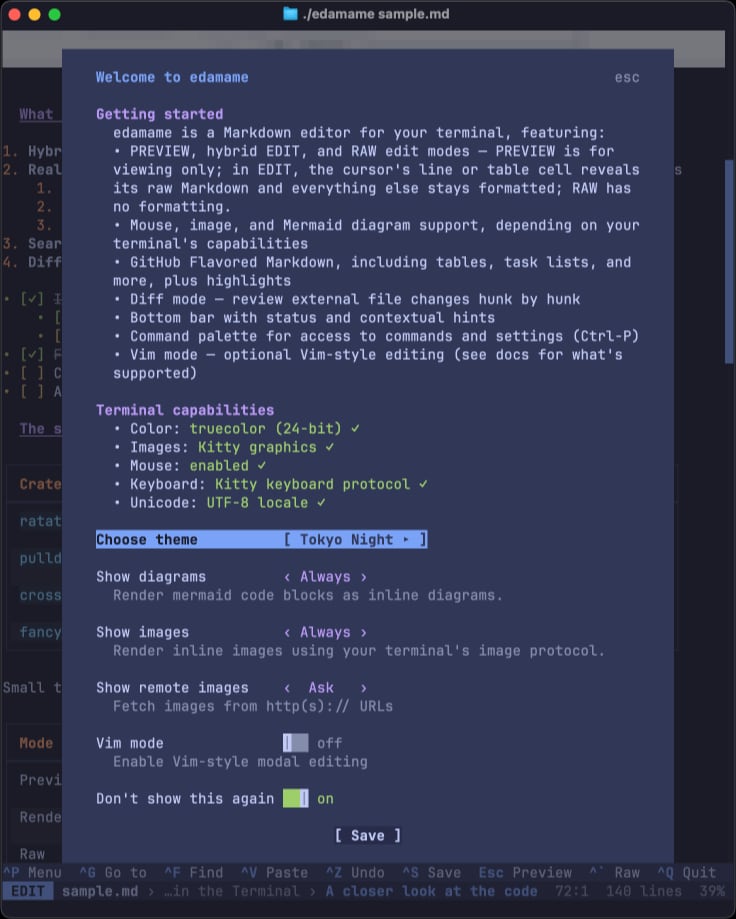
Everything here is changeable later, so don't worry about it. To get back to it: `Ctrl-P` → "Open welcome / terminal setup".
edamame also writes its config files on this first run, to `~/.config/edamame/` (details in [configuration.md](configuration.md#where-config-lives)). They're heavily commented and safe to edit; edamame never overwrites them afterwards.
### The terminal capabilities notice
If you later open edamame in a different terminal application, you should see a notice for what the new terminal supports — color depth, images, mouse, keyboard. This appears **once per terminal**, not every launch, and it matters because a few features depend on the terminal rather than on edamame:
| Images and diagrams | 24-bit color **and** an image protocol |
| Most themes | 24-bit color |
| Mouse selection, table handles | Mouse reporting |
| A handful of chords | The kitty keyboard protocol |
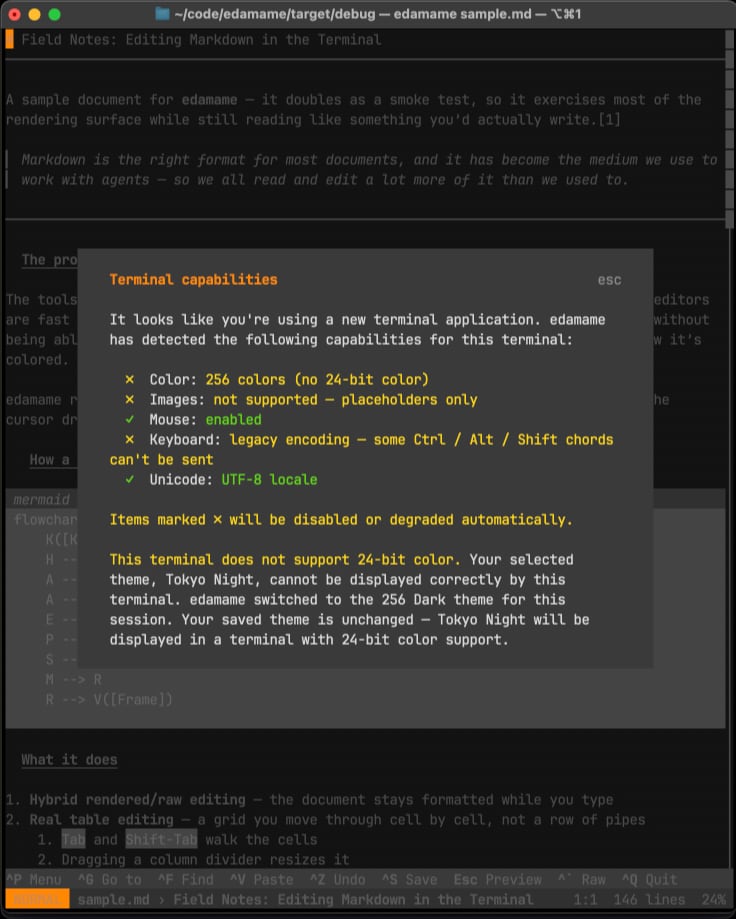
If your terminal falls short, edamame adapts rather than breaking: it swaps in a theme designed for 256 colors, keeps `[Image: …]` placeholders in place, and tells you which chords won't arrive. See [Terminal compatibility](keybindings.md#terminal-compatibility) for the workarounds — the command palette reaches everything regardless.
To see the summary again, run [`edamame --doctor`](#command-line-flags), open
"Open welcome / terminal setup" from the palette, or clear
`seen_terminal_fingerprints` in `config.toml`.
---
## The three view modes
This is the one concept worth understanding up front. edamame shows your
document rendered — real headings, drawn table borders, actual bullet
characters — while you edit it. The modes control how much of that rendering
gets out of your way.
### Preview — reading
Files open here. There's no cursor and nothing can be modified. Scroll around,
click links.
**Any key that would edit or move the cursor takes you into Edit mode.** The
hint line says "Press any key to edit". Scrolling doesn't count, so you can
read through a long document without leaving Preview.
### Edit — the one you'll use
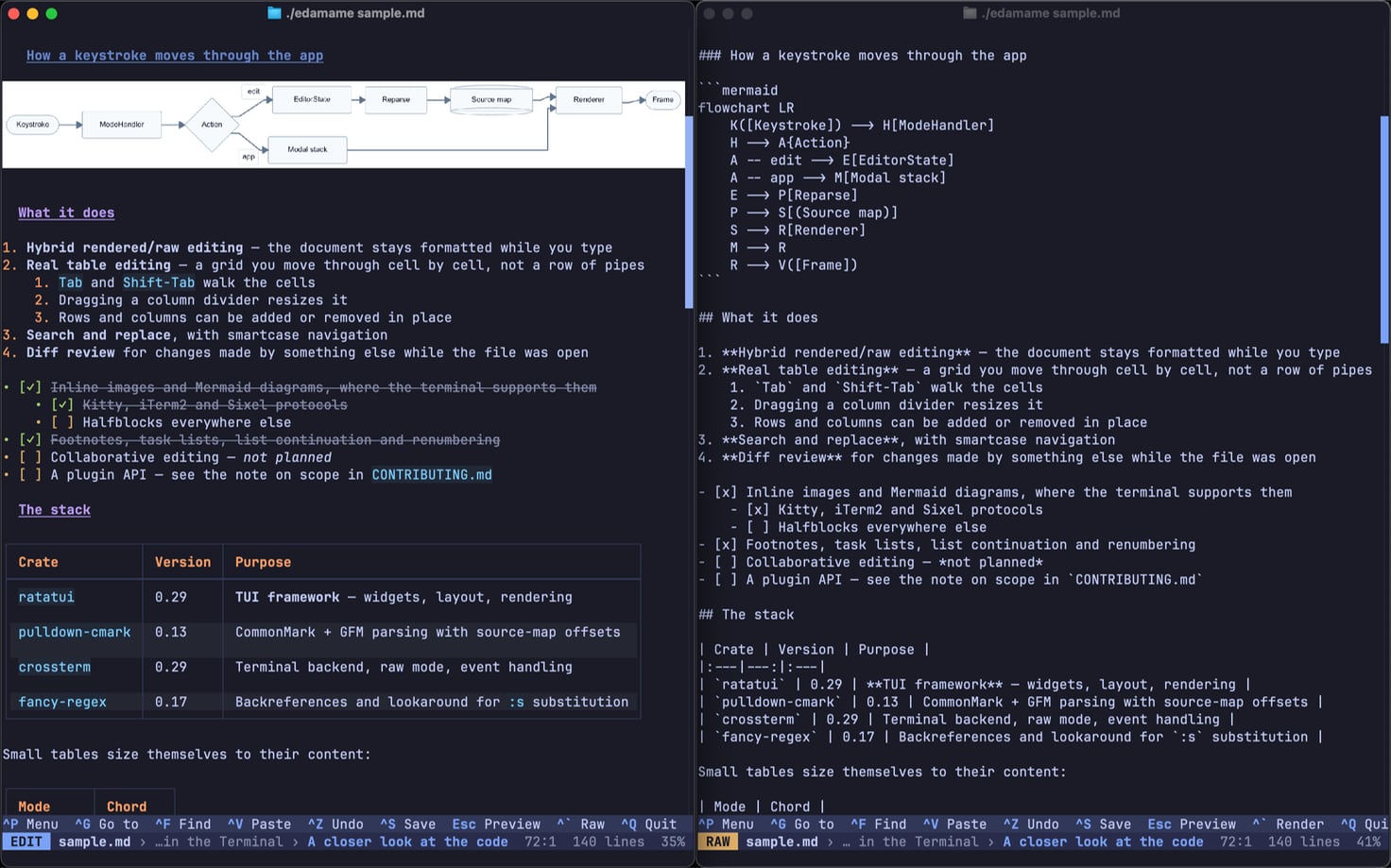
The document stays rendered, except for the line your cursor is on, which
turns into its raw Markdown. Move away and it renders again.
So a heading you're editing shows `## Heading`, while every other heading on
screen is styled. Inside a table it's finer-grained still: only the *cell*
you're in goes raw, inside the drawn grid.
The reveal waits about 120 ms before it fires, so arrowing quickly through a
document doesn't flicker.
This is what edamame is for: you see the formatted document nearly all the
time, and the raw syntax exactly where you need it.
### Raw — plain Markdown
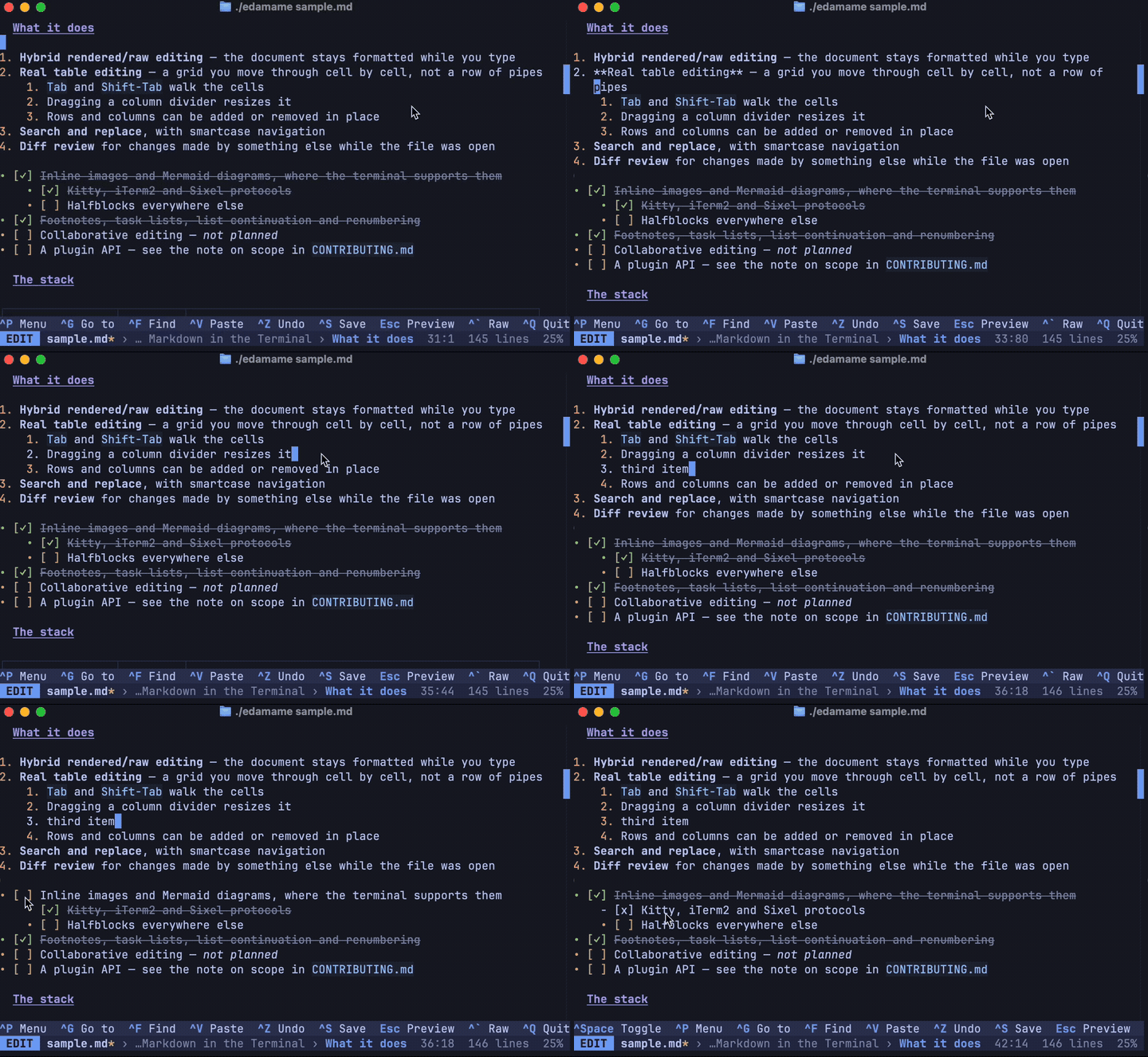
The whole document as source text, like any text editor. Reach for it when you
want to fix something structural — a broken table, an HTML comment, syntax
that's confusing the renderer. edamame's helpful behaviors get out of the way
here: no auto-renumbering of lists, no table-cell guardrails.
Toggle with ``Ctrl-` `` — or, if your terminal doesn't deliver that chord, from
the palette or a chord you pick yourself.
### Moving between them
```
Preview ──any key──▶ Edit ──Ctrl-`──▶ Raw
▲ │ │
└────── Esc ─────────┴──── Ctrl-` ──────┘
```
`Esc` from anywhere returns to Preview. Switching modes keeps your place on
screen, so nothing jumps.
*(In vim mode, Normal mode takes Preview's place — there is no separate Preview.)*
---
## Reading the bottom two rows

**The hint line** shows the chords that apply right now — they change inside a table or a list — and doubles as where messages appear ("Saved", "Copied", "Autosaved"). The chords shown are read from your actual keymap, so they stay correct after you rebind something.
**The status bar** shows, left to right: the mode, the filename, `*` if you have unsaved changes, then a breadcrumb of the headings you're currently under, and finally cursor position, document length, and how far down you are.
---
## Things worth knowing early
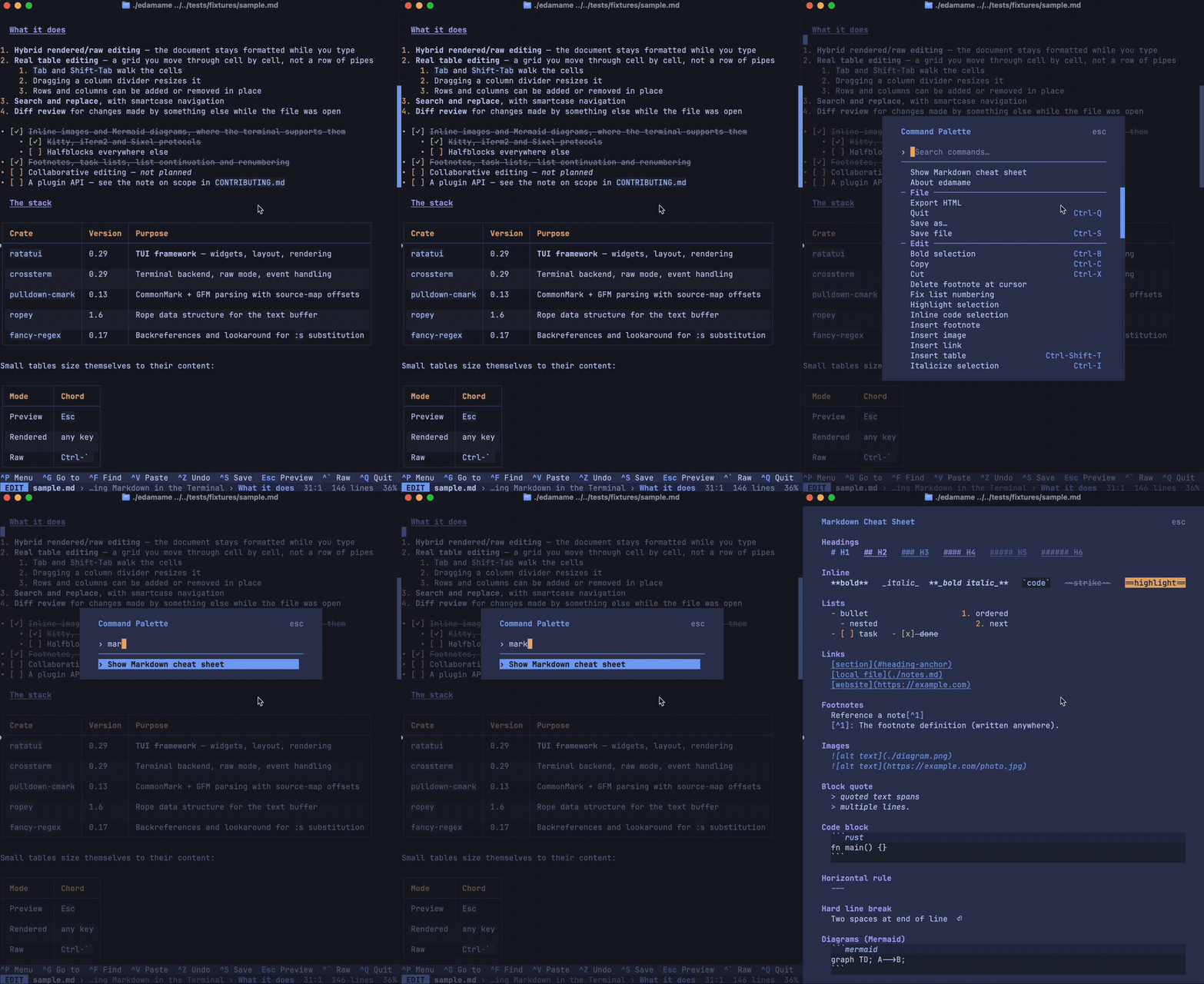
**`Ctrl-P` is the way in.** Every command is there, fuzzy-searchable. Most features deliberately ship without a chord — the palette is how you reach them, and how you discover what exists.
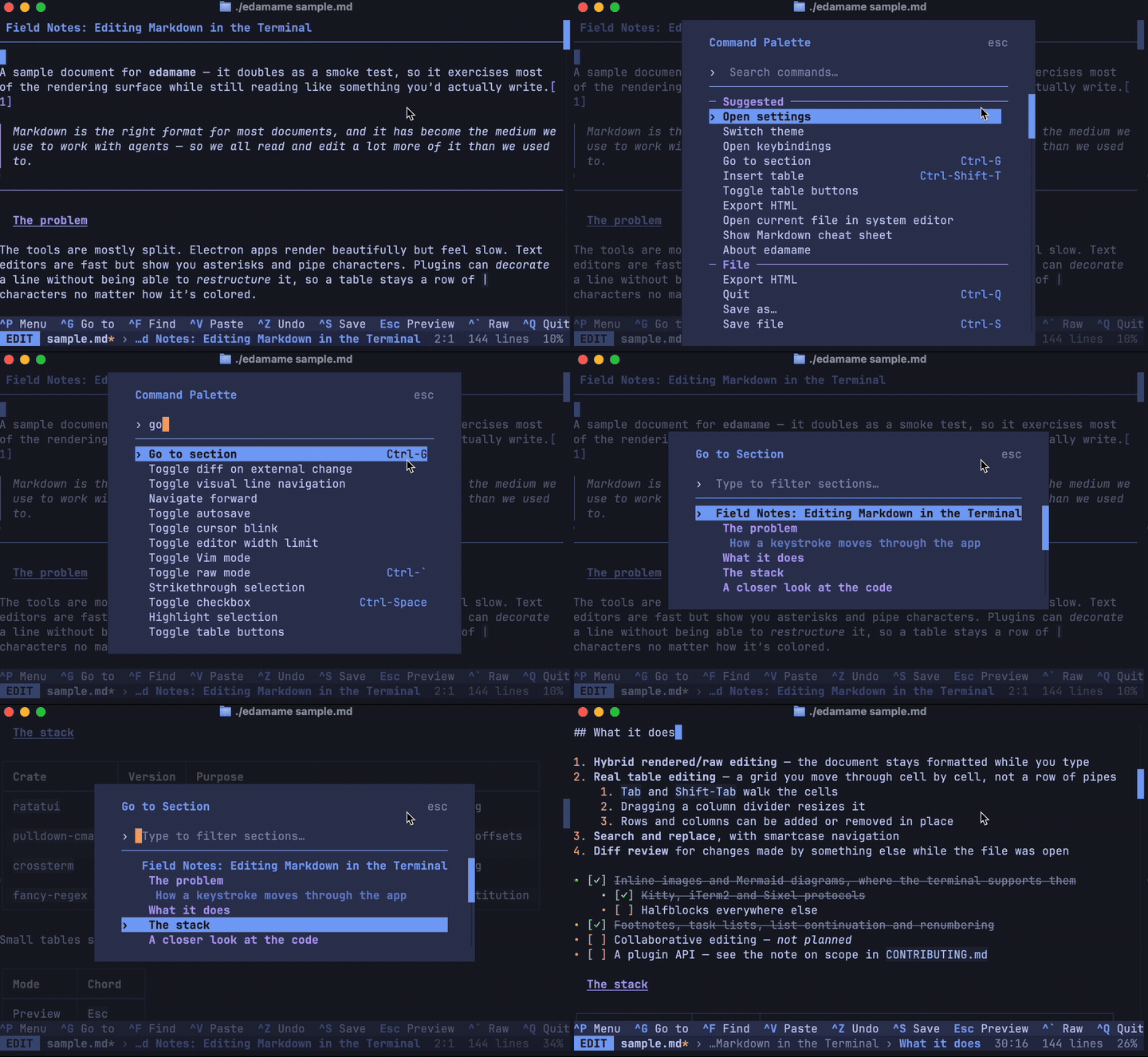
**`Ctrl-G` jumps to a heading.** The same fuzzy field, over the document's own structure — quicker than scrolling in anything longer than a screen.
**`Ctrl-C` copies.** It does not quit. Quit is `Ctrl-Q`.
**Nothing is saved unless you save it** (`Ctrl-S`) — autosave exists but is off by default. If something else changes your file while you have it open, edamame shows you the changes hunk by hunk rather than clobbering either version. See [editing.md](editing.md#when-the-file-changes-underneath-you).
**Undo is per-action.** `Ctrl-Z`. Typing a word is one undo step, not one per character.
---
## Where to go next
- [editing.md](editing.md) — tables, lists, links, footnotes, search and
replace, images, export
- [keybindings.md](keybindings.md) — every default chord, and how to change it
- [configuration.md](configuration.md) — every setting
- [themes.md](themes.md) — switching themes and writing your own
- [vim-mode.md](vim-mode.md) — modal editing, and how it differs from real Vim
- [security.md](security.md) — what protects you when you open a document you
didn't write