# ComChan (Communication Channel)

<div align="center">
**A Blazingly Fast Serial Monitor for Embedded Systems and Serial
Communication**
</div>
[](https://crates.io/crates/comchan)
[](LICENSE)

## Installation
Choose your preferred installation method:
### From crates.io
> [!NOTE]
> The easiest way to install ComChan is via `cargo install`
```bash
# Install from source
cargo install comchan
```
Verify the installation:
```bash
comchan --version
```
### From AUR
For Arch Linux users, ComChan is available in the AUR (thanks to
[orhun](https://github.com/orhun)!):
```bash
# Using yay
yay -S comchan
# Using paru
paru -S comchan
```
### From source
Build from source for the latest development version:
You can do either of the following
```bash
cargo install --git https://github.com/Vaishnav-Sabari-Girish/ComChan.git
```
OR
```bash
# Clone from GitHub
git clone https://github.com/Vaishnav-Sabari-Girish/ComChan.git
# Build and run
cd ComChan
cargo run --release -- --version
```
## CLI Usage
```text
Blazingly Fast Minimal Serial Monitor with Plotting
Usage: comchan [OPTIONS]
Options:
--completions <COMPLETIONS> Generate Shell completions [possible values: bash, zsh, fish, elvish, power-shell, nu]
-p, --port <PORT> Serial port to connect to
-r, --baud <BAUD> Baud Rate of the Serial Monitor
-d, --data-bits <DATA_BITS>
-s, --stop-bits <STOP_BITS>
--parity <PARITY>
--flow-control <FLOW_CONTROL>
-t, --timeout <TIMEOUT_MS>
--reset-delay <RESET_DELAY_MS>
-l, --log <LOG_FILE> Log Serial data into a file
--list-ports List all available ports
--auto Auto-detect USB serial port
-v, --verbose
--plot Launch the serial plotter
--plot-points <PLOT_POINTS>
-c, --config <CONFIG_FILE> Path to config file
--generate-config
--zephyr Enables Zephyr Shell mode
--export-limit <EXPORT_LIMIT> Max points to keep in memory for export per sensor
--plot-title <PLOT_TITLE> Set the plot title for the exported SVG file
--simulate Simulate Serial Data with no need for hardware (Use for testing ComChan)
--csv <CSV_FILE> Export numeric data to a CSV file while streaming serial data
--replay <REPLAY_FILE> Replay a previous session from its *.log or *.csv file
-x, --hex Display incoming serial data in raw hex dump format
--hex-pretty Display incoming serial data in a clean, buffered hex dump format
-h, --help Print help
-V, --version Print version
```
---
## Common Commands
### Basic Serial Monitor
Monitor serial output from your device:
```bash
comchan -p <port> -r <baud_rate>
# OR
comchan --port <port> --baud <baud_rate>
```
**Example:**
```bash
comchan -p /dev/ttyUSB0 -r 9600
```
### Hex Dump Mode
Analyze raw binary data from industrial equipment (like Modbus RTU), custom
SPI/I2C bridge payloads, or corrupted serial transmissions:
```bash
# Raw Mode: Print incoming fragmented USB bytes exactly as they arrive
comchan --auto --hex
# Pretty Mode: Buffer the incoming bytes into clean, 16-byte aligned frames
comchan --auto --hex-pretty
```
> [!NOTE]
> Both hex dump modes can be safely tested locally by passing the `--simulate`
> flag!
### Verbose Mode
Get detailed information about the serial connection (now uses local
timestamps):
```bash
comchan -p <port> -r <baud_rate> -v
```
### Log Mode
Save raw serial output to a log file:
```bash
comchan -p <port> -r <baud_rate> -l <log_file_name>
```
[View example log file](./test.log)
### CSV Data Streaming
Continuously stream parsed numeric sensor data into a clean, multi-column CSV
file on-the-fly. This works perfectly alongside both standard and plotter modes.
```bash
comchan --auto --baud 115200 --csv sensor_data.csv
```
[View example CSV file](./sensor_data.csv)
> [!NOTE]
> Works with `--simulate`
> ([Simulate Mode](#simulate-mode)) too
### Serial Plotter
Visualize sensor data in real-time, with optional SVG exports:
```bash
comchan --port <port> --baud <baud_rate> --plot
```
*Want to export the plot?*
```bash
comchan -r 115200 --plot # In the Serial plotter window press CTRL+S
```
The exported plot will look like this
*Add a title and memory limit (Both are optional):*
```bash
comchan -r 115200 --plot --plot-title "Plot Title" --export-limit 5000
```
### Session Replay
Replay a previously recorded hardware session in real-time. ComChan will read
the timestamps and perfectly recreate the timing of the original run. This works
in both standard monitor and plotter modes!
```bash
# Replay in standard monitor mode
comchan --replay test.log
# Replay visually in plotter mode
comchan --plot --replay sensor_data.csv
```
> [!IMPORTANT]
> While you can replay both files, **`.log` files are preferred**. When
> replaying a `.csv`, ComChan skips the header line, meaning your sensor labels
> won't be explicitly printed, but they will be plotted (they will default to
> generic labels like "Channel 0", "Channel 1" in plotter mode).
### Automatically Detect Serial Ports
Let ComChan find your serial device automatically:
```bash
# With default baud rate (9600)
comchan --auto
# With custom baud rate
comchan --auto --baud <baud_rate>
```
### Generate Shell Completions
Generate autocomplete scripts for your favorite shell (`bash`, `zsh`, `fish`,
`elvish`, `power-shell`, or `nu`):
```bash
comchan --completions zsh > ~/.zshrc
comchan --completions nu > ~/.config/nushell/comchan-completions.nu
```
### Simulate Mode
Want to test ComChan, the Plotter, or CSV Streaming without a physical
microcontroller plugged in? Use simulate mode to generate mock sensor data!
```bash
comchan --simulate --plot
```
### Zephyr Shell Mode
If you are working with Zephyr RTOS, enable the dedicated Zephyr shell mode for
a better interactive experience:
```bash
comchan --auto --zephyr
```
### Use a Configuration File
You can use a configuration file instead of command-line flags:
```bash
# Generate default configuration file
comchan --generate-config
```
This creates a config file at `~/.config/comchan/comchan.toml` (or
`%APPDATA%\comchan\comchan.toml` on Windows).
**Example Configuration:**
```toml
# ComChan Configuration File
port = "auto"
baud = 9600
data_bits = 8
stop_bits = 1
parity = "none"
flow_control = "none"
timeout_ms = 500
reset_delay_ms = 1000
verbose = false
plot = false
plot_points = 100
zephyr = false
export_limit = 1000000
plot_title = "Sensor Data"
simulate = false
csv_file = "latest_run.csv"
replay_file = "test.log"
hex_mode = false
hex_pretty = false
```
---
## Features
### Current Features ✅
* **Read & Write Serial Data** - Monitor incoming data and send commands to your
device.
* **Auto-Recovery & Graceful Exit** - Automatically detects broken pipes and
safely shuts down or reconnects when hardware is unplugged/replugged.
* **Terminal-Based Serial Plotter** - Visualize multiple sensor values in
real-time with automatic legends using the `--plot` flag.
* **Real-Time Session Replay** - Play back previously recorded `.log` or `.csv`
files natively to analyze anomalies without needing physical hardware.
* **Continuous CSV Streaming** - Automatically parse and log numeric sensor data
into clean, multi-column `.csv` files on-the-fly.
* **Hex Dump View** - Inspect raw binary payloads with `--hex` for fragmented
USB bus truths, or `--hex-pretty` for perfectly aligned, buffered 16-byte
frames.
* **Export Plot to SVG** - Save your visualized serial data as an SVG image,
complete with custom plot titles and memory-safe export limits.
* **Hardware Simulation** - Test ComChan functionalities and plotting without
needing physical hardware connected (`--simulate`).
* **Zephyr Shell Support** - Dedicated mode for cleanly interacting with Zephyr
RTOS shells.
* **Shell Completions** - Native tab-autocomplete support for Bash, Zsh, Fish,
Elvish, PowerShell, and Nushell.
* **Auto-Detect Serial Ports** - Automatically find connected serial devices
(`--auto`).
* **Configuration Files** - Use `.toml` files instead of typing out long
command-line flags every time.
* **Basic Logging & Local Timestamps** - Save serial output to log files with
accurate local time tracking.
* **Control Codes** - Send `CTRL+L` to clear the screen and nudge the device to
redraw prompts natively.
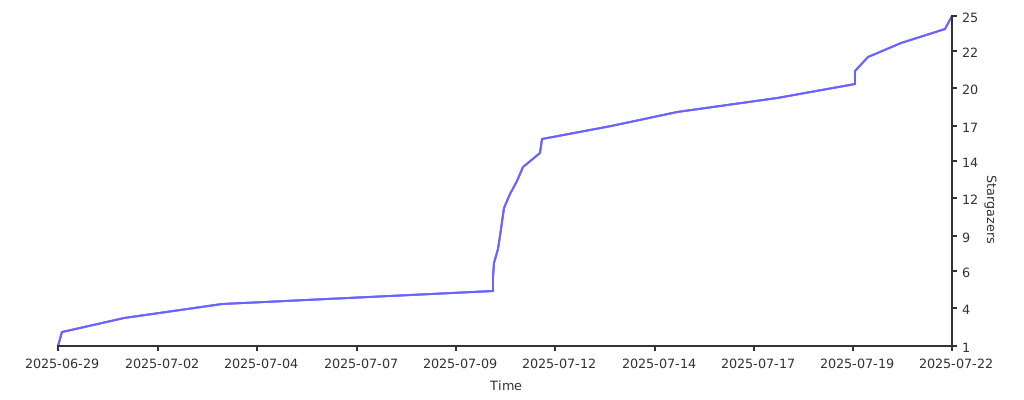
## Stargazers over time (Graph)
[](https://starchart.cc/Vaishnav-Sabari-Girish/ComChan)
## 🧠 (mostly) Brain made
**This project was NOT vibe-coded BUT AI is still involved in some parts of
it.**
* **Generating test code:** Because it's something I always skip so I would
rather have some AI generated tests than none at all.
* **Micro-improvements:** I have used AI as an advisor to improve some bits of
code here and there. Big refactors or new features are done by my hand though.
Made with ❤️ by the ComChan Community
[⬆ Back to Top](#comchan-communication-channel)
