
Vomit - The Very Opinionated Mail Interaction Toolkit


NOTE: Vomit is still in a somewhat early stage. The functionality described here should work reasonably reliably, but the interfaces (subcommands, parameters) may change as new features get added.
Vomit currently provides only one tool: vmt. It is designed to let you do
anything with your email, except for reading and writing - there are plenty of
tools for that. Instead, it helps you locate emails (or attachments of emails)
you already know about and lets you efficiently work with those.
The central mechanism that vmt employs is providing an interactive search
mechanism based on Skim (the Rust equivalent to the somewhat more popular
fzf), which lets you pick one or more emails and will produce the
filenames of those. These filenames can then e.g. be passed to other tools. It
also provides a few built-in commands for common stuff you might want to use
other tools for.
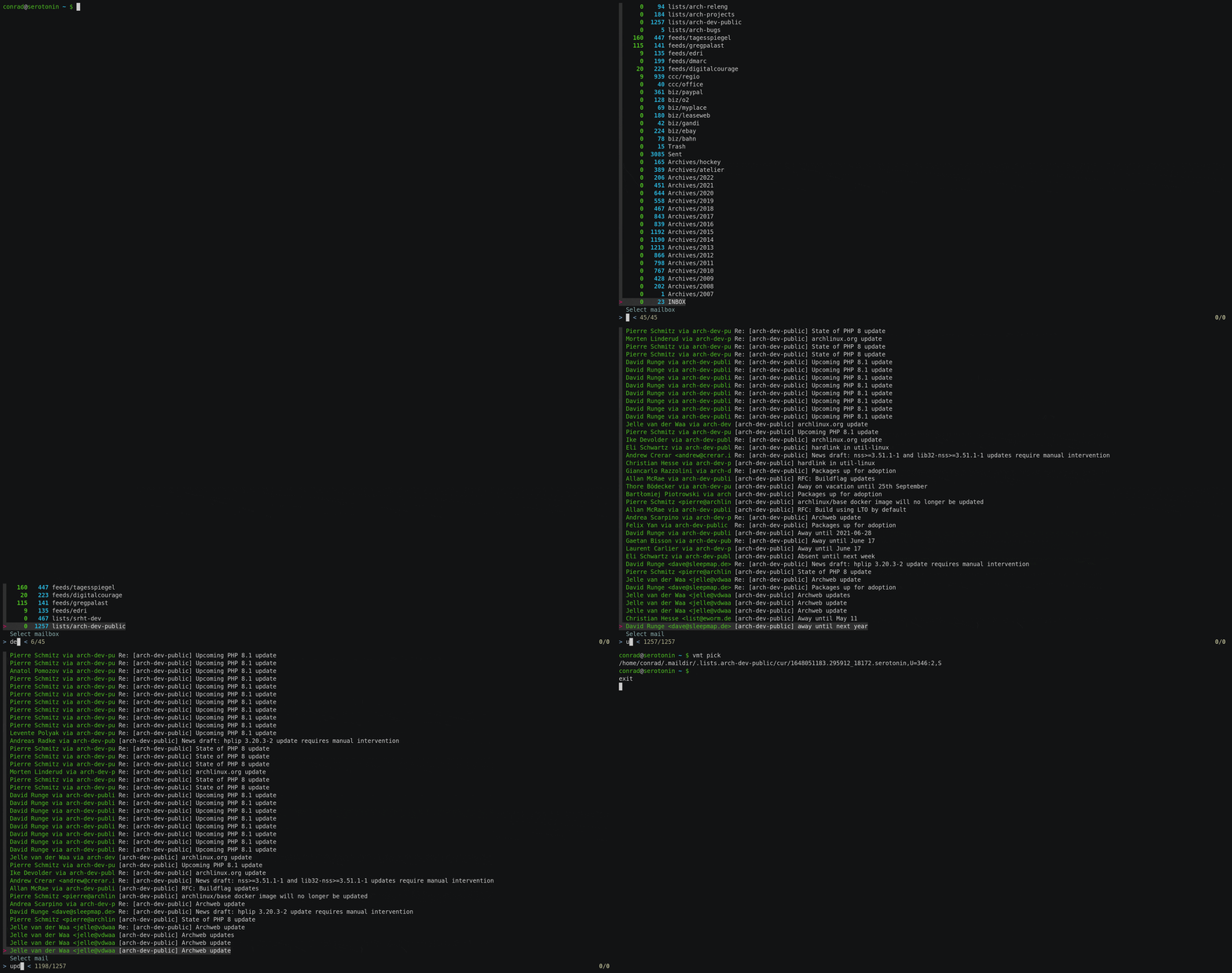
The described base functionality is provided by the vmt pick command. It
captures your terminal, lets you interactively pick an email, and then writes
the email's filename to stdout. Here is an example:
In the simplest case, this could be used to output the file and pipe the
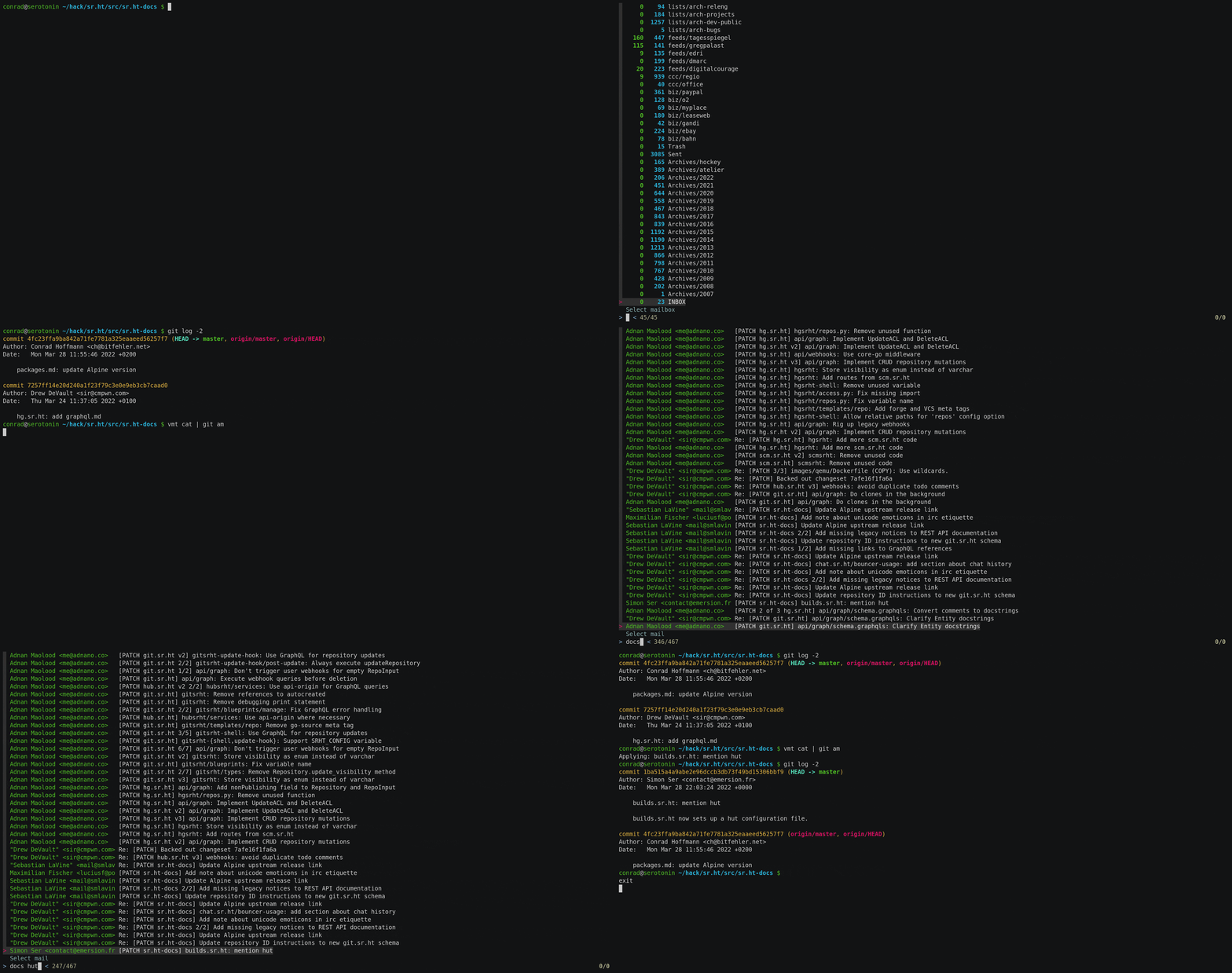
contents to something that handles email as input, such as git am. Since this
is a common use case, vmt provides the cat subcommand. Here is an example
of applying a patch that was circulated on a mailing list:
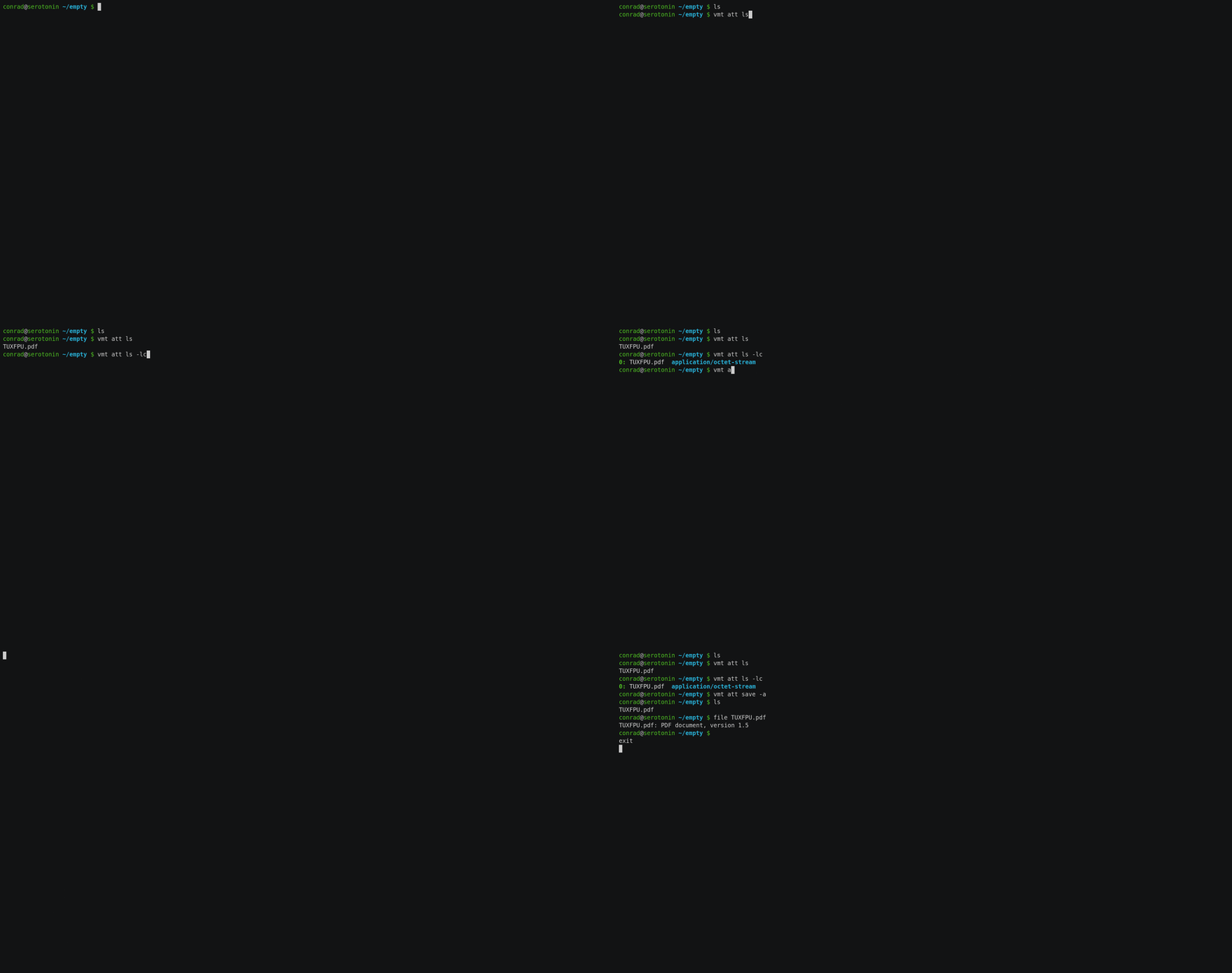
Of course email is used for other stuff, like sending attachments. vmt has
you covered and offers the att subcommand (which itself has various
subcommands). Here is a little example listing and then saving attachments:
Opinions
- Vomit doesn't care how you read or write emails
- Vomit wants mail stored in Maildir++ format
- Vomit doesn't care how your mail gets there (see note below)
- Vomit does not alter your mail (i.e. mark as seen)
- Vomit wants to be used with tab completion (WIP)
Note about getting your mail into a maildir: if you need inspiration, Vomit
hopes to provide vmt sync soon, but for now recommends that you use e.g.
mbsync.
Commands
USAGE:
    vmt [OPTIONS] <SUBCOMMAND>

FLAGS:
    -h, --help       Prints help information
    -V, --version    Prints version information

OPTIONS:
    -a, --account <account>    The account to operate on (defaults to first account in config file)
    -c, --config <config>      Sets a custom config file location

SUBCOMMANDS:
    att     Work with mail attachments
    cat     Output entire mail to stdout
    help    Prints this message or the help of the given subcommand(s)
    ls      List mailboxes or emails in a mailbox
    pick    Interactively pick mail(s) and print full path to stdout
pick
vmt-pick
Interactively pick mail(s) and print full path to stdout

USAGE:
    vmt pick [FLAGS] [mailbox]

ARGS:
    <mailbox>    The mailbox to list mails for (omit to pick mailbox interactively)

FLAGS:
    -a, --attachments         Show attachment marker (can be slow)
    -A, --attachments-only    Show only mails with attachment (can be slow)
    -d, --date                Show date
    -e, --emtpy               Show empty mailboxes (default: hide)
    -h, --help                Prints help information
    -m, --multiple            Allow selection of multiple mails
    -V, --version             Prints version information
ls
vmt-ls
List mailboxes or emails in a mailbox

USAGE:
    vmt ls [FLAGS] [mailbox]

ARGS:
    <mailbox>    The mailbox to list mails for (omit to list mailboxes, . for INBOX)

FLAGS:
    -a, --all          List all mailboxes (even if no mail)
    -h, --help         Prints help information
    -l, --long         Show more details
    -r, --real-name    Show real directory name
    -V, --version      Prints version information
cat
vmt-cat
Output entire mail to stdout

USAGE:
    vmt cat [email]

ARGS:
    <email>    The email to output. If not specified, uses `pick` to select one

FLAGS:
    -h, --help       Prints help information
    -V, --version    Prints version information
att
vmt-att
Work with mail attachments

USAGE:
    vmt att <SUBCOMMAND>

FLAGS:
    -h, --help       Prints help information
    -V, --version    Prints version information

SUBCOMMANDS:
    cat     Write attachment to stdout
    help    Prints this message or the help of the given subcommand(s)
    ls      List attachments
    save    Save attachments in current directory
att ls
vmt-att-ls
List attachments

USAGE:
    vmt att ls [FLAGS] [email]

ARGS:
    <email>    The email to process. If not specified, uses `pick` to select one

FLAGS:
    -c, --color      Use colored output
    -h, --help       Prints help information
    -l, --long       Show more details
    -V, --version    Prints version information
att cat
vmt-att-cat
Write attachment to stdout

USAGE:
    vmt att cat [ARGS]

ARGS:
    <email>    The email to process. If not specified, uses `pick` to select one
    <index>    The zero-based index of the attachment to output. If not specified, uses `pick`
               to select one

FLAGS:
    -h, --help       Prints help information
    -V, --version    Prints version information
att save
vmt-att-save
Save attachments in current directory

USAGE:
    vmt att save [FLAGS] [ARGS]

ARGS:
    <email>    The email to process. If not specified, uses `pick` to select one
    <index>    The zero-based index of the attachment to output. If not specified, uses `pick`
               to select one (ignored for -a)

FLAGS:
    -a, --all        Save all attachments
    -h, --help       Prints help information
    -V, --version    Prints version information
mime
vmt-mime
Work with MIME parts

USAGE:
    vmt mime <SUBCOMMAND>

OPTIONS:
    -h, --help    Print help information

SUBCOMMANDS:
    help    Print this message or the help of the given subcommand(s)
    ls      List MIME parts
mime ls
vmt-mime-ls
List MIME parts

USAGE:
    vmt mime ls [OPTIONS] [EMAIL]

ARGS:
    <EMAIL>    The email to process. If not specified, uses `pick` to select one

OPTIONS:
    -c, --color    Use colored output
    -h, --help     Print help information
    -l, --long     Show more details
show
vmt-show
Show plain text mail body (if present)

USAGE:
    vmt show [OPTIONS] [EMAIL]

ARGS:
    <EMAIL>    The email to process. If not specified, uses `pick` to select one

OPTIONS:
    -h, --help    Print help information
    -l, --long    Also show subject and sender
Config file
Per default located at ~/$XDG_CONFIG_HOME/vomit/config.toml, which usually
means ~/.config/vomit/config.toml. Fallback for platforms not supporting XDG
directories is ~/.vomitrc. A configuration file at an arbitrary
location can be used by using the global -c <path> flag.
A simple config example:
[<account>]
local = ~/.maildir
Multiple accounts can be specified, by default vmt will use the first one. To
use a different one, the global flag -a <account> can be used.
Installation
Sorry, nothing fancy yet. Build with cargo build --release and copy the
executable to your $PATH. If you have your $PATH set up to include your
cargo home dir, then cargo install should do.
You can also run cargo install vomit directly, but the version on crates.io
might be a few commits behind.