# vscli
[](https://choosealicense.com/licenses/mit/) [](https://github.com/michidk/vscli/actions/workflows/ci.yml)
A CLI/TUI which makes it easy to launch [Visual Studio Code](https://code.visualstudio.com/) (vscode) [dev containers](https://containers.dev/). Also supports other editors like [Cursor](https://www.cursor.com/).
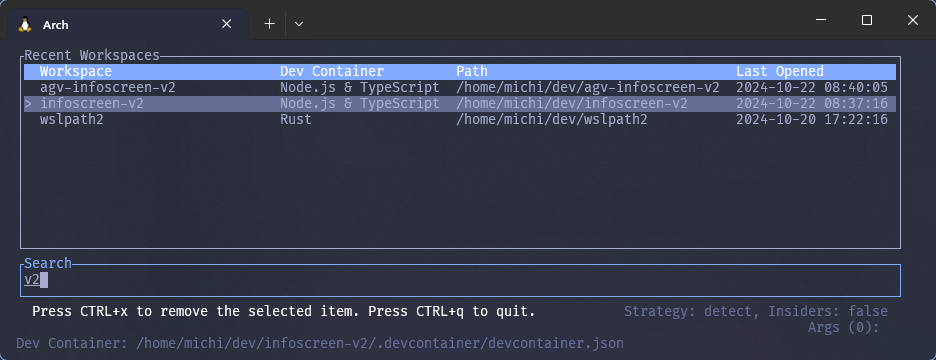
Read [here](https://blog.lohr.dev/launching-dev-containers) about the journey of reverse engineering Microsoft's dev container CLI in order to make this.
## Features
- A shorthand for launching vscode projects (to be used like the `code` command but with dev container support)
- Supports different editors like `vscode`, `vscode-insiders`, `cursor` and other vscode forks
- Detects whether a project is a [dev container](https://containers.dev/) project, and launches the dev container instead
- Supports [multiple dev containers](https://github.com/microsoft/vscode-docs/blob/main/remote-release-notes/v1_75.md#folders-with-multiple-devcontainerjson-files) in the same project
- Tracks your projects and allows you to open them using a CLI-based UI
- External devcontainer configs: store reusable configs separately and apply them to any project via `--config <name>`
- Container management: list, inspect and stop running devcontainers
## Installation
[](https://repology.org/project/vscli/versions)
[](https://github.com/michidk/homebrew-tools/blob/main/Formula/vscli.rb)
### [Cargo](https://doc.rust-lang.org/cargo/)
Install [vscli using cargo](https://crates.io/crates/vscli) on Windows or Linux:
```sh
cargo install vscli
```
### [Homebrew](https://brew.sh/)
Install [vscli using homebrew](https://github.com/michidk/homebrew-tools/blob/main/Formula/vscli.rb) on Linux or Mac:
```sh
brew install michidk/tools/vscli
```
### [Chocolatey](https://chocolatey.org/)
Install [vscli using Chocolatey](https://community.chocolatey.org/packages/vscli) on Windows:
```sh
choco install vscli
```
### [Winget](https://learn.microsoft.com/en-us/windows/package-manager/winget/)
Install [vscli using winget](https://github.com/microsoft/winget-pkgs/tree/master/manifests/m/michidk/vscli) on Windows:
```sh
winget install vscli
```
### Additional steps
You can set a shorthand alias for `vscli` in your shell's configuration file:
```sh
alias vs="vscli open"
alias vsr="vscli recent"
```
## Usage
### Commands
After installation, the `vscli` command will be available:
```
Usage: vscli [OPTIONS] <COMMAND>
Commands:
open Opens a dev container
recent Opens an interactive list of recently used workspaces
config Manage external devcontainer configurations
container Manage running devcontainers
help Print this message or the help of the given subcommand(s)
Options:
-s, --history-path <HISTORY_PATH> Overwrite the default path to the history file [env: HISTORY_PATH=]
--config-dir <CONFIG_DIR> Overwrite the default path to the config directory [env: VSCLI_CONFIG_DIR=]
-d, --dry-run Whether to launch in dry-run mode (not actually open vscode) [env: DRY_RUN=]
-v, --verbose... Increase logging verbosity
-q, --quiet... Decrease logging verbosity
-h, --help Print help
-V, --version Print version
```
#### Open Dev Containers
Opens a dev container.
```
Usage: vscli open [OPTIONS] [PATH] [ARGS]...
Arguments:
[PATH] The path of the vscode project to open [default: .]
[ARGS]... Additional arguments to pass to the editor [env: ARGS=]
Options:
-c, --command <COMMAND> The editor command to use (e.g. "code", "code-insiders", "cursor") [env: COMMAND=]
-s, --history-path <HISTORY_PATH> Overwrite the default path to the history file [env: HISTORY_PATH=]
-b, --behavior <BEHAVIOR> Launch behavior [possible values: detect, force-container, force-classic]
--config-dir <CONFIG_DIR> Overwrite the default path to the config directory [env: VSCLI_CONFIG_DIR=]
--config <CONFIG> Overwrites the path to the dev container config file (accepts a path or a config name) [env: CONFIG=]
-d, --dry-run Whether to launch in dry-run mode (not actually open vscode) [env: DRY_RUN=]
-v, --verbose... Increase logging verbosity
-q, --quiet... Decrease logging verbosity
-h, --help Print help (see more with '--help')
```
#### Recent UI
Opens an interactive list of recently used workspaces.
```
Usage: vscli recent [OPTIONS] [ARGS]...
Arguments:
[ARGS]... Additional arguments to pass to the editor [env: ARGS=]
Options:
--hide-instructions Hide the instruction message in the UI
-s, --history-path <HISTORY_PATH> Overwrite the default path to the history file [env: HISTORY_PATH=]
-d, --dry-run Whether to launch in dry-run mode (not actually open vscode) [env: DRY_RUN=]
--hide-info Hide additional information like strategy, command, args and dev container path in the UI
-c, --command <COMMAND> The editor command to use (e.g. "code", "code-insiders", "cursor") [env: COMMAND=]
-v, --verbose... Increase logging verbosity
-b, --behavior <BEHAVIOR> Launch behavior [possible values: detect, force-container, force-classic]
-q, --quiet... Decrease logging verbosity
--config <CONFIG> Overwrites the path to the dev container config file [env: CONFIG=]
-h, --help Print help (see more with '--help')
```
Both the `open` and `recent` commands share the same set of launch arguments:
- `--command`: Specify which editor command to use (e.g., "code", "code-insiders", "cursor")
- `--behavior`: Set the launch behavior ("detect", "force-container", "force-classic")
- `--config`: Override the path to the dev container config file, or pass a config name to resolve from the config directory
- Additional arguments can be passed to the editor executable by specifying them after `--`
The `recent` command additionally supports:
- `--hide-instructions`: Hide the keybinding instructions from the UI
- `--hide-info`: Hide additional information like strategy, command, args and dev container path
#### Config Management
Manage external devcontainer configurations stored in `~/.local/share/vscli/configs/` (or `$VSCLI_CONFIG_DIR`).
Configs are directories containing `.devcontainer/devcontainer.json`. They can be used with any project via `--config <name>`, decoupling the dev container configuration from the project repository.
```sh
vscli config add python-dev # create a minimal config
vscli config copy python-dev # copy a stored config into the current directory
vscli config copy python-dev ~/work # copy a stored config into another directory
vscli config list # list available configs
vscli config list --long # list with descriptions and paths
vscli config ui # interactive picker (opens selected config for editing)
vscli config dir # print config directory path
vscli config rm python-dev # remove a config (with confirmation)
```
Using a named config to open a project:
```sh
vscli open --config python-dev ~/my-project # open project with external config
```
#### Container Management
List, inspect and stop running devcontainers (queries Docker for containers with devcontainer labels).
```sh
vscli container list # list running devcontainers
vscli container list -a # include stopped containers
vscli container ui # interactive picker (select to reopen in VS Code)
vscli container info <id> # detailed info (ports, mounts, config)
vscli container stop <id> # stop a devcontainer
```
Short aliases are available: `cfg` for `config`, `ct` for `container`, `ls` for `list`.
```sh
vscli ct ui # same as: vscli container ui
vscli cfg ls -l # same as: vscli config list --long
```
##### Keybindings
The following keybindings apply to all interactive TUI screens (`recent`, `config ui`, `container ui`, and multi-devcontainer selection):
| `Esc`, `Ctrl+Q` or `Ctrl+C` | Quit | Exits the application. |
| `Down` or `Ctrl+J` | Select Next | Moves to the next selectable item. |
| `Up` or `Ctrl+K` | Select Previous | Moves to the previous selectable item. |
| `KeypadBegin` or `Ctrl+1` | Select First | Selects the first item. |
| `End` or `Ctrl+0` | Select Last | Selects the last item. |
| `Enter` or `Ctrl+O` | Open Selected | Opens the currently selected item. |
| `Delete`, `Ctrl+R`, or `Ctrl+X` | Delete Selected Entry | Deletes the currently selected item. |
Note: If an input does not match any of the defined keybindings, it is treated as part of a search input.
##### Mouse Interactions
| Left Click | Selects an item. Clicking the same item again opens it. |
| Mouse Wheel | Scrolls through the list, moving selection up/down. |
##### Launch Behavior
There are three launch behaviors:
- `force-classic`: Launch vscode without a dev container
- `force-container`: Launch vscode with a dev container, error if no dev container is found
- `detect`: Detect whether the project is a dev container project, and launch the dev container if it is
##### Detection Algorithm
The detection algorithm determines which dev container config to launch.
- First, check whether a dev container config was specified via the `--config` flag -> launch it
- Then loads the first dev container it finds
- If more than one exists -> show an interactive list of dev containers and let the user select one
- If one exists -> launch it
- If none exists -> launch vscode normally without a dev container
### Examples
#### Launching a project
You can launch a project using the default behavior:
```sh
vscli open # open vscode in the current directory
vscli open . # open vscode in the current directory
vscli open /path/to/project # open vscode in the specified directory
```
The default behavior tries to detect whether the project is a [dev container](https://containers.dev/) project. If it is, it will launch the dev container instead - if not it will launch vscode normally.
You can change the launch behavior using the `--behavior` flag:
```sh
vscli open --behavior force-container . # force open vscode dev container (even if vscli did not detect a dev container)
vscli open --behavior force-classic . # force open vscode without a dev container (even if vscli did detect a dev container)
```
When you open a project containing more than one dev container config, you will be prompted to select one:

You can specify which editor command to use with the `--command` flag:
```sh
vscli open --command cursor . # open using cursor editor
vscli open --command code . # open using vscode (default)
vscli open --command code-insiders . # open using vscode insiders
```
Additional arguments can be passed to the editor executable, by specifying them after `--`:
```sh
vscli open . -- --disable-gpu # open the current directory without GPU hardware acceleration
```
Read more about the editor flags by executing `code --help` (or `cursor --help`, etc).
#### CLI UI
You can open a CLI-based user interface to display a list of recently opened projects using the `recent` command:
```sh
vscli recent # open the CLI-based UI to select a recently opened project to open
vscli recent --command cursor # open the selected project with cursor, ignoring the editor stored in history
vscli recent --behavior force-container # force open the selected project in a dev container
vscli recent --command cursor --behavior detect # open with cursor and detect if dev container should be used
vscli recent --config .devcontainer/custom.json # open with a specific dev container config
vscli recent -- --disable-gpu # pass additional arguments to the editor
vscli recent --hide-instructions # hide the keybinding instructions from the UI
vscli recent --hide-info # hide additional information like strategy, command, args and dev container path
```
The UI mode provides a convenient way to browse and manage your recent workspaces, with customizable display options and full support for all launch configurations.
#### External Configs
You can store dev container configurations outside your project repositories and reference them by name:
```sh
vscli config add rust-dev # create a minimal config named "rust-dev"
# edit ~/.local/share/vscli/configs/rust-dev/.devcontainer/devcontainer.json to your liking
vscli open --config rust-dev ~/projects/my-app # open any project with the "rust-dev" config
vscli open --config rust-dev ~/projects/other # reuse the same config for a different project
```
If you want to start from a stored config and make it project-local, copy it into your repo first:
```sh
vscli config copy rust-dev # copy into the current directory
vscli config copy rust-dev ~/projects/my-app # copy into another project directory
```
#### Environment Variables
| `VSCLI_CONFIG_DIR` | Override the config directory (default: `~/.local/share/vscli/configs`) |
| `VSCLI_EDITOR` | Editor command for `config ui` and `container ui` (default: `code`) |
| `HISTORY_PATH` | Override the history file path |
| `DRY_RUN` | Enable dry-run mode |