
tubetui
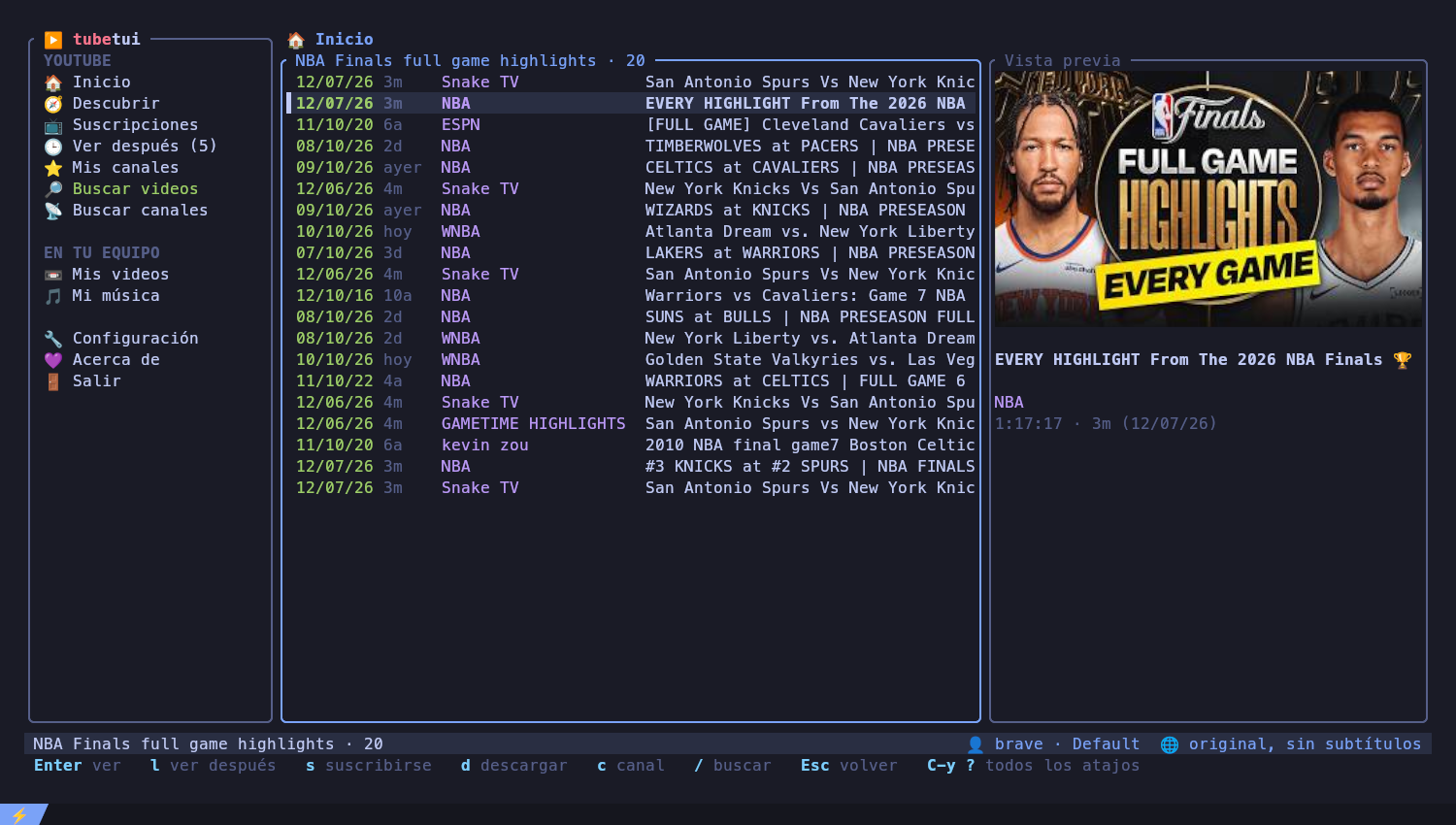
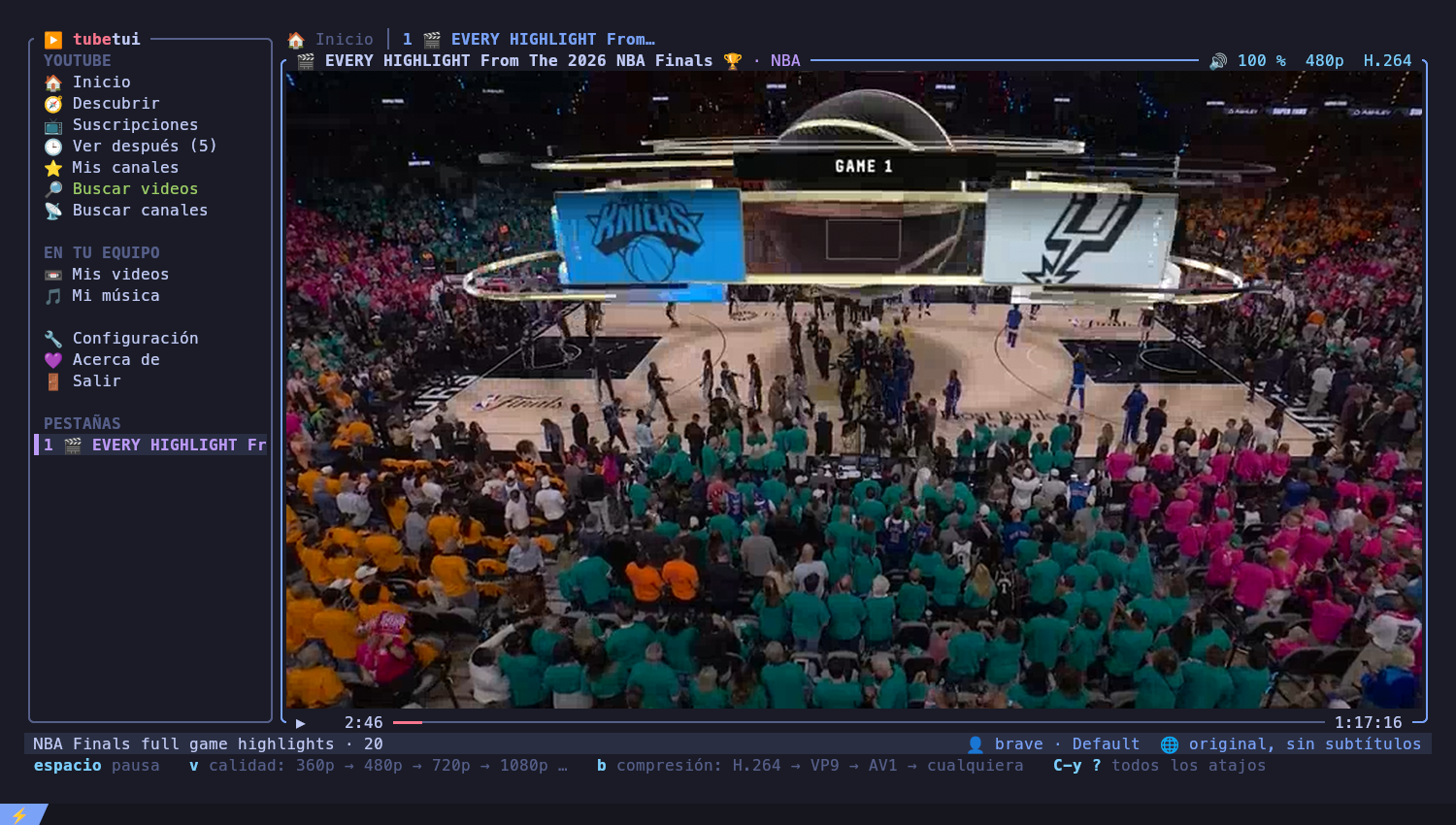
YouTube — and your own videos and music — in the terminal, written in Rust with ratatui. Videos play through mpv: in their own window by default (its tab shows the video's details and what to watch next), or drawn inside the app in kitty. Every video opens in its own tab.
Interface in English and Spanish (
Ctrl+y lswitches). Early but usable: feedback welcome.Website and downloads: https://polblancoo.github.io/tubetui/
What it does
YouTube
- Inicio (your home feed), Descubrir (the home feed without channels you already follow), Suscripciones (newest from your channels, live and upcoming first), Mis canales
- Search videos in all of YouTube (about a second, more results load as
you scroll), only in your channels, or inside a channel (
Tabswitches the scope); search channels (with their description, whole in the side panel) - A preview of the selected video with its thumbnail (in kitty)
- With the video in its own window, its tab shows the video's details
(thumbnail, subscribers, views, likes, date) and Up next:
Tabmoves into it,Enteropens one in a new tab - A progress bar under the video (played, downloaded, rest) and its volume, resolution and codec on top
- Mouse: click to select, double click to open, wheel to scroll (on the video: volume), click the video to pause, the progress bar to jump
- Subscribe / unsubscribe (
s, unsubscribing asks first), watch later (l), download with subtitles (d), open the channel (c)
Playback
- Embedded video in kitty, an mpv window, or an overlay (X11): an mpv window without borders laid exactly over the app, so it looks embedded but plays with the GPU; one tab per video, background audio when you go back to browsing
- Volume, mute, seek, subtitles on/off, switch original / subtitles / auto-dubbed audio and the language while watching (the video reloads at the same second)
- Fullscreen (
f): the video fills the terminal, and on X11 the terminal window goes fullscreen too
On your computer
- Mis videos and Mi música list the files in the folders you choose (several per kind); music plays from the chosen song to the end of the list
Account and settings
- Log in with any installed browser (Brave, Chrome, Chromium, Vivaldi, Edge,
Opera, Firefox — profiles are detected), or import a
cookies.txton machines without a browser (servers, SSH) - A settings screen for everything; changes go to
config.toml, keeping your comments.$EDITORcan open the file from the app - The bottom bar always shows the keys that work right now;
Ctrl+y ?lists them all - English or Spanish, following the system language until you pick one
- Short animations when pages and dialogs open, each one can be turned off
- An About page with links and how to support the project
Requirements
mpvandyt-dlpinPATH- For embedded video: the kitty terminal
- Optional:
wmctrl(X11) for window fullscreen
tubetui checks this itself: when something needed is missing (or yt-dlp is too old for YouTube) it opens a system check that lists what is there, what is not and the command that installs it with your package manager (apt, pacman, dnf, zypper, Homebrew or winget). It is also in Settings → Check the system.
Install
Ready-made packages for every release are on the website and in GitHub Releases:
- Windows:
tubetui-x86_64-windows-setup.exe(installs for your user, adds tubetui to the PATH and the Start menu, and can install mpv and yt-dlp with winget), or the portable.zip - Debian / Ubuntu / Mint:
sudo apt install ./tubetui_amd64.deb - Other Linux:
tubetui-x86_64-linux.tar.gz - macOS (Apple Silicon):
tubetui-aarch64-macos.tar.gz
Or from source, anywhere Rust runs:
Keys
Global commands use a Ctrl+y prefix (tmux style): press Ctrl+y, then:
| Key | Action |
|---|---|
b |
show / hide the menu |
m |
go to the menu |
f |
fullscreen |
n p 0-9 |
next / previous / numbered tab (0 = Inicio) |
x |
close the tab |
/ |
search videos |
l |
English / español |
? |
every shortcut, explained |
q |
quit |
With the mouse: click selects (menu sections and tabs open), double click plays / opens, the wheel scrolls lists and sets the volume over the video, a click on the video pauses (double click: fullscreen), a click on the progress bar jumps there. Hold Shift to select text.
In lists: ↑↓ / jk, Enter, Esc to go back, Tab menu ↔ list,
l watch later, s subscribe, d download, c channel. In My videos
and My music: space marks files, x / Del moves the marked ones (or
the selected one) to the system trash, after asking.
While watching: space pause, ←→ seek, ↑↓ volume, m mute, j
subtitles, i original / subtitles / dubbed, o language, v quality
(360p–1440p), b codec (H.264 / VP9 / AV1 / any), f fullscreen, . ,
next / previous song. Quality, codec and language reload the video at the
same second and are remembered. If embedded video looks behind the sound,
the CPU is dropping frames: v down to 480p, or try the overlay.
Overlay mode (X11)
Embedded video goes through the CPU: every frame is decoded, scaled and sent
to kitty as an image (on a 2012 laptop: 134 % CPU, a third of the frames
dropped). mode = "overlay" (Settings → Video) instead opens a borderless
mpv window over the video pane: hardware decoding, every frame, about 10 %
CPU, and it still looks part of the app. It follows the terminal window when
it moves, hides when you switch tabs, open the help or focus another
program, and lets clicks and keys through to the app. It needs X11 and
xdotool, xwininfo and xprop (wmctrl keeps it off the taskbar);
without them, or on Wayland, it falls back to a separate window.
Terminal multiplexers (tmux, zellij, herdr)
Inside a multiplexer, keys and images travel through it, which adds lag and
can break embedded video. When tubetui detects one (TMUX, ZELLIJ,
HERDR_ENV), automatic mode opens videos in an mpv window and fullscreen
does not resize the outer terminal window. You can still force embedded video
(mode = "embedded"), but for the smoothest experience run tubetui directly in
kitty.
Configuration
~/.config/tubetui/config.toml (or the platform equivalent). Every key is
optional; everything can also be changed from the app (⚙ Configuración).
[]
= "brave+GNOMEKEYRING:Default" # yt-dlp --cookies-from-browser syntax
= "" # imported cookies.txt, wins over browser
[]
= "window" # window (default) | auto | embedded | overlay
= 720
= "avc1" # H.264 decodes in hardware almost everywhere
= "subtitles" # subtitles | original | dubbed
= "es" # subtitles and dubbing language
= true # keep listening while browsing
[]
= ["~/Videos"]
= ["~/Música", "/mnt/discos"]
[]
= "emoji" # emoji | nerd | unicode
= "en" # en | es (unset: the system language)
= true # thumbnail in the preview panel (kitty)
= true # clicks and wheel; hold Shift to select text
= true # once a day, tell me about new versions and how to install them here
[] # animations
= true
= true
= true
Performance
Idle it uses about 25 MB and no CPU. Videos in their own window play with hardware decoding (8 % CPU on a 2012 laptop); embedded video is scaled on the CPU, so 480p is the sweet spot there. See the benchmark against ytfzf and youtube-tui.
Troubleshooting
If the app closes unexpectedly (for example when launched from a window
manager shortcut, whose terminal closes with it), the error is kept in
~/.cache/tubetui/crash.log.
To diagnose lag, run with TUBETUI_DEBUG=/tmp/tubetui.log tubetui: every key,
redraw and action is logged with its timing.
Support
If tubetui is useful to you, the About page (Acerca de) lists donation
addresses. They live in donate.toml.
Disclaimer
tubetui talks to YouTube's unofficial internal API and uses your browser session. That may go against YouTube's Terms of Service; use it at your own risk. Cookies give access to your account: never share them.
License
Licensed under either of Apache License, Version 2.0 or MIT license, at your option.