<p align="center">
<img src="https://user-images.githubusercontent.com/30084738/231727365-defc7606-59aa-48f5-b8c4-b7ec4664eac1.jpeg" alt="Image description" width="120" height="120">
</p>
# Terminal Media Player
[](https://crates.io/crates/tplay)
[](https://crates.io/crates/tplay)
[](LICENSE)
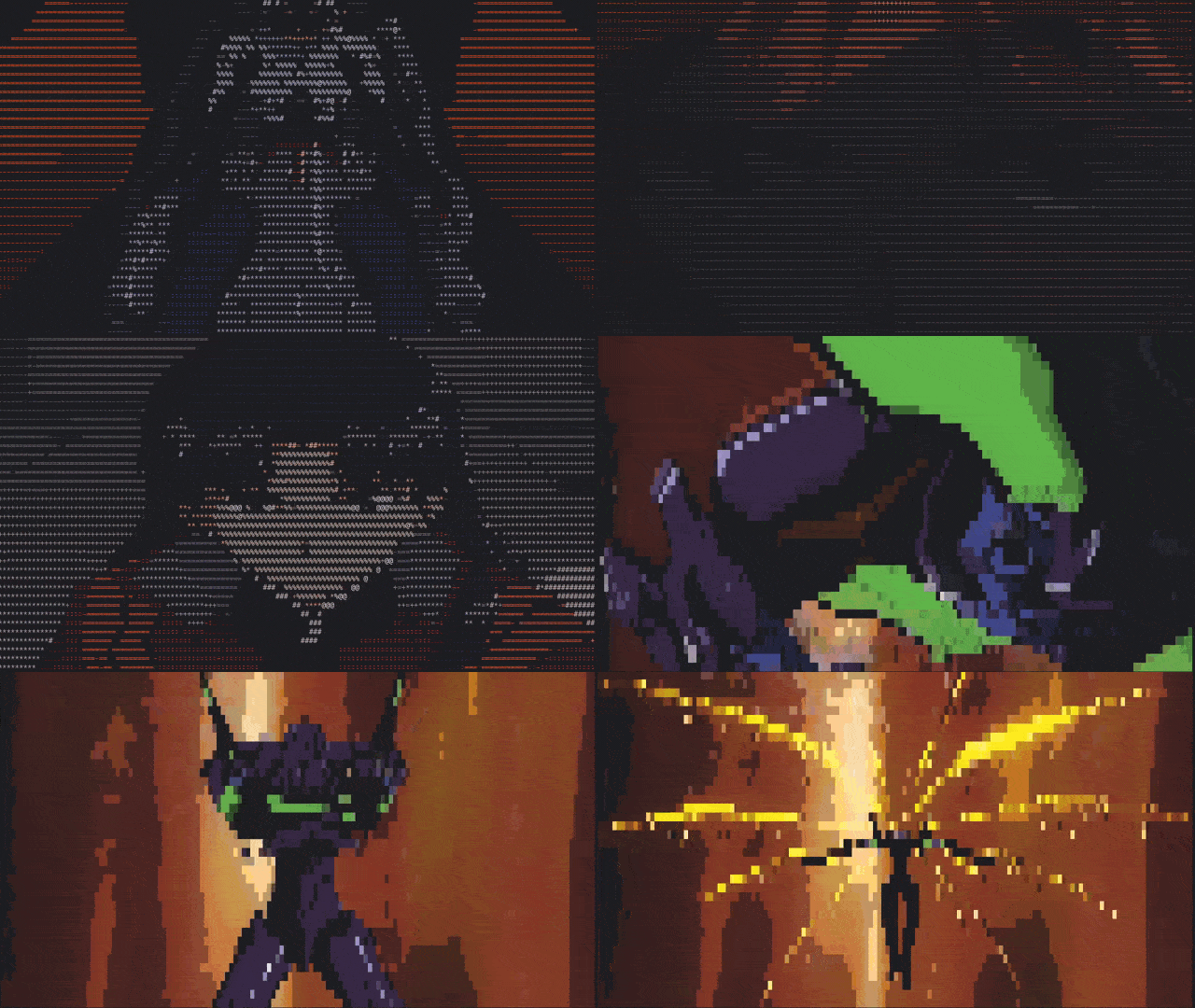
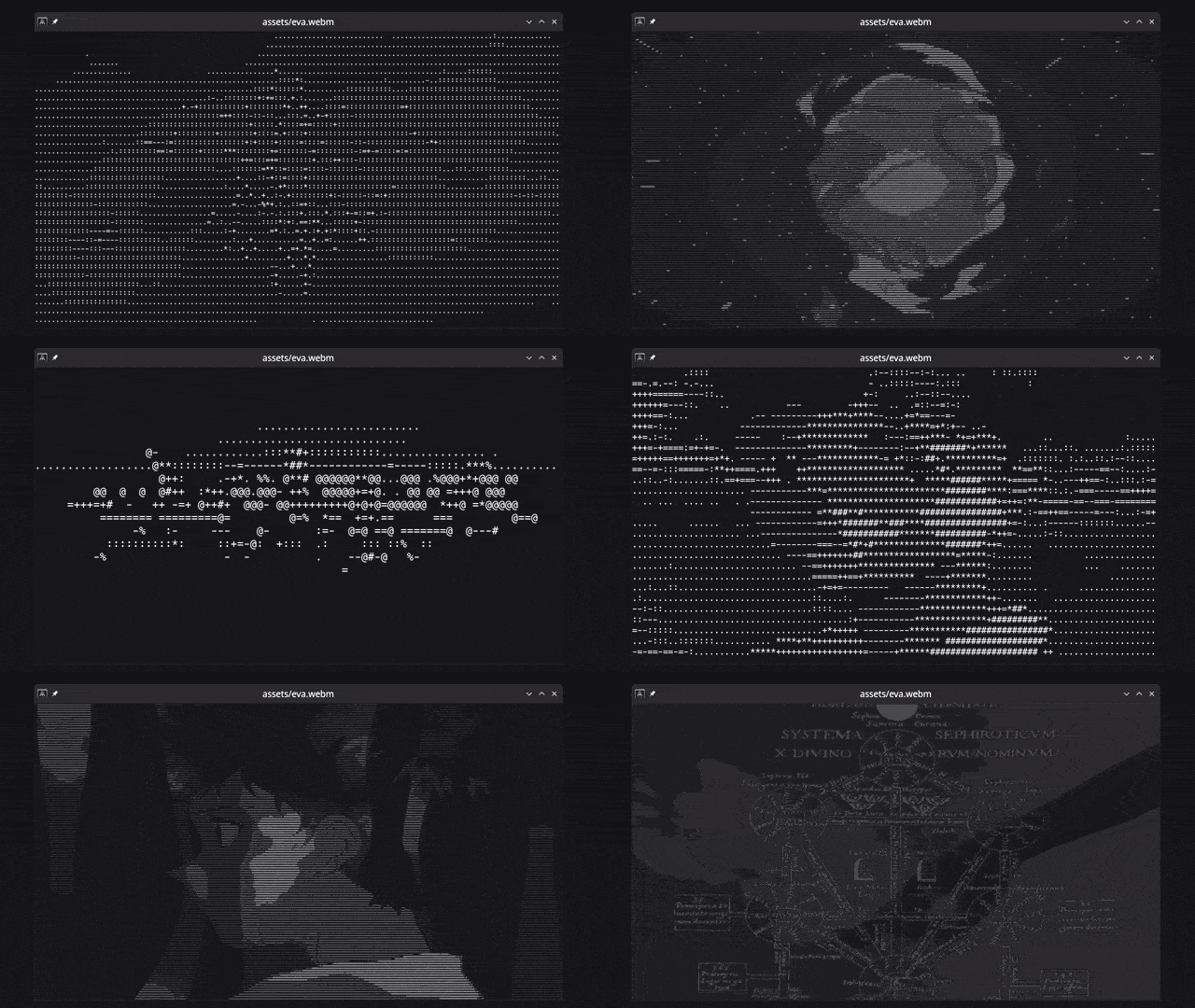
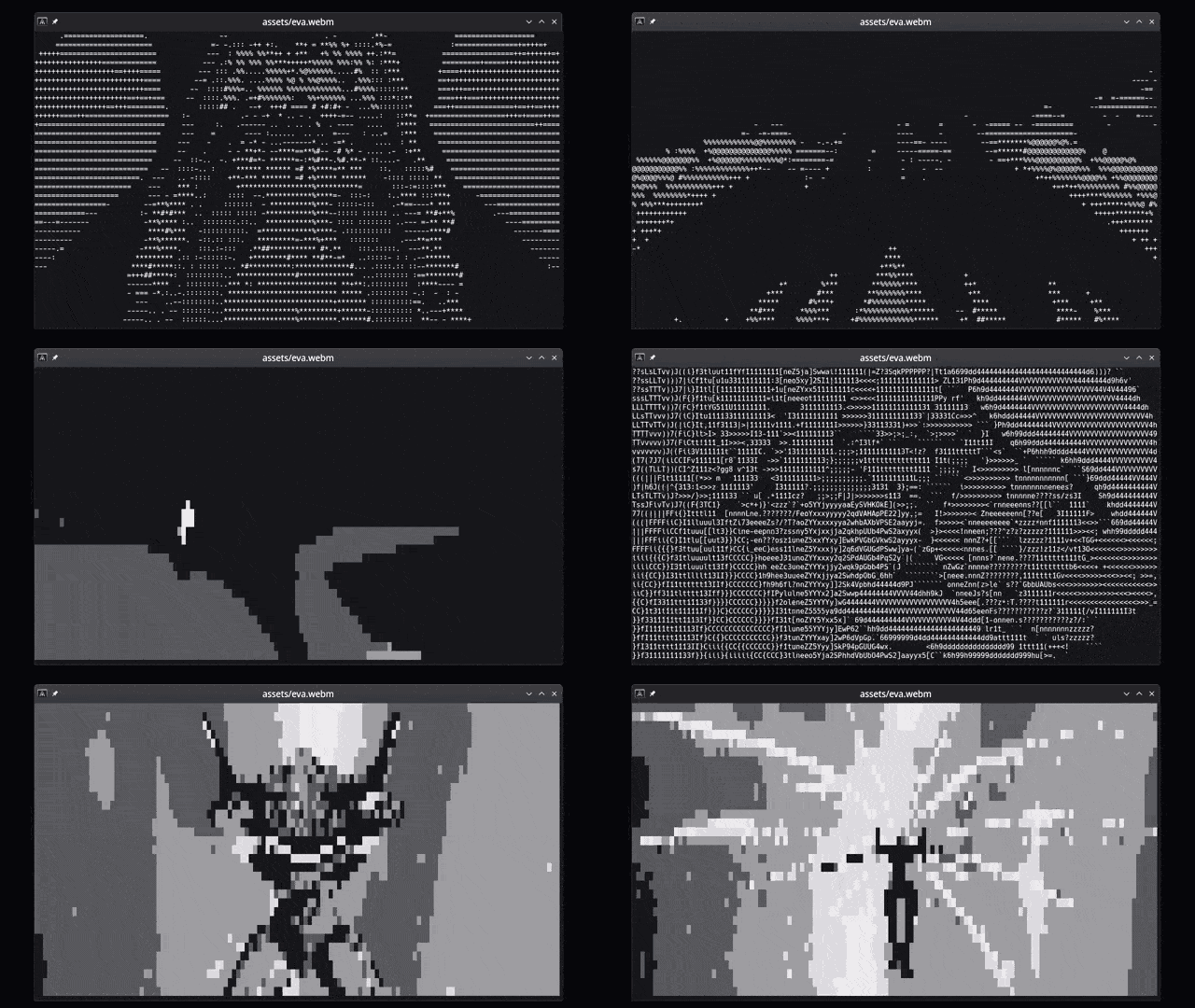
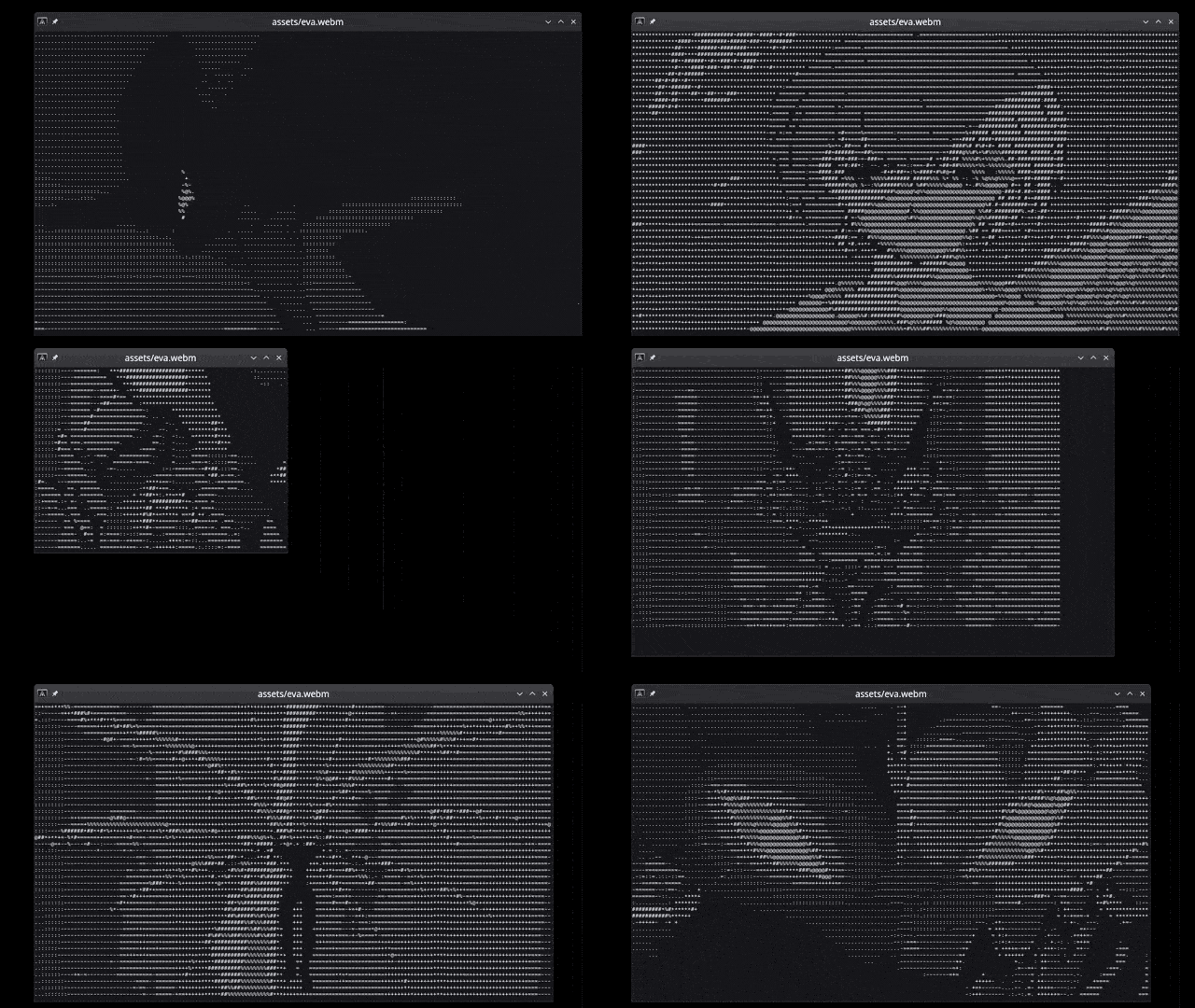
View images, videos, webcam, etc directly in the terminal as ASCII. All images you see [below](#features) are just made by characters on the terminal command line, drawn really fast.
## Table of Contents
- [Terminal Media Player](#terminal-media-player)
- [Table of Contents](#table-of-contents)
- [Who is it for?](#who-is-it-for)
- [Features](#features)
- [Getting Started](#getting-started)
- [Prerequisites](#prerequisites)
- [Installation](#installation)
- [Usage](#usage)
- [Contributing](#contributing)
- [License](#license)
- [Why](#why)
## Who is it for?
- You _really_ don't like graphical applications or are working on a computer without graphical capabilities.
- You are looking for a quick way to convert any visual media to ASCII art.
- You want to watch a video in the terminal, but you don't want to use `mpv` or `vlc` because they're too mainstream.
- You like ASCII art so much that you don't need sound to enjoy a good movie.
- You want to show off your terminal skills to your friends and make them think you're a hacker.
## Features
- [x] Converts and shows any media to ASCII art in the terminal
- [x] Supports images/gifs/videos/webcam and YouTube links
- [x] Any resolution, aspect ratio, and framerate
- [x] Use any character set as supported by your terminal
- [x] Handy pause/unpause and char map selection [controls](#playback-commands)
- [x] RGB Colors (on terminals that support RGB colors)
- [ ] Sound (not yet!)
### RGB Colors
### Live update when updating character size
### On-the-fly character map selection
### Dynamic resize
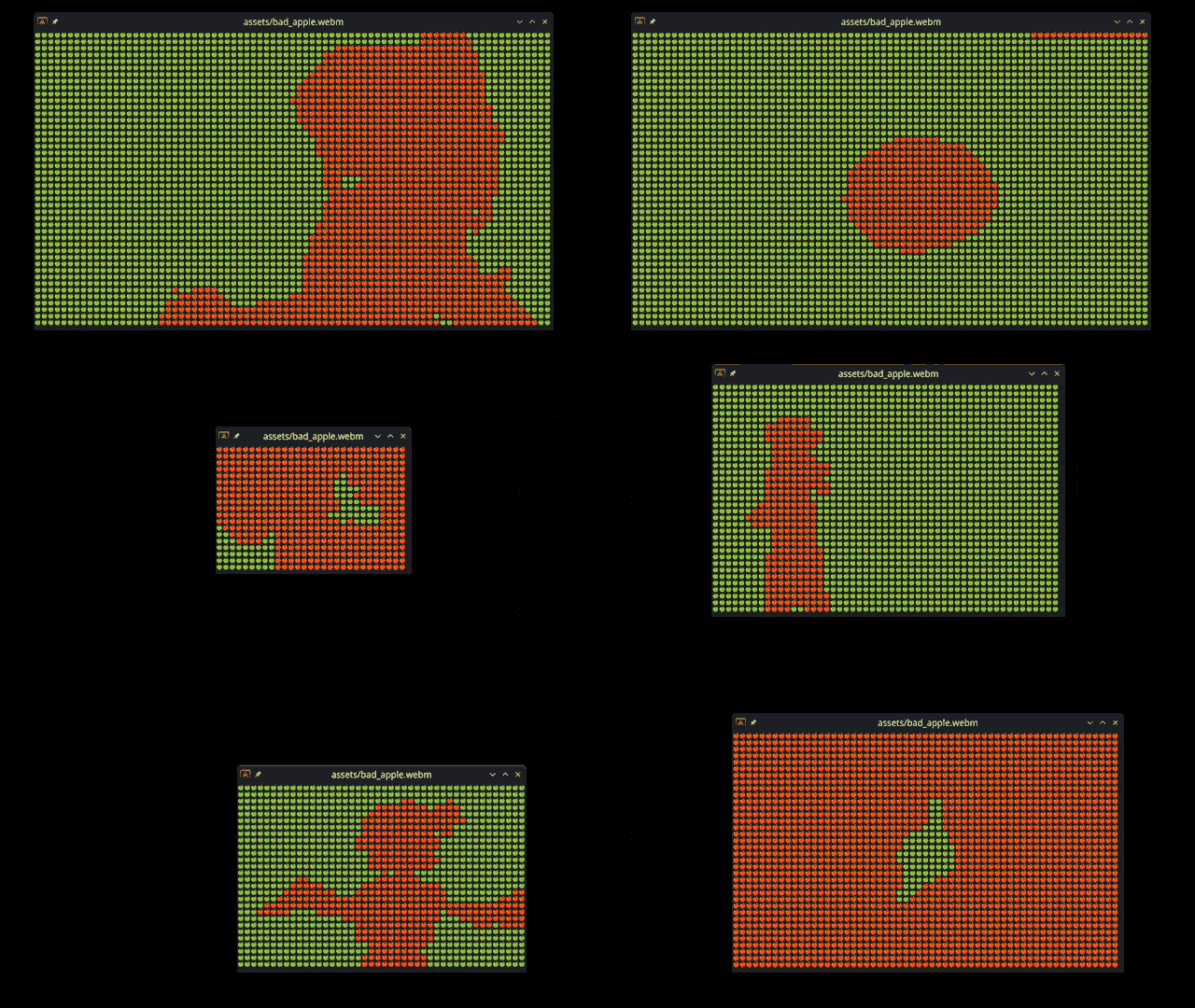
### Emojis
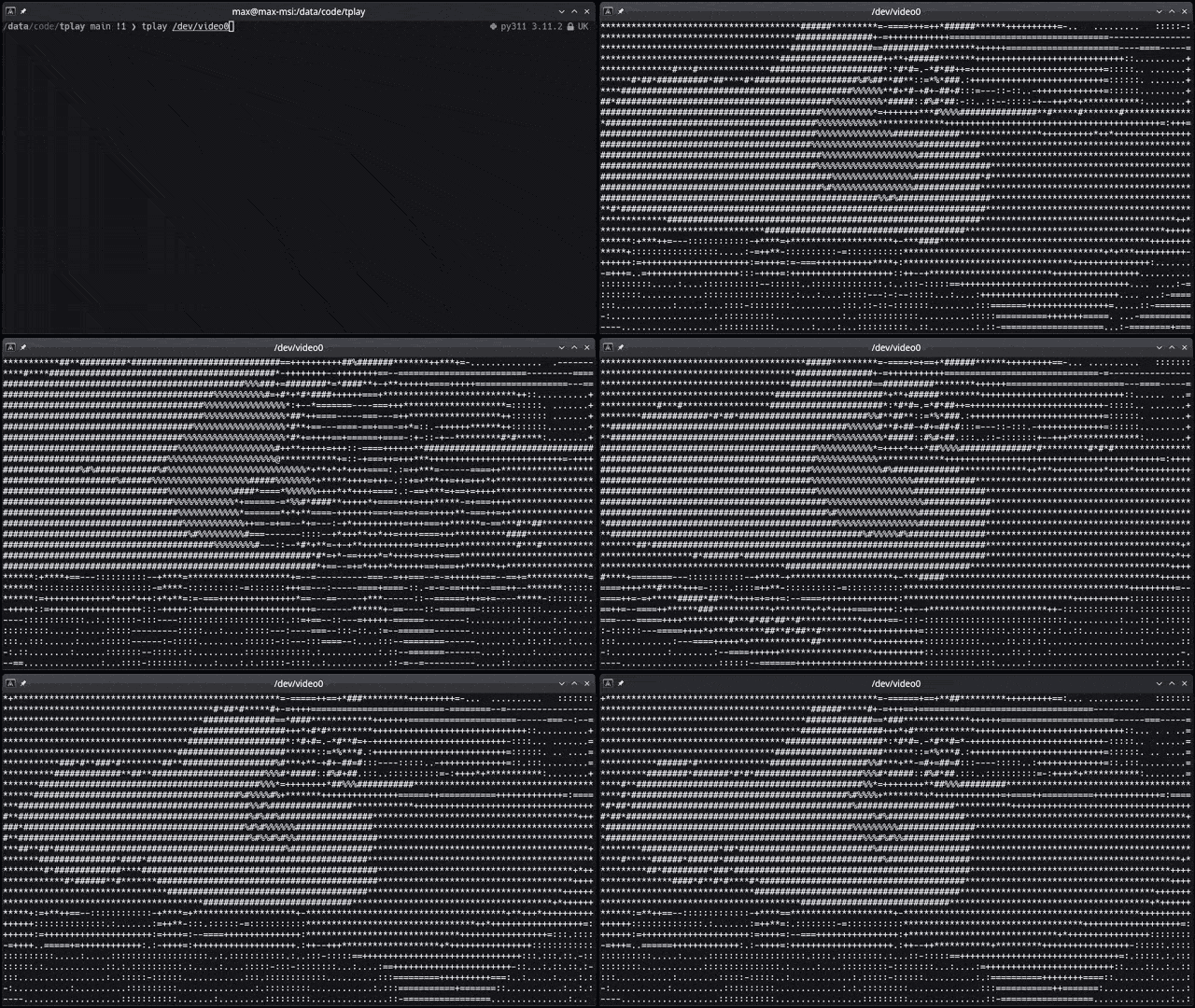
### Webcam support
## Getting Started
These instructions will get you a copy of the project up and running on your local machine for development and testing purposes.
## Prerequisites
Being a Rust crate, you will need to have Rust installed on your system. You can find the installation instructions [here](https://www.rust-lang.org/tools/install).
The following dependencies are also required:
[OpenCV 4](https://github.com/twistedfall/opencv-rust#getting-opencv)
If you have troubles in Windows (I know I have) try this (assuming you have a relatively modern computer with a Windows 64bit installation):
- Using [vcpkg](https://vcpkg.io/en/): ` .\vcpkg install opencv4[contrib,nonfree] --triplet x64-windows` from an administrator powershell within the vcpkg directory.
- Then, install [LLVM](https://github.com/llvm/llvm-project/releases/tag/llvmorg-16.0.0) from binary, you'll likely want to use the 64-bit version on a modern computer.
- Make sure that the environment variable OPENCV_LINK_LIBS is set to just `opencv_core4`.
Optional dependency for YouTube support: [yt-dlp](https://github.com/yt-dlp/yt-dlp/wiki/installation)
## Development:
You may need to install the following packages on some Linux distributions:
`libssl-dev` (to run tests)
`libopencv-dev`
`libstdc++-12-dev`
`gstreamer1.0-plugins-good gstreamer1.0-plugins-bad gstreamer1.0-plugins-ugly`
`clang libclang-dev`
## Installation
A step-by-step guide on how to set up the project for development or usage.
```bash
# Clone the repository
git clone https://github.com/maxcurzi/tplay.git
# Change to the project directory
cd tplay
# (optional) Build the project
cargo build
# (optional) Run the tests
cargo test
# Run the project (use --release for faster performance)
cargo run --release -- <media> [options]
```
You can install the `tplay` command line tool by running the following command:
```bash
# Install the tplay command line tool
cargo install tplay
```
So that you can run it from anywhere as
```bash
# Install the tplay command line tool
tplay <media> [options]
```
## Usage
`tplay <media> [options]`
| `media` | Name of the file or stream to be processed (required). |
| `-f`, `--fps` | Maximum frames per second for the output (default: 60). |
| `-c`, `--char_map` | Custom lookup character table to use for the output (default: ` .:-=+*#%@`). |
| `-g`, `--gray` | Start in grayscale mode |
| `--w_mod` | Experimental width modifier for certain characters such as emojis (default: 1). Use a value of 2 if your char_map is composed of emojis. |
```bash
# Run it (use `cargo run --release --` if you didn't install it as tplay)
tplay <media> [options]
# Example: local image
tplay ./image.png
# Example: local gif
tplay ./image.gif
# Example: local video
tplay ./video.mp4 --fps 60
# Example: remote video (YouTube)
tplay https://www.youtube.com/watch?v=dQw4w9WgXcQ --fps 30
# Example: remote video (Other)
tplay http://media.developer.dolby.com/Atmos/MP4/shattered-3Mb.mp4 --fps 30
# Example: YouTube video - 30fps, with different char maps
tplay https://www.youtube.com/watch?v=fShlVhCfHig --fps 30 --char-map " ░▒▓█"
# Example: YouTube video - 30fps, with different char maps (use w-mod to adjust width when using emoji-based char maps)
tplay https://www.youtube.com/watch?v=FtutLA63Cp8 --fps 30 --char-map "🍎🍏❤️😊" --w-mod 2
# Example: webcam on Linux (YMMV on other OSes)
tplay /dev/video0 --fps 30
```
## Playback commands
- `space` - pause/unpause
- `q` - quit
- `0-9` - change char map
- `g` - toggle grayscale/color
## Known Issues
- Videos played through the Konsole terminal may have reduced performance. This is due to the way Konsole handles terminal output. If you experience this issue, try using a different terminal emulator.
- Media playback is cpu-intensive. To improve performance, try lowering the `fps` value, increase font size, or reduce the terminal window size.
## Alternatives
This is my ASCII media player: _there are many like it, but this one is mine._
For other ASCII media players, check out:
https://github.com/search?q=ascii+player&type=repositories
## Contributing
Contributions are welcome! Please open an issue or submit a pull request.
Ideally I'd like to implement the following features:
- Sound playback (both audio track of videos and audio files)
- More media controls (forward, backward, loop, etc.)
- Any suggestions to improve the installation experience on Windows (Installing and setting up OpenCV is non-trivial)
Let me know if you have any other ideas!
## License
This project is licensed under the MIT License - see the [LICENSE](LICENSE) file for details.
## Why?
_Your Scientists Were So Preoccupied With Whether Or Not They Could, They Didn’t Stop To Think If They Should_
Mostly did it for fun while learning Rust. I also wanted to see if it was possible to make a video player that could run in the terminal. I think it's pretty cool that you can play videos in the terminal now. I hope you enjoy it too!