
tminus
A countdown timer for your terminal, styled after Omarchy's screensaver: big block digits in your theme's colors, with animated text effects that replay every so often.
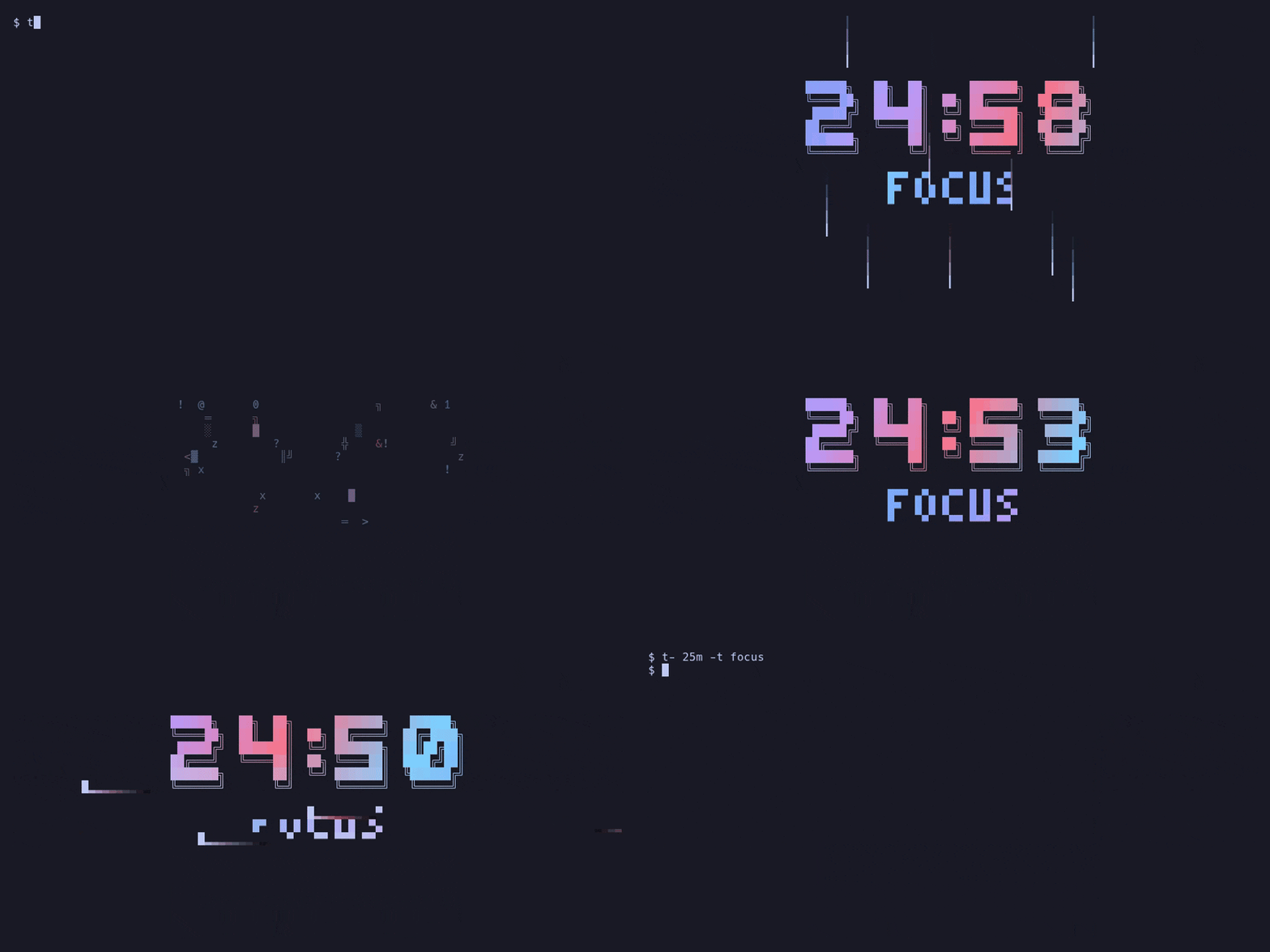
Features
- All 37 effects of Omarchy's screensaver, adapted from
TerminalTextEffects:
beams, binarypath, blackhole, bouncyballs, bubbles, burn, colorshift, crumble,
decrypt, errorcorrect, expand, fireworks, highlight, laseretch, matrix,
middleout, orbittingvolley, overflow, pour, print, rain, randomsequence,
rings, scattered, slice, slide, smoke, spotlights, spray, swarm, sweep,
synthgrid, thunderstorm, unstable, vhstape, waves and wipe — shortened to at
most a few seconds each so the clock stays readable.
matrix-heavyis a denser full-screen matrix you can pick with--effect. Digits also scramble briefly as they tick. - Themes: on Omarchy, every installed theme with its real colors (read from its files, so custom themes work too), defaulting to the active one; built-in versions of the stock themes elsewhere; and your own.
- Final-seconds alert: the background pulses with each tick, and big effects pause so the seconds stay readable. Effects only start if they'll finish before then, so short timers get short effects (a 10-second one gets none).
- Accurate: duration timers keep counting through suspend (Linux and
macOS), and
--untilfollows the wall clock, so it handles NTP corrections and DST. Count down to a time, a weekday or a date days away. - Sequences like
25m:work 5m:break x4, a built-in@pomodoro, and your own presets. - Remote control, Omarchy bar and Waybar: watch and steer a timer from your bar or keybindings, or run it with no window at all.
- Tenths/hundredths of a second, a progress bar, large or small titles, and overtime counting after zero.
Install
The command is called t- (as in T-minus).
-
Binaries for Linux (x86_64, aarch64) and macOS (Apple silicon) are on the releases page, with completions and a man page.
-
Arch / Omarchy: a
PKGBUILDis inpackaging/aur/. -
From source (Rust 1.88 or newer):
# or from a checkout:
Shell completions and the man page come from the binary itself. Completions
ask t- on each Tab, so they know your themes (built-in, Omarchy and config),
presets (t- @<Tab>, and 25m@<Tab> for a segment's theme) and running timers
(t- ctl pause -n <Tab>).
Hook them up in your shell's startup file:
COMPLETE=fish | # fish: ~/.config/fish/completions/t-.fish
t- completions <shell> prints the same hook as a file, as the packages
install it.
Usage
# (--every is rounded up to a multiple of it)
&&
| Key | Action |
|---|---|
space / p |
pause / resume |
e / enter |
play another effect now |
n / b |
next / previous segment of a sequence |
t |
next theme |
s |
switch title between large and small |
c |
cycle status line time: off / time of day / time left |
+ / - |
add / remove one minute |
r |
restart (the current segment) |
h / ? |
show / hide the keys popup |
q / esc |
quit |
Sequences
Give several durations to run them back to back. Each can have a :label
(shown as the title) and an @theme; xN repeats what came before it:
# a 15m long break after the 4th
The status line shows progress and what comes next (● ◐ ○ ○ · next: break 5m,
the name in that segment's theme color; t- ctl status has it in the tooltip);
n/b skip forward/back, and --bar-total makes the progress bar cover the
whole sequence. Each segment change rings the bell, flashes, and (with
--notify) sends a notification.
At zero
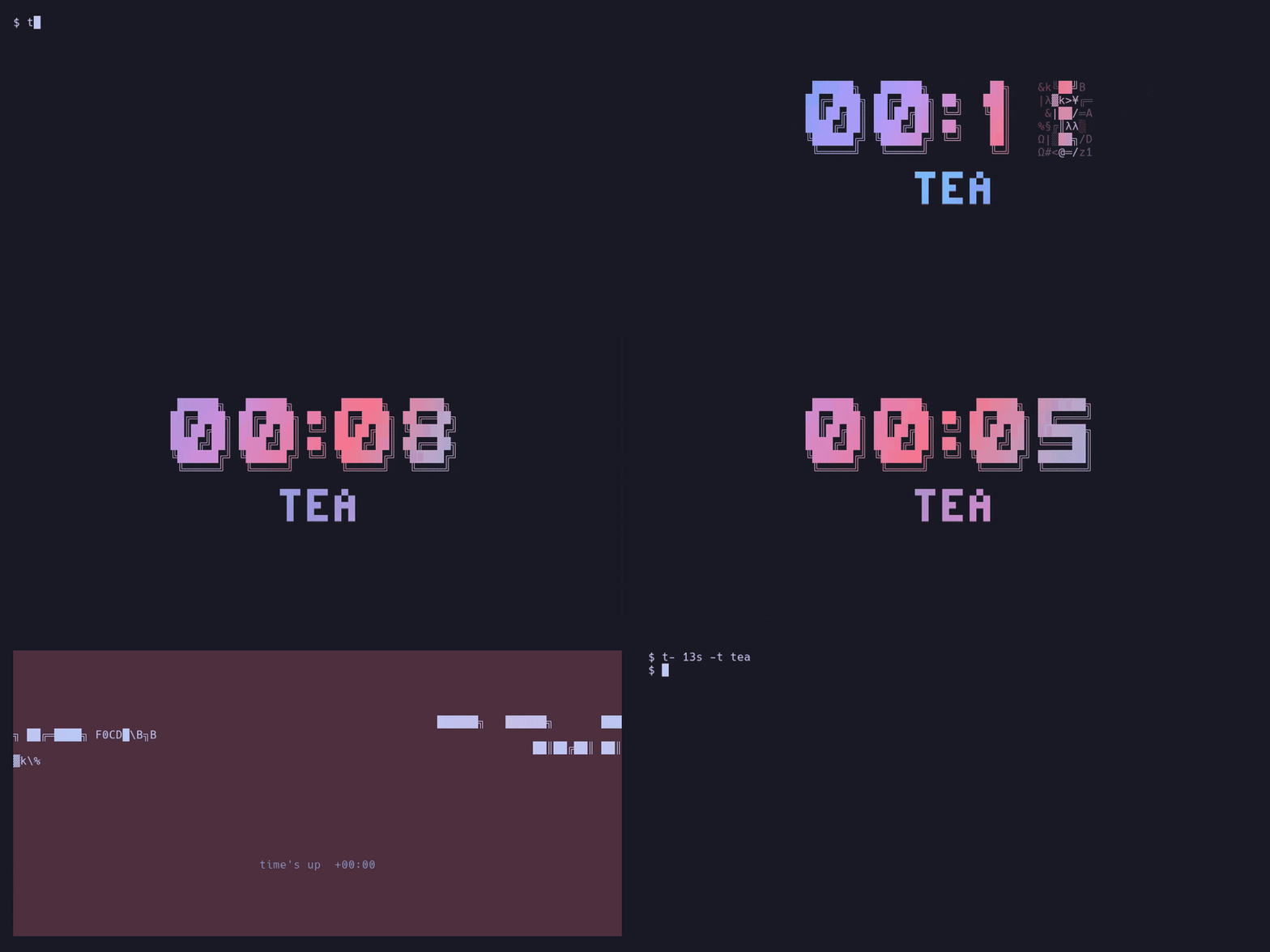
Besides the bell and the background flash, tminus can tell you in other ways, at the end and at every segment change of a sequence:
--notify: a desktop notification (notify-send)--sound FILE: play a sound (withpw-play,paplay,aplayorafplay)--exec CMD: run a shell command; it getsTMINUS_EVENT(segmentordone),TMINUS_LABEL,TMINUS_NEXTandTMINUS_TITLE
Remote control, Omarchy bar and Waybar
Every running timer can be watched and controlled from outside:
On Omarchy, add the bar widget
(omarchy-tminus): it shows the
newest timer in the bar (left click pauses, scrolling adds or takes time), and
its popup lists every running timer with its controls, opens any of them in a
terminal (t- ctl attach) and starts new ones.
Waybar module:
"custom/tminus": {
  "exec": "t- ctl status --follow",
  "return-type": "json",
  "on-click": "t- ctl toggle",
  "on-click-right": "t- ctl stop",
  "on-scroll-up": "t- ctl add 1m",
  "on-scroll-down": "t- ctl sub 1m"
}
The JSON's class is running, paused, alert (final seconds), waiting
(between segments with --confirm), done, or idle (no timer; the text is
empty so Waybar hides the module), for styling in Waybar's CSS.
--headless runs a timer with no window at all, so it lives only in your bar;
bind it to a key, e.g. in Hyprland:
bind = SUPER, T, exec, t- 25m:work 5m:break x4 --headless --notify
bind = SUPER SHIFT, T, exec, t- ctl toggle
Run without any terminal like this, tminus also shows its errors (a name that's taken, a mistyped option, no running timer) as desktop notifications.
t- ctl attach shows a running timer in the terminal you run it in, with its
big clock and effects: space, n, +, - and so on control the timer, and
q closes only this view, leaving the timer running in the bar.
t- ctl attach --take moves a headless timer into the terminal instead: it
carries on there under the same name, and q ends it.
Every timer has a unique name: the one you give with -n/--name (a name
that's already in use is refused), else the preset's (t- @pomodoro →
pomodoro, then eager-pomodoro, …), else the title given with -t
(-t "Tea break" → tea-break), else the config's name (the same way), else
a random one like steady-comet. Headless timers print theirs when they
start, t- ctl list shows them all, and the status tooltip ends with it.
Pass -n NAME to t- ctl to pick one; without it, t- ctl acts on the newest
timer (marked * in the list) and says which one it reached
(paused pomodoro (pid 4242)). t- ctl status --follow without -n follows
the newest timer, moving on when a newer one starts or the followed one quits.
t- --help lists every option; --list-themes and --list-effects show
what's available.
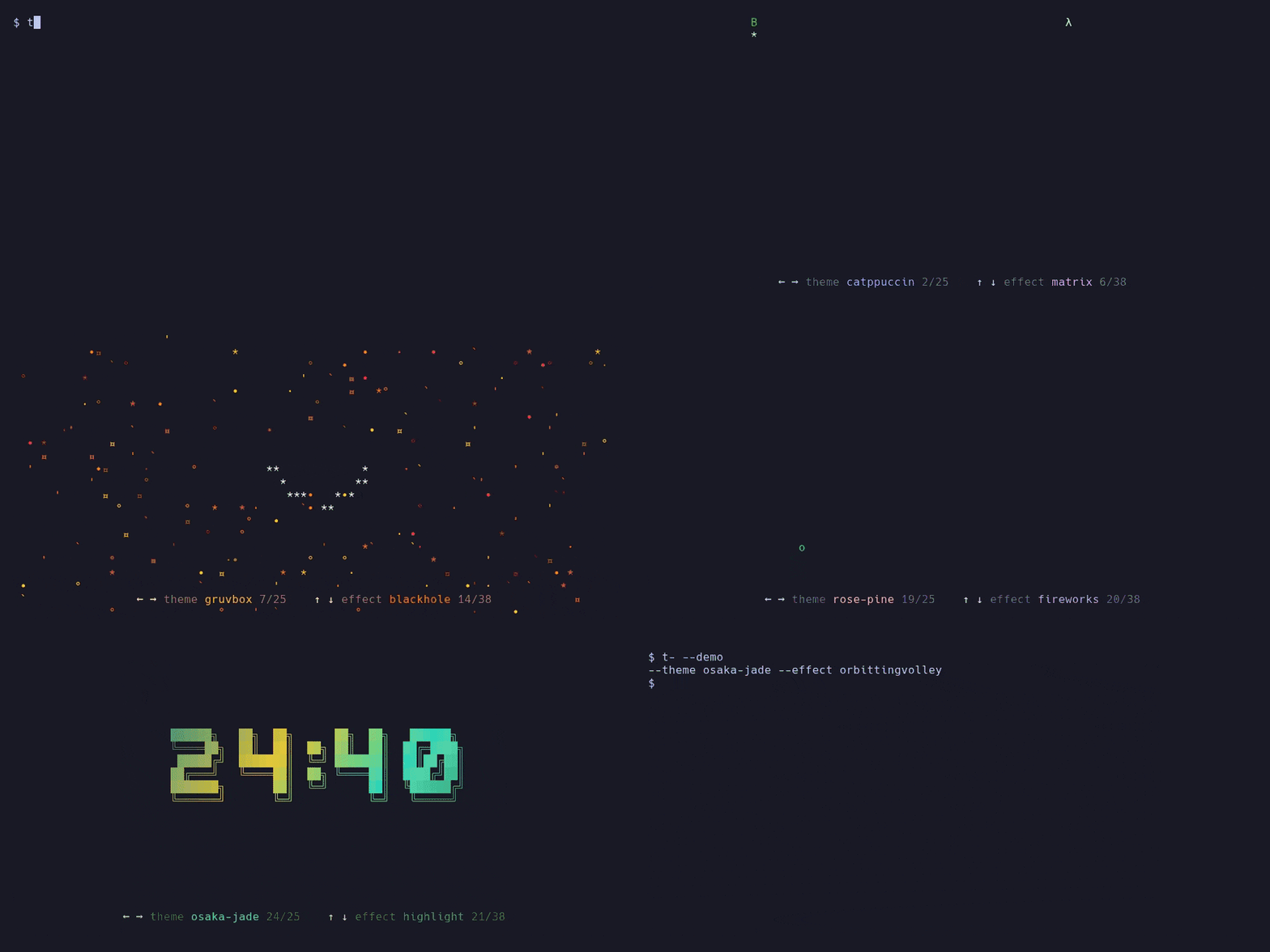
To see them, run t- --demo: a live clock showing one effect on repeat. ←/→
switch the theme, ↑/↓ the effect, a moves on to the next effect after each
one, r picks a random effect, and f previews the final seconds and the flash
at zero. q quits and prints your choice (--theme nord --effect rain) to
paste into a command or the config. Other options apply as usual, so t- --demo 1:30:00 -f block -t focus previews exactly that look.
Configuration
Defaults for any option can go in ~/.config/tminus/config.toml (or
$XDG_CONFIG_HOME/tminus/config.toml). Keys are the long option names, with
- or _; command-line options override the file.
= "nord"
= "focus"
= "small"
= ["decrypt", "matrix", "burn"]
= 45
= true
= 1
= 15
= "bottom"
= "right"
= "now" # or "left", "off"
= "work" # timers are called work, then eager-work, ...
[]
= ["50m:focus", "10m:break", "x3"]
= ["3m:steep@gruvbox", "2m:cool"]
= ["30m:work", "5m:break", "x4"] # replaces the built-in one
Use --config PATH to read a different file, or --no-config to ignore it.
Every on/off option has an opposite (--no-bar, --no-notify, --no-confirm,
--bell, --tick-fx, ...) to turn a config setting off for one run.
Custom themes
Define themes in the same file and pick them with theme = "..." or --theme:
[]
= ["#ff7e5f", "#feb47b", "#ff6f91"] # colors the clock cycles through
= "#6b5b6e" # optional: secondary text and borders
= "#fff4e6" # optional: highlights in effects
= "#1d1520" # optional: where the final-seconds flash fades to if the
# terminal doesn't report its background
= "#ff3b3b" # optional: final-seconds warning color
[]
= "nord" # start from a built-in theme and change only some colors
= "#ffab40"
Missing colors are derived from the gradient (or taken from base). A custom
theme with a built-in's name replaces it, and one named after an Omarchy theme
takes precedence over the colors read from that theme's files. Custom themes show up
in --list-themes and when cycling with t.
Exit codes: 0 the countdown finished, 1 you quit early, 2 bad arguments.
Credits
The text effects are adaptations of those in
TerminalTextEffects by
ChrisBuilds and its Rust port ttfx, which
Omarchy's screensaver uses. Both are MIT licensed; see LICENSE.
License
MIT