# Terminal Control
Control, inspect, test, and capture real terminal applications for agents and TUI review.
[](https://crates.io/crates/terminal-control)
[](https://github.com/kitlangton/terminal-control/actions/workflows/ci.yml)
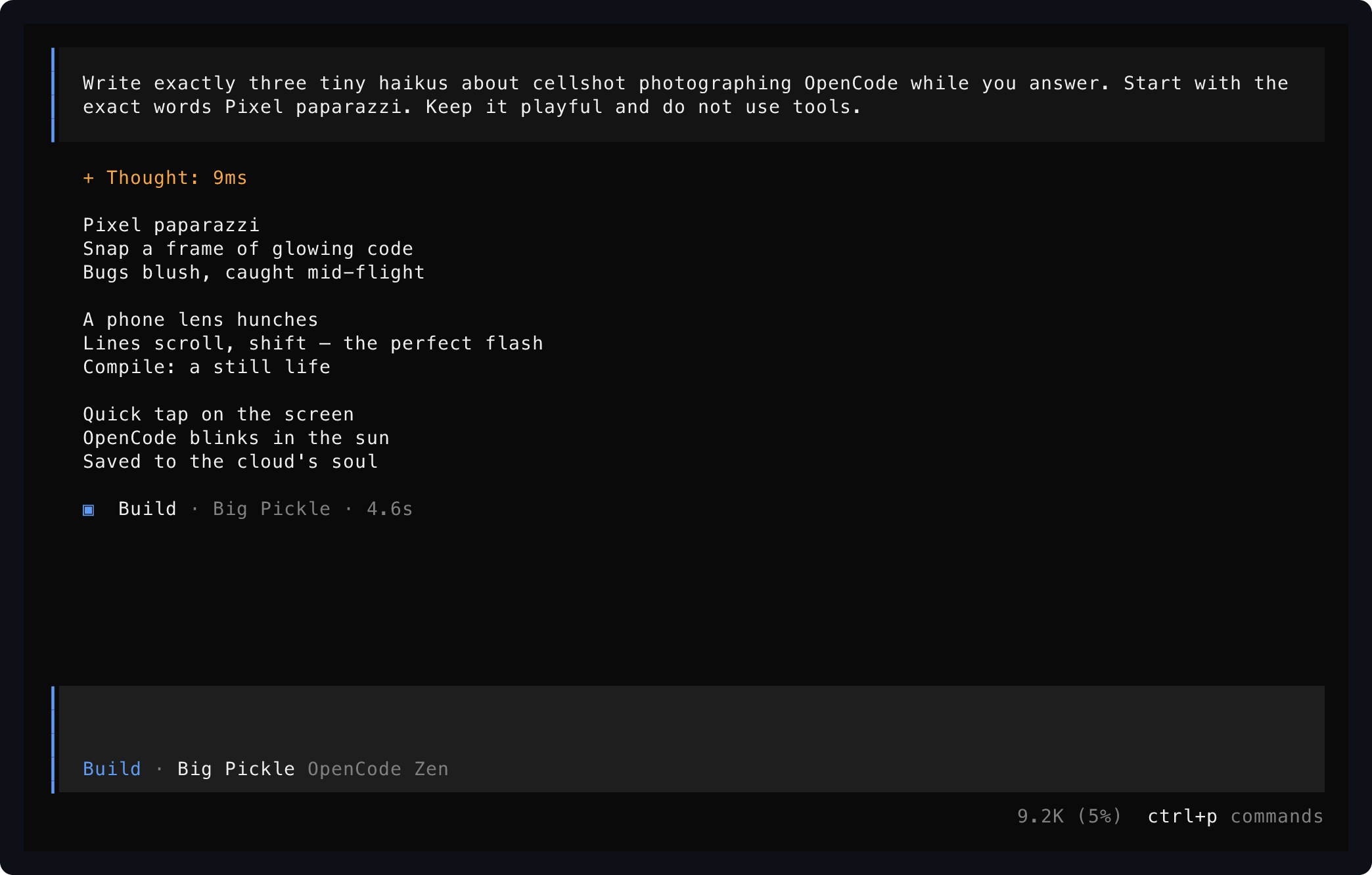
Saved from one live OpenCode session using `start`, `send`, and `save`.
## Agent Quickstart
Terminal Control is built for agents first. Install the `termctrl` binary, install the skill, then ask your coding agent to operate terminal applications through a real pseudo-terminal instead of guessing from plain command output.
Requires Rust 1.93 or newer. Video export also requires `ffmpeg`.
```bash
cargo install terminal-control
termctrl --help
```
Install the current repository head instead of the latest crate release:
```bash
cargo install --locked --git https://github.com/kitlangton/terminal-control terminal-control
```
Install the agent skill from this repository:
```bash
npx skills add kitlangton/terminal-control --skill terminal-control
```
Then ask your agent for terminal work in ordinary language:
```text
Use terminal-control to open my TUI, press through the setup flow, and save a screenshot of the final screen.
```
```text
Start two terminal sessions: one running the dev server and one running the CLI. Drive the CLI until it connects, then show me both screens.
```
```text
Record yourself using the terminal app, mark the important moments, and export a short MP4 demo.
```
The skill teaches agents the safe workflow: start named sessions, wait for visible text, send exact input, inspect screens, save artifacts, record timelines, mark important moments, export videos, and stop sessions when finished.
## What It Gives Agents
- Real PTY control for TUIs, shells, curses apps, OpenTUI apps, and long-running CLIs.
- Named background sessions so an agent can keep multiple terminals alive and switch between them.
- Visible-screen reads through `show`, not brittle scraping of scrollback or logs.
- Exact keyboard and text input with `send`, including arrows, tabs, enter, escape, page keys, and `ctrl-a` through `ctrl-z`.
- Explicit waits for rendered text before interacting.
- Resizing to test responsive terminal layouts.
- Evidence capture as PNG, SVG, text, JSON, or ANSI when requested.
- Recording timelines with markers, edited MP4 export, and optional branded footers for demos and bug reports.
- Local-only owner-protected session sockets and explicit warnings around sensitive terminal artifacts.
## CLI Quickstart
Read a one-off terminal screen:
```bash
termctrl show --cols 100 --rows 32 -- my-terminal-app
```
Save evidence:
```bash
termctrl save --format png --format txt --out captures/home -- my-terminal-app
```
Drive a persistent TUI session:
```bash
termctrl start demo --host opentui --cols 112 --rows 34 -- opencode
termctrl wait demo "Ask anything" --timeout 20000
termctrl send demo --pace-ms 35 'text:Write a terminal haiku.' enter
termctrl show demo
termctrl stop demo
```
Record and export a video:
```bash
termctrl start demo --host opentui --record captures/demo.termctrl -- opencode
termctrl wait demo "Ask anything"
termctrl mark demo ready
termctrl send demo --pace-ms 35 'text:Write a short terminal haiku. End with DONE.' enter
termctrl wait demo "DONE" --timeout 60000
termctrl mark demo after-answer
termctrl stop demo
termctrl video captures/demo.termctrl --edit captures/demo.json --out captures/demo.mp4
```
The sections below explain each workflow in more detail.
## Install The CLI
Requires Rust 1.93 or newer. Video export also requires `ffmpeg`.
```bash
cargo install terminal-control
termctrl --help
```
Install the current repository head instead of the latest crate release:
```bash
cargo install --locked --git https://github.com/kitlangton/terminal-control terminal-control
```
## Show A Terminal Screen
Run a program in a PTY and print its visible terminal state:
```bash
termctrl show --cols 100 --rows 32 -- my-terminal-app
```
Show is the routine observation command: it prints visible text to standard output and creates no files. Request a different stdout-readable representation explicitly:
```bash
termctrl show --format json -- my-terminal-app
termctrl show --format svg -- my-terminal-app
```
Wait for an application to mount, then interact before reading its screen:
```bash
termctrl show --cols 100 --rows 32 --wait-for "Commands" \
-s ctrl-p text:model enter -- my-terminal-app
```
OpenTUI applications such as OpenCode require the opt-in host handshake:
```bash
termctrl show --host opentui --cols 112 --rows 34 \
--wait-for "/connect" -- opencode
```
## Save Evidence
Write only the artifact formats you request:
```bash
termctrl save --format png --out captures/home.png -- my-terminal-app
termctrl save --format png --format txt --out captures/model -- my-terminal-app
```
The second command writes `captures/model.png` and `captures/model.txt`. ANSI stream artifacts can contain sensitive terminal data and are only produced when explicitly requested with `--format ansi`.
## Control A Live TUI
Use a named session when several observations or interactions should target the same running application:
```bash
termctrl start demo --host opentui --cols 112 --rows 34 -- opencode
termctrl status demo
termctrl wait demo "/connect" --timeout 5000
termctrl show demo
termctrl send demo text:/connect enter
termctrl resize demo --cols 132 --rows 38
termctrl wait demo "Connect a provider" --timeout 5000
termctrl show demo
termctrl save demo --format png --out captures/provider.png
termctrl stop demo
```
`status` reports `running` or `exited`, the effective working directory, command, viewport, and recording path. An exited session retains its final screen for `show` until it is stopped. `list` distinguishes unavailable stale sockets from incompatible older session protocols.
`send` accepts `ctrl-a` through `ctrl-z`, keys such as `enter`, `escape`, arrows, `tab`, `shift-tab`, `backspace`, `delete`, `home`, `end`, `page-up`, and `page-down`, plus typed input as `text:<value>`. Use `ctrl-c` to interrupt work or pipe exact prompt bytes with `--stdin`:
```bash
printf '%s' 'Summarize the active view.' | termctrl send demo --stdin
```
`resize` controls the terminal viewport and records geometry changes in `.termctrl` timelines when recording is enabled. A session whose retained ANSI transcript has already been truncated cannot be resized because its current screen cannot be replayed at a new size safely.
For normal-screen tools and long-running log processes, inspect retained scrollback directly:
```bash
termctrl logs demo
termctrl logs demo --ansi > captures/demo-output.ansi
```
Full-screen alternate-screen TUIs do not provide useful terminal logs; read their visible screen with `show` or retain a recording timeline instead. Status exposes `logs_truncated` after raw retained ANSI reaches `--max-bytes`; the session continues running and retains its most recent transcript bytes.
Restart a single named owner safely when deploying updated code:
```bash
termctrl restart demo
```
`restart NAME` reuses the prior command, effective working directory, viewport, host profile, color policy, and recording path by default. Supply options or a replacement command only when deliberately changing the launch.
## Record A Video
Record a session timeline and replay it as an MP4:
```bash
termctrl start demo --record captures/demo.termctrl \
--host opentui --cols 112 --rows 34 -- opencode
termctrl wait demo "Ask anything"
termctrl mark demo before-prompt
termctrl send demo --pace-ms 35 'text:Write a short terminal haiku. End with the uppercase form of done.' enter
termctrl wait demo "DONE" --timeout 60000
termctrl mark demo after-answer
termctrl save demo --format png --out captures/answer.png
termctrl stop demo
termctrl markers captures/demo.termctrl
termctrl show --recording captures/demo.termctrl --at-marker after-answer
termctrl video captures/demo.termctrl --edit captures/demo.json --footer --tail-ms 0 --hide-cursor --out captures/demo.mp4
```
The marker-based edit plan is explicit and deterministic. `speed` accelerates or slows the real recorded time inside that clip. `caption` adds a visible annotation row. `hold_ms` is optional and creates a deliberate still frame at the end of a clip; omit it when you do not want artificial freezes.
```json
{
"clips": [
{
"from": "before-prompt",
"to": "after-answer",
"speed": 4,
"caption": "The agent answers inside the live terminal UI"
}
]
}
```
Without `--edit`, video export preserves the observed recording timing. Edit plans are preferable for polished demos because they select intentional marker ranges and can accelerate animated spinner spans without relying on visual-idle heuristics. Keep speeds low enough for important terminal text to remain readable, and add `hold_ms` or leave a `--tail-ms` hold when the final screen is the point of the demo. Identical rendered screens are rasterized once and reused during export. Video export trims startup frames before non-whitespace text by default while still preserving recordings that only paint terminal backgrounds; use `--include-startup` to keep all startup frames. `video` holds the final frame for one second by default so short recordings do not end abruptly; pass `--tail-ms 0` for a strict no-holds cut. Pass `--footer` to put the clip caption, elapsed timecode, and `TERMINAL CONTROL` branding in a bottom footer instead of rendering captions as inline annotation rows.
Use `termctrl markers captures/demo.termctrl` to audit available marker names and timestamps. Use `termctrl show --recording captures/demo.termctrl --at-marker after-answer` or `--at-ms 1234` to inspect exact screens while tuning an edit plan.
Recordings are JSON Lines files containing terminal output, client input, and automatic host input; they can include prompts or secrets. Treat them as sensitive artifacts.
## Sources And Formats
Repeat `--format` to export only what you need:
```bash
termctrl save --format png --format txt --out captures/home -- my-terminal-app
```
Read a current visible screen directly for agent inspection, or select JSON/ANSI/SVG explicitly:
```bash
termctrl show demo
termctrl show demo --format json
```
For commands whose useful output is piped, use `--pipe`. Pipe reads force color by default; pass `--color never` for plain output:
```bash
termctrl save --pipe --format png --format txt --cols 100 --rows 16 \
--out captures/log -- my-command
```
One-off `show` and `save` operations own disposable command processes: once the visible screen is read or saved, the launched process tree is terminated. Use `start` for long-running applications.
Render an existing ANSI/VT terminal stream without launching a process. An `.ansi` file is a conventionally named byte stream of terminal output and escape sequences, not a separate container format:
```bash
printf '\033[44;97m terminal output \033[0m\n' | termctrl show --input -
printf '\033[44;97m terminal output \033[0m\n' | termctrl save --input - --format png --out captures/stdin.png
```
## Rust Library And Formats
The crate also exposes the shot engine, live sessions, and artifact model to Rust callers. The CLI is built on the same `terminal_control::shot`, `terminal_control::session`, `terminal_control::frame`, `terminal_control::render`, and `terminal_control::recording` modules:
```rust
let shot = terminal_control::shot::from_ansi(b"\x1b[32mready\x1b[0m".to_vec(), 1, 20, 1024)?;
assert_eq!(shot.frame.text(), "ready");
let svg = terminal_control::render::svg(&shot.frame, &terminal_control::render::Options::default());
```
A library session keeps one PTY-backed application in process for fast test interaction without repeatedly invoking the CLI:
```rust
use std::time::Duration;
let mut session = terminal_control::session::Session::start(
&["my-terminal-app".to_owned()],
None,
None,
&terminal_control::shot::Options::default(),
)?;
session.wait_for_text("Ready", Duration::from_secs(5))?;
let status = session.status()?;
session.send(b"help\r")?;
session.wait_for_idle(Duration::from_millis(250), Duration::from_secs(5))?;
let capture = session.capture(Duration::from_millis(250), Duration::from_secs(5))?;
let shot = capture.shot;
let exit = session.wait_for_exit(Duration::from_secs(5))?;
session.stop()?;
```
Structured output is versioned for external tools:
- A `save --format json` capture is a `Frame` object with `version: 1`, described by `schemas/frame-v1.schema.json`.
- A `.termctrl` recording is JSON Lines: its first line is a versioned header and subsequent lines are timed output, input, or resize entries, each described by `schemas/recording-entry-v1.schema.json`.
- Recording byte arrays contain the original terminal or input bytes as integers from `0` to `255`; recordings can contain sensitive text or input.
`session::Session` is the embedded lifecycle interface; the flat named-session CLI commands and the external driver are adapters over the same implementation.
## External Driver
External agent tooling can keep multiple embedded sessions alive through a versioned JSON Lines protocol over stdin/stdout:
```bash
termctrl driver
```
The driver writes a `hello` message with protocol and Terminal Control versions, then accepts typed operations including `launch`, `status`, `send`, `waitForText`, `waitForIdle`, `waitForExit`, `capture`, `logs`, `recording`, `resize`, `stop`, and `shutdown`. It is intended for clients such as a TypeScript TUI test or agent-control library, while the shell-facing flat commands remain convenient for individual workflows.
```json
{"type":"hello","protocolVersion":1,"terminalControlVersion":"<installed-version>"}
{"id":1,"method":"launch","sessionId":"app","params":{"command":["my-terminal-app"],"cols":100,"rows":30,"inheritEnv":false,"env":{"TERM":"xterm-256color"}}}
{"id":2,"method":"waitForText","sessionId":"app","params":{"text":"Ready","timeoutMs":5000}}
{"id":3,"method":"send","sessionId":"app","params":{"input":[{"type":"text","value":"help"},{"type":"key","value":"enter"}]}}
{"id":4,"method":"capture","sessionId":"app","params":{"settleMs":250,"deadlineMs":5000}}
```
A driver `capture` response contains a structured visible frame, derived `text`, and a completion `reason`: `idle`, `deadline`, `exited`, or `outputclosed`. Raw ANSI is omitted by default; request `includeAnsi: true` for retained transcript bytes or `includeSvg: true` for rendered visual evidence. A test client should normally require `idle` or `exited` instead of accepting a deadline fallback as a stable snapshot. Driver input is intentionally exact: text, raw bytes, known key values, and single-letter control input are supported without claiming unimplemented key chords.
## TypeScript Client
`@kitlangton/terminal-control` exposes the driver as isolated typed test sessions. It deliberately separates the visible screen from readable retained logs and the exact ANSI/VT transcript. Its npm distribution includes an optional native package for macOS or GNU/Linux on arm64 or x64, so consumers do not need a Rust toolchain or separate `termctrl` installation.
After the initial npm publication:
```bash
bun add -d @kitlangton/terminal-control vitest
```
```ts
import { TerminalControl } from "@kitlangton/terminal-control"
await using terminal = await TerminalControl.make({
artifacts: {
directory: ".termctrl-artifacts",
onFailure: true,
includeTranscript: false,
includeRecording: true,
},
})
await using session = await terminal.launch({
command: ["/absolute/path/to/my-terminal-app"],
viewport: { cols: 100, rows: 30 },
inheritEnv: false,
env: { TERM: "xterm-256color", HOME: "/tmp/test-home" },
record: "on-failure",
})
await session.screen.waitForText(/Ready/)
await session.keyboard.type("help")
await session.keyboard.press("Enter")
const text = await session.screen.text()
const frame = await session.screen.frame()
const logs = await session.logs.text()
const transcript = await session.transcript.ansi()
expect(text).toMatchSnapshot()
expect(frame).toMatchSnapshot()
const exit = await session.waitForExit({ timeoutMs: 5_000 })
expect(exit).toMatchObject({ reason: "exited", exit: { code: 0 } })
```
When working directly from this repository before installing the npm artifacts, pass `binaryPath: "./target/release/termctrl"` or set `TERMCTRL_BINARY`.
`session.screen.text()` and `session.screen.frame()` wait for a settled capture and reject deadline or output-closed fallback by default. A test that intentionally needs an intermediate frame can request it explicitly:
```ts
const capture = await session.screen.capture({ allowIncomplete: true })
console.log(capture.reason, capture.text, capture.frame)
```
This makes ordinary text or frame snapshots stable by default while retaining explicit access to live, incomplete terminal state.
Keyboard presses are typed as the sequences Terminal Control encodes exactly, such as `"Enter"`, `"ArrowDown"`, or `"Control+C"`. Use `session.keyboard.write(bytes)` when a test deliberately needs exact terminal bytes outside that supported key set.
Vitest users can add a screen-aware assertion that writes configured artifacts on failure. Standard `toMatchSnapshot()` and `toMatchInlineSnapshot()` remain the simplest snapshot format because visible text is reviewable in source control:
```ts
import { expect } from "vitest"
import { extendTerminalControlMatchers } from "@kitlangton/terminal-control/vitest"
extendTerminalControlMatchers(expect)
await expect(session).toHaveScreenText("Ready\n\nChoose an option")
await expect(session.screen.text()).resolves.toMatchInlineSnapshot()
```
`session.writeArtifacts(name)` and failing `toHaveScreenText(...)` assertions can write `screen.txt`, `screen.json`, `screen.svg`, `logs.txt`, and `metadata.json`. Environment variable values are redacted in metadata. `transcript.ansi` and `recording.termctrl` are opt-in because terminal streams and typed input may contain secrets. Wrap ordinary snapshot assertions when evidence should be saved on any thrown assertion:
```ts
await session.withArtifactsOnFailure("settings-snapshot", async () => {
await expect(session.screen.text()).resolves.toMatchSnapshot()
})
```
Enable a recording with `record: true` or `record: "on-failure"`; a test may explicitly save it before disposing the session:
```ts
await session.resize({ cols: 120, rows: 40 })
await session.saveRecording("artifacts/navigation.termctrl")
```
### npm Release
The npm workspace publishes `@kitlangton/terminal-control` with fixed-version platform packages: `@kitlangton/terminal-control-darwin-arm64`, `@kitlangton/terminal-control-darwin-x64`, `@kitlangton/terminal-control-linux-arm64-gnu`, and `@kitlangton/terminal-control-linux-x64-gnu`. The client is compiled to ESM JavaScript with declarations; each native package receives the release Rust executable during the `npm release` workflow.
For subsequent user-facing npm changes, create a Changeset with `bunx changeset`, commit the generated release metadata, and apply version changes before running the workflow. Run the workflow with `publish: false` to assemble packages only, or `publish: true` to publish assembled tarballs after its clean Bun and Node/Vitest consumer validation passes.
The publish job is prepared for npm trusted publishing through GitHub Actions OIDC. In npm package settings, configure `kitlangton/terminal-control` and workflow `npm-release.yml` as the trusted publisher for the client and each platform package before using `publish: true`.
## Notes
- Persistent sessions use owner-only local Unix sockets and are supported on macOS and Linux.
- `--host opentui` answers startup probes needed by current OpenTUI applications; Kitty graphics are reported unavailable because the current renderer does not decode image payloads.
- The current renderer uses a pure-Rust `vt100` terminal backend and exports PNG, SVG, JSON, text, and raw ANSI stream artifacts.
- Run `termctrl <command> --help` for dimensions, timing, color, rendering, and output options.