# Sysit
System Sit, check on the system with a quick glance!
[](https://crates.io/crates/sysit)
[](https://github.com/crodjer/sysit/actions?workflow=CI)
## About
System resources overview within 50 characters. Relies on
[sysinfo](https://github.com/GuillaumeGomez/sysinfo) to get all the relevant system
information.

## Install
Build it:
```
cargo install sysit
```
or download the pre-built binaries for the
[latest release](https://github.com/crodjer/sysit/releases/latest).
## Reasoning
The ability to quickly see basic system information without needing a
context switch can be useful. `sysit` is easy to incorporate in the
various status bars - such as that of `tmux`, `i3`/`sway` etc.
## Understanding the output
M: Memory Usage
C: CPU Usage and Frequency
T: Temperature for the hottest sensor.
P: Network Ping
# Usage
## From the console
Simply type `sysit` for a quick glance at the system information.
```
rohan in mir in sysit on master is 📦 v0.1.0 via 🦀 v1.49.0
at 17:45:13 ❯ sysit
This can also be used with a desktop manager's applets. For example,
Xfce's `genmon`.
## Continuous Monitoring
### Watch Mode
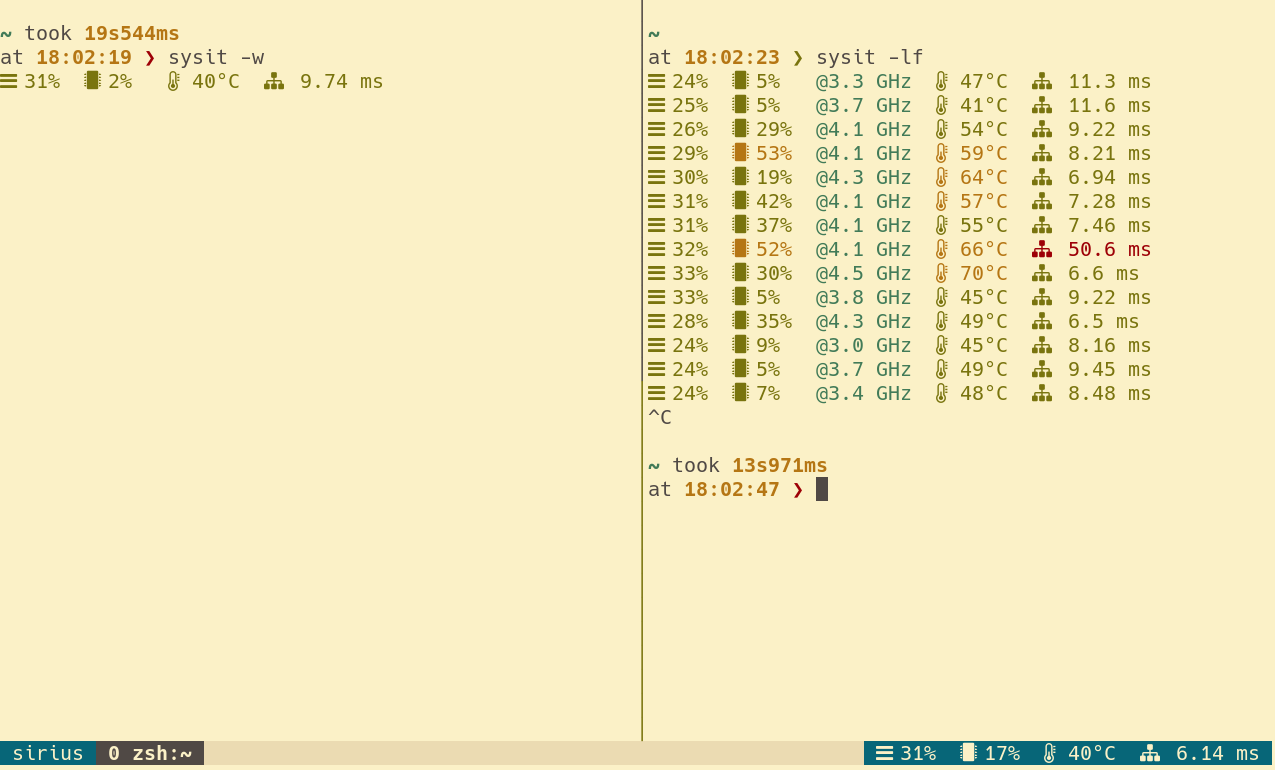
Works as if `watch sysit`. Can be used within tmux status line for
continuous monitoring. Eg:
```tmux.conf
set -g status-right '#[fg=yellow] #(sysit -wi 2) #[fg=colour235,bg=colour252,bold] %a %d %b %H:%M:%S #[fg=colour252,bg=colour238,nobold]#[fg=colour245,bg=colour238,bold]'
```
Watch mode with `sysit -wi 2` has a benefit of maintaining a single
process. Just using plain `sysit` command will also work, but that'd
mean tmux spawns a new process every time.
### Log Mode
At times it can be handy to log system stats, for instance, while
benchmarking.
```
rohan in mir in sysit on master [?] is 📦 v0.1.0 via 🦀 v1.49.0
at 19:22:44 ❯ sysit -li 1
M: 20% | C: 4% @ 600 MHz | T: 56°C | P:3.68 ms
M: 20% | C: 6% @ 600 MHz | T: 56°C | P:3.71 ms
M: 20% | C: 7% @ 600 MHz | T: 56°C | P:3.30 ms
M: 20% | C: 7% @ 1900 MHz | T: 57°C | P:3.93 ms
M: 20% | C: 3% @ 600 MHz | T: 57°C | P:2.76 ms
M: 20% | C: 9% @ 2000 MHz | T: 57°C | P:4.55 ms
M: 20% | C: 3% @ 600 MHz | T: 55°C | P:3.86 ms
M: 20% | C: 8% @ 1800 MHz | T: 57°C | P:3.34 ms
```
## Help
```
sysit
Get system resources overview in 50 characters
For usage details, try --help
Understanding the output:
M: Memory Usage{n}
C: CPU Usage and Frequency{n}
T: Temperature for the hottest sensor{n}
P: Ping (only available in the long running log/watch mode)
USAGE:
sysit [FLAGS] [OPTIONS]
FLAGS:
-c, --colors
force output to be always colorized
-h, --help
Print help information
-l, --log
run in log mode (will continuously append a row to standard output)
--no-colors
force output to be never colorized
-V, --version
Print version information
-w, --watch
run in watch mode (as if running with the watch command)
OPTIONS:
-i, --interval <INTERVAL>
update interval in seconds for watch/log mode [default: 1]
--ping-host <PING_HOST>
host to use for testing the ping [default: 1.0.0.1]
--threshold-cpu-high <THRESHOLD_CPU_HIGH>
the threshold for high cpu usage (higher values will be rendered in red) [default: 80.0]
--threshold-cpu-medium <THRESHOLD_CPU_MEDIUM>
the threshold for medium cpu usage (higher values will be rendered in yellow) [default:
50.0]
--threshold-memory-high <THRESHOLD_MEMORY_HIGH>
the threshold for high memory usage (higher values will be rendered in red) [default:
80.0]
--threshold-memory-medium <THRESHOLD_MEMORY_MEDIUM>
the threshold for medium memory usage (higher values will be rendered in yellow)
[default: 50.0]
--threshold-temp-hot <THRESHOLD_TEMP_HOT>
the threshold for high temperature (higher values will be rendered in red) [default:
75.0]
--threshold-temp-warm <THRESHOLD_TEMP_WARM>
the threshold for warm temperature (higher values will be rendered in yellow) [default:
55.0]
```