1
2
3
4
5
6
7
8
9
10
11
12
13
14
15
16
17
18
19
20
21
22
23
24
25
26
27
28
29
30
31
32
33
34
35
36
37
38
39
40
41
42
43
44
45
46
47
48
49
50
51
52
53
54
55
56
57
58
59
60
61
62
63
64
65
66
67
68
69
70
71
72
73
74
75
76
77
78
79
80
81
82
83
84
85
86
87
88
89
90
91
92
93
94
95
96
97
98
99
100
101
102
103
104
105
106
107
108
109
110
111
112
113
114
115
116
117
118
119
120
121
122
123
124
125
126
127
128
129
130
131
132
133
134
135
136
137
138
139
140
141
142
143
144
145
146
147
148
149
150
151
152
153
154
155
156
157
158
159
160
161
162
163
164
165
166
167
168
169
170
171
172
173
174
175
176
177
178
179
180
181
182
183
184
185
186
187
188
189
190
191
192
193
194
195
196
197
198
199
200
201
202
203
204
205
206
207
208
209
210
211
212
213
214
215
216
217
218
219
220
221
222
223
224
225
226
227
228
229
230
231
232
233
234
235
236
237
238
239
240
241
242
243
244
245
246
247
248
249
250
251
252
253
254
255
256
257
258
259
260
261
262
263
264
265
266
267
268
269
270
271
272
273
274
275
276
277
278
279
280
281
282
283
284
285
286
287
288
289
290
291
292
293
294
295
296
297
298
299
300
301
302
303
304
305
306
307
308
309
310
311
312
313
314
315
316
317
318
319
320
321
322
323
324
325
326
327
328
329
330
331
332
333
334
335
336
337
338
339
340
341
342
343
344
345
346
347
348
349
350
351
352
353
354
355
356
357
358
359
360
361
362
363
364
365
366
367
368
369
370
371
372
373
374
375
376
377
378
379
380
381
382
383
384
385
386
387
388
389
390
391
392
393
394
395
396
397
398
399
400
401
402
403
404
405
406
407
408
409
410
411
412
413
414
415
416
417
418
419
420
421
422
423
424
425
426
427
428
429
430
431
432
433
434
435
436
437
438
439
440
441
442
443
444
445
446
447
448
449
450
451
452
453
454
455
456
457
458
459
460
461
462
463
464
465
466
467
468
469
470
471
472
473
474
475
476
477
478
479
480
481
482
483
484
485
486
487
488
489
490
491
492
493
494
495
496
497
498
499
500
501
502
503
504
505
506
507
508
509
510
511
512
513
514
515
516
517
518
519
520
521
522
523
524
525
526
527
528
529
530
531
532
533
534
535
536
537
538
539
540
541
542
543
//! # Spatial LED (Sled)
//! <div> <img src="https://github.com/DavJCosby/sled/blob/master/resources/ripples-demo.gif?raw=true" width="49%" title="cargo run --example ripples"> <img src="https://github.com/DavJCosby/sled/blob/master/resources/warpspeed-demo.gif?raw=true" width="49%" title="cargo run --example warpspeed">
//! </div>
//!
//! Sled is an ergonomic rust library that maps out the shape of your LED strips in 2D space to help you create stunning lighting effects.
//!<details>
//! <summary><strong>What Sled does:</strong></summary>
//!
//! - It exposes an API that lets you:
//! - Modify virtual LED colors depending on each LED's position, distance, direction, line segment, etc;
//! - Output that color data in a simple, contiguous data structure for your own usage;
//! - Filter LEDs by their spatial properties to pre-compute important sets;
//! - Additionally, some tools are provided to help you build functional apps faster (you may opt-out with compiler features):
//! - `Driver` - Pack draw/compute logic into a Driver to simplify to the process of swapping between effects, or changing effect settings at runtime.
//! - `Scheduler` - Lightweight tool to schedule redraws at a fixed rate, powered by [spin_sleep](https://github.com/alexheretic/spin-sleep).
//! </details>
//!
//! <details>
//! <summary><strong>What Sled does <ins>not</ins> do:</strong></summary>
//!
//! - It does not interface directly with your GPIO pins to control your LED hardware. Each project will be different, so it's up to you to bring your own glue. Check out the [Raspberry Pi example](https://github.com/DavJCosby/spatial_led_examples/tree/main/raspberry_pi) to get an idea what that might look like.
//! - It does not allow you to represent your LEDs in 3D space. Could be a fun idea in the future, but it's just not planned for the time being.
//!</details>
//!
//! See the [spatial_led_examples](https://github.com/DavJCosby/spatial_led_examples) repository for examples of Sled in action!
//!
//! <details open>
//! <summary><h1>The Basics</h1></summary>
//!
//! In absence of an official guide, this will serve as a basic introduction to Sled. From here, you can use the documentation comments to learn what else Sled offers.
//
//! <details open>
//! <summary><h3>Setup</h3></summary>
//!
//! To [create](Sled::new) a [Sled] struct, you need to create a configuration file and provide its path to the constructor.
//! ```rust, ignore
//! use spatial_led::Sled;
//! use palette::rgb::Rgb;
//! let mut sled = Sled::<Rgb>::new("/path/to/config.yap")?;
//! ```
//!
//! A configuration file explains the layout of your LED strips in 2D space. This is used to pre-calculate some important information that's used to speed up complex draw calls.
//!
//! Example file:
//! ```yaml, no_run
//! center: (0.0, 0.5)
//! density: 30.0
//! --segments--
//! (-2, 0) --> (0.5, -1) --> (3.5, 0) -->
//! (2, 2) --> (-2, 2) --> (-2, 0)
//! ```
//! See [Sled::new()] for more information on this config format.
//!
//! //! Note the `::<Rgb>` in the constructor. In previous versions of Sled, [palette's Rgb struct](https://docs.rs/palette/latest/palette/rgb/struct.Rgb.html) was used interally for all color computation. Now, the choice is 100% yours! You just have to specify what data type you'd like to use.
//!
//! ```rust, ignore
//! # use spatial_led::Sled;
//! #[derive(Debug)]
//! struct RGBW {
//! r: f32,
//! g: f32,
//! b: f32,
//! w: f32
//! }
//! let mut u8_sled = Sled::<(u8, u8, u8)>::new("/path/to/config.yap")?;
//! let mut rgbw_sled = Sled::<RGBW>::new("/path/to/config.yap")?;
//!
//! u8_sled.set(4, (255, 0, 0))?; // set 5th led to red
//! rgbw_sled.set_all(RGBW {
//! r: 0.0,
//! g: 1.0,
//! b: 0.0,
//! w: 0.0
//! });
//! ```
//! For all further examples we'll use palette's Rgb struct as our backing color format (we really do highly recommend it and encourage its use wherever it makes sense), but just know that you can use any data type that implements `Debug`, `Default`, and `Copy`.
//!
//!</details>
//!
//!<details open>
//!<summary><h3>Drawing</h3></summary>
//!
//! Once you have your [Sled] struct, you can start drawing to it right away! Here’s a taste of some of the things Sled lets you do:
//!
//! **Set all vertices to white:**
//! ```rust
//! # use spatial_led::{Sled};
//! # use palette::rgb::Rgb;
//! # let mut sled = Sled::<Rgb>::new("./benches/config.yap").unwrap();
//! sled.set_vertices(Rgb::new(1.0, 1.0, 1.0));
//! ```
//! 
//! > Note that this is a custom terminal UI visualization that is not packaged as part of the sled crate. It is ultimately up to you to decide how to visualize your LEDs, Sled just handles the computation.
//!
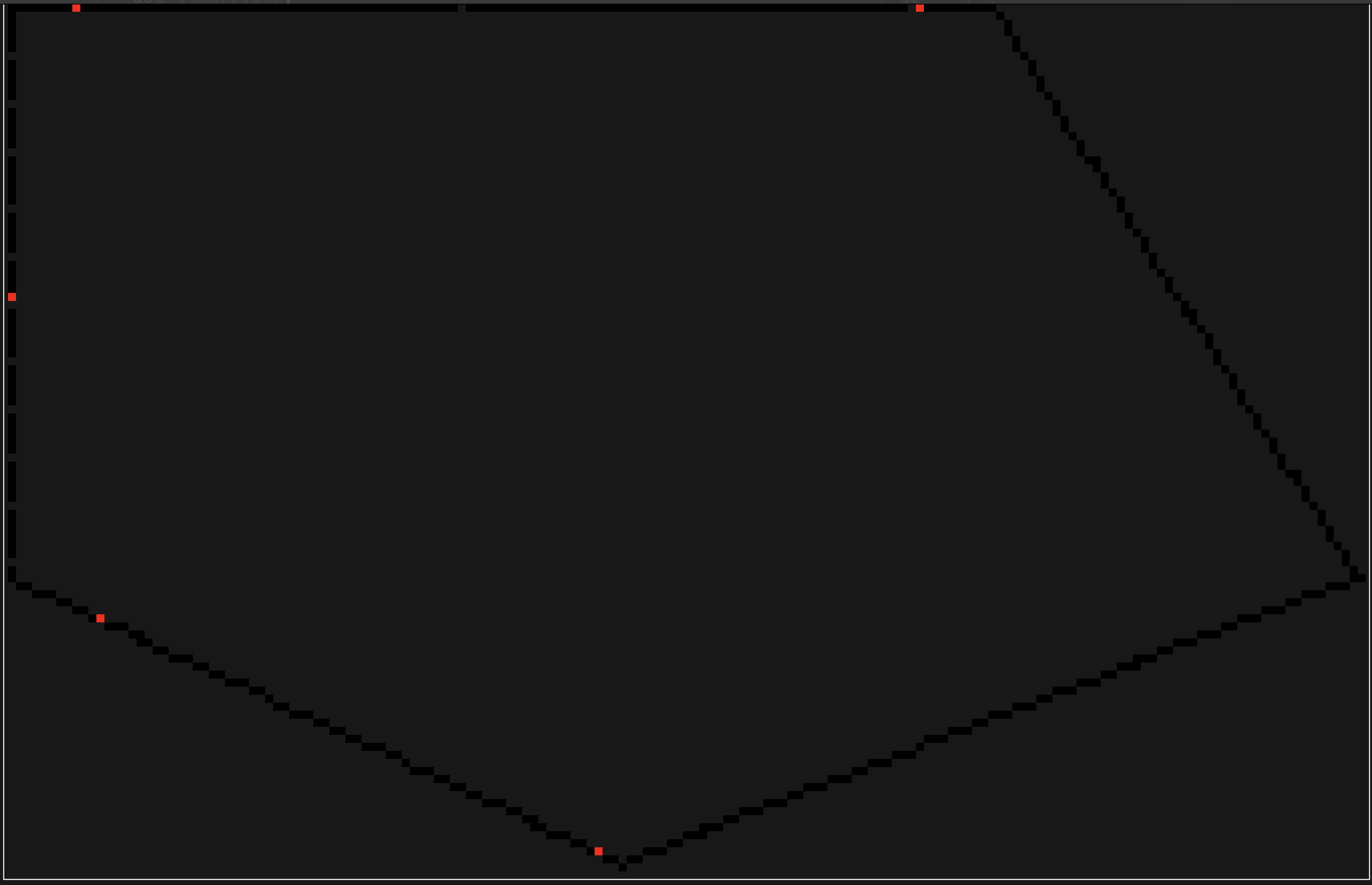
//! **Set all LEDs 2 units away from the `center_point` to red:**
//! ```rust
//! # use spatial_led::{Sled};
//! # use palette::rgb::Rgb;
//! # fn main() -> Result<(), spatial_led::SledError> {
//! # let mut sled = Sled::<Rgb>::new("./benches/config.yap").unwrap();
//! sled.set_at_dist(2.0, Rgb::new(1.0, 0.0, 0.0));
//! # Ok(())
//! # }
//! ```
//! 
//!
//! **Set each LED using a function of its direction from point `(2, 1)`:**
//! ```rust
//! # use spatial_led::{Sled, Vec2};
//! # use palette::rgb::Rgb;
//! # let mut sled = Sled::<Rgb>::new("./benches/config.yap").unwrap();
//! sled.map_by_dir_from(Vec2::new(2.0, 1.0), |dir| {
//! let red = (dir.x + 1.0) * 0.5;
//! let green = (dir.y + 1.0) * 0.5;
//! Rgb::new(red, green, 0.5)
//! });
//! ```
//! 
//!
//! **Dim one of the walls by 75%:**
//! ```rust
//! # use spatial_led::{Sled};
//! # use palette::rgb::Rgb;
//! # fn main() -> Result<(), spatial_led::SledError> {
//! # let mut sled = Sled::<Rgb>::new("./benches/config.yap").unwrap();
//! sled.modulate_segment(3, |led| led.color * 0.25)?;
//! # Ok(())
//! # }
//! ```
//! 
//!
//! **Set all LEDs within the overlapping areas of two different circles to blue:**
//! ```rust
//! # use spatial_led::{Sled, Filter, Vec2};
//! # use palette::rgb::Rgb;
//! # let mut sled = Sled::<Rgb>::new("./benches/config.yap").unwrap();
//! let circle_1: Filter = sled.within_dist_from(
//! 2.0,
//! Vec2::new(1.0, 0.5)
//! );
//!
//! let circle_2: Filter = sled.within_dist_from(
//! 2.5,
//! Vec2::new(-1.0, 1.5)
//! );
//!
//! let overlap = circle_1.and(&circle_2);
//! sled.set_filter(&overlap, Rgb::new(0.0, 0.0, 1.0));
//! ```
//! 
//! For more examples, see the documentation comments on the [Sled] struct.
//!
//! </details>
//!
//! <details open>
//! <summary><h3>Output</h3></summary>
//!
//! Once you’re ready to display these colors, you’ll probably want them packed in a nice contiguous array of color values. There are a few methods available to pack the information you need.
//!
//! ```rust
//! # use spatial_led::{Sled, Vec2};
//! # use palette::rgb::Rgb;
//! # let mut sled = Sled::<Rgb>::new("./benches/config.yap").unwrap();
//! // An Iterator of Rgbs, 32-bits/channel
//! let colors_f32 = sled.colors();
//!
//! for color in colors_f32 {
//! let red: f32 = color.red;
//! // -snip- //
//! }
//! ```
//!
//! A few other handy output methods:
//!
//! ```rust
//! # use spatial_led::{Sled, Vec2};
//! # use palette::rgb::Rgb;
//! # let mut sled = Sled::<Rgb>::new("./benches/config.yap").unwrap();
//! // An Iterator of Vec2s, representing the position of each leds
//! let positions = sled.positions();
//! // An Iterator of (Rgb, Vec2) tuple pairs representing each leds color and position.
//! let colors_f32_and_positions = sled.colors_and_positions();
//! ```
//! </details>
//! </details>
//!
//!
//! <details>
//! <summary><h1>Advanced Features</h1></summary>
//!
//! For basic applications, the [Sled] struct gives you plenty of power. Odds are though, you'll want to create more advanced effects that might be time or user-input driven. A few optional (enabled by default, opt-out by disabling their compiler features) tools are provided to streamline that process.
//!
//! <details>
//! <summary><h3>Drivers</h3></summary>
//!
//! [Drivers](driver::Driver) are useful for encapsulating everything you need to drive a lighting effect all in one place. Here's an example of what a simple, time-based one might look like:
//!
//! ```rust
//! # use spatial_led::{Sled};
//! # use palette::rgb::Rgb;
//! use spatial_led::driver::Driver;
//! let mut driver = Driver::<Rgb>::new(); // often auto-inferred
//!
//! driver.set_startup_commands(|_sled, data| {
//! data.set::<Vec<Rgb>>("colors", vec![
//! Rgb::new(1.0, 0.0, 0.0),
//! Rgb::new(0.0, 1.0, 0.0),
//! Rgb::new(0.0, 0.0, 1.0),
//! ]);
//! Ok(())
//! });
//!
//! driver.set_draw_commands(|sled, data, time| {
//! let elapsed = time.elapsed.as_secs_f32();
//! let colors: &Vec<Rgb> = data.get("colors")?;
//! let num_colors = colors.len();
//! // clear our canvas each frame
//! sled.set_all(Rgb::new(0.0, 0.0, 0.0));
//!
//! for i in 0..num_colors {
//! let alpha = i as f32 / num_colors as f32;
//! let angle = elapsed + (std::f32::consts::TAU * alpha);
//! sled.set_at_angle(angle, colors[i]);
//! }
//!
//! Ok(())
//! });
//! ```
//! To start using the Driver, give it ownership over a Sled using [.mount()](driver::Driver::mount) and use [.step()](driver::Driver::step) to manually refresh it.
//! ```rust, no_run
//! # use spatial_led::{Sled, driver::Driver};
//! use palette::rgb::Rgb;
//! # fn main() -> Result<(), spatial_led::SledError> {
//! let sled = Sled::<Rgb>::new("path/to/config.yap")?;
//! # let mut driver = Driver::new();
//! driver.mount(sled); // sled gets moved into driver here.
//!
//! loop {
//! driver.step();
//! let colors = driver.colors();
//! // display those colors however you want
//! }
//!
//! # Ok(())
//! # }
//! ```
//! 
//!
//! If you need to retrieve ownership of your sled later, you can do:
//! ```rust
//! # use spatial_led::{Sled, driver::Driver};
//! # use palette::rgb::Rgb;
//! # let mut sled = Sled::<Rgb>::new("./benches/config.yap").unwrap();
//! # let mut driver = Driver::new();
//! # driver.mount(sled);
//! let sled = driver.dismount();
//! ```
//!
//! * [set_startup_commands()](driver::Driver::set_startup_commands) - Define a function or closure to run when `driver.mount()` is called. Grants mutable control over [Sled] and [Data](driver::Data).
//!
//! * [set_draw_commands()](driver::Driver::set_draw_commands) - Define a function or closure to run every time `driver.step()` is called. Grants mutable control over `Sled`, and immutable access to `Data` and `Time`.
//!
//! * [set_compute_commands()](driver::Driver::set_compute_commands) - Define a function or closure to run every time `driver.step()` is called, scheduled right before draw commands. Grants immutable access to `Sled` and `Time`, and mutable control over `Data`.
//!
//! Drivers need a representation of a time instant, which is provided as a generic `INSTANT` that must implement the trait `time::Instant`. For `std` targets, `std::time::Instant` can be used, and a type alias `Driver = CustomDriver<std::time::Instant>` is defined. For `no_std` targets, the client should define their own representation (e.g. using `embassy_time::Instant`).
//!
//! If you don't want to Drivers for your project, you can disable the `drivers` compiler feature to shed a couple dependencies.
//!
//! For more examples of ways to use drivers, see the [driver_examples folder](https://github.com/DavJCosby/spatial_led_examples/tree/main/driver_examples) in the spatial_led_examples repository.
//!
//! <details open>
//! <summary><h4> Driver Data </h4></summary>
//!
//! A driver exposes a data structure called [Data](driver::Data). This struct essentially acts as a HashMap of `&str` keys to values of any type you choose to instantiate. This is particularly useful for passing important data and settings in to the effect.
//!
//! It's best practice to first use [startup commands](driver::Driver::set_startup_commands) to initialize your data, and then modify them through [compute commands](driver::Driver::set_compute_commands) or from [outside the driver](driver::Driver::data_mut) depending on your needs.
//!
//! ```rust
//! # use spatial_led::{Sled, driver::{Data, Driver}, SledResult};
//! # type Rgb = palette::rgb::Rgb<f32>;
//! # #[derive(Debug)]
//! # pub struct CustomDataType(i32);
//! # impl CustomDataType {
//! # pub fn new() -> Self {
//! # CustomDataType(5)
//! # }
//! # }
//!
//! fn startup(sled: &mut Sled<Rgb>, data: &mut Data) -> SledResult {
//! data.set("wall_toggles", vec![true, false, false]);
//! data.set("wall_colors",
//! vec![Rgb::new(1.0, 0.0, 0.0), Rgb::new(0.0, 1.0, 0.0), Rgb::new(0.0, 0.0, 1.0)]
//! );
//! data.set("brightness", 1.0);
//! data.set("important_data", CustomDataType::new());
//! Ok(())
//! }
//!
//! # let mut driver = Driver::new();
//!
//! driver.set_startup_commands(startup);
//! ```
//!
//! To access driver data externally, just do:
//! ```rust
//! # use spatial_led::{driver::{Data, Driver}};
//! # use palette::rgb::Rgb;
//! # let mut driver = Driver::<Rgb>::new();
//! let data: &Data = driver.data();
//! // or
//! let data: &mut Data = driver.data_mut();
//! ```
//!
//! Using that data is relatively straightforward.
//! ```rust
//! # type CustomDataType = f32;
//! # use spatial_led::{Sled, driver::Driver, driver::Data};
//! # use palette::rgb::Rgb;
//! # let mut driver = Driver::new();
//! driver.set_draw_commands(|sled: &mut Sled<Rgb>, data: &Data, _| {
//! let wall_toggles = data.get::<Vec<bool>>("wall_toggles")?;
//! let color = data.get::<Rgb>("room_color")?;
//! let important_data: &CustomDataType = data.get("important_data")?;
//!
//! for i in 0..wall_toggles.len() {
//! if wall_toggles[i] == true {
//! sled.set_segment(i, *color)?;
//! } else {
//! sled.set_segment(i, Rgb::new(0.0, 0.0, 0.0))?;
//! }
//! }
//!
//! Ok(())
//! });
//! ```
//!
//! If you need to mutate data:
//! ```rust
//! // Mutable reference to the whole vector
//! # use spatial_led::{driver::Data, SledError};
//! # use palette::rgb::Rgb;
//! # fn main() -> Result<(), spatial_led::SledError> {
//! # let mut data = Data::new();
//! # data.set("wall_toggles", vec![false, false, true]);
//! let wall_toggles: &mut Vec<bool> = data.get_mut("wall_toggles")?;
//! wall_toggles[1] = true;
//! # Ok(())
//! # }
//! ```
//!
//! </details>
//!
//! <details open>
//! <summary><h4>Filters</h4></summary>
//!
//! For exceptionally performance-sensitive scenarios, [Filters](Filter) can be used to predefine important LED regions. Imagine for example that we have an incredibly expensive mapping function that will only have a visible impact on the LEDs within some radius $R$ from a given point $P$.
//!
//! Rather than checking the distance of each LED from that point every frame, we can instead do something like this:
//!
//! ```rust
//! # use spatial_led::{Sled, Led, Filter, Vec2, driver::Driver};
//! # use palette::rgb::Rgb;
//! # let mut sled = Sled::<Rgb>::new("./benches/config.yap").unwrap();
//! let area: Filter = sled.within_dist_from(5.0, Vec2::new(-0.25, 1.5));
//! sled.map_filter(&area, |led| {
//! // expensive computation
//! # Rgb::new(0.0, 0.0, 0.0)
//! });
//! ```
//! Most getter methods on Sled will return a [Filter], but if you need more precise control you can do something like this:
//! ```rust
//! # use spatial_led::{Sled};
//! # use palette::rgb::Rgb;
//! # let mut sled = Sled::<Rgb>::new("./benches/config.yap").unwrap();
//! let even_filter = sled.filter(|led| led.index() % 2 == 0);
//! ```
//! Once you've created a Filter, you can save it to `Data` for use in draw/compute stages. Using this pattern, we can pre-compute important sets at startup and then store them to the driver for later usage.
//!
//! A slightly better example would be to imagine that we have an incredibly expensive mapping function that will only have a visible impact on the LEDs within some radius $R$ from a given point $P$. Rather than checking the distance of each LED from that point every frame, we can instead do something like this:
//! ```rust
//! # use spatial_led::{Sled, Filter, Vec2, driver::{Driver, Data, Time}};
//! # let mut driver = Driver::new();
//!
//! driver.set_startup_commands(|sled, data| {
//! let area: Filter = sled.within_dist_from(
//! 5.0, Vec2::new(-0.25, 1.5)
//! );
//!
//! data.set("area_of_effect", area);
//! Ok(())
//! });
//! driver.set_draw_commands(|sled, data, _| {
//! let area_filter = data.get("area_of_effect")?;
//! sled.map_filter(area_filter, |led| {
//! // expensive computation
//! });
//! Ok(())
//! });
//! ```
//! </details>
//! </details>
//!
//! <details>
//! <summary><h3>Scheduler</h3></summary>
//! The [Scheduler](scheduler::Scheduler) struct makes it super easy to schedule redraws at a fixed rate.
//!
//! ```rust, no_run
//! # use spatial_led::{scheduler::Scheduler, driver::Driver};
//! # use palette::rgb::Rgb;
//! # let mut driver = Driver::<Rgb>::new();
//! let mut scheduler = Scheduler::new(120.0);
//!
//! scheduler.loop_forever(|| {
//! driver.step();
//! });
//! ```
//! Scheduler, by default, utilizes [spin_sleep](https://crates.io/crates/spin_sleep/) to minimize the high CPU usage you typically see when you spin to wait for the next update.
//!
//! Here are a few other methods that you might also consider:
//!
//! ```rust, no_run
//! # use spatial_led::{scheduler::Scheduler, driver::Driver};
//! # use palette::rgb::Rgb;
//! # let mut driver = Driver::<Rgb>::new();
//! # let mut scheduler = Scheduler::new(120.0);
//! // loops until false is returned
//! scheduler.loop_while_true(|| {
//! // -snip-
//! return true;
//! });
//!
//! // loops until an error of any type is returned
//! scheduler.loop_until_err(|| {
//! // -snip-
//! Ok(())
//! });
//!
//! // best for where you don't wanna pass everything through a closure
//! loop {
//! // -snip-
//! scheduler.sleep_until_next_frame();
//! }
//! ```
//!
//! Schedulers need a representation of a time instant, like drivers, and also a representation of a sleep function, which is provided as a generic `SLEEPER` that must implement the trait `time::Sleeper`. For `std` targets, `std::thread::sleep()` can be used, and a type alias `Scheduler = CustomScheduler<std::time::Instant, StdSleeper>` is defined. For `no_std` targets, the client should define their own representation.
//!
//! For async environments, AsyncScheduler can be used instead. No predefined implementation is provided, the client should define their own, e.g. using `embassy_time::Timer::after().await`.
//!
//! You can define your own `CustomScheduler` backed by whatever sleeping method you prefer if you wish. If you'd like to trim away the `spin_sleep` dependency, you can also disable the `spin_sleep` feature flag.
//! If you don't need the Scheduler struct in general, you can disable the `scheduler` and `spin_sleep` flags.
//!
//! </details>
//! </details>
//!
//! <details>
//! <summary><h1><code>no_std</code> Support</h1></summary>
//!
//! Spatial LED is now usable in `no_std` environments as of 0.2.0 (though `alloc` is still required), thanks to some [awesome contributions](https://github.com/DavJCosby/sled/pull/86) by [Claudio Mattera](https://github.com/claudiomattera).
//!
//! To do this, disable the `std` flag and enable the `libm` flag (for use by glam and palette).
//!
//! Users on the nightly toolchain can also enable the `core-simd` for some extra performance if you know your target platform supports SIMD instructions.
//!
//! ## Drivers
//! The default Driver implementation depends on [std::time::Instant] to track elapsed time between driver steps. For `no_std` environments, you must provide your own struct that implements the [crate::time::Instant] trait.
//!
//! Once you have that, building a [driver::CustomDriver] becomes as easy as:
//!
//! ```rust, ignore
//! use spatial_led::driver::CustomDriver;
//!
//! let driver = CustomDriver<MyCustomInstant>::new();
//! ```
//!
//!
//! ## Schedulers
//! Similarly, the default Scheduler relies on Instants, as well as methods only available through the standard library to handle sleeping. Thus, to build a Scheduler in `no_std` environments, you'll need to provide custom implementations of the [crate::time::Instant] and [crate::time::Sleeper] traits.
//!
//! ```rust, ignore
//! use spatial_led::driver::CustomDriver;
//!
//! let scheduler = CustomScheduler<MyCustomInstant, MyCustomSleeper>::new(120.0);
//!
//! scheduler.loop_forever(|| {
//! println!("tick!");
//! });
//! ```
//!
//! As embassy is gaining popularity in the embedded Rust scene, Claudio has also provided an async interface via the [scheduler::AsyncCustomScheduler] struct.
//!
//! ## Feedback and Contributions
//! The author of this crate does not own any hardware that would allow him test spatial_led on real `no_std` environments, so bug reports and PRs are very appreciated.
//!
//! </details>
//!
//! <details>
//! <summary><h1>Feature Flags</h1></summary>
//!
//! Enabled by Default:
//! - `std`
//! - `drivers` : Enables Drivers
//! - `scheduler` : Enables Schedulers
//! - `spin_sleep` : If `std` is enabled, sets the default Scheduler to use [spin_sleep](https://crates.io/crates/spin_sleep) to schedule tasks.
//!
//! Opt-in:
//! - `libm` : Needed for some `no_std` environments.
//! - `core-simd` (Nightly) : Enables portable SIMD support for use by glam.
//! </details>
extern crate alloc;
/// Exposes [palette](https://crates.io/crates/palette)'s color management tools and brings the Rgb struct forward for easier use in Sled projects.
/// Useful tools for building more complicated, time-based visual effects.
///
/// Drivers are an optional feature that can be disabled by turning off the `drivers` feature flag.
/// Useful tool for scheduling redraws at a fixed rate.
///
/// Scheduler is an optional feature that can be disabled by turning off the `scheduler` feature flag.
pub use SledError;
/// Equivalent to `Result<(), SledError>`
pub type SledResult = ;
/// Using [glam](https://crates.io/crates/glam)'s implementation.
pub use Vec2;
pub use Led;
pub use Filter;
pub use Sled;