# Getting Started
In this tutorial, we use JavaScript as the host programming language. We also support other programming languages like
[Rust](https://slint.dev/docs/rust/slint/) or [C++](https://slint.dev/docs/cpp/).
You'll need a development environment with [Node.js 16](https://nodejs.org/download/release/v16.19.1/) and [npm](https://www.npmjs.com/) installed. More recent
versions of NodeJS are currently not supported, for details check [Issue #961](https://github.com/slint-ui/slint/issues/961).
Since Slint is implemented in the Rust programming language, you also need to install a Rust compiler (1.70 or newer). You can easily install a Rust compiler
following the instruction from [the Rust website](https://www.rust-lang.org/learn/get-started).
You will also need some additional platform-specific dependencies, see <https://github.com/slint-ui/slint/blob/master/docs/building.md#prerequisites>
We're going to use `slint-ui` as `npm` dependency.
In a new directory, we create a new `package.json` file.
```json
{{#include package.json}}
```
This should look familiar to people familiar with NodeJS. We see that this package.json
references a `main.js`, which we will add later. We must then create, in the same directory,
the `memory.slint` file. Let's just fill it with a hello world for now:
```slint
{{#include memory.slint:main_window}}
```
What's still missing is the `main.js`:
```js
{{#include main_initial.js:main}}
```
To recap, we now have a directory with a `package.json`, `memory.slint`, and `main.js`.
We can now compile and run the program:
```sh
npm install
npm start
```
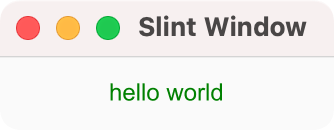
and a window will appear with the green "Hello World" greeting.
Feel free to use your favorite IDE for this purpose.