<p align="center">
<a href="https://crates.io/crates/skim">
<img src="https://img.shields.io/crates/v/skim.svg" alt="Crates.io" />
</a>
<a href="https://github.com/skim-rs/skim/actions?query=workflow%3A%22Build+%26+Test%22+event%3Apush">
<img src="https://github.com/skim-rs/skim/actions/workflows/test.yml/badge.svg?event=push" alt="Build & Test" />
</a>
<a href="https://repology.org/project/skim-fuzzy-finder/versions">
<img src="https://repology.org/badge/tiny-repos/skim-fuzzy-finder.svg" alt="Packaging status" />
</a>
<a href="https://discord.gg/23PuxttufP">
<img alt="Skim Discord" src="https://img.shields.io/discord/1031830957432504361?label=&color=7389d8&labelColor=6a7ec2&logoColor=ffffff&logo=discord" />
</a>
</p>
> Life is short, skim!
Half of our life is spent on navigation: files, lines, commands… You need skim!
It's a general fuzzy finder that saves you time.
[](https://asciinema.org/a/pIfwazaM0mTHA8F7qRbjrqOnm)
skim provides a single executable: `sk`. Anywhere you would want to use
`grep`, try `sk` instead!
# Table of contents
- [Installation](#installation)
* [Package Managers](#package-managers)
* [Manually](#manually)
- [Usage](#usage)
* [As Vim plugin](#as-vim-plugin)
* [As filter](#as-filter)
* [As Interactive Interface](#as-interactive-interface)
* [Key Bindings](#key-bindings)
* [Search Syntax](#search-syntax)
* [exit code](#exit-code)
- [Tools compatible with `skim`](#tools-compatible-with-skim)
* [fzf-lua neovim plugin](#fzf-lua-neovim-plugin)
* [nu_plugin_skim](#nu_plugin_skim)
- [Customization](#customization)
* [Keymap](#keymap)
* [Sort Criteria](#sort-criteria)
* [Color Scheme](#color-scheme)
* [Misc](#misc)
- [Advanced Topics](#advanced-topics)
* [Interactive mode](#interactive-mode)
+ [How does it work?](#how-does-it-work)
* [Executing external programs](#executing-external-programs)
* [Preview Window](#preview-window)
+ [How does it work?](#how-does-it-work-1)
* [Fields support](#fields-support)
* [Use as a library](#use-as-a-library)
- [FAQ](#faq)
* [How to ignore files?](#how-to-ignore-files)
* [Some files are not shown in Vim plugin](#some-files-are-not-shown-in-vim-plugin)
- [Differences from fzf](#differences-from-fzf)
- [How to contribute](#how-to-contribute)
- [Troubleshooting](#troubleshooting)
* [No line feed issues with nix, FreeBSD, termux](#no-line-feed-issues-with-nix-freebsd-termux)
# Installation
The skim project contains several components:
1. `sk` executable -- the core.
2. **DEPRECATED in favor of `sk --tmux`** `sk-tmux` -- script for launching `sk` in a tmux pane.
3. Vim/Nvim plugin -- to call `sk` inside Vim/Nvim. Check [skim.vim](https://github.com/skim-rs/skim/blob/master/plugin/skim.vim) for Vim support.
## Package Managers
| macOS | Homebrew | `brew install sk` |
| macOS | MacPorts | `sudo port install skim` |
| Fedora | dnf | `dnf install skim` |
| Alpine | apk | `apk add skim` |
| Arch | pacman | `pacman -S skim` |
| Gentoo | Portage | `emerge --ask app-misc/skim |
| Guix | guix | `guix install skim` |
| Void | XBPS | `xbps-install -S skim` |
<a href="https://repology.org/project/skim-fuzzy-finder/versions">
<img src="https://repology.org/badge/vertical-allrepos/skim-fuzzy-finder.svg?columns=4" alt="Packaging status">
</a>
## Manually
Any of the following applies:
- Using Git
```sh
$ git clone --depth 1 git@github.com:skim-rs/skim.git ~/.skim
$ ~/.skim/install
```
- Using Binary: directly [download the sk executable](https://github.com/skim-rs/skim/releases).
- Install from [crates.io](https://crates.io/): `cargo install skim`
- Build Manually
```sh
$ git clone --depth 1 git@github.com:skim-rs/skim.git ~/.skim
$ cd ~/.skim
$ cargo install
$ cargo build --release
$ ```
# Usage
skim can be used as a general filter (like `grep`) or as an interactive
interface for invoking commands.
## As Vim plugin
Via vim-plug (recommended):
```vim
Plug 'skim-rs/skim', { 'dir': '~/.skim', 'do': './install' }
```
## As filter
Try the following:
```bash
# directly invoke skim
sk
# or pipe some input to it: (press TAB key to select multiple items with -m enabled)
vim $(find . -name "*.rs" | sk -m)
```
The above command will allow you to select files with ".rs" extension and open
the ones you selected in Vim.
## As Interactive Interface
`skim` can invoke other commands dynamically. Normally you would want to
integrate it with [grep](https://www.gnu.org/software/grep/),
[ack](https://github.com/petdance/ack2),
[ag](https://github.com/ggreer/the_silver_searcher), or
[rg](https://github.com/BurntSushi/ripgrep) for searching contents in a
project directory:
```sh
# works with grep
sk --ansi -i -c 'grep -rI --color=always --line-number "{}" .'
# works with ack
sk --ansi -i -c 'ack --color "{}"'
# works with ag
sk --ansi -i -c 'ag --color "{}"'
# works with rg
sk --ansi -i -c 'rg --color=always --line-number "{}"'
```

## Key Bindings
Some commonly used key bindings:
| Enter | Accept (select current one and quit) |
| ESC/Ctrl-G | Abort |
| Ctrl-P/Up | Move cursor up |
| Ctrl-N/Down | Move cursor Down |
| TAB | Toggle selection and move down (with `-m`) |
| Shift-TAB | Toggle selection and move up (with `-m`) |
For the full list of key bindings, check out the [man
page](https://github.com/skim-rs/skim/blob/master/man/man1/sk.1) (`man sk`).
## Search Syntax
`skim` borrows `fzf`'s syntax for matching items:
| `text` | fuzzy-match | items that match `text` |
| `^music` | prefix-exact-match | items that start with `music` |
| `.mp3$` | suffix-exact-match | items that end with `.mp3` |
| `'wild` | exact-match (quoted) | items that include `wild` |
| `!fire` | inverse-exact-match | items that do not include `fire` |
| `!.mp3$` | inverse-suffix-exact-match | items that do not end with `.mp3` |
`skim` also supports the combination of tokens.
- Whitespace has the meaning of `AND`. With the term `src main`, `skim` will search
for items that match **both** `src` and `main`.
- ` | ` means `OR` (note the spaces around `|`). With the term `.md$ |
.markdown$`, `skim` will search for items ends with either `.md` or
`.markdown`.
- `OR` has higher precedence. So `readme .md$ | .markdown$` is grouped into
`readme AND (.md$ OR .markdown$)`.
In case that you want to use regular expressions, `skim` provides `regex` mode:
```sh
sk --regex
```
You can switch to `regex` mode dynamically by pressing `Ctrl-R` (Rotate Mode).
## exit code
| 0 | Exited normally |
| 1 | No Match found |
| 130 | Aborted by Ctrl-C/Ctrl-G/ESC/etc... |
# Tools compatible with `skim`
These tools are or aim to be compatible with `skim`:
## [fzf-lua neovim plugin](https://github.com/ibhagwan/fzf-lua)
A [neovim](https://neovim.io) plugin allowing fzf and skim to be used in a to navigate your code.
Install it with your package manager, following the README. For instance, with `lazy.nvim`:
```lua
{
"ibhagwan/fzf-lua",
-- enable `sk` support instead of the default `fzf`
opts = {'skim'}
}
```
## [nu_plugin_skim](https://github.com/idanarye/nu_plugin_skim)
A [nushell](https://www.nushell.sh/) plugin to allow for better interaction between skim and nushell.
Following the instruction in the plugin's README, you can install it with cargo:
```nu
cargo install nu_plugin_skim
plugin add ~/.cargo/bin/nu_plugin_skim
```
# Customization
The doc here is only a preview, please check the man page (`man sk`) for a full
list of options.
## Keymap
Specify the bindings with comma separated pairs (no space allowed). For example:
```sh
sk --bind 'alt-a:select-all,alt-d:deselect-all'
```
Additionally, use `+` to concatenate actions, such as `execute-silent(echo {} | pbcopy)+abort`.
See the _KEY BINDINGS_ section of the man page for details.
## Sort Criteria
There are five sort keys for results: `score, index, begin, end, length`. You can
specify how the records are sorted by `sk --tiebreak score,index,-begin` or any
other order you want.
## Color Scheme
It is a high chance that you are a better artist than me. Luckily you won't
be stuck with the default colors - `skim` supports customization of the color scheme.
```sh
--color=[BASE_SCHEME][,COLOR:ANSI]
```
The configuration of colors starts with the name of the base color scheme,
followed by custom color mappings. For example:
```sh
sk --color=current_bg:24
sk --color=light,fg:232,bg:255,current_bg:116,info:27
```
See the `--color` option in the man page for details.
## Misc
- `--ansi`: to parse ANSI color codes (e.g., `\e[32mABC`) of the data source
- `--regex`: use the query as regular expression to match the data source
# Advanced Topics
## Interactive mode
In **interactive mode**, you can invoke a command dynamically. Try it out:
```sh
sk --ansi -i -c 'rg --color=always --line-number "{}"'
```
### How does it work?
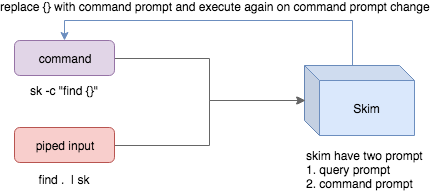
- Skim accepts two kinds of sources: Command output or piped input
- Skim has two kinds of prompts: A query prompt to specify the query pattern and a
command prompt to specify the "arguments" of the command
- `-c` is used to specify the command to execute and defaults to `SKIM_DEFAULT_COMMAND`
- `-i` tells skim to open command prompt on startup, which will show `c>` by default.
If you want to further narrow down the results returned by the command, press
`Ctrl-Q` to toggle interactive mode.
## Executing external programs
You can set up key bindings for starting external processes without leaving skim (`execute`, `execute-silent`).
```sh
# Press F1 to open the file with less without leaving skim
# Press CTRL-Y to copy the line to clipboard and aborts skim (requires pbcopy)
## Preview Window
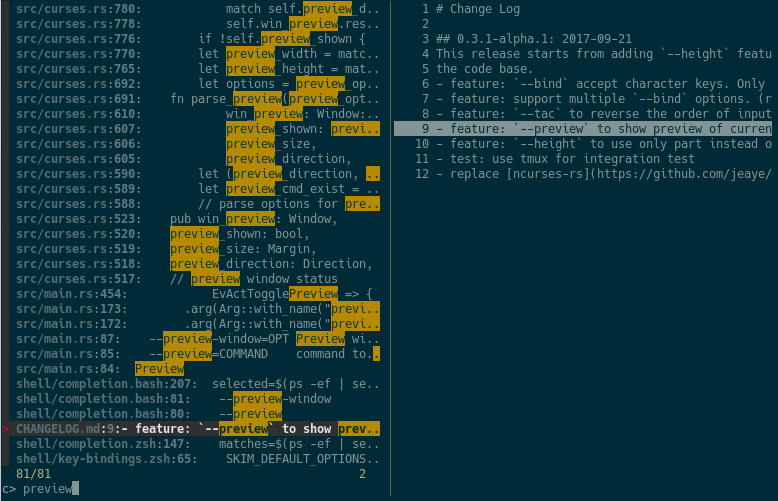
This is a great feature of fzf that skim borrows. For example, we use 'ag' to
find the matched lines, and once we narrow down to the target lines, we want to
finally decide which lines to pick by checking the context around the line.
`grep` and `ag` have the option `--context`, and skim can make use of `--context` for
a better preview window. For example:
```sh
sk --ansi -i -c 'ag --color "{}"' --preview "preview.sh {}"
```
(Note that [preview.sh](https://github.com/junegunn/fzf.vim/blob/master/bin/preview.sh) is a script to print the context given filename:lines:columns)
You get things like this:
### How does it work?
If the preview command is given by the `--preview` option, skim will replace the
`{}` with the current highlighted line surrounded by single quotes, call the
command to get the output, and print the output on the preview window.
Sometimes you don't need the whole line for invoking the command. In this case
you can use `{}`, `{1..}`, `{..3}` or `{1..5}` to select the fields. The
syntax is explained in the section [Fields Support](#filds-support).
Lastly, you might want to configure the position of preview window with `--preview-window`:
- `--preview-window up:30%` to put the window in the up position with height
30% of the total height of skim.
- `--preview-window left:10:wrap` to specify the `wrap` allows the preview
window to wrap the output of the preview command.
- `--preview-window wrap:hidden` to hide the preview window at startup, later
it can be shown by the action `toggle-preview`.
## Fields support
Normally only plugin users need to understand this.
For example, you have the data source with the format:
```sh
<filename>:<line number>:<column number>
```
However, you want to search `<filename>` only when typing in queries. That
means when you type `21`, you want to find a `<filename>` that contains `21`,
but not matching line number or column number.
You can use `sk --delimiter ':' --nth 1` to achieve this.
You can also use `--with-nth` to re-arrange the order of fields.
**Range Syntax**
- `<num>` -- to specify the `num`-th fields, starting with 1.
- `start..` -- starting from the `start`-th fields and the rest.
- `..end` -- starting from the `0`-th field, all the way to `end`-th field,
including `end`.
- `start..end` -- starting from `start`-th field, all the way to `end`-th
field, including `end`.
## Use as a library
Skim can be used as a library in your Rust crates.
First, add skim into your `Cargo.toml`:
```toml
[dependencies]
skim = "*"
```
Then try to run this simple example:
```rust
extern crate skim;
use skim::prelude::*;
use std::io::Cursor;
pub fn main() {
let options = SkimOptionsBuilder::default()
.height(Some("50%"))
.multi(true)
.build()
.unwrap();
let input = "aaaaa\nbbbb\nccc".to_string();
// `SkimItemReader` is a helper to turn any `BufRead` into a stream of `SkimItem`
// `SkimItem` was implemented for `AsRef<str>` by default
let item_reader = SkimItemReader::default();
let items = item_reader.of_bufread(Cursor::new(input));
// `run_with` would read and show items from the stream
let selected_items = Skim::run_with(&options, Some(items))
.map(|out| out.selected_items)
.unwrap_or_else(|| Vec::new());
for item in selected_items.iter() {
print!("{}{}", item.output(), "\n");
}
}
```
Given an `Option<SkimItemReceiver>`, skim will read items accordingly, do its
job and bring us back the user selection including the selected items, the
query, etc. Note that:
- `SkimItemReceiver` is `crossbeam::channel::Receiver<Arc<dyn SkimItem>>`
- If it is none, it will invoke the given command and read items from command output
- Otherwise, it will read the items from the (crossbeam) channel.
Trait `SkimItem` is provided to customize how a line could be displayed,
compared and previewed. It is implemented by default for `AsRef<str>`
Plus, `SkimItemReader` is a helper to convert a `BufRead` into
`SkimItemReceiver` (we can easily turn a `File` or `String` into `BufRead`),
so that you could deal with strings or files easily.
Check out more examples under the [examples/](https://github.com/skim-rs/skim/tree/master/skim/examples) directory.
# FAQ
## How to ignore files?
Skim invokes `find .` to fetch a list of files for filtering. You can override
that by setting the environment variable `SKIM_DEFAULT_COMMAND`. For example:
```sh
```
You could put it in your `.bashrc` or `.zshrc` if you like it to be default.
## Some files are not shown in Vim plugin
If you use the Vim plugin and execute the `:SK` command, you might find some
of your files not shown.
As described in [#3](https://github.com/skim-rs/skim/issues/3), in the Vim
plugin, `SKIM_DEFAULT_COMMAND` is set to the command by default:
```vim
That means, the files not recognized by git will not shown. Either override the
default with `let $SKIM_DEFAULT_COMMAND = ''` or find the missing file by
yourself.
# Differences from fzf
[fzf](https://github.com/junegunn/fzf) is a command-line fuzzy finder written
in Go and [skim](https://github.com/skim-rs/skim) tries to implement a new one
in Rust!
This project is written from scratch. Some decisions of implementation are
different from fzf. For example:
1. `skim` is a binary as well as a library while fzf is only a binary.
2. `skim` has an interactive mode.
3. `skim` supports pre-selection
4. The fuzzy search algorithm is different.
5. ~~UI of showing matched items. `fzf` will show only the range matched while
`skim` will show each character matched.~~ (fzf has this now)
6. ~~`skim`'s range syntax is Git style~~: now it is the same with fzf.
# How to contribute
[Create new issues](https://github.com/skim-rs/skim/issues/new) if you encounter any bugs
or have any ideas. Pull requests are warmly welcomed.
# Troubleshooting
## No line feed issues with nix, FreeBSD, termux
If you encounter display issues like:
```bash
```
For example
- https://github.com/skim-rs/skim/issues/412
- https://github.com/skim-rs/skim/issues/455
You need to set TERMINFO or TERMINFO_DIRS to the path of a correct terminfo database path
For example, with termux, you can add this in your bashrc:
```
export TERMINFO=/data/data/com.termux/files/usr/share/terminfo
```