# Visualizer
The visualizer is a tool to better understand your workloads.
## Setup
You can follow along using the `square_eater` example by directly going to the [visualizer page](https://leudz.github.io/shipyard/visualizer) and clicking on "Example".
For your own workloads, you'll need to create a `.json` file containing all workloads you want to inspect.\
You'll need the `serde1` feature on `shipyard` and `serde_json` as a dependency.\
Then you can run this snippet after the workloads have been added to the `World`.
```rust
// Add your workloads to the World anywhere before
std::fs::write(
"drop_me.json",
serde_json::to_string(&world.workloads_info()).unwrap(),
)
.unwrap();
```
Simply drag and drop the generated `.json` file to the [visualizer page](https://leudz.github.io/shipyard/visualizer).
### Workload selection
Workloads are selected at the top left of the page when you have more than one.

## Access Info
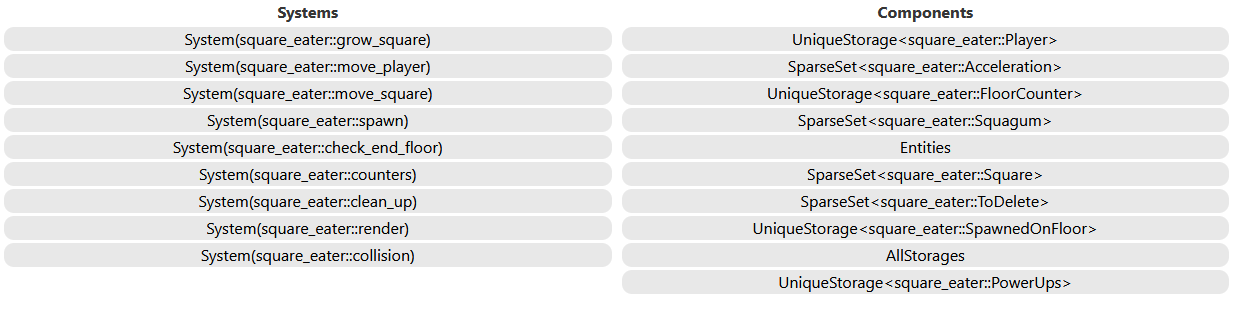
This first panel lists all systems and components present in the selected workload.\
For the `square_eater` example this would be this list:
### System
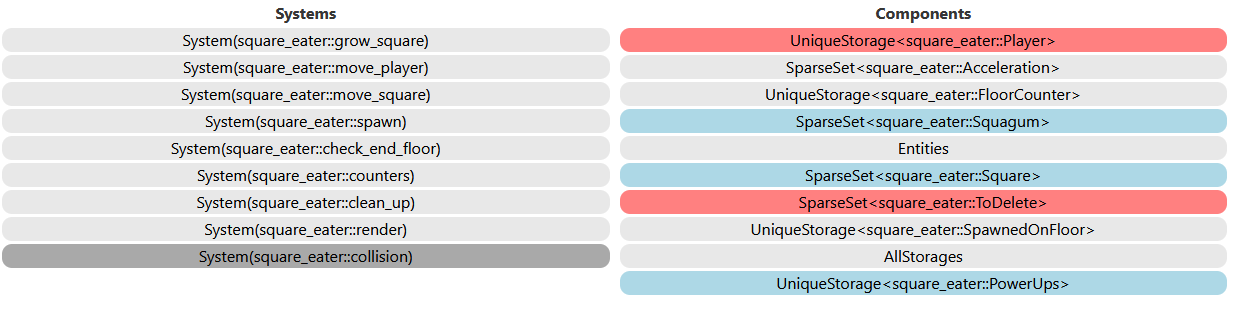
Clicking on a system highlights the components it borrows.\
In red the exclusive access, in blue the shared ones.
### Component
The same can be done on components to highlight all systems that borrow them.

Both of these features can be used to identify forced sequential access.\
For example `AllStorages` prevents parallelism, maybe some systems borrowing it could instead borrow individual storages.
## Editor
This second panel presents the different batches that compose the workload.\
A batch is a list of systems that will attempt to run in parallel when executed.\
There is no ordering within a batch.
### Implicit ordering
When a system isn't ordered manually, the scheduler will use the source code as reference in addition to the storages borrowed to create an order.\
For example, `square_eater` defines its systems like this:
```rust
(
counters,
move_player,
move_square,
grow_square,
spawn,
collision,
clean_up,
check_end_floor.into_workload_try_system().unwrap(),
render,
)
.into_workload()
```
No manual ordering, so the scheduler will try a top to bottom order.\
Sadly, no parallelism can happen in this workload. Each system is assigned a different batch.
You can inspect which type made a system part of a different batch by hovering the red link between systems.\
In the case of `counters` and `move_player`, we can see that they both borrow `Player` exclusively.

### Manual ordering
Using `tag`, `before_all` or `after_all` functions allow us to exit the source code ordering.\
For this example, we'll slightly modify the `square_eater` workload:
```rust
(
counters,
move_player,
move_square,
grow_square.after_all(move_square).before_all(collision),
spawn.after_all(move_square).before_all(collision),
collision,
clean_up,
check_end_floor.into_workload_try_system().unwrap(),
render,
)
.into_workload()
```
This modification doesn't affect the order, we simply force `grow_square` and `spawn` to be between `move_square` and `collision`.\
It may not change the end result, but the constraints between the systems changed.

If we inspect one of the green link, we find the same information we just added.
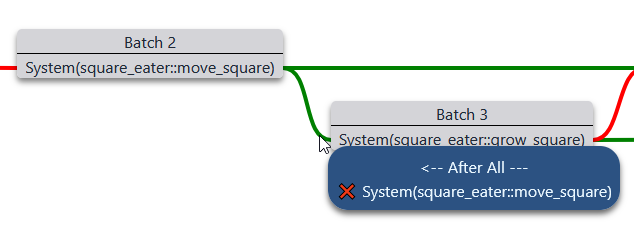
You may also have noticed a red line in the middle.\
Using manual ordering doesn't opt out of storage access check (as it could lead to UB).

### Controls
Controls are available at the bottom right of the page.

The slider is the zoom level, it can also be changed with the mouse wheel (without any modifier key).