<div align="center">
<h1>Shellshot</h1>
[](https://crates.io/crates/shellshot)
[](https://github.com/lhenry-dev/shellshot/actions/workflows/ci.yml?branch=main)
[](https://deps.rs/repo/github/lhenry-dev/shellshot)
[](https://docs.rs/shellshot)
[](https://crates.io/crates/shellshot)
[](https://github.com/rust-lang/rust/releases/tag/1.85.1)
[](https://codecov.io/gh/lhenry-dev/shellshot)
---
**Transform your command-line output into clean, shareable images with a single command.**
</div>
`Shellshot` is a fast, cross-platform tool written in Rust that captures terminal sessions and transforms them into polished screenshots. Perfect for documentation, presentations, social media, or showcasing terminal workflows.
## Features
- **Beautiful Rendering**: High-quality image generation with customizable window decorations
- **ANSI Support**: Correctly renders ANSI colors, styles, and formatting.
- **Clipboard Integration**: Copy screenshots directly to your clipboard with one flag
- **Command Execution**: Execute commands and capture their output automatically
- **Customizable**: Adjust window decorations, colors, padding, and output filename.
- **Cross-Platform**: Works on Windows and Linux
## Installation
```bash
cargo install shellshot
```
## Usage Examples
### Basic Usage
```bash
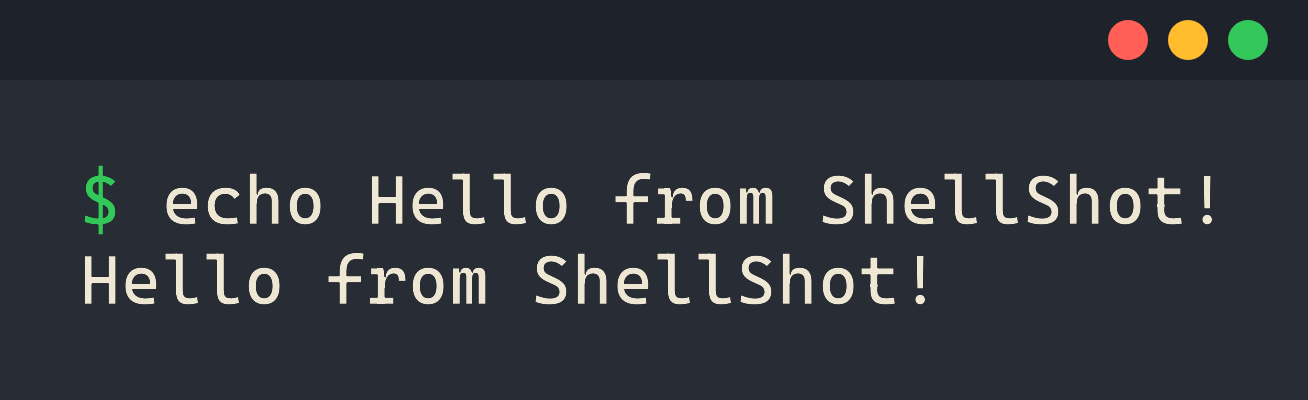
shellshot echo "Hello from ShellShot!"
```
This will execute the command, capture its output, and generate an image file named `out.png` in the current directory.
```bash
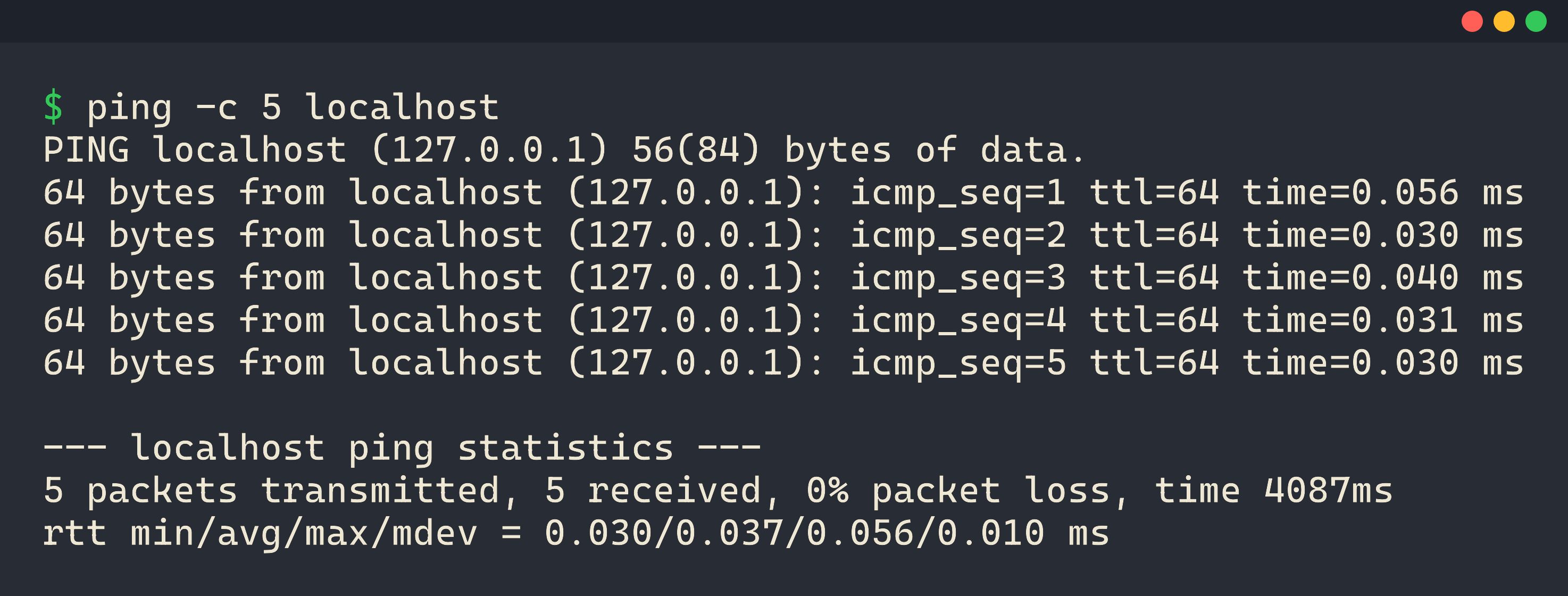
shellshot ping -c 5 localhost
```
### Command Options
#### `--no-decoration`
Remove window decorations (title bar and control buttons):
```bash
shellshot --no-decoration echo "Hello, World!"
```
#### `--decoration <style>` / `-d`
Specify the decoration style (default: `classic`):
```bash
shellshot --decoration classic ls -la
```
#### `--filename` / `-f`
Specify a custom output filename:
```bash
shellshot --filename my-screenshot.png cargo build
shellshot --filename screenshots/build.png cargo test
```
#### `--clipboard`
Copy the screenshot directly to your clipboard:
```bash
shellshot --clipboard git status
```
### Examples
```bash
shellshot echo "Hello, Shellshot!"
shellshot --decoration classic ls --color=always
shellshot --filename docs/example.png cargo --version
shellshot --clipboard git log --oneline -5
shellshot --no-decoration python --version
```
## Known Issues
- Shellshot uses Rust’s standard library `Command` to capture command output. This means the output might not exactly match what you would see in a real terminal.
- On **Windows**, the captured command output may have **decoding issues with accented or special characters** because `cmd.exe` does not use UTF-8 by default.
- `std::process::Command` is **not compatible with shell pipelines or redirections** (e.g., `ls | grep txt` will not work as expected). You would need to run a shell explicitly to handle these.
- Some commands that rely on interactive terminal features may not display correctly in the generated images.
- Not all ANSI codes are fully implemented, so some complex formatting, colors, or cursor movements may not render perfectly.