
# Shellcaster
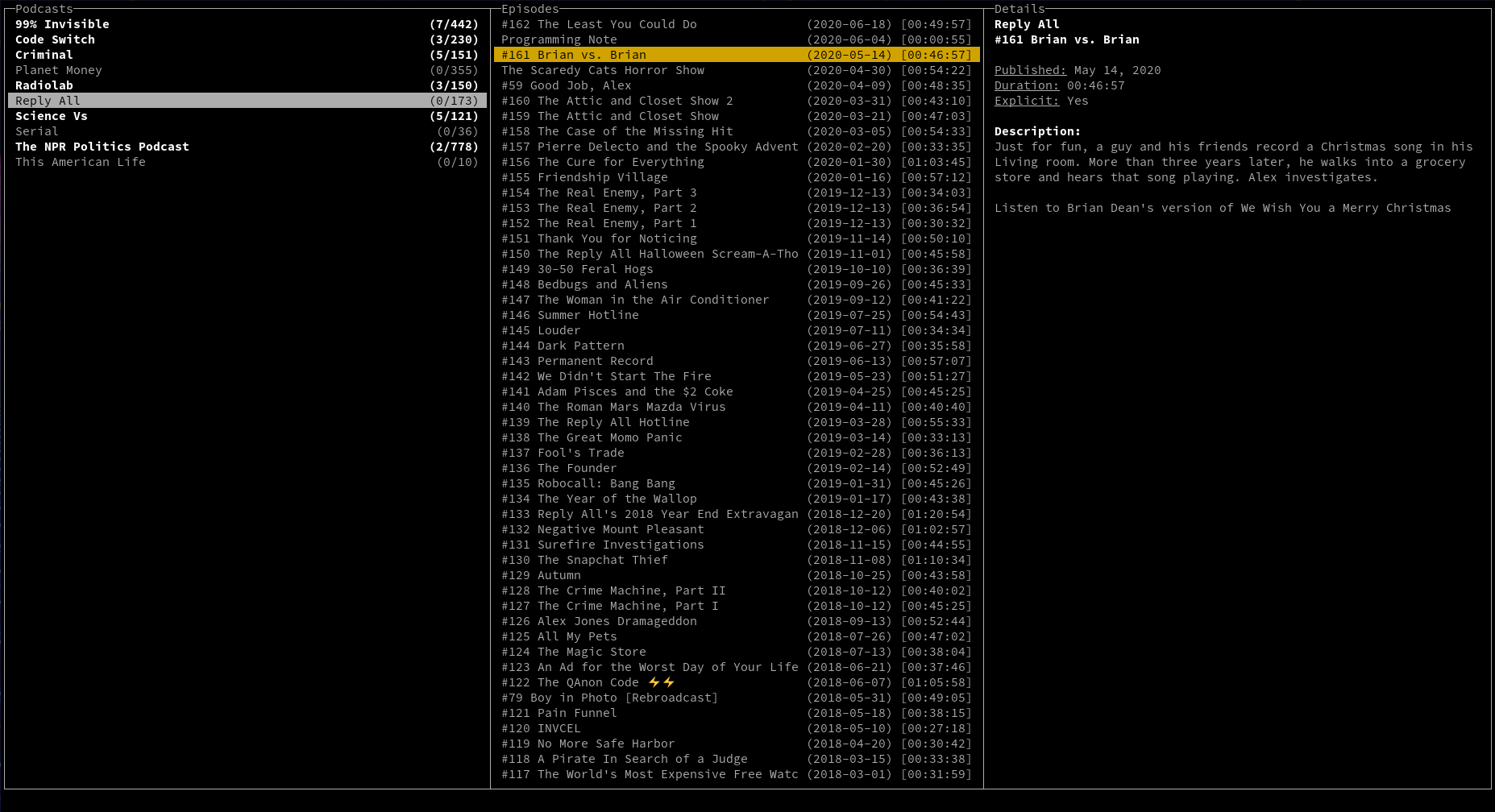
Shellcaster is a terminal-based podcast manager, built in Rust. It provides a terminal UI (i.e., ncurses) to allow users to subscribe to podcast feeds, and sync feeds to check for new episodes. Episodes may be downloaded locally, played (with an external media player, at least for now), and marked as played/unplayed. Keybindings and other options are configurable via a config file.
## Installing shellcaster
### On Arch Linux
There are packages available for shellcaster in the Arch User Repository (AUR). Use `makepkg -si` ([see further details](https://wiki.archlinux.org/index.php/Arch_User_Repository#Installing_and_upgrading_packages)) or your favourite AUR helper program to install one of the following packages:
* [Stable source package](https://aur.archlinux.org/packages/shellcaster/)
* [Stable binary package](https://aur.archlinux.org/packages/shellcaster-bin/)
* [Latest development package](https://aur.archlinux.org/packages/shellcaster-git/)
### On other Linux distributions and MacOS
Currently the only option is to build from source.
First, ensure you have installed the necessary dependencies:
* rust
* gcc
* libncurses-dev
* pkg-config
* libsqlite3-dev
* libssl-dev (not needed on MacOS)
**Notes:**
* The names of these dependencies may be slightly different for your system. For `libncurses-dev`, `libssl-dev`, and `libsqlite3-dev`, you are looking for the development headers for ncurses, OpenSSL, and SQLite, which may be separate from the runtime package (e.g., with a `-dev` suffix).
* If you turn off the "native-tls" feature of shellcaster (enabled by default), `libssl-dev` is not necessary.
* If you select the "sqlite-bundled" feature of shellcaster (disabled by default), `pkg-config` and `libsqlite3-dev` are not necessary.
Next, there are two options for compiling the program:
1. You can install the latest version of the binary directly from crates.io with one command:
```bash
cargo install shellcaster --path "/usr/local" # add or remove any features with --features
```
2. You can clone the Github repo and compile it yourself:
```bash
git clone https://github.com/jeff-hughes/shellcaster.git
cd shellcaster
cargo build --release # add or remove any features with --features
sudo cp target/release/shellcaster /usr/local/bin/
```
See below for the list of available features when compiling.
### On Windows
Shellcaster is **not currently supported on Windows**, although some work has been done to try to get it working. Unicode support is weak, however, and there are issues when resizing the screen. You *might* have better luck using the new Windows Terminal and building with the `win32` feature enabled, but this has not been tested. If you are a Windows user and want to help work out the bugs, pull requests are more than welcome!
### List of compile features
By default, `native-tls` and `wide` features are enabled. Here is the full list of features:
* `sqlite_bundled`: When disabled, Rust will try to link shellcaster with SQLite header files already present on your system. If enabled, Rust will instead build SQLite from source and bundle the program with shellcaster. Bundling results in a larger application size, but may be suitable if you wish to use a different version of SQLite than the one on your system, or if you are on a system where installing SQLite is more difficult.
* `native-tls`/`rustls`: The `native-tls` enables TLS (i.e., URLs with https) support through the [native-tls](https://crates.io/crates/native-tls) crate, which uses OpenSSL on Linux, Secure Transport on MacOS, and SChannel on Windows. If this causes issues for some podcast feeds, you can try building it with the `rustls` feature instead, which uses the [rustls](https://crates.io/crates/rustls) crate. Note that one of these two features *must* be selected, otherwise you will not be able to sync any feeds or download any episodes originating from an https URL!
* `wide`: Enables support for "wide" characters (i.e., Unicode) on Linux/Mac systems. Generally preferable unless you have a terminal that does not have wide character support.
* `win32`: For Windows systems, shellcaster uses [PDCurses](https://github.com/Bill-Gray/PDCurses), which has two different "flavours": win32, and win32a. win32a is the default as it generally has better support for colours and text effects, but enabling this feature will use the win32 flavour instead.
To specify different features when compiling, here is the format:
```bash
cargo install --no-default-features --features "<feature1>,<feature2>" --root "/usr/local"
```
The format is the same when using `cargo build` instead:
```bash
cargo build --release --no-default-features --features "<feature1>,<feature2>"
sudo cp target/release/shellcaster /usr/local/bin/
```
## Running shellcaster
Easy peasy! In your terminal, run:
```bash
shellcaster
```
Note that if you installed shellcaster to a different location, ensure that this location has been added to your `$PATH`:
```bash
export PATH="/path/to/add:$PATH"
```
## Configuring shellcaster
If you want to change configuration settings, the sample `config.toml` file can be copied from [here](https://raw.githubusercontent.com/jeff-hughes/shellcaster/master/config.toml). Download it, edit it to your fancy, and place it in the following location:
```bash
# on Linux
mkdir -p ~/.config/shellcaster
cp config.toml ~/.config/shellcaster/
# on MacOS
mkdir -p ~/Library/Preferences/shellcaster
cp config.toml ~/Library/Preferences/shellcaster/
```
Or you can put `config.toml` in a place of your choosing, and specify the location at runtime:
```bash
shellcaster -c /path/to/config.toml
```
The sample file above provides comments that should walk you through all the available options. If any field does not appear in the config file, it will be filled in with the default value specified in those comments. The defaults are also listed below, for convenience.
### Configuration options
**download_path**:
* Specifies where podcast episodes that are downloaded will be stored.
* Defaults:
* On Linux: $XDG_DATA_HOME/shellcaster/ or $HOME/.local/share/shellcaster/
* On Mac: $HOME/Library/Application Support/shellcaster/
* On Windows: C:\Users\\**username**\AppData\Local\shellcaster\
**play_command**:
* Command used to play episodes. Use "%s" to indicate where file/URL will be entered to the command. Note that shellcaster does *not* include a native media player, so it simply passes the file path/URL to the given command with no further checking as to its success or failure.
* Default: "vlc %s"
**simultaneous_downloads**:
* Maximum number of files to download simultaneously. Setting this too high could result in network requests being denied. A good general guide would be to set this to the number of processor cores on your computer.
* Default: 3
**max_retries**:
* Maximum number of times to retry connecting to a URL to sync a podcast or download an episode.
* Default: 3
#### Default keybindings
| Key | Action |
| ------- | -------------- |
| Arrow keys / h,j,k,l | Navigate menus |
| a | Add new feed |
| q | Quit program |
| s | Synchronize selected feed |
| Shift+S | Synchronize all feeds |
| Enter / p | Play selected episode |
| m | Mark selected episode as played/unplayed |
| Shift+M | Mark all episodes as played/unplayed |
| d | Download selected episode |
| Shift+D | Download all episodes |
| x | Delete downloaded file |
| Shift+X | Delete all downloaded files |
| r | Remove selected feed/episode from list |
| Shift+R | Remove all feeds/episodes from list |
**Note:** Actions can be mapped to more than one key (e.g., "Enter" and "p" both play an episode), but a single key may not do more than one action (e.g., you can't set "d" to both download and delete episodes).
## Contributing
Contributions from others are welcome! If you wish to contribute, feel free to clone the repo and submit pull requests. **Please ensure you are on the `develop` branch when making your edits**, as this is where the continued development of the app is taking place. Pull requests will only be merged to the `develop` branch, so you can help to avoid merge conflicts by doing your work on that branch in the first place.
## Why "shellcaster"?
I was trying to come up with a play on the word "podcast", and I liked the use of the word "shell" for several reasons. "Shell" is a synonym for the word "pod". The terminal is also referred to as a shell (and shellcaster is a terminal-based program). In addition, the program is built on Rust, whose mascot is Ferris the crab. Finally, I just personally enjoy that "shellcaster" sounds a lot like "spellcaster", so you can feel like a wizard when you use the program...