# <img src="assets/satty.svg" height="42"> Satty: Modern Screenshot Annotation.
Satty is a screenshot annotation tool inspired by [Swappy](https://github.com/jtheoof/swappy) and [Flameshot](https://flameshot.org/).
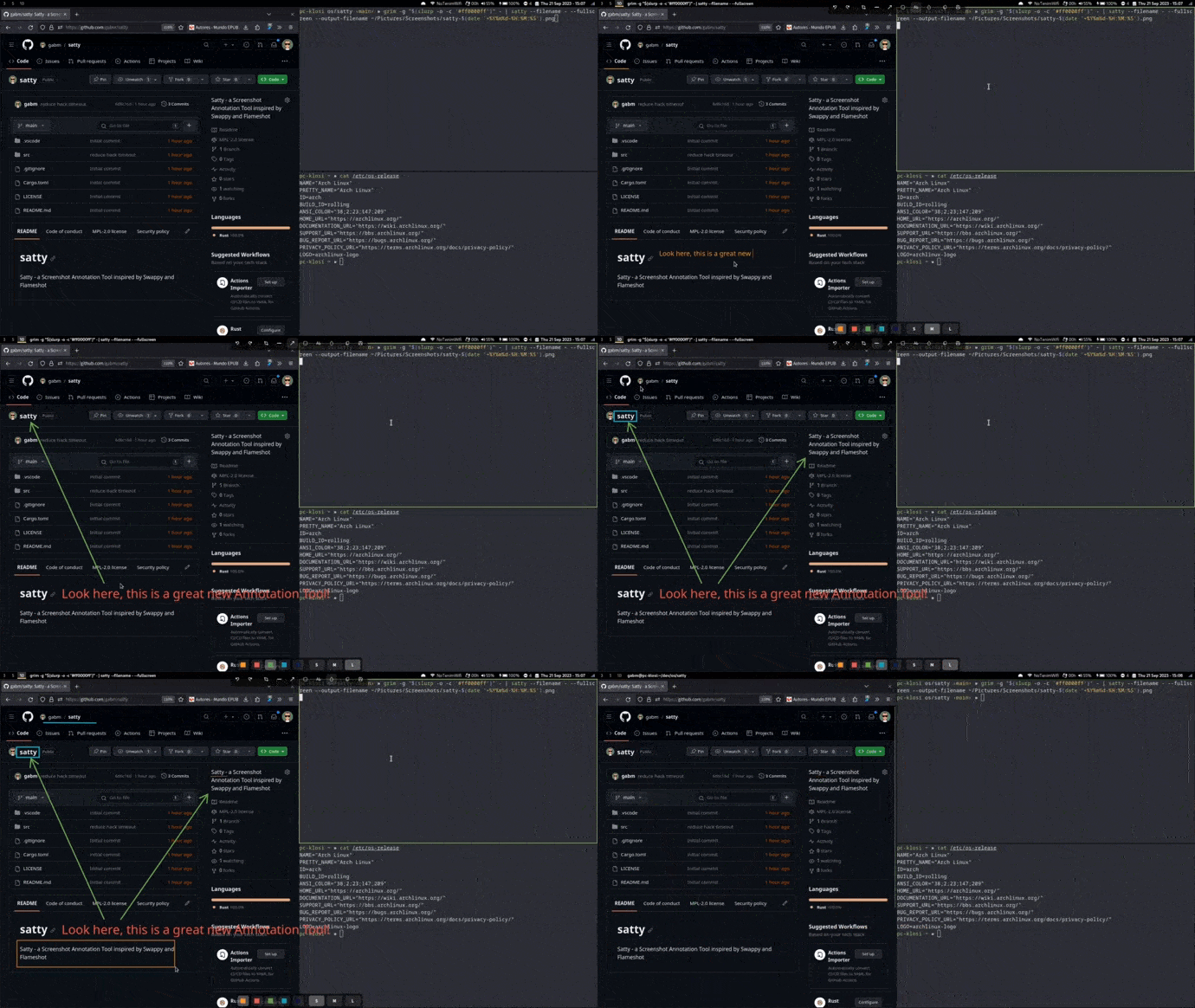
Satty has been created to provide the following improvements over existing screenshot annotation tools:
- very simple and easy to understand toolset (like Swappy)
- fullscreen annotation mode and post shot cropping (like Flameshot)
- extremely smooth rendering thanks to HW acceleration (OpenGL)
- working on wlroots based compositors (Sway, Hyprland, River, ...)
- minimal, modern looking UI, thanks to GTK and Adwaita
- be a playground for new features (post window selection, post paint editing, ...)
## Install
Thanks to our package maintainers, Satty is available for many distributions on Linux and BSD:
[](https://repology.org/project/satty/versions)
### Specifics
| Gentoo | `emerge -av satty` | You need guru overlay (see [wiki](https://github.com/gabm/Satty/wiki/Gentoo-Guru)). Pending [PR](https://github.com/gentoo/gentoo/pull/33908) |
| Alpine Linux | `apk add satty` | Available in [Alpine Community](https://pkgs.alpinelinux.org/packages?name=satty&branch=edge&repo=&arch=&maintainer=) |
### Cargo
You can install satty via `cargo install satty` and `cargo binstall satty`, the latter requires [cargo-binstall](https://crates.io/crates/cargo-binstall). In that case, no manpage, LICENSE file, .Desktop file are available. But you can use the `--man` and `--license` arguments to display either.
`cargo install` and `cargo binstall` methods install satty to `$HOME/.cargo/bin`. Using rustup and/or installing distribution packages for the Rust toolchain should normally add this to the user's path. How environment variables such as path are set depends on shell, distribution, compositor/desktop environment etc. It's not really possible to anticipate every possible combination from an application perspective.
### Prebuilt Sources
You can download a prebuilt binary for x86-64 on the [Satty Releases](https://github.com/gabm/satty/releases) page.
## Usage
Start by providing a filename or a screenshot via stdin and annotate using the available tools. Save to clipboard or file when finished. Tools and Interface have been kept simple.
All configuration is done either at the config file in `XDG_CONFIG_DIR/.config/satty/config.toml` or via the command line interface. In case both are specified, the command line options always override the configuration file.
### Shortcuts
- <kbd>Enter</kbd>: as configured (see below), default: copy-to-clipboard (may be masked by active tool)
- <kbd>Esc</kbd>: as configured (see below), default: exit (may be masked by active tool)
- <kbd>Delete</kbd> reset (clear) <sup>experimental</sup> <sup>0.20.1</sup>
- <kbd>Ctrl+C</kbd>: Save to clipboard (may be masked by active tool)
- <kbd>Ctrl+Shift+D</kbd> or <kbd>Ctrl+Shift+I</kbd>: Open GTK inspector if not already opened
- <kbd>Ctrl+S</kbd>: Save to specified output file
- <kbd>Ctrl+Shift+S</kbd>: Save using file dialog <sup>0.20.0</sup>. The dialog uses `output-filename` as initial filename/path when available and remembers the last selected folder. <sup>0.21.0</sup>
- <kbd>Ctrl+Alt+C</kbd>: Copy last saved filepath to clipboard <sup>0.20.1</sup>
- <kbd>Ctrl+T</kbd>: Toggle toolbars
- <kbd>Ctrl+Y</kbd>: Redo
- <kbd>Ctrl+Z</kbd>: Undo
- <kbd>Alt</kbd>+(<kbd>Left</kbd>/<kbd>Right</kbd>/<kbd>Up</kbd>/<kbd>Down</kbd>): Pan, also available with middle mouse button drag <sup>0.20.1</sup>
Mouse:
- <kbd>Ctrl+Wheel</kbd>: Zoom in/out <sup>0.22.0</sup>
- <kbd>Middle</kbd>: Pan
Touchpad: <sup>0.22.0</sup>
- <kbd>Pinch</kbd>: Zoom (two finger)
- <kbd>Ctrl+Scroll</kbd>: Zoom in/out (two finger scroll)
- <kbd>Scroll</kbd>: Pan (two finger scroll)
#### Color Selection Shortcuts <sup>0.20.1</sup>
<kbd>1</kbd>, <kbd>2</kbd>, <kbd>3</kbd>, …, <kbd>9</kbd>, <kbd>0</kbd> — select nth color from the color palette
If out of range select custom color <sup>0.21.0</sup>
#### Size Selection <sup>0.22.0</sup>
In the bottom toolbar the size can be edited directly or by + and - buttons.
Minimum is 0.1 and maximum to 99.99.
The bindings are:
- Mouse <kbd>left-button</kbd>, <kbd>wheel</kbd> and key <kbd>up</kbd>/<kbd>down</kbd> step size is 0.1
- Holding <kbd>Shift</kbd> will switch to 0.01 step size
- Holding <kbd>Ctrl</kbd> will switch to 1.0 step size
- Mouse <kbd>middle-button</kbd> and <kbd>page up</kbd>/<kbd>page down</kbd> step size is 1.0
- Mouse <kbd>right-button</kbd> jumps to minimum/maximum
#### Tool Selection Shortcuts (configurable) <sup>0.20.0</sup>
Default single-key shortcuts:
- <kbd>p</kbd>: Pointer tool
- <kbd>c</kbd>: Crop tool
- <kbd>b</kbd>: Brush tool
- <kbd>i</kbd>: Line tool
- <kbd>z</kbd>: Arrow tool
- <kbd>r</kbd>: Rectangle tool
- <kbd>e</kbd>: Ellipse tool
- <kbd>t</kbd>: Text tool
- <kbd>m</kbd>: Numbered Marker tool
- <kbd>u</kbd>: Blur tool
- <kbd>g</kbd>: Highlight tool
### Tool Modifiers and Keys
Crop:
- Press <kbd>Esc</kbd> or <kbd>Ctrl</kbd>+right mouse<sup>0.22.0</sup> <sup>experimental</sup> button while editing to reset crop altogether <sup>0.21.0</sup>.
- Press <kbd>Enter</kbd> or <kbd>Ctrl</kbd>+left mouse<sup>0.22.0</sup> <sup>experimental</sup> while editing to finish editing crop and keep the crop area active <sup>0.21.0</sup>.
- Left click crop area when tool is active but not editing to resume editing<sup>0.21.0</sup>.
Arrow and line:
- <kbd>Shift</kbd> to make tool snap to 15° steps.
Rectangle, ellipse, blur <sup>0.22.0</sup> and highlight block mode<sup>0.22.0</sup>:
- <kbd>Alt</kbd> to center the tool around origin.
- <kbd>Shift</kbd> to make width and high uniform - results in square resp. circle.
- Hold both to combine them.
Text:
- Press <kbd>Shift+Enter</kbd> to insert line break.
- Combine <kbd>Ctrl</kbd> with <kbd>Left</kbd> or <kbd>Right</kbd> for word jump or <kbd>Ctrl</kbd> with <kbd>Backspace</kbd> or <kbd>Delete</kbd> for word delete.
- Press <kbd>Enter</kbd> or switch to another tool to accept input, press <kbd>Escape</kbd> to discard entered text.
- <kbd>Home</kbd> and <kbd>End</kbd> go to the start/end of current line or previous/next line if already on first/last character of line (automatic wrapping is not considered for this). <kbd>Ctrl</kbd> with <kbd>Home</kbd>/<kbd>End</kbd> jumps to start/end of text buffer.
- <kbd>Up</kbd> or <kbd>Down</kbd> to jump to previous/next line (if already on first/last line, it jumps to the start/end of text buffer). <sup>0.20.1</sup>
- Combine <kbd>Shift</kbd> with other keys to select text (e.g. `Shift+Home` to select from start of line to cursor, <kbd>Shift+Left</kbd> to select characters before cursor, <kbd>Ctrl+Shift+Left</kbd> to select words before cursor,and so on) <sup>0.20.1</sup>
- <kbd>Double-click </kbd> to select word under cursor.Triple-click to select all text. <sup>0.20.1</sup>
- <kbd>Ctrl+A</kbd> to select all text. <sup>0.20.1</sup>
- <kbd>Ctrl+C</kbd> to copy selected text to clipboard. <sup>0.20.1</sup>
- <kbd>Ctrl+X</kbd> to cut selected text to clipboard. <sup>0.20.1</sup>
- <kbd>Ctrl+V</kbd> to paste text from clipboard. <sup>0.20.1</sup>
- <kbd>Alt+Ctrl</kbd> with <kbd>Left</kbd> or <kbd>Right</kbd> or <kbd>Up</kbd> or <kbd>Down</kbd> to move the text. Use <kbd>Alt+Ctrl+Shift</kbd> with arrow keys to nudge the text. <sup>0.20.1</sup>
- Press <kbd>Alt</kbd> to cycle the text effect: none → inverted outline → contrast outline (black/white) → drop shadow. <sup>experimental</sup> <sup>0.22.0</sup>
Marker:
- Hold <kbd>Alt</kbd> to get extra ring. <sup>0.22.0</sup>
Highlight:
- Hold <kbd>Ctrl</kbd> to switch between block and freehand mode (default configurable, see below).
- Hold <kbd>Shift</kbd> in freehand mode for a straight 15° aligned line. Stop at some position and release and hold <kbd>Shift</kbd> again to achieve perfectly aligned turns.
### Configuration File
```toml
# Satty Configuration file
[general]
# Start Satty in fullscreen mode
fullscreen = false
# fullscreen = true
# since 0.20.1, this can be written like below. Current is just the current screen, all is all screens. This may depend on the compositor.
#fullscreen = "all"
#fullscreen = "current-screen"
# resize initially (0.20.1)
resize = { mode = "smart" }
# resize = { mode = "size", width = 2000, height = 800 }
# try to have the window float (0.20.1). This may depend on the compositor.
floating-hack = true
# Change to true to automatically copy to clipboard after every annotation change (0.21.0)
auto-copy = false
# Exit directly after copy/save action. 0.21.0: change to list of triggers
# Note that exit-early-save-as was removed with 0.21.0.
early-exit = ["all"]
# is equivalent to both
# early-exit = ["copy", "save", "save-as"]
# early-exit = true
# Draw corners of rectangles round if the value is greater than 0 (0 disables rounded corners)
corner-roundness = 12
# Select the tool on startup [possible values: pointer, crop, line, arrow, rectangle, text, marker, blur, brush]
initial-tool = "brush"
# Configure the command to be called on copy, for example `wl-copy`
copy-command = "wl-copy"
# Increase or decrease the size of the annotations
annotation-size-factor = 2
# Filename to use for saving action. Omit to disable saving to file. Might contain format specifiers: https://docs.rs/chrono/latest/chrono/format/strftime/index.html
# starting with 0.20.0, can contain leading tilde (~) for home directory
# starting with 0.21.0, save as uses this as initial filename/path when available
output-filename = "/tmp/test-%Y-%m-%d_%H:%M:%S.png"
# After copying the screenshot, save it to a file as well
save-after-copy = false
# Hide toolbars by default
default-hide-toolbars = false
# Experimental (since 0.20.0): whether window focus shows/hides toolbars. This does not affect initial state of toolbars, see default-hide-toolbars.
focus-toggles-toolbars = false
# Fill shapes by default (since 0.20.0)
default-fill-shapes = false
# Round caps for arrow and line tools
default-round-caps = true
# The primary highlighter to use, the other is accessible by holding CTRL at the start of a highlight [possible values: block, freehand]
primary-highlighter = "block"
# Disable notifications
disable-notifications = false
# Actions to trigger on right click (order is important)
# [possible values: save-to-clipboard, save-to-file, save-to-file-as, copy-filepath-to-clipboard, exit]
actions-on-right-click = []
# Actions to trigger on Enter key (order is important)
# [possible values: save-to-clipboard, save-to-file, save-to-file-as, copy-filepath-to-clipboard, exit]
actions-on-enter = ["save-to-clipboard"]
# Actions to trigger on Escape key (order is important)
# [possible values: save-to-clipboard, save-to-file, save-to-file-as, copy-filepath-to-clipboard, exit]
actions-on-escape = ["exit"]
# Action to perform when the Enter key is pressed [possible values: save-to-clipboard, save-to-file]
# Deprecated: use actions-on-enter instead
action-on-enter = "save-to-clipboard"
# Right click to copy
# Deprecated: use actions-on-right-click instead
right-click-copy = false
# request no window decoration. Please note that the compositor has the final say in this. At this point. requires xdg-decoration-unstable-v1.
no-window-decoration = true
# experimental feature: adjust history size for brush input smoothing (0: disabled, default: 0, try e.g. 5 or 10)
brush-smooth-history-size = 10
# experimental feature (0.20.1): The pan step size to use when panning with arrow keys.
pan-step-size = 50.0
# experimental feature (0.20.1): The zoom factor to use for the image.
# 1.0 means no zooming.
zoom-factor = 1.1
# experimental feature (0.20.1): The length to move the text when using arrow keys. defaults to 50.0
text-move-length = 50.0
# experimental feature (0.20.1): Scale factor on the input image when it was taken (e.g. DPI scale on the monitor it was recorded from).
# This may be more useful to set via the command line.
# Note, before 0.21.0 this is ignored with explicit resize.
input-scale = 1.0
# experimental feature (0.21.0): set window title
title = "Satty"
# experimental feature (0.21.0): set app_id, note this has to match D-Bus well-known name format, otherwise GTK does not accept it.
app-id = "org.satty.satty"
# experimental feature (0.22.0): show thumbnail as notifcation icon
# notification-thumbnail = "app-icon"
notification-thumbnail = "screenshot"
# Tool selection keyboard shortcuts (since 0.20.0)
[keybinds]
pointer = "p"
crop = "c"
brush = "b"
line = "i"
arrow = "z"
rectangle = "r"
ellipse = "e"
text = "t"
marker = "m"
blur = "u"
highlight = "g"
# Font to use for text annotations
[font]
family = "Roboto"
style = "Regular"
# specify fallback fonts (0.20.1)
# Please note, there is no default setting for these and the fonts listed below
# are not shipped with Satty but need to be available on the system.
# An installed color emoji font (e.g. Noto Color Emoji) is picked up automatically
# as the last fallback, so emoji render without extra configuration. (0.22.0)
fallback = [
"Noto Sans CJK SC",
# "Noto Sans CJK JP",
# "Noto Sans CJK TC",
# "Noto Sans CJK KR",
# "Noto Serif CJK JP",
# "Noto Serif JP",
# "IPAGothic",
# "IPAexGothic",
# "Source Han Sans",
# add or remove as needed - more fonts may make satty slower
]
# Custom colours for the colour palette
[color-palette]
# These will be shown in the toolbar for quick selection
palette = [
# RRGGBBAA format, where AA is the alpha channel
# (00 is fully transparent, ff is fully opaque)
"#f0932bff",
"#eb4d4bff",
"#6ab04cff",
"#22a6b3ff",
"#130f40FF",
# add or remove as needed
]
# These will be available in the color picker as presets
# Leave empty to use GTK's default
custom = [
# "#a52a2a",
# "#ffd700",
# "#008000",
# add or remove as needed
]
```
### Command Line
```
» satty --help
Modern Screenshot Annotation.
Usage: satty [OPTIONS] --filename <FILENAME>
Options:
--man
Show manpage. Pipe to man -l -
--license
Show license
-c, --config <CONFIG>
Path to the config file. Otherwise will be read from XDG_CONFIG_DIR/satty/config.toml
-f, --filename <FILENAME>
Path to input image or '-' to read from stdin
--fullscreen [<FULLSCREEN>]
Start Satty in fullscreen mode. Since 0.20.1, takes optional parameter. --fullscreen without parameter is equivalent to --fullscreen current. Mileage may vary depending on compositor [possible values: all, current-screen]
--resize [<MODE|WIDTHxHEIGHT>]
Resize to coordinates or use smart mode (0.20.1). --resize without parameter is equivalent to --resize smart [possible values: smart, WxH.]
--floating-hack
Try to enforce floating (0.20.1). Mileage may vary depending on compositor
-o, --output-filename <OUTPUT_FILENAME>
Filename to use for saving action or '-' to print to stdout. Omit to disable saving to file. Might contain format specifiers: <https://docs.rs/chrono/latest/chrono/format/strftime/index.html>. Since 0.20.0, can contain tilde (~) for home dir
--early-exit [<EARLY_EXIT>...]
Exit directly after save action. 0.21.0: changed to accommodate different triggers [possible values: all, copy, save, save-as]
--corner-roundness <CORNER_ROUNDNESS>
Draw corners of rectangles round if the value is greater than 0 (Defaults to 12) (0 disables rounded corners)
--initial-tool <TOOL>
Select the tool on startup [alias: --init-tool] [possible values: pointer, crop, line, arrow, rectangle, ellipse, text, marker, blur, highlight, brush]
--copy-command <COPY_COMMAND>
Configure the command to be called on copy, for example `wl-copy`
--annotation-size-factor <ANNOTATION_SIZE_FACTOR>
Increase or decrease the size of the annotations
--save-after-copy
After copying the screenshot, save it to a file as well Preferably use the `action_on_copy` option instead
--auto-copy
Automatically copy to clipboard after every annotation change (0.21.0)
--actions-on-enter <ACTIONS_ON_ENTER>
Actions to perform when pressing Enter [possible values: save-to-clipboard, save-to-file, save-to-file-as, copy-filepath-to-clipboard, exit]
--actions-on-escape <ACTIONS_ON_ESCAPE>
Actions to perform when pressing Escape [possible values: save-to-clipboard, save-to-file, save-to-file-as, copy-filepath-to-clipboard, exit]
--actions-on-right-click <ACTIONS_ON_RIGHT_CLICK>
Actions to perform when hitting the copy Button [possible values: save-to-clipboard, save-to-file, save-to-file-as, copy-filepath-to-clipboard, exit]
-d, --default-hide-toolbars
Hide toolbars by default
--focus-toggles-toolbars
Experimental (since 0.20.0): Whether to toggle toolbars based on focus. Doesn't affect initial state
--default-fill-shapes
Experimental feature (since 0.20.0): Fill shapes by default
--font-family <FONT_FAMILY>
Font family to use for text annotations
--font-style <FONT_STYLE>
Font style to use for text annotations
--primary-highlighter <PRIMARY_HIGHLIGHTER>
The primary highlighter to use, secondary is accessible with CTRL [possible values: block, freehand]
--disable-notifications
Disable notifications
--profile-startup
Print profiling
--no-window-decoration
Disable the window decoration (title bar, borders, etc.) Please note that the compositor has the final say in this. Requires xdg-decoration-unstable-v1
--brush-smooth-history-size <BRUSH_SMOOTH_HISTORY_SIZE>
Experimental feature: How many points to use for the brush smoothing algorithm. 0 disables smoothing. The default value is 0 (disabled)
--zoom-factor <ZOOM_FACTOR>
Experimental feature (0.20.1): The zoom factor to use for the image. 1.0 means no zoom. defaults to 1.1
--pan-step-size <PAN_STEP_SIZE>
Experimental feature (0.20.1): The pan step size to use when panning with arrow keys. defaults to 50.0
--text-move-length <TEXT_MOVE_LENGTH>
Experimental feature (0.20.1): The length to move the text when using the arrow keys. defaults to 50.0
--input-scale <INPUT_SCALE>
Experimental feature (0.20.1): Scale the default window size to fit different displays. Note that before 0.21.0 this is ignored with explicit resize
--title <TITLE>
Experimental feature (0.21.0): Set window title
--app-id <APP_ID>
Experimental feature (0.21.0): Set toplevel app_id. Note that this has to match D-Bus well known name format, otherwise GTK does not accept it
--notification-thumbnail <NOTIFICATION_THUMBNAIL>
Experimental feature (0.22.0): use preview thumbnail in notifications where available [possible values: screenshot, app-icon]
--right-click-copy
Right click to copy. Preferably use the `action_on_right_click` option instead
--action-on-enter <ACTION_ON_ENTER>
Action to perform when pressing Enter. Preferably use the `actions_on_enter` option instead [possible values: save-to-clipboard, save-to-file, save-to-file-as, copy-filepath-to-clipboard, exit]
-h, --help
Print help
-V, --version
Print version
```
### CSS
Satty ships with [minimal builtin CSS](https://github.com/Satty-org/Satty/tree/main/assets/default.css) which can be overridden by `$XDG_CONFIG_HOME/satty/overrides.css`. Adwaita defaults for headerbar (`@headerbar_fg_color` and `@headerbar_bg_color`) which Satty uses <sup>0.21.0</sup> may lack transparency, here's an override example:
```css
.outer_box,
.toolbar {
color: #000000;
background-color: #ddddddaa;
}
```
You can discover styleable elements by using the GTK inspector with env variable `GTK_DEBUG=interactive`. Also, see [wiki](https://github.com/Satty-org/Satty/wiki/Config-examples#css-overridescss) for more examples.
### IME <sup>0.20.0</sup>
Satty supports IME via GTK with and without preediting. Please note, at this point Satty has no proper fallback font handling so the font used needs to contain the entered glyphs.
### wlroots based compositors (Sway, Wayfire, River, ...)
You can bind a key to the following command:
```sh
### Other examples
#### Image Resize
Satty does not provide a resize mechanism other than cropping. But you can pipe the result to other tools such as ImageMagick:
```sh
#### Sway mode
Add this to your ~/.config/sway/config.
It needs `grim` and `slurp`.
```sh
# screenshots
# inspiration: https://www.reddit.com/r/swaywm/comments/ghnlea/comment/fqnzxkx/?utm_source=share&utm_medium=web3x&utm_name=web3xcss&utm_term=1&utm_content=share_button
set $satty satty -f - --initial-tool=arrow --copy-command=wl-copy --actions-on-escape="save-to-clipboard,exit" --brush-smooth-history-size=5 --disable-notifications
set $printscreen_mode 'printscreen (r:region, f:full, w:window)'
mode $printscreen_mode {
bindsym r exec swaymsg 'mode "default"' && grim -t ppm -g "$(slurp -d)" - | $satty
bindsym f exec swaymsg 'mode "default"' && grim -t ppm - | $satty
bindsym w exec swaymsg 'mode "default"' && swaymsg -t get_tree | jq -r '.. | select(.focused?) | .rect | "\(.x),\(.y) \(.width)x\(.height)"' | grim -t ppm -g - - | $satty
bindsym Return mode "default"
bindsym Escape mode "default"
}
bindsym $mod+Shift+p mode $printscreen_mode
```
## Build from source
You first need to install the native dependencies of Satty (see below) and then run:
```sh
# build release binary, located in ./target/release/satty
make build-release
# optional: install to /usr/local
PREFIX=/usr/local make install
# optional: uninstall from /usr/local
PREFIX=/usr/local make uninstall
```
### Flatpak <sup>0.20.1</sup>
Satty is available as a Flatpak bundle. Pre-built bundles are automatically created for each release and can be downloaded from the [GitHub Releases](https://github.com/Satty-org/Satty/releases) page.
#### Installing from Flatpak bundle
```sh
# Download the .flatpak file from the latest release
# Then install it:
flatpak install satty-<version>.flatpak
```
## Dependencies
Satty is based on GTK-4 and Adwaita.
Dependencies, depending of each distributions are:
- glib2
- gtk4 (libgtk-4-x)
- gdk-pixbuf2
- libadwaita
- libepoxy
- fontconfig
## Maintainers and Contributors
Satty wouldn't exist without the help of our contributors and maintainers. Current maintainers are: @RobertMueller2, @fabienjuif, @robertwidfen and @gabm (original author). Our contributors are:
<a href="https://github.com/gabm/satty/graphs/contributors">
<img src="https://contrib.rocks/image?repo=gabm/satty" />
</a>
Made with [contrib.rocks](https://contrib.rocks).
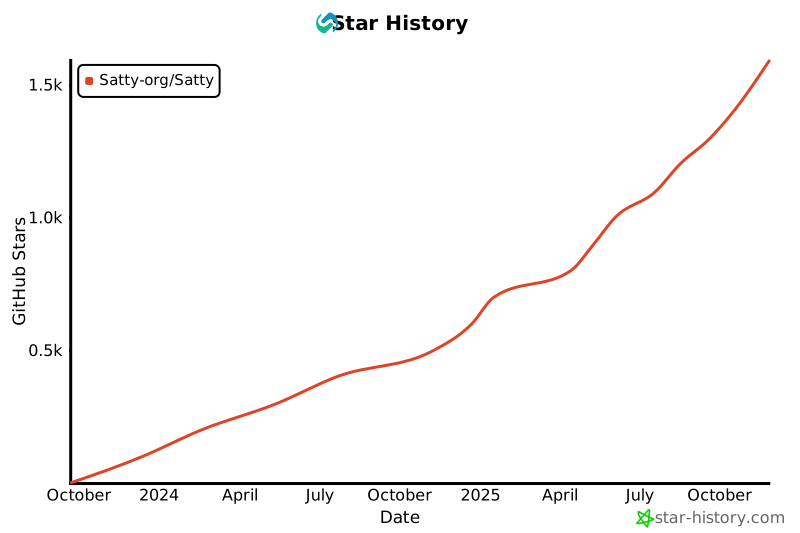
## Star History
[](https://www.star-history.com/#Satty-org/Satty&type=date&legend=top-left)
## License
The source code is released under the MPL-2.0 license.
The Font 'Roboto Regular' from Google is released under Apache-2.0 license.