# Routinator
[](https://github.com/NLnetLabs/routinator/actions?query=workflow%3Aci)
[](https://nlnetlabs.nl/packages/)
[](https://hub.docker.com/r/nlnetlabs/routinator)
[](https://crates.io/crates/routinator)
[](https://routinator.readthedocs.io/en/stable/?badge=stable)
[](https://discord.gg/8dvKB5Ykhy)
[](https://open.spotify.com/user/alex.band/playlist/1DkYwN4e4tq73LGAeUykA1?si=AXNn9GkpQ4a-q5skG1yiYQ)
[](https://twitter.com/routinator3000)
<img align="right" src="https://www.nlnetlabs.nl/static/logos/Routinator/Routinator_Avatar_Realistic.svg" height="150">
Introducing ‘Routinator 3000,’ lightweight RPKI relying party software written
in Rust. Routinator is a full featured software package that runs as a service
which periodically downloads and verifies RPKI data. The built-in HTTP server
offers a user interface and API endpoints for various file formats, as
well as logging, status and Prometheus metrics.
Routinator has a built-in an RTR server allowing routers supporting route origin
validation (ROV) to connect to it to fetch verified RPKI data. Note that if you
would like to run the RTR server as a separate daemon, for example because you
want to centralise validation and distribute processed data to various locations
where routers can connect, then NLnet Labs provides
[RTRTR](https://www.nlnetlabs.nl/projects/rpki/rtrtr/).
If you have feedback, we would love to hear from you. Don’t hesitate to [create
an issue on Github](https://github.com/NLnetLabs/routinator/issues/new) or post
a message on our [RPKI mailing
list](https://lists.nlnetlabs.nl/mailman/listinfo/rpki) or [Discord
server](https://discord.gg/8dvKB5Ykhy). You can learn more by reading the
[Routinator documentation](https://routinator.docs.nlnetlabs.nl/) and the
[RPKI technology documentation](https://rpki.readthedocs.io/) on Read the Docs.
## Quick Start with Binary Packages
On the NLnet Labs software package repository we provide Routinator packages for
amd64/x86_64 architectures running Debian and Ubuntu, as well as Red Hat
Enterprise Linux and CentOS.
### Installing on Debian/Ubuntu
Add the line below that corresponds to your operating system to your
`/etc/apt/sources.list` or `/etc/apt/sources.list.d/`
```bash
deb [arch=amd64] https://packages.nlnetlabs.nl/linux/debian/ stretch main
deb [arch=amd64] https://packages.nlnetlabs.nl/linux/debian/ buster main
deb [arch=amd64] https://packages.nlnetlabs.nl/linux/debian/ bullseye main
deb [arch=amd64] https://packages.nlnetlabs.nl/linux/ubuntu/ xenial main
deb [arch=amd64] https://packages.nlnetlabs.nl/linux/ubuntu/ bionic main
deb [arch=amd64] https://packages.nlnetlabs.nl/linux/ubuntu/ focal main
```
Then run the following commands to add the public key and update the repository
list
```bash
```
You can then install Routinator by running this command
```bash
sudo apt install routinator
```
### Installing on RHEL/CentOS
Create a file named `/etc/yum.repos.d/nlnetlabs.repo`, enter this configuration
and save it:
```bash
[nlnetlabs]
name=NLnet Labs
baseurl=https://packages.nlnetlabs.nl/linux/centos/$releasever/main/$basearch
enabled=1
```
Then run the following command to add the public key
```bash
sudo rpm --import https://packages.nlnetlabs.nl/aptkey.asc
```
You can then install Routinator by running this command
```bash
sudo yum install -y routinator
```
### Setting up Routinator
Initialise, enable and start Routinator by running these commands. Note that
`routinator-init` is slightly different than the command used with Cargo.
```bash
sudo routinator-init
# Follow instructions provided
sudo systemctl enable --now routinator
```
By default, Routinator will start the RTR server on port 3323 and the HTTP
server on port 8323. These, and other values can be changed in the
configuration file located in `/etc/routinator/routinator.conf`. You can check
the status of Routinator with `sudo systemctl status routinator` and view the
logs with `sudo journalctl --unit=routinator`.
## Quick Start with Docker
Due to the impracticality of complying with the ARIN TAL distribution terms
in an unsupervised Docker environment, prior to launching the container it
is necessary to first review and agree to the
[ARIN Relying Party Agreement](https://www.arin.net/resources/rpki/tal.html).
If you agree to the terms, you can let the Routinator Docker image install
the TALs into a mounted volume that is later reused for the server.
```bash
# Create a Docker volume to persist TALs in
sudo docker volume create routinator-tals
# Review the ARIN terms
# Run a disposable container to install TALs
sudo docker run --rm -v routinator-tals:/home/routinator/.rpki-cache/tals \
nlnetlabs/routinator init -f --accept-arin-rpa
# Launch the final detached container named 'routinator' exposing RTR on
# port 3323 and HTTP on port 9556
sudo docker run -d --restart=unless-stopped --name routinator -p 3323:3323 \
-p 9556:9556 -v routinator-tals:/home/routinator/.rpki-cache/tals \
nlnetlabs/routinator
```
For additional isolation, Routinator container is known to successfully run
under [gVisor](https://gvisor.dev/).
## Quick Start with Cargo
Assuming you have a newly installed Debian or Ubuntu machine, you will need to
install rsync, the C toolchain and Rust. You can then install Routinator and
start it up as an RTR server listening on 127.0.0.1 port 3323 and HTTP on
port 8323.
```bash
apt install curl rsync build-essential
cargo install --locked routinator
routinator init
# Follow instructions provided
routinator server --rtr 127.0.0.1:3323 --http 127.0.0.1:8323
```
If you have an older version of Rust and Routinator, you can update using
```bash
rustup update
cargo install --locked --force routinator
```
Routinator 0.7.1 and newer are shipped with updated Trust Anchor Locators
(TALs). Once you have upgraded from an older version of Routinator, make sure
to install the new TALs using
```
routinator init --force
```
## RPKI
The Resource Public Key Infrastructure provides cryptographically signed
statements about the association of Internet routing resources. In
particular, it allows the legitimate holder of an IP prefix to state which
Autonomous Systems are authorised to originate it in BGP.
All of these statements are published in a distributed repository.
Routinator will collect these statements into a local copy, verify
their signatures, and construct a list of associations between IP address
prefixes and AS numbers. It provides this information to routers supporting
route origin validation (ROV) or can output it in a number of useful formats.
## System Requirements
Routinator is designed to be lean and is capable of running on minimalist
hardware, such as a Raspberry Pi. Running it on a system with 1GB of
available RAM and 1GB of available disk space will give the global RPKI
data set enough room to grow for the foreseeable future.
As new RPKI repositories can emerge in any IP address range and on any domain
name, outbound traffic must not be blocked based on IP or DNS in any way.
Routinator only needs to establish outbound connections via HTTPS and rsync, on
ports 443 and 873, respectively.
## Getting Started
There’s two things you need for Routinator: rsync and Rust and a C toolc…
There are three things you need for Routinator: rsync, a C toolchain and
Rust. You need rsync because some RPKI repositories currently still use this
as its means of distribution. Some of the cryptographic primitives
used by the Routinator require a C toolchain, so you need that, too. You
need Rust because that’s what Routinator has been written in.
### rsync
Currently, Routinator requires the `rsync` executable to be in your path.
We are not quite sure which particular version you need at the very least,
but whatever is being shipped with current Linux and \*BSD distributions
and macOS should be fine.
On Windows, Routinator requires the `rsync` version that comes with
[Cygwin](https://www.cygwin.com/) – make sure to select rsync during the
installation phase. And yes, Routinator totally works on Windows, too.
If you don’t have rsync, please head to http://rsync.samba.org/
### C Toolchain
Some of the libraries Routinator depends on require a C toolchain to be present.
Your system probably has some easy way to install the minimum set of packages to
build from C sources. For example, `apt install build-essential` will install
everything you need on Debian and Ubuntu.
If you are unsure, try to run `cc` on a command line and if there’s a complaint
about missing input files, you are probably good to go.
On some older systems, the toolchain may not be up-to-date. We are collecting
information as it comes up in a [separate document](doc/misc.md). One such
instance is [CentOS 6](doc/misc.md#building-on-centos-6).
### Rust
The Rust compiler runs on, and compiles to, a great number of platforms. The
official [Rust Platform
Support](https://doc.rust-lang.org/nightly/rustc/platform-support.html) page
provides an overview of the various platforms and support levels.
While some system distributions include Rust as system packages, Routinator
relies on a relatively new version of Rust, currently 1.47 or newer. We
therefore suggest to use the canonical Rust installation via a tool called
`rustup`.
To install `rustup` and Rust, simply do
```bash
or, alternatively, get the file, have a look and then run it manually. Follow
the instructions to get `rustup` and `cargo`, the Rust build tool, into your
path.
You can update your Rust installation later by simply running
```bash
rustup update
```
To get started you need Cargo's bin directory (`$HOME/.cargo/bin`) in your PATH
environment variable. To configure your current shell, run
```bash
source $HOME/.cargo/env
```
## Building
The easiest way to get Routinator is to leave it to `cargo` by saying
```bash
cargo install --locked routinator
```
If you want to try the main branch from the repository instead of a release
version, you can run
```bash
cargo install --locked --git https://github.com/NLnetLabs/routinator.git --branch main
```
If you want to update an installed version, you run the same command but add the
`-f` flag (a.k.a. `--force`) to approve overwriting the installed version.
The command will build Routinator and install it in the same directory that
cargo itself lives in (likely `$HOME/.cargo/bin`). Which means Routinator will
be in your path, too.
## Using native TLS instead of Rustls
Routinator by default uses [Rustls](https://github.com/ctz/rustls) which in
most cases is fine. However, if needed you can instead use your system native
TLS implementation with Routinator like so:
**Cargo:**
Build Routinator with the `native-tls` feature enabled
```bash
git clone --branch vX.Y.Z --depth 1 https://github.com/NLnetLabs/routinator.git
cd routinator
cargo build --release --features socks,native-tls
```
**Docker:**
Specify a `native-tls` image tag when running the container
```bash
sudo docker run -d --restart=unless-stopped --name routinator -p 3323:3323 \
-p 9556:9556 -v routinator-tals:/home/routinator/.rpki-cache/tals \
nlnetlabs/routinator:native-tls
```
## Running
All functions of Routinator are accessible on the command line via subcommands.
The first thing you need to do before running Routinator is prepare its working
environment via the command
```bash
routinator init
```
This will prepare both the directory for the local RPKI cache as well as the TAL
directory. By default both directories will be located under
`$HOME/.rpki-cache`, but you can change their locations via command line
options.
TALs provide hints for the trust anchor certificates to be used both to discover
and validate all RPKI content. The five TALs that are necessary for RPKI are
bundled with Routinator and installed by the `routinator init` command.
However, the one from the North American RIR ARIN requires you to agree to their
Relying Party Agreement before you can use it. Running the `routinator init`
command will provide you with instructions where to find the agreement and how
to express your acceptance of its terms.
Some RIRs and third parties also provide separate TALs for testing purposes,
allowing operators to gain experience with using RPKI in a safe environment.
Both the production and testbed TALs are bundled with Routinator and can be
installed with the `init` command. To get an overview of all available TALs
use the `--list-tals` option
Once you have successfully prepared the working environment, your can run
Routinator in one of two possible modes: printing the list of valid route
origins, also known as _validated ROA payloads_ or VRPs, or providing the
service for routers and other clients to access this list via HTTP or a
dedicated protocol known as RPKI-to-Router protocol, or RTR.
To have Routinator print the list, you say
```bash
routinator vrps
```
When you first run this command, Routinator will download the entire RPKI
repository to your machine, which will take a while. Later, Routinator only
needs to check for changes so subsequent runs will be quicker. Once it has
gathered all data, it will verify it and produce a long list of AS Numbers,
IP prefixes and their maximum length.
Information about additional command line arguments is available via the `-h`
option or you can look at the more detailed man page via the `man` sub-command
```bash
routinator man
```
The man page is also available online in the
[documentation](https://routinator.docs.nlnetlabs.nl/en/stable/manual-page.html).
## Feeding a Router with RPKI-RTR
Routinator supports RPKI-RTR as specified in RFC 8210 as well as the older
version from RFC 6810. It will act as an RTR server if you start it with
the `routinator server` command.
You can specify the address(es) to listen on via the `--rtr` option. If you
don't, it will still start but not listen on anything. This may seem a bit odd,
but this way, you can keep your local repository copy up-to-date for faster use
of the `routinator vrps` command.
So, in order to run Routinator as an RTR server listening on port 3323 on
both 192.0.2.13 and 2001:0DB8::13, run
```bash
routinator server --rtr 192.0.2.13:3323 --rtr [2001:0DB8::13]:3323
```
By default, the repository will be updated and re-verified every ten minutes.
You can change this via the `--refresh` option and specify the interval between
runs in seconds. That is, if you rather have Routinator verify every fifteen
minutes, the above command becomes
```bash
routinator server --rtr 192.0.2.13:3323 --rtr [2001:0DB8::13]:3323 --refresh=900
```
## Secure Transports for RPKI-RTR
[RFC6810](https://tools.ietf.org/html/rfc6810#page-17) defines a number of
secure transports for RPKI-RTR that can be used for communication between a
router and RPKI relying party software.
Documentation on configuring secure transports with Routinator can be found
[here](doc/transports.md).
## Configuration Files
Routinator can take its configuration from a file, too. You can specify such a
configuration file via the `-c` option. If you don’t, Routinator will check if
there is a file `$HOME/.routinator.conf` and if it exists, use it. If it doesn’t
exist and there is no `-c` option, default values are used.
The configuration file is a TOML file. Its entries are named similarly to the
command line options. Details about the available entries and there meaning can
be found in the [manual
page](https://routinator.docs.nlnetlabs.nl/en/stable/manual-page.html#configuration-file).
In addition, a complete sample configuration file showing all the default values
can be found in the repository at
[etc/routinator.conf](https://github.com/NLnetLabs/routinator/blob/main/etc/routinator.conf.example).
## Local Exceptions
If you would like to add exceptions to the validated RPKI data in the form of
local filters and additions, you can specify this in a file using JSON notation
according to the [SLURM](https://tools.ietf.org/html/rfc8416) standard. You can
find two example files in the repository at `/test/slurm`. Use the `-x` option
to refer to your file with local exceptions.
Routinator will re-read that file on every validation run, so you can
simply update the file whenever your exceptions change.
## Monitoring
Monitoring a Routinator instance is possible by enabling the integrated
[Prometheus](https://prometheus.io/) exporter using the `--http`
configuration option or command line parameter.
Port [9556](https://github.com/prometheus/prometheus/wiki/Default-port-allocations)
is allocated for this use. A Routinator instance with monitoring on this
port can be launched using
```bash
routinator server --rtr 192.0.2.13:3323 --rtr [2001:0DB8::13]:3323 --http 192.0.2.13:9556
```
A [sample Grafana dashboard](https://grafana.com/grafana/dashboards/11922) is
available to get started.
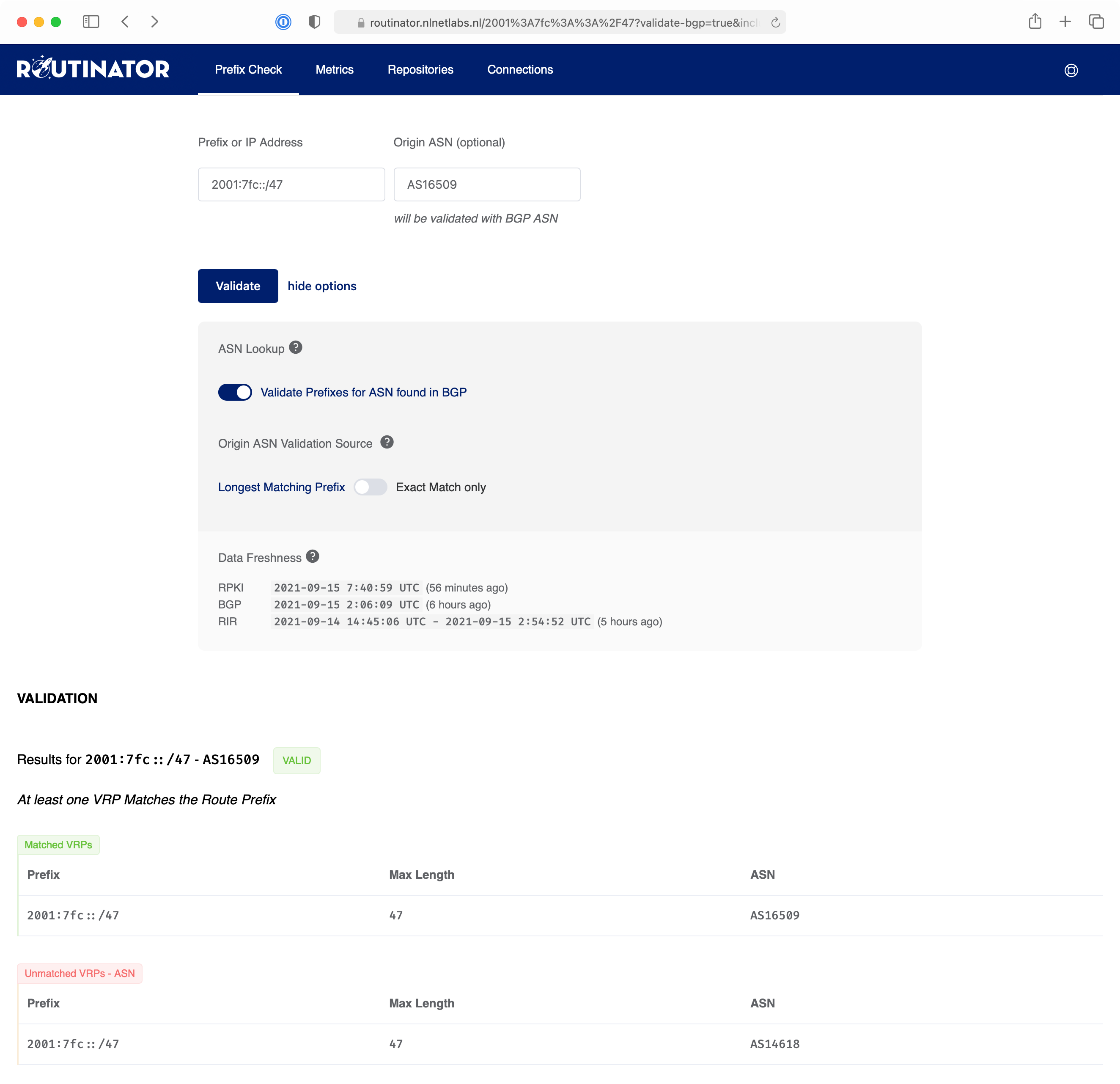
## User Interface
The [user interface](https://routinator.docs.nlnetlabs.nl/en/stable/user-interface.html)
displays statistics from the last validation run Routinator has performed.
It can also be used to verify the RPKI origin validation status of an AS
Number and IP Prefix combination.