
revw-0.1.5 has been yanked.
Revw



A vim-like TUI for managing notes and resources.
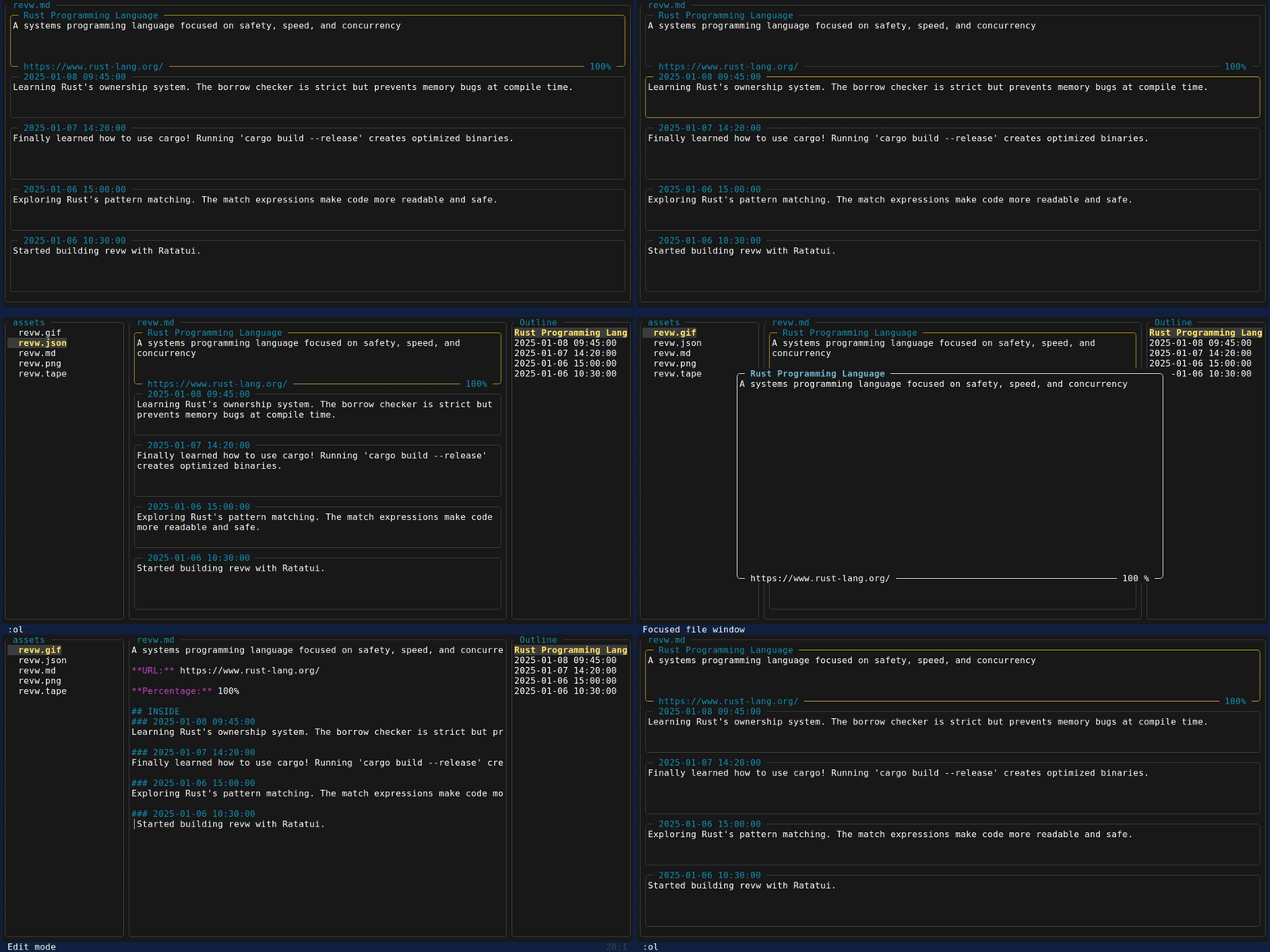
Features
- Vim-like terminal user interface
- Clipboard integration
- Clean card-based interface
- Toggle between View mode and raw JSON mode
Relf Format
Outside
External resources and references:
- Name: Title or identifier of the resource
- Context: Description or notes about the resource
- URL: Web address or link
- Percentage: Score or progress indicator, sortable for ordering
Inside
Internal notes or thoughts with timestamps:
- Date: Timestamp of the entry, sortable for ordering
- Context: notes or thoughts
This format is also available in github.com/rlelf/relf
Install
Or install from source:
Or download from Releases
Use Cases
Notes and resources Management
Track learning resources, books, articles, and tools you're exploring.
Learning diary
Document your daily learning progress with timestamped notes.
LLM-Assisted Workflows
Revw integrates seamlessly with AI assistants:
Workflow 1: LLM generates → You review
- Ask an LLM to generate a reading list or resource collection
- Paste the JSON into Revw (
vkey) - Browse and organize visually
Workflow 2: You create → LLM assists
- Maintain your notes in Revw's clean interface
- Copy sections to clipboard (
c,:ci,:co) - Share with LLM for analysis, summarization, or questions
Command Line Options
# View help
# Show version
# Start without file
# View mode
# Edit mode
# Output to stdout
# Output to file
# Output only INSIDE section
# Output only OUTSIDE section
Controls
View Mode
Navigation:
j/kor↑/↓select card (or mouse wheel)ggselect first cardGselect last card:gijump to first INSIDE entry:gojump to first OUTSIDE entry/search forwardn/Nnext/prev match (jumps to card):nohclear search highlighting
Editing:
Enteropen edit overlay for selected card:aiadd new INSIDE entry (jumps to it):aoadd new OUTSIDE entry (jumps to it):ddelete selected card:oorder entries and auto-save
Copy/Paste:
ccopy all rendered content (with OUTSIDE/INSIDE headers):cicopy INSIDE section only:cocopy OUTSIDE section only:cucopy URL from selected cardvpaste file path or JSON content:vupaste URL from clipboard to selected card:vipaste INSIDE from clipboard (overwrite):vopaste OUTSIDE from clipboard (overwrite):vapaste both INSIDE and OUTSIDE from clipboard (append):vaipaste INSIDE from clipboard (append):vaopaste OUTSIDE from clipboard (append):xiclear INSIDE section:xoclear OUTSIDE section
Other:
rtoggle View/Edit modexclear content:hhelpqquit
Edit Overlay
Field Selection Mode (default):
j/kor↑/↓navigate between fieldsEnterenter field editing mode (shows cursor)wsave changesEscorqcancel
Field Editing Mode:
h/lor←/→move cursor left/right0move to start of field$move to end of fieldwnext wordbprevious wordeend of wordgorggjump to startGjump to endienter insert modeEscorCtrl+[exit to field selection mode
Insert Mode:
- Type to edit text
←/→move cursorBackspacedelete characterEscorCtrl+[exit to field editing mode
Edit Mode
Navigation:
h/j/k/lor arrow keys - move cursorenext word endbprevious word startggjump to topGjump to bottom:gijump to first INSIDE entry:gojump to first OUTSIDE entry- Mouse wheel - scroll (drag disabled)
Editing:
ienter insert modeEscorCtrl+[exit insert mode:ddelete current entryuundoCtrl+rredog-undog+redo
Search:
/search forwardn/Nnext/prev match:nohclear search highlighting
Commands:
:aiadd INSIDE entry:aoadd OUTSIDE entry:oorder entries:cicopy INSIDE section (JSON format):cocopy OUTSIDE section (JSON format):vipaste INSIDE from clipboard (overwrite):vopaste OUTSIDE from clipboard (overwrite):vapaste both INSIDE and OUTSIDE from clipboard (append):vaipaste INSIDE from clipboard (append):vaopaste OUTSIDE from clipboard (append):xiclear INSIDE section:xoclear OUTSIDE section:wsave:wqsave and quit:qquit:ereload file:artoggle auto-reload (default: on):hhelp
Substitute:
:s/pattern/replacement/substitute first occurrence in current line:s/pattern/replacement/gsubstitute all occurrences in current line:%s/pattern/replacement/substitute first occurrence in all lines:%s/pattern/replacement/gsubstitute all occurrences in all lines
License
MIT