# refine
[](https://crates.io/crates/refine)
[](https://deps.rs/repo/github/rsalmei/refine)


### Refine your file collection using Rust!
## What it does
This tool will revolutionize the way you manage your media collections! It can simultaneously scan multiple root directories and analyze all the files and directories found as a whole, performing some advanced operations on them. And it is very easy to use, with a simple and intuitive command line interface that will let you quickly get the results you want.
It will help you reasonably find duplicated files both identically and by fuzzy filename similarity, seamlessly join them into a single directory with advanced name conflict resolution, quickly list files from multiple directories sorted together by various criteria, effortlessly rename files and directories using advanced regular expression rules, intelligently rebuild entire media collection names by identifying groups and s, and even reliably probe collection filenames against a remote server! It is a one-stop solution for all your media needs, allowing you to organize them in a way that makes sense to you.
> Use it to _refine_ your photos, music, movies, porn, docs, or any other collections, cleaning up and organizing them in a way that makes sense to you.
Note: every command is dry-run by default, so don't worry experimenting! This is a key feature of this tool, the commands are interactive unless you say otherwise, allowing you to preview what would be done and then confirm or abort the changes. You can thus try out different commands and options without the risk of changing or losing anything!
> I've made this tool to be the fastest and easiest way to organize media collections. It helps me a lot, and I hope it can help you too.
And yes, it is blazingly fast, like all Rust 🦀 software should be!
Enjoy!
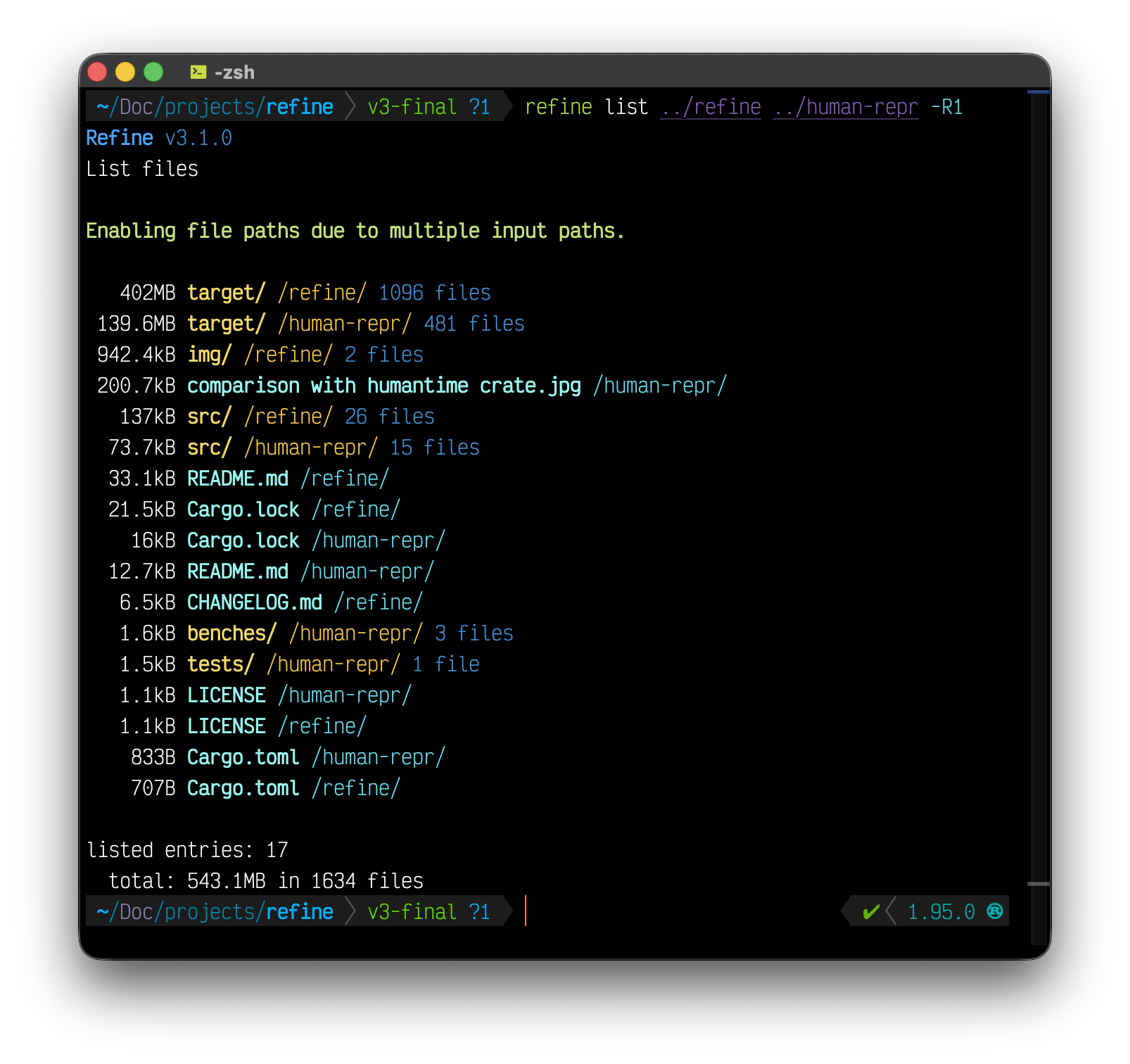
## How to use it
Install `refine` with:
```
cargo install refine
```
And that's it, you're ready to go! You can now call it anywhere.
## What's new in 3.1
This is a minor release with a major refactor of the codebase, improving the structure and maintainability of the code, as well as optimizing hot paths and polishing the user experience.
The most notable change is the support for comments in the `rebuild` command, which allows you to add comments to the collection media files that will be preserved upon rebuilding. This is useful to add notes or reminders right in the filenames. This provides context, making it easier to identify media and their content without having to open them. The comments are added at the end of the filename, after the sequence number, and are preserved even when the rest of the filename is changed by applying different naming rules.
## What's new in 3.0
I'm thrilled to announce a release packed with deep, carefully engineered improvements! This update is the culmination of a significant technical effort, bringing both new capabilities and cool new refinements. The straight jump from 2.0 to 3.0 reflects the magnitude of these changes, about 100 commits worth of work over several months, with a strong focus on enhancing the core algorithms and bringing new features to life.
The flagship feature is the completely revamped `dupes` command, now equipped with a sophisticated detection algorithm that combines fuzzy string matching and a novel rare-token scoring system! This innovative approach vastly improves duplicate detection accuracy, even in tricky and non-exact cases. This means you’ll find more duplicates, not just exact matches, making cleanup much more effective!
This new algorithm employs a multi-faceted approach:
- Sophisticated Name Similarity Detection:
- Fuzzy String Matching: Combines normalized Levenshtein distance with Sørensen-Dice coefficient for detecting both minor typos and structural similarities
- Rare Token Scoring: Builds corpus-wide token frequency maps and weights matches by token rarity using inverse logarithmic frequency
- Union-Find Clustering: Employs union-find data structures for efficient grouping with average similarity tracking across group merges
- Intelligent Filtering: Includes semantic filters to exclude TV series and sequential files using number pattern analysis
- Advanced Text Processing:
- Unicode Normalization: Filenames are preprocessed with transliteration and accent removal to ensure consistent matching
- Multi-language Stopword Filtering: Comprehensive stopword lists for English and Portuguese built-in
- Media-specific Tag Recognition: Removal of common media tags (`web-dl`, `blu-ray`, codecs, resolutions, etc.)
- MIME-aware Classification: Features media type detection combining MIME guessing with extension overrides, so movies are not tagged as similar to their own subtitles
- Other Optimizations:
- Parallel Processing: Parallel similarity computation with progress tracking, leveraging multicore CPUs
- Inverted Token Indexing: Efficient candidate pair generation using token-based blocking
- Advanced Content Sampling: Implements a new three-point sampling strategy (beginning, middle, end) still with configurable sample size, achieving high accuracy for large media files while avoiding full file reads
Also in this release there are several other improvements, such as natural sorting for displaying entries in `list` and the global `--show`, better clash resolution reporting in `join` and `rename`, support for comments in collections in `rebuild`, new fetch options `path_in` and `path_ex` for including and excluding paths, new "recipe type" options in naming rules for advanced transformations, support for on-demand separators in naming rules regexes, etc. There's a lot to explore!
---
<details><summary>(previous versions)</summary>
### New in 2.0
Yay! This is a major release, with a lot of new features!
<br>The most exciting one is global support for COLORS, making files and directories much easier to read and distinguish!
Also, the `list` command is greatly improved, with support for listing directory entries, complete with their number of files and full sizes! This was only possible with the new precise recursion feature, allowing you to choose how deep you want to go within directories.
<br>You can also now sort the output by number of files, in addition to size (full recursive size), name, or path.
Another great new feature is the global `--view` option, which allows you to bypass any command and quickly view the filtered files and directories that will be processed by it! Countless times I wanted to preview my filter results, forcing me to replace the command with `list`, remove all other arguments, execute it, study the output, and painstakingly reconstruct the original command—a hugely frustrating process. And now we can do it in any command without changing anything, just by adding `--view`!
Everything is again more polished and optimized. Even the usage and help are much more user-friendly!
And last but not least, the input paths can now be relative, which will make all output also be relative and thus easier to read.
### New in 1.4
This version introduces the `probe` command, which allows you to probe filenames against a remote server! This can be used to validate the filenames of your media collections by checking whether a URL points to a valid file or page on a remote server.
Also, the `rebuild` command has a new `--case` option, which allows you to keep the original case of the filenames, and the `rename` command has improved support for handling clashes, allowing you to insert sequence numbers in the filenames when you really want to let them be the same.
### New in 1.3
This version is mostly about polishing, with some improvements and bug fixes.
We have a smarter list command, which hides full paths by default and uses descending order for size and ascending for name and path; join: change no_remove flag to parents (n -> p) and some clash options; rebuild: change simple_match flag to simple and fix full mode, which was not resetting sequences; general polishing.
### New in 1.2
Here is a much improved partial mode in Rebuild command, which can alter groups of filenames while preserving sequences, and even detect and fix gaps in sequences caused by deleted files.
### New in 1.1
Revamped join command!
It now supports non-empty target folders, and will resolve clashes accordingly.
Also, several enum CLI arguments now support aliases, and I've fixed join command still moving files even when copy was requested.
### New in 1.0
Yes, it is time. After a complete overhaul of the code, it's time to release 1.0!
<br>It's an accomplishment I'm proud of, which took over 70 commits and a month's work, resulting in most of the code being rewritten.
It is more mature, stable, and well-structured now.
The major motivation for this version is the rebuild Partial mode! We can now rebuild collections even when some directories are not available! This means that files not affected by the specified naming rules will stay the same, keeping their sequence numbers, while new files are appended after the highest sequence found. It is handy for collections on external drives or cloud storage which are not always connected, allowing you to, even on the go, rebuild new files without messing up previous ones.
And this also includes:
- rebuild: new `--replace` option to replace all occurrences of some string or regex in the filenames with another one.
- new internal CLI options handling, which enables commands to modify them prior to their execution.
- the new rebuild partial mode is auto-enabled in case not all directories are currently available.
### New in 0.18
- rebuild: new force implementation that is easier to use
- it conflicts with any other options so must be used alone
- now it just overwrites filenames without exceptions → best used with `-i` or on already organized collections
- improved memory usage
### New in 0.17
- join: new clash resolve option
- by default, no changes are allowed in directories where clashes are detected
- all directories with clashes are listed, showing exactly which files are in them
### New in 0.16
- complete overhaul of the scan system, allowing directories to be extracted alongside files
- new `join` command, already with directory support
- new magic `-i` and `-x` options that filter both files and directories
- new filter options for files, directories, and extensions
- rename: include full directory support
### New in 0.15
- nicer rename command output by parent directory
- new threaded yes/no prompt that can be aborted with CTRL-C
### New in 0.14
- rename: disallow by default changes in directories where clashes are detected
- new `--clashes` option to allow them
### New in 0.13
- rename: new replace feature, finally!
- global: make strip rules also remove `.` and `_`, in addition to `-` and spaces
- global: include and exclude options do not check extensions
- dupes: remove case option, so everything is case-insensitive now
### New in 0.12
- global: new `--dir-in` and `--dir-out` options.
### New in 0.11
- new `rename` command
- rebuild, rename: improve strip exact, not removing more spaces than needed
### New in 0.10
- global: new `--exclude` option to exclude files
### New in 0.9
- new support for Ctrl-C, to abort all operations and gracefully exit the program at any time.
- all commands will stop collecting files when Ctrl-C is pressed
- both `dupes` and `list` command will show partial results
- the `rebuild` command will just exit, as it needs all the files to run
### New in 0.8
- new "list" command
### New in 0.7
- global: new `--include` option to filter input files
- rebuild: new `--force` option to easily rename new files
- rebuild: new interactive mode by default, making `--dry_run` obsolete (removed), with new `--yes` option to bypass it (good for automation)
- rebuild: auto fix renaming errors
- dupes: faster performance by ignoring groups with one file (thus avoiding loading samples)
- rebuild: smaller memory consumption by caching file extensions
</details>
## Commands
All commands will:
1. scan all the given directories recursively (excluding hidden `.folders`)
- can optionally filter files and directories based on several options
2. load the metadata for each file like size and creation date, as required by some commands
3. execute the command and show the results
4. ask the user to perform the changes, if applicable
### The global refine command (help)
`$ refine --help`
```
Refine your file collections using Rust!
Usage: refine <COMMAND> [DIRS]... [FETCH] [OPTIONS]
Commands:
dupes Find possibly duplicated files by both size/sample and filename similarity
join Join files into a single directory with advanced conflict resolution
list List files from multiple disjoint directories sorted together
rebuild Rebuild entire media collections' filenames intelligently
rename Rename files and directories in batch using advanced regex rules
probe Probe collections' filenames against a remote server
help Print this message or the help of the given subcommand(s)
Options:
-h, --help Print help
-V, --version Print version
For more information, see https://github.com/rsalmei/refine
```
### The `dupes` command
The `dupes` command will analyze and report the possibly duplicated files, either by size or name. It will even load a sample from each file, to guarantee they are indeed duplicated. It is a small sample by default but can help reduce false positives a lot, and you can increase it if you want.
1. group all the files by size
2. for each group with the exact same value, load a sample of its files
3. compare the samples with each other and find possible duplicates
4. group all the files by words in their names
- the word extractor ignores sequence numbers like file-1, file copy, file-3 copy 2, etc.
5. run 2. and 3. again, and print the results
`$ refine dupes --help`
```
Find possibly duplicated files by both size/sample and filename similarity
Usage: refine dupes [DIRS]... [FETCH] [OPTIONS]
Arguments:
[DIRS]... The directories to scan
Options:
-m, --mode <STR> Identical (size and sample), or similar (rare tokens and fuzzy matching) [default: all] [possible values: identical, similar, all]
-s, --sample <INT> Sample size in kbytes (0 to disable) [default: 4]
-t, --threshold <FLOAT> The threshold for similarity checks (0.0 to 1.0) [default: 0.7]
-v, --verbose Show the cleaned filenames for similarity checks
-h, --help Print help
Fetch:
-R, --recursion <INT> The maximum recursion depth; use 0 for unlimited, 1 for shallow, and n for depth n [default: 0]
-F, --only-files Include only files
-D, --only-dirs Include only directories
-i, --inc <REGEX> Include files, directories, and paths that matches this
-x, --exc <REGEX> Exclude files, directories, and paths that matches this
-I, --dir <REGEX> Include only these directory names
-X, --dir-ex <REGEX> Exclude these directory names
--path <REGEX> Include only these paths
--path-ex <REGEX> Exclude these paths
--file <REGEX> Include only these filenames
--file-ex <REGEX> Exclude these filenames
--ext <REGEX> Include only these extensions
--ext-ex <REGEX> Exclude these extensions
Modifiers:
--show Show the entries that will be processed, and ask for confirmation before proceeding
--full Do not strip the common prefix from the input paths when displaying them
```
Example:
```
$ refine dupes ~/Downloads /Volumes/External --sample 20
```
### The `join` command
The `join` command will let you grab all files and directories in the given directories and join them into a single one. You can filter files however you like, and choose whether they will be joined by moving or copying. It will even remove the empty parent directories after a move joining!
> Note: any deletions are only performed after files and directories have been successfully moved/copied. So, in case any errors occur, the files and directories partially moved/copied will be found in the target directory, so you should manually delete them before trying again.
1. detect clashes, i.e. files with the same name in different directories, and apply the given clash strategy
2. detect already in-place files
3. print the resulting changes to the filenames and directories, and ask for confirmation
4. if the user confirms, apply the changes
5. remove any empty parent directories when moving files
`$ refine join --help`
```
Join files into a single directory with advanced conflict resolution
Usage: refine join [DIRS]... [FETCH] [OPTIONS]
Arguments:
[DIRS]... The directories to scan
Options:
-t, --target <PATH> The target directory; will be created if it doesn't exist [default: .]
-b, --by <STR> The type of join to perform [default: move] [possible values: move, copy]
-c, --clashes <STR> How to resolve clashes [default: name-sequence] [possible values: name-sequence, parent-name, name-parent, ignore]
-f, --force Force joining already in place files and directories, i.e. in subdirectories of the target
-p, --parents Do not remove empty parent directories after joining files
-y, --yes Skip the confirmation prompt, useful for automation
-h, --help Print help
Fetch:
-R, --recursion <INT> The maximum recursion depth; use 0 for unlimited, 1 for shallow, and n for depth n [default: 0]
-F, --only-files Include only files
-D, --only-dirs Include only directories
-i, --inc <REGEX> Include files, directories, and paths that matches this
-x, --exc <REGEX> Exclude files, directories, and paths that matches this
-I, --dir <REGEX> Include only these directory names
-X, --dir-ex <REGEX> Exclude these directory names
--path <REGEX> Include only these paths
--path-ex <REGEX> Exclude these paths
--file <REGEX> Include only these filenames
--file-ex <REGEX> Exclude these filenames
--ext <REGEX> Include only these extensions
--ext-ex <REGEX> Exclude these extensions
Modifiers:
--show Show the entries that will be processed, and ask for confirmation before proceeding
--full Do not strip the common prefix from the input paths when displaying them
```
Example:
```
$ refine join ~/media/ /Volumes/External/ -i 'proj-01' -X 'ongoing' -t /Volumes/External/proj-01
```
### The `list` command
The `list` command will gather all the files in the given directories, sort them by name, size, or path, and display them in a friendly format.
1. sort all files by either name, size, or path
- ascending by default for name and path, descending for size, or optionally reverse
2. print the results
`$ refine list --help`
```
List files from multiple disjoint directories sorted together
Usage: refine list [DIRS]... [FETCH] [OPTIONS]
Arguments:
[DIRS]... The directories to scan
Options:
-b, --by <STR> Sort by [default: size] [possible values: size, count, name, path]
-r, --rev Reverse the default order (size/count:desc, name/path:asc)
-p, --paths Show file paths
-c, --no-calc-dirs Do not calculate directory sizes
-h, --help Print help
Fetch:
-R, --recursion <INT> The maximum recursion depth; use 0 for unlimited, 1 for shallow, and n for depth n [default: 0]
-F, --only-files Include only files
-D, --only-dirs Include only directories
-i, --inc <REGEX> Include files, directories, and paths that matches this
-x, --exc <REGEX> Exclude files, directories, and paths that matches this
-I, --dir <REGEX> Include only these directory names
-X, --dir-ex <REGEX> Exclude these directory names
--path <REGEX> Include only these paths
--path-ex <REGEX> Exclude these paths
--file <REGEX> Include only these filenames
--file-ex <REGEX> Exclude these filenames
--ext <REGEX> Include only these extensions
--ext-ex <REGEX> Exclude these extensions
Modifiers:
--show Show the entries that will be processed, and ask for confirmation before proceeding
--full Do not strip the common prefix from the input paths when displaying them
```
Example:
```
$ refine list ~/Downloads /Volumes/External --by size --desc
```
### The `rebuild` command
I’m really proud of the `rebuild` command. It smartly rebuilds all the filenames of entire media collections, e.g., musics by album/singer and videos by streamers and even photos from your camera. Sequence numbers are removed, filenames are stripped according to your needs, similar names are intelligently matched, groups are sorted deterministically by creation date, sequence numbers are regenerated, and files are finally renamed!
It's awesome to quickly find your collections neatly sorted automatically; it's like magic, getting all files cleaned up, sorted, and sequenced with a single command. And upon running it again, the tool will seem to recognize the new files that have been added, as it will regenerate everything but only display entries that need to be changed, as the rest are already correct! And in case you delete files, all the subsequent ones will be renamed accordingly! Quite impressive, don't you think?
And don't worry as this tool is interactive, so you can review all changes before applying them.
1. apply naming rules to strip or replace parts of the filenames
2. extract and strip sequence numbers from names
3. if force mode is enabled, set all names to the forced value
4. if smart match is enabled, remove spaces and underscores from names
5. group the files by their resulting names
6. sort the groups according to the files' created dates
7. regenerate sequence numbers for each group; if partial mode is enabled, continue from the highest sequence found in the group
> Note that these groups can contain files from different directories, and it will just work
8. print the resulting changes to the filenames, and ask for confirmation
9. if the user confirms, apply the changes
`$ refine rebuild --help`
```
Rebuild entire media collections' filenames intelligently
Usage: refine rebuild [DIRS]... [FETCH] [OPTIONS]
Arguments:
[DIRS]... The directories to scan
Options:
-b, --strip-before <STR|REGEX> Strip from the start till occurrence; includes separators nearby, use {S} for separators
-a, --strip-after <STR|REGEX> Strip from occurrence till the end; includes separators nearby, use {S} for separators
-e, --strip-exact <STR|REGEX> Strip exact occurrences; includes separators nearby, use {S} for separators
-r, --replace <{STR|REGEX}={STR|$N}> Replace occurrences in the filename; separators are not touched, use {S} for separators
-w, --throw <{STR|REGEX}={STR|$N}> recipe: Throw some prefix to the end; use {S} for separators
-s, --simple Disable smart matching, so "foo bar.mp4", "FooBar.mp4" and "foo__bar.mp4" are different
-f, --force <STR> Force to overwrite filenames (use the Global options to filter files)
-p, --partial Assume not all directories are available, which retains current sequences (but fixes gaps)
-c, --case Keep the original case of filenames, otherwise they are lowercased
-y, --yes Skip the confirmation prompt, useful for automation
-h, --help Print help
Fetch:
-R, --recursion <INT> The maximum recursion depth; use 0 for unlimited, 1 for shallow, and n for depth n [default: 0]
-F, --only-files Include only files
-D, --only-dirs Include only directories
-i, --inc <REGEX> Include files, directories, and paths that matches this
-x, --exc <REGEX> Exclude files, directories, and paths that matches this
-I, --dir <REGEX> Include only these directory names
-X, --dir-ex <REGEX> Exclude these directory names
--path <REGEX> Include only these paths
--path-ex <REGEX> Exclude these paths
--file <REGEX> Include only these filenames
--file-ex <REGEX> Exclude these filenames
--ext <REGEX> Include only these extensions
--ext-ex <REGEX> Exclude these extensions
Modifiers:
--show Show the entries that will be processed, and ask for confirmation before proceeding
--full Do not strip the common prefix from the input paths when displaying them
```
Example:
```
$ refine rebuild ~/media /Volumes/External -a 720p -a Bluray -b xpto -e old
```
### The `rename` command
The `rename` command will let you batch rename files like no other tool, seriously! You can quickly strip common prefixes, suffixes, and exact parts of the filenames, as well as apply any regex replacements you want. By default, in case a filename ends up clashing with other files in the same directory, that whole directory will be disallowed to make any changes. The list of clashes will be nicely formatted and printed, so you can manually check them. And you can optionally allow changes to other files in the same directory, removing only the clashes if you find it safe.
1. apply naming rules to strip or replace parts of the filenames
2. handle the clashes according to the given strategy, which can:
- forbid any changes in the directory where clashes are detected
- ignore the clashes, allowing other changes in the same directory
- apply sequence numbers to the clashes, allowing all changes
3. print the resulting changes to the filenames and directories, and ask for confirmation
4. if the user confirms, apply the changes
`$ refine rename --help`
```
Rename files and directories in batch using advanced regex rules
Usage: refine rename [DIRS]... [FETCH] [OPTIONS]
Arguments:
[DIRS]... The directories to scan
Options:
-b, --strip-before <STR|REGEX> Strip from the start till occurrence; includes separators nearby, use {S} for separators
-a, --strip-after <STR|REGEX> Strip from occurrence till the end; includes separators nearby, use {S} for separators
-e, --strip-exact <STR|REGEX> Strip exact occurrences; includes separators nearby, use {S} for separators
-r, --replace <{STR|REGEX}={STR|$N}> Replace occurrences in the filename; separators are not touched, use {S} for separators
-w, --throw <{STR|REGEX}={STR|$N}> recipe: Throw some prefix to the end; use {S} for separators
-c, --clashes <STR> How to resolve clashes [default: sequence] [possible values: sequence, ignore, forbid]
-y, --yes Skip the confirmation prompt, useful for automation
-h, --help Print help
Fetch:
-R, --recursion <INT> The maximum recursion depth; use 0 for unlimited, 1 for shallow, and n for depth n [default: 0]
-F, --only-files Include only files
-D, --only-dirs Include only directories
-i, --inc <REGEX> Include files, directories, and paths that matches this
-x, --exc <REGEX> Exclude files, directories, and paths that matches this
-I, --dir <REGEX> Include only these directory names
-X, --dir-ex <REGEX> Exclude these directory names
--path <REGEX> Include only these paths
--path-ex <REGEX> Exclude these paths
--file <REGEX> Include only these filenames
--file-ex <REGEX> Exclude these filenames
--ext <REGEX> Include only these extensions
--ext-ex <REGEX> Exclude these extensions
Modifiers:
--show Show the entries that will be processed, and ask for confirmation before proceeding
--full Do not strip the common prefix from the input paths when displaying them
```
Example:
```
$ refine rename ~/media /Volumes/External -b "^\d+_" -r '([^\.]*?)\.=$1 '
```
### The `probe` command
The `probe` command allows you to probe filenames against a remote server, which can be very useful to validate the filenames of your media collections. It works by checking whether a URL points to a valid file or page on a remote server.
The URL can be any valid HTTP(S) URL, and must have a placeholder for the filename. The command generates URLs by replacing the placeholder with the names of the files, and sends a HEAD request to each one, allowing you to use some advanced options to control the behavior, such as the timeout, number of retries, wait times, exponential backoff, and when to display errors. The request is expected to return:
- a 200 OK or 403 Forbidden response to be considered valid;
- a 404 Not Found to be considered invalid;
- any other response is retried, with exponential backoff, until the maximum number of retries is reached, then it is considered failed.
It does not support any kind of parallel connections or API rate limiting by design in order to not disturb the server too much. It thus only works in a sequential manner and may take a while to complete. It also does not support any kind of authentication, redirects, or custom headers, so it may not work for some servers.
1. extract the names from files (without sequence numbers and extension), and deduplicate them
2. pick the desired subset of them (by a regex)
3. prepare the URL for each name and probe it with a HEAD request
4. split the results into Valid, Invalid, Failed, and Pending (in case you press Ctrl+C)
5. print the invalid ones, along with a summary of the results
`$ refine probe --help`
```
Probe collections' filenames against a remote server
Usage: refine probe [DIRS]... [FETCH] [OPTIONS]
Arguments:
[DIRS]... The directories to scan
Options:
-p, --pick <REGEX> Pick a subset of the files to probe
-u, --url <URL> The URL to probe filenames against (use `$` as placeholder, e.g. https://example.com/$/)
-t, --timeout <INT> The HTTP connection and read timeouts in milliseconds [default: 2000]
-n, --min-wait <INT> The initial time to wait between retries in milliseconds [default: 1000]
-b, --backoff <FLOAT> The factor by which to increase the time to wait between retries [default: 1.5]
-a, --max-wait <INT> The maximum time to wait between retries in milliseconds [default: 5000]
-r, --retries <INT> The maximum number of retries; use 0 to disable and -1 to retry indefinitely [default: -1]
-e, --errors <STR> Specify when to display errors [default: each10] [possible values: never, last, always, each10]
-h, --help Print help
Fetch:
-R, --recursion <INT> The maximum recursion depth; use 0 for unlimited, 1 for shallow, and n for depth n [default: 0]
-F, --only-files Include only files
-D, --only-dirs Include only directories
-i, --inc <REGEX> Include files, directories, and paths that matches this
-x, --exc <REGEX> Exclude files, directories, and paths that matches this
-I, --dir <REGEX> Include only these directory names
-X, --dir-ex <REGEX> Exclude these directory names
--path <REGEX> Include only these paths
--path-ex <REGEX> Exclude these paths
--file <REGEX> Include only these filenames
--file-ex <REGEX> Exclude these filenames
--ext <REGEX> Include only these extensions
--ext-ex <REGEX> Exclude these extensions
Modifiers:
--show Show the entries that will be processed, and ask for confirmation before proceeding
--full Do not strip the common prefix from the input paths when displaying them
```
Example:
```
$ refine probe ~/media /Volumes/External --url 'https://example.com/$/' -r3 -el
```
## Changelog
<br>Complete [here](https://github.com/rsalmei/refine/blob/main/CHANGELOG.md).
## License
This software is licensed under the MIT License. See the LICENSE file in the top distribution
directory for the full license text.
---
Maintaining an open source project is hard and time-consuming, and I've put much ❤️ and effort into this.
If you've appreciated my work, you can back me up with a donation! Thank you. 😊
[<img align="right" src="https://cdn.buymeacoffee.com/buttons/default-orange.png" width="217px" height="51x">](https://www.buymeacoffee.com/rsalmei)
[<img align="right" alt="Donate with PayPal button" src="https://www.paypalobjects.com/en_US/i/btn/btn_donate_LG.gif">](https://www.paypal.com/donate?business=6SWSHEB5ZNS5N&no_recurring=0&item_name=I%27m+the+author+of+alive-progress%2C+clearly+and+about-time.+Thank+you+for+appreciating+my+work%21¤cy_code=USD)
---