
qcode
Run Claude Code, opencode, Gemini CLI and Codex side by side in Podman or Docker containers, with tabs like a browser, from one terminal app.
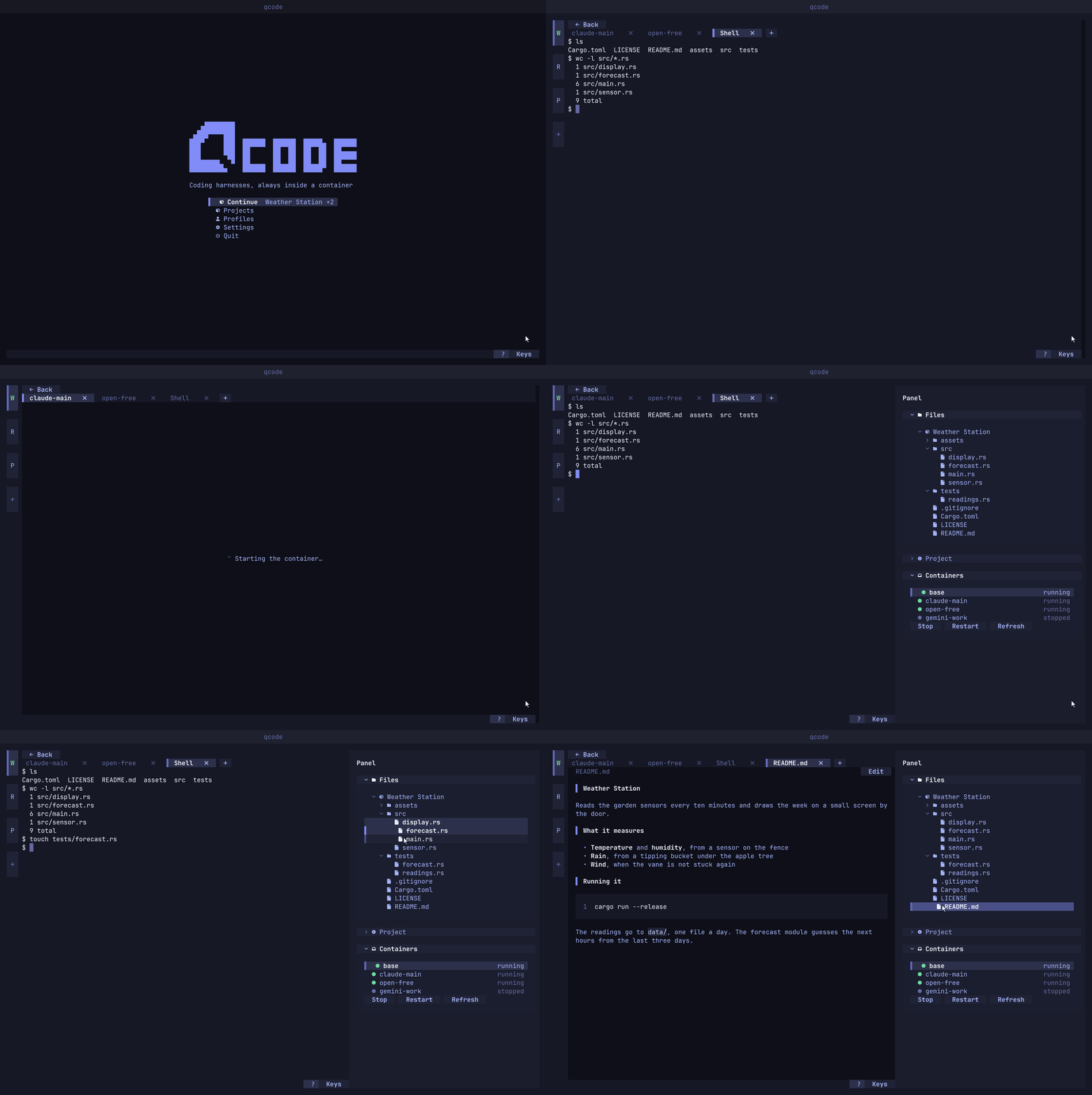
quvyta-code runs coding harnesses inside containers, from the terminal. You set up a profile once, sign it in, and from then on open that harness in any of your projects in a few seconds, moving between harnesses and shells the way you move between tabs. Nothing the harness runs ever runs on your machine itself. qcode is part of the Quvyta family of terminal applications, is built on quvyta-framework and is open source under the MIT licence.
Beta. qcode is new. It works on Linux with both Podman and Docker, but the interface, the files it writes and the way it names images and containers may still change between releases. Please report anything that looks wrong at https://github.com/quvyta/code/issues.
What it does
- Harnesses in containers. Each harness runs in a container of its own, built from an image made for it. The container sees the project folder and, if you allow it, the project's assets folder and the network. Because the container is what keeps the work apart from your machine, the harness is set up to work without stopping to ask for permission.
- Profiles. A profile is one harness with its settings: which harness, how much of qcode's recommended configuration goes into the image, what it signs in with and what its containers may reach. Building a profile builds its image; the build can be stopped at any time and a half-made image is removed.
- Signing in once. A profile signs in through the harness's own sign-in flow, run in a terminal inside a container. qcode then checks that the login file is really there before it keeps it. Each project that uses the profile gets its own copy of the login, so chat history, memory and settings never leak from one project into another. A copy can be refreshed from the profile later, and the profile can be signed out.
- Projects. A project starts empty, from a copy of a folder, or from a git address (the clone runs inside a container, so git does not have to be installed on your machine). The project screen has tabs for shells, harnesses and files, and a side panel with the project's files, its details and its containers, which can be stopped and restarted from there.
- Built-in apps. A file opened from the file tree opens in a tab of its own, in the project's base container, so nothing is installed on your machine for it. See Built-in apps.
- Containers stop when you are done. When the last QCode closes, the containers it started are stopped, and an optional background service does the same after a crash. See When QCode closes.
- Podman or Docker. Either engine works. qcode finds it, tells you when it is missing or not running, and shows the command that installs or starts it. It never installs anything and never raises its own rights.
The harnesses qcode knows today:
| Harness | Account types |
|---|---|
| Claude Code | subscription, API key |
| opencode | free models, subscription, API key |
| Gemini CLI | API key |
| Codex CLI | subscription, API key |
Google closed Gemini CLI's "Login with Google" to personal accounts (Code Assist for individuals, Google AI Pro and Ultra) on 18 June 2026, so a new Gemini CLI profile signs in with an API key. A profile made earlier with a Google sign-in still loads, with a note saying so: that sign-in keeps working for Gemini Code Assist Standard and Enterprise.
Each harness is installed from its own published package when a profile's image is built; qcode does not ship or change any of them. The interface follows your system language (English and Turkish are included) and uses the family's themes, icons, keys and mouse behaviour.
Why qcode, and what else there is
qcode is an everyday place to work with several harnesses, not a security product. What it adds is the whole working surface around the containers: profiles you sign in once, a login copy per project, tabs, going back to an earlier conversation, a file tree and the containers' state in one screen. Other good tools solve neighbouring problems:
| Tool | What it does | How qcode differs |
|---|---|---|
Docker Sandboxes (docker sandbox) |
Runs harnesses in Docker's microVMs | Its isolation is stronger than a container's; it needs Docker Desktop and is a command-line tool, without tabs, a project screen or a list of earlier conversations |
| Dagger container-use | Gives each task of a harness its own container and git branch, over MCP | A base for running tasks in parallel, with no interface of its own; needs Dagger and git |
| Dev containers | The route the Claude Code documentation suggests | Tied to an editor such as VS Code and set up by hand for each project |
| claude-squad and similar | Several harnesses side by side with tmux and git worktrees | No container: the harness still runs on your machine |
| Single-image scripts (claudebox and others) | One harness in one Docker image | No interface, profiles, per-project logins or conversations to go back to |
If what you need is the strongest possible wall between a harness and your machine, a microVM is the better tool. If you want to use several harnesses every day without handing them your machine, qcode is made for that.
What the container protects, and what it does not
The harnesses run in an unattended mode, without asking before each command, because the container is what keeps them away from your machine. It helps to know exactly where that wall is.
The container keeps the harness away from:
- your home folder, your other projects and every file qcode did not mount: a container sees
only its project's
Project/folder, itsAssets/folder (read-only unless the profile allows writing) and its own home; - other projects' logins and conversations: each project has its own copy of a profile's home;
- the container engine itself: its socket is never mounted, containers are not privileged, and processes inside run as your own user id, never as root on your machine.
It does not protect:
- the project folder. The harness can change or delete anything in
Project/, and it is mounted straight from your disk. Keep your work in git and push it somewhere. - your data from leaving over the network. A profile with network access (the default) can send anything it can read, the project included, anywhere. A profile can be set to have no network, but most harnesses need it to reach their model.
- the logins. A profile's login lives in the engine's volumes. Anyone who can use your container engine can read them.
- against the engine or the kernel. A container shares your machine's kernel; a flaw there or in the engine is a way out that a virtual machine would not have.
No telemetry
qcode itself sends nothing anywhere: it has no network code and no network library, collects no statistics and checks for no updates. The only network traffic it causes goes through your container engine: building images (the base image and the harness packages), cloning a project from a git address, and whatever the harnesses do inside their containers. The harnesses keep their own behaviour, including any telemetry of their own; their documentation says what that is.
Screens

Requirements
- A container engine: Podman (recommended: rootless, with no background service) or Docker with its daemon running.
- An account with the harness you want to use: a subscription or an API key from its provider.
- Disk space and a network connection for the first images. The base image is Debian with Node.js; each profile adds its harness on top of it.
- Rust 1.95 or later to install from source.
qcode is developed and tested on Linux. The paths, engine checks and container settings for macOS and Windows are written in, but have not yet been tried on those systems.
Install
|
Or with Cargo:
If the shell cannot find qcode, add ~/.cargo/bin to your PATH (fish: fish_add_path ~/.cargo/bin).
The program is installed as qcode and also as quvyta-code.
Using it
- Setup. The first time qcode opens it asks three things: the language, the container engine and where the workspace folder goes. It checks each answer before going on, and checks them again every time it starts.
- A profile. Open Profiles and make a new profile: pick the harness, the template, the account type and the permissions, then build the image. When it is built, sign in in the terminal that opens and press I have signed in.
- A project. Open Projects and make a new project, empty, from a folder or from a git address.
- Tabs. In the project, the
+after the last tab (orctrl+t) opens a new tab at once. It lists the shell of the project's own container and, for every profile, New chat and the profile's latest conversations in this project, newest first, with when each was last used. Choosing a conversation opens the harness on it again, where it left off; Claude Code, opencode, Gemini CLI and Codex CLI all resume a conversation this way. A profile the project does not have yet is added to it the moment you open it, and is written into the project'sproject.qcode. With no profile at all, the list offers New profile, which leads to the profiles screen. - Continue. The rail on the left holds the projects you have open, like the windows of a
browser:
+at its end adds another one, and each can be closed. Continue on the home screen brings back the open projects with their tabs as you left them, even after qcode was closed; a tab's container starts when you first switch to that tab.
| Key | What it does |
|---|---|
← → (or h l) |
Move between tabs, while the tab strip has the keyboard |
ctrl+shift+← ctrl+shift+→ |
Move the open tab left or right |
ctrl+t |
Open a new tab |
ctrl+w |
Close the tab |
ctrl+alt+space |
Inside a harness or shell tab: leave it for the tab strip. Anywhere else on the project screen: go back into the open tab's terminal |
alt+b |
Show or hide the side panel |
tab shift+tab |
Move to the next or previous control; shift+tab also leaves a terminal |
ctrl+p |
Command palette |
esc |
Leave the screen that is open |
? or f1 |
The list of every key |
ctrl+q |
Quit |
In the file tree of the side panel:
| Key | What it does |
|---|---|
↑ ↓ |
Move between entries |
→ (or l) |
Open a folder, or step into it when it is open |
← (or h) |
Close a folder, or step up to the folder above |
enter |
Open a folder, or open a file in a tab |
space |
Add the entry to the selection, or take it out |
shift+↑ shift+↓ |
Select a range of entries |
shift+f10 or the menu key |
The entry's context menu |
While a harness or shell tab has the keyboard, keys go to it, esc and ? included; f1, alt+b, ctrl+alt+space, shift+tab and ctrl+q still reach qcode. The mouse reaches a harness that uses it.
Built-in apps
Every project has one small container of its own, the base container, which is also where the
shell tab runs. It starts the first time something needs it, so a session that opens no shell and
no file starts nothing. A file chosen in the file tree (enter or a click) opens in a new
tab named after the file; choosing it again goes back to that tab.
| File | Opens in |
|---|---|
Text: txt, source code, configuration and data files, and files such as README, LICENSE, Makefile or Dockerfile |
The editor chosen in Settings, Built-in apps: nano (the default) or vim. When the editor exits, the tab offers to open the file again |
Markdown: md, markdown |
qcode itself, as a formatted page with no container at all. Edit above the page opens the same file in the editor |
Pictures: png, jpg, jpeg, gif, webp |
chafa, which draws the picture in the tab with full colour. Redraw draws it again at the tab's new size |
Other kinds of files (sound, PDF, office documents, archives) have no app yet; choosing one says
so. The base image also carries unzip, zip, xz, bzip2 and 7z, ready in the shell tab.
Every program runs inside the container, on the file's path there, and is handed that path as one
word, never through a shell. Open file tabs come back with Continue like any other tab; a file
that has gone since is reported in its tab.
File manager
The file tree of the side panel is also a file manager. It works on the project's own folder directly on your machine, so it needs no container and works with no engine running.
- Context menu. Right-click an entry, or select it and press
shift+f10or the menu key. On a folder: New file, New folder, Rename, Cut, Paste here (once something is cut) and Delete. On a file: Rename, Cut and Delete. The first row of the tree is the project folder itself; its menu has New file, New folder, Paste here and Refresh. With several entries selected, the menu cuts or deletes all of them. Folders and files also offer Don't back up (or Back up again), and files Earlier versions; see Backups. - Names are asked for in a small dialog and checked as you type: not empty, no
/, not.or.., and not a name the folder already has. A rename opens with the name before its extension selected. - Moving is Cut, then Paste here on the folder it goes to. A cut entry is drawn faded
until it is pasted;
escor Cancel the move in the menu lets it stay. A folder cannot go into itself, and nothing is ever written over: when the target already has that name, nothing moves and the reason is shown. - Deleting asks first and cannot be undone; for a folder the question says that everything in it goes too.
- Several entries.
ctrl+click adds or removes an entry,shift+click selects a range, andshiftwith the arrow keys extends it;spaceadds or removes the entry under the cursor andescgoes back to one. Cut, paste, delete and dragging act on all of them. - Dragging entries onto a folder, or onto the project folder's row, moves them there.
- Live. The tree follows the disk: the folders on screen are watched, and when something changes in one, by qcode, a harness or any other program, only that folder is read again. Nothing is read on a timer. Where the system has no watch to give (so far, anywhere but Linux), the tree is read again after qcode's own changes, when you come back to the screen, and on Refresh.
A link inside the project is handled as an entry of its own: deleting or moving it touches the link, never what it points to.
Backups
qcode keeps copies of every open project's Project/ folder in Backup/, next to it in the
project's own folder, so the backup moves and is copied with the project.
- How often. Every 15 minutes while the project is open, once more when you close it from the rail, and once more when qcode quits. Settings, Back up open projects chooses Off, 5 min, 15 min or 1 hour. A round in which nothing changed writes nothing.
- How. Each backup is a git commit in
Backup/Project.git, made by git in a short-lived container of the base image, so nothing runs on your machine and your machine needs no git. Your own repository insideProject/, if you have one, is never touched, and what your.gitignoreleaves out stays out. - Leaving things out. Right-click a folder or a file in the file tree and choose
Don't back up; Back up again takes it back in. The list is kept in
project.qcode. Left-out entries are drawn faded with a coloured icon, and the Project part of the side panel names them. - Assets.
Assets/is left out unless you turn on Back up Assets too in the Project part of the side panel. It is then backed up in every round intoBackup/Assets.git, apart from the project, and the choice is kept inproject.qcode. - Conversations. Each round also backs up the conversations of every profile whose tab was
open since the round before, each profile into
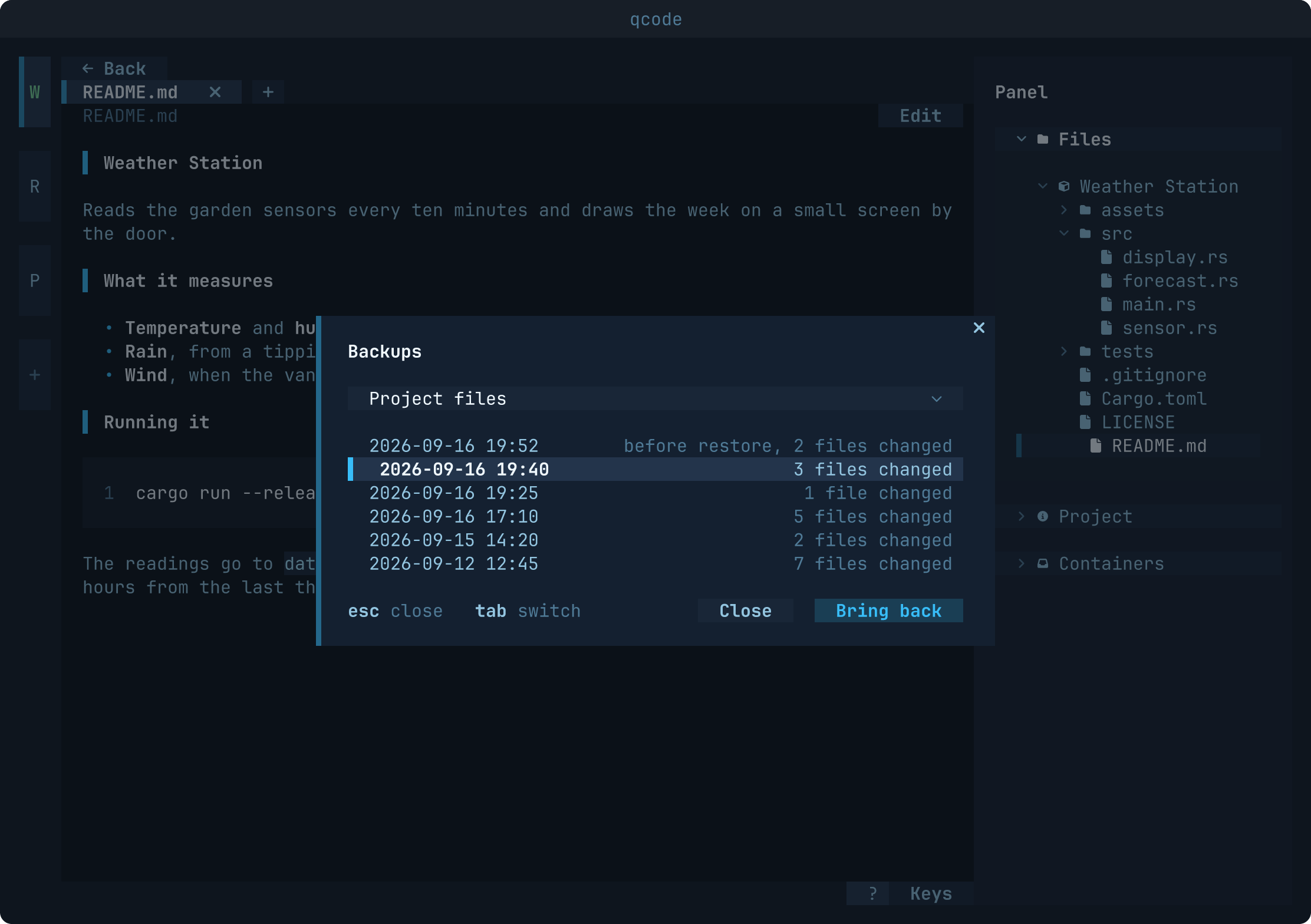
Backup/Conversations/<profile>.git. Only the harness's conversation files are taken, never its login. opencode keeps its conversations in a database, so they are backed up only while its container is stopped: when qcode quits and stops it. - Bringing things back. Backups in the Project part of the side panel lists every backup with its time and how many files it changed; choose one to bring the project back to it. Earlier versions in a file's menu does the same for that one file. The choice at the top of the list switches it to the assets, when they are backed up, or to a profile's conversations. qcode asks first, then backs up how things are now, so bringing something back can be undone the same way. Nothing is deleted: a file made after that backup stays where it is. Conversations are brought back only while the profile's container is stopped; if it runs, qcode offers to stop it first.
- What it is for. A backup protects against a wrong delete, a change that breaks things or a harness scattering files. It sits on the same disk as the project, so it does not protect against losing the disk.
The Project part of the side panel also shows when the last backup was made and how much
Backup/ holds. If a backup fails, qcode says so once for that project, not at every round.
When QCode closes
Settings, When QCode closes decides what the containers QCode started do once no QCode is open any more: Stop (the default) or Keep running. Stopped containers are not removed; the same container starts again the next time it is needed. Only containers QCode itself started are ever stopped; one you run by hand, or another program's, is never touched.
Several QCodes can be open at once. When the last one closes normally, it stops the containers itself and says which on the terminal it was started from.
The background service covers what a normal close cannot: a QCode that crashed or whose terminal was killed. It is optional, and Settings, Background service installs and removes it. On Linux it is a systemd user path unit that watches the list of the containers QCode started; on macOS it is a launchd job that watches the same file. It runs only when that list changes, then waits, without polling and without using the processor, until no QCode is open, applies the setting, and exits. On a day QCode is never opened it never runs.
On Windows there is no background service, and the last QCode to close cannot tell it is the last, so the containers keep running; Settings says so.
Where things live
| What | Where |
|---|---|
| Settings | code.conf in the Quvyta folder of the platform's configuration folder: ~/.config/quvyta/code.conf on Linux, ~/Library/Application Support/Quvyta/code.conf on macOS, %APPDATA%\Quvyta\code.conf on Windows. Settings from before (~/.config/quvyta/code/settings.toml) move there once, at start |
| Open projects and tabs | session.toml in the platform's data folder, ~/.local/share/quvyta/code on Linux |
| Containers QCode started | containers.toml in the same data folder, with instances.lock, which every open QCode holds |
| Background service | ~/.config/systemd/user/qcode-reaper.service and qcode-reaper.path on Linux, ~/Library/LaunchAgents/io.quvyta.code.reaper.plist on macOS, while it is installed |
| Workspace | Quvyta/Code in your Documents folder by default (~/Documents/Quvyta/Code, or ~/Belgeler/Quvyta/Code where the desktop names it so), or the folder you chose; a folder chosen before stays where it is |
| Profiles | Profiles/<profile>.toml in the workspace |
| Projects | Projects/<project>/ in the workspace: project.qcode, the code in Project/, your material in Assets/ |
| Backups | Projects/<project>/Backup/ in the workspace: Project.git, the backups of Project/; Assets.git, those of Assets/ when it is backed up; Conversations/<profile>.git, each profile's conversations; and the lock files that keep two QCodes from backing up the same thing at once |
| Images | qcode/base and qcode/profile/<profile>, in the engine |
| Logins | engine volumes: qcode-cred-<profile> for the profile, qcode-home-<project>-<profile> for each project's copy |
Files are plain TOML. A file qcode cannot read is reported with its line and column instead of stopping the program, and a broken project stays on the list so it can be repaired.
Building from source
The toolchain is pinned by rust-toolchain.toml.
cargo test needs no container engine. The tests that build images and run containers are
ignored by default; run them with a working engine:
QCODE_CONTAINER_TESTS=1
Before your first commit, enable the checks (formatting, clippy, tests and docs):
CONTRIBUTING.md says more about tests and pull requests, and CHANGELOG.md lists what changed in each release.
Licence
MIT. See LICENSE.