# playr
A minimal music player, in a terminal or a desktop window. Plays a directory, a saved playlist, or the results of a search. Keeps a SQLite index of your library.
It contacts no server, fetches no metadata, scrobbles nothing, and has no network code in it at all.
## Features
**Playback**
- Plays a file, a directory recursively, a saved playlist, or a search result
- Gapless within a run of tracks that share a sample rate
- Play, pause, next, previous, stop
- Four playback modes on one key: normal, shuffle, repeat, repeat one
- Seek by 5 seconds in either direction, or 30 with shift, resuming on the exact sample
- Marks: `b` marks a moment in a track, `B` undoes the last mark, `,` and `.` seek between marks, and marks are kept in the library
- Samples: `:slice` writes regions between marks, equal parts or onset slices as lossless WAV files that rtrack loads as a sample bank
- Varispeed in semitone steps, 0.5x to 2.0x, pitch moving with tempo
- Volume as a float gain applied before quantisation
- A file it cannot decode is reported and skipped, never fatal
**Audio quality**
- Opens the output at the file's own sample rate whenever the device allows it, so nothing is resampled in the common case
- Sinc resampling when a rate is refused, not linear interpolation
- f32 throughout: decode, mix and gain, quantised once at the device
- Plays to float, 32-bit, 24-bit and 16-bit integer devices
- Lock-free ring between the decoder and the realtime callback
- Underruns emit silence rather than repeating stale samples
**Library**
- Recursive scan with tag and stream-property reading
- Rescan skips files whose size and modification time are unchanged
- Tracks whose files are gone are kept until `playr prune` removes them, so an unplugged drive does not empty playlists
- Scans commit every 500 files, so an interrupted scan keeps its progress
- Full-text search over title, artist, album, album artist and file name, or within one of them with `artist:evans`
- Search results play directly, in library order
- Playlists saved to and loaded from the database
**Interface**
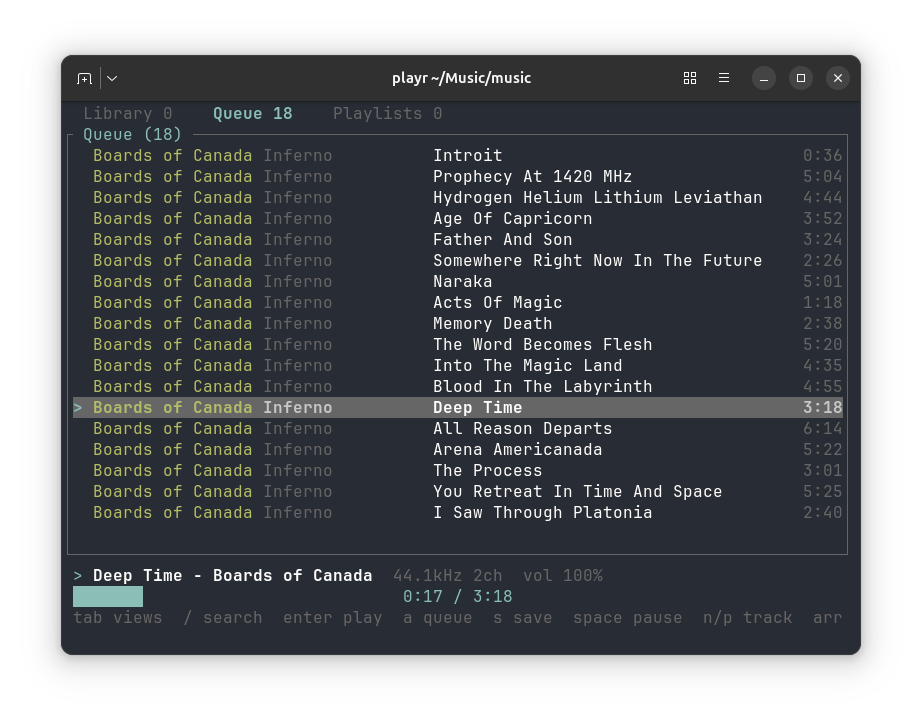
- Four views: library, selection, playlists, and a sampler showing the playing track's waveform
- Search filters as you type
- A selection to collect tracks into, edit and save as a playlist; it does not change what plays, and its tracks are marked `+` in the library
- Now playing shows title, artist, source rate and channels
- Progress bar with elapsed and total time
- Skipped files and audio device errors shown in the status line
- Vim and arrow key navigation
- Vim-style `:` commands for every action, with Tab completion and a history; they also take arguments such as `:seek 1:23` or `:playlist late night`
- `?` lists the keys for the view you are in; the bottom line shows messages, speed, volume, and a level meter
- The level meter reads momentary loudness in LUFS (ITU-R BS.1770, 400 ms) and holds the sample peak for 1.5 s. It measures the recording before the volume setting
- The meter bar runs from -40 dB to full scale and fills green below -18 dB, yellow to -6 dB, and red above; the peak marker `|` takes the colour of where it sits. Red on the bar means near the top, which is normal for loud masters. The peak number turns red only at full scale, where the recording clips
## Install
playr is two programs: `playr`, the terminal interface, and `playr-gui`, a desktop window with the same features, keys and `:` commands. Both read the same library and settings, and only one runs at a time: while either is open, the other, `playr scan` and `playr prune` refuse to start. `playr playlists`, `playr search --json` and `playr formats` only read, and run alongside either.
### Release archives
Each [GitHub release](https://github.com/shakfu/playr/releases) has prebuilt archives, with Opus, for:
- Linux: x86_64 and arm64, glibc 2.35 or later
- macOS: arm64 and x86_64, 11.0 or later
- Windows: x86_64
Each archive holds both programs, with `SHA256SUMS` in the release for checking them. Put `playr` on your `PATH`; the window needs one more step on macOS and Linux:
- **macOS:** the window is `playr.app`; move it to `Applications`. It is not signed or notarized, so macOS refuses to open it once downloaded with a browser; allow it under System Settings, Privacy & Security, or run `xattr -dr com.apple.quarantine playr.app`.
- **Linux:** copy `playr-gui` onto your `PATH`, `playr.desktop` to `~/.local/share/applications`, and `playr.png` to `~/.local/share/icons/hicolor/256x256/apps`, and playr is listed among your applications.
- **Windows:** run `playr-gui.exe`; it opens without a console window.
### From a clone
```sh
make install # both programs, and the window as an application
make gui # run the window without installing
make app # macOS: build target/release/playr.app
```
`make install` copies `playr` and `playr-gui` to `~/.local/bin`. On macOS it also puts `playr.app` in `~/Applications`; on Linux it adds `playr.desktop` and its icon under `~/.local/share`.
### With cargo
```sh
cargo install playr # the terminal, from crates.io
cargo install --git https://github.com/shakfu/playr playr-gui # the window, from GitHub
```
`playr-gui` is not on crates.io yet. `cargo install` builds only the program, without the macOS bundle or the Linux desktop entry. Add `--features opus` to either for Opus.
### Building
Building needs Rust 1.89+ and a C compiler. SQLite is vendored and compiled from source, which is what the C compiler is for; no SQLite package has to be installed. On Linux it also needs the ALSA headers, and the window needs the X11 and Wayland development headers. On Debian and Ubuntu:
```sh
sudo apt install libasound2-dev # both programs
sudo apt install libxkbcommon-dev libwayland-dev \
libxcb-render0-dev libxcb-shape0-dev libxcb-xfixes0-dev # the window
```
### Opus
Opus is off by default. It needs libopus, which is vendored and built with **cmake** -- the only part of playr that needs it. To include it:
```sh
cargo build --release --features opus # the terminal
cargo build --release -p playr -p playr-gui --features playr/opus,playr-gui/opus # both
```
Without it, Opus files are reported as undecodable and skipped, the same as WMA or DSD. `playr formats` says which build you have. `make install` builds without Opus; to install with it, copy the binaries after the build above, or use `cargo install` with `--features opus`.
## Use
```sh
playr scan ~/music # index a directory
playr prune ~/music # remove tracks and marks of files gone from it
playr # browse the library
playr ~/music/some/album # play a directory, recursively, without indexing
playr search bill evans # play everything that matches
playr search album:blue # match the album only
playr search --json evans # print the matches as JSON instead of playing them
playr playlist "late night" # play a saved playlist
playr playlists # list saved playlists
playr formats # show what this build can decode
```
`playr <command> --help` describes each command. A search that starts with `-` goes after `--`, as in `playr search -- -ology`. `--json` prints an array with one object per track, holding every library column, `null` for a missing tag, and `duration_ms` in milliseconds; no match prints `[]` and exits with status 1. Bad arguments exit with status 2.
The library lives at `$XDG_DATA_HOME/playr/library.db`, or `~/.local/share/playr/library.db`. Override it with `--db <path>`. Only `playr scan`, or `:scan` inside playr, creates it. Until then the other commands run without a library, and `s` cannot save a playlist. Paths are stored in full, so a scan run from any directory finds the same rows. A path that is not valid UTF-8 is skipped and counted as unreadable.
Rescanning only re-reads files whose size or modification time changed. A scan never removes anything: it counts the tracks under the scanned directory whose files are gone. `playr prune DIR` removes those tracks, and with them their places in playlists, and the marks of every file under `DIR` that is gone, whether it was in the library or not. Nothing outside `DIR` is touched, so pruning `~/music` leaves an unplugged drive mounted elsewhere alone. Prune after a file is moved or deleted for good, not while a drive under `DIR` is unplugged.
### Desktop window
```sh
playr-gui # open the window on the library
playr-gui ~/music/some/album # play a directory, as playr does
playr-gui --db other.db # use a different library file
```
It takes the terminal's options and reads the same settings file, so its keys and `:` commands are the terminal's. It has the library, selection and playlists as tables with right-click menus, search, menus for every action, file dialogs, the transport, the level meter, and the sampler view, where a click on the waveform seeks, a shift-click marks, and the mouse wheel zooms. It is dark unless View, Theme or the `theme` setting chooses otherwise. [docs/dev/gui.md](docs/dev/gui.md) records its design and what is still open.
File, Add folder to library scans a directory, as `playr scan` does, and File, Open plays files without adding them; files dropped on the window play too. When the window cannot start, for bad settings or no audio device, it opens a window that says why.
## Keys
| keys | action |
|--------------------------|---------------------------------------------|
| `tab`, `1` `2` `3` `4` | switch view; `4` is the sampler |
| `j` `k`, up/down | move |
| `g` `G`, home/end | jump to first or last |
| page up/down | move by ten |
| `enter` | play from here; in playlists, play it |
| `a` | select or unselect, then move down |
| `/` | search; `esc` clears |
| `r` | rename the selected playlist |
| `s` | save the selection; asks before overwriting |
| `d` | remove from selection; delete a playlist |
| `J` `K`, shift up/down | move a track within the selection |
| `c` | clear the selection; asks y/n |
| `space` | play or pause |
| `n` `p` | next or previous track |
| `x` | stop |
| `m` `M` | next or previous playback mode |
| left/right | seek back or forward 5 seconds |
| shift left/right | seek back or forward 30 seconds |
| `b` | mark the playing position |
| `,` `.` | seek to the previous or next mark |
| `B` | undo the last mark |
| `C` | clear all marks in this track; asks y/n |
| `[` `]` | varispeed down or up, one semitone a press |
| `\` | back to normal speed |
| `+` `-` | volume |
| `:` | type a command; see [Commands](#commands) |
| `?` | list the keys for this view |
| `q` | quit |
Searching filters as you type, across title, artist, album, album artist and the file name without its folder or extension. The file name is what finds an untagged file, which the list shows by that name. Pressing enter on the results plays them.
Every word must match, as the start of a word. Prefix a word with a field to match it in that field alone: `title:`, `artist:`, `album:`, `albumartist:`, or `file:`. Quote words to match them together in order, as in `artist:"bill evans"`; unquoted, a field applies only to the word it is attached to. A prefix that is not one of these fields is searched as text, so `op:1` still finds a title with a colon in it.
Enter plays the list you are looking at, from the selected track: the library, search results, the selection, or a playlist. The selection is separate from what plays. It starts empty. In the library, `a` selects the track under the cursor, or unselects it if it is marked `+`, without interrupting playback. On a playlist, `a` adds its tracks, skipping any already selected but keeping the playlist's own repeats. `s` saves the selection as a playlist. To edit a playlist, add it to the selection with `a`, change it, and save it under the same name.
### Playback modes
`m` steps through four modes and `M` steps back. The bottom line names the mode unless it is normal.
| mode | order | after the last track |
|------------|----------------------------------------------------|----------------------|
| normal | list order | stop |
| shuffle | every track once per pass, in random order | reshuffle, go on |
| repeat | list order | start again |
| repeat one | the current track only | play it again |
A mode applies to whatever list is playing: the library, search results, the selection, or a playlist. To shuffle across several playlists, add them to the selection with `a` and play the selection. Shuffle keeps the list on screen in its own order, and `p` goes back through the tracks it has played. Under repeat one, `n` moves on to the next track, which then repeats. Changing mode takes effect from the next track, even if it has already started loading.
### Marks
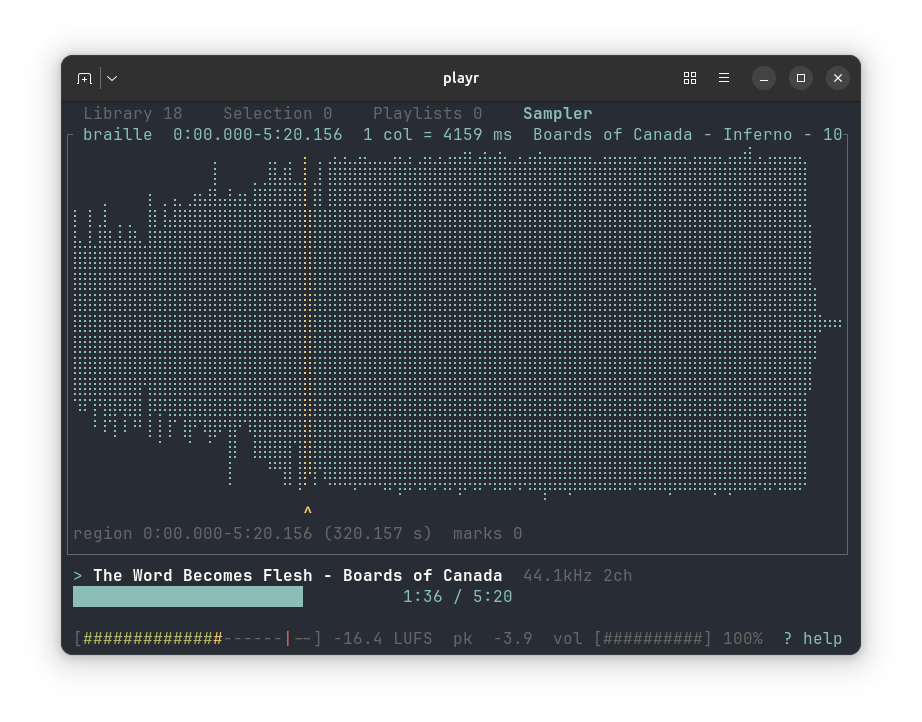
`b` marks the playing position in the current track. Marks show as `^` under the progress bar. `.` seeks to the next mark and `,` to the previous one; within a second after a mark, `,` goes to the one before it, so pressing it twice steps back twice. A mark within half a second of an existing one is not added again.
Marks form a chain: `B` removes the mark added most recently, then the one before, whatever their positions in the track. `C` clears all of the track's marks; it asks first, and only `y` confirms.
Marks are stored in the library by file path and source frame, so they survive a rescan and stay exact at any playback speed. Without a library file they last until playr exits. A mark lands slightly after the moment you meant, by your reaction time.
### Samples
`:slice` writes parts of the playing track as WAV files, for rtrack or any sampler. Marks set the regions. The region is the span between the marks either side of the playhead, from the start of the track or to its end where there is no mark on that side.
| command | writes |
|---------------------|----------------------------------------------------------------------|
| `:slice region` | the region |
| `:slice marks` | the whole track, cut at every mark |
| `:slice N` | the region in N equal parts, 2 to 256 |
| `:slice onsets [S]` | the region, cut where hits start; `S` from 0 to 1, higher finds more |
Each export writes a new directory, named after the track, under `samples` in [`settings.toml`](#configuration), by default `~/Music/playr/samples`. A second export of `amen.flac` goes to `amen-2`. The directory holds:
- `000-amen_S00.wav`, `001-amen_S01.wav`, and so on, one file per slice, in the layout rtrack loads as a sample bank.
- `samples.json`, with the source file and each slice's start and end frame.
Slices are read from the source file, so volume and speed do not apply. They are 24-bit WAV at the source's sample rate and channel count; 16- and 24-bit sources are copied bit for bit. Without `S`, `:slice onsets` uses `onset_sensitivity` from `settings.toml`, 0.5 by default. Onset detection is rtrack's: a hit within 50 ms of the region's start stays in the first slice, and each slice starts up to 10 ms before its hit. It reads the region into memory, up to about 23 minutes at 48 kHz. Export runs in the background, and the bottom line reports when it is done.
For MP3 and AAC, frame positions follow playr's decoder. Another decoder can count the codec's encoder delay differently and place the same slice up to a few thousand frames away.
[docs/sampler.md](docs/sampler.md) shows how regions and cuts fit together, what `samples.json` holds, and how precise a mark is.
### Sampler view
`4` opens a view of the playing track's waveform, read from the file the first time the view opens for that track. Marks show as `|` under it, the playhead as `^`, and the region between the marks either side of the playhead in the accent colour. The detail line gives the region's times to the millisecond.
| key | command | does |
|---------|-------------------------|---------------------------------------------------|
| `z` `Z` | `:zoom +`, `:zoom -` | zoom in or out, centred on the playhead |
| `0` | `:zoom all` | show the whole track |
| `w` | `:display` | switch display: Braille, envelope, dB |
| `enter` | `:write` | write the slices planned |
| `esc` | `:discard` | discard them |
- **Displays.** The envelope draws each column as two bars in eighth blocks: its RMS level in the bright colour, inside its peak level in a darker one. The waveform is folded, with negative samples counted by their size, so the bars use the full height. RMS shows loudness, such as a verse against a chorus, where a mastered track's peaks are near full scale everywhere; peak shows where each hit starts. The Braille display, which the view starts with, draws the waveform around a centre line, two dots across and four down a cell, which shows its shape. Both scale to the loudest sample in the track.
- **dB.** The dB display draws the same bars on a scale from -48 dBFS to full scale, not scaled to the track. A linear scale puts RMS 12 dB below full scale a quarter of the way up; this puts it three quarters of the way, which spreads out quiet passages and the level changes between sections. Levels below -48 dB draw nothing.
- **Zoom.** Each step halves the time a column shows, down to 64 frames, 1.5 ms at 44.1 kHz. Columns start on the 32-frame buckets the peaks are kept in, so a column never shows a neighbour's hit.
- **Planning.** In this view, `:slice` plans slices instead of writing them, and draws their edges as `+`. Enter writes exactly those slices; esc discards them, and so does a change of track. Outside the view, `:slice` writes at once.
The waveform glyphs are the view's only characters outside ASCII. Marks are still placed at the playhead, and a region cannot be heard on its own yet; both are planned.
### Varispeed
`[` and `]` change playback speed in semitone steps, and pitch moves with it, as on a tape machine or a turntable. Twelve presses is exactly an octave, so the range is 0.5x to 2.0x. The speed shows in the status bar as `1.19x (+3 st)` and `\` returns to normal.
This is not the pitch-preserving speed change of a podcast app. That is time-stretching, which needs a phase vocoder; this is a change of resampling ratio, which is what varispeed means.
### Commands
`:` opens a command line: `:seek 1:23`, `:volume 60`, `:playlist late night`. Every key's action has a command, and commands also take arguments no key can, such as a time or a name. Some commands work only in one view, as `:remove` in the selection. Tab completes, up recalls earlier lines, and `:help` lists every command. [docs/cheatsheet.md](docs/cheatsheet.md) has the full list.
`:scan ~/music` adds a directory to the library without leaving playr. It runs in the background and counts files on the bottom line; once it finishes, the library view shows the new tracks. Saving a playlist or a mark while a scan runs waits for the scan to finish writing its current batch of 500 files, and fails with "database is locked" if that takes more than 5 seconds. `:prune ~/music` does what `playr prune` does, after asking. `:open ~/music/some/album` plays a file or directory, as `playr <path>` does, and adds its tracks to the end of the selection.
## Configuration
playr reads `$XDG_CONFIG_HOME/playr/settings.toml`, or `~/.config/playr/settings.toml`, when it starts. `--settings <path>` reads another file instead. The file is optional, and it is read on top of the defaults in [`crates/playr-core/src/settings.toml`](crates/playr-core/src/settings.toml) and the default keys in [`crates/playr-app/src/keys.toml`](crates/playr-app/src/keys.toml), so it only needs what it changes. Copying either defaults file whole, or both into one, is also valid.
```toml
volume = 60 # percent, 0 to 100
mode = "shuffle" # normal, shuffle, repeat or repeat-one, in full
speed = -3 # semitones, -12 to 12
onset_sensitivity = 0.7 # for :slice onsets without a number, 0 to 1
samples = "~/Music/playr/samples" # where :slice writes
theme = "light" # system, light or dark
[keys] # every view
right = "seek +10"
shift-right = "seek +60"
ctrl-s = "save"
q = "nop"
"?" = "help"
[keys.selection] # one view: library, selection, playlists or sampler
x = "remove"
```
- Each key's value is a `:` command, as listed in [docs/cheatsheet.md](docs/cheatsheet.md). `"nop"` makes a key do nothing, and `"command"` opens the `:` prompt.
- A key under `[keys.VIEW]` wins in that view over the same key under `[keys]`.
- A key under `[keys]` needs a command that works in every view. `d = "remove"` there is refused, with the table to put it in.
- Keys are named by their character (`j`, `J`), or as `space`, `enter`, `esc`, `tab`, `backtab`, `backspace`, `delete`, `insert`, `up`, `down`, `left`, `right`, `home`, `end`, `pageup`, `pagedown`, or `f1` to `f12`. Prefix `ctrl-`, `alt-` or `shift-` for a chord; a chord only matches a binding that names it. TOML needs quotes around a key that is not a letter, digit, `-` or `_`, such as `"?"`.
- `ctrl-c` always quits, and the keys inside prompts and help lists cannot be changed.
Any error stops playr before it starts, and every bad setting is listed with its line number. `?` lists the keys as bound in the view you are in. `:map` and `:unmap` change keys until playr exits.
`theme` sets the colours, `dark` unless set, and `:theme` changes them until playr exits. In the window, `system` follows the system's light or dark appearance. A terminal cannot report its background reliably, so there `system` and `dark` use the terminal's own ANSI colours, which its theme shades, and `light` uses fixed colours for a light background. With `NO_COLOR` set to any value, the terminal draws without colour and reverses the cursor row.
## Formats
Decoded: FLAC, ALAC, MP3, MP1, MP2, AAC-LC, Vorbis, PCM and ADPCM, in WAV, AIFF, CAF, MP4/M4A, MKV/WebM, OGG and raw FLAC containers. Opus as well, when built with `--features opus`.
Opus is decoded by playr itself, in both OGG and WebM. Symphonia 0.6 demuxes Opus but ships no decoder, so `crates/playr-core/src/audio/opus.rs` supplies one on top of libopus via the `opus` crate and registers it in a custom codec registry. Mono and stereo only; multistream surround is not handled.
Tags are not read from CAF, MKV or WebM files. Those are indexed under their file names, and MKV and WebM files also show no duration.
Not decoded: WavPack, WMA, Musepack, APE, DSD, TTA, TAK, and Opus unless the feature is enabled. playr reports such a file and moves to the next track rather than stopping. Run `playr formats` for the current list.
## Audio quality
The output stream is opened at the file's own sample rate whenever the device accepts it, so nothing is resampled in the common case. When a rate is refused, a sinc resampler converts it rather than linear interpolation. Decoding, mixing and volume are all f32, quantised once at the device. The device format is chosen in the order f32, f64, 32-bit, 24-bit, then 16-bit integer.
This is not bit-perfect output. On a PipeWire system the ALSA `default` device accepts every rate and may convert internally. Bit-perfect playback would need a `hw:` device, which playr does not yet select.
Volume is a float gain applied before quantisation.
## Roadmap
`TODO.md` lists what is missing and what is blocked upstream.
## Design
[docs/architecture.md](docs/architecture.md) describes how the code splits into `playr-core`, `playr-app` and the terminal, so another frontend, such as an egui or Tauri app, can reuse everything but the terminal.
## Tests
```sh
make test
```
`make test` runs the suite for all four crates in the workspace, `playr-core`, `playr-app`, `playr` and `playr-gui`, twice: with and without the `opus` feature, so neither build can rot unnoticed. The format and scanner tests generate real audio with `ffmpeg` when it is present and skip themselves when it is not. The rendering tests draw into a headless terminal, and the window's tests drive it headless with `egui_kittest`, so neither needs a display or an audio device. The engine, key-handling and device-failure tests play to a fake output device, so they need no audio device. One smoke test plays to the real default device at zero volume, and skips without one. Set `PLAYR_REQUIRE_FFMPEG=1` or `PLAYR_REQUIRE_DEVICE=1` to fail instead of skip, so a CI run cannot pass by testing nothing.
`.github/workflows/test.yml` runs both builds' tests on Linux, macOS and Windows on every branch push and pull request, with `PLAYR_REQUIRE_FFMPEG=1` and ffmpeg 9.0 on every runner, and checks formatting and clippy on Linux. Runners have no audio device, so only the real-device smoke test skips there.
`.github/workflows/release.yml` builds and packages both programs for every platform when a version tag is pushed, and publishes the release. Run by hand from the Actions tab with no tag, it builds and packages the chosen branch and keeps the archives as the run's artifacts without publishing, to try every platform's build before tagging.
Opus output was checked against `ffmpeg` by decoding the same file both ways: identical frame counts and 138.7 dB SNR, with no alignment offset.
## License
MIT. See `LICENSE`.