# What is oper?
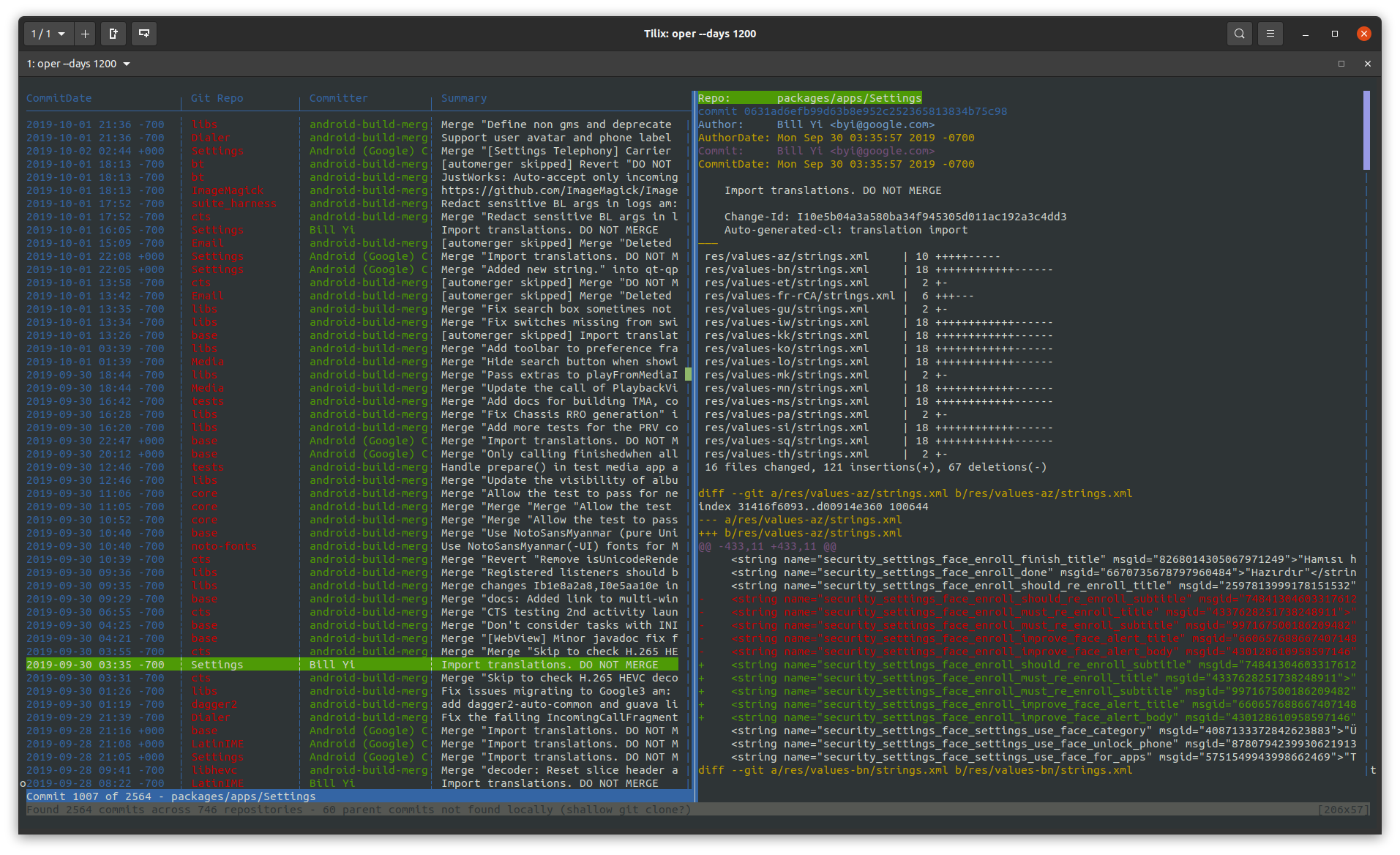
Oper is a basic history tool for git repositories managed by google's [git-repo tool](https://source.android.com/setup/develop/repo).
It can show a linear history __across all__ managed git repositories.
Oper is inspired by [tig](https://jonas.github.io/tig/), but is far for more basic.
# Installation
## Ubuntu
Ubuntu releases are available [here](https://github.com/elektronenhirn/oper/releases/latest). After downloading the package which fits your ubuntu version you can install it with
```
sudo apt install ./<path-to-deb-file>
```
## Other Operating Systems
Oper is written in rust. You need the rust toolchain installed to be able to use it:
https://www.rust-lang.org/tools/install
Then you simply install _oper_ with:
```
cargo install oper
```
# Usage
Simply execute `oper` in a folder which is managed by `git-repo`.
For more advanced usage watch out for command line parameters:
- Define the number of days to include in the history with the `--days` cli switch
- Filter commits by using the `--author` or `--message` cli switches
Keys in the UI:
- Scroll in the diff view with `j` (down) or `k` (up)
- Press `i` to inspect a change in _gitk_ (you need to install _gitk_ seperatly)
- Quit oper by pressing `q`
## Custom Commands
You can run external executables on the currently selected commit. Running _gitk_ with the key _i_ is one example. You can add more custom commands on your own in oper's config file. The location of the config file depends on your operating system:
- __Mac OS:__ typically at `/Users/<username>/Library/Application Support/oper/config.toml`
- __Ubuntu:__ typically at `/home/<username>/.config/oper/config.toml`
Here we define a custom command to run _git show_ in a new terminal window:
```
# Execute git show in a seperate terminal window
[[custom_command]]
key = "d"
executable = "gnome-terminal"
args = "-- git show {}"
```
#### Remarks
- `{}` in the args field is substituted by the ID of the selected commit.
- The working directory of the new process is set to the directory of the git repository where the selected commit belongs to.
- You cannot run a command line executable in the same terminal as where oper is running, as this would interfer with oper's UI. Wrap your command into a new terminal instance instead (as seen in the example above).
- You cannot override/assign keys which are already built-in (like `j`, `k` and `q`).
