
oly — Open Relay


Run any CLI like a managed service.
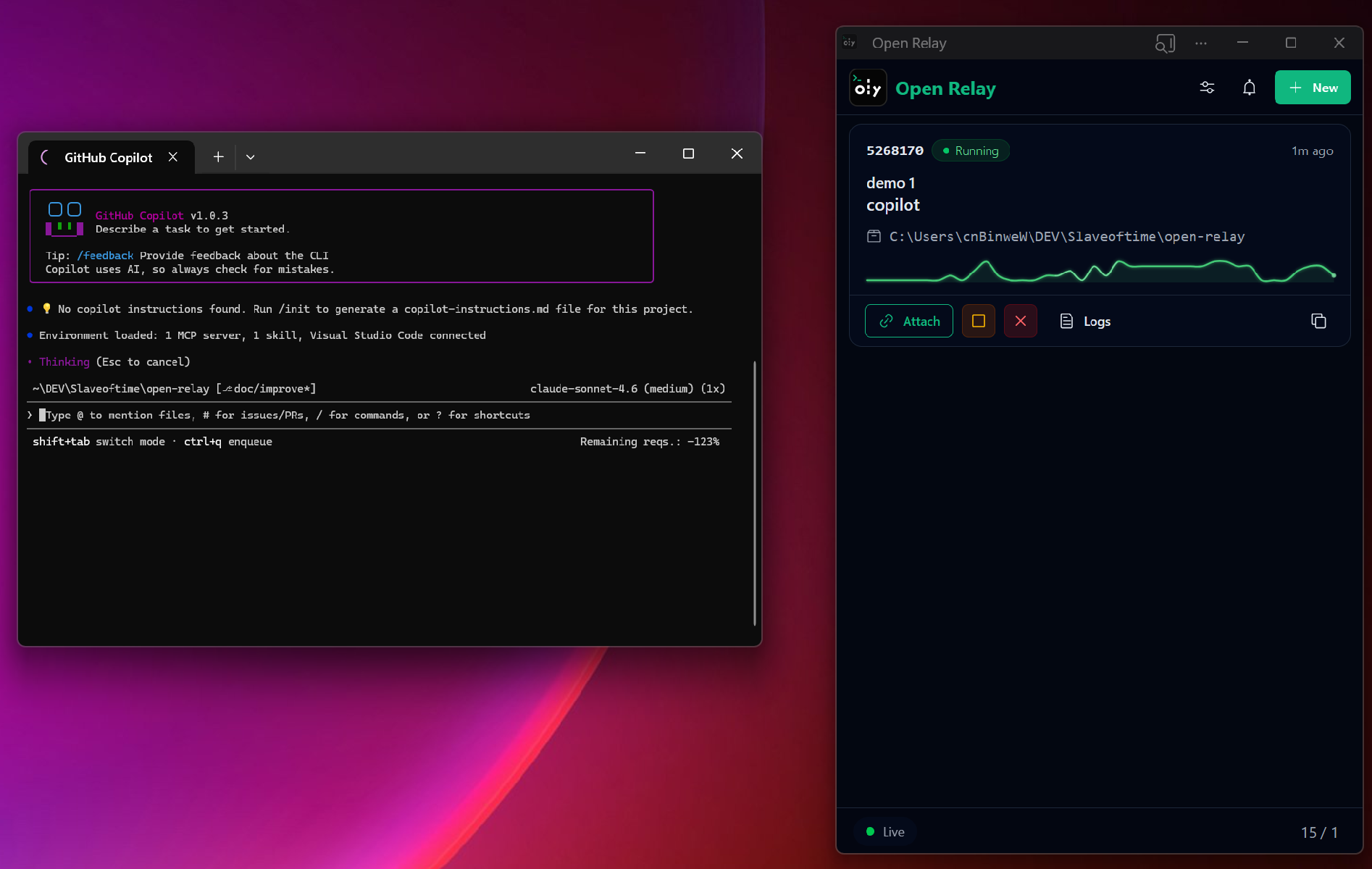
oly turns long-running and interactive CLI workflows into persistent, supervised sessions for humans and AI agents. Close the terminal, keep the process alive, get notified when input is needed, and jump back in from anywhere.
If this solves a real problem for you, give the repo a star so more people can find it.
For a full repository architecture map, see ARCHITECTURE.md. For the PTY/session internals specifically, see ARCHITECTURE_PTY.md.
The problem 😤
You start an agent or interactive CLI task. It runs for 20 minutes. Halfway through it hits a y/n prompt and just... sits there. You had to keep a terminal open, stay at your desk, babysit it.
That's over.
What oly does ⚡
- Turns interactive CLIs into managed, auditable sessions
- Owns agent sessions in a background daemon — closing your terminal changes nothing
- Replays buffered output when you reattach (no lost context)
- Detects when input is likely needed and notifies you
- Lets you inject input without attaching (
oly send <id> key:enter) - Keeps auditable logs of everything
Who it's for
- People running AI coding agents that stall on prompts, permissions, or long-running work
- Anyone using interactive CLIs that should survive terminal closes, disconnects, or context switches
- Teams that want auditable logs and remote intervention instead of fragile ad-hoc shell sessions
Agent-supervises-agent 🤖 👀 🤖
You can run one agent to supervise another. When the supervisor hits something it's unsure about — or something that needs elevated permission — it escalates to you. You decide whether to approve, modify, or abort. You're still in the loop, just not watching.
Install 📦
Supported platform
- macOS: Apple Silicon (
arm64)- Linux: x86_64 / AMD64
- Windows: x86_64 / AMD64
Pre-built binaries
Download the latest release for your platform from the Releases page.
- macOS: Download
oly-macos-arm64.zip, unzip,chmod +x oly, and move to/usr/local/bin. - Linux: Download
oly-linux-amd64.zip, unzip,chmod +x oly, and move to/usr/local/bin. - Windows: Download
oly-windows-amd64.zip, unzip, and add to your PATH.
Quick start 🚀
The CLI is for both humans and AI agents.
If you only try one workflow, make it this one: start the daemon, launch a session detached, inspect logs, then send input only when needed.
# Start the daemon (once per boot, or add to your init)
# Launch an agent session and detach immediately
# Check what's running
# Peek at output without attaching
# Something needs your input — send it without a terminal
# Actually attach and drive it yourself
# Ctrl+D to detach anytime
# Stop it when done
Remote supervision 🌐
Access and manage sessions from a browser, with push notification support. Intervene from anywhere.
oly has no built-in network listener — deliberately. Expose it the way you control:
[anywhere] → [your auth gateway] → [tunnel] → [oly daemon, local IPC]
Put Cloudflare Access, Tailscale, or any auth proxy in front. Every action logged. Your rules. 🔒
Commands 📋
| Command | What it does |
|---|---|
oly daemon start |
Start background daemon |
oly start [--detach] [--disable-notifications] [--cwd DIR] <cmd> |
Launch session in PTY |
oly ls |
Show sessions (supports search/status/time filters) |
oly attach <id> |
Reattach (replays buffer first) |
oly logs <id> [--tail N] [--wait-for-prompt] |
Read logs without attaching |
oly send <id> [CHUNK]... |
Send input without attaching |
oly stop <id> |
Graceful stop |
Federation commands
| Command | What it does |
|---|---|
oly api-key add <name> |
Create API key on primary (printed once) |
oly api-key ls |
List API key labels on primary |
oly api-key remove <name> |
Revoke API key on primary |
oly join start --name <name> --key <key> <url> |
Connect this daemon as a secondary |
oly join ls |
List saved join configs on this daemon |
oly join stop --name <name> |
Disconnect and remove a saved join config |
oly node ls |
List currently connected secondary nodes on primary |
All session commands support --node <name> to target a connected secondary.
Detach from an attached session: Ctrl-] then d.