# mprisence
[](https://aur.archlinux.org/packages/mprisence)
[](https://github.com/lazykern/mprisence/blob/main/LICENSE)
[](https://github.com/lazykern/mprisence/stargazers)
A highly customizable Discord Rich Presence client for MPRIS media players. Supports VLC, MPV, RhythmBox, and many other Linux music and media players.
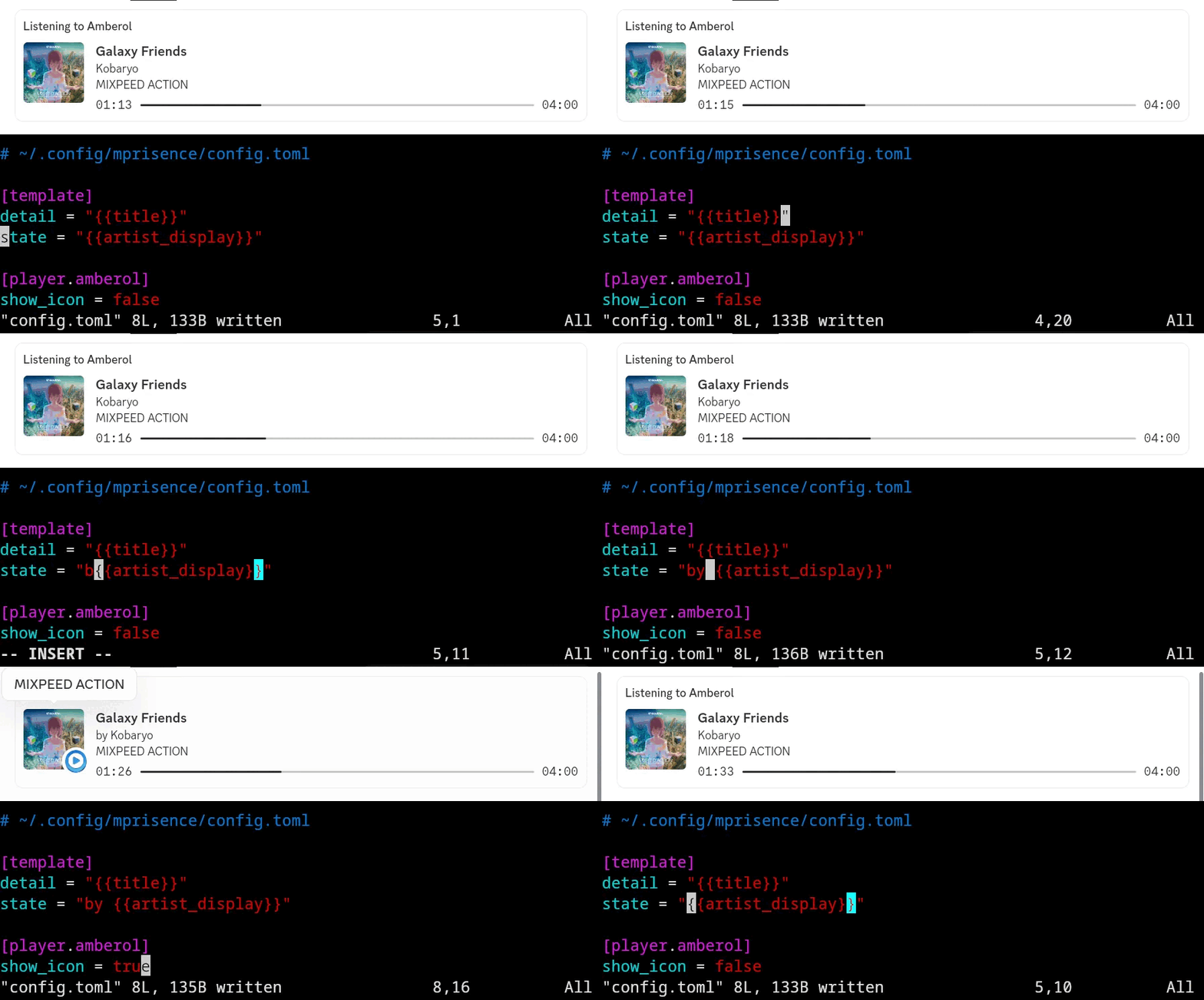
_(Note: Actual appearance depends on your configuration and the specific media player)_
## Preconfigured Players
Ready to use with popular media players (configured in [`config.default.toml`](./config/config.default.toml)):
- **Media Players**: VLC, MPV, Audacious, Elisa, Lollypop, Rhythmbox, CMUS, MPD, Musikcube, Clementine, Strawberry, Amberol, SMPlayer
- **Streaming**: YouTube Music, Spotify (disabled by default)
- **Browsers** (disabled by default): Firefox, Zen, Chrome, Edge, Brave
## Features
| Universal Media Player Support | Works with any MPRIS-compatible Linux media player. |
| Advanced Templating | Utilize the power of Handlebars templates for complete control over your presence text, including conditionals and helpers. |
| Online/Local Cover Arts | Automatically finds and displays the right album or video art. It can grab it from the web or use your own local files. |
| Live Configuration (Hot Reload) | Change your `config.toml` and see the updates reflected instantly without restarting the service. |
| Content-Aware Activity | Automatically sets your Discord status to "Listening", "Watching", etc., based on the media type (configurable). |
| Player-Specific Settings | Customize Discord App IDs, icons, and behavior for individual players. |
| Detailed Metadata | Access a rich set of metadata (including technical audio details) within your templates. |
## Prerequisites
- **For running:** A desktop environment with an active D-Bus session (standard on most Linux desktops).
- **For service management:** `systemd` (user instance).
- **For manual installation/building from source:**
- `rustc` and `cargo` (latest stable version recommended)
- `git` (to clone the repository)
## Installation
### Arch Linux
```bash
# Install from AUR
yay -S mprisence
```
### From Source
1. **Install the binary:**
```bash
cargo install --path .
```
This command compiles and installs the `mprisence` binary to `~/.cargo/bin/mprisence`. Ensure `~/.cargo/bin` is in your system's `PATH`.
2. **Set up Configuration:**
Follow the instructions in the [Configuration](#configuration) section to set up your `config.toml` file.
3. **Set up the Systemd Service (for autostarting):**
To run `mprisence` automatically on login, you need to set up the systemd user service.
```bash
mkdir -p ~/.config/systemd/user
cp mprisence.service ~/.config/systemd/user/mprisence.service
```
The service file is pre-configured to work with `cargo install`.
Finally, enable and start the service as described in the next section.
## Autostarting / Service Management
If you installed from an AUR package or set up the service manually, `mprisence` will run as a systemd user service.
You can manage the service using `systemctl --user`:
```bash
# Check service status
systemctl --user status mprisence
# Restart the service
systemctl --user restart mprisence
# Enable the service to start on login
systemctl --user enable --now mprisence
# Disable the service from starting on login
systemctl --user disable --now mprisence
# View detailed logs
journalctl --user -u mprisence -f
```
## Configuration
`mprisence` is highly configurable via `~/.config/mprisence/config.toml` (or `$XDG_CONFIG_HOME/mprisence/config.toml`).
### Getting Started
1. **Ensure the configuration directory exists:**
```bash
mkdir -p ~/.config/mprisence
```
2. **Copy the example configuration:** Copy `config.example.toml` to `~/.config/mprisence/config.toml`.
- You can find the example file in the source repository (`config/config.example.toml`) or in the installation directory (e.g., `/usr/share/mprisence/config.example.toml` if installed via package manager - use `pacman -Ql mprisence | grep config.example.toml` on Arch to find the exact path).
- Alternatively, download the latest example directly:
```bash
curl -o ~/.config/mprisence/config.toml https://raw.githubusercontent.com/lazykern/mprisence/main/config/config.example.toml
```
This file contains detailed explanations of all options.
3. **Modify** `~/.config/mprisence/config.toml` to your liking.
4. You can refer to `config.default.toml` (in the source repository or installation files) to see the default settings applied to specific players if you don't override them.
### Configuration Reference
- [`config.example.toml`](./config/config.example.toml): Detailed options and explanations.
- [`config.default.toml`](./config/config.default.toml): Default configurations for popular players.
- [`src/metadata.rs`](./src/metadata.rs): Definitive source for all available template variables.
---
<details>
<summary>Basic Configuration Example</summary>
```toml
# Basic settings
# Whether to clear Discord activity when media is paused
clear_on_pause = true
# How often to update Discord presence (in milliseconds)
interval = 2000
# Note: Triple braces `{{{variable}}}` are used to prevent HTML escaping,
# which is generally desired for Discord presence fields.
# See: https://handlebarsjs.com/guide/#html-escaping
# Display template
[template]
# First line in Discord presence
detail = "{{{title}}}"
# Second line in Discord presence - using Handlebars array iteration
state = "{{#each artists}}{{this}}{{#unless @last}} & {{/unless}}{{/each}}"
# or just use
# state = "{{{artist_display}}}"
# Text shown when hovering over the large image - using conditional helpers
large_text = "{{#if album}}{{{album}}}{{#if year}} ({{{year}}}){{/if}}{{#if album_artist_display}} by {{{album_artist_display}}}{{/if}}{{/if}}"
# Text shown when hovering over the small image (player icon)
# Only visible when show_icon = true in player settings
small_text = "{{#if player}}Playing on {{{player}}}{{else}}MPRIS{{/if}}"
# Activity type settings
[activity_type]
# Auto-detect type (audio -> "listening", video -> "watching")
use_content_type = true
# Default type: "listening", "watching", "playing", or "competing"
default = "listening"
# Time display settings
[time]
# Show progress bar/time in Discord
show = true
# true = show elapsed time, false = show remaining time
as_elapsed = true
```
</details>
---
<details>
<summary>Cover Art Setup</summary>
```toml
[cover]
# File names (without extension) to search for local art (e.g., cover.jpg, folder.png)
file_names = ["cover", "folder", "front", "album", "art"]
# How many parent directories to search upwards for local art (0 = same dir only)
local_search_depth = 2
[cover.provider]
# Cover art providers in order of preference
# (imgbb will be used as a fallback if musicbrainz fails or local art isn't found)
provider = ["musicbrainz", "imgbb"] # Also checks local files first based on above
[cover.provider.musicbrainz]
# Minimum score (0-100) for MusicBrainz matches. Higher = stricter.
min_score = 95
[cover.provider.imgbb]
# Your ImgBB API key (get one at: https://api.imgbb.com/)
api_key = "YOUR_API_KEY_HERE"
# How long to keep uploaded images (in seconds, default: 1 day)
expiration = 86400
```
</details>
---
<details>
<summary>Player-Specific Configuration</summary>
```toml
# Use 'mprisence players list' to get the correct player identity (e.g., vlc_media_player)
# Default settings applied to ALL players unless overridden below
[player.default]
ignore = false # Set to true to disable presence for all players by default
app_id = "1121632048155742288" # Default Discord Application ID
icon = "https://raw.githubusercontent.com/lazykern/mprisence/main/assets/icon.png" # Default icon URL
show_icon = false # Show player icon as small image by default?
allow_streaming = false # Allow web/streaming content by default?
# Override settings for a specific player (VLC in this example)
[player.vlc_media_player]
# You can override any key from [player.default] here
app_id = "YOUR_VLC_APP_ID_HERE" # Use a VLC-specific Discord App ID
icon = "https://example.com/vlc-icon.png" # Use a VLC-specific icon
show_icon = true # Show the VLC icon
allow_streaming = true # Allow streaming content for VLC
# You could also add 'override_activity_type = "watching"' here if desired
# Example: Ignore Spotify
# [player.spotify]
# ignore = true
```
</details>
## CLI Commands
```bash
# Get help
mprisence --help
# Run without system service
mprisence
# List available MPRIS players
mprisence players list
# Show detailed player information including metadata and config
mprisence players list --detailed
# Show current configuration
mprisence config
# Show version
mprisence version
# Enable more verbose logging
RUST_LOG=debug mprisence # or RUST_LOG=trace mprisence
```
<details>
<summary>Troubleshooting</summary>
### Common Issues
1. **Discord Presence Not Showing / Updating**
- **Is Discord running?** Ensure the Discord desktop client is open.
- **Is your player running and MPRIS-compatible?** Run `mprisence players list` to see detectable players.
- **Is the service running?** `systemctl --user status mprisence`
- **Discord Settings:** Check `Discord Settings -> Registered Games / Activity Privacy`. Ensure `Display current activity as a status message.` is ON. Sometimes toggling this off and on helps. Add `mprisence` if it's not listed.
- **Correct App ID?** Verify the `app_id` in your config matches a valid Discord application ID.
- **Logs:** Check `journalctl --user -u mprisence -f` or run `RUST_LOG=debug mprisence` for errors.
2. **Cover Art Not Displaying**
- **Check the logs:** Run with `RUST_LOG=debug mprisence` to see the cover art process.
- **Provider Order:** Cover art is checked in this order: Cache -> Direct URL (from metadata) -> Local Files -> Configured Providers (e.g., MusicBrainz, ImgBB).
- **MusicBrainz:** Does the track metadata (title, artist, album) accurately match the MusicBrainz database? Check the `min_score` in your config.
- **ImgBB:**
- Is a local file available (embedded or matching `file_names` in the folder/parent folders)? ImgBB is primarily used to _upload_ local art.
- Is your `api_key` in `[cover.provider.imgbb]` correct and valid?
- Is the image file format supported and readable?
- **Cache:** Try clearing the cache (`rm -rf ~/.cache/mprisence/cover_art`) if you suspect stale entries.
3. **Service Issues**
- Use the commands mentioned in the [Autostarting / Service Management](#autostarting--service-management) section to check status (`status`), view logs (`journalctl`), and manage the service (`start`, `stop`, `restart`).
4. **Configuration Issues**
_**Syntax Errors:** Validate your `config.toml` using an online TOML validator or `toml-lint`.
_ **Defaults:** If unsure, temporarily remove your `~/.config/mprisence/config.toml` to test with the built-in defaults.
</details>
## Contributing
Contributions are welcome! Please feel free to open an issue to report bugs, suggest features, or discuss changes. If you'd like to contribute code, please open a pull request.
## License
This project is licensed under the MIT License - see the [LICENSE](LICENSE) file for details.