<p align="center">
<a href="https://github.com/orhun/menyoki">
<img src="https://user-images.githubusercontent.com/24392180/98470768-09356680-21f9-11eb-81de-94a622b32db4.png" width="500"></a>
<br>
<b>Screen{shot,cast} and perform ImageOps on the command line 🌱 🏞️</b>
<br>
<br>
<a href="https://github.com/orhun/menyoki/releases">
<img src="https://img.shields.io/github/v/release/orhun/menyoki?style=flat&labelColor=000000&color=25691f&logo=GitHub&logoColor=white">
</a>
<a href="https://crates.io/crates/menyoki/">
<img src="https://img.shields.io/crates/v/menyoki?style=flat&labelColor=000000&color=25691f&logo=Rust&logoColor=white">
</a>
<a href="https://archlinux.org/packages/community/x86_64/menyoki/">
<img src="https://img.shields.io/archlinux/v/community/x86_64/menyoki?style=flat&labelColor=000000&color=25691f&logo=Arch%20Linux&logoColor=white">
</a>
<br>
<a href="https://github.com/orhun/menyoki/actions?query=workflow%3A%22Continuous+Integration%22">
<img src="https://img.shields.io/github/actions/workflow/status/orhun/menyoki/ci.yml?branch=master&style=flat&labelColor=000000&color=25691f&label=CI&logo=GitHub%20Actions&logoColor=white">
</a>
<a href="https://github.com/orhun/menyoki/actions?query=workflow%3A%22Continuous+Deployment%22">
<img src="https://img.shields.io/github/actions/workflow/status/orhun/menyoki/cd.yml?style=flat&labelColor=000000&color=25691f&label=CD&logo=GitHub%20Actions&logoColor=white">
</a>
<a href="https://hub.docker.com/r/orhunp/menyoki">
<img src="https://img.shields.io/github/actions/workflow/status/orhun/menyoki/docker.yml?style=flat&labelColor=000000&color=25691f&label=Docker&logo=Docker&logoColor=white">
</a>
<a href="https://codecov.io/gh/orhun/menyoki">
<img src="https://img.shields.io/codecov/c/gh/orhun/menyoki?style=flat&labelColor=000000&color=25691f&logo=Codecov&logoColor=white">
</a>
</p>
**menyoki** is a screencast and screenshot utility that can also perform various image related operations such as making/splitting GIFs and modifying/analyzing/viewing image files. It aims to be a lightweight command line tool for either helping out on day-to-day life operations or complicated detail-centric issues. Originally it was designed to record/screenshot terminal windows but it can be tweaked easily for other purposes with command line arguments, environment variables, or a configuration file.
<details>
<summary>Table of Contents</summary>
- [Supported Platforms](#supported-platforms)
- [Supported Formats](#supported-formats)
- [Installation](#installation)
- [Requirements](#requirements)
- [Cargo](#cargo)
- [Arch Linux](#arch-linux)
- [Docker](#docker)
- [Docker Hub](#docker-hub)
- [Building an image](#building-an-image)
- [Manual](#manual)
- [From source](#from-source)
- [Releases](#releases)
- [Features](#features)
- [Usage](#usage)
- [General](#general-)
- [Arguments](#arguments)
- [Examples](#examples)
- [Record](#record-)
- [Arguments](#arguments-1)
- [Examples](#examples-1)
- [Pro Tip](#pro-tip)
- [Split](#split-)
- [Arguments](#arguments-2)
- [Examples](#examples-2)
- [Make](#make-)
- [Arguments](#arguments-3)
- [Examples](#examples-3)
- [Capture](#capture-)
- [Arguments](#arguments-4)
- [Examples](#examples-4)
- [Edit](#edit-)
- [Arguments](#arguments-5)
- [Examples](#examples-5)
- [Analyze](#analyze-)
- [Arguments](#arguments-6)
- [Examples](#examples-6)
- [View](#view-)
- [Arguments](#arguments-7)
- [Examples](#examples-7)
- [Other](#other-)
- [GIF/APNG](#gifapng)
- [PNG](#png)
- [JPG](#jpg)
- [WEBP](#webp)
- [PNM](#pnm)
- [Save](#save)
- [Key Bindings](#key-bindings)
- [Configuration](#configuration)
- [Environment Variables](#environment-variables)
- [Examples](#examples-8)
- [Roadmap](#roadmap)
- [Accessibility](#accessibility)
- [Platforms](#platforms)
- [Formats](#formats)
- [Optimization](#optimization)
- [Testing](#testing)
- [Resources](#resources)
- [About the project](#about-the-project)
- [Why "menyoki"?](#why-menyoki)
- [Social Media](#social-media)
- [Funding](#funding)
- [License](#license)
- [Copyright](#copyright)
</details>
## Supported Platforms
- [x] Linux
- [x] [X11](https://www.x.org/) (fully supported)
- [ ] [Wayland](https://wayland.freedesktop.org/) (no record/capture)
- [ ] Windows (no record/capture)
- [ ] macOS (no record/capture)
**menyoki** requires a window system [implementation](https://github.com/orhun/menyoki/blob/master/IMPLEMENTATION.md#implementing-for-other-platforms) of the supported platform for **record** and **capture** actions. Other features are expected to work normally since they don't require a window system running (or grabbing a window to operate on). For example, despite the macOS is not listed as a supported platform, **menyoki** still can perform image operations such as **edit**, **analyze** and **view** if it's compiled on macOS.
## Supported Formats
- [x] [GIF](https://en.wikipedia.org/wiki/GIF)
- [x] [APNG](https://en.wikipedia.org/wiki/APNG)
- [x] [PNG](https://en.wikipedia.org/wiki/Portable_Network_Graphics)
- [x] [JPEG](https://en.wikipedia.org/wiki/JPEG)
- [x] [BMP](https://en.wikipedia.org/wiki/BMP_file_format)
- [x] [ICO](https://en.wikipedia.org/wiki/ICO_(file_format))
- [x] [TIFF](https://en.wikipedia.org/wiki/TIFF)
- [x] [PNM](https://en.wikipedia.org/wiki/Netpbm)
- [x] [TGA](https://en.wikipedia.org/wiki/Truevision_TGA)
- [x] [farbfeld](https://tools.suckless.org/farbfeld/)
- [x] [OpenEXR](https://en.wikipedia.org/wiki/OpenEXR)
- [x] [WebP](https://en.wikipedia.org/wiki/WebP)
- [ ] [AVIF](https://en.wikipedia.org/wiki/AV1)
- [ ] [MP4](https://en.wikipedia.org/wiki/MPEG-4_Part_14)
## Installation
[](https://repology.org/project/menyoki/versions)
### Requirements
* Rust: `1.56.1+`
* Dependencies
* Arch Linux: `libx11`, `libxrandr`
* Debian, Ubuntu: `libx11-dev`/`librust-x11-dev`, `libxrandr-dev`
* Fedora: `libX11-devel`, `libXrandr`
### Cargo
**menyoki** can be installed from [crates.io](https://crates.io/crates/menyoki/) using cargo if [Rust](https://www.rust-lang.org/tools/install) is installed.
```sh
cargo install menyoki
```
Use `--force` option to update.
```sh
cargo install menyoki --force
```
### Arch Linux
**menyoki** can be installed from the Arch Linux [community repository](https://archlinux.org/packages/community/x86_64/menyoki/).
```sh
pacman -S menyoki
```
Or if you prefer, you can use an available [AUR package](https://aur.archlinux.org/packages/?O=0&SeB=b&K=menyoki&outdated=&SB=n&SO=a&PP=50&do_Search=Go) for installation.
* Use an [AUR helper](https://wiki.archlinux.org/index.php/AUR_helpers):
```sh
paru menyoki
```
* Clone the package and compile it with [makepkg](https://wiki.archlinux.org/index.php/Makepkg):
```sh
git clone https://aur.archlinux.org/menyoki-git.git
cd menyoki-git
makepkg -si
```
### Docker
#### Docker Hub
Download the [orhunp/menyoki](https://hub.docker.com/r/orhunp/menyoki) image from Docker Hub (see available [tags](https://hub.docker.com/r/orhunp/menyoki/tags)):
```sh
docker pull orhunp/menyoki:<tag>
```
Run a container:
```sh
docker run orhunp/menyoki:<tag>
```
#### Building an image
After cloning the repository, you can build an image from [Dockerfile](https://github.com/orhun/menyoki/blob/master/Dockerfile):
```sh
docker build -t menyoki .
```
Then you can either run a container:
```sh
docker run menyoki
```
or spawn a shell inside the container with running _it_ interactively:
```sh
docker run -it menyoki /bin/bash
```
### Manual
#### From source
1. Clone the repository.
```sh
git clone https://github.com/orhun/menyoki.git && cd menyoki/
```
2. Build the project and install binary.
```sh
cargo install --path .
```
#### Releases
1. Download the latest archive from [releases](https://github.com/orhun/menyoki/releases) page and extract it.
2. Move `menyoki` binary to `/usr/local/bin/` (Linux)
## Features
* [Record an animation](#record-)
* [Split an animation into frames](#split-)
* [Make an animation from frames](#make-)
* [Capture an image](#capture-)
* [Edit an image](#edit-)
* [Analyze an image](#analyze-)
* [View an image](#view-)
## Usage
<table>
<tr>
<th>Action</th>
<td><img src="https://user-images.githubusercontent.com/24392180/99543947-cdeb2280-29c4-11eb-87a9-ad559f9522ad.gif"></td>
</tr>
<tr>
<th>Result</th>
<td><img src="https://user-images.githubusercontent.com/24392180/99814600-3cadb480-2b5a-11eb-84ce-1a693d5ddc2c.gif"></td>
</tr>
</table>
Command line arguments of **menyoki** are designed to be as intuitive as possible. As a result of that, an action can be performed with a chain of subcommands along with the flags and options. The general prototype for the usage of command line arguments is the following:
`menyoki (ACTION) (FORMAT) (OUTPUT)`
The subcommand that will indicate the `action` is mandatory whereas `format` and `output` subcommands might be optional (or they might not exist at all). The `format` subcommand can be one of the supported formats and `output` basically corresponds to the **save** subcommand.
The default `format` is the first listed subcommand if there is not any subcommand given for specifying a `format`. On the other hand, **save** subcommand uses the "menyoki" directory in the _home_ (or _images_ if it exists) as the default output directory.
### General <a href="https://github.com/orhun/menyoki"><img src="https://user-images.githubusercontent.com/24392180/99184076-96c10b00-2751-11eb-99ea-ad962144df76.png" height="30"></a>
Flags and options that will generally affect the execution of **menyoki** can be set before specifying the main action to perform. Then the main subcommand (action) must be specified.
`menyoki [FLAGS] [OPTIONS] <SUBCOMMAND>`
#### Arguments
```
FLAGS:
-h, --help Print help information
-V, --version Print version information
-v, --verbose Increase logging verbosity
-q, --quiet Do not show output
OPTIONS:
-c, --config <FILE> Set the configuration file
--color <HEX> Set the main color [default: 3AA431]
SUBCOMMANDS:
record Record an animation
split Split an animation into frames
make Make an animation from frames
capture Capture an image
edit Edit an image
analyze Analyze an image
view View an image
```
#### Examples
| Command | Action |
|-------------------------------------------|---------------------------------------------------------------------------|
| `menyoki -V` | Print the version information |
| `menyoki -vv --color FF00FF <action>` | Set log verbosity level to 2 (trace) and use "FF00FF" as the main color |
| `menyoki -q -c menyoki.conf <action>` | Run in quiet mode and read the configuration from "menyoki.conf" |
### Record <a href="https://github.com/orhun/menyoki"><img src="https://user-images.githubusercontent.com/24392180/99184076-96c10b00-2751-11eb-99ea-ad962144df76.png" height="30"></a>
**menyoki** can record an area of a window or the whole screen and encode it as a supported format. Area selection and resize is performed with the key bindings.
A few scenarios that **record** action might be helpful would be:
* Record a specific area of a window
* Record for a given duration
* Record the output of a command (especially for TUI applications)
Encoding options can be changed using the arguments of the provided format. (See the output of `menyoki record gif --help`)
`menyoki record [FLAGS] [OPTIONS] [COMMAND] [SUBCOMMAND]`
#### Arguments
```
FLAGS:
-r, --root Record the root window
-f, --focus Record the focused window
--select Select the window to record
--parent Record the parent of the window
--with-alpha Record with the alpha channel
--no-keys Disable the action keys while recording
-m, --mouse Select the window with mouse click
-h, --help Print help information
OPTIONS:
--action-keys <KEYS> Set the action keys [default: LAlt-S,LAlt-Enter]
--cancel-keys <KEYS> Set the cancel keys [default: LControl-D,Escape]
-b, --border <BORDER> Set the border width [default: 1]
-p, --padding <T:R:B:L> Set the record area padding
-s, --size <WxH> Set the record area size
-d, --duration <S> Set the duration for recording [default: ∞]
-c, --countdown <S> Set the countdown before recording [default: 3]
-t, --timeout <S> Set the timeout for window selection [default: 300]
-i, --interval <MS> Set the refresh interval for window selection [default: 10]
--font <FONT> Set the font to use for window selection
--monitor <NUM> Set the monitor to record as root window
ARGS:
<COMMAND> Set the command to run
SUBCOMMANDS:
gif Use the GIF encoder
apng Use the APNG encoder
save Save the output file(s)
```
#### Examples
| Command | Action |
|-------------------------------------------------------------------------|------------------------------------------------------------------------------------|
| `menyoki record` | Select a window and start recording with default settings |
| `menyoki record --root --countdown 5` | Record the root window after 5 seconds of countdown |
| `menyoki record --focus --with-alpha` | Record the focused window with the alpha channel (for transparency) |
| `menyoki record --size 200x300 --duration 10` | Record an area of size 200x300 for 10 seconds |
| `menyoki record --padding 20:10:0:10 --timeout 120` | Record an area with given padding and set window selection timeout to 120 seconds |
| `menyoki record --parent` | Record the parent window of the selected window |
| `menyoki record --root --select --monitor 1` | Record the first monitor as root window |
| `menyoki record --border 5` | Record the area selected by a border with 5 width |
| `menyoki record --action-keys LControl-Q,LAlt-W` | Record with the default settings using custom key bindings |
| `menyoki record --cancel-keys LControl-X,E` | Record with the default settings using custom key bindings |
| `menyoki record gif --fps 15 --quality 90` | Record 15 frames per second with 90% quality |
| `menyoki record gif --gifski` | Record and encode using the gifski encoder |
| `menyoki record gif save "test.gif" --timestamp` | Record and save as "test.gif" with timestamp in the file name |
| `menyoki record apng --fps 30` | Record 30 frames per second and encode as APNG |
| `menyoki -q record save "-" > test.gif` | Record and redirect output to "test.gif" |
| `menyoki -q record save "-" \| xclip -selection clipboard -t image/gif` | Record and pipes output to xclip's clipboard selection, specifying target as a gif |
| `menyoki -q record "kmon -t 2000"` | Execute the command and record its output in quiet mode |
| `menyoki record --font "-*-dejavu sans-*-*-*-*-17-*-*-*-*-*-*-*"` | Use custom font for showing the area size (see `xfontsel`) |
#### Pro Tip
Use [slop](https://github.com/naelstrof/slop) for selecting an area of the root window (fullscreen) with mouse interaction.
```sh
menyoki record --root --size $(slop)
```
### Split <a href="https://github.com/orhun/menyoki"><img src="https://user-images.githubusercontent.com/24392180/99184076-96c10b00-2751-11eb-99ea-ad962144df76.png" height="30"></a>
**menyoki** can split an animation into frames (extract images) if the **split** subcommand is provided and it can save frames as one of the supported formats with the use of trailing _format_ subcommand.
`menyoki split [OPTIONS] <FILE> [SUBCOMMAND]`
#### Arguments
```
FLAGS:
-h, --help Print help information
OPTIONS:
-d, --dir <DIRECTORY> Set the output directory
ARGS:
<FILE> Set the animation file
SUBCOMMANDS:
png Use the PNG encoder
jpg Use the JPG encoder
webp Use the WebP encoder
bmp Use the BMP encoder
ico Use the ICO encoder
tiff Use the TIFF encoder
tga Use the TGA encoder
pnm Use the PNM encoder
ff Use the farbfeld encoder
exr Use the OpenEXR encoder
```
#### Examples
| Command | Action |
|-----------------------------------------------|-----------------------------------------------------------|
| `menyoki split rec.gif` | Extract frames from the "rec.gif" file |
| `menyoki split rec.gif jpg --quality 100` | Extract frames as JPEG in maximum quality |
| `menyoki split rec.gif --dir frames/` | Extract frames and save them to the specified directory |
### Make <a href="https://github.com/orhun/menyoki"><img src="https://user-images.githubusercontent.com/24392180/99184076-96c10b00-2751-11eb-99ea-ad962144df76.png" height="30"></a>
**make** subcommand serves the purpose of creating an animation from a set of images. For example, it can be used for making GIFs from given images either via the command line or the specified directory.
`menyoki make [FLAGS] [OPTIONS] <FRAMES>... [SUBCOMMAND]`
#### Arguments
```
FLAGS:
--gifski Use the gifski encoder
--fast Encode 3 times faster (gifski)
-n, --no-sort Use frames in the order given
-h, --help Print help information
OPTIONS:
-f, --fps <FPS> Set the FPS [default: 20]
-q, --quality <QUALITY> Set the frame quality (1-100) [default: 75]
-r, --repeat <REPEAT> Set the number of repetitions [default: ∞]
-d, --dir <DIRECTORY> Set the directory to read frames
--format <FORMAT> Set the animation format [default: gif] [possible values: gif, apng]
ARGS:
<FRAMES>... Set the animation frames
SUBCOMMANDS:
save Save the output file(s)
```
#### Examples
| Command | Action |
|---------------------------------------------------|-------------------------------------------------------------------|
| `menyoki make 1.png 2.png` | Make a GIF that consists of two frames as "1.png" and "2.png" |
| `menyoki make 1.png 2.png --fps 5 --quality 100` | Make a GIF with the specified properties from given frames |
| `menyoki make 1.png 2.png save 3.gif --date` | Make a GIF and save the file ("3.gif") with the date information |
| `menyoki make 1.png 2.png --format apng` | Make an APNG from the given frames |
| `menyoki make --dir frames/` | Make a GIF from the frames in the specified directory |
### Capture <a href="https://github.com/orhun/menyoki"><img src="https://user-images.githubusercontent.com/24392180/99184076-96c10b00-2751-11eb-99ea-ad962144df76.png" height="30"></a>
**menyoki** can capture (screenshot) an area of a window or the whole screen and encode it as a supported format. Formats like **png**, **jpg**, and **pnm** have their own flags and options that might be used for changing the default encoding settings. Similar to the **record** subcommand, area selection and resize is performed with the key bindings. The same flags and options might apply for both **record** and **capture** subcommands since the actions are abstractly alike.
`menyoki capture [FLAGS] [OPTIONS] [COMMAND] [SUBCOMMAND]`
#### Arguments
```
FLAGS:
-r, --root Capture the root window
-f, --focus Capture the focused window
--select Select the window to capture
--parent Record the parent of the window
--with-alpha Capture with the alpha channel
-m, --mouse Select the window with mouse click
-h, --help Print help information
OPTIONS:
--action-keys <KEYS> Set the action keys [default: LAlt-S,LAlt-Enter]
--cancel-keys <KEYS> Set the cancel keys [default: LControl-D,Escape]
-b, --border <BORDER> Set the border width [default: 1]
-p, --padding <T:R:B:L> Set the capture area padding
-s, --size <WxH> Set the capture area size
-c, --countdown <S> Set the countdown before capturing [default: 0]
-t, --timeout <S> Set the timeout for window selection [default: 300]
-i, --interval <MS> Set the refresh interval for window selection [default: 10]
--font <FONT> Set the font to use for window selection
--monitor <NUM> Set the monitor to capture as root window
ARGS:
<COMMAND> Set the command to run
SUBCOMMANDS:
png Use the PNG encoder
jpg Use the JPG encoder
webp Use the WebP encoder
bmp Use the BMP encoder
ico Use the ICO encoder
tiff Use the TIFF encoder
tga Use the TGA encoder
pnm Use the PNM encoder
ff Use the farbfeld encoder
exr Use the OpenEXR encoder
save Save the output file(s)
```
#### Examples
| Command | Action |
|------------------------------------------------------------------------------|----------------------------------------------------------------------------------------------|
| `menyoki capture` | Select a window and screenshot with default settings |
| `menyoki capture --root --countdown 5` | Screenshot the root window after 5 seconds of countdown |
| `menyoki capture --focus --with-alpha` | Screenshot the focused window with the alpha channel (for transparency) |
| `menyoki capture --size 200x300 --duration 10` | Screenshot an area of size 200x300 for 10 seconds |
| `menyoki capture --padding 20:10:0:10 --timeout 120` | Screenshot an area with given padding and set window selection timeout to 120 seconds |
| `menyoki capture --mouse` | Screenshot the selected window with a mouse click |
| `menyoki capture png --filter avg --compression fast` | Screenshot and encode with the specified PNG options |
| `menyoki capture jpg --quality 100` | Screenshot and encode with the specified JPEG options |
| `menyoki capture webp --lossless` | Screenshot and encode with the specified WEBP options |
| `menyoki capture pnm --format pixmap --encoding ascii` | Screenshot and encode with the specified PNM options |
| `menyoki capture ff save "test.ff" --timestamp` | Screenshot and save as "test.ff" in farbfeld format with timestamp in the file name |
| `menyoki -q capture png save "-" > test.png` | Screenshot and redirect output to "test.png" |
| `menyoki -q capture png save "-" \| xclip -selection clipboard -t image/png` | Screenshot and pipe output to xclip's clipboard selection, specifying an image/png target |
| `menyoki -q capture "kmon -t 2000"` | Execute the command and screenshot its output in quiet mode (sets countdown to 3 implicitly) |
Also, see the [pro tip](#pro-tip) about `--size` argument.
### Edit <a href="https://github.com/orhun/menyoki"><img src="https://user-images.githubusercontent.com/24392180/99184076-96c10b00-2751-11eb-99ea-ad962144df76.png" height="30"></a>
**edit** subcommand can be used to [edit](https://github.com/image-rs/image#image-processing-functions) (manipulate/filter/convert) files in one of the supported formats. Apart from the flags and options that **edit** provides, other encoding options can be specified via _format_ subcommand.
`menyoki edit [FLAGS] [OPTIONS] <FILE> [SUBCOMMAND]`
#### Arguments
```
FLAGS:
--convert Convert image using the given encoder
--grayscale Convert image to grayscale
--invert Invert the colors of the image
-h, --help Print help information
OPTIONS:
--crop <T:R:B:L> Apply padding to crop the image
--resize <WxH> Resize the image without keeping the aspect ratio
--ratio <RATIO> Resize the image proportionally by aspect ratio [default: 1.0]
--rotate <ROTATE> Rotate the image (clockwise) [possible values: 90, 180, 270]
--flip <FLIP> Flip the image [possible values: horizontal, vertical]
--blur <SIGMA> Blur the image [default: 0.0]
--hue <HUE> Adjust the hue of the image [default: ±0]
--contrast <CONTRAST> Adjust the contrast of the image [default: ±0.0]
--brightness <BRIGHTNESS> Adjust the brightness of the image [default: ±0]
--filter <FILTER> Set the sampling filter for scaling [default: lanczos3] [possible values: nearest, triangle, catmull-rom, gaussian,
lanczos3]
ARGS:
<FILE> Set the input file
SUBCOMMANDS:
gif Use the GIF encoder
apng Use the APNG encoder
png Use the PNG encoder
jpg Use the JPG encoder
webp Use the WebP encoder
bmp Use the BMP encoder
ico Use the ICO encoder
tiff Use the TIFF encoder
tga Use the TGA encoder
pnm Use the PNM encoder
ff Use the farbfeld encoder
exr Use the OpenEXR encoder
save Save the output file(s)
```
#### Examples
| Command | Action |
|-----------------------------------------------------------------------------------------------------------------------|-------------------------------------------------------------------|
| `menyoki edit test.png` | Re-encode the "test.png" file without editing |
| `menyoki edit test.png --grayscale` | Convert image to grayscale |
| `menyoki edit test.png --invert` | Invert the colors of the image |
| `menyoki edit test.png --crop 20:20:20:20` | Apply the given padding to image for cropping |
| `menyoki edit test.png --resize 300x300` | Resize the image to 300x300 (without keeping the aspect ratio) |
| `menyoki edit test.png --ratio 0.5` | Resize the image to half the size (using the aspect ratio) |
| `menyoki edit test.png --ratio 2.0 --filter gaussian` | Resize the image using the specified sampling filter |
| `menyoki edit test.png --rotate 90` | Rotate the image 90 degrees (clockwise) |
| `menyoki edit test.png --flip horizontal` | Flip the image horizontally |
| `menyoki edit test.png --blur 2.0` | Blur the image |
| `menyoki edit test.png --hue 100` | Adjust the hue of the image |
| `menyoki edit test.png --contrast -10.5` | Adjust the contrast of the image |
| `menyoki edit test.png --brightness 50` | Adjust the brightness of the image |
| `menyoki edit test.png --convert tga` | Convert image to TGA format |
| `menyoki edit test.png --convert jpg --quality 80` | Convert image to JPEG in 80% quality |
| `menyoki edit test.gif --ratio 0.25 gif --quality 80` | Resize and re-encode "test.gif" |
| `menyoki edit test.gif gif --speed 0.5` | Slow down the GIF (half the speed) |
| `menyoki edit test.gif gif --cut-beginning 1.0 --cut-end 0.5` | Cut the duration of GIF by seconds |
| `menyoki edit test.apng --convert gif` | Convert APNG to GIF |
| `menyoki edit test.ff --grayscale --convert pnm --format arbitrary save "output" --with-extension --date "%H%M%S"` | test.ff (farbfeld) -> grayscale -> output_020035.pam (PNM) |
### Analyze <a href="https://github.com/orhun/menyoki"><img src="https://user-images.githubusercontent.com/24392180/99184076-96c10b00-2751-11eb-99ea-ad962144df76.png" height="30"></a>
**analyze** subcommand serves the purpose of inspecting an image file which is in a supported format and creating a report based on the image details. The report consists of 2 to 3 sections that are file, image, and EXIF information.
`menyoki analyze [FLAGS] [OPTIONS] <FILE> [SUBCOMMAND]`
#### Arguments
```
FLAGS:
--timestamp Use Unix timestamp for report dates
-h, --help Print help information
OPTIONS:
-t, --time-zone <TIMEZONE> Set the time zone of the report [default: utc] [possible values: utc, local]
ARGS:
<FILE> Set the image file
SUBCOMMANDS:
save Save the output file(s)
```
#### Examples
| Command | Action |
|-----------------------------------------------------------|-------------------------------------------------------------------|
| `menyoki analyze test.jpg` | Inspect "test.jpg" and print the report |
| `menyoki analyze test.jpg save test_report.txt` | Inspect "test.jpg" and save the report as "test_report.txt" |
| `menyoki analyze test.jpg --timestamp` | Inspect the file and create a report based on timestamps |
| `menyoki analyze test.jpg --time-zone local` | Inspect the file and create a report based on local time zone |
| `menyoki analyze test.jpg --timestamp save --timestamp` | Use timestamps for both analysis report and file name |
<details>
<summary>Example report</summary>
```
menyoki - image analysis report
File Information
File: "Canon_40D.jpg" (8.0 KB)
Created: 2020-11-11 231334.850884475 UTC
Modified: 2020-11-11 231334.850884475 UTC
Accessed: 2020-11-11 231404.647510552 UTC
Image Information
Format: JPEG
Dimensions: 100x68px
Color Type: RGB8
Main Colors:
• #433D2BFF
• #989069FF
• #8B7458FF
• #ADA791FF
EXIF Data
Make: "Canon"
Model: "Canon EOS 40D"
Orientation: row 0 at top and column 0 at left
XResolution: 72 pixels per inch
YResolution: 72 pixels per inch
ResolutionUnit: inch
Software: "GIMP 2.4.5"
DateTime: 2008-07-31 103811
YCbCrPositioning: co-sited
ExposureTime: 1/160 s
FNumber: f/7.1
ExposureProgram: manual
PhotographicSensitivity: 100
ExifVersion: 2.21
DateTimeOriginal: 2008-05-30 155601
DateTimeDigitized: 2008-05-30 155601
ComponentsConfiguration: YCbCr_
ShutterSpeedValue: 7.375 EV
ApertureValue: 5.625 EV
ExposureBiasValue: 0 EV
MeteringMode: pattern
Flash: fired, no return light detection function, forced
FocalLength: 135 mm
UserComment: (530 bytes binary data)
SubSecTime: "00"
SubSecTimeOriginal: "00"
SubSecTimeDigitized: "00"
FlashpixVersion: 1.0
ColorSpace: sRGB
PixelXDimension: 100 pixels
PixelYDimension: 68 pixels
InteroperabilityIndex: "R98"
InteroperabilityVersion: 1.00
FocalPlaneXResolution: 4438.356164383562 pixels per inch
FocalPlaneYResolution: 4445.969125214408 pixels per inch
FocalPlaneResolutionUnit: inch
CustomRendered: normal process
ExposureMode: manual exposure
WhiteBalance: auto white balance
SceneCaptureType: standard
GPSVersionID: 2.2.0.0
Compression: JPEG (T)
XResolution: 72 pixels per inch (T)
YResolution: 72 pixels per inch (T)
ResolutionUnit: inch (T)
JPEGInterchangeFormat: 1090 (T)
JPEGInterchangeFormatLength: 1378 (T)
generated on 2020-11-11 23:14:04.652826438 UTC
```
</details>
### View <a href="https://github.com/orhun/menyoki"><img src="https://user-images.githubusercontent.com/24392180/99184076-96c10b00-2751-11eb-99ea-ad962144df76.png" height="30"></a>
**view** subcommand can be used to simply view an image from the terminal. It uses the core library of [viu](https://github.com/atanunq/viu).
`menyoki view [FLAGS] <FILE>`
#### Arguments
```
FLAGS:
-t, --transparent Display transparent image with transparent background
-h, --help Print help information
ARGS:
<FILE> Set the input file
```
#### Examples
| Command | Action |
|---------------------------------------|-------------------------------------------------------------|
| `menyoki view test.jpg` | View "test.jpg" from the terminal |
| `menyoki view test.png --transparent` | View "test.png" from the terminal with transparency enabled |
### Other <a href="https://github.com/orhun/menyoki"><img src="https://user-images.githubusercontent.com/24392180/99184076-96c10b00-2751-11eb-99ea-ad962144df76.png" height="30"></a>
It's possible to change the GIF, APNG, PNG, JPG, and PNM encoding options with specifying flags/options to the corresponding subcommands. Also, **save** subcommand can be used for changing the default output settings.
#### GIF/APNG
```
FLAGS:
--gifski Use the gifski encoder <only in GIF>
--fast Encode 3 times faster (gifski) <only in GIF>
-h, --help Print help information
OPTIONS:
-f, --fps <FPS> Set the FPS [default: 20]
-q, --quality <QUALITY> Set the frame quality (1-100) [default: 75] <only in GIF>
-r, --repeat <REPEAT> Set the number of repetitions [default: ∞]
-s, --speed <SPEED> Set the GIF speed [default: 1.0]
--cut-beginning <S> Cut the beginning of the GIF [default: 0.0]
--cut-end <S> Cut the end of the GIF [default: 0.0]
SUBCOMMANDS:
save Save the output file(s)
```
(Some options might be only usable with a particular action)
#### PNG
```
FLAGS:
-h, --help Print help information
OPTIONS:
-c, --compression <COMPRESSION> Set the compression level [default: fast] [possible values: default, fast, best]
-f, --filter <FILTER> Set the filter algorithm [default: sub] [possible values: none, sub, up, avg, paeth]
SUBCOMMANDS:
save Save the output file(s)
```
#### JPG
```
FLAGS:
-h, --help Print help information
OPTIONS:
-q, --quality <QUALITY> Set the image quality (1-100) [default: 90]
SUBCOMMANDS:
save Save the output file(s)
```
#### WEBP
```
FLAGS:
-l, --lossless Use lossless encoding
-h, --help Print help information
OPTIONS:
-q, --quality <QUALITY> Set the lossy encoding quality (1-100) [default: 80]
SUBCOMMANDS:
save Save the output file(s)
```
#### PNM
```
FLAGS:
-h, --help Print help information
OPTIONS:
-f, --format <FORMAT> Set the PNM format [default: pixmap] [possible values: bitmap, graymap, pixmap, arbitrary]
-e, --encoding <ENCODING> Set the encoding for storing the samples [default: binary] [possible values: binary, ascii]
SUBCOMMANDS:
save Save the output file(s)
```
#### Save
```
FLAGS:
-e, --with-extension Always save the file with an extension
-t, --timestamp Add Unix timestamp to the file name
-h, --help Print help information
OPTIONS:
-d, --date <FORMAT> Add formatted date/time to the file name [default: %Y%m%dT%H%M%S]
ARGS:
<FILE> Set the output file
```
## Key Bindings
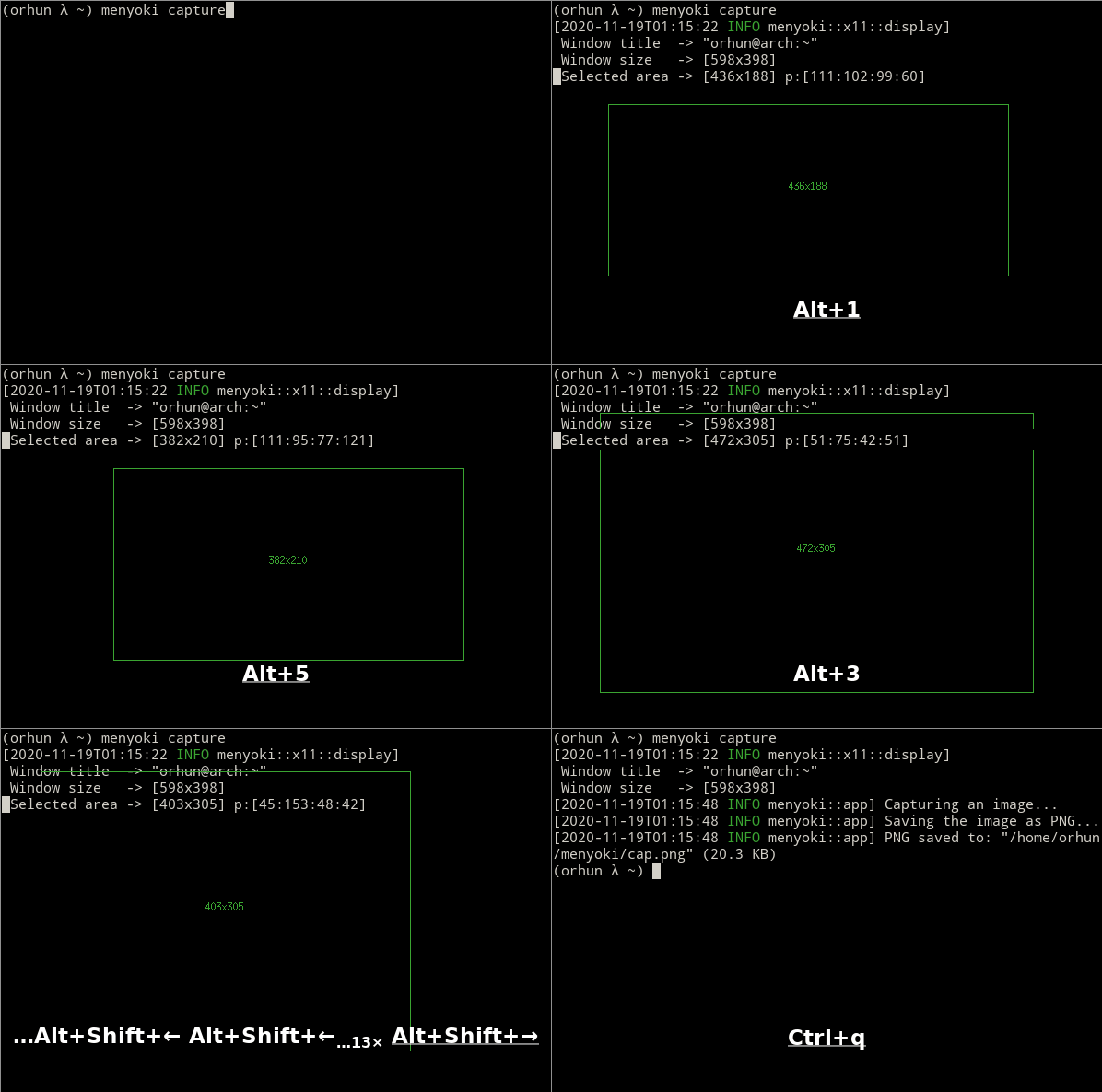
Key bindings are only used and present while **capture** or **record** actions are performed. Essentially key bindings are for selecting capture/record areas and resizing them without any mouse interaction.
There are 3 types of key bindings in terms of performed action:
* Action keys (main action keys such as `LAlt-S`, can be [customized](https://docs.rs/device_query/latest/device_query/keymap/enum.Keycode.html) via `--action-keys` and `--cancel-keys` options)
* Cancel keys (the keys that will cancel the operation, e.g. `LControl-D`)
* Miscellaneous keys (the keys that can be used for resizing the selected area such as `LAlt-[up]`)
| Key | Action |
|---------------------------------------|---------------------------------------------------------------|
| `LAlt-[S/Enter]` | Start/stop recording or screenshot the selected area |
| `LControl-D, Escape` | Cancel the current operation |
| `LControl-C` | Cancel the current operation or stop recording |
| `LAlt-[arrow keys/hjkl]` | Increase the area padding (decrease the size of the area) |
| `LControl-LAlt-[arrow keys/hjkl]` | Decrease the area padding (increase the size of the area) |
| `LShift-LAlt-[arrow keys/hjkl]` | Reposition the selected area (move around) |
| `LAlt-[1-9]` | Set the speed factor of changing the area size (default: 3) |
| `LAlt-R` | Reset the area padding to default |
## Configuration
It's possible to override the default command line arguments with a configuration file. It can be specified via `--config` option or `$MENYOKI_CONFIG` environment variable. Also, it can be placed to a location where **menyoki** looks for as default:
* `{CONFIG_DIR}/menyoki.conf`
* `{CONFIG_DIR}/menyoki/menyoki.conf`
* `{CONFIG_DIR}/menyoki/config`
`{CONFIG_DIR}` can be one of the following depending on the platform:
* Linux: `$XDG_CONFIG_HOME` or `$HOME/.config`
* e.g. `/home/orhun/.config`
* macOS: `$HOME/Library/Application Support`
* e.g. `/Users/Orhun/Library/Application Support`
* Windows: `{FOLDERID_RoamingAppData}`
* e.g. `C:\Users\Orhun\AppData\Roaming`
<details>
<summary>Default configuration file<a href="https://github.com/orhun/menyoki/blob/master/config/menyoki.conf">*</a></summary>
```ini
[general]
verbose = 0
quiet = false
color = 3AA431
[record]
root = false
focus = true
select = true
parent = false
with-alpha = false
no-keys = false
mouse = false
action-keys = LAlt-S,LAlt-Enter
cancel-keys = LControl-D,Escape
border = 1
#padding = T:R:B:L
#size = WxH
duration = ∞
countdown = 3
timeout = 300
interval = 10
#font =
#monitor =
#command =
[split]
#dir =
#file =
[make]
#no-sort = false
fps = 20
quality = 75
repeat = ∞
#dir =
format = gif
[capture]
root = false
focus = true
select = true
parent = false
with-alpha = false
mouse = false
action-keys = LAlt-S,LAlt-Enter
cancel-keys = LControl-D,Escape
border = 1
#padding = T:R:B:L
#size = WxH
countdown = 0
timeout = 300
interval = 10
#font =
#monitor =
#command =
[edit]
convert = false
grayscale = false
invert = false
#crop = T:R:B:L
#resize = WxH
ratio = 1.0
#rotate =
#flip =
blur = 0.0
hue = ±0
contrast = ±0.0
brightness = ±0
filter = lanczos3
#file =
[analyze]
timestamp = false
time-zone = utc
#file =
[view]
transparent = false
#file =
[save]
with-extension = false
timestamp = false
date = %Y%m%dT%H%M%S
#file =
[gif]
gifski = false
fast = false
fps = 20
quality = 75
repeat = ∞
speed = 1.0
cut-beginning = 0.0
cut-end = 0.0
[apng]
fps = 20
repeat = ∞
speed = 1.0
cut-beginning = 0.0
cut-end = 0.0
[png]
compression = fast
filter = sub
[jpg]
quality = 90
[webp]
quality = 80
lossless = false
[pnm]
format = pixmap
encoding = binary
```
</details>
## Environment Variables
Corresponding environment variables can be set for overriding the command line flags and options. The general prototype of the variables that **menyoki** checks are the following:
`MENYOKI_{SECTION}_{ARGUMENT}=value`
### Examples
| Command | Environment Variables |
|-------------------------------------------------------------|-----------------------------------------------------------|
| `menyoki --quiet` | `MENYOKI_GENERAL_QUIET=true` |
| `menyoki record gif --fps 10 save --timestamp` | `MENYOKI_GIF_FPS=10 MENYOKI_SAVE_TIMESTAMP=true` |
| `menyoki capture --size 200x300 jpg --quality 100` | `MENYOKI_CAPTURE_SIZE=200x300 MENYOKI_JPG_QUALITY=100` |
| `menyoki edit test.png --ratio 2.0 --filter triangle` | `MENYOKI_EDIT_RATIO=2.0 MENYOKI_EDIT_FILTER=triangle` |
| `menyoki split test.gif --dir frames/ pnm --format graymap` | `MENYOKI_SPLIT_DIR=frames/ MENYOKI_PNM_FORMAT=graymap` |
| `menyoki analyze test.png --timestamp save --date %H%M%S` | `MENYOKI_ANALYZE_TIMESTAMP=true MENYOKI_SAVE_DATE=%H%M%S` |
| `menyoki view test.png --transparent` | `MENYOKI_VIEW_TRANSPARENT=true` |
## Roadmap
The following are the ultimate goals of the **menyoki** project.
### Accessibility
**menyoki** should be packaged for other distributions and package managers (such as [Nixpkgs](https://github.com/NixOS/nixpkgs) and [Homebrew](https://brew.sh/)) for easy access and installation.
### Platforms
[Supported platforms](#supported-platforms) list should be extended by [implementing](https://github.com/orhun/menyoki/blob/master/IMPLEMENTATION.md#implementing-for-other-platforms) the core features of **menyoki** on different systems. (See [#2](https://github.com/orhun/menyoki/issues/2), [#4](https://github.com/orhun/menyoki/issues/4) and [#5](https://github.com/orhun/menyoki/issues/5))
### Formats
All the image formats that [image-rs](https://github.com/image-rs/image) supports for encoding should be implemented in **menyoki**. Also, the implementation of other image and video formats should be considered for encoding the frames in **record**/**capture** action. (See [supported formats](#supported-formats))
### Optimization
Encoding/decoding of some formats like GIF might be optimized for speed and efficiency. Alternative ways and options should be considered depending on the benchmarks in such cases.
### Testing
**menyoki** should be tested against different platforms and bugs must be reported for further development and support.
## Resources
### About the project
* [Code of Conduct](https://github.com/orhun/menyoki/blob/master/CODE_OF_CONDUCT.md)
* [Implementation Details](https://github.com/orhun/menyoki/blob/master/IMPLEMENTATION.md)
* [Contribution Guidelines](https://github.com/orhun/menyoki/blob/master/CONTRIBUTING.md)
* [Release Instructions](https://github.com/orhun/menyoki/blob/master/RELEASE.md)
* [Changelog](https://github.com/orhun/menyoki/blob/master/CHANGELOG.md)
### Why "menyoki"?
It's a reference to the [author](https://orhun.dev)'s favorite character from the game [Patapon 2](https://en.wikipedia.org/wiki/Patapon_2).
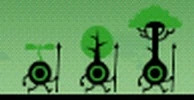
>[**Menyokki**](https://patapon.fandom.com/wiki/Menyokki) (aka **Tree-Pon** due to his resembling a tree) is a type of [Rarepon](https://patapon.fandom.com/wiki/Rarepon) introduced in [Patapon 2](https://patapon.fandom.com/wiki/Patapon_2). Its evolved form is **Kisuk**, and its ultimate form is **Moriussoo**. These Rarepons are green and resemble plants in various stages of development: Menyokki is a seedling, Kisuk is a sapling and Moriussoo is a full-grown tree.
The Menyokki sprite that is used as the project's logo was originally drawn by [OwocekTV](https://twitter.com/0x757775) for the fan made game [Patafour](https://patafourgame.com). He is also the creator and lead developer of Patafour and he is working on bringing the long awaited 4th installment of the Patapon franchise to life with the rest of the team.
Thanks to [owodzeg](https://github.com/owodzeg) for his hard work on [Patafour](https://patafourgame.com/) and the help with the **menyoki** logo. Kudos!
### Social Media
* [](https://twitter.com/menyoki_cli)
* [](https://orhun.dev)
* [](https://github.com/orhun)
* [](https://twitter.com/orhunp_)
### Funding
If you like the **menyoki** and/or other projects on my [GitHub profile](https://github.com/orhun/), consider supporting me on [GitHub Sponsors](https://github.com/sponsors/orhun) or [Patreon](https://www.patreon.com/join/orhunp)!
## License
GNU General Public License ([v3.0](https://www.gnu.org/licenses/gpl.txt))
## Copyright
Copyright © 2020-2023, [Orhun Parmaksız](mailto:orhunparmaksiz@gmail.com)