<p align="center">
<img src="docs/assets/logo.png" alt="markdown-reader logo" width="180">
</p>
<h1 align="center">markdown-reader</h1>
<p align="center">
The terminal markdown reader with hybrid live-preview editing, inline
Mermaid diagrams, and LaTeX math — built for whole documentation
repositories, not just single-file preview.
</p>
<p align="center">
<code>markdown-reader</code> is the binary name. The crates.io package is
<code>markdown-tui-explorer</code>.
</p>

`markdown-reader` is a TUI for reading and editing docs-heavy repositories.
Open a folder, browse the file tree, fan documents into tabs, and search
across every markdown file in the project. Mermaid diagrams (16 types),
LaTeX math, fenced code, and tables all render inline — and pressing `i`
flips into a hybrid mode where the block under your cursor reveals its
raw markdown source while every other block stays formatted.
- **Repository-first**, not single-file — file tree, tabs, global content
search, session restore, and a `.gitignore`-aware reader
- **Pure-Rust rendering stack** — Mermaid (Kitty / Sixel / iTerm2 graphics
with a Unicode halfblock fallback), LaTeX math, syntax-highlighted code,
and wide-table layout, with no Node, Chromium, or C dependencies
- **Beyond just viewing** — outline navigator (`o`), full-screen table
modal, HTML export (`--export-html`), broken-link checker
(`--check-links`), and git-status colours in the tree
- **Hybrid live-preview editing** (`i`) — block-level reveal: the block
under the cursor shows raw markdown for editing while the rest of the
document stays fully rendered. Tables open a dedicated editor; Mermaid
blocks re-render the moment you leave them.
## vs other terminal markdown tools
| Repository browser (tree + tabs) | Yes | No | No | No |
| Mermaid diagrams (inline Unicode) | Yes (16 types) | No | No | No |
| Mermaid as terminal images | Yes (Kitty/Sixel/iTerm) | No | No | No |
| LaTeX math | Yes | No | No | No |
| Live-preview editing | Yes (block-level reveal) | No (external editor) | No | No |
| Outline navigation | Yes (popup) | Yes (panel) | No | No |
| Tabs + session restore | Yes | No | No | No |
| Wide-table fullscreen modal | Yes | No | No | No |
| HTML export | Yes | No | No | No |
| Link validator (CLI) | Yes | No | No | No |
| jq-like query language | No | Yes | No | No |
| Pre-built binaries | Coming | Yes | Yes | Yes |
## Screenshots
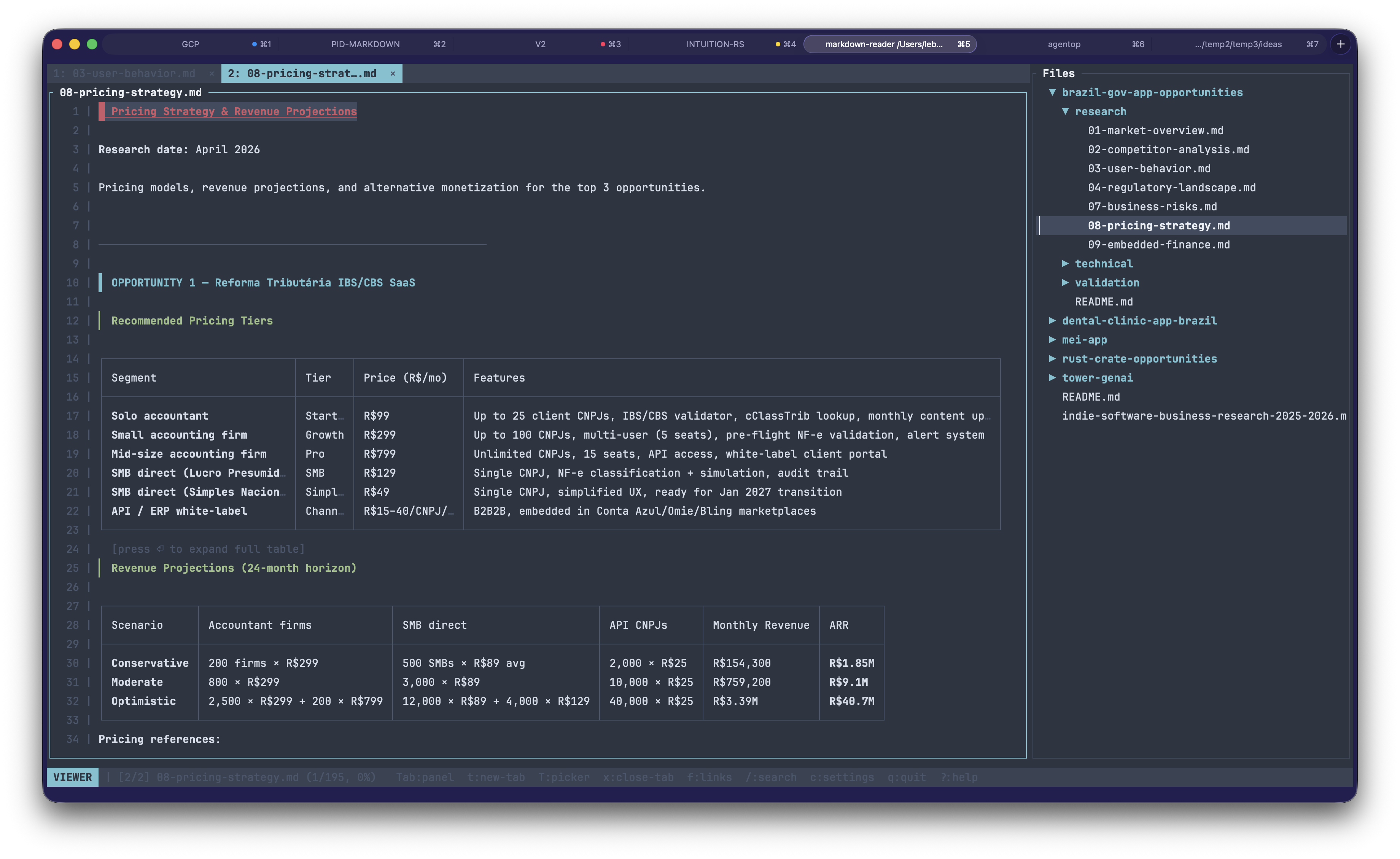
The viewer with tabs, tree, inline tables, and syntax-highlighted code —
dark theme by default.
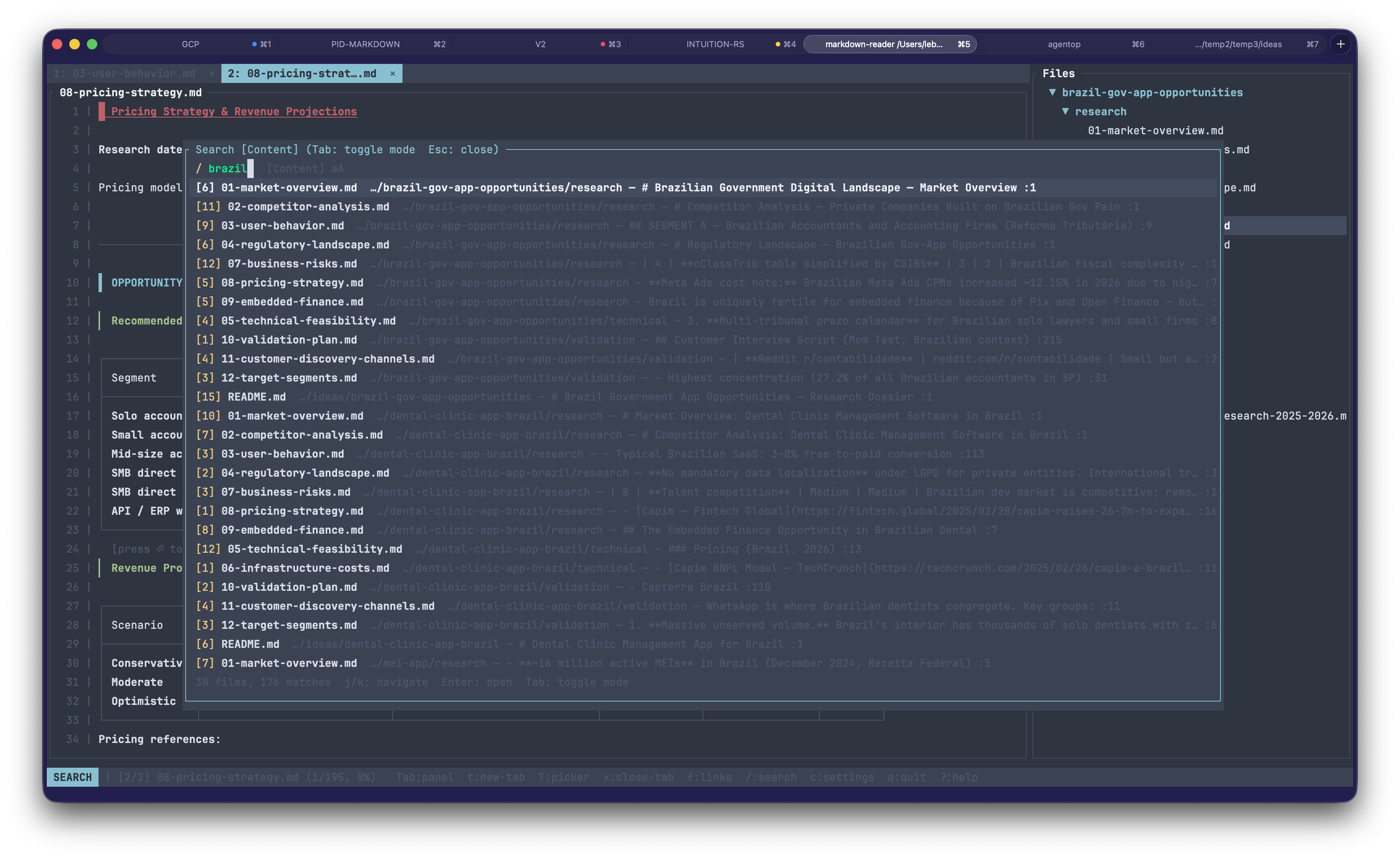
Global search across every markdown file in the tree — results are
grouped per file with match counts and previews. Smartcase matching and
a 500-file cap with a truncation footer.
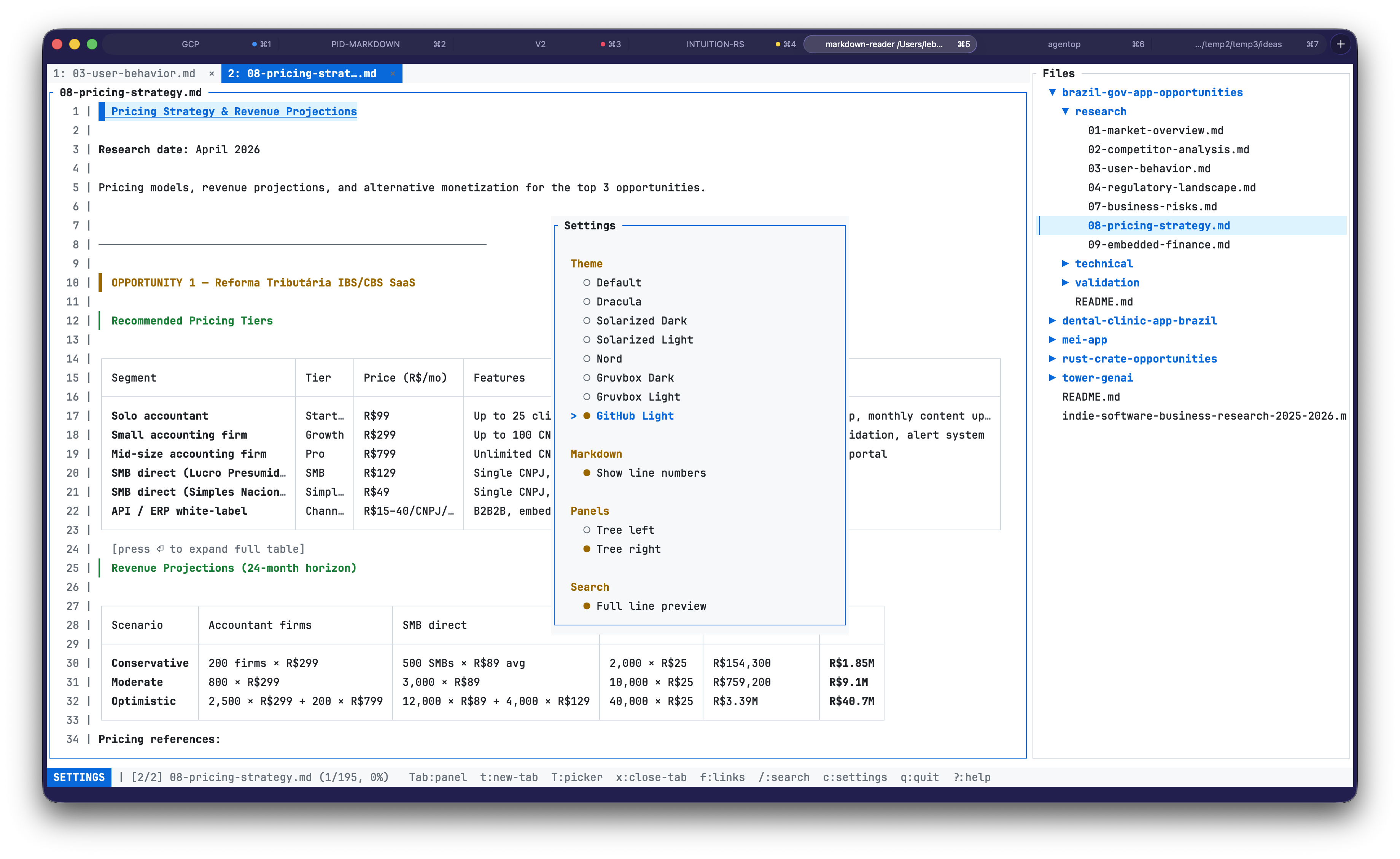
Eight themes ship built-in, including light variants. Settings modal
reached via `c`.
## Why markdown-reader?
- **Repository-first workflow** — browse a whole docs tree, not just one file
- **Terminal-native reading** — tabs, vim-style movement, search, links, and
source-line jumps stay inside the terminal
- **Rich markdown coverage** — syntax highlighting, Mermaid, LaTeX math,
tables, task lists, block quotes, and links render inline
- **Editing without context switching** — jump from rendered view into a
vim-style editor at the exact source line under the cursor
## Layout
```
+-----------------+--------------------------------------------------+
| | |
| ▼ docs/ | # Document Title |
| README.md | |
| guide.md | 1 │ Some rendered **markdown** content with |
| ▶ src/ | 2 │ headings, lists, tables, and code blocks |
| CHANGELOG.md | 3 │ rendered inline. |
| | |
| 30% | 70% |
+-----------------+--------------------------------------------------+
| Search [Files] (Tab to toggle) / query█ |
+---------------------------------------------------------------------+
| VIEWER [1/3] README.md (42%) Tab:panel t:new-tab T:picker ... |
+---------------------------------------------------------------------+
```
The window is split into three stacked sections: a main area, an optional
search bar, and a single-line status bar. The main area holds the file tree
on the left and the viewer on the right. When one or more files are open, a
tab strip is rendered above the viewer. An optional line-number gutter is
drawn on the left of the viewer content when enabled.
## Features
- **Multiple tabs** — open many markdown files at once, navigate them with
vim-style `gt`/`gT`, jump by number (`1`–`9`, `0` for last), close with
`x`, and use `T` for a full tab picker overlay. Duplicate opens focus the
existing tab instead of piling up.
- **Syntax highlighting for fenced code blocks** — rust, python, javascript,
go, json, bash, and many more are tokenised and colored inline via
[syntect](https://crates.io/crates/syntect) with a pure-Rust regex backend
(no C dependencies, no build-time grammars). Colors follow the active UI
theme.
- **LaTeX math rendering** — inline math (`$...$`) and display math
(`$$...$$`) are converted to Unicode approximations: Greek letters
(`α`, `π`, `σ`), operators (`∑`, `∫`, `∇`, `∞`), fractions (`a/b`),
roots (`√(x)`), super/subscripts (`x²`, `xᵢ`). Display math renders
in a bordered block labelled `math`. Zero external dependencies.
- **Mermaid diagram rendering** — fenced ```` ```mermaid ```` blocks are
rasterized in pure Rust (no Node, no Chromium) and displayed inline as
real images using the Kitty graphics protocol, Sixel, iTerm2 inline
images, or Unicode halfblocks depending on your terminal. Falls back to
styled source when running inside tmux or on terminals without graphics
support.
- **Wide table handling** — tables are rendered with fair-share column
widths that always fit the viewer, with overlong cells truncated to
`…`. When truncation happens, a `[press ⏎ to expand full table]` hint
appears below the table. Press `Enter` anywhere a table is visible to
open a full-screen modal that shows every cell at natural width.
The modal supports column-boundary panning (`h`/`l` snap to the next
column, `H`/`L` half-page pan), mouse scroll wheel (plain for rows,
`Shift`+wheel for columns), and click-outside-to-close.
- **Themes** — eight built-in palettes (Default, Dracula, Solarized Dark,
Solarized Light, Nord, Gruvbox Dark, Gruvbox Light, GitHub Light).
Switch live from the settings modal; every open document re-renders
with the new colors.
- **Session resume** — per-project: the last open tabs, active tab, and
scroll positions are saved and restored automatically on the next launch.
- **Line numbers** — optional left gutter in the viewer, togglable from
settings.
- **Global search** — `/` opens a full-screen modal. File-name mode
lists matching paths; content mode scans every markdown file and
groups matches per file with a count and a preview of the first
hit (full line, or ~80-char snippet — your choice in Settings).
Smartcase: lowercase query = case-insensitive; any uppercase = case
sensitive, shown as `Aa` / `aA` in the footer. Confirming a
content-result opens the file in a new tab with the viewer cursor
centred on the match line and the file tree expanded to reveal it.
- **Visual-line selection and copy** — press `V` in the viewer to
start a line-wise selection, extend with `j`/`k`/`d`/`u`/`gg`/`G`,
press `y` to copy the range to the system clipboard via OSC 52.
`yy` copies the current line without entering visual mode.
- **In-document find** — `Ctrl+f` to search within the active document,
with highlighted matches and `n`/`N` to cycle. Per-tab state — switching
tabs preserves each tab's find state independently.
- **Go to line** — `:` opens a prompt; type a line number, Enter jumps.
Clamped to document bounds and aligned with the gutter numbering.
- **Mouse support** — click tabs to activate, click `×` to close, click
file tree items to open, click internal links to jump, scroll the viewer
or tree with the wheel.
- **Link navigation** — click an internal `#anchor` link to scroll to the
matching heading, or press `f` to open a link picker listing every
anchor in the document for keyboard navigation.
- **Copy to clipboard** — press `y` in the tree to copy the selected
file's full path or filename to the system clipboard via OSC 52.
- **Git status colors** — new/untracked files appear in green, modified
files in yellow, with the entire ancestor directory chain colored so
changed subtrees are easy to spot at a glance.
- **Configurable tree position** — place the file tree on the left
(default) or right side of the viewer via the settings modal.
- **Hybrid live-preview editing** — press `i` to enter hybrid mode: all
blocks stay fully rendered, but the block under the cursor reveals its
raw markdown source for editing (powered by
[edtui](https://crates.io/crates/edtui)). Leaving a block re-renders it
instantly. Tables open a dedicated table editor; mermaid blocks re-render
the diagram on cursor-leave. `:w` saves atomically, `:q` returns to the
rendered view, `:wq` does both, `:q!` force-discards unsaved changes.
Press `I` to open the legacy fullscreen editor instead.
- **Rendered markdown preview** — headings, lists, code blocks, tables,
links, blockquotes, task lists, and more, styled from the active theme.
- **Live file watching** — the tree and open tabs reload when files change
on disk, preserving per-tab scroll positions. All I/O is async so the
UI never freezes.
- **Respects .gitignore** — uses the `ignore` crate to skip ignored files.
Dotfile directories (`.planning`, `.github`, etc.) are included.
## Installation
### Pre-built binaries
Download a pre-built binary for your platform from the
[GitHub Releases page](https://github.com/leboiko/markdown-reader/releases/latest)
— no Rust toolchain required.
**Linux x86_64**
```sh
curl -L https://github.com/leboiko/markdown-reader/releases/latest/download/markdown-reader-x86_64-unknown-linux-gnu.tar.gz | tar xz
sudo mv markdown-reader-*/markdown-reader /usr/local/bin/
```
**Linux ARM64**
```sh
```
**macOS Intel (x86_64)**
```sh
curl -L https://github.com/leboiko/markdown-reader/releases/latest/download/markdown-reader-x86_64-apple-darwin.tar.gz | tar xz
sudo mv markdown-reader-*/markdown-reader /usr/local/bin/
```
**macOS Apple Silicon (ARM64)**
```sh
```
> **macOS Gatekeeper note**: the binaries are currently unsigned. On first
> run macOS will show a security warning. Right-click (or Control-click) the
> binary and select **Open** once to allow it. Subsequent launches work
> normally.
**Windows x86_64**
Download `markdown-reader-<version>-x86_64-pc-windows-msvc.zip` from the
[Releases page](https://github.com/leboiko/markdown-reader/releases/latest),
extract it, and place `markdown-reader.exe` somewhere on your `%PATH%`.
Each archive also contains `LICENSE` and `README.md`. SHA256 checksums for
every archive are provided in the `SHA256SUMS` file on the same release.
### Prerequisites
- [Rust toolchain](https://rustup.rs/) (1.85+ recommended, edition 2024)
### Homebrew (macOS, Linux)
```sh
brew tap leboiko/tap
brew install markdown-reader
```
### Arch Linux (AUR)
```sh
yay -S markdown-reader-bin
# or any AUR helper: paru, pikaur, etc.
```
The `-bin` package pulls the same prebuilt binary as the Homebrew tap
and the GitHub Release tarballs. A source-built variant is planned but
not yet published.
### Nix (with flakes)
```sh
# One-off run without installing
nix run github:leboiko/markdown-reader
# Permanent install
nix profile install github:leboiko/markdown-reader
# Use as a flake input in your own configuration
{
inputs.markdown-reader.url = "github:leboiko/markdown-reader";
}
```
`nix develop github:leboiko/markdown-reader` opens a dev shell with
`rustc`/`cargo`/`rustfmt`/`clippy`/`cargo-deny`/`cargo-audit` ready —
useful for contributors.
### From crates.io
```sh
cargo install markdown-tui-explorer
```
This installs the `markdown-reader` binary.
### From GitHub
```sh
cargo install --git https://github.com/leboiko/markdown-reader
```
### Building from source
```sh
git clone https://github.com/leboiko/markdown-reader.git
cd markdown-reader
cargo build --release
```
The binary will be at `target/release/markdown-reader`.
## Usage
```sh
# Browse the current directory
markdown-reader
# Browse a specific directory
markdown-reader ~/projects/my-docs
# Pipe markdown directly via stdin (path argument is ignored)
# Show help
markdown-reader --help
```
When stdin is piped, the markdown is read into a temporary file and
opened automatically — no path argument required. The temp file is
cleaned up on exit.
### HTML export
Convert any markdown file to a self-contained HTML document — no TUI launched,
no external CSS or JavaScript required:
```sh
# Write to stdout and redirect to a file
markdown-reader --export-html input.md > output.html
# Write directly to a file
markdown-reader --export-html input.md --output rendered.html
```
The exported document includes:
- Headings, paragraphs, lists, tables, blockquotes, and inline markup
- Fenced code blocks with syntax highlighting (colours match your active theme)
- Mermaid diagram blocks rendered as text art — no Mermaid.js or internet
connection needed; the diagram renders via the same `mermaid-text` engine
used by the TUI viewer
- LaTeX math (`$…$` and `$$…$$`) converted to Unicode
The output is a single `.html` file you can open in any browser or send to
someone who doesn't have `markdown-reader` installed.
### Link validation
Scan a directory (or the current directory) for broken markdown links — no TUI
launched, exits with a non-zero status when broken links are found:
```sh
markdown-reader --check-links docs/
markdown-reader --check-links # current directory
```
What is checked:
- Same-file anchors: `[text](#heading)` — verified against the file's actual headings.
- Cross-file links: `[text](./other.md)` — verified that the target file exists.
- Cross-file anchors: `[text](./other.md#section)` — target file AND anchor both checked.
External link checking (optional):
```sh
markdown-reader --check-links docs/ --check-external
markdown-reader --check-links docs/ --check-external --external-timeout-secs 15
```
When `--check-external` is added, every `http://` and `https://` link found
in the scanned files is validated via a HEAD request. Up to 10 requests run in
parallel; redirects are followed (up to 5 hops). Broken links are reported with
an `[external]` tag:
```
guide.md
line 87: 404 Not Found [external] [https://example.com/dead]
line 91: connection error: ... [external] [https://nonresponsive.test/]
```
`--external-timeout-secs N` (default: 10) controls the per-request timeout.
What is skipped without `--check-external`:
- `http(s)://` external links — silently ignored unless `--check-external` is passed.
- `mailto:`, `ftp://`, and other non-http schemes (always ignored).
Exit codes: `0` when all links are valid, `1` when any broken links are found.
The TUI is not launched in this mode.
### Stdin support
`markdown-reader` accepts piped content — no file path needed:
```sh
```
The piped content opens in the TUI exactly as if it were a file. The tab strip
shows `<stdin>` as the document name (a conventional Unix sentinel). The tab is
not persisted in the session file, so it will not be restored on next launch.
### Section extraction
Extract a single heading section and print it to stdout — no TUI launched:
```sh
markdown-reader --section "Installation" docs/guide.md
The first heading whose text **contains** `NAME` (case-insensitive) is selected.
Output is the heading line plus all body lines until the next heading of the
same or higher level (lower H-number = higher level). Exit code `0` on success,
`1` when no matching heading is found.
Once inside the TUI, press `?` at any time for the keyboard help overlay.
Press `c` to open the settings modal (themes, line numbers, tree
position). Press `q`
to quit — the current tabs and scroll positions are saved before exit, so
reopening the same directory resumes where you left off.
## Keyboard shortcuts
### Navigation (tree)
| `j` / `Down` | Move down |
| `k` / `Up` | Move up |
| `Enter` / `l` / `Right` | Open file (current tab) / expand directory |
| `h` / `Left` | Collapse directory |
| `gg` | Jump to first item |
| `G` | Jump to last item |
| `Tab` | Switch focus to viewer |
| `t` | Open selected file in a **new tab** |
### Viewer
| `j` / `Down` | Move cursor down one line |
| `k` / `Up` | Move cursor up one line |
| `d` / `u` | Half-page cursor down / up |
| `PageDown` / `PageUp` | Full-page cursor down / up |
| `gg` | Jump to top |
| `G` | Jump to bottom |
| `i` | Enter hybrid live-preview mode |
| `I` | Enter legacy fullscreen edit mode |
#### Hybrid mode shortcuts
In addition to arrows, Home/End, Page Up/Down, Backspace and Delete:
| `Option+Left` / `Option+Right` | Word back / forward (macOS) |
| `Ctrl+Left` / `Ctrl+Right` | Word back / forward (cross-platform, terminal-independent) |
| `Cmd+Left` / `Cmd+Right` | Line start / end |
| `Cmd+Up` / `Cmd+Down` | Document start / end |
| `Option+Backspace` / `Ctrl+W` | Delete previous word |
| `Option+Delete` | Delete next word |
| `Cmd+Backspace` / `Ctrl+U` | Delete to line start |
| `Ctrl+K` | Delete to line end |
| `Ctrl+A` / `Ctrl+E` | Line start / end (works over SSH) |
| `:w` / `:wq` / `:q` / `:q!` | Save / save+quit / quit / force quit |
> **macOS Option key gotcha**: by default Apple Terminal and some iTerm2
> profiles send Option as a literal Esc-prefix (`Esc b` for Option+Left,
> etc.) instead of as a modifier. If word-jumping doesn't fire, enable
> "Use Option as Meta" (Apple Terminal: Preferences → Profiles → Keyboard;
> iTerm2: Preferences → Profiles → Keys → "Left/Right Option Key" →
> `Esc+`). The Ctrl-prefixed shortcuts above are reliable everywhere and
> need no terminal configuration.
| `V` | Enter visual-line selection mode |
| `yy` | Copy current line to clipboard |
| `y` (visual) | Copy selected range to clipboard and exit visual mode |
| `Ctrl+f` | Find in document |
| `n` / `N` | Next / previous match |
| `:` | Go to line (centred on target) — use `:5` to jump to line 5 (`<number>G` vim-style count register is not yet implemented) |
| `f` | Open anchor link picker (jump to a heading) |
| `o` | Open outline / heading picker (navigate by heading level) |
| `Enter` | Expand the first visible table into the modal viewer |
| `Tab` | Switch focus to tree |
### Table modal
Press `Enter` in the viewer when a table is visible on screen to open a
centered modal that shows the table at its natural column widths with
every cell value intact. The modal supports horizontal and vertical
panning so you can reach any cell regardless of how many columns or how
long the cell content is.
| `h` / `Left` | Pan left by 1 cell |
| `l` / `Right` | Pan right by 1 cell |
| `H` / `Shift+Left` | Pan left by 10 cells |
| `L` / `Shift+Right` | Pan right by 10 cells |
| `0` | Jump to the first column |
| `$` | Jump to the last column |
| `j` / `Down` | Scroll rows down |
| `k` / `Up` | Scroll rows up |
| `d` / `u` | Half-page scroll down / up |
| `gg` | Jump to the top-left corner (row and column reset) |
| `G` | Jump to the last row |
| `q` / `Esc` / `Enter` | Close the modal and return to the viewer |
### Tabs
| `gt` | Next tab |
| `gT` | Previous tab |
| `1`–`9` | Jump to tab N (1-indexed) |
| `0` | Jump to last tab |
| `` ` `` | Jump to previously active tab |
| `x` | Close the active tab |
| `T` | Open the tab picker overlay |
The tab picker lists every open tab. Use `j`/`k` or arrows to navigate,
`Enter` to activate, `x` to close a tab from within the picker, and
`Esc` or `T` to dismiss.
A maximum of 32 tabs can be open at once. Attempting to open a 33rd tab
is silently ignored; close an existing one first.
### Panels
| `[` | Shrink file tree |
| `]` | Grow file tree |
| `H` | Toggle file tree visibility |
| `y` | Copy path or filename to clipboard |
### Search
| `/` | Open search |
| Any character | Append to query |
| `Backspace` | Delete last character |
| `Tab` | Toggle file-name vs content search |
| `Down` / `Ctrl+n` | Next result |
| `Up` / `Ctrl+p` | Previous result |
| `Enter` | Open selected result (in a new tab) |
| `Esc` | Close search |
### Settings
| `c` | Open settings (theme, line numbers, tree position, search preview) |
| `Esc` / `c` | Close settings |
### General
| `?` | Toggle help overlay |
| `q` | Quit (saves session) |
## Mouse support
The terminal must forward mouse events. Most modern terminals (iTerm2,
Alacritty, Kitty, WezTerm, GNOME Terminal, Windows Terminal) do so
out of the box.
| Click a tab | Activate that tab |
| Click a file-tree item | Select and open it |
| Click a directory | Toggle expand/collapse |
| Click inside the viewer | Focus the viewer |
| Scroll wheel in the viewer | Scroll the document (3 lines per tick) |
| Scroll wheel in the tree | Move the tree selection |
| Click a row in the tab picker | Activate that tab |
## Mermaid diagrams
Fenced code blocks tagged `mermaid` are rendered as real diagrams inline
with the surrounding text. The rendering pipeline is pure Rust:
1. `mermaid-rs-renderer` parses the diagram source and produces SVG.
2. `resvg` rasterizes the SVG to a PNG at three times the intrinsic size
(so there is enough pixel budget for the image to fill the viewer).
3. `ratatui-image` detects the terminal's graphics protocol — Kitty,
Sixel, iTerm2 inline images, or Unicode halfblocks — and displays the
image inline.
Rendering runs on a background thread, so the UI never blocks on a slow
diagram. While a diagram is being rasterized for the first time, a
`rendering…` placeholder is shown in its reserved space. Results are
cached per-document and shared across tabs, so reopening the same file
or switching tabs does not trigger a re-render.
**Terminal support.** Kitty, Ghostty, WezTerm, and Konsole get the best
quality via the Kitty graphics protocol. iTerm2 gets native inline
images. Foot, xterm, mintty, and Contour get Sixel. Alacritty and other
terminals without graphics support get a Unicode halfblock fallback —
low-resolution but still readable.
**tmux.** When `$TMUX` is set, graphics are unconditionally disabled:
tmux strips image escape sequences unless it was compiled with passthrough
support and explicitly configured, and the failure mode is subtle. Inside
tmux, mermaid blocks fall back to showing their source with a
`[mermaid — disable tmux for graphics]` footer so you know the cause.
**Partial scroll.** When a diagram is only partially visible (scrolled
on- or off-screen), a bordered `scroll to view diagram` placeholder is
shown instead of a shrunken image. Scrolling the full block into view
brings the image back.
**Supported diagram types.** Everything `mermaid-rs-renderer` supports
in image mode (flowcharts, sequence, state, class, ER, Gantt, pie,
and more). The text-mode fallback ([`mermaid-text`](crates/mermaid-text/),
also our own crate) covers 18 diagram types: flowcharts, state diagrams,
sequence diagrams (with autonumber, notes, activation bars, and block
statements), pie charts, ER diagrams, class diagrams, user-journey
diagrams, Gantt charts (Phase 1 — bar chart with date axis; status
tags and excludes are silently ignored), timeline diagrams
(Phase 1 — bullet-on-a-wire flow with titled sections and multi-event
periods), git graph diagrams (Phase 1 — lane-based commit graph
with `*`/`M`/`C` glyphs for normal/merge/cherry-pick commits, fork and
merge arcs, and commit ids/tags), mindmap diagrams (Phase 1 — vertical
tree with the root in a rounded box and children branching with `├──`/`└──`
glyphs; all node shapes normalised to text, icons silently ignored),
quadrant charts (four-quadrant scatter with axis labels and titled points),
requirement diagrams (boxed requirements with id/type/risk and verification
links between them), `xychart-beta` (bar and line series with shared X/Y
axes), `sankey-beta` (flow diagrams with source/target/value triples),
`block-beta` (grid-of-blocks layouts), and `packet-beta` (network packet
header bit-range diagrams — 32-bit-wide rows with field labels and bit rulers).
Fidelity on subgraphs and complex layouts
depends on each renderer's maturity — when a specific diagram fails,
the source is shown with a short error in the footer.
See [`docs/mermaid-gallery.md`](docs/mermaid-gallery.md) for a
runnable gallery showing every supported text-mode feature with
working examples.
## Wide tables
Markdown tables are rendered with a fair-share column-width algorithm
that always fits the viewer. Every column gets a minimum of six cells,
and the remaining horizontal space is distributed proportionally to each
column's natural width — so a table with one long column and two short
ones keeps the short columns legible while shrinking the long one. Cells
that are longer than their allotted column width are truncated with `…`,
and every data row renders on exactly one visual line so the grid never
breaks under wrapping.
When **any** truncation happened, a dim line
`[press ⏎ to expand full table]` is drawn directly below the table's
bottom border as a discoverability hint. Tables that fit without
truncation render without the hint.
On very narrow terminals where even the minimum six cells per column
would not fit, the table collapses to a single-line placeholder
`[ table — too narrow, press ⏎ to expand ]`. `Enter` still opens the
modal so no content is unreachable.
### Table modal
Press `Enter` anywhere a table is visible (header, body row, top or
bottom border) to open the modal. Unlike the in-document render, the
modal renders every cell at its natural width with no truncation. Pan
the view with `h`/`l` (one cell) and `H`/`L` (ten cells); scroll rows
with `j`/`k`/`d`/`u`/`gg`/`G`; jump to column ends with `0` and `$`.
`q`, `Esc`, or `Enter` close the modal and return focus to the viewer.
If more than one table is visible, `Enter` opens the topmost one; scroll
it past the viewport and press `Enter` again for the next.
## Themes
Eight built-in themes (five dark, three light), switchable live from
the settings modal (`c`):
- **Default** — balanced palette that works on dark terminals.
- **Dracula** — the classic pink/purple dark theme.
- **Solarized Dark** — Ethan Schoonover's dark palette.
- **Solarized Light** — Ethan Schoonover's warm cream light palette.
- **Nord** — cool blue-based Arctic palette.
- **Gruvbox Dark** — warm retro groove.
- **Gruvbox Light** — warm retro light variant.
- **GitHub Light** — bright palette for light terminals.
Theme changes re-render every open tab immediately, so switching feels
instantaneous. The choice is persisted and restored on next launch.
## Configuration and state files
Both files are TOML. Missing or corrupt files are silently ignored — the
app starts with defaults rather than refusing to launch.
### `config.toml` — user preferences
- **Linux**: `$XDG_CONFIG_HOME/markdown-reader/config.toml`
(typically `~/.config/markdown-reader/config.toml`)
- **macOS**: `~/Library/Application Support/markdown-reader/config.toml`
- **Windows**: `%APPDATA%\markdown-reader\config.toml`
Fields:
```toml
tree_position = "left" # left | right
```
### `state.toml` — per-project session
Holds a map of canonical root paths to their saved tab lists and active
indices. Old (v0.1.0) single-file entries from prior versions are read
transparently.
- **Linux**: `$XDG_STATE_HOME/markdown-reader/state.toml`
(typically `~/.local/state/markdown-reader/state.toml`)
- **macOS**: `~/Library/Application Support/markdown-reader/state.toml`
- **Windows**: `%LOCALAPPDATA%\markdown-reader\state.toml`
To reset a session (for example, if you want a fresh start on a project),
delete the state file. Configuration is untouched.
### Update notifications
When you quit the TUI, `markdown-reader` checks crates.io (at most once every
24 hours, in a background thread started at launch) and prints a brief upgrade
banner to stderr if a newer version is published. The check never delays the
exit path — it is a pure cache read at quit time.
To disable, add this to your `config.toml`:
```toml
[updates]
check_for_updates = false
```
The cache is stored at:
- **Linux**: `~/.cache/markdown-tui-explorer/last-version-check.json`
- **macOS**: `~/Library/Caches/markdown-tui-explorer/last-version-check.json`
- **Windows**: `%LOCALAPPDATA%\markdown-tui-explorer\last-version-check.json`
## Markdown rendering
Elements are rendered with styles from the active theme; the list below
shows the default theme.
| H1 | Cyan, bold, underlined, with `█` prefix |
| H2 | Blue, bold, with `▌` prefix |
| H3 | Magenta, bold, with `▎` prefix |
| H4–H6 | Bold |
| Bold / italic / strikethrough | Terminal modifiers |
| Inline code | Themed, wrapped in backticks |
| Code block | Box-drawn border, tinted background |
| Blockquote | Dim text with `│` left border |
| Unordered list | Colored bullets `•`, `◦`, `▪` by depth |
| Ordered list | Numbered, themed markers |
| Task list | Checked / unchecked boxes |
| Table | Box-drawn grid with bold header |
| Link | Underlined, themed |
| Horizontal rule | Full-width `─` line |
## Dependencies
| ratatui | Terminal UI framework |
| crossterm | Terminal backend, input and mouse events |
| pulldown-cmark | Markdown parsing |
| ignore | .gitignore-aware file discovery |
| tokio | Async runtime |
| notify-debouncer-mini | Filesystem change watching |
| clap | CLI argument parsing |
| anyhow | Error handling |
| serde | Config and state serialization |
| toml | TOML format for config and state files |
| dirs | Platform-native config/state directories |
| mermaid-rs-renderer | Pure-Rust mermaid → SVG renderer |
| resvg | SVG rasterization |
| image | Bitmap decoding and manipulation |
| ratatui-image | Terminal image display (Kitty, Sixel, iTerm2, halfblocks) |
| unicode-width | Display-width measurement for CJK and emoji |
| base64 | OSC 52 clipboard encoding |
## License
MIT