```
_ _
| \__ \ | | | (_) | || __/
|_|___/_| |_|\___/ \__\___|
```
> `ls` with notes — because sometimes files need context
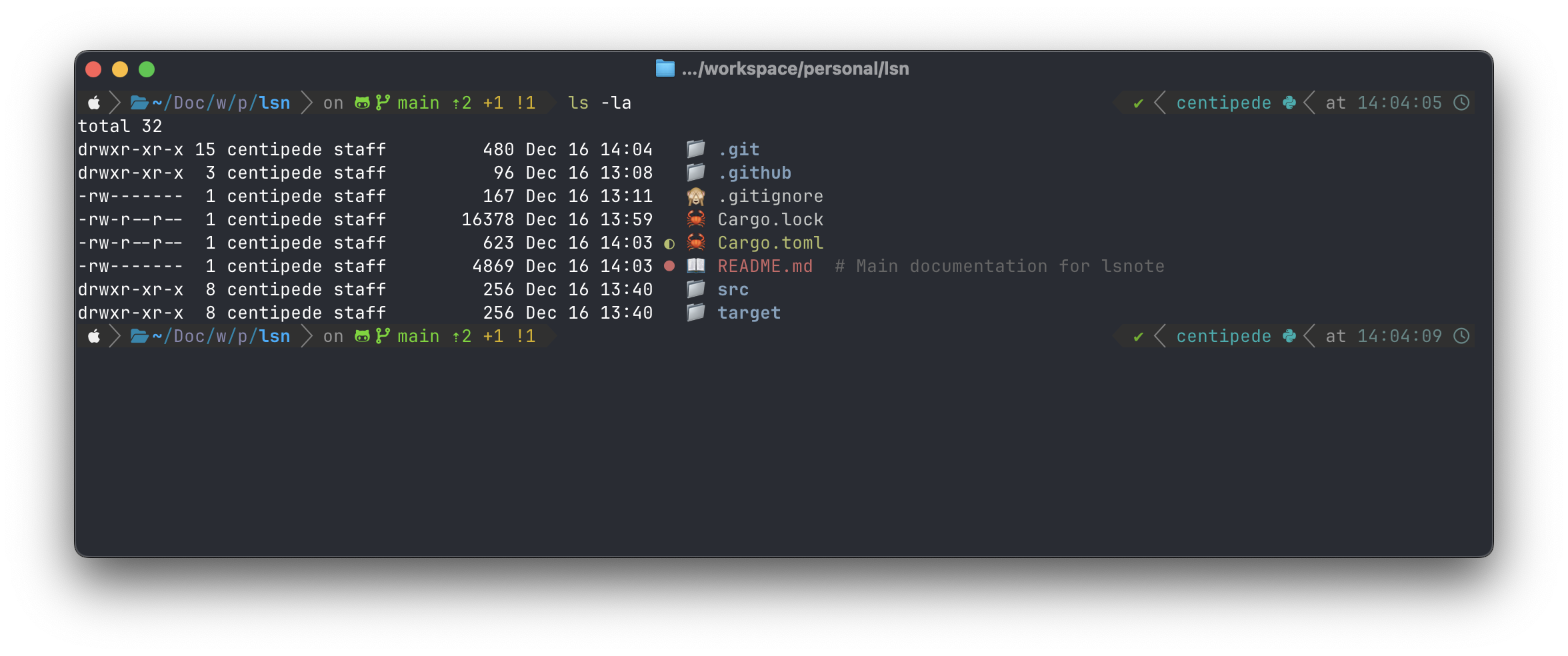
A modern `ls` replacement with **file notes**, **emoji icons**, and **git integration**. No nerd fonts required.
## Why lsnote?
```bash
# Regular ls
$ ls
Cargo.lock Cargo.toml README.md src target
# lsnote
$ lsnote
🦀 Cargo.lock
🦀 Cargo.toml # Rust project manifest
● 📖 README.md
● 📁 src
📁 target
```
**What you get:**
- **Notes** — Add context to any file (`# Rust project manifest` above)
- **Icons** — Instant visual recognition by file type
- **Git status** — See what's modified (●), staged (◐), or untracked (?) at a glance
- **Tree view** — Explore nested directories beautifully
## Installation
### Cargo (recommended)
```bash
cargo install lsnote
```
### Homebrew
```bash
brew tap jofftiquez/tap
brew install lsnote
```
### From source
```bash
git clone https://github.com/jofftiquez/lsnote.git
cd lsnote
cargo build --release
cp target/release/lsnote ~/.local/bin/
```
### Pre-built binaries
Download from [GitHub Releases](https://github.com/jofftiquez/lsnote/releases) for:
- macOS (Intel & Apple Silicon)
- Linux (x64 & ARM64)
## Quick Start
```bash
# Basic listing
lsnote
# Add a note to remember what a file is for
lsnote -s config.yaml "Production database settings - DO NOT COMMIT"
# View your project as a tree
lsnote -t
```
## Features
### File Notes
Attach persistent notes to any file or directory:
```bash
lsnote -s secrets.env "API keys for staging"
lsnote -s src/legacy/ "Deprecated - migrate to v2 by Q2"
```
Notes appear inline when listing:
```
📄 secrets.env # API keys for staging
● 📁 src/legacy/ # Deprecated - migrate to v2 by Q2
```
Manage notes:
```bash
lsnote -s FILE "note" # Set note
lsnote -g FILE # Get note
lsnote -r FILE # Remove note
```
### Git Integration
Git status is shown automatically — no extra commands needed:
```
◐ 🦀 lib.rs # Staged
● 🦀 main.rs # Modified
? 📄 temp.txt # Untracked
📁 vendor/ # Clean
```
| ● | Modified | Red |
| ◐ | Staged | Green |
| ? | Untracked | Yellow |
Directories show the highest-priority status of their contents.
### Emoji Icons
Recognize file types instantly — works in any terminal:
| Rust | 🦀 | `.rs`, `Cargo.toml` |
| Python | 🐍 | `.py` |
| JavaScript | 🟨 | `.js`, `.jsx` |
| TypeScript | 🔷 | `.ts`, `.tsx` |
| Go | 🐹 | `.go` |
| Docker | 🐳 | `Dockerfile` |
| Config | ⚙️ | `.toml`, `.yaml`, `.json` |
| Docs | 📝 | `.md` |
| Images | 🖼️ | `.png`, `.jpg`, `.svg` |
| And many more... | | |
### Tree View
Visualize your project structure:
```bash
$ lsnote -t src
📁 src
├── 🦀 config.rs
├── 🦀 display.rs
├── 🦀 git.rs
├── 🦀 icons.rs
├── 🦀 main.rs
└── 🦀 notes.rs
```
### Long Format
Detailed view with permissions, size, and dates:
```bash
$ lsnote -lH
drwxr-xr-x 8 user staff 256B Dec 16 09:34 📁 src
-rw-r--r-- 1 user staff 3.5K Dec 16 09:34 🦀 main.rs # Entry point
```
## Usage
```bash
lsnote [OPTIONS] [PATH]
Options:
-a, --all Show hidden files
-l, --long Long listing format
-t, --tree Tree view
-H, --human-readable Human-readable sizes (1.2K, 3.4M)
-s, --set FILE NOTE Set a note
-g, --get FILE Get a note
-r, --remove FILE Remove a note
--no-git Disable git status
--no-icons Disable icons
--init-config Generate config file
-h, --help Print help
-V, --version Print version
```
## Configuration
Generate a config file:
```bash
lsnote --init-config
```
Edit `~/.lsnote/config`:
```ini
# Custom icons
icon.directory = 📁
icon.ext.rs = 🦀
icon.ext.py = 🐍
icon.name.Dockerfile = 🐳
# Colors
color.directory = blue
color.git_modified = red
color.git_staged = green
color.git_untracked = yellow
# Git symbols
git.modified = ●
git.staged = ◐
git.untracked = ?
```
## Tips
### Replace `ls` with `lsnote`
Add an alias to your shell config:
**Bash** (`~/.bashrc`):
```bash
alias ls='lsnote'
alias ll='lsnote -l'
alias la='lsnote -la'
alias lt='lsnote -t'
```
**Zsh** (`~/.zshrc`):
```zsh
alias ls='lsnote'
alias ll='lsnote -l'
alias la='lsnote -la'
alias lt='lsnote -t'
```
**Fish** (`~/.config/fish/config.fish`):
```fish
alias ls 'lsnote'
alias ll 'lsnote -l'
alias la 'lsnote -la'
alias lt 'lsnote -t'
```
Then reload your shell:
```bash
source ~/.bashrc # or ~/.zshrc
```
## Data Storage
- **Notes**: `~/.lsnote/notes`
- **Config**: `~/.lsnote/config`
## License
MIT
---
Made with ❤️ by [@jofftiquez](https://github.com/jofftiquez)
