An ssh server manages tui tools.
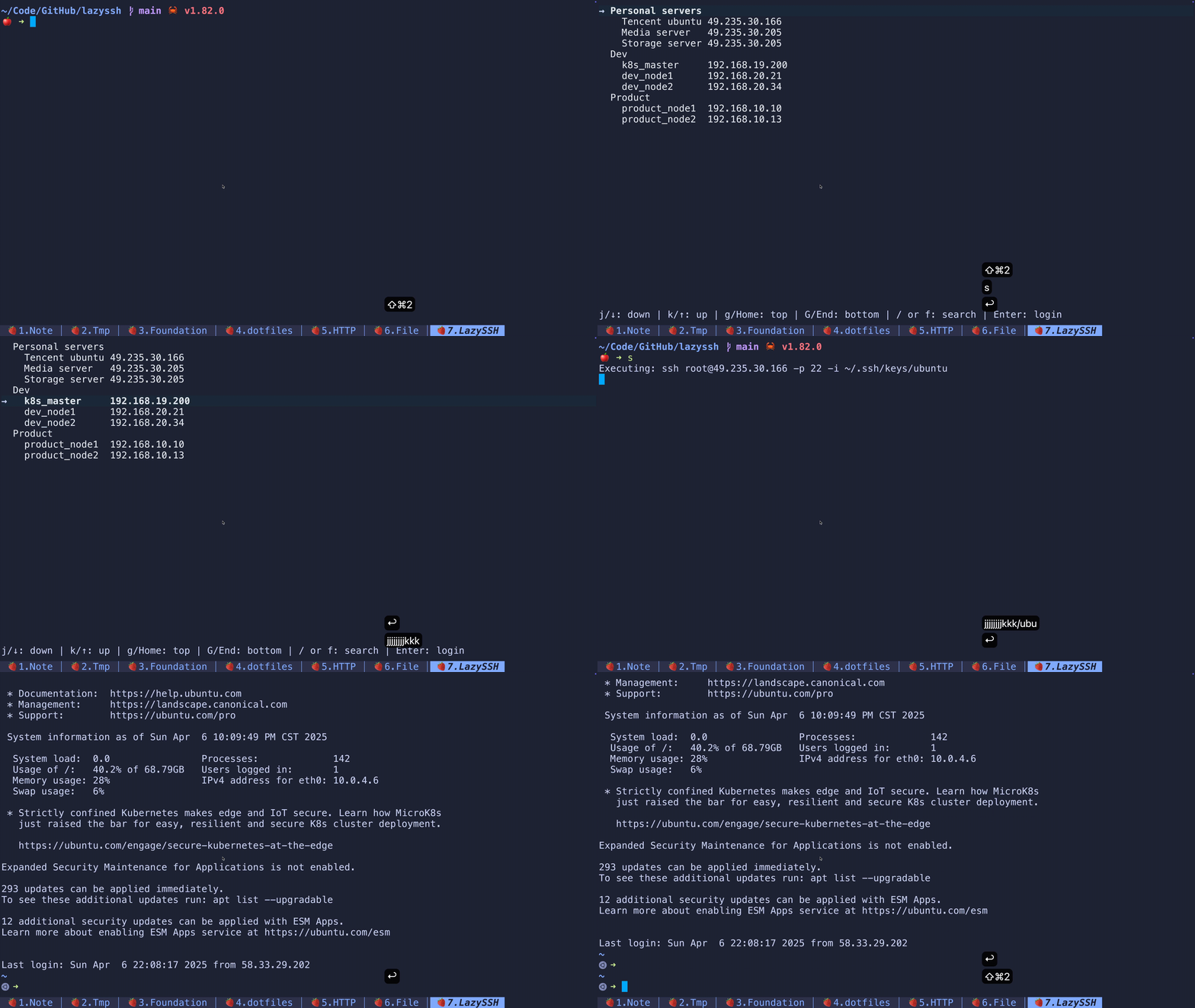
## Install
### Use [Cargo](https://www.rust-lang.org/tools/install)
```bash
cargo install lazyssh
```
### Use Homebrew
```bash
brew install KURANADO2/lazyssh/lazyssh
```
## Usage
Simply run the `lazyssh` command in the terminal(It is recommended to add a command alias for `lazyssh`, such as `s`),
and the TUI program will list all remote servers. You can select a server using your mouse or keyboard, double-click or
press Enter to log in to the server. All server information comes from the `~/.ssh/config` file.
## Shortcut
| Mouse click | Select server |
| Mouse scrolling | Move down or up |
| j/↓ | Move down |
| k/↑ | Move up |
| g/Home | Move to top |
| G/End | Move to bottom |
| / | Enter search mode |
| Ctrl+j/k or ↑/↓ | Move down/up in search mode |
| Backspace | Delete search query chars |
| Esc | Exit search mode |
| Double click/Enter | Perform SSH login |
| z | Toggle all groups |
| q | Exit |
## `~/.ssh/config` file Example
### Using public and private keys(Recommended)
```
Host Tencent ubuntu server
HostName 49.235.30.166
User root
Port 22
PreferredAuthentications publickey
IdentityFile ~/.ssh/keys/ubuntu
```
### Using password(Not recommended)
- Define password with `#: Password`, please make sure that the `sshpass` command is installed.
```
Host Media server
HostName 49.235.30.205
User root
Port 22
#: Password 123456
```
### Define grouping
- If you want to group servers, define group name with `#: Group`.
```
#: Group Personal servers
Host Tencent ubuntu
HostName 49.235.30.166
User root
Port 22
PreferredAuthentications publickey
IdentityFile ~/.ssh/keys/ubuntu
Host Media server
HostName 49.235.30.205
User root
Port 22
#: Password 123456
Host Storage server
HostName 49.235.30.206
User root
Port 22
PreferredAuthentications publickey
IdentityFile ~/.ssh/keys/storage_server
#: Group Dev
Host k8s_master
HostName 192.168.19.200
User root
Port 22
PreferredAuthentications publickey
IdentityFile ~/.ssh/keys/k8s_master
Host dev_node1
HostName 192.168.20.21
User root
Port 22
PreferredAuthentications publickey
IdentityFile ~/.ssh/keys/dev_node1
Host dev_node2
HostName 192.168.20.34
User root
Port 22
PreferredAuthentications publickey
IdentityFile ~/.ssh/keys/dev_node2
#: Group Product
Host product_node1
HostName 192.168.10.10
User root
Port 22
PreferredAuthentications publickey
IdentityFile ~/.ssh/keys/product_node1
Host product_node2
HostName 192.168.10.13
User root
Port 22
PreferredAuthentications publickey
IdentityFile ~/.ssh/keys/product_node2
```
The `~/.ssh` file directory structure is as follows:
```
$ tree ~/.ssh
/Users/jing/.ssh
├── config
├── keys
│ ├── ubuntu
│ ├── ubuntu.pub
│ ├── storage_server
│ ├── storage_server.pub
│ ├── k8s_master
│ ├── k8s_master.pub
│ ├── dev_node1
│ ├── dev_node1.pub
│ ├── dev_node2
│ ├── dev_node2.pub
│ ├── product_node1
│ ├── product_node1.pub
│ ├── product_node2
│ └── product_node2.pub
└── known_hosts
```
## Tips
- You can use `ssh-keygen -t rsa -b 4096 -C youremail@xxx.com` to generate the private and public key. Use
`ssh-copy-id -i xxx.pub -p 22 yourusername@x.x.x.x` to send the public key to the remote server.
- You can log in to multiple remote servers using one pair of public and private keys.
- The `Host` value in the `~/.ssh/config` file can be set to non-ASCII characters, so you can type Chinese, Japanese,
Korean, etc.
- You can upload your `~/.ssh` folder to a git **private** repository to make it easy to synchronize configurations
across multiple machines.
