---
title: konoma
description: A full-screen preview-focused terminal file browser for macOS, built for working next to an AI coding agent.
template: splash
hero:
title: See everything, full screen.
tagline: >-
konoma is a terminal file browser with one idea: pick in a tree, preview
full screen. Markdown, images, PDFs, CSV tables, git diffs and commit
graphs — rendered right in your terminal, and built to sit next to an AI
coding agent.
actions:
- text: Get started
link: ./getting-started/
icon: right-arrow
- text: Tutorial
link: ./tutorial/
icon: open-book
variant: secondary
- text: View on GitHub
link: https://github.com/LESIM-Co-Ltd/konoma
icon: external
variant: minimal
---
import { Card, CardGrid, LinkCard } from '@astrojs/starlight/components';
import TerminalDemo from '../../components/TerminalDemo.astro';
<TerminalDemo lang="en" />
## Why konoma?
<CardGrid>
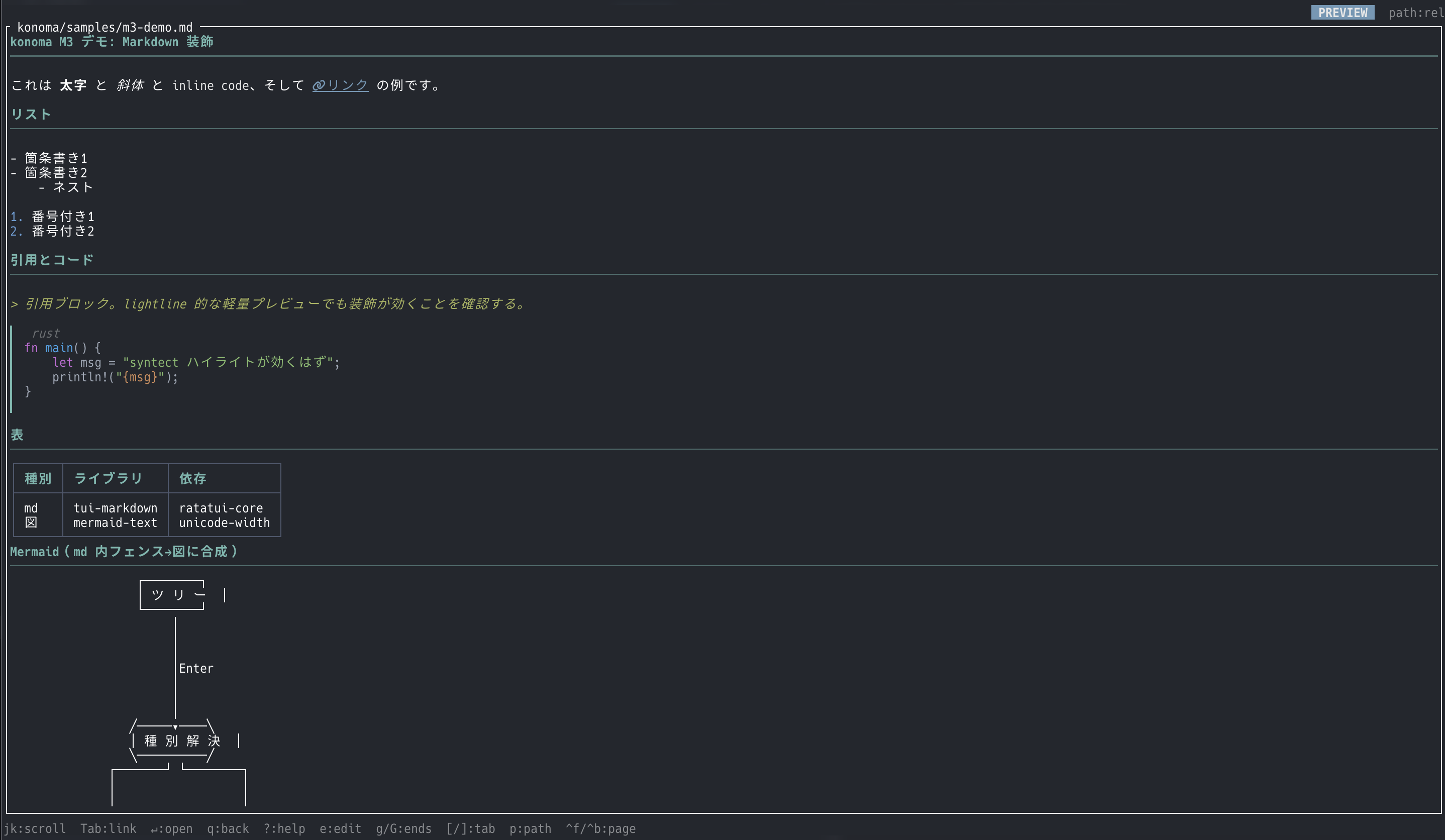
<Card title="Full-screen previews" icon="document">
No split panes. The tree is full screen, the preview is full screen, and
you flip between them with two keys. Markdown renders decorated (tables,
Mermaid diagrams, inline images, interactive checkboxes), code gets
syntax highlighting, CSV becomes a navigable table, images/PDF/SVG draw
as real pixels via kitty graphics.
</Card>
<Card title="Built for AI pair work" icon="rocket">
Put konoma on the left, your coding agent on the right. Follow mode
(`F`) automatically shows the diff of whatever the agent just changed,
`C` lists every uncommitted file, and one key copies `@path#L12-34`
references to paste into the conversation.
</Card>
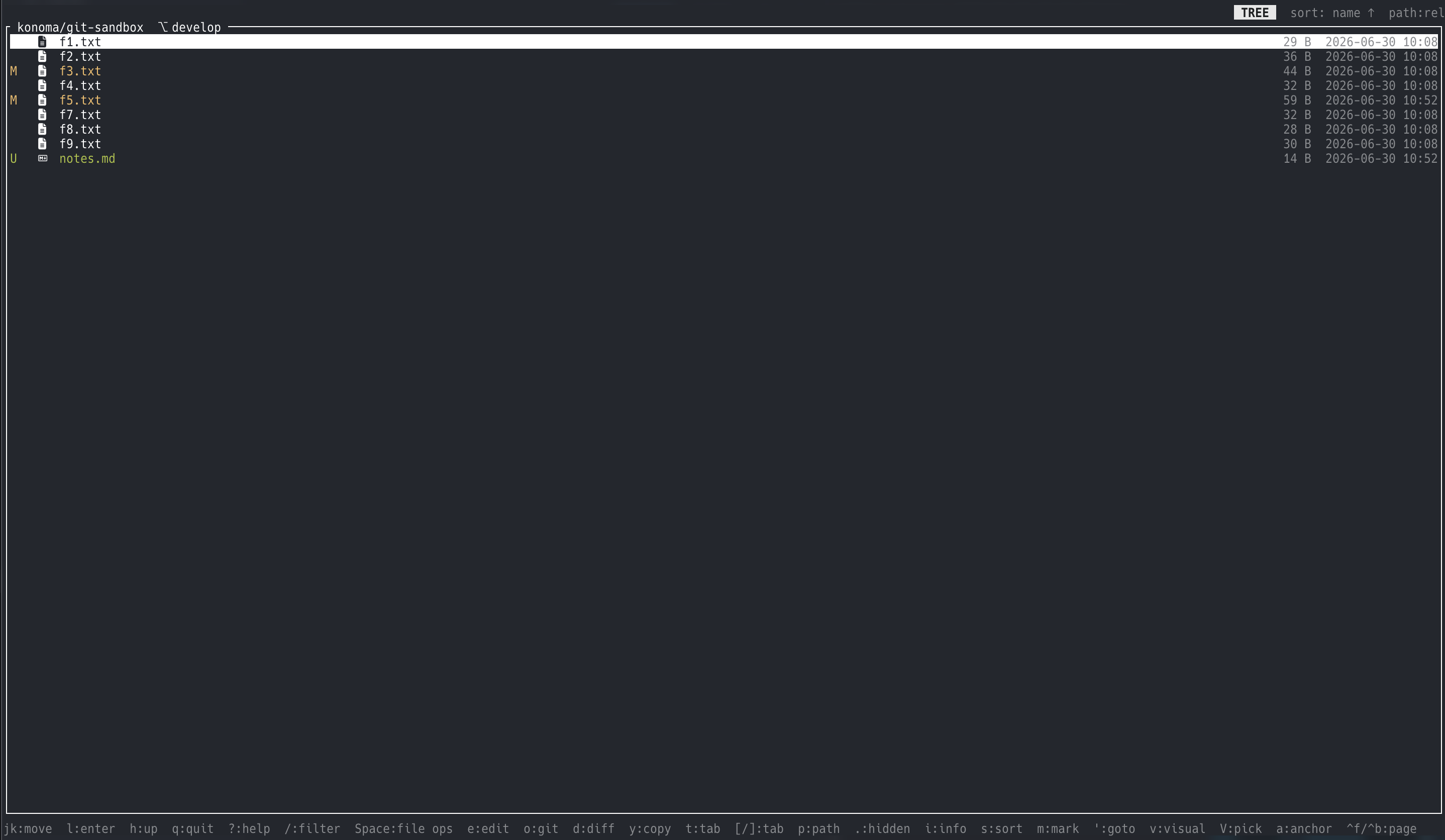
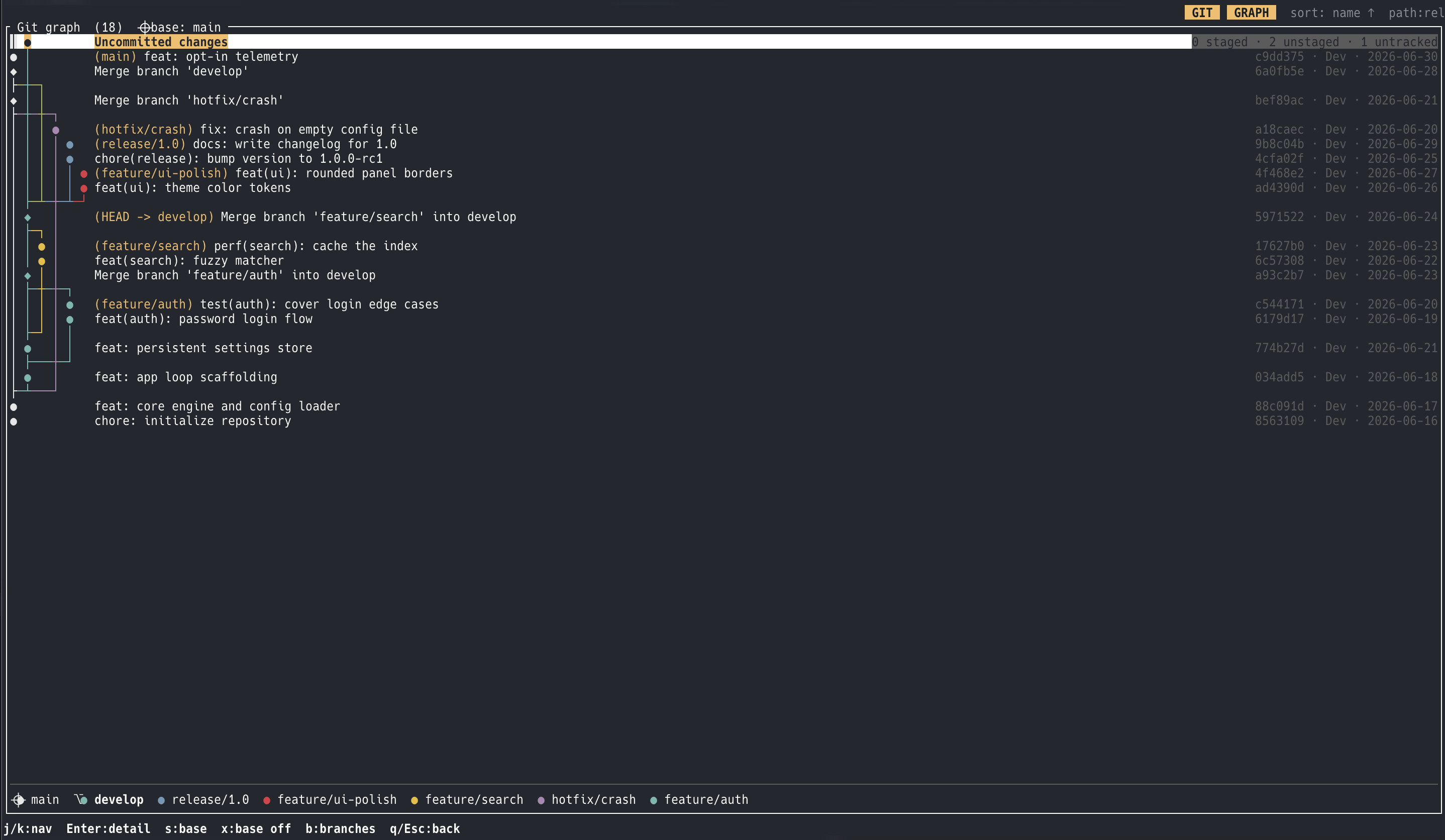
<Card title="A real git client" icon="seti:git">
Stage, unstage, commit, full-screen diffs, a log, branches, and a
custom-rendered commit graph with square corners and a pinnable base
branch — all inside the browser.
</Card>
<Card title="Config-driven, safe by default" icon="setting">
Every format→viewer mapping and every key is declared in one TOML file.
Unknown files degrade to a safe screen instead of crashing; deletions go
to the trash behind a confirmation; a broken config never bricks the UI.
</Card>
</CardGrid>
## In action
## Documentation
<CardGrid>
<LinkCard title="Getting started" description="Install, the two-screen model, a five-minute tour." href="./getting-started/" />
<LinkCard title="Tutorial" description="A guided tour in seven steps — follow along in your terminal." href="./tutorial/" />
<LinkCard title="Working with an AI agent" description="Follow mode, changed-files view, @path references." href="./guides/agent-watch/" />
<LinkCard title="Previews in depth" description="Markdown, checkboxes, tables, media, copying." href="./guides/preview/" />
<LinkCard title="The git suite" description="Hub, diffs, log, commit graph, branches." href="./guides/git/" />
<LinkCard title="Files, bookmarks & tabs" description="Filtering, safe file ops, bookmarks, tabs." href="./guides/files/" />
<LinkCard title="Configuration" description="Every option — UI, colors, preview rules, keys." href="./reference/configuration/" />
<LinkCard title="Default keymap" description="Key bindings per screen, all rebindable." href="./reference/keymap/" />
</CardGrid>
## Install
```sh
cargo binstall konoma # prebuilt binary (needs cargo-binstall)
# or
cargo install konoma # build from source
```
macOS on Apple Silicon is the primary target (Intel macOS and Linux x86_64 have
prebuilt binaries too). For image previews you need a terminal that speaks the
kitty graphics protocol, such as [Ghostty](https://ghostty.org). Then:
```sh
konoma [DIR]
```
Press `?` on any screen for help, and take the built-in tour: open
`samples/tutorial.md` from the repository *in konoma* and learn by doing.