# jiq — Interactive JSON query tool with real-time output
[](https://github.com/bellicose100xp/jiq/actions)
[](https://github.com/bellicose100xp/jiq/actions/workflows/release.yml)
[](https://codecov.io/github/bellicose100xp/jiq)
[](https://crates.io/crates/jiq)
[](LICENSE-MIT)
## Features
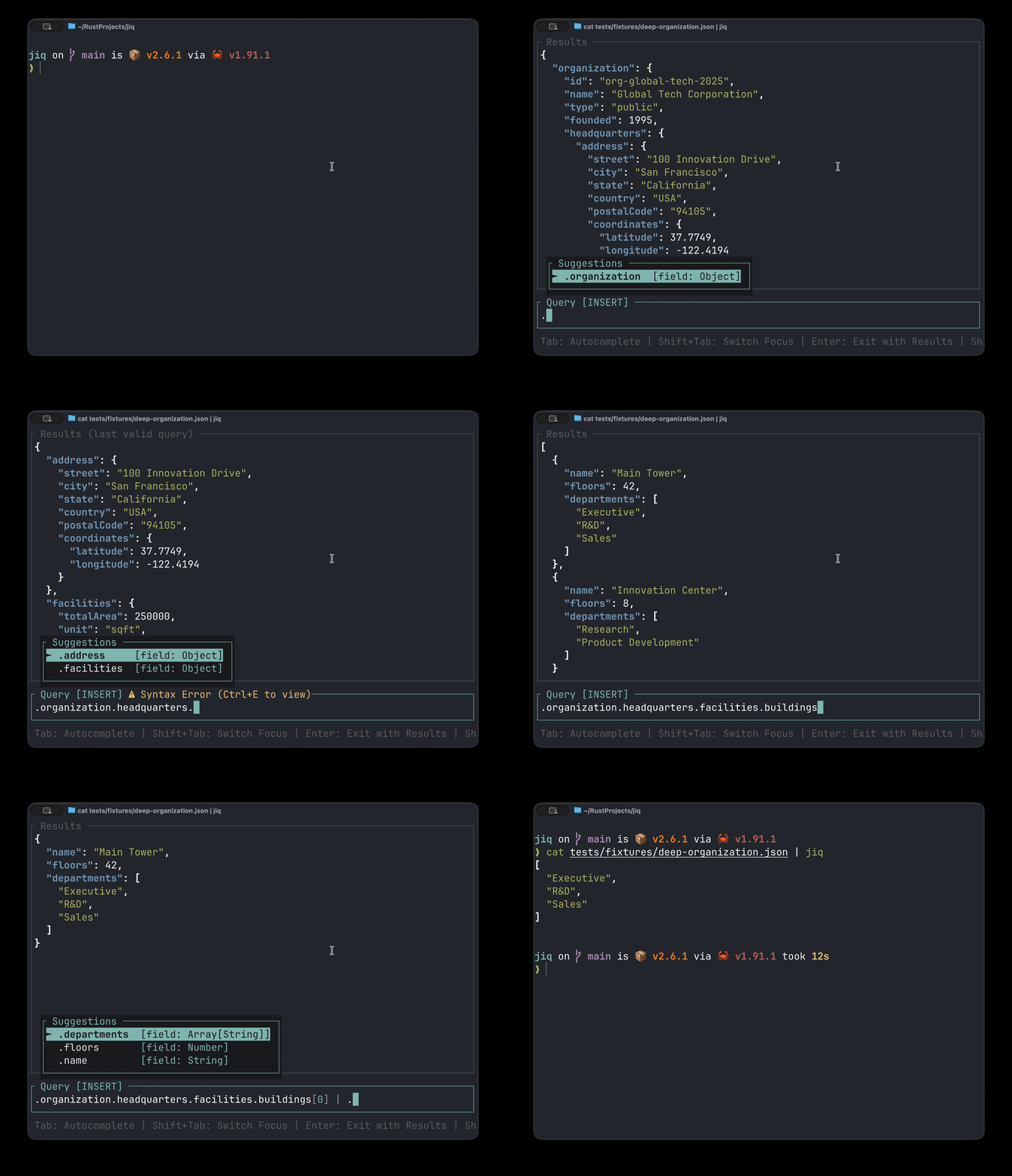
- **Real-time query execution** - See results as you type
- **[EXPERIMENTAL] AI assistant** - Get intelligent query suggestions, error fixes, and natural language interpretation
- **[EXPERIMENTAL] Context-aware autocomplete** - Intelligent suggestions with JSON type information for fields and functions
- **Function tooltip** - Quick reference help for jq functions with examples
- **Search in results** - Find and navigate text in JSON output with highlighting
- **Query history** - Searchable history of successful queries
- **Clipboard support** - Copy query or results to clipboard (also supports OSC 52 for remote terminals)
- **Floating error overlay** - Syntax errors appear in a non-disruptive overlay
- **VIM keybindings** - VIM-style editing for power users
- **[EXPERIMENTAL] Syntax highlighting** - Colorized JSON output and jq query syntax (experimental)
- **Stats bar** - Shows result type and count (e.g., "Array [5 objects]", "Stream [3 values]")
- **Flexible output** - Export results or query string
## Demo
## Installation
### Requirements
- **jq** - JSON processor ([installation guide](https://jqlang.org/download/))
### Install via Script (macOS/Linux)
```bash
### Install via Homebrew (macOS)
```bash
brew install bellicose100xp/tap/jiq
```
### Install via Cargo
```bash
cargo install jiq
```
### Download Binary
Download pre-built binaries from [GitHub Releases](https://github.com/bellicose100xp/jiq/releases/latest)
<details>
<summary>From Source</summary>
```bash
git clone https://github.com/bellicose100xp/jiq
cd jiq
cargo build --release
sudo cp target/release/jiq /usr/local/bin/
```
</details>
## Quick Start
```bash
# From file
jiq data.json
# From stdin
curl https://api.example.com/data | jiq
```
## Usage
**Workflow:**
1. Start typing your jq query (begins in INSERT mode)
2. Use autocomplete suggestions for functions and fields (`Tab` to accept)
3. See results update in real-time
4. Press `Shift+Tab` to navigate results
5. Press `Enter` to output results, or `Ctrl+Q` to output query
**VIM users:** Press `ESC` to enter NORMAL mode for advanced editing.
## Keybindings
<details>
<summary><b>Global Keys</b> (work anywhere)</summary>
| `F1` or `?` | Toggle keyboard shortcuts help popup |
| `Shift+Tab` | Switch focus between Input and Results |
| `Ctrl+Y` | Copy current query or results to clipboard |
| `yy` | Copy current query or results to clipboard (NORMAL mode) |
| `Ctrl+T` | Toggle function tooltip (when cursor is on a function) |
| `Ctrl+E` | Toggle error overlay (when syntax error exists) |
| `Ctrl+A` | Toggle AI assistant popup |
| `Enter` | Exit and output filtered JSON |
| `Ctrl+Q` | Exit and output query string only (`Shift+Enter` may also work in some modern terminal emulators) |
| `q` / `Ctrl+C` | Quit without output |
</details>
<details>
<summary><b>Input Field - INSERT Mode</b> (cyan border)</summary>
| Type characters | Edit jq query (real-time execution) |
| `Tab` | Accept autocomplete suggestion |
| `↑` / `↓` | Navigate autocomplete suggestions |
| `←` / `→` | Move cursor |
| `Home` / `End` | Jump to line start/end |
| `Backspace` / `Delete` | Delete characters |
| `ESC` | Switch to NORMAL mode / Close autocomplete |
</details>
<details>
<summary><b>Input Field - NORMAL Mode</b> (yellow border)</summary>
**Navigation**
| `h` / `←` | Move left |
| `l` / `→` | Move right |
| `0` / `^` / `Home` | Line start |
| `$` / `End` | Line end |
| `w` | Next word start |
| `b` | Previous word start |
| `e` | Word end |
**Editing**
| `i` | Enter INSERT at cursor |
| `a` | Enter INSERT after cursor |
| `I` | Enter INSERT at line start |
| `A` | Enter INSERT at line end |
| `x` | Delete char at cursor |
| `X` | Delete char before cursor |
**Operators** (delete/change + motion)
| `dw` / `db` / `de` | Delete word forward/back/end |
| `d$` / `d0` / `d^` | Delete to end/start |
| `dd` | Delete entire line |
| `D` | Delete to end of line (same as `d$`) |
| `cw` / `cb` / `ce` | Change word forward/back/end |
| `c$` / `c0` / `c^` / `cc` | Change to end/start/entire line |
| `C` | Change to end of line (same as `c$`) |
**Undo/Redo**
| `u` | Undo |
| `Ctrl+r` | Redo |
</details>
<details>
<summary><b>Results Pane</b> (when focused)</summary>
| `j` / `k` / `↑` / `↓` | Scroll 1 line |
| `J` / `K` | Scroll 10 lines |
| `h` / `l` / `←` / `→` | Scroll 1 column |
| `H` / `L` | Scroll 10 columns |
| `0` / `^` | Jump to left edge |
| `$` | Jump to right edge |
| `Ctrl+d` / `PageDown` | Scroll half page down |
| `Ctrl+u` / `PageUp` | Scroll half page up |
| `g` / `Home` | Jump to top |
| `G` / `End` | Jump to bottom |
</details>
<details>
<summary><b>Search in Results</b></summary>
| `Ctrl+F` | Open search (from any pane) |
| `/` | Open search (from results pane) |
| `Enter` | Confirm search and jump to next match |
| `n` / `Enter` | Next match |
| `N` / `Shift+Enter` | Previous match |
| `Ctrl+F` / `/` | Re-enter edit mode |
| `ESC` | Close search |
Note: Search is case-insensitive.
</details>
<details>
<summary><b>Query History</b> (last 1000 entries)</summary>
Successful queries are saved to your platform's application data directory:
- **Linux:** `~/.local/share/jiq/history`
- **macOS:** `~/Library/Application Support/jiq/history`
- **Windows:** `%APPDATA%\jiq\history`
**Quick Cycling** (without opening popup):
| `Ctrl+P` | Previous (older) query |
| `Ctrl+N` | Next (newer) query |
**History Search Popup**:
| `Ctrl+R` or `↑` | Open history search |
| `↑` / `↓` | Navigate entries |
| Type characters | Fuzzy search filter |
| `Enter` / `Tab` | Select entry and close |
| `ESC` | Close without selecting |
</details>
<details>
<summary><b>AI Assistant</b> (context-aware query suggestions)</summary>
The AI assistant analyzes your query and data to provide intelligent suggestions for fixing errors, improving queries, or interpreting natural language.
**Requires configuration** (see Configuration section below)
| `Ctrl+A` | Toggle AI assistant popup |
| `Alt+1-5` | Apply suggestion 1-5 directly |
| `Alt+↑` / `Alt+↓` | Navigate suggestions |
| `Alt+j` / `Alt+k` | Navigate suggestions (vim style) |
| `Enter` | Apply selected suggestion |
| `Ctrl+A` | Close popup |
</details>
## Examples
**Filter active users:**
```bash
# Press Enter to output results
```
**Extract query for scripts:**
```bash
# Press Ctrl+Q to get just the query string
```
**Pipeline integration:**
```bash
# Build query interactively, then reuse
```
## Tips
- Empty query shows original JSON (identity filter `.`)
- Invalid queries display `Syntax Error` message above input while preserving last successful output.
- Results auto-scroll to top when query changes
## Configuration
jiq looks for a configuration file at `~/.config/jiq/config.toml` (or the platform default location).
```toml
[clipboard]
# Clipboard backend: "auto" (default), "system", or "osc52"
# - auto: tries system clipboard first, falls back to OSC 52
# - system: use only OS clipboard (may not work in SSH/tmux)
# - osc52: use terminal escape sequences (works in most modern terminals over SSH)
backend = "auto"
[ai]
# Enable AI assistant (requires api_key and model in [ai.anthropic] section)
enabled = true
[ai.anthropic]
# Get your API key from: https://console.anthropic.com/settings/keys
api_key = "your-api-key-here"
# Anthropic model to use (e.g., "claude-haiku-4-5-20251001", "claude-sonnet-4-5-20250514")
model = "claude-haiku-4-5-20251001"
```
## Known Limitations
- **Autocomplete** - Suggestions are based on output visible in results area. Editing in the middle of a query may produce suboptimal or no suggestions.
- **Syntax highlighting** - Basic keyword-based only, does not analyze structure like tree-sitter.
## Contributing
See [CONTRIBUTING.md](CONTRIBUTING.md) for guidelines on code architecture, testing, and pull requests.
## License
Dual-licensed under [MIT](LICENSE-MIT) OR [Apache-2.0](LICENSE-APACHE)