# `ion-cli`
[](https://crates.io/crates/ion-cli)
[](https://github.com/amazon-ion/ion-cli/blob/main/LICENSE)
[](https://github.com/amazon-ion/ion-cli/actions?query=workflow%3A%22CI+Build%22)
This repository is home to the `ion` command line tool, which provides subcommands
for working with [the Ion data format](https://amzn.github.io/ion-docs/docs/spec.html).
## Table of contents
* [Examples](#examples)
* [Viewing the contents of an Ion file](#viewing-the-contents-of-an-ion-file)
* [Converting between Ion formats](#converting-between-ion-formats)
* [Converting between Ion and other formats with `to` and
`from`](#converting-between-ion-and-other-formats-with-to-and-from)
* [Ion code generation](#ion-code-generation)
* [Analyzing binary Ion file encodings with `inspect`](#analyzing-binary-ion-file-encodings-with-inspect)
* [Installation](#installation)
* [via `brew`](#via-brew)
* [via `cargo`](#via-cargo)
* [Build Instructions](#build-instructions)
* [From source](#from-source)
* [Using Docker](#using-docker)
## Examples
These examples use the `.ion` file extension for text Ion and the `.10n` file
extension for binary Ion. This is simply a convention; the tool does not
evaluate the file extension.
Unless otherwise noted, these commands can accept any Ion format as input.
### Viewing the contents of an Ion file
The `ion cat` command reads the contents of the specified files (or `STDIN`) sequentially
and writes their content to `STDOUT` in the requested Ion format.
```shell
ion cat my_file.ion
```
You can use the `--format`/`-f` flag to specify the desired format. The supported formats are:
* `pretty` - Generously spaced, human-friendly text Ion. This is the default.
* `text` - Minimally spaced text Ion.
* `lines` - Text Ion that places each value on its own line.
* `binary`- Binary Ion
### Converting between Ion formats
Convert Ion text (or JSON) to Ion binary:
```shell
ion cat --format binary my_text_file.ion -o my_binary_file.ion
```
Convert Ion binary to generously-spaced, human-friendly text:
```shell
ion cat --format pretty my_binary_file.ion -o my_text_file.ion
```
Convert Ion binary to minimally-spaced, compact text:
```shell
ion cat --format text my_binary_file.ion -o my_text_file.ion
```
### Converting between Ion and other formats with `to` and `from`
The `to` and `from` commands can convert Ion to and from other formats.
Currently, JSON is supported.
Convert Ion to JSON:
```shell
ion to -X json my_file.10n
```
Convert JSON to Ion:
```shell
ion from -X json my_file.json
```
### Ion Code generation
Code generation is supported with `generate` subcommand on the CLI.
For more information on how to use code generator,
see [Ion code generator user guide](https://github.com/amazon-ion/ion-cli/tree/main/src/bin/ion/commands/generate/README.md).
### Analyzing binary Ion file encodings with `inspect`
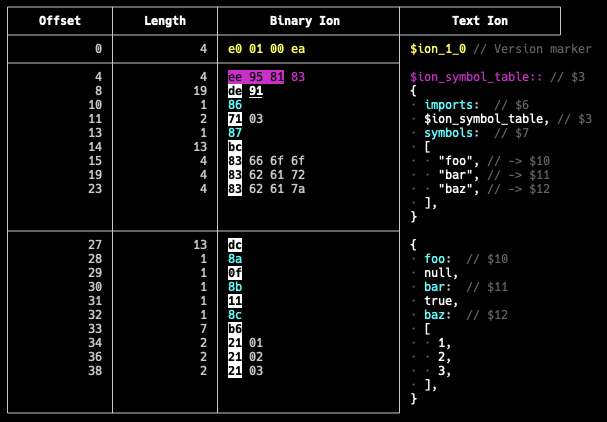
The `inspect` command can display the hex bytes of a binary Ion file alongside
the equivalent text Ion for easier analysis.
```shell
# Write some text Ion to a file
echo '{foo: null, bar: true, baz: [1, 2, 3]}' > my_file.ion
# Convert the text Ion to binary Ion
ion cat --format binary my_file.ion > my_file.10n
# Show the binary encoding alongside its equivalent text
ion inspect my_file.10n
```
----
**The `--skip-bytes` flag**
To skip to a particular offset in the stream, you can use the `--skip-bytes` flag.
```shell
ion inspect --skip-bytes 30 my_file.10n
```
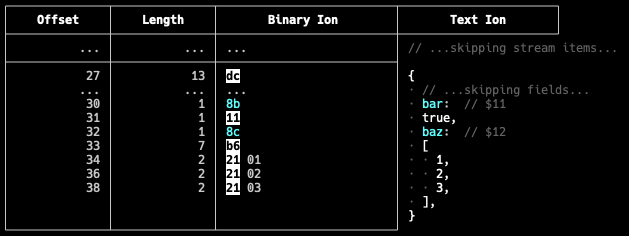
Notice that the text column adds comments indicating where data has been skipped.
Also, if the requested index is nested inside one or more containers, the beginnings
of those containers (along with their lengths and offsets) will still be included
in the output.
-----
**The `--limit-bytes` flag**
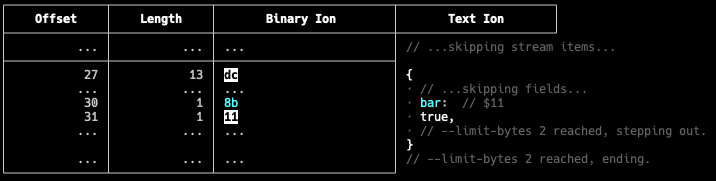
You can limit the amount of data that `inspect` displays by using the `--limit-bytes`
flag:
```shell
ion inspect --skip-bytes 30 --limit-bytes 2 my_file.10n
```
### Schema subcommands
All the subcommand to load or validate schema are under the `schema` subcommand.
To load a schema:
```bash
ion schema -X load --directory <DIRECTORY> --schema <SCHEMA_FILE>
```
To validate an ion value against a schema type:
```bash
ion schema -X validate --directory <DIRECTORY> --schema <SCHEMA_FILE> --input <INPUT_FILE> --type <TYPE>
```
For more information on how to use the schema subcommands using CLI, run the following command:
```bash
ion schema help
```
## Installation
### via `brew`
The easiest way to install the `ion-cli` is via [Homebrew](https://brew.sh/).
Once the `brew` command is available, run:
```bash
brew tap amazon-ion/ion-cli
brew install ion-cli
```
To install the (potentially unstable) latest changes from the tip of `main` rather than the latest release, use:
```bash
brew install ion-cli --HEAD
```
### via `cargo`
The `ion-cli` can also be installed by using Rust's package manager, `cargo`.
If you don't already have `cargo`, you can install it by visiting
[rustup.rs](https://rustup.rs/).
To install `ion-cli`, run the following command:
```shell
cargo install ion-cli
```
## Build instructions
### From source
1. Clone the repository:
```
git clone https://github.com/amzn/ion-cli.git
```
2. Step into the newly created directory:
```
cd ion-cli
```
3. Install Rust/Cargo [by visiting rustup.rs](https://rustup.rs/).
4. Build the `ion` tool:
```
cargo install --path .
```
This will put a copy of the `ion` executable in `~/.cargo/bin`.
5. Confirm that `~/.cargo/bin` is on your `$PATH`. `rustup` will probably take care of this for you.
6. Confirm that the executable is available by running:
```
ion help
```
### Using Docker
1. Install Docker (see OS specific instructions on the [Docker website](https://docs.docker.com/get-docker/))
2. Clone the repository (recursive clone not necessary)
```
git clone https://github.com/amzn/ion-cli.git
```
3. Step into the newly created directory
```
cd ion-cli
```
4. Build and run the image
```
# build the image
docker build -t <IMAGE_NAME>:<TAG> .
# run the CLI binary inside the Docker image
docker run -it --rm [optional flags...] <IMAGE_NAME>:<TAG> ion <SUBCOMMAND>
# examples:
# build docker image with current release version
docker build -t ion-cli:0.1.1 .
# print the help message
docker run -it --rm ion-cli:0.1.1 ion -V
# mount current directory to /data volume and cat an ion file
docker run -it --rm -v $PWD:/data ion-cli:0.1.1 ion cat /data/test.ion
```
## Security
See [CONTRIBUTING](CONTRIBUTING.md#security-issue-notifications) for more information.
## License
This project is licensed under the Apache-2.0 License.