# ImageCropper
A fast, fullscreen image cropping tool written in Rust using `egui` and `wgpu`. Designed for efficient workflows involving large datasets of images.
## Quick overview
## Installation
Global installation:
```sh
cargo install imagecropper
```
and ensure `~/.cargo/bin` is in your `PATH`. Then, you can just run
```sh
imagecropper <DIRECTORY>
```
### Simple cropping
```sh
imagecropper test-images
```
Drag with your mouse to select the crop area, then press **Enter** to save the cropped image and move to the next one. Use **Space** to skip images and **Delete** to move bad images to trash.

when pressing **Enter**, it will save this image:

### Multi-selection cropping (Multicropping)
You can create multiple selections by holding **Ctrl** while dragging. Press **Enter** to crop all selected areas from the current image and assemble them into a single image.
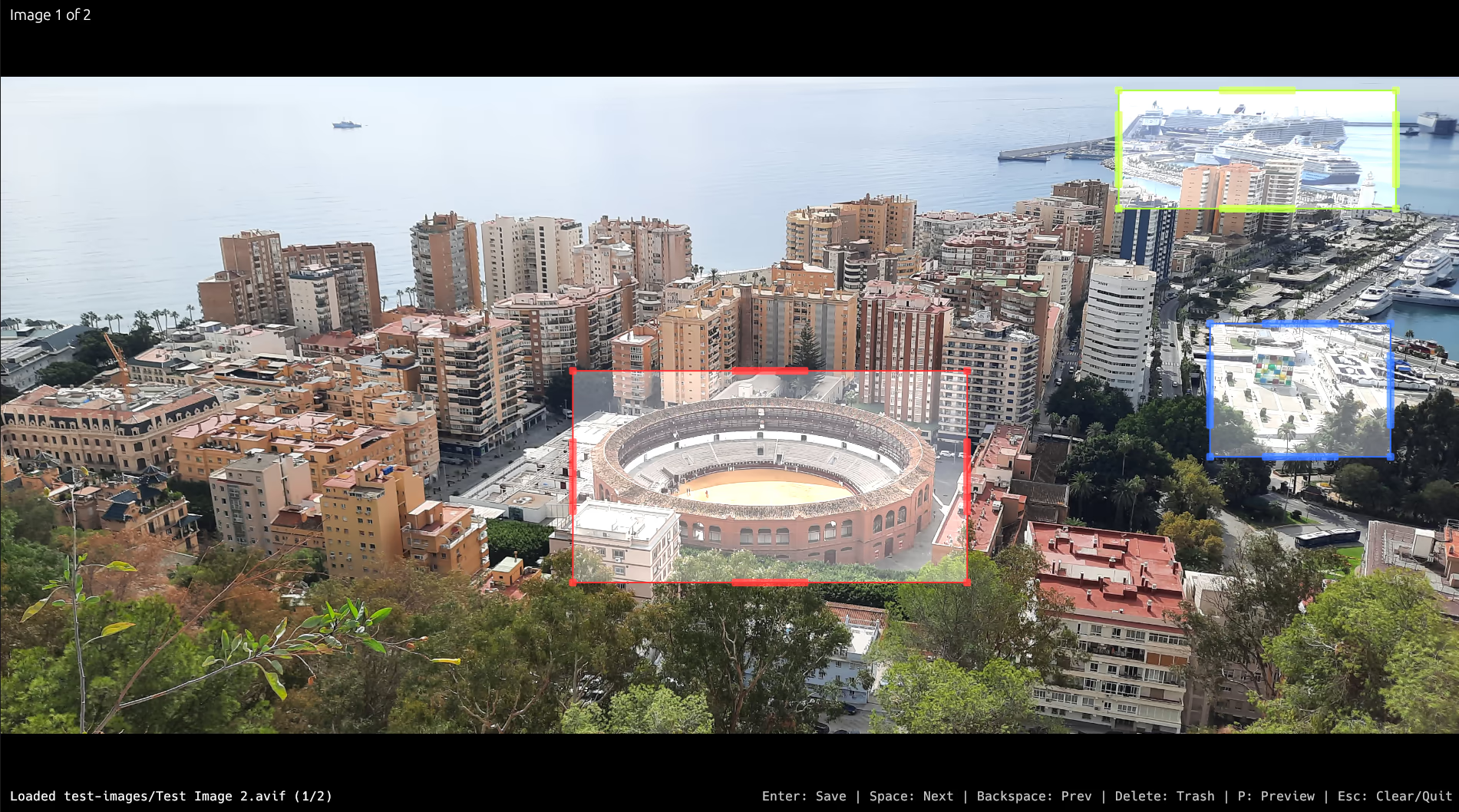
results in

### Output format
By default, cropped images are saved as AVIF files for high efficiency - **Saving AVIF files takes a LONG time (minutes!) but the TINY filesize despite HIGH QUALITY is impressive**. You can adjust the quality using the `-q` option, or choose a different output format using `-f/--format`.
```sh
imagecropper -f png test-images
```
### Recursive directory scanning
By default, ImageCropper scans only the files in the top-level directory you provide. If you want to include images inside subdirectories as well, use `-r/--recursive` to enable recursive scanning.
### Image processing order
You can control the order in which images are processed using the `-o/--order` option. By default, images are processed in filename order. You can invert the sorting using `-i/--inverse-order`.
To select images in filename order:
```sh
imagecropper -o randomize test-images
```
or by last modified time:
```sh
imagecropper -o modified test-images
```
### Resave unchanged images?
You can use the `--resave` option to automatically convert images to AVIF when navigating away from them, even if no crop was performed. This is useful for batch converting a folder of images.
```sh
imagecropper --resave test-images
```
## Features
* **Fullscreen Interface**: Maximizes screen real estate for image viewing.
* **Efficient Workflow**: Keyboard-driven navigation and operations.
* **Non-Destructive (by default)**: Original images are moved to a backup folder (`.imagecropper-originals`) instead of being overwritten or deleted.
* **AVIF Output**: Automatically converts and saves cropped images as AVIF for high efficiency.
* **Multiple Selections**: Crop multiple regions from a single image at once.
* **Background Processing**: Saving and conversion happens in the background to keep the UI responsive.
* **Preloading**: Preloads next/previous images for instant navigation.
## Usage
```bash
imagecropper [OPTIONS] <DIRECTORY>
```
### Options
* `-q, --quality <QUALITY>`: Set the output AVIF quality (1-100). Default is **70** which is a conservative choice. Most photos will do fine with q=30 even if you are watching them on a TV. Checkout [MisterAVIF](https://github.com/ulikoehler/MisterAVIF) for a tool to determine the correct quality level for *your* images.
* `-r, --recursive`: Recursively scan subdirectories for images. Disabled by default.
* `--resave`: Automatically convert images to AVIF when navigating away from them, even if no crop was performed. Useful for batch converting a folder.
* `--report-sizes`: When enabled, show the original and new file sizes (human-readable: KB/MB) and the percentage of the new file after background save/backup operations complete.
* `--dry-run`: Simulate operations without moving or writing files.
### Controls
* **Mouse Drag**: Create a selection.
* **Ctrl + Mouse Drag**: Create additional selections.
* **Drag Handles/Corners**: Resize the active selection.
* **Arrow Keys**: Move all selections.
* **Enter**: Crop the selected area(s) and save. Moves to the next image.
* **Space**: Skip to the next image (triggers auto-resave if enabled).
* **Backspace**: Go to the previous image.
* **Delete**: Move the current image to the trash folder (`.imagecropper-trash`).
* **Esc**: Clear current selection. If no selection, exit the application.
* **R**: Rotate the current image 90° clockwise.
* **Shift + R**: Rotate the current image 90° counter-clockwise.
Note: rotating the image clears any existing selections because selection coordinates are image-space specific.
## Workflow
1. Run the tool on a directory of images.
2. Navigate through images using **Space**.
3. If an image needs cropping, select the region(s) and press **Enter**.
* The original is backed up.
* The crop is saved as an AVIF.
* The tool advances to the next image.
4. If an image is bad, press **Delete** to move it to trash.
5. If `--resave` is on, simply pressing **Space** on a non-AVIF image will convert it to AVIF in the background.
## Output
* **Cropped Images**: Saved in the same directory with the `.avif` extension.
* **Originals**: Moved to `.imagecropper-originals/` in the directory where the image is located.
* **Trash**: Moved to `.imagecropper-trash/` in the directory where the image is located.
## License
Apache-2.0 License. See [`LICENSE`](LICENSE) file for details.
The test images are [Uli Köhler's](https://github.com/ulikoehler) work and are hereby released into the public domain (CC0 1.0 Universal).